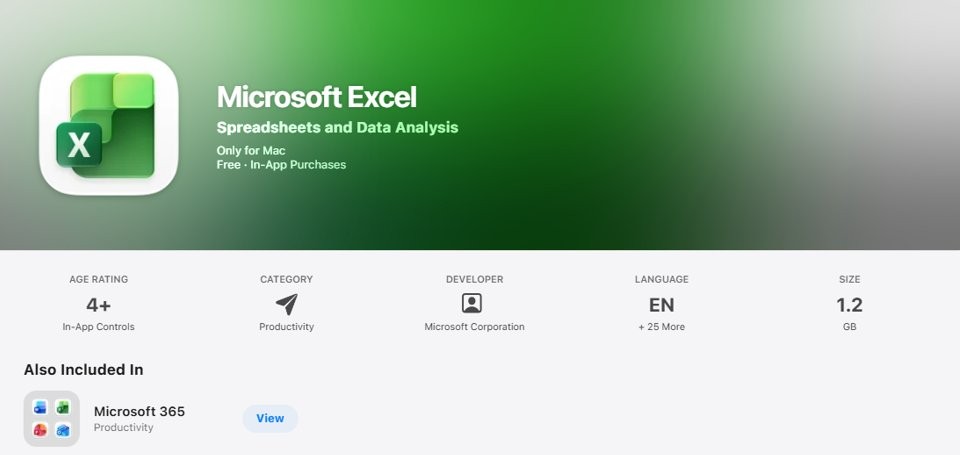
To download Excel on a Mac, open the App Store, search for Microsoft Excel, click Get, then open Excel and sign in with the Microsoft account that holds your Microsoft 365 subscription.
This guide also covers the direct download from Microsoft 365, installing with an Office 2024 product key, the free web version, and the fixes for installs and activations that fail.
Step by step tutorial: How to download Excel on Mac
The Mac App Store is the shortest route for most people. The listing is free to download, but Excel needs a qualifying Microsoft 365 subscription before it lets you create or edit a workbook.
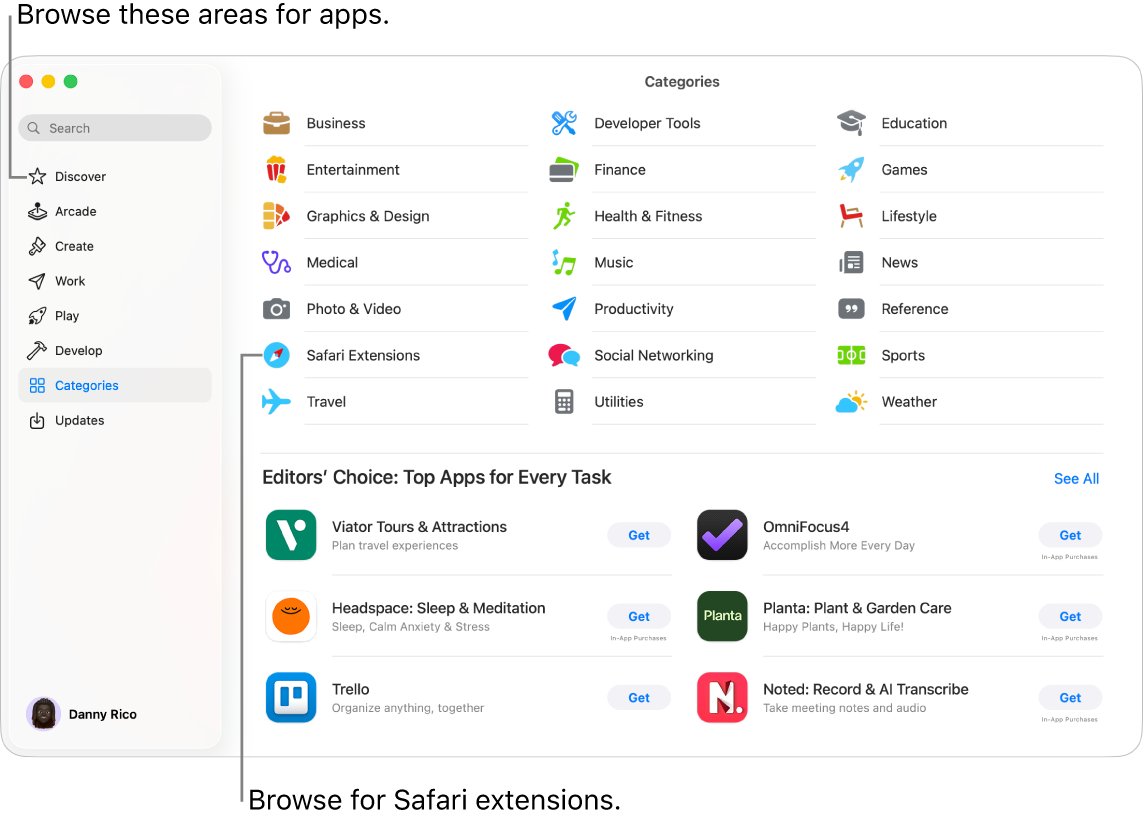
- Open the App Store app from the Dock or from Finder > Applications.
- Click the search field in the top-left corner, type Microsoft Excel, and press Return.
- Click the Microsoft Excel result whose seller is Microsoft Corporation to open its page.
- Click Get, then confirm with your Apple Account password if the App Store asks for it.
- Wait for the 1.2 GB download to finish, then open Finder > Applications and double-click Microsoft Excel.
- Sign in with the Microsoft account that has your Microsoft 365 subscription, or choose the in-app purchase to start a new subscription.
If you are not signed in to the App Store, open System Settings, click Sign in, and enter your Apple Account email address or phone number and password first.
Download Excel for Mac from the App Store or Microsoft 365?
Both routes install the same Excel app, but your license decides which one works. One-time Office licenses run only on the copy downloaded from Microsoft.
| Your situation | Where to get Excel | Why |
|---|---|---|
| You have Microsoft 365 Personal, Family or Premium | Mac App Store or m365.cloud.microsoft/apps | Either copy activates with the subscription account |
| You have no subscription yet | Mac App Store, then the in-app purchase | You can buy Microsoft 365 inside Excel with your Apple Account |
| You bought Office Home 2024 or another one-time license | m365.cloud.microsoft/apps after redeeming the key | The App Store copy runs in reduced functionality mode with a one-time license |
| You use a work or school account | m365.cloud.microsoft/apps, Apps > Install apps | Your admin assigns the license to that account |
| You only need to open or edit a few files for free | Excel for the web in Safari | Runs in the browser with a free Microsoft account and 5 GB of OneDrive storage |
Excel for Mac system requirements
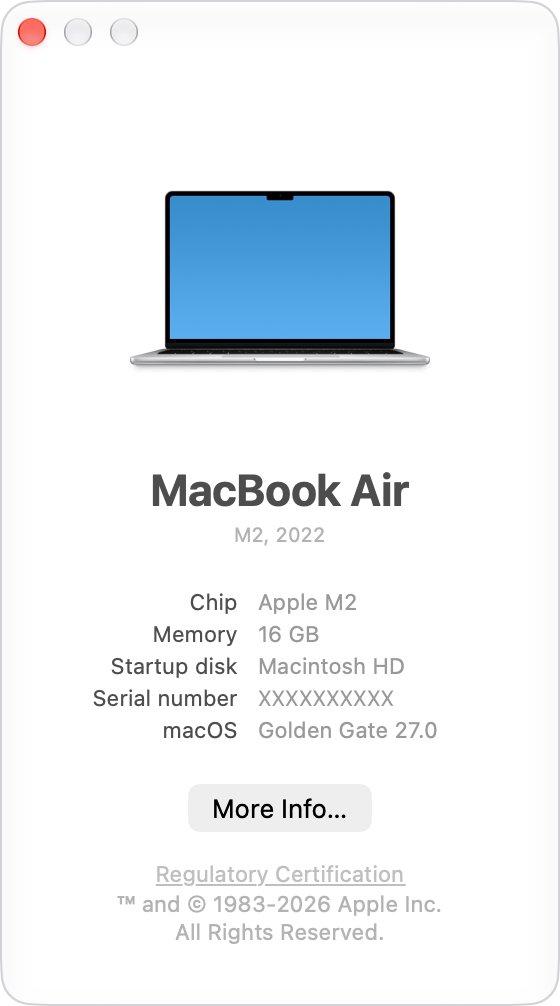
Microsoft supports Excel for Mac on the three most recent major versions of macOS. As of September 2026, those are macOS Golden Gate 27, macOS Tahoe 26 and macOS Sequoia 15.
To see your version, click the Apple menu and choose About This Mac.
| Requirement | Detail |
|---|---|
| Supported macOS | The three most recent major versions: Golden Gate 27, Tahoe 26 and Sequoia 15 |
| Mac App Store listing | macOS 15.0 or later |
| New Office 2024 for Mac installs | macOS Sonoma or later |
| Download size | About 1.2 GB for Excel from the App Store; the full Office installer from Microsoft is about 1.5 GB |
| License | Microsoft 365 subscription, Office 2024 or 2021 one-time license, or a work or school license |
| Account | A Microsoft account, or the work or school account your admin licensed |
Older macOS versions can keep running Excel, but they stop getting updates, including security updates. Build 16.101 from September 2025 was the last one for macOS Ventura.
Method 2: Download Excel for Mac from Microsoft 365
The direct download installs Excel with Word, PowerPoint, Outlook and OneNote. You can untick the apps you do not want during setup.
- In Safari, go to m365.cloud.microsoft/apps and click Sign in with the account tied to your Microsoft 365 or Office license.
- Click Install apps to start the download. With a work or school account, click Apps in the left pane, then Install apps > Microsoft 365 apps.
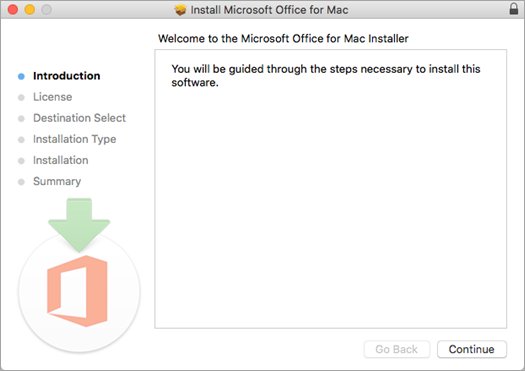
- Open Finder > Downloads and double-click Microsoft Office installer.pkg.
- Click Continue, read the license agreement, click Continue again, then click Agree.
- Choose the installation type and click Continue. Click Customize to clear Word, PowerPoint or Outlook if you only want Excel.
- Click Install, enter your Mac login password, and click Install Software.
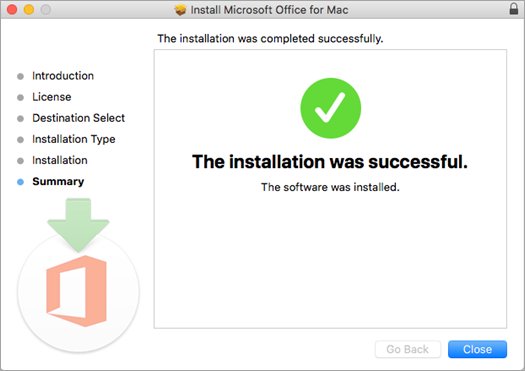
- Click Close when the installation finishes.
Excel installed this way updates through Microsoft AutoUpdate rather than the App Store.
Method 3: Install Excel on Mac with an Office 2024 product key
An Office product key from a retail box or card has to be linked to a Microsoft account once. After that, every reinstall uses the account, not the key.
- Go to microsoft365.com/setup and sign in with your Microsoft account, or create one.
- Enter the 25-character product key and follow the prompts to add the license to the account.
- Go to m365.cloud.microsoft/apps, sign in with the same account, and click Install apps.
- Run Microsoft Office installer.pkg from Downloads and finish the installer as in method 2.
- Open Excel and sign in with the account that now holds the Office 2024 license.
If Office came with no key, go to setup.office.com instead and sign in to link the purchase to your account.
How to get Excel on Mac for free
Microsoft offers Excel for the web at no cost with a free Microsoft account. It runs in Safari, saves workbooks to OneDrive, and includes 5 GB of cloud storage.
The App Store version is free to download but opens files read-only until it is activated with a Microsoft 365 license.
- Open Safari and go to microsoft.com/microsoft-365/free-office-online-for-the-web.
- Click Sign in, or click Sign up for free to create a Microsoft account.
- Open OneDrive and click + Create or upload > Excel workbook.
- Click the default name, usually Book1, and type a new name in the File Name box.
- Work in the sheet; Excel for the web saves your changes automatically.
A one-month Microsoft 365 trial is another free option. It renews automatically at the full price unless you cancel it in your Microsoft account, or in Apple's subscription settings if you started it from the App Store.
How to download an Excel file on Mac
To save a workbook from Excel for the web or OneDrive to your Mac as a normal .xlsx file, download a copy.
- Open the workbook in Excel for the web.
- Click File > Create a Copy > Download a Copy.
- If the browser asks whether to open or save the file, click Save.
- Open Finder > Downloads to find the workbook, then open it in Excel or Numbers.
A copy opened straight from the browser can start in Protected View. Click Enable Editing in the yellow bar to change it.
How to activate Excel on Mac after you download it
Activation is the proof the download worked: an activated Excel lets you create and save workbooks instead of only reading them.
- Open Finder > Applications and double-click Microsoft Excel.
- Click Get Started in the What's New window.
- On the Sign in to activate Office screen, click Sign in.
- Enter the email address for your Microsoft 365 or Office license, click Next, enter the password, and click Sign in.
- If several licenses appear, pick the Microsoft 365 subscription. Click Cancel on any one-time license marked Key already used.
- Open a blank workbook and save it to confirm Excel is fully licensed.
If no sign-in prompt appears, open a blank workbook and use File > New from Template > Sign in. To keep Excel on the Dock, Control-click its Dock icon and choose Options > Keep in Dock.
Tips: How to download Excel on Mac
| Tip | Why it matters |
|---|---|
| Check your macOS version first | The App Store listing needs macOS 15.0 or later, so an older Mac cannot download the current Excel |
| Match the download to your license | One-time Office licenses do not work with the App Store copy |
| Keep only one Office version installed | Microsoft 365, Office 2024 and older versions share app names, so only one can be installed at a time |
| Use the subscription owner's account | Sign in with the Microsoft account that bought the plan, or the one it was shared with |
| Leave Excel in the Applications folder | Moving Office out of /Applications can cause repeated sign-in and keychain prompts |
| Know where updates come from | App Store copies update through the App Store; Microsoft downloads update through Microsoft AutoUpdate |
Microsoft 365 Family can be shared with other people, and each person installs Excel on their own Mac with their own account.
How to update Excel on Mac
Which updater you use depends on where Excel came from. An App Store copy is updated from the App Store's Updates page.
- Open Excel and choose Help > Check for Updates in the menu bar.
- When Microsoft AutoUpdate opens, click Update or Update All.
- Restart Excel after the update finishes.
Excel not installing or activating on Mac
"Microsoft Office can't be opened because it is from an unidentified developer"
macOS blocked the installer package before it was fully checked.
- Click OK and wait about 10 seconds.
- Move Microsoft Office installer.pkg from Downloads to the desktop.
- Hold Control, click the file, and choose Open.
- If it still refuses, update macOS and try again.
The installer will not launch, says "Install Failed" or stops at "Verifying"
The download is incomplete or corrupted; the full package is about 1.5 GB.
- Drag the installer to the Trash and empty the Trash.
- Download the package again in Safari from m365.cloud.microsoft/apps with Install apps.
- Move the new file to the desktop and double-click it.
- If it hangs on Verifying, restart the Mac and run the installer again.
"No license found" or Excel will not activate
Excel is signed in with an account that has no license.
- In Excel, sign out and choose Sign in with another account.
- Search your email for the Microsoft purchase confirmation to find the right account.
- Sign in at account.microsoft.com/services to see which licenses that account holds.
- For a work or school account, ask your admin to assign a Microsoft 365 license.
Yellow bar: "Action Required: We've detected a one-time purchase license"
A one-time Office license is being used with the App Store copy of Excel.
- Quit Excel and the other Office apps.
- Open Finder > Applications and move the Office apps to the Trash.
- Download Excel again from m365.cloud.microsoft/apps and sign in with the account that holds the one-time license.
Excel opens workbooks but will not let you edit or save
The app is not activated, so it runs read-only.
- Open Excel and sign in with your licensed account from the activation screen.
- If you have no license, start the Microsoft 365 trial or buy a plan through the in-app purchase.
- Restart Excel once activation completes.
Excel for Mac download FAQ
Can you download Excel on a MacBook?
Yes. Any MacBook running macOS 15.0 or later can download Microsoft Excel from the Mac App Store or from m365.cloud.microsoft/apps. Excel then needs a Microsoft 365 subscription or a one-time Office license to create and edit workbooks.
Is there a free version of Excel for Mac?
Excel for the web is free with a Microsoft account and runs in Safari on a Mac. The desktop app is free to download from the App Store, but it only opens files read-only until you activate it with a Microsoft 365 license or start the one-month trial.
How do I download Excel from Microsoft's website?
Go to m365.cloud.microsoft/apps, sign in with the account linked to your license, and click Install apps. Open Microsoft Office installer.pkg from Downloads and follow the installer, using Customize if you want Excel without the other Office apps.
Can I use Excel on Mac if I have a Microsoft 365 subscription?
Yes. A Microsoft 365 Personal, Family or Premium subscription activates Excel on a Mac whether you install it from the App Store or from Microsoft. Sign in with the Microsoft account that owns the subscription or that the owner shared it with.
Can I download Word and Excel for Mac together?
Yes. The installer from m365.cloud.microsoft/apps puts Word, Excel, PowerPoint, Outlook and OneNote on your Mac in one package. In the App Store, each app has its own listing, so download Word and Excel separately.
Can Excel files created on a Mac be opened on a PC?
Yes. Excel for Mac saves workbooks in the same .xlsx format that Excel for Windows uses, so files move between the two without conversion. Macros need the macro-enabled .xlsm format on both systems.
Are there any alternatives to Excel for Mac users?
Apple's Numbers app can import Excel workbooks and export spreadsheets back to Excel format. Excel for the web is a free option from Microsoft, and LibreOffice for Mac also opens .xlsx files.
How do I use Excel on a Mac after installing it?
Open Excel from Finder > Applications, sign in to activate it, and choose a blank workbook or a template. You can then create a new workbook in Excel, enter data and save it to your Mac or OneDrive.
What if I need help after downloading Excel?
Start with Microsoft's install and activation troubleshooter for Office for Mac, which covers installer errors, license errors and sign-in loops.