To roll back an NVIDIA driver in Windows 11, open Device Manager, expand Display adapters, open your NVIDIA card's Properties, and select Roll Back Driver on the Driver tab.
This guide covers rolling back in Windows 11 and Windows 10, choosing a specific older version, installing an old driver from NVIDIA, uninstalling the graphics driver, and fixing a greyed-out Roll Back Driver button.
Rollback NVIDIA driver in Device Manager
Device Manager keeps the driver you had before the last update and can switch back to it in a few clicks. You must be signed in with an administrator account.
- Right-click the Start button and select Device Manager.
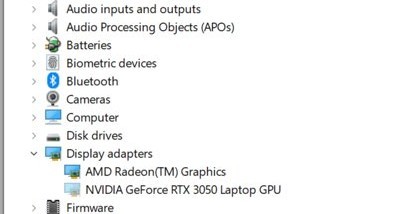
- Expand Display adapters.
- Right-click your NVIDIA graphics card and select Properties.
- Open the Driver tab and select Roll Back Driver.
- Choose a reason for rolling back and select Yes.
- Restart the PC if Windows asks you to.
Check the version on the same Driver tab afterwards to confirm the older driver is in use.
How to rollback NVIDIA drivers in Windows 10/11
The steps are the same in Windows 11 and Windows 10. What changes is which route works, and that depends on what is still on your PC.
| Your situation | Use this | Why |
|---|---|---|
| A new driver broke games or the display | Roll Back Driver in Device Manager | Restores the previous driver in one step |
| Roll Back Driver is greyed out | Pick a specific version in Device Manager | Windows may still hold older NVIDIA driver packages |
| You need a version Windows does not have | Download an older driver from NVIDIA | NVIDIA's driver search lists earlier releases |
| You use the NVIDIA app | The app's driver rollback | NVIDIA added rollback to previously installed drivers in the app |
| You want the driver gone for a fresh install | Uninstall the NVIDIA graphics driver | Clears the current driver before you install another |
Rollback to a specific NVIDIA driver version in Device Manager
Roll Back Driver only goes back one step. When Windows still stores older NVIDIA driver packages, the Update driver wizard lets you choose any of them.
- Open Device Manager and expand Display adapters.
- Right-click the NVIDIA card and select Update driver.
- Select Browse my computer for drivers.
- Select the option to pick from a list of drivers already on your computer (Let me pick from a list…).
- Choose the NVIDIA driver version you want from the list.
- Select Next, wait for the install to finish, then select Close.
- Restart the PC.
If the list shows only the driver you already run, Windows has no older package to offer. Download the older version from NVIDIA instead.
Download and downgrade to an older NVIDIA driver version
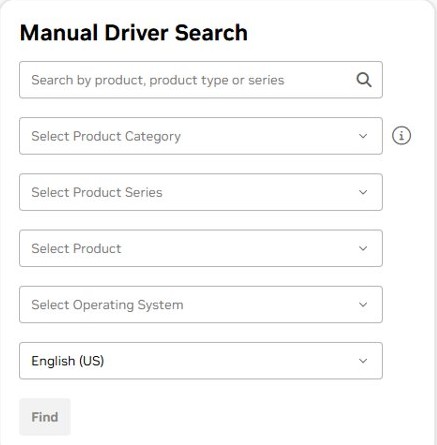
NVIDIA's manual driver search works for current and earlier releases. Note your current version first so you can tell the two apart.
- Open nvidia.com/en-us/drivers in your browser.
- Under Select Product Category, Select Product Series and Select Product, pick your graphics card.
- Choose your operating system, such as Windows 11, and your language.
- Pick the download type and choose Game Ready Driver or Studio Driver.
- Select Find Drivers.
- Pick the earlier release you want from the results and select Download.
Game Ready drivers are tuned for games, while Studio drivers target creative apps. Stay on the same type you used before the problem started. When you are ready to move forward again, download the current NVIDIA driver the same way.
How to install old NVIDIA drivers?
Installing an older driver over a newer one can leave parts of the new driver behind. Uninstalling the current driver first gives the old one a clean start.
- Save your work and close all apps, especially games and video editors.
- Uninstall the current NVIDIA graphics driver using the steps in the next section.
- Restart the PC.
- Run the older NVIDIA installer you downloaded and accept the license agreement.
- Follow the prompts until the installer finishes.
- Restart the PC again and check the driver version in Device Manager.
You can also point Device Manager at the driver files: select Update driver > Browse my computer for drivers > Browse…, choose the folder that holds the extracted driver, and select Next.
Uninstall NVIDIA graphics drivers only
This removes the NVIDIA display driver and leaves your other apps alone. Windows tries to install a driver again after the restart, so have the version you want ready.
- Open Device Manager and expand Display adapters.
- Right-click the NVIDIA card and select Properties, then open the Driver tab.
- Select Uninstall Device.
- In Windows 11, tick Attempt to remove the driver for this device. In Windows 10, tick Delete the driver software for this device.
- Select OK, then restart the PC.
If an NVIDIA graphics driver entry also appears in Settings > Apps > Installed apps, you can uninstall it there, the same list you use to uninstall apps on Windows 11.
Microsoft suggests unplugging a removable device before uninstalling it, or Windows may find it again and reinstall its driver straight away.
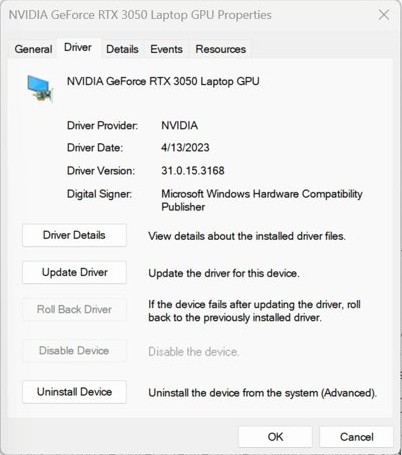
Remove an NVIDIA driver package with pnputil
Device Manager can leave a driver package in the driver store, where Windows can reuse it. pnputil lists and deletes those packages. Run it in Command Prompt opened as administrator.
pnputil /enum-drivers /class DisplayLists every third-party display driver package in the driver store. Note the Published Name (for example oem12.inf) and the version of the NVIDIA package you want gone, then run pnputil /delete-driver oem12.inf /uninstall with that name. The /class filter needs Windows 11; on Windows 10 run pnputil /enum-drivers on its own.
You should see: pnputil reports that the driver package was deleted, and the package no longer appears when you list the drivers again.
With /uninstall, any device using that package is moved to another matching driver first. If no other driver matches, the card has no driver until you install one, so keep an installer ready.
How to check NVIDIA driver version in Windows 11
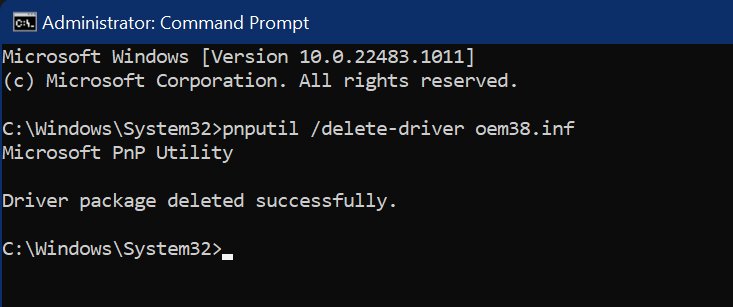
Check the version before and after a rollback so you know the change took effect.
- Open Device Manager and expand Display adapters.
- Right-click the NVIDIA card and select Properties.
- Open the Driver tab and read Driver Version and Driver Date.
- Compare them with the values you noted before the rollback.
An older date after the rollback means Windows is running the previous driver.
Does Windows Update reinstall NVIDIA drivers?
| Question | Answer |
|---|---|
| Can Windows Update bring a removed driver back? | Yes. If Windows Update decides a needed driver is missing, it can reinstall it |
| Are optional driver updates installed automatically? | No. Optional drivers in Settings > Windows Update > Advanced options > Optional updates only install when you select them |
| Does a restart reinstall the driver? | Often. Windows tries to reinstall a driver after you uninstall a device and restart |
| How do you keep a driver removed for good? | Delete its package from the driver store with pnputil, and adjust Windows Update settings if it returns |
| What should you do before big driver changes? | Create a system restore point so you can return to a working state |
How to fix if roll back NVIDIA driver greyed out?
Roll Back Driver is greyed out
Windows has no previous driver stored for the card, or you are not signed in as an administrator.
- Sign in with an administrator account and open Device Manager again.
- Try the Update driver > Browse my computer for drivers route to pick an older stored version.
- If no older version is listed, download one from NVIDIA's driver search and install it.
The remove-driver checkbox does not appear when you uninstall
The account lacks admin rights, or Windows is holding the driver in use.
- Sign in as an administrator.
- Start the PC in safe mode and uninstall the device from Device Manager there.
- Restart normally and install the driver you want.
The newer NVIDIA driver comes back after a restart
Windows reinstalls a driver it finds in the driver store or through Windows Update.
- Delete the unwanted package with
pnputil /delete-driver <oem#.inf> /uninstall. - Install the older driver you want.
- Avoid installing NVIDIA entries from Optional updates until you are ready to upgrade.
Device Manager says the best drivers are already installed
The automatic search only looks for newer drivers.
- Select Browse my computer for drivers instead of the automatic search.
- Point it at the older driver folder, or pick an older version from the list.
NVIDIA driver rollback FAQ
Is it safe to roll back an NVIDIA driver?
Yes. Roll Back Driver restores the driver Windows used before the last update, which is a version that already worked on your PC. Create a restore point first if you plan to uninstall drivers or delete driver packages as well.
Where is Roll Back Driver in Windows 11?
Roll Back Driver is on the Driver tab of the device's Properties in Device Manager. Right-click Start, select Device Manager, expand Display adapters, right-click the NVIDIA card, select Properties, and open the Driver tab.
How far back can I roll back an NVIDIA driver?
Roll Back Driver goes back only one version. To go further, pick an older stored version through Update driver in Device Manager, or download the exact older release you want from NVIDIA's driver search.
Can I roll back drivers in the NVIDIA app?
Yes. NVIDIA says the NVIDIA app can roll back to drivers that were previously installed on the PC. For a version that was never installed, download it from NVIDIA's website.
What happens after I uninstall the NVIDIA driver?
Windows tries to reinstall a driver for the card after you restart. If you want a specific older version, have its installer ready and run it as soon as the PC starts, or delete the unwanted package with pnputil so Windows cannot reuse it.
Should I use a Game Ready or Studio driver after rolling back?
Use the same type you had before. Game Ready drivers are tuned for games, and Studio drivers target creative apps. Switching type while rolling back makes it harder to tell whether the old version fixed the problem.
Do I need admin rights to roll back a driver?
Yes. Microsoft says you must be signed in with administrator permissions to roll back drivers. Without them, the Roll Back Driver button and the option to delete driver software may not be available.
Should you roll back or reinstall the NVIDIA driver?
Roll back first, and for most broken updates that wraps up the problem: Roll Back Driver restores the last version that worked on your PC. Uninstalling and installing an older release takes longer and leaves the card without a driver for a while, so keep it for cases where rollback is greyed out or you need a specific version.