To find your Mac's model and age, choose Apple menu > About This Mac: the model name appears under the picture, and on most Macs it includes the year, such as MacBook Air (M2, 2022).
This guide covers every way to identify a Mac, including one that will not start, how to read the model year, how to tell if your Mac is vintage or obsolete, and how to check battery age on a MacBook.
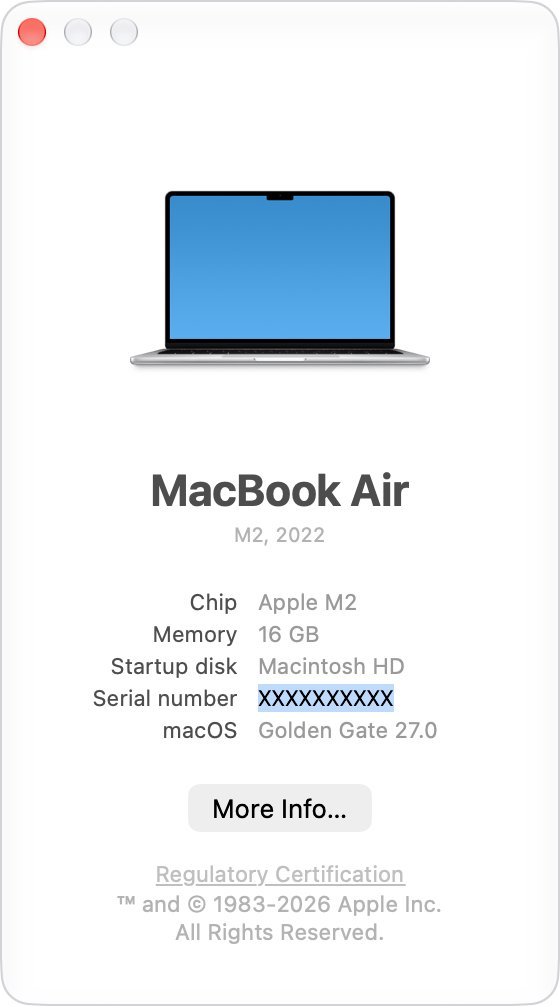
How to find your Mac model name from the Apple menu
About This Mac is the route Apple calls the easiest, and it works on every Mac that starts up normally.
- Click the Apple menu in the top-left corner of the screen.
- Choose About This Mac.
- Read the model name under the picture of your Mac, for example MacBook Pro (14-inch, 2024) or iMac (24-inch, M6, Four ports).
- Note the Chip line. Apple silicon Macs show a chip such as Apple M4, while Intel-based Macs show Processor followed by an Intel processor name.
- Note the Serial number line if you want to look the Mac up on Apple's coverage site later.
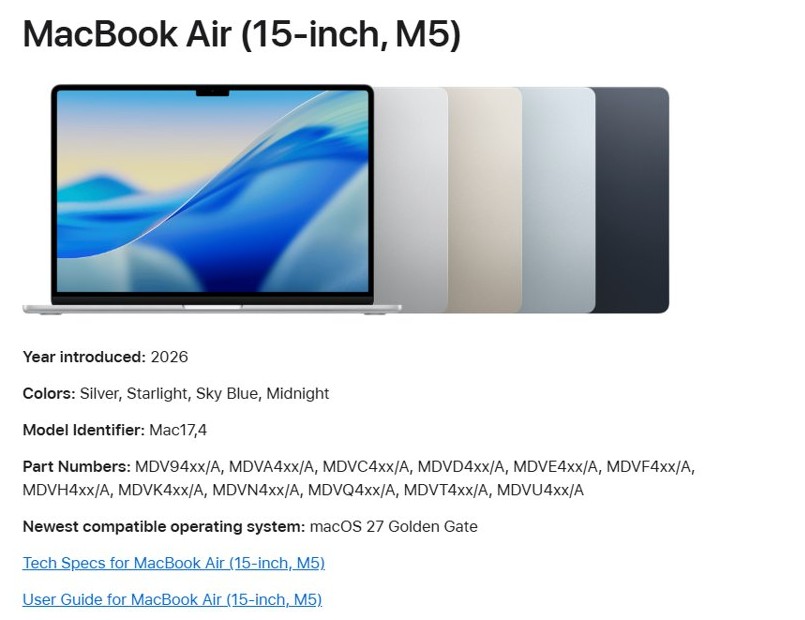
If the name includes a year, that is the year Apple introduced the model. If it names a chip instead, such as MacBook Pro (14-inch, M5), look the name up in Apple's Identify your Mac article for your product line to get the year introduced.
How to know what Mac I have: every way compared by situation
| Your situation | Use this | What it tells you |
|---|---|---|
| The Mac starts up normally | Apple menu > About This Mac | Model name, chip, memory, serial number and macOS version |
| You need warranty and coverage details too | System Settings > General > About | The same details plus a Details button for coverage |
| The model name has no year or looks too general | System Information > Hardware | Model Identifier and Model Number to look up in Apple's Identify your Mac articles |
| The Mac will not start up at all | account.apple.com > Devices | Model name and serial number of any Mac signed in to your Apple Account |
| The Mac starts only into macOS Recovery | Terminal from the Utilities menu in Recovery | The serial number, which you then enter on checkcoverage.apple.com |
| You only have the box or the Mac is off | The underside of the Mac or the packaging label | The serial number, and sometimes the part number on the box |
How to tell how old your Mac is from its model name
Apple names older Macs with a size and a year, sometimes with a season such as Mid or Late. Newer Apple silicon models are often named by chip, so the year lives in Apple's Identify your Mac articles instead.
| Model name you see | How to read its age | Example from Apple's lists |
|---|---|---|
| Size plus year | The year is the year Apple introduced that model | MacBook Pro (16-inch, 2024) |
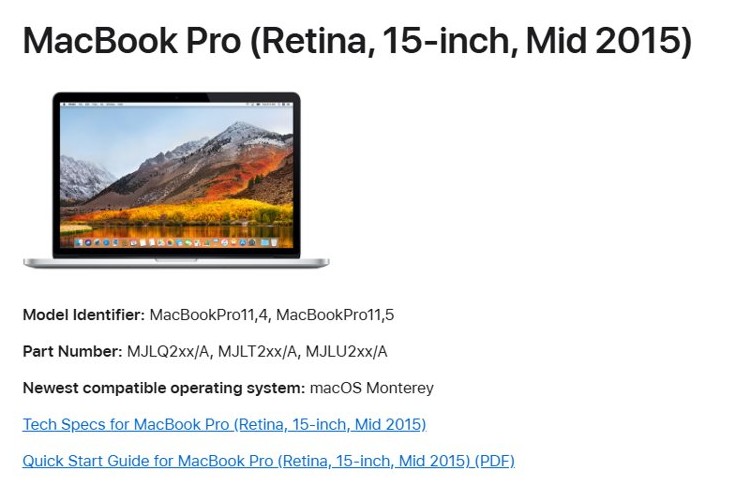
| Season plus year | Mid, Late or Early narrows the release to part of that year | Mac mini (Late 2014), MacBook Pro (Retina, 15-inch, Mid 2015) |
| Month plus year | Separates two releases in the same year | MacBook Pro (14-inch, Nov 2023) |
| Chip and year | The year still shows after the chip name | Mac mini (M1, 2020), MacBook Air (M2, 2022) |
| Chip only, no year | Find the name in the Identify your Mac article and read Year introduced | MacBook Pro (14-inch, M5): year introduced 2025 |
The model year is when Apple introduced that design, not when your Mac was bought. A Mac sold new a year after launch still carries the launch year, so use your receipt or order confirmation for the purchase date.
How to find Mac model in System Settings
General settings show the same basic information as About This Mac, plus warranty and repair coverage and a full system report.
- Choose Apple menu > System Settings.
- Click General in the sidebar. You may need to scroll down.
- Click About.
- Read the model name and serial number at the top of the pane.
- Click the Details button to see your service and support coverage.
- Click System Report if you need the model identifier and other hardware details.
How to find Mac model identifier in System Information
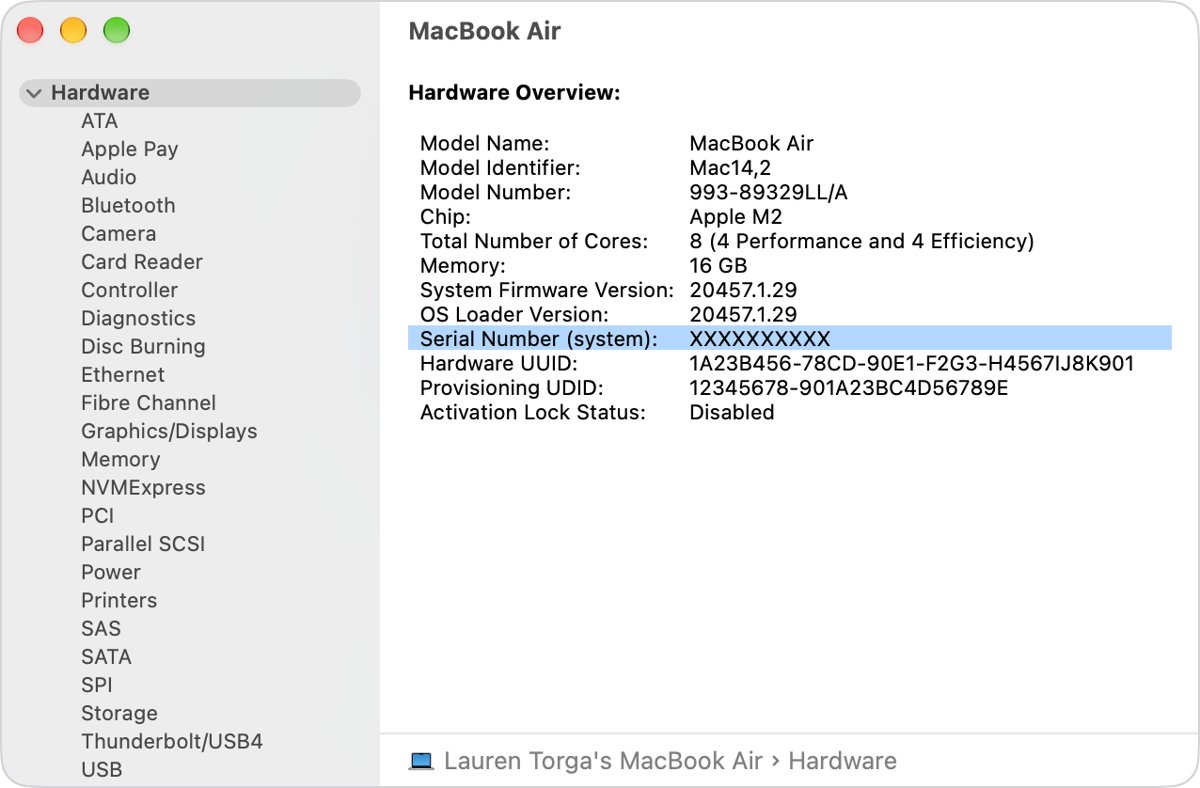
System Information shows two codes that pin down the exact model when the general name is not enough: the Model Identifier, such as MacBookPro18,1, and the Model Number, which is the part number.
- Press and hold the Option key.
- While holding it, choose Apple menu > System Information.
- Select Hardware in the sidebar.
- Copy the Model Identifier and the Model Number shown on the right.
- Open Apple's Identify your Mac article for your product line: MacBook Pro, MacBook Air, MacBook, iMac, Mac mini, Mac Studio or Mac Pro.
- Search the page for the identifier or the part number. In a part number such as MLH12xx/A, the xx changes by region, so search for the characters before it.
Each entry in the Identify your Mac articles also lists colors, the newest compatible macOS and, for recent models, the year introduced. To have the serial number read aloud, choose File > Speak Serial Number or press Command-4.
Find Mac model by serial number on checkcoverage.apple.com
Apple's coverage site turns a serial number into the specific model name, which also helps when you are buying a used Mac and want to confirm what it is.
- Find the serial number in About This Mac, in System Information > Hardware, or on the underside of the Mac.
- Open checkcoverage.apple.com in any web browser.
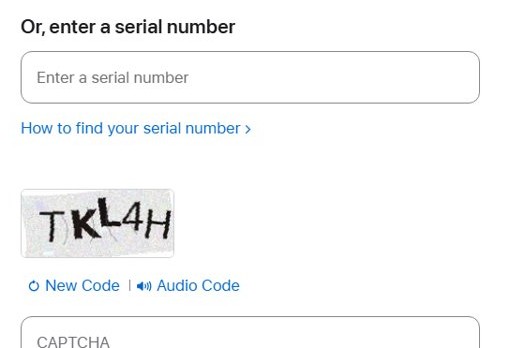
- Type the serial number in the Enter a serial number field.
- Complete the code check that appears.
- Click Submit to see the model name and its coverage.
How to find Mac serial number when it won't turn on
A Mac that will not start can still be identified from your Apple Account or from the hardware itself.
- On any phone, tablet or computer, go to account.apple.com and sign in with the Apple Account used on the Mac.
- Select Devices in the sidebar.
- Click the Mac's name to see its model name and serial number.
- If the Mac is not listed, turn it over and look for the serial number near the regulatory markings on the underside.
- Check the original box for a serial number next to the barcode label.
- Enter that serial number on checkcoverage.apple.com to get the model name.
If the logic board was replaced during a repair, the serial number printed on the Mac or its box might no longer be active. Use About This Mac or account.apple.com for the current number, or check your repair paperwork.
Find Mac serial number in Terminal
Terminal works in macOS and in macOS Recovery. Open it from Applications > Utilities, or from the Utilities menu when the Mac starts only into Recovery.
ioreg -l | grep IOPlatformSerialNumberioreg lists the Mac's hardware registry, and grep keeps only the line that holds the platform serial number. Type or paste it, then press Return.
You should see: A line containing IOPlatformSerialNumber followed by your serial number. Enter that number on checkcoverage.apple.com to get the model name.
Is my Mac vintage or obsolete?
Apple's vintage and obsolete labels are the official measure of how old a Mac is for repairs. They count from when Apple last distributed the model for sale, not from when it was introduced.
| Status | Apple's definition | What it means for repairs |
|---|---|---|
| Supported | Apple last distributed it for sale less than 5 years ago | Service and parts from Apple service providers for a minimum of 5 years |
| Vintage | Apple stopped distributing it for sale more than 5 and less than 7 years ago | Service and parts may be available for up to 7 years, subject to parts availability |
| Obsolete | Apple stopped distributing it for sale more than 7 years ago | Apple discontinues all hardware service, and service providers cannot order parts |
| Mac laptop battery | Applies to MacBook, MacBook Air and MacBook Pro | Battery-only repairs may be possible for up to 10 years after the model was last sold |
Apple's list names the models by their full model name, so match the name from About This Mac exactly. For example, MacBook Air (Retina, 13-inch, 2020) and Mac mini (2018) are on the vintage list.
How to check Mac battery cycle count
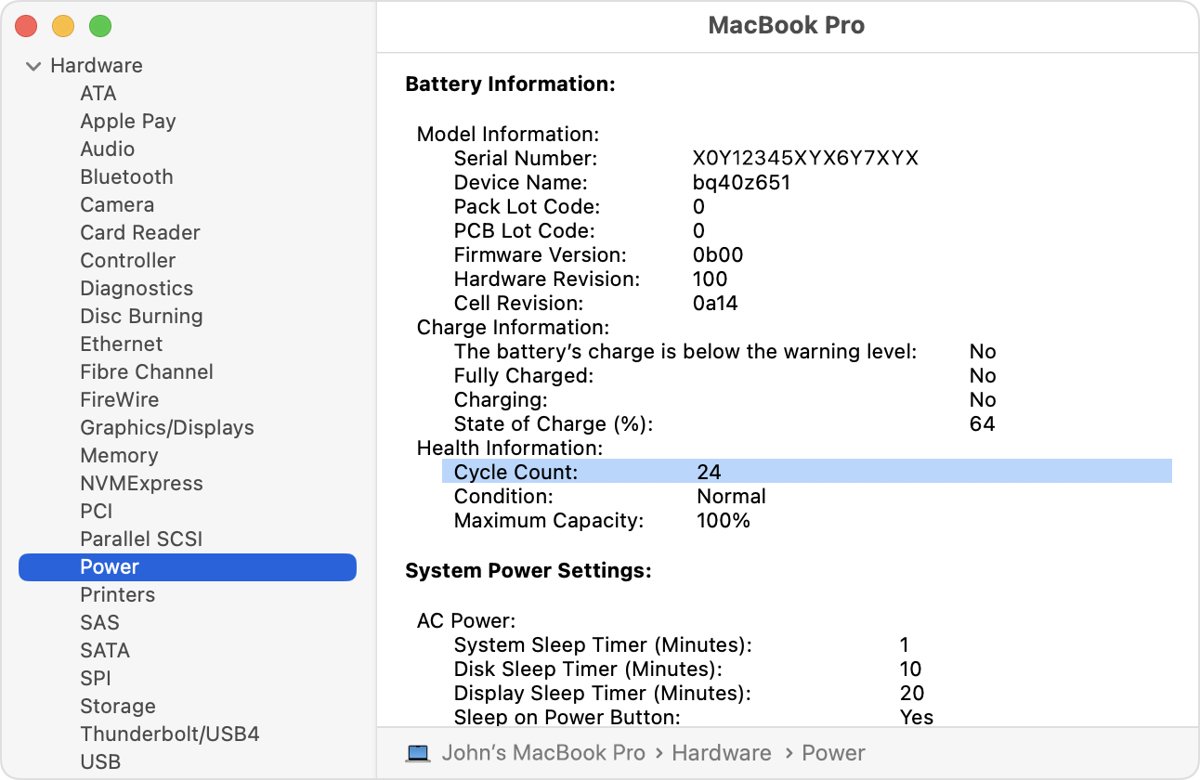
On a MacBook, the battery cycle count shows how worn the battery is, which says more about real use than the model year. Recent MacBook Air and MacBook Pro models have a maximum of 1,000 cycles.
- Press and hold the Option key.
- Choose Apple menu > System Information.
- Select Power in the sidebar.
- Find Cycle Count in the Battery Information section on the right.
- Compare it with the maximum cycle count Apple lists for your model.
Apple designs the battery to keep up to 80% of its original capacity at its maximum cycle count. You can keep using it after that, but expect shorter battery life.
How to check macOS version on Mac
The macOS version is part of identifying a Mac, because each model has a newest compatible macOS listed in Apple's Identify your Mac articles.
- Choose Apple menu > About This Mac.
- Read the macOS line for the name and version number, such as macOS Sequoia 15.
- Click the version number to see the build number.
- Find your model in its Identify your Mac article and read Newest compatible operating system to see how far you can update macOS on that Mac.
A Mac whose newest compatible macOS is several versions behind the current release is a good sign the hardware is old, even before you check the model year.
Mac model name not showing the year: how to fix it
About This Mac shows only a general name with no year
Newer models are named by chip, and some windows show a general model name.
- Open System Information with Option held down and select Hardware.
- Copy the Model Identifier.
- Search for it in the Identify your Mac article for your product line.
- Read Year introduced in the matching entry.
Why can't I find System Preferences on Mac?
Recent versions of macOS replaced System Preferences with System Settings.
- Choose Apple menu > System Settings.
- Click General in the sidebar, then click About.
- Use Apple menu > About This Mac instead if you only need the model name.
The serial number on the case does not match About This Mac
The logic board was replaced, so the printed serial number is no longer active.
- Use the serial number shown in About This Mac or at account.apple.com.
- Enter that number on checkcoverage.apple.com.
- Keep the repair documentation, which might also list the current serial number.
The Mac turns on but does not start up all the way
macOS cannot load, so About This Mac is out of reach.
- Start up from macOS Recovery.
- Choose Terminal from the Utilities menu.
- Run
ioreg -l | grep IOPlatformSerialNumberand press Return. - Enter the serial number on checkcoverage.apple.com.
Mac model and age FAQ
How do I know what Mac I have?
Choose Apple menu > About This Mac. The window shows your Mac's model name under its picture, along with the chip, memory, serial number and macOS version. The model name usually includes the year Apple introduced it.
How do I find what MacBook I have?
Open About This Mac from the Apple menu and read the model name, such as MacBook Air (M2, 2022). If you need more detail, hold Option, open System Information, select Hardware and search Apple's Identify your MacBook Air or MacBook Pro article for the Model Identifier.
How can I find my Mac model by serial number?
Enter the serial number on checkcoverage.apple.com and submit it. Apple shows the specific model name and your coverage. The serial number is in About This Mac, in System Information under Hardware, or printed on the underside of the Mac.
Where do I find my Mac serial number?
The serial number appears in About This Mac, in System Settings > General > About, and in System Information under Hardware. It is also printed on the underside of most Macs, on the original box, and on account.apple.com under Devices.
How do I identify an old Mac that won't turn on?
Sign in at account.apple.com from another device and select Devices to see the Mac's model name and serial number. If it is not listed, read the serial number from the underside or the box, then enter it on checkcoverage.apple.com.
How do I check my Mac OS version?
Choose Apple menu > About This Mac. The macOS line shows the name and version number of the macOS your Mac is using. Click the version number to see the build number as well.
Does the year in my Mac's name mean when I bought it?
No. The year in the model name is the year Apple introduced that model. Macs stay on sale after launch, so your purchase date can be later. Your receipt or order confirmation is the record of when you bought it.
Is a Mac model the same as a MAC address?
No. The Mac model is the name of your Apple computer, while a MAC address is a network hardware address that every Wi-Fi and Ethernet adapter has. You can find a MAC address on Windows, Mac or iPhone in each device's network settings.
How do I find the model of a Windows computer instead?
Windows PCs do not have About This Mac, but System Information and Settings show the manufacturer and model. You can find your Windows PC model with the built-in tools and the label on the case.