To stop pop-ups on Windows 10, open Settings > System > Notifications & actions and turn off Get notifications from apps and other senders, then turn on the pop-up blocker in your browser.
This guide covers Windows 10 notification pop-ups, browser pop-ups and site notifications in Microsoft Edge and Google Chrome, fake virus warnings, and the alerts, offers and renewal messages that Norton shows.
How to stop pop-ups on Windows 10
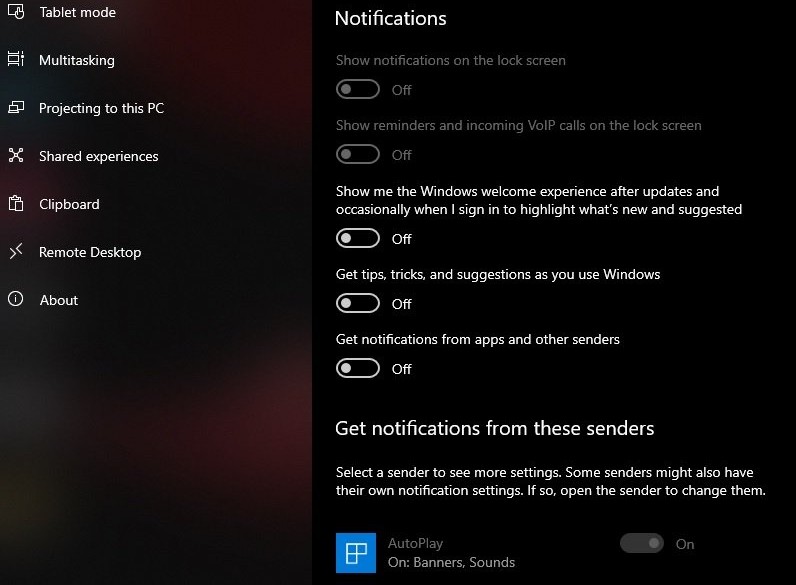
Most pop-ups on a Windows 10 desktop are notification banners from apps. One switch turns off notifications from every app.
- Select Start, then select Settings.
- Select System.
- Select Notifications & actions in the left pane.
- Under Notifications, set Get notifications from apps and other senders to Off.
- Open your browser and turn on its pop-up blocker (Edge and Chrome steps follow below).
Banners stop appearing at once. Pop-ups that open inside a web page are handled by the browser, not by this switch.
Stop unwanted pop-ups on Windows 10 by type
| Pop-up you see | Where it comes from | Setting that stops it |
|---|---|---|
| Banner in the lower-right corner of the desktop | An app or Windows notification | Settings > System > Notifications & actions |
| New window or tab opening on its own | A website's pop-up or redirect | The browser's Pop-ups and redirects setting |
| Website messages that appear even with the site closed | A site you allowed to send notifications | Block Notifications for that site in the browser |
| Full-screen "your PC is infected" warning with a phone number | A scam web page | Close the browser, then scan with Windows Security |
| Norton offers, renewal reminders or activity alerts | The Norton app | Norton Settings > Notifications |
Stop app notification pop-ups on the Windows 10 desktop one app at a time
Turning off one noisy app keeps useful alerts, such as calendar reminders, from other apps.
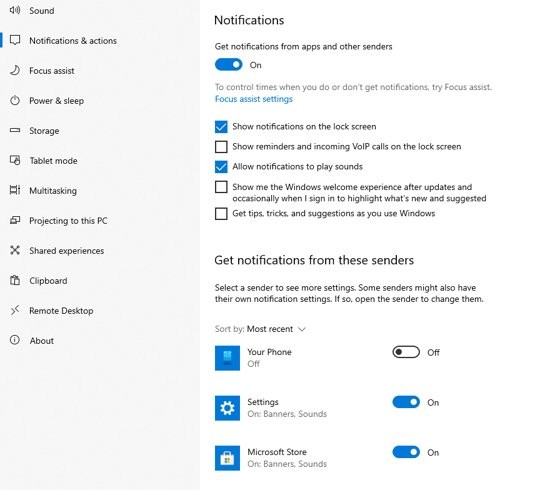
- Open Settings > System > Notifications & actions.
- Scroll to Get notifications from these senders.
- Set the switch next to the app to Off to silence it completely.
- To keep the app but hide its pop-up, select the app name and turn off Show notification banners.
- On the same page, turn off Show notifications in action center or Play a sound when a notification arrives if you want those gone too.
The same Notifications area also has Show notifications on the lock screen and Show reminders and incoming VoIP calls on the lock screen for pop-ups that appear before you sign in.
How to stop pop-ups in Windows 10 Edge
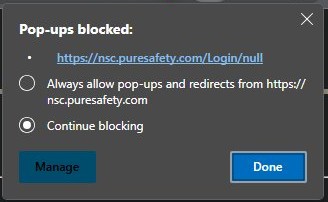
Microsoft Edge blocks pop-ups and redirects with one setting. When it blocks one, an icon appears in the address bar.
- Open Microsoft Edge and select Settings and more (the three dots) at the top of the window.
- Select Settings.
- Select Privacy, search, and services, then select Site permissions.
- Under Content, select Pop-ups and redirects.
- Turn on Blocked (recommended).
Edge cannot block ads designed to look like pop-ups, or a window that opens because you selected a button or link. For those page ads, disable intrusive ads in Microsoft Edge separately.
Stop pop-ups on Chrome Windows 10
- Open Chrome and select More (the three dots) at the top right.
- Select Settings.
- Select Privacy and security, then Site Settings.
- Select Pop-ups and redirects.
- Choose the default option that does not allow sites to send pop-ups or use redirects.
- To block one site that is still allowed, find it under Allowed to send pop-ups and use redirects, select More next to it, and select Block.
To block a whole domain, select Add next to Not allowed to send pop-ups or use redirects and enter a pattern such as [*.]example.com.
Stop website notification pop-ups on Windows 10
Pop-ups that keep arriving after you close a site usually come from browser notifications you allowed earlier. The pop-up blocker does not stop them, so turn off Chrome notifications or block them in Edge as shown below.
Microsoft Edge
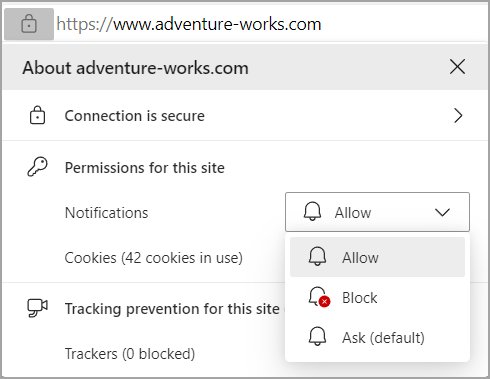
A site holds the Notifications permission.
- Select Settings and more, then Settings.
- Go to Privacy, search, and services > Site permissions > All sites.
- Select the website.
- Next to Notifications, choose Block from the drop-down.
Google Chrome
A site holds the Notifications permission.
- Go to the site that sends the notifications.
- Select the View site information icon in the address bar.
- Next to Notifications, select Block.
Tips for stopping pop-ups on Windows 10
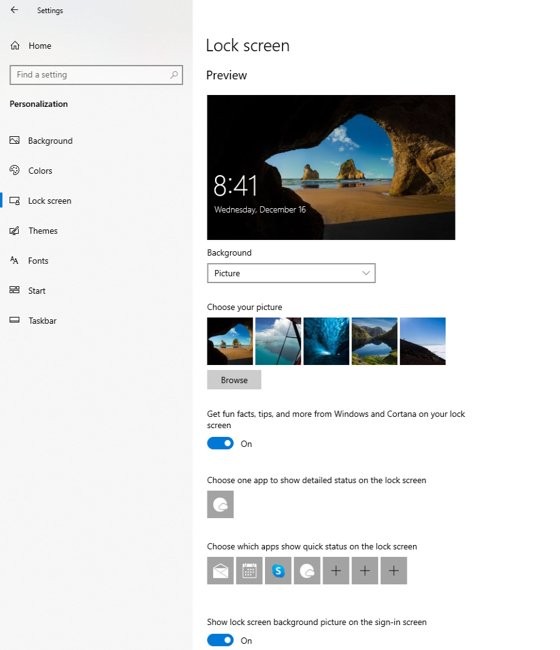
- Turn off lock screen tips: open Settings > Personalization > Lock screen and clear Get fun facts, tips, tricks, and more on your lock screen.
- Remove browser extensions you do not recognise. In Edge, open Extensions > Manage extensions and turn them off one at a time to find the one that causes pop-ups.
- Block third-party cookies in Edge from the Cookies setting under Privacy, search, and services.
- Keep Edge current: open Settings > About Microsoft Edge and install any update shown there.
- Uninstall free programs you do not remember installing from Control Panel > Programs > Programs and Features.
Turn on SmartScreen in Windows Security on Windows 10
SmartScreen checks websites and downloads, which keeps many pop-up sources from installing in the first place.
- Open the Windows Security app from the Start menu.
- Select App & browser control.
- Select Reputation-based protection settings.
- Turn on Check apps and files.
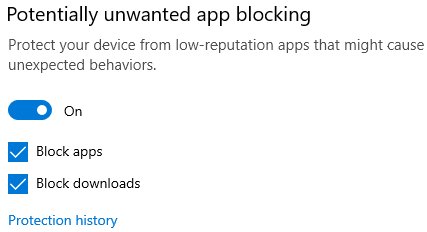
- Turn on SmartScreen for Microsoft Edge and Potentially unwanted app blocking.
Windows 10 does not have the Phishing protection or Smart App Control options that Windows 11 shows on this page.
First: Identify which Norton pop-ups you are seeing
Norton shows several kinds of messages, and scammers copy its look. Match what you see to a row before you change any setting.
| What the pop-up says or does | What it is | Section that handles it |
|---|---|---|
| Offer to upgrade or add another Norton product | Special offer or promotional notification | Disable Norton special offer notifications |
| Scan finished, task completed, activity summary | Non-critical app activity alert | Turn off Norton task notification messages |
| A downloaded file is unproven or has a low reputation | Download Intelligence (Download Insight) alert | Adjust Norton Download Insight alerts |
| Subscription expired, canceled or not updated | Subscription alert | Reduce Norton renewal and subscription pop-ups |
| Browser tab says your PC is infected and gives a phone number | Scam page using Norton's name | Remove fake Norton pop-ups from websites |
Norton itself notes that legitimate antivirus alerts come through the app or its desktop notifications, not through a browser window that asks for payment or a phone call.
Turn off Norton pop-ups from Windows 10 notifications
Windows treats Norton like any other sender in its notification list, so you can hide its banners from Windows Settings.
- Open Settings > System > Notifications & actions.
- Under Get notifications from these senders, find the Norton entry.
- Select it and turn off Show notification banners.
- Leave Show notifications in action center on if you still want to review Norton messages later.
Alerts that Norton draws in its own window are not Windows notifications. Use the Norton settings below for those.
Use Norton Silent Mode to stop interruptions temporarily
Silent Mode suspends alerts and background tasks while you use a full-screen app. Norton's Full Screen Detection switches it on automatically when a full-screen app runs, and you can name extra apps that should trigger it.
- Open your Norton device security product.
- Select Settings in the left pane, then the General tab.
- Under Notification settings, select Edit Apps.
- Select Add Application, then Add.
- Browse to the game or streaming app and select it.
- Select Done.
To silence Norton for a set time instead, open Settings > Notifications and pick a duration from the Silence all notifications drop-down. Alerts return when that time ends.
Disable Norton special offer notifications
- Open your Norton device security product.
- Select Settings in the left pane.
- Select the Notifications tab.
- Select the green ON slider next to Send me promotional notifications so it turns red OFF.
- In layouts that show a General tab instead, use Mute special offers there.
This mutes upgrade and product offers only. Security alerts keep working.
Turn off Norton task notification messages
Norton's current Windows help does not document a separate switch named Task Notification. The documented control for routine, non-critical activity alerts is on the same Notifications tab.
- Open your Norton device security product and select Settings.
- Select the Notifications tab.
- Select the green ON slider next to Send me non-critical app activity alerts so it turns red OFF.
- Close Settings.
Norton states that product notifications cannot be turned off permanently, so critical alerts still appear.
Adjust Norton Download Insight alerts
Download Insight, shown as Download Intelligence in the settings, warns about files with a poor or unknown reputation. Norton recommends excluding a trusted file over switching the feature off.
- Open your Norton device security app and select Security in the left pane.
- Go to Advanced Security > Computer > Antivirus.
- Open the Exclusions tab and select Add.
- Select the trusted file or folder and select Save.
- Only if you created the file or are certain it is safe, turn the alert off for a while: go to Advanced Security > Web > Safe Web, open the Settings tab, switch Download Intelligence to Off, and pick a duration in the Security Request dialog.
Older Norton Security versions placed this differently; the earlier steps to turn off Download Intelligence pop-ups apply to that layout.
Remove fake Norton pop-ups from websites
A full-screen warning in a browser tab that urges you to call a number, pay, or install a "fix" is scareware. Do not click anything inside it, not even its close button.
- Close the browser with Alt + F4.
- If the browser will not close, press Ctrl + Alt + Delete, open Task Manager, select the browser, and select End task.
- Reopen the browser and clear its cache and cookies.
- Remove browser extensions you do not recognise.
- Block notifications for the site that showed the warning, as described above.
- Run a scan in Windows Security > Virus & threat protection by selecting Start a quick scan, or run a full scan in Norton.
Turn off Norton Safe Search and homepage changes
A changed home page or search engine usually comes from a browser extension or bundled toolbar. Resetting the browser removes it and restores the defaults.
Microsoft Edge
An extension or toolbar changed the start page or search provider.
- Open Extensions > Manage extensions and turn off the search or home page extension you do not want.
- If the change stays, open Settings and select Reset settings.
- Select Restore settings to their default values, then Reset.
Google Chrome
An extension or toolbar changed the start page or search provider.
- Select More > Settings.
- Select Reset settings.
- Select Restore settings to their original defaults, then Reset settings.
Also remove the toolbar program itself: press Windows + R, type appwiz.cpl, press Enter, select the program and select Uninstall.
Reduce Norton renewal and subscription pop-ups
Renewal pop-ups repeat until the subscription status the app sees matches your account. Fixing that mismatch is what stops them.
- Sign in at my.norton.com with the email you used to buy Norton.
- Open My Subscriptions and check the status and expiration date.
- If the alert says the subscription expired but you already renewed, choose Show me my options in the alert, select OK, then select Reactivate the subscription – I've resolved the issue.
- If the device is signed in to the wrong account, open Norton, select Help or My Norton, sign out, reopen the app and sign in with the registered email.
- Turn off Send me promotional notifications on the Notifications tab to stop offer-style reminders.
If you do not plan to renew, uninstalling Norton is the only way to stop subscription alerts.
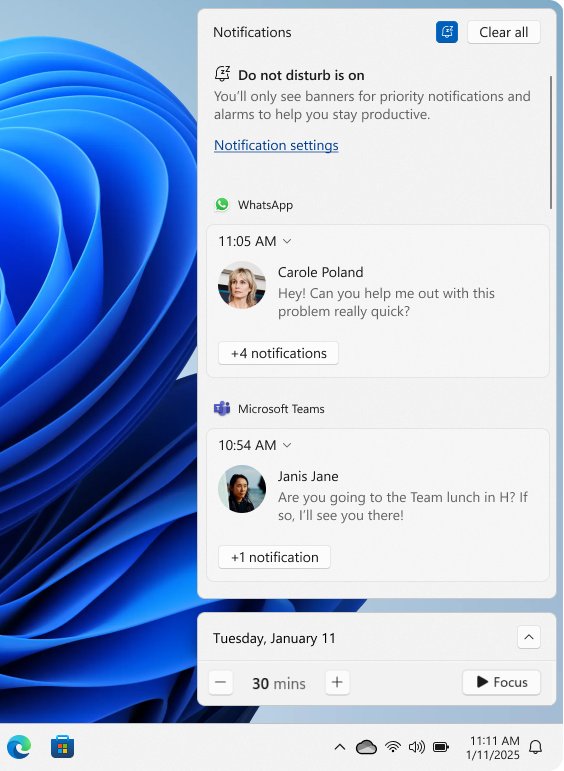
Turn on Windows 11 Do Not Disturb
Do Not Disturb is the Windows 11 name for silencing every banner at once. On Windows 10, turning off Get notifications from apps and other senders does the same job.
- Press Windows + N to open the notification center.
- Select the bell icon with zZ on it to turn Do Not Disturb on.
- Select it again to turn it off.
- To schedule it, open Settings > System > Notifications and expand Turn on do not disturb automatically.
- Pick the conditions, such as certain times of day, playing a game, or using an app in full-screen mode.
Check for Norton updates
An outdated Norton install can repeat the same alert. LiveUpdate installs current definitions and program fixes.
- Open your Norton device security product.
- Select Security in the left pane.
- In the LiveUpdate section, select Open.
- Select Update Now or Check Now.
- When it finishes, select Done, and repeat until you see Virus definitions are updated.
- Close all programs and restart the PC.
Restart Norton services if pop-ups are stuck
A restart reloads every Norton component. When the same pop-up survives a restart, Norton's own Remove and Reinstall tool replaces a damaged install.
- Save your work and restart Windows 10 from Start > Power > Restart.
- If the pop-up returns, get the Norton 360 Remover from norton.com/nortonremover and run it.
- Select Reinstall, then confirm with Uninstall.
- Select Restart Now when the removal finishes.
- After the restart, select Install Norton 360 and Sign in to reactivate your subscription.
Uninstall Norton if you no longer want it
- Search the taskbar for Control Panel and open it.
- Select Programs, then Programs and Features.
- Right-click the Norton product and select Uninstall/Change.
- Follow the on-screen prompts and restart the PC.
- If Norton will not uninstall, run the Norton 360 Remover, select Remove, confirm with Uninstall, and select Restart Now.
- Open Windows Security > Virus & threat protection afterwards to check that the PC still has active protection.
What not to turn off
| Setting | Why to leave it on |
|---|---|
| Norton security alerts | Norton warns that muting all notifications can also suppress critical alerts about your device. |
| Download Intelligence (Download Insight) | It checks downloads for low-reputation files; exclude one trusted file instead of switching it off. |
| Check apps and files in Windows Security | SmartScreen screens downloaded apps and files before they run. |
| The browser pop-up blocker | Allow pop-ups per site instead of turning the blocker off for every site. |
If one site needs pop-ups, such as a bank or a printer portal, allow pop-ups for that site only.
Recommended settings for fewer Norton pop-ups
| Setting | Where | Value |
|---|---|---|
| Send me promotional notifications | Norton Settings > Notifications | OFF |
| Send me non-critical app activity alerts | Norton Settings > Notifications | OFF |
| Silence all notifications | Norton Settings > Notifications | A duration, only when you need quiet |
| Notification settings > Edit Apps | Norton Settings > General | Add your games and video apps |
| Show notification banners (Norton) | Windows Settings > System > Notifications & actions | Off if banners still bother you |
| Download Intelligence | Norton Security > Advanced Security > Web > Safe Web | On |
Why am I still getting pop-ups on Windows 10?
Pop-ups still appear in Edge with the blocker on
An extension, a stored cookie, or an old Edge version is the source.
- Open Extensions > Manage extensions and turn every extension off.
- Turn them back on one at a time until the pop-ups return, then remove that extension.
- Update Edge from Settings > About Microsoft Edge.
- Clear the browsing cache.
Pop-ups appear on the desktop with no browser open
An installed program or adware is showing them.
- Open Control Panel > Programs > Programs and Features and uninstall programs you do not recognise.
- Open Windows Security > Virus & threat protection and select Start a quick scan.
- If the pop-ups continue, select Scan options, choose Microsoft Defender Antivirus (offline scan), and select Start an offline scan.
Norton offers return after an update
The promotional setting was reset or the app layout changed.
- Open Norton Settings > Notifications.
- Set Send me promotional notifications back to OFF.
- Run LiveUpdate so the app is on its current version.
Windows 10 pop-ups FAQ
How do I stop pop-ups on Windows 10 for free?
Every fix here is free. Turn off app notifications in Settings > System > Notifications & actions, and switch on the pop-up blocker built into Edge or Chrome. You do not need a paid pop-up blocker or cleaner program for either.
How do I stop pop-ups on my Windows 10 desktop?
Desktop pop-ups are usually app notifications. Open Settings > System > Notifications & actions and turn off Get notifications from apps and other senders, or turn off single apps under Get notifications from these senders.
How do I stop pop-ups in Windows 10 Edge?
Open Settings and more > Settings > Privacy, search, and services > Site permissions > Pop-ups and redirects, and turn on Blocked (recommended). For messages a site sends after you close it, block Notifications for that site under All sites.
How do I stop pop-ups on Chrome in Windows 10?
Open More > Settings > Privacy and security > Site Settings > Pop-ups and redirects and choose the option that does not allow pop-ups. Block notifications separately from the View site information icon on the offending site.
How do I stop McAfee pop-ups on Windows 10?
When McAfee appears under Get notifications from these senders in Settings > System > Notifications & actions, turn its switch off to hide its banners. Offers and renewal messages drawn in McAfee's own window are controlled from the McAfee app's settings.
Do pop-ups mean my computer is infected?
Not always. Most are app notifications or website pop-ups. A browser page claiming your PC is infected and showing a phone number is a scam page, but run a Windows Security quick scan if pop-ups appear with no browser open.
Can I selectively allow pop-ups from certain apps?
Yes. Leave the main notification switch on and turn off only the apps you do not want under Get notifications from these senders. Browsers work the same way: block pop-ups by default and allow single sites.
Is Windows Defender enough to stop pop-ups?
Microsoft Defender Antivirus removes adware that causes pop-ups, and SmartScreen blocks risky downloads, but it does not block website pop-ups. Pair it with the browser's pop-up blocker and blocked site notifications.
How do I stop pop-ups on Windows 11?
Open Settings > System > Notifications and turn Notifications off, or turn on Do Not Disturb from the notification center with Windows + N. Browser pop-up settings in Edge and Chrome are the same as on Windows 10.