When the OneDrive icon is missing from the taskbar in Windows 11, it is usually hidden in the Show hidden icons menu or OneDrive is not running, so check that arrow first and then start OneDrive from Start.
This guide covers the Taskbar settings switch, startup, pinning a OneDrive shortcut, the reset command, and the offline and 0x8007016A errors that often come with a missing icon.
OneDrive icon missing from taskbar in Windows 11/10
OneDrive shows a white or blue cloud icon in the notification area at the far right of the taskbar. Two things hide it: the icon moved into the overflow menu, or OneDrive is not running.
- Select the Show hidden icons arrow next to the notification area at the right end of the taskbar.
- If the OneDrive cloud is there, drag it from the menu onto the taskbar to keep it visible.
- If it is not there, select Start, type OneDrive, and select OneDrive in the search results.
- Wait a few seconds for the cloud icon to appear in the notification area.
- If the icon still does not appear, reset OneDrive with the command further down this page.

Why has my OneDrive app disappeared?
| Cause | What you see | Fix |
|---|---|---|
| Icon moved to the overflow area | The cloud appears only after you select the Show hidden icons arrow | Drag it to the taskbar or turn it on in Taskbar settings |
| OneDrive is not running | No cloud icon anywhere | Start OneDrive from the Start menu |
| OneDrive is off in startup apps | The icon vanishes after every restart | Turn on OneDrive in Settings > Apps > Startup |
| You closed OneDrive | The icon went away after you selected Close OneDrive | Open OneDrive from Start again |
| A work policy blocks it | OneDrive for work or school never starts on a managed PC | Ask your IT admin about the DisableFileSyncNGSC policy |
| OneDrive was uninstalled or damaged | Start finds no OneDrive app, or the reset command fails | Reinstall OneDrive |
Show the OneDrive icon in the Windows 11 system tray
Windows 11 decides which background app icons appear in the system tray and which go into the hidden icon menu. OneDrive is one of the icons you can switch on.
- Right-click an empty part of the taskbar and select Taskbar settings.
- Expand Other system tray icons.
- Find OneDrive in the list and set its switch to On.
- Leave the hidden icon menu turned on so any icon you do not show stays reachable from the arrow.
- Look at the right end of the taskbar. The OneDrive cloud now sits beside the clock.
If OneDrive is not in the list, it is not running or has never run on this account. Start it from the Start menu, then come back to this page. When other icons have vanished too, you can fix missing taskbar icons by rebuilding the icon cache and restarting Explorer.
Start OneDrive automatically in Windows 11
When the icon disappears after every restart, OneDrive is not set to start when you sign in.
- Select Start > Settings > Apps > Startup.
- Find OneDrive in the list and set its toggle to On.
- Open OneDrive from Start, then select the OneDrive cloud icon in the notification area.
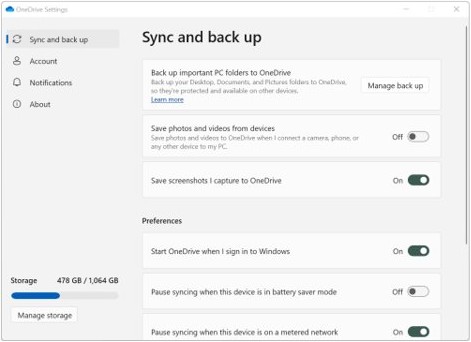
- Select Help & Settings (the gear icon) and select Settings.
- Open Preferences and turn on the option to start OneDrive when you sign in to Windows.
- Restart the PC and check that the cloud icon returns on its own.
If OneDrive is turned off completely on this PC, turn on OneDrive in Windows 11 first.
How to pin OneDrive shortcut to taskbar?
A pinned OneDrive shortcut sits with your apps in the middle of the taskbar, the same way you pin any app to the taskbar. It opens OneDrive even when the system tray icon is hidden.
- Select the Search box on the taskbar and type OneDrive.
- Right-click OneDrive in the results.
- Select Pin to taskbar.
- If OneDrive is already open, you can instead right-click its icon on the taskbar and select Pin to taskbar.
- Drag the pinned icon to where you want it among your other taskbar apps.
To remove it later, right-click the pinned icon and select Unpin from taskbar.
Reset OneDrive to bring back the taskbar icon
Resetting OneDrive resets all its settings and disconnects your sync connections, then performs a full sync. You do not lose files or data.
Press Windows key + R to open Run, paste the command, and select OK.
%localappdata%\Microsoft\OneDrive\onedrive.exe /resetThis resets the OneDrive sync app installed for your account. If Windows says it cannot find the file, run C:\Program Files\Microsoft OneDrive\onedrive.exe /reset instead, and then C:\Program Files (x86)\Microsoft OneDrive\onedrive.exe /reset. If none of the three paths exist, the OneDrive sync app is not installed.
You should see: Select Start, type OneDrive and open the OneDrive app. The cloud icon reappears in the notification area and OneDrive starts a full sync. If you chose to sync only some folders before, choose them again.
Reinstall OneDrive when it is missing from Windows 11
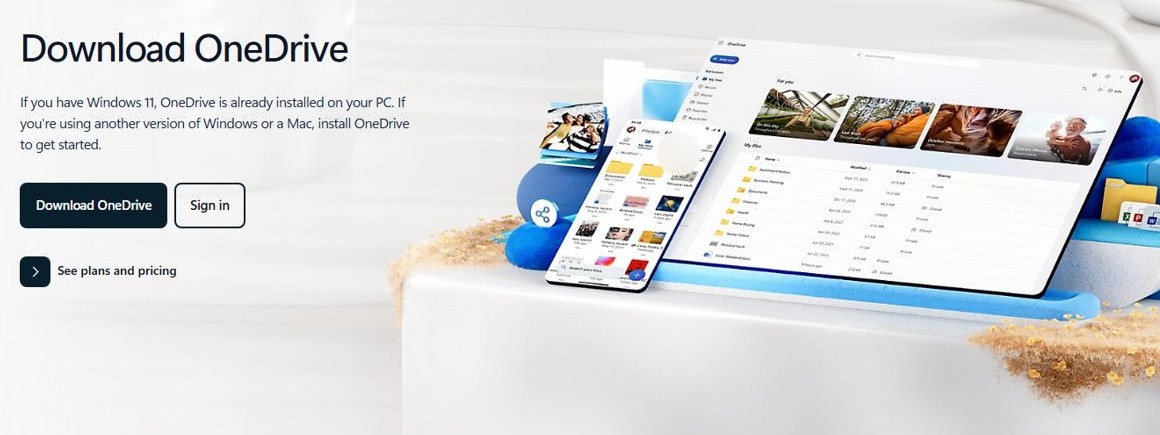
Microsoft states that OneDrive comes already installed on Windows 11. If Start finds no OneDrive app and the reset paths do not exist, download and install OneDrive again.
- Select Start > Settings > Apps > Installed apps and search for OneDrive.
- If Microsoft OneDrive is listed but broken, select More > Uninstall.
- Open the official OneDrive download page on microsoft.com and select Download OneDrive.
- Run the installer, then sign in with your Microsoft account.
- Turn on the OneDrive icon in Taskbar settings > Other system tray icons if it lands in the hidden icon menu.
OneDrive taskbar icon gray, paused or red: what it means
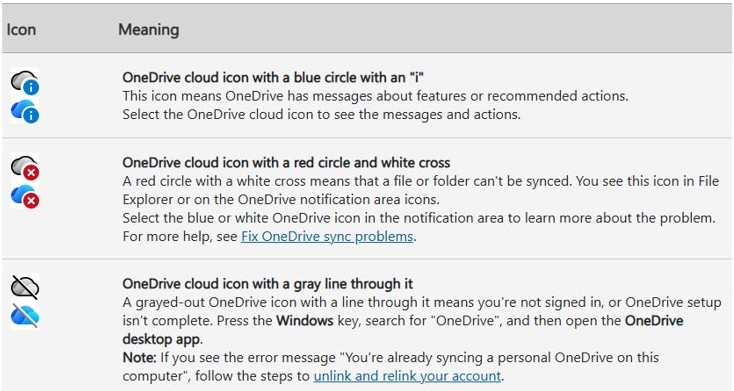
Sometimes the icon is present but looks wrong. Microsoft documents each of these states. The full set of OneDrive icon meanings also covers the icons in File Explorer.
| Icon in the notification area | Meaning | What to do |
|---|---|---|
| White or blue cloud | OneDrive is running normally | Nothing |
| Gray cloud with a line through it | You are not signed in, or OneDrive setup is not complete | Press the Windows key, search for OneDrive, open it and sign in |
| Cloud with a paused symbol | Files are not syncing | Select the icon and select Resume syncing |
| Cloud with a red circle and white cross | A file or folder cannot sync | Select the icon to see the problem |
| Cloud with a blue circle and an i | OneDrive has messages or recommended actions | Select the icon to read them |
How to tell if OneDrive is running in Windows 11
- Look for the white or blue OneDrive cloud next to the clock, or under the Show hidden icons arrow.
- Select the cloud. A OneDrive panel opens with your recent files and sync status.
- Select Help & Settings > Settings. The settings window shows your storage use, which means the sync app is signed in.
- Restart the PC once and check that the icon comes back without you starting OneDrive by hand.
Can't find OneDrive icon in taskbar
OneDrive icon not showing in taskbar on a second monitor
The taskbar, and its system tray, only shows on the main display.
- Right-click the taskbar and select Taskbar settings.
- Expand Taskbar behaviors.
- Check Show my taskbar on all displays.
OneDrive for work or school never starts on a company PC
A Group Policy setting stops onedrive.exe from starting.
- Ask your IT admin whether the DisableFileSyncNGSC policy is set under HKEY_LOCAL_MACHINE\Software\Policies\Microsoft\Windows\OneDrive.
- Have the admin remove or change the policy. Editing the value yourself does not last, because the policy is reapplied after a restart or sign-in.
OneDrive personal icon missing from taskbar after a Windows update
OneDrive did not start after the update, or its settings were damaged.
- Start OneDrive from the Start menu.
- If it does not start, run the
/resetcommand from the reset section. - Check Settings > Apps > Startup and make sure OneDrive is On.
OneDrive is showing offline on Windows 11
OneDrive error code 6
A timeout error occurred while OneDrive tried to reach the cloud.
- Check that the PC has a working internet connection.
- Restart the PC and open OneDrive again.
OneDrive error 0x80040c81: OneDrive is having difficulties connecting to the cloud
The sync app cannot reach the OneDrive service.
- Reset OneDrive with the
/resetcommand. - If the error stays, troubleshoot the PC's network connection and try again.
The OneDrive icon is gray with a line through it
You are not signed in, or setup did not finish.
- Press the Windows key, search for OneDrive, and open the OneDrive app.
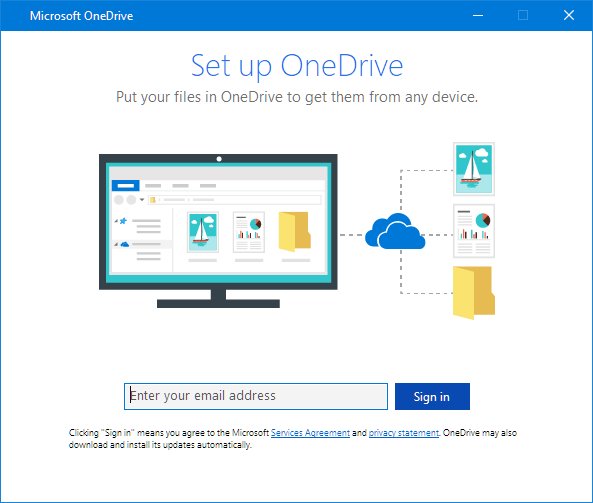
- Sign in with your Microsoft account and finish setup.
Sync is paused
Syncing was paused by hand or by a battery saver or metered network preference.
- Select the OneDrive icon and select Resume syncing.
- In Settings > Preferences, check how OneDrive behaves in battery saver mode and on metered networks.
OneDrive Error 0x8007016A, the cloud file provider is not running
Error 0x8007016a when you open or move files in the OneDrive folder
Files On-Demand cannot reach a running OneDrive sync app.
- Check for Windows updates in Settings and install them.
- Make sure you are signed in to OneDrive, then select the OneDrive cloud icon in the notification area.
- Select Help & Settings > Settings.
- Clear the Save space and download files as you use them box.
- Reset OneDrive with the
/resetcommand. - After the reset, turn Files On-Demand back on.
Unable to upload PST files to OneDrive [Fix]
A .pst file takes a long time to upload or looks stuck
Outlook .PST files are supported, but the sync app syncs them less often than other file types to reduce network traffic.
- Wait for the next sync pass before you assume the upload failed.
- Make sure the OneDrive icon is present and not paused.
- Check that the file is under the 250 GB per-file limit.
A work or school OneDrive refuses .pst files
Admins can block the sync app from uploading specific file types.
- Ask your IT admin whether an organisational policy blocks .pst files.
- If it does, keep the data file outside the OneDrive folder.
Outlook shows errors after the .pst moved into OneDrive
Outlook still looks for the .pst at its original location, which happens when Known Folder Move migrates it.
- Follow Microsoft's steps to remove an Outlook PST data file from OneDrive.
- Point Outlook back at the data file in its new location.
OneDrive taskbar icon FAQ
Why can't I find the OneDrive icon in the taskbar?
The icon is usually in the hidden icon menu or OneDrive is not running. Select the Show hidden icons arrow next to the clock. If the cloud is not there, select Start, type OneDrive and open it, and the icon returns.
How do I get the OneDrive icon back on my taskbar in Windows 11?
Right-click the taskbar, select Taskbar settings, expand Other system tray icons and turn on OneDrive. If OneDrive is not listed, start it from the Start menu first, then turn it on there.
Why does the OneDrive icon disappear from the taskbar after a restart?
OneDrive is not set to start when you sign in. Go to Settings > Apps > Startup and turn on OneDrive, and check the startup option under Preferences in OneDrive settings.
Is the OneDrive icon missing from the taskbar in Windows 10 fixed the same way?
Mostly. On Windows 10, check the Show hidden icons arrow, start OneDrive from Start, and use the same reset command. The Taskbar settings layout differs, but the icon still sits in the notification area at the right of the taskbar.
Will resetting OneDrive delete my files?
No. Microsoft says you will not lose files or data. A reset disconnects your sync connections and resets settings, then OneDrive runs a full sync. Re-select folders afterwards if you only synced some of them.
Can I pin OneDrive to the taskbar?
Yes. Type OneDrive in the taskbar search box, right-click the OneDrive result and select Pin to taskbar. The pinned shortcut opens OneDrive, while the cloud icon by the clock shows sync status.
Why is my OneDrive icon gray?
A gray OneDrive icon with a line through it means you are not signed in or setup is not complete. Press the Windows key, search for OneDrive, open the app and sign in with your Microsoft account.
Is OneDrive installed on Windows 11 by default?
Yes. Microsoft states that OneDrive is already installed on Windows 11. If it has been removed, download it again from the official OneDrive download page on microsoft.com and sign in.