To take off a keyboard key, hook a keycap puller under the keycap, press until it grips, and pull straight up; this works on mechanical keyboards, while most laptop and low-profile keyboards should not have their keys removed.
This guide covers when removing keys makes sense, how each keyboard type holds its keys, four ways to lift a keycap, pulling hot-swap switches, and how to put every key back on.
How to remove keycaps with a keycap puller
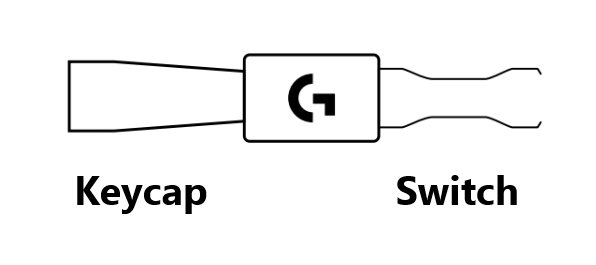
A wire keycap puller is the safest tool for a mechanical keyboard. Logitech recommends one for its keyboards with removable keycaps, such as the K848, Alto Keys K75M and K828.
- Unplug the keyboard, or switch a wireless keyboard off, so stray key presses do nothing.
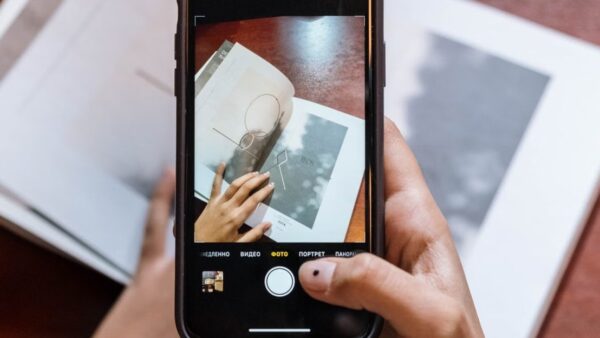
- Take a photo of the layout so you know where every keycap goes back.
- Slide the two wire loops of the puller down over the keycap, one on each side, so they sit under its edges.
- Press gently until the wire catches under the keycap.
- Pull straight up with a firm, steady grip. Do not rock or twist the keycap.
- Set the keycap aside, top down, and repeat for the next key.
On long keys such as Spacebar, Enter, Shift and Backspace, hook the puller near the middle and lift evenly so the key does not tilt and catch on one side.
When should I take off keyboard keys?
Removing a keycap is worth it when the job needs the space under the key. For dust around a key, compressed air or a soft brush is often enough and carries no risk to the key.
| Reason | Take the keys off? | What to do instead or as well |
|---|---|---|
| Swap in a new keycap set | Yes, on mechanical keyboards | Check the new set fits your switch stems first |
| Crumbs or debris under a key | Only on mechanical keyboards | Try compressed air or a soft brush first |
| A key feels sticky or makes a strange noise | Mechanical: yes. Laptop or low-profile: no | Tap the key and listen; an odd sound often means debris is still there |
| Replace or change a switch on a hot-swap keyboard | Yes, the keycap comes off first | Use the switch puller (claw) after the keycap is off |
| A laptop key is unresponsive | No | Clean with compressed air, then use the maker's service |
| A keycap popped off by accident | It is already off | Press it back onto the switch until it clicks |
Different types of keyboard
How a key is attached decides whether it is safe to pull. Mechanical keycaps press onto a switch stem; most other keys are held by small clips that break easily.
| Keyboard type | How the key is held | Safe to take off? |
|---|---|---|
| Mechanical keyboard | The keycap presses onto the stem of a switch; many use a cross-shaped stem | Yes, with a keycap puller |
| Hot-swappable mechanical keyboard | Keycap on a switch, and the switch itself plugs into the board | Yes; the switch can also be pulled with a switch puller |
| Membrane and low-profile keyboard (for example Logitech MX Keys, Pebble Keys) | Thin keycaps clipped over the key mechanism | No. Logitech advises against removing keycaps on non-mechanical keyboards because it can cause damage |
| Laptop keyboard | Thin keycaps clipped into the keyboard deck | Not recommended. Apple and HP point to cleaning or service instead |
If the keyboard came with a puller, or the maker sells replacement keycaps for it, the keycaps are designed to come off.
How to take off keyboard keys – 4 ways to do it
Each of the four routes below lifts a mechanical keycap. Pick the first one you have the tool for.
| Way | Best for | How it works | Risk |
|---|---|---|---|
| Using a keycap puller | Any mechanical keyboard, many keys at once | Wire loops hook under the keycap and lift it straight up | Lowest |
| Using an alternative puller | Keyboards that ship with a built-in or bundled puller, such as the feet on a Logitech G512 X | The legs slide under the keycap and lock before you pull | Low |
| Using a flat tool | One stuck mechanical keycap when no puller is at hand | A thin plastic tool lifts one edge of the keycap | Higher: scratches and bent clips |
| Using your hand | Taller mechanical keycaps you can grip | Pinch the keycap at its sides and pull straight up | Low if you pull straight |
None of the four is meant for a laptop or a low-profile membrane keyboard. Those keys clip in place and can break.
How to remove keycaps without a keycap puller
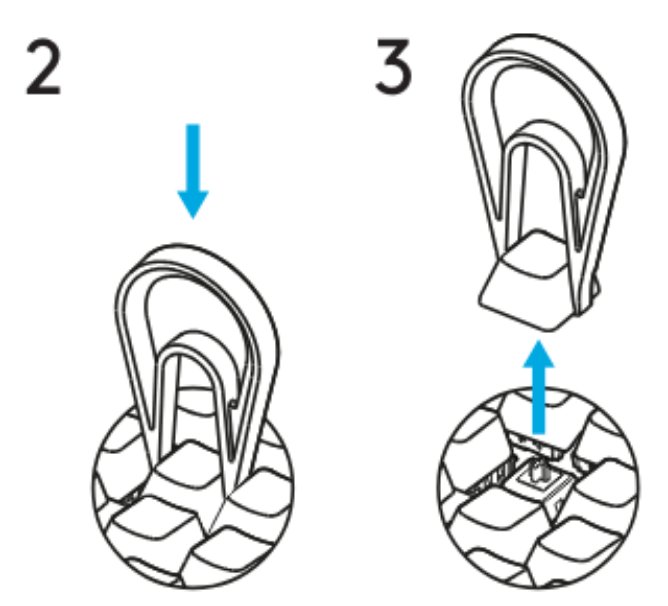
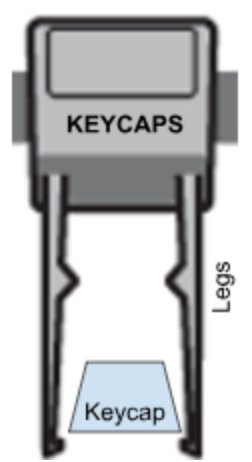
Some keyboards carry their own puller. On the Logitech G512 X, the feet are designed to work as keycap and switch pullers; use the foot labelled KEYCAPS.
- Insert the legs of the built-in puller under the keycap, lined up left and right or top and bottom.
- Apply gentle pressure until you hear the legs lock under the keycap.
- Hold the puller and pull the keycap straight up.
- With no puller at all, pinch a mechanical keycap on two opposite sides with your fingertips and pull straight up.
- If a keycap is too low to grip, slide a thin plastic tool under one edge and lift gently, then finish by hand.
- Never lever against the switch or the keyboard frame; stop if the keycap does not move.
How to take off laptop keyboard keys
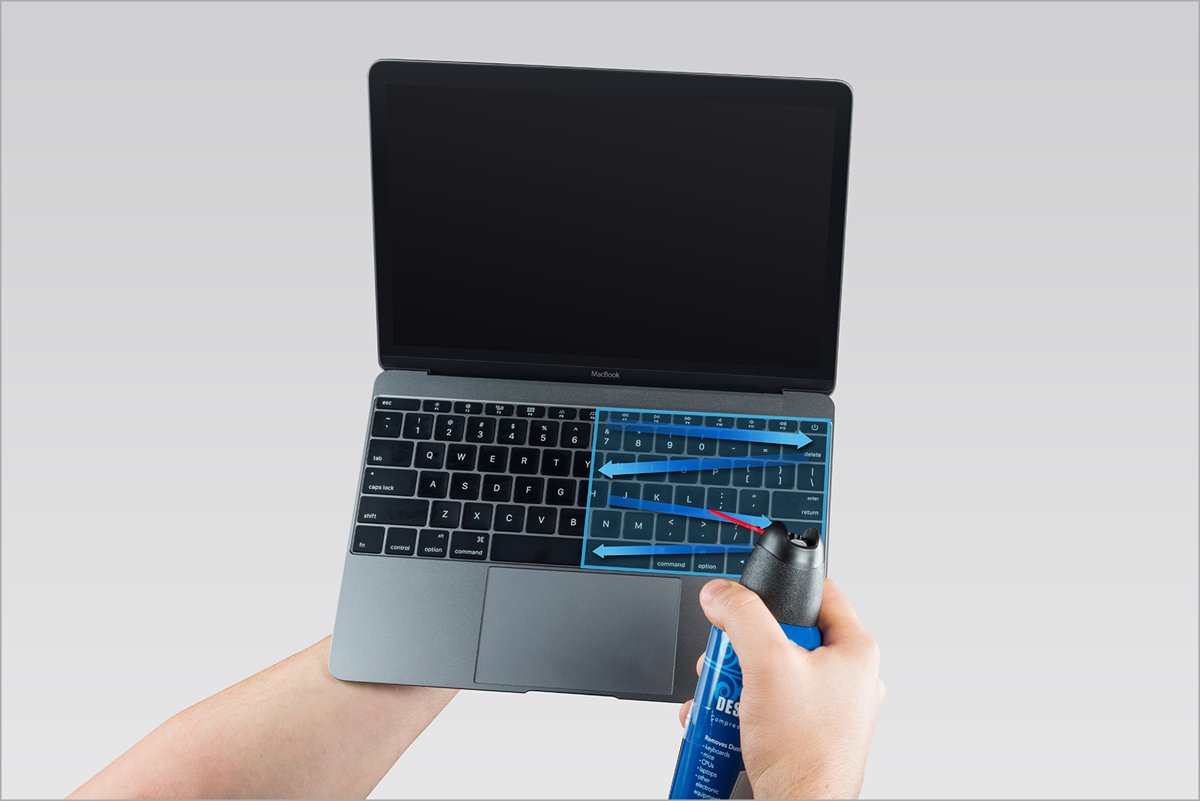
Laptop keycaps clip into the keyboard and are easy to break, so try cleaning before anything else. Apple's guidance for an unresponsive MacBook (2015 and later) or MacBook Pro (2016 and later) key uses compressed air, not removal.
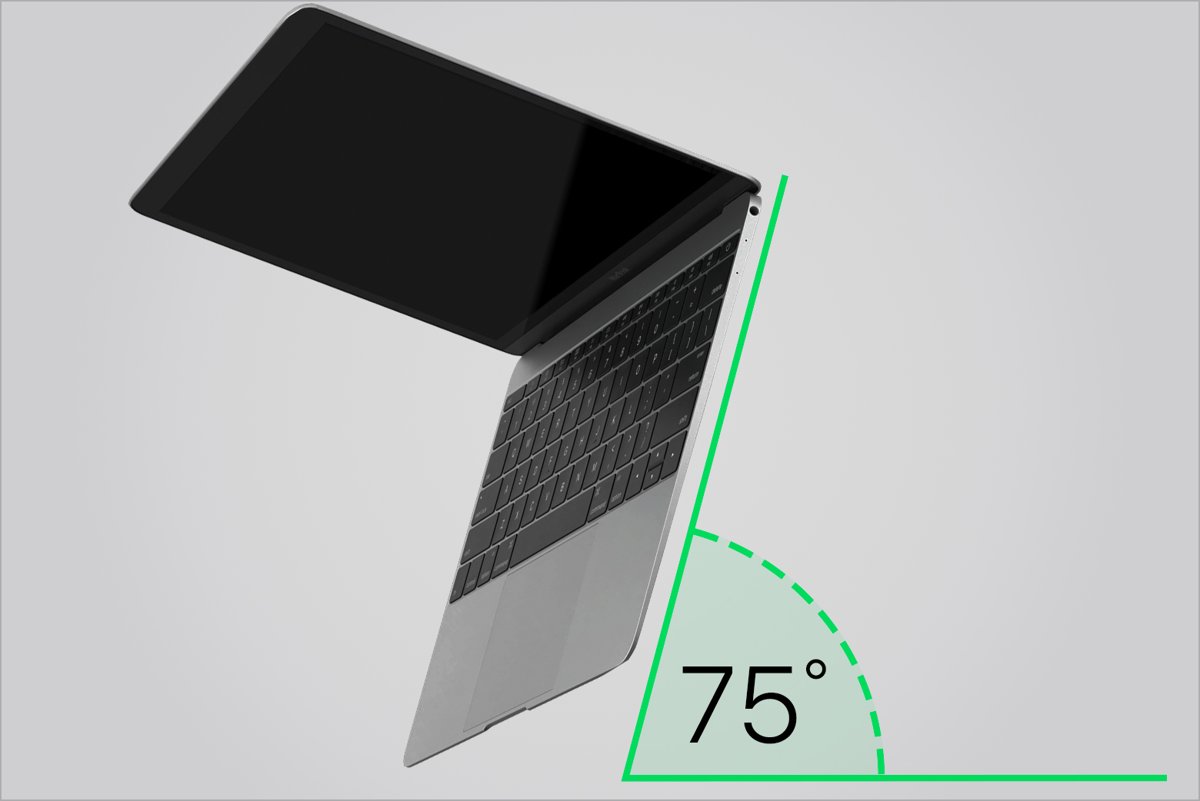
- Hold the laptop at about a 75-degree angle, so it is not quite vertical.
- Fit the straw to the compressed air can and keep its end about half an inch from the keyboard. Do not turn the can upside down.
- Spray the keyboard, or just the affected keys, in a left-to-right motion.
- Turn the laptop onto its right side and spray again from left to right.
- Turn it onto its left side and repeat.
- If the key still does not work, contact the maker or an authorized service provider instead of prying the keycap off.
HP gives the same advice for stuck keys on HP notebooks: contact HP if the laptop is under warranty or you cannot remove the keys. For a broken laptop key, HP's documented fix on many models is replacing the whole keyboard.
How to remove switches from a hot-swappable keyboard
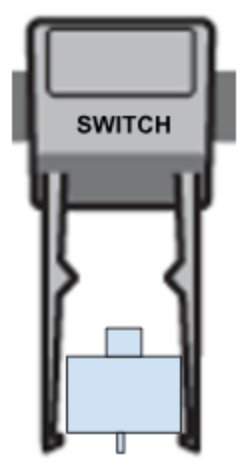
On a hot-swap keyboard, the switch under the keycap also pulls out. Logitech's PRO X2 RAPID puller has a metal wire side for keycaps and a claw side for switches.
- Remove the keycap first with the wire side of the puller.
- Insert the claw, or the G512 X foot labelled SWITCH, under the switch, lined up top and bottom.
- Grip firmly so the legs lock at the bottom of the switch.
- Pull the switch gently straight out of the keyboard.
- When fitting a switch, line its contacts up with the holes in the board before you press it in.
Only pull switches on a keyboard its maker describes as hot-swappable. On other keyboards the switches are soldered in.
How to clean under keyboard keys
- Unplug the keyboard or switch it off.
- Take a photo of the layout, then remove the keycaps with a puller.
- Blow out loose debris with compressed air, or sweep it out with a soft brush.
- Look under each key for bent clips or broken parts before you refit anything.
- Wipe the keycaps with a soft, lint-free cloth and let them dry completely.
- Press each keycap back onto its switch, then plug the keyboard in and test every key.
On a membrane, low-profile or laptop keyboard, skip step 2 and clean around the keys with compressed air or a soft brush.
How to put keyboard keys back on
- Use your layout photo to match each keycap to its position.
- Line the keycap up square over the switch stem, with the legend facing the right way.
- Press it straight down until it clicks into place.
- For a long key such as Spacebar, press both ends evenly so it seats level.
- Tap each key a few times to check it moves freely and springs back.
- Plug the keyboard in and press every refitted key to check it types.
Keyboard key not working after taking it off
The keycap will not click back on
It is turned the wrong way or not lined up square over the stem.
- Lift the keycap off again and check the stem socket under it is clear.
- Rotate it so the legend matches the keys around it.
- Press straight down until it clicks.
The key is loose, wobbly or pops off
A clip under the key may be bent or broken.
- Remove the keycap and look under it for bent clips or broken parts.
- Refit it and press until it clicks.
- If a part is damaged, contact the keyboard maker's support for a replacement keycap or repair.
The key feels sticky or sounds strange
Debris is still under the key.
- Tap the key and listen for a crunch or rattle.
- Remove the keycap and blow the area out with compressed air.
- Refit the keycap and test it again.
The switch came out with the keycap
On a hot-swap keyboard a tight keycap can lift the switch with it.
- Hold the switch and pull the keycap off it.
- Line the switch contacts up with the holes in the board.
- Press the switch straight down until it sits flush, then refit the keycap.
The key types nothing after it is refitted
The switch is not seated, or the key mechanism is damaged.
- Plug the keyboard in and press the key to test it.
- On a hot-swap keyboard, reseat the switch with its contacts lined up.
- If it still does not register on a Windows PC, work through the unresponsive keyboard fixes, then contact the keyboard or laptop maker for service.
Taking off keyboard keys FAQ
Can you take keys off any keyboard?
No. Mechanical keyboards are built for it, and keycaps pull straight off their switches. Membrane, low-profile and laptop keyboards hold their keys with small clips, and Logitech advises against removing keycaps on non-mechanical keyboards because it can damage them.
Do I need a keycap puller to take off keyboard keys?
A keycap puller is the safest tool, and Logitech recommends one for its keyboards with removable keycaps. Some keyboards include a puller, such as the feet on the Logitech G512 X. Taller mechanical keycaps can also be pulled straight up by hand.
Can you take keys off a laptop keyboard?
It is not recommended. Laptop keycaps clip into the keyboard and break easily. Apple says to clean an unresponsive MacBook key with compressed air and then get service, and HP says to contact HP if the laptop is under warranty or the keys will not come off.
How do you put a keyboard key back on?
Line the keycap up square over its switch with the legend facing the right way, then press it straight down until it clicks into place. Press long keys such as Spacebar evenly at both ends, then plug the keyboard in and test the key.
Can removing keycaps damage a keyboard?
On a mechanical keyboard, pulling straight up with a puller rarely causes damage. Prying at an angle can bend clips or scratch keycaps. On non-mechanical and laptop keyboards, removing keycaps can break the clips, so clean around those keys instead.
What is the difference between a keycap puller and a switch puller?
A keycap puller lifts only the plastic keycap, usually with metal wire loops. A switch puller is a claw that grips the switch underneath and pulls it out of a hot-swappable keyboard. Logitech's PRO X2 RAPID puller has one of each on opposite ends.
Do new keycaps fit every mechanical keyboard?
Not always. Keycaps must match the switch stem. Logitech's G-Keycaps, for example, fit keyboards whose switches have a cross-hatched stem, and the Logitech K828 accepts most keycaps made for high mechanical switches. Check the keycap maker's compatibility list before you buy.
Should I take off keys to clean my keyboard?
Only on a mechanical keyboard when compressed air or a soft brush does not clear the debris. Removing the keycaps gives access to the plate underneath. On membrane, low-profile and laptop keyboards, clean around the keys without removing them.