The Windows Malicious Software Removal Tool (MSRT) is a free Microsoft scanner that finds and removes a short list of specific, prevalent malware families and reverses the changes they made.
It is not an antivirus. Windows Update runs it quietly in the background, usually once a month, and you can also start it yourself by typing mrt in the Run box. This guide explains what it covers, how to run it, how to read its log, and what to do when it reports an error.
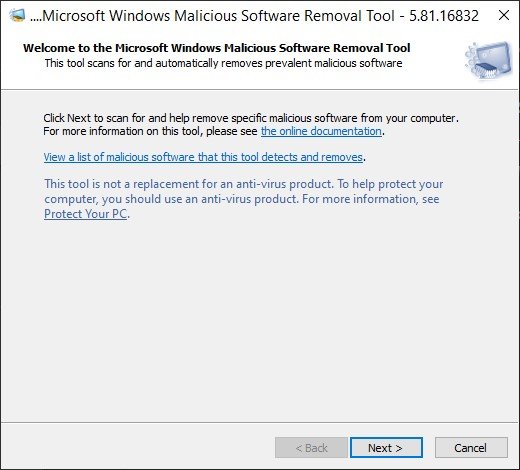
What is the Windows Malicious Software Removal Tool?
Microsoft publishes the MSRT under knowledge base article KB890830. It runs on Windows 11, Windows 10, Windows 8.1, Windows 7 and Windows Server 2012 through 2022.
Leave MSRT alone and let Windows Update run it, but never treat it as your only protection. It is a post-infection cleanup tool for a small set of widespread threats that are actively running. It has no real-time protection, it does not remove spyware, and Microsoft tells you to keep an up-to-date antivirus such as Microsoft Defender Antivirus running alongside it.
To run it right now, press Windows + R, type mrt and press Enter, then select Yes at the User Account Control prompt.
Background / overview
MSRT has shipped since early 2005. Version 1.2 arrived in March 2005, and the tool has been rebuilt with a new malware list most months since then.
| Item | Detail |
|---|---|
| Publisher | Microsoft |
| Knowledge base article | KB890830 (the number never changes; only the file name and version do) |
| Release day | Usually the second Tuesday of each month, alongside the monthly Windows updates |
| File names | Windows-KB890830-V5.xx.exe for 32-bit and Windows-KB890830-x64-V5.xx.exe for 64-bit Windows |
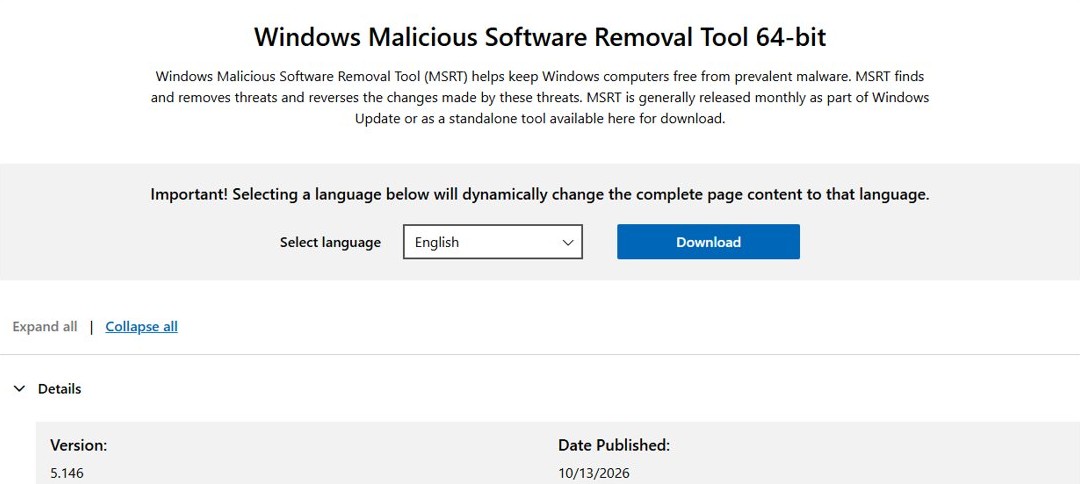
| Version in October 2026 | 5.146, dated 13 October 2026 on the Microsoft Download Center |
| Supported Windows | Windows 11, Windows 10, Windows 8.1, Windows 7, Windows Server 2012, 2012 R2, 2016, 2019 and 2022 |
| Dropped support | Windows Vista and earlier; Windows Server 2008 and 2008 R2 from May 2025 |
| Code signing | SHA-2 only since November 2019, so the PC must support SHA-2 signatures |
| Account needed | A member of the Administrators group; otherwise the tool exits |
What MSRT actually does (and what it doesn’t)
Each release targets the malware families Microsoft judges most prevalent and most damaging that month, plus any known variants at release time. Past releases have added families such as the Simda banking trojan.
| MSRT does | MSRT does not |
|---|---|
| Scan for a fixed list of prevalent malware families (viruses, worms and Trojan horses) | Protect you in real time or block new infections |
| Remove the infection and reverse the changes that threat made | Remove spyware |
| Focus on malware that is actively running | Replace an antivirus or antimalware product |
| Offer a quick, full or customized scan when you run it by hand | Scan mapped network drives during a full scan |
| Write results to %windir%\debug\mrt.log | Stay installed: it has no installer and leaves no Start menu entry |
| Send Microsoft a short report when it finds malware or an error | Send suspicious files without asking you first |
The report holds the malware name, the removal result, your Windows version, locale and processor type, the tool version, how it was launched, an anonymous GUID and an MD5 hash of each removed file's path.
How MSRT gets to your PC (distribution & updates)
| Channel | How it runs | What you see |
|---|---|---|
| Windows Update / Microsoft Update / Automatic Updates | Downloads and runs once with each monthly release | Nothing, unless malware is found; then a notification appears the next time an administrator signs in |
| Microsoft Download Center (x86 or x64 package) | Runs when you open the file | The full scanning wizard, unless you add /Q |
| The copy left in System32 | Runs when you start %windir%\system32\mrt.exe |
The full scanning wizard |
| WSUS, Configuration Manager or a Group Policy script | Runs on the schedule the administrator sets | Usually nothing; it is run with /Q |
Windows Update offers each version only once. If you already ran the current release, it is not offered again until the next one. The first time it is offered, an administrator must accept the Microsoft license terms.
How to run the Windows Malicious Software Removal Tool
There are three practical ways to start a scan yourself. All of them need an administrator account.
| Your situation | Do this | Why |
|---|---|---|
| Windows Update has run normally this month | Press Windows + R, type mrt, press Enter |
Starts the copy Windows Update already placed in System32 |
| Windows Update is broken or behind | Download the x64 or x86 package from the Microsoft Download Center and open it | Gives you the latest malware list even when updates fail |
| You manage several PCs or want no window | Run the package with /Q from a script |
Quiet mode suppresses the interface |
| Malware stops the tool from running | Start Windows in Safe Mode, then run %windir%\system32\mrt.exe |
Fewer programs and drivers load in Safe Mode |
Quick, manual method (graphical)
- Press Windows + R to open Run.
- Type
mrt(or%windir%\system32\mrt.exe) and select OK. - Select Yes when User Account Control asks to allow changes.
- Accept the license terms if asked, then select Next on the welcome page.
- Under Scan type, choose Quick scan, Full scan or Customized scan, then select Next.
- Wait for the scan to finish. A full scan covers fixed and removable drives and can take several hours.
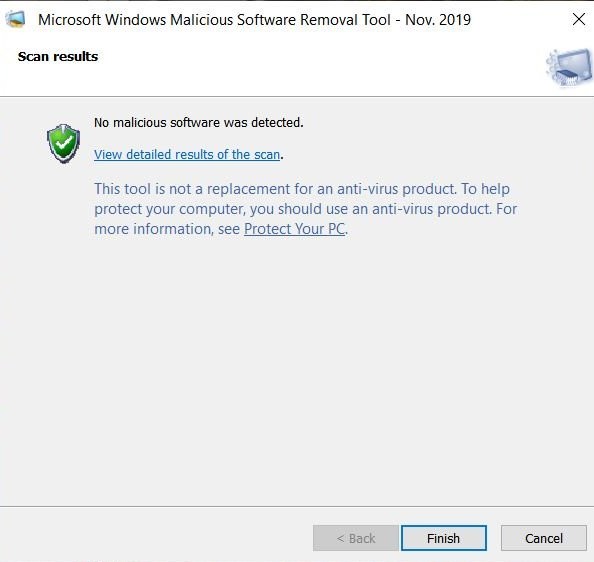
- Read the result page, then select Finish. If it asks you to restart or take manual steps, do that before using the PC normally.
Customized scan adds a Choose Folder button, so you can scan one drive or folder only.
Command-line & unattended usage
MSRT accepts five command-line switches. Run them from an elevated Command Prompt against mrt.exe or the downloaded Windows-KB890830 package, for example mrt.exe /Q /F:Y.
| Switch | What it does | Use it when |
|---|---|---|
/Q or /quiet |
Quiet mode: no user interface | You run it from a script or deployment tool |
/? |
Shows a dialog that lists the switches | You want to check the switches on that build |
/N |
Detect-only mode: reports malware but removes nothing | You want an inventory before cleaning anything |
/F |
Forces an extended (full) scan | A quick scan found something or you suspect an infection |
/F:Y |
Forces an extended scan and cleans any infections automatically | Unattended cleanup with no prompts |
In a batch file, use start /wait before the tool so the script waits for the scan to end, then read %errorlevel% for the return code.
Run from Safe Mode or from the System folder
Microsoft confirms MSRT can run in Safe Mode. The copy you need is the one Windows Update left at %windir%\system32\mrt.exe, so the tool needs one normal run before you restart.
- Open Settings > System > Recovery.
- Next to Advanced startup, select Restart now.
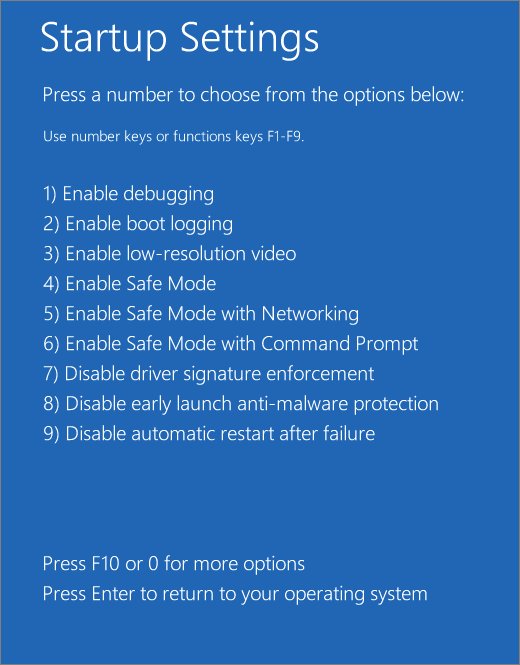
- In Windows RE, select Troubleshoot > Advanced options > Startup Settings > Restart.
- Press 4 or F4 for Enable Safe Mode (or 5 / F5 for Safe Mode with Networking if you need to download the latest package).
- Sign in with an administrator account and open File Explorer.
- Go to
C:\Windows\System32and double-clickmrt.exe, then run a Full scan. - Restart normally when the scan ends.
If BitLocker is on, have your BitLocker recovery key ready before you open Startup Settings.
Reading the MSRT log and interpreting results
Every run appends to %windir%\debug\mrt.log (usually C:\Windows\debug\mrt.log). The file is English only, and the newest entry is at the bottom. Press Windows + R, type %systemroot%\debug and open mrt.log in Notepad.
| What the log or wizard says | What it means | What to do |
|---|---|---|
| No infection found. Return code: 0 | None of the families in this release are on the PC | Nothing |
| Threat Detected: … and Removed! Return code: 6 | At least one infection was found and removed | Run a full scan with your antivirus to catch anything MSRT does not cover |
| partially removed … Please use a full antivirus product | Some files were cleaned, others were not | Run a Microsoft Defender full scan or an offline scan |
| Return code 8 or 9 | Removed, but manual steps are needed | Follow the instructions in the latest log entry or the notification |
| Return code 10, 11 or 13 | Removed, but a restart is needed to finish | Restart the PC |
| Return code 12 | Removed, but both manual steps and a restart are needed | Do the manual steps, then restart |
| Return code 7 | Infection found, but errors occurred | Look up the 0x8050xxxx code in the troubleshooting section below |
| Return code 2 | Not running as an administrator | Run it again from an administrator account |
| Return code 3 or 4 | Unsupported Windows, or the scanner failed to start | Download a fresh copy of the tool |
| Error: MemScanGetImagePathFromPid … Access is denied | A process was starting or stopping during the scan | Nothing; only that process was skipped |
Lines marked as a warning are less serious than lines marked as an error, and some are purely informational.
The mysterious mrtstub.exe: benign but worth validating
MSRT has no installer. Each run unpacks into a randomly named temporary folder on the root of the system drive, and mrtstub.exe is one of the files in it. Windows normally deletes the folder after the run or after the next restart.
| Question | Answer |
|---|---|
| Is mrtstub.exe legitimate? | Yes, when it is digitally signed by Microsoft |
| Where is it? | In a randomly named folder at the root of the drive, for example C:\ |
| How do I check the signature? | Right-click the file, select Properties, open the Digital Signatures tab and confirm the signer is Microsoft |
| Can I delete the folder? | Yes. If it is still there after a restart, deleting it does no harm |
| What if it is unsigned or signed by someone else? | Treat it as suspicious and run a Microsoft Defender full scan |
When to use MSRT vs. Windows Defender / other antivirus
MSRT is one of four free Microsoft scanners. They do different jobs, and the on-demand ones can sit alongside any real-time antivirus.
| Your situation | Use this | Why |
|---|---|---|
| Everyday protection | Microsoft Defender Antivirus (or your own antivirus) | Real-time protection; MSRT has none |
| A quick second opinion on widespread threats | MSRT | Already on the PC and needs no setup |
| Defender reports a threat as partially removed | MSRT full scan, then restart and install updates | Microsoft's own next step for this result |
| You suspect an infection MSRT does not cover | Microsoft Safety Scanner | Broader detection; it expires 10 days after download |
| Malware hides while Windows is running | Microsoft Defender Antivirus (offline scan) | Scans from Windows RE before Windows loads |
You do not need to turn off your antivirus to run MSRT. If the antivirus blocks MSRT from removing a file, let the antivirus remove it instead.
Strengths: why MSRT still matters
| Strength | Why it counts |
|---|---|
| Runs automatically every month | PCs with no working antivirus still get a sweep for the most common threats |
| Repairs what the malware changed | It reverses changes such as Run keys, not just the malicious file |
| Works alongside any antivirus | It is not a real-time product, so it does not conflict |
| Leaves a log and a registry marker | Admins can prove it ran and see what it found |
| Scriptable | Quiet mode, detect-only mode and return codes suit deployment scripts |
| Free and signed by Microsoft | No account, subscription or third-party download |
Limitations and risks you must consider
| Limitation | What it means for you |
|---|---|
| Small, fixed malware list | A clean MSRT result does not mean the PC is clean |
| No real-time protection | It cannot stop an infection, only clean some afterwards |
| Cleaning can lose data | Infected files may not return to their pre-infection state |
| Some months are skipped | No release shipped in December 2023, December 2024, March, April, July and September 2025, or January and March 2026 |
| Goes stale | A copy more than 215 days (7 months) old prompts you to download the latest version |
| Quiet mode may miss a restart-dependent cleanup | Some rootkit variants needed extra cleaning after a restart when run with /Q |
| Network drives are skipped | A full scan covers fixed and removable drives only |
MSRT troubleshooting: common problems and fixes
Start with the newest entry in %windir%\debug\mrt.log, find the error code, and match it below.
Errors 0x8050A001 or 0x80508001: the engine could not load
Signatures are missing or the engine failed to start.
- Open Settings > Windows Update and select Check for updates.
- Install everything offered and restart.
- Run
mrtagain and select Next through to Scan type.
Errors 0x8050A002, 0x8050A004, 0x8050A005, 0x80508002 or 0x80508004: signatures corrupted
The signature database inside the tool is damaged or unsigned.
- Download a new copy of the tool from the Microsoft Download Center.
- Open the new file and run the scan again.
Error 0x80508019: scan destination does not exist
A customized scan points at a missing file or drive.
- Start the tool and select Customized scan.
- Select Choose Folder, pick a drive or folder that exists, select OK and then Next.
Error 0x80508007 (low memory) or 0x8050800C (system state blocks the scan)
The PC is short of memory or in a state that stops the scan in this user context.
- Close other programs, or restart the PC for 0x8050800C.
- Start the tool, select Next, pick a scan type and select Next again.
Errors 0x80508024 or 0x80508025: further action required
The tool needs a full scan (0x80508024) or a manual step such as a setting change (0x80508025).
- For 0x80508024, start the tool, select Full scan and select Next.
- For 0x80508025, follow the instructions in the notification or in the last entry of mrt.log.
Error 0x80508026: malware inside an archive
The detection is a file inside a container such as a .zip or .7z archive.
- Find the archive path on the
containerfile://line of mrt.log. - Delete the archive, or remove the infected file from it.
- Run a Microsoft Defender full scan to confirm.
MSRT closes straight away or shows a permissions message
The account is not in the Administrators group.
- Sign in with an administrator account.
- Run
mrtagain and select Yes at the User Account Control prompt.
MSRT is not offered in Windows Update
The current version already ran, or Microsoft skipped that month's release.
- Check the skipped months in the limitations table above.
- Download the package from the Microsoft Download Center if you want to run the latest version now.
A Windows File Protection window appears during a scan
The tool repaired an infected system file.
- Follow the on-screen directions.
- Use Windows installation media if Windows asks for it to restore the original files.
Enterprise considerations
| Topic | What Microsoft documents |
|---|---|
| Supported deployment | Windows Server Update Services (WSUS), an SMS/Configuration Manager package, a Group Policy computer startup script or a Group Policy user logon script |
| Not supported | The Windows Update Catalog, running the tool against a remote computer, and Software Update Services (SUS) |
| Permissions | Administrator or System rights, whichever method you use |
| Extract mrt.exe | Run the package with /x, for example Windows-KB890830-V5.147.exe /x |
| Collect logs | Copy %windir%\debug\mrt.log to a share named per computer and user after a /q run |
| Turn off infection reporting | Set DontReportInfectionInformation (REG_DWORD) to 1 under HKEY_LOCAL_MACHINE\SOFTWARE\Policies\Microsoft\MRT |
| Prove it ran | Read the Version value under HKEY_LOCAL_MACHINE\SOFTWARE\Microsoft\RemovalTools\MRT |
| MBSA | Microsoft Baseline Security Analyzer does not detect that MSRT ran |
| Embedded Windows | Not tested and not supported |
Practical step-by-step: safe on-demand cleanup (recommended sequence)
Use this order when you think a PC is infected. It combines Microsoft's own guidance for each tool.
- Save open work and close other apps, because several steps restart the PC.
- Open Settings > Windows Update, install all updates and restart.
- Press Windows + R, type
%windir%\system32\mrt.exe, select OK, and run a Full scan. - Restart if MSRT asks, and complete any manual steps it lists.
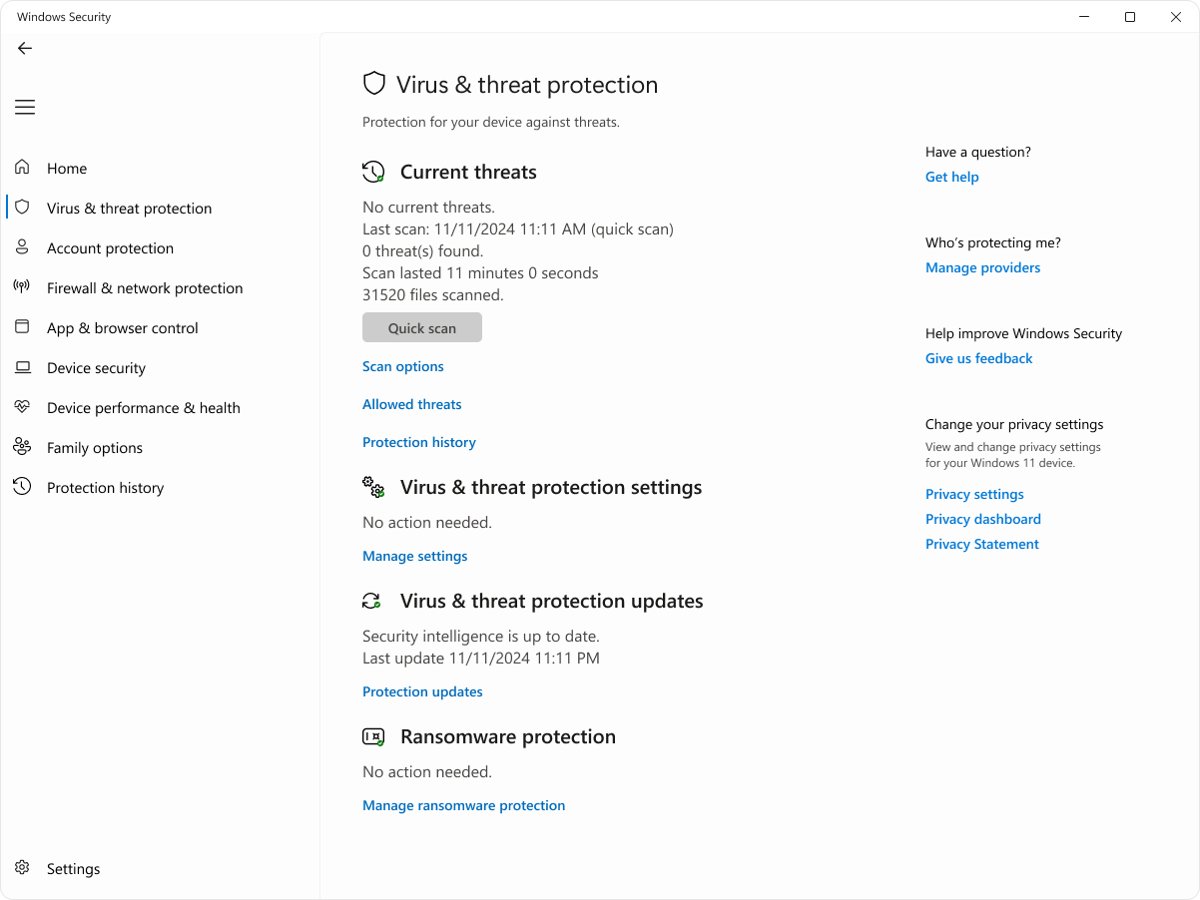
- Open Windows Security > Virus & threat protection > Scan options, select Full scan and Scan now.
- If threats return or are only partially removed, select Microsoft Defender Antivirus (offline scan) > Scan now in the same list.
- After the restart, open Windows Security > Virus & threat protection > Protection history to review the results.
MSRT verified facts and cross-checks
Several claims about MSRT repeat across forums. This is how each one holds up against Microsoft's own documentation.
| Claim | Holds up? | What Microsoft documents |
|---|---|---|
| MSRT replaces antivirus | No | It is a post-infection tool; keep an up-to-date antivirus |
| It ships every Patch Tuesday | Mostly | Generally the second Tuesday, but eight months since December 2023 had no release |
| You must disable your antivirus first | No | You do not need to disable antivirus to run it |
| It removes spyware | No | Spyware is outside its scope |
| It sends your files to Microsoft | Only with consent | Basic detection data is sent automatically; suspect files only if you agree |
| mrtstub.exe is malware | No | It is a legitimate component when signed by Microsoft |
| It needs other security updates installed | No | No prerequisites, though Microsoft recommends installing critical updates first |
| It can run in Safe Mode | Yes | Run %windir%\system32\mrt.exe after the tool has run once normally |
How to tell if the Malicious Software Removal Tool has run
- Press Windows + R, type
%systemroot%\debugand press Enter. - Open mrt.log and scroll to the bottom. The last block shows the tool version, the start and finish times and the return code.
- For a second check, press Windows + R, type
regeditand press Enter. - Go to
HKEY_LOCAL_MACHINE\SOFTWARE\Microsoft\RemovalTools\MRT. - Read the Version value. The tool writes a release GUID here on every run, whatever the result.
If mrt.log is missing and the RemovalTools key does not exist, MSRT has never run on that PC.
FAQ about the Windows Malicious Software Removal Tool
Is the Windows Malicious Software Removal Tool safe?
Yes. MSRT is published and digitally signed by Microsoft, and it has been SHA-2 signed exclusively since November 2019. Download it only from Windows Update or the Microsoft Download Center, never from a third-party site.
Do I need MSRT if I have Windows Defender?
You do not need to run it yourself. Windows Update runs it monthly anyway, and Microsoft Defender Antivirus covers far more threats in real time. Run MSRT by hand only as a second opinion or when Defender reports a partial removal.
How do I uninstall the Malicious Software Removal Tool?
There is nothing to uninstall. MSRT has no installer and does not appear in installed apps. Each run uses a randomly named temporary folder that Windows usually removes after the run or the next restart, and you can delete a leftover one by hand.
How often does the Malicious Software Removal Tool run?
Windows Update runs each new release once, and Microsoft generally releases one on the second Tuesday of each month. Some months are skipped. To scan more often, start mrt.exe yourself or download the package from the Microsoft Download Center.
Does MSRT send information to Microsoft?
Yes, when it finds malware or hits an error. It sends the malware name, the removal result, your Windows version, locale, processor type, tool version and an anonymous GUID. Administrators can turn this off with the DontReportInfectionInformation policy value.
How long does an MSRT full scan take?
A full scan can take several hours, because it checks every fixed and removable drive. A quick scan finishes much faster. Mapped network drives are not scanned, so the drive count and disk size set the time.
Why is the Malicious Software Removal Tool not showing in Windows Update?
Windows Update offers each version only once, so it disappears after it has run. Microsoft also skipped some months, including January and March 2026. You can still download the latest package from the Microsoft Download Center.
Can I stop Windows Update from offering MSRT?
Microsoft's documented route is to decline the license terms the first time the tool is offered. In a managed network, administrators control it through their update tools instead. The tool itself is harmless to leave in place, so declining it brings little benefit.
Where is mrt.exe located?
After Windows Update runs the tool, its copy sits at %windir%\system32\mrt.exe, usually C:\Windows\System32\mrt.exe. That is the file you start from the Run box or in Safe Mode, and its results go to C:\Windows\debug\mrt.log.
Final assessment — practical guidance for Windows users
Keep Windows Update on so MSRT runs each month, and keep Microsoft Defender Antivirus or another real-time antivirus as your actual protection. MSRT is a narrow, reliable cleanup pass for the most widespread malware. It earns a manual run when Defender reports a partial removal, but for a suspected infection the Microsoft Defender full and offline scans cover far more.