A USB-C port that is not working, charging or recognized on Windows 11/10 usually has a cable, charger or port mismatch, so connect the device directly with its own cable to a USB-C port that supports its feature.
This guide covers each USB-C notification Windows shows, charging and display failures, unrecognized devices, and the drive settings that block or slow USB-C storage.
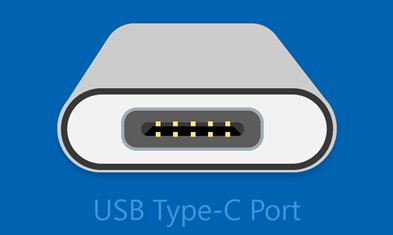
USB-C port not working on Windows 11/10
Not every USB-C port on a PC does the same job. One may charge, another may carry video or Thunderbolt, and a cable may support only some features.
- Unplug the USB-C device, then plug it straight into the PC instead of through a hub or dock.
- Use the cable that came with the device or charger.
- Try a different USB-C port on the PC, especially one marked in your PC's specs for charging, video or Thunderbolt.
- If Windows shows a USB notification, match its wording to the table in the next section.
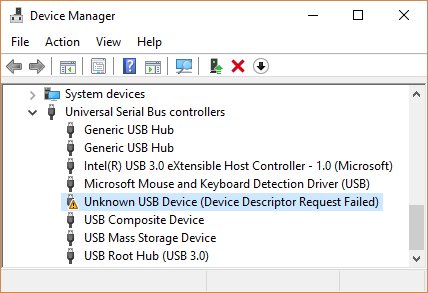
- Open Device Manager and look for a device with a yellow exclamation point.
- Select Start > Power > Restart, then connect the device again.
If the port fails with every device and every cable while the other ports work, the port or its controller is the problem, and the PC maker's support is the next step.
USB-C notifications in Windows 11 and what they mean
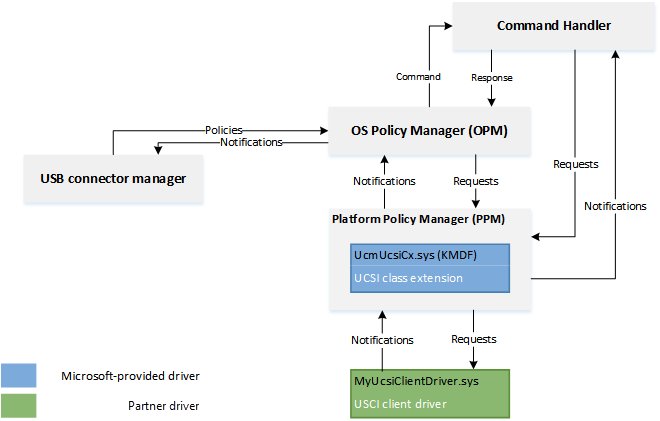
Windows reads the USB-C connector through its built-in connector manager driver and turns problems into notifications. Each one points at a specific cause.
| Notification | What is wrong | Fix |
|---|---|---|
| Slow charger | The charger, cable or port cannot supply the power the PC needs | Use the PC's own charger and cable on its USB-C charging port |
| PC isn't charging | Charger too weak, wrong port, underrated cable, dust, or charging through a dock | Same as Slow charger, and clean the port with compressed air |
| USB device not recognized | The device reported a problem or its driver failed | Read the error code in Device Manager |
| Display connection might be limited | The PC, port, cable or display lacks the DisplayPort or MHL Alternate Mode | Connect directly to the port that supports display output |
| USB device functionality might be limited | The device has USB-C features the PC or cable does not support | Use a matching port and cable, connect directly |
| Thunderbolt device functionality might be limited | The device is not on a Thunderbolt-capable port | Move it to the Thunderbolt USB-C port |
| USB4 device functionality might be limited | The port, cable or dock does not support USB4 | Use a USB4 port and a certified USB4 cable |
| Use different USB port | This port lacks the features the device needs | Plug into a USB-C port that supports them |
| USB device might need more power | The PC cannot supply enough power, often on low battery | Give the device external power or plug the PC in |
| Unsupported USB-C Audio Adapter | An analog USB-C audio adapter is connected | Use a USB-C digital audio adapter |
USB-C port not charging laptop
Plain USB-C supplies up to 5V at 3A (15W). Faster laptop charging needs USB Power Delivery, which goes up to 100W, and the PC, charger and cable must all support it.
- Plug in the charger and cable that came with the laptop.
- Connect it to the laptop's USB-C charging port. Not every USB-C port accepts power.
- Remove any hub or dock between the charger and the laptop.
- Blow dust out of the USB-C port with compressed air so the plug seats fully.
- If you use another charger, check that its wattage matches or exceeds the laptop's own adapter. A 5V, 3A charger cannot fast-charge a laptop that needs 12V and 3A.
- Look at the battery icon in the system tray. A warning on it means a slow charger is connected and the battery is still draining.
- Install BIOS and firmware updates from the laptop maker, then try a different USB-C port.
Chargers with a non-standard connector may use a proprietary design the PC does not support. For laptop-specific charging settings, turn on USB-C charging in Windows 11 with the maker's power tools.
USB-C port charging but not displaying
Video over USB-C uses an Alternate Mode: DisplayPort, MHL or HDMI. There is no setting to turn on, because Windows uses the mode automatically when the PC, port, cable and display all support it.
- Check your PC's specs to confirm the USB-C port is configured for video output.
- Connect the monitor or adapter directly to that port, not through a hub.
- Use a cable that supports DisplayPort or MHL Alternate Mode. A charging cable may carry power only.
- Unplug other USB-C display adapters, because too many Alternate Mode devices can limit the connection.
- Remove the adapter, restart the PC, then connect the adapter again.
If the monitor runs through a dock, fix a USB-C dock not detecting monitors with the dock-specific checks.
USB-C device not recognized on Windows 11
When Windows says the last USB device you connected malfunctioned, Device Manager shows the error code that names the fix.
- Select Start, type
device managerand select Device Manager. - Find the device marked with a yellow exclamation point.
- Right-click it and select Properties. The error code appears under Device status.
- Note the code and follow the matching fix in Microsoft's Device Manager error code list.
- Open Settings > Windows Update > Advanced options > Optional updates and install any USB or chipset driver listed there.
- If the device came with its own power supply, plug it in, then connect it again.
Error Code 28 means the device's driver is not installed, so get the driver from the device maker. For the power-saving and hub resets that apply to every USB port, fix USB devices not recognized in Windows 10 and 11.
How to turn on USB-C connection notifications in Windows 11
Connection notifications are how Windows tells you which USB-C problem you have. Keep them on while troubleshooting.
- Select Search and type
usb. - Select USB settings from the results.
- Turn Connection notifications on.
- Unplug and reconnect the USB-C device to trigger any notification again.

How to disable or enable USB Read/Write Protection on Windows 11
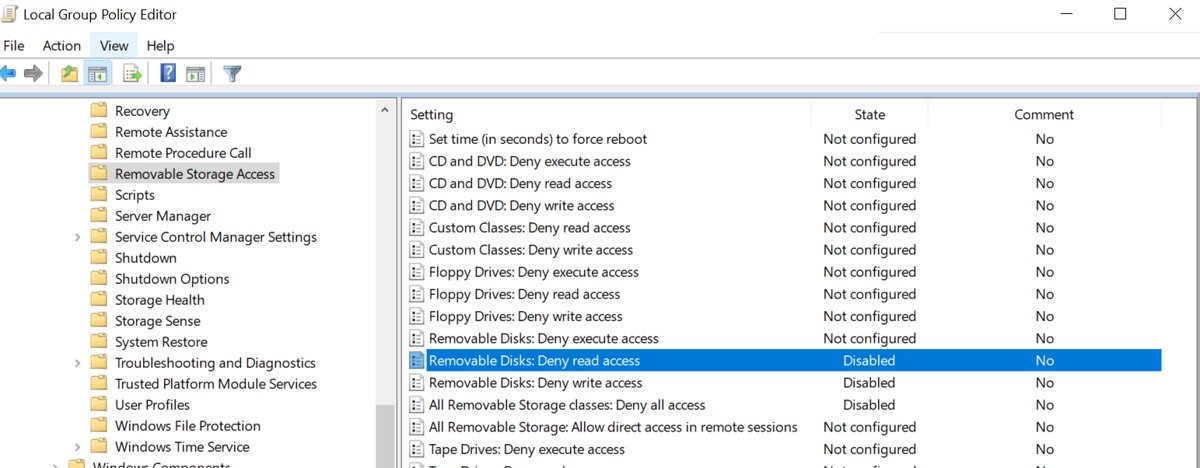
A USB-C flash drive or SSD that opens but refuses new files is usually blocked by a policy or a read-only disk attribute. The Group Policy route needs Windows 11 Pro, Enterprise or Education.
- Press Windows + R, type
gpedit.mscand press Enter. - Go to User Configuration > Administrative Templates > System > Removable Storage Access.
- Double-click Removable Disks: Deny write access. Select Enabled to block writing, or Not Configured to allow it, then select OK.
- Check Removable Disks: Deny read access in the same folder, and the Removable Storage Access folder under Computer Configuration too.
- To clear a read-only disk attribute, open Terminal (Admin), type
diskpart, thenlist diskandselect disk Nfor the USB drive. - Type
attributes diskto see whether Read-only is set, thenattributes disk clear readonlyto remove it. Useattributes disk set readonlyto protect the drive instead.
On a work or school PC, an administrator may set these policies centrally, and a local change will not stick.
Make your USB Drive or External Media perform faster in Windows 11
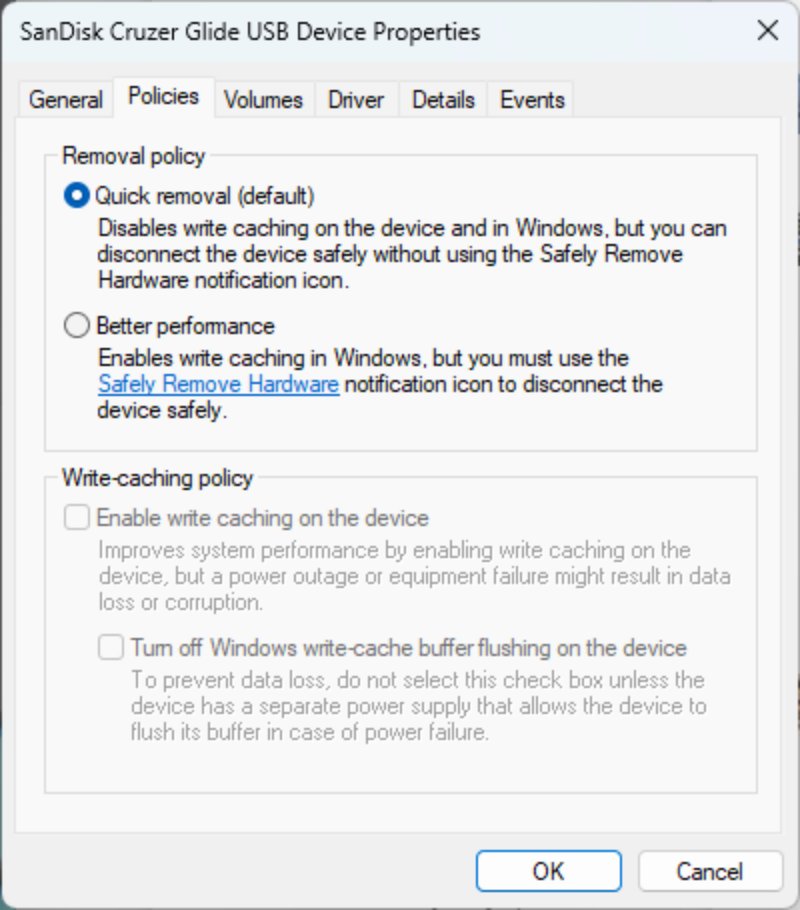
Since Windows 10 version 1809, external drives use Quick removal, which turns off write caching so you can unplug at any time. Better performance caches writes for speed, but you must then use Safely Remove Hardware before unplugging or risk losing data.
- Connect the USB-C drive and note its label in File Explorer, for example USB Drive (D:).
- Right-click Start and select Disk Management.
- In the lower pane, right-click the drive's label and select Properties.
- Select the Policies tab. If it is missing, select Hardware, choose the drive under All disk drives, select Properties, then Policies.
- Select Better performance and also select Enable write caching on the device.
- Select OK. The setting stays for that drive on that port.
How to tell if a USB-C port is working
- Connect a device you know works, with its own cable, directly to the port.
- Watch for a USB notification. No notification and a working device means the port is fine.
- Open Device Manager and check that no entry under Universal Serial Bus controllers shows a yellow exclamation point.
- When charging, check that the battery icon shows charging without a warning symbol.
- Repeat on another USB-C port. If only one port fails with every device, that port has a hardware fault.
Why isn't my USB-C port working?
Match what you see to the closest symptom. Each fix assumes you have already tried the device's own cable on a direct connection.
USB-C port only charging, no data or device
The cable is charge-only or does not support the device's features.
- Swap to the cable that came with the device; not all USB-C cables support every feature.
- Connect the device directly to the PC.
- Try another USB-C port that lists data or Thunderbolt support.
USB-C device disconnects or needs more power
The PC is limiting power, often on low battery or with several powered devices attached.
- Plug the PC into its charger instead of running on battery.
- Give the USB-C device its own power supply if it has one.
- Disconnect USB devices you are not using.
Why isn't my USB-C charger working?
The charger is not compatible, not powerful enough, or plugged into a non-charging port.
- Use the charger and cable that came with the PC.
- Move the charger to the PC's USB-C charging port.
- Remove any dock or hub from the charging path and try again.
USB-C headphones or audio adapter not working
Most PCs support only USB-C digital audio adapters, not analog ones.
- Unplug the analog USB-C audio adapter.
- Connect a USB-C digital audio adapter, which converts the audio itself.
- Select the adapter as the output device in sound settings.
USB-C dock or USB4 device runs with limited features
The port, cable or upstream dock does not support USB4 or Thunderbolt.
- Confirm in the PC's specs that the port supports USB4 or Thunderbolt.
- Use a certified USB4 cable or the cable supplied with the dock.
- Connect the USB4 device directly to the PC, or only through other USB4 docks.
USB-C port not working FAQ
Why doesn't my USB-C port charge?
The port may not be a charging port, or the charger or cable cannot supply enough power. Use the PC's own charger and cable on its USB-C charging port, connect directly without a dock, and clean dust out of the port with compressed air.
How do I fix a USB-C charging port?
Clean the port with compressed air, use the original charger and cable, and plug straight into the port the maker lists for charging. Update the BIOS and firmware, then test another USB-C port to rule out a hardware fault in one port.
Why is my USB-C port not working?
The most common causes are a cable that lacks the needed feature, a port that does not support the device, a hub or dock in the path, or a driver error. Connect directly with the device's own cable and read any Windows USB notification.
Why isn't my USB-C charger working on my laptop?
The charger may be too weak, use a non-standard connector, or be plugged into a port that does not accept power. Windows shows Slow charger or PC isn't charging in that case. Switch to the laptop's own charger and its charging port.
How do I know if my USB-C port is damaged?
Test the port with two devices and cables you know work, connected directly. If both fail on that port but work on another USB-C port of the same type, the port or its controller is faulty and needs repair by the PC maker.
Why is my monitor not working with USB-C?
The port, cable or monitor lacks a display Alternate Mode such as DisplayPort or HDMI. Use a port configured for video output, a cable that supports video, and a direct connection. Windows shows Display connection might be limited when this is the cause.
Why is my USB-C port charging but not displaying?
Charging and video are separate features. A port or cable can deliver power without supporting DisplayPort, MHL or HDMI Alternate Mode. Move the monitor to the video-capable port and replace a charge-only cable with one rated for video.
Do I need to turn on USB-C display or Thunderbolt mode in Windows?
No. Windows has no setting for Alternate Modes and uses the right one automatically when the PC, port, cable and device all support it. If a feature is missing, the hardware or cable is the limit.