To change voicemail on iPhone, open the Phone app, go to your voicemails, tap Greeting (or Edit Voicemail Greeting in the unified layout), choose Custom and record a new message.
This guide covers both Phone app layouts, older iOS versions, the carrier dial-in route, Live Voicemail and what to do when the greeting option is missing.
How to change voicemail on iPhone: Step-by-step
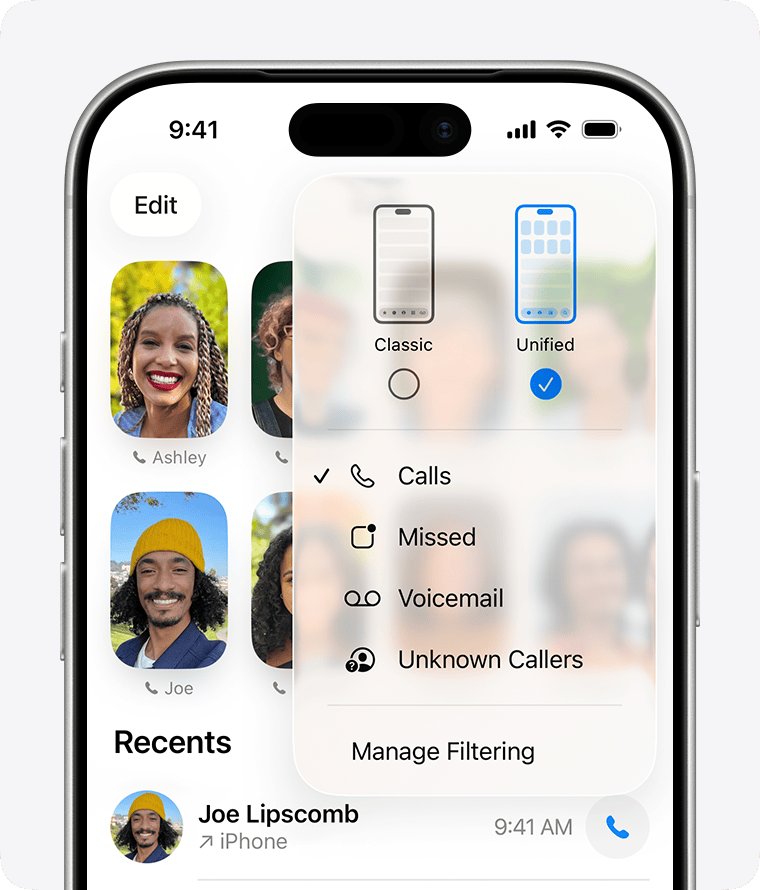
Your greeting is the outgoing message callers hear before they leave a voicemail. On iOS 26 and later, the route depends on which Phone app layout you use.
- Open the Phone app on your iPhone.
- In the classic layout, tap Voicemail at the bottom of the screen, then tap Greeting in the top-left corner.
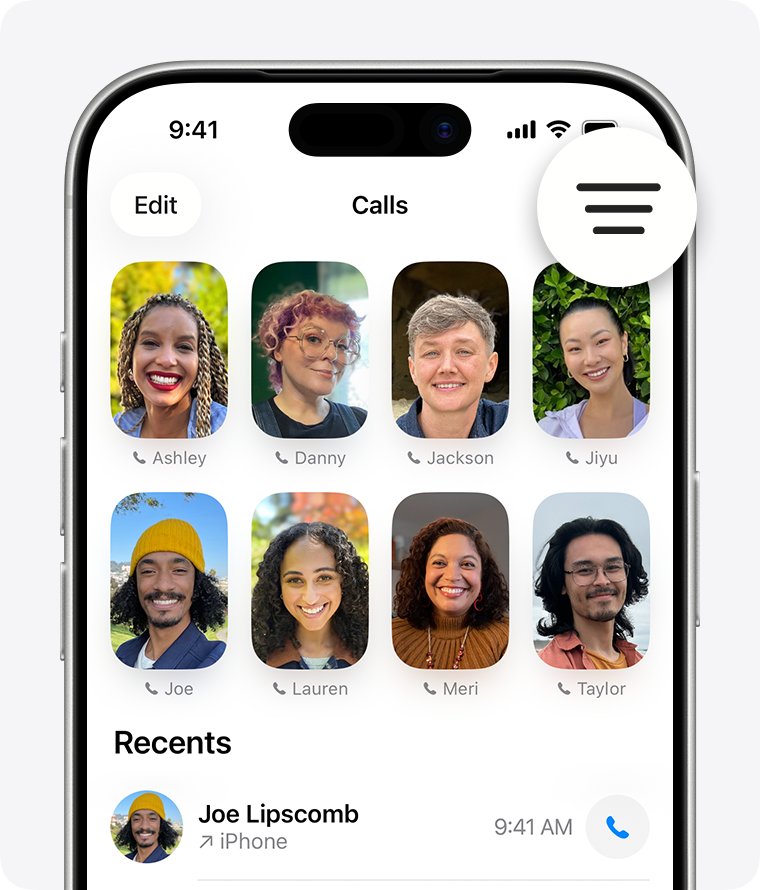
- In the unified layout, tap the menu icon at the top of the screen, tap Voicemails, tap Edit, then tap Edit Voicemail Greeting.
- Choose Custom to record your own message, or Default to use the standard greeting with your phone number.
- Tap Record, speak your greeting, then tap Stop.
- Tap Play to hear it back, record again if needed, then tap Save.
The first time you open voicemail, the iPhone asks you to create a voicemail password and record a greeting before anything else. Finish that setup first, then come back to change the greeting.
Voicemail greeting methods compared
| Method | Where you do it | Best when |
|---|---|---|
| Phone app Greeting button | Phone > Voicemail > Greeting (classic) or Voicemails > Edit > Edit Voicemail Greeting (unified) | Your carrier supports Visual Voicemail on iPhone |
| Dial your carrier voicemail | Press and hold 1 on the keypad, then use the voicemail menu | The Greeting button is missing or Visual Voicemail is not offered |
| Carrier app or online account | Your carrier's own app or account page | Your carrier manages greetings outside the Phone app |
| Default greeting | Choose Default on the Greeting screen | You want callers to hear the standard message with your number |
Why is changing voicemail on iPhone confusing?
| Reason | What it means for you |
|---|---|
| Two Phone app layouts on iOS 26 and later | The unified layout hides voicemail behind a menu, while the classic layout keeps the Voicemail tab at the bottom |
| Voicemail lives on the carrier side | Voicemail, Visual Voicemail and Live Voicemail are available only from select carriers in select countries or regions |
| Live Voicemail is a separate feature | Live Voicemail shows a live transcript while a caller records; it does not change the greeting callers hear |
| Different steps on older iOS | On iOS 18 and iOS 17, you tap Voicemail, and first-time setup starts with Set Up Now |
| Voicemail password prompts | The first visit to voicemail asks you to create a password before you can record a greeting |
Change iPhone voicemail greeting by iOS version
| iOS version | Path to the greeting | Live Voicemail switch |
|---|---|---|
| iOS 27 and iOS 26, classic layout | Phone > Voicemail > Greeting | Settings > Apps > Phone > Live Voicemail |
| iOS 27 and iOS 26, unified layout | Phone > menu > Voicemails > Edit > Edit Voicemail Greeting | Settings > Apps > Phone > Live Voicemail |
| iOS 18 | Phone > Voicemail > Greeting (first time: Set Up Now) | Settings > Apps > Phone > Live Voicemail |
| iOS 17 | Phone > Voicemail > Greeting (first time: Set Up Now) | Settings > Phone > Live Voicemail |
Check your version in Settings > General > About if you are not sure which row fits your iPhone.
Alternative methods to change voicemail
When the Phone app has no Greeting button, dial straight into your voicemail and change the greeting through your carrier's system instead. The menu numbers differ by carrier.
- Open the Phone app and tap Keypad.
- Press and hold 1 to call your voicemail.
- Enter your voicemail PIN or password when asked.
- Listen to the main menu and choose the greetings or mailbox options entry. On T-Mobile, press 3 for Create a greeting.
- Record the new greeting after the tone and follow the prompt to save it.
- Hang up once the system confirms the greeting is saved.
T-Mobile also lists a direct number, 1-805-637-7249, for its voicemail menu if holding 1 does not connect. Enter your 10-digit number, press \* while the greeting plays, then enter your password.
Some carriers also let you manage greetings in their own app or online account. If you forgot the PIN, T-Mobile customers can dial #793# to get a temporary PIN by text message.
Change outgoing voicemail message on iPhone back to default
The Default greeting plays a standard message with your phone number instead of your own recording.
- Open the Phone app.
- Go to Voicemail > Greeting in the classic layout, or Voicemails > Edit > Edit Voicemail Greeting in the unified layout.
- Tap Default.
- Tap Save.
To use your own message again, return to the same screen, tap Custom and record a new greeting.
How to turn on Live Voicemail on iPhone
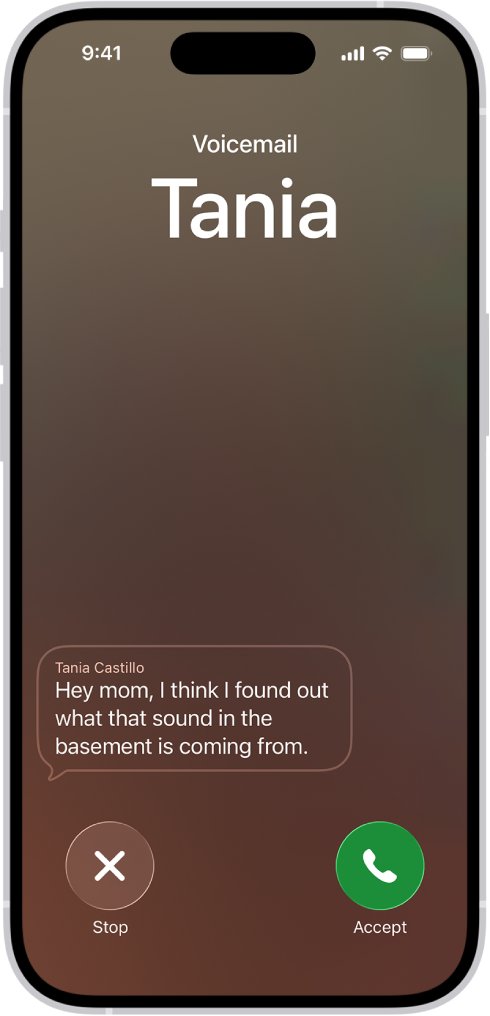
Live Voicemail shows a real-time transcript as a caller leaves a message, and lets you pick up mid-message. It works alongside your greeting rather than replacing it.
- Open the Settings app.
- Tap Apps, then tap Phone.
- Turn on Live Voicemail.
- When a caller is sent to voicemail, read the transcript on screen, answer the call to talk, or tap Stop to end the message without answering.
The caller cannot hear you unless you answer. If your iPhone is off or out of carrier range, the call goes to carrier voicemail instead, and callers hear your carrier greeting.
How to hear your iPhone voicemail greeting
- Open the Phone app and go back to the Greeting or Edit Voicemail Greeting screen.
- Tap Play to hear the greeting that is saved now.
- For the caller's view, call your number from another phone and let it ring through to voicemail.
- Listen for the new message, then hang up before the tone if you do not want to leave a test voicemail.
If callers still hear the old greeting, record it again with the iPhone on and connected to your carrier, or change it through the carrier menu by holding 1.
Tips for a great voicemail greeting
| Tip | Why it helps |
|---|---|
| Say your name first | Callers know at once that they reached the right person |
| Keep it short | Callers get to the tone faster and are more likely to leave a message |
| Ask for a name, number and reason | You get the details needed to call back |
| Record in a quiet room | Background noise makes a greeting hard to understand |
| Hold the iPhone as you would on a call | The microphone picks up your voice at a normal level |
| Play it back before you save | You catch a cut-off word or a loud breath before callers do |
Store iPhone voicemail in iCloud
| Step | What to tap |
|---|---|
| 1 | Open Settings and tap your name |
| 2 | Tap iCloud |
| 3 | Tap See All next to Saved to iCloud |
| 4 | Turn on Phone & FaceTime |
This keeps Live Voicemail and carrier voicemail messages in sync across your Apple devices. It stores messages, not your greeting.
Still cannot change your voicemail?
The Greeting button is missing on iPhone
Visual Voicemail is not available from your carrier or region, or voicemail has not been set up yet.
- Open Phone > Voicemail and finish any Set Up Now prompt.
- If no greeting option appears, press and hold 1 on the keypad to reach your carrier's voicemail menu.
- Record the greeting from the carrier menu instead.
Why can't I change my voicemail on my iPhone?
Software, carrier settings or the carrier account block voicemail changes.
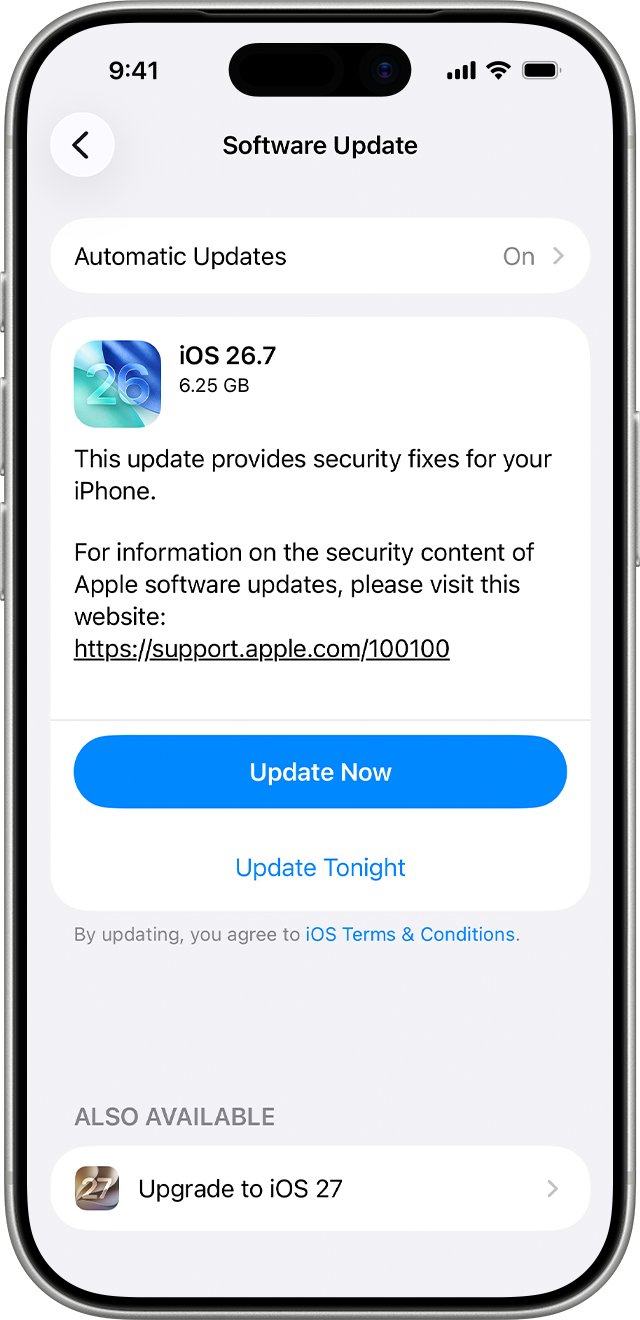
- Update the iPhone in Settings > General > Software Update.
- Check for a carrier settings update.
- Turn Airplane Mode on, wait five seconds, then turn it off.
- Ask your carrier to confirm your account is set up for your iPhone and has no billing block.
Voicemail asks for a password you do not remember
The voicemail password or PIN is stored by the carrier, not by Apple.
- On T-Mobile, dial #793# and wait for a text message with a temporary PIN.
- Enter the temporary PIN, then create a new 4 to 7 digit PIN.
- On other carriers, reset the PIN through the carrier's support line or account.
Calls skip your greeting and voicemail stops working after a code
A call forwarding code or setting changed where unanswered calls go.
- Open Settings > Apps > Phone > Call Forwarding and make sure it is off.
- If you dialed a code such as #004#, reactivate carrier voicemail before you record the greeting again.
Calls go to voicemail before you can answer
Focus, Silent mode or unknown-caller screening sends calls on.
- Swipe down from the top-right corner to open Control Center, then turn off Do Not Disturb or any other highlighted Focus.
- In Settings > Apps > Phone, set Screen Unknown Callers to Never.
- Check Blocked Contacts and unblock any number added by mistake.
- To give yourself more time, make the iPhone ring longer through your carrier.
iPhone voicemail greeting FAQ
How do you change voicemail on iPhone 16?
Open the Phone app on the iPhone 16 and tap Voicemail, then Greeting, in the classic layout. In the unified layout, open the menu, tap Voicemails, Edit, then Edit Voicemail Greeting. Choose Custom, record, and tap Save.
How do you change voicemail on iPhone 17?
The iPhone 17 uses the same Phone app steps as other models on current iOS. Tap Voicemail and Greeting in the classic layout, or Voicemails, Edit and Edit Voicemail Greeting in the unified layout, then record a Custom greeting and save it.
How do you change voicemail on iPhone 15, 14 or 13?
The model does not change the steps; the iOS version does. On iOS 18, open Phone, tap Voicemail, then tap Greeting. On iOS 26 or later, use Greeting in the classic layout or Edit Voicemail Greeting in the unified layout.
How do you change voicemail on iPhone 11 or iPhone 12?
Open the Phone app, tap Voicemail, then tap Greeting. Select Custom, tap Record, speak your message, tap Stop, then tap Save. If voicemail has never been set up, tap Set Up Now and create a password first.
How do you change voicemail on iPhone SE or iPhone 16e?
Both models use the standard Phone app route. Open Phone, go to Voicemail or Voicemails depending on layout, open the greeting screen, choose Custom and record. Save the recording, then call your number from another phone to hear it.
How do you change voicemail on iPhone 6 or iPhone 7?
Older iPhones use the classic Phone app with a Voicemail tab at the bottom. Tap Voicemail, tap Greeting, choose Custom, record your message and tap Save. If the Greeting button is missing, hold 1 to reach the carrier menu.
Why can't I change my voicemail on my iPhone?
The usual cause is that your carrier does not offer Visual Voicemail, or voicemail is not set up yet. Finish the Set Up Now prompt, update iOS, and if the Greeting button still does not appear, change the greeting through the carrier menu by holding 1.
How do I change my outgoing voicemail message on iPhone?
The outgoing message is your greeting. Open Phone, go to the Greeting or Edit Voicemail Greeting screen, choose Custom and record a new one, or choose Default to use the standard message with your phone number.
Quick summary
Change the greeting in the Phone app: Voicemail > Greeting in the classic layout, or Voicemails > Edit > Edit Voicemail Greeting in the unified layout, then record a Custom message and save it. The Phone app route is fastest when your carrier supports Visual Voicemail. When the Greeting button is missing, hold 1 on the keypad and record the greeting through your carrier's voicemail menu.