In Word for Windows, press Ctrl + ` and then a for à, Ctrl + ' and then a for á, Ctrl + Shift + ^ and then a for â, or Ctrl + Shift + : and then a for ä; type a capital A after the shortcut to get À, Á, Â or Ä.
This guide covers the shortcut keys, Insert Symbol, Alt codes, AutoCorrect, copy and paste, an international keyboard layout, the Mac accent menu, and fixes when a shortcut types the wrong character.
How to type A with an accent mark in Word (À, Á, Â, Ä, à, á, â, or ä)?
Each Word shortcut is a sequence: press the key combination, release it, then type the letter. Type a lowercase a for the small letter and a capital A (with Shift or Caps Lock) for the capital one.
| Character | Accent name | Press, then release | Then type |
|---|---|---|---|
| à | Grave | Ctrl + ` (accent grave key) | a |
| À | Grave | Ctrl + ` (accent grave key) | A |
| á | Acute | Ctrl + ' (apostrophe) | a |
| Á | Acute | Ctrl + ' (apostrophe) | A |
| â | Circumflex | Ctrl + Shift + ^ (caret) | a |
| Â | Circumflex | Ctrl + Shift + ^ (caret) | A |
| ä | Diaeresis (umlaut) | Ctrl + Shift + : (colon) | a |
| Ä | Diaeresis (umlaut) | Ctrl + Shift + : (colon) | A |
| ã / Ã | Tilde | Ctrl + Shift + ~ (tilde) | a or A |
| å / Å | Ring | Ctrl + Shift + @ | a or A |
| æ / Æ | Ligature | Ctrl + Shift + & | a or A |
The same accent keys work on other vowels: Ctrl + ' followed by e gives é, which is how you type E with an accent mark in Word as well.
Method 1: Using keyboard shortcuts in Word (fastest method)
Microsoft lists these accent shortcuts for Word and Outlook. They work in the Word desktop app on Windows and need no numeric keypad.
- Click in the document where the accented A should go.
- Hold Ctrl and press the accent key for the mark you want: ` for grave, ' for acute, Shift + ^ for circumflex or Shift + : for umlaut.
- Release all the keys. Nothing appears yet, because Word is waiting for the letter.
- Type a for the lowercase letter, or Shift + A for the capital letter.
- Check the result. If you see the plain mark followed by the letter, repeat the shortcut and release the keys before you type the letter.
For a lowercase circumflex or umlaut, Microsoft's rule is to hold Ctrl, Shift and the symbol key together, release them, and then type the letter. Holding Shift while typing the letter gives the capital instead.
Method 2: Using the Insert Symbol feature in Word
Insert Symbol needs no shortcuts at all, so it suits laptops without a numeric keypad and anyone who types accents only now and then. The font matters: not every font contains every character.
- Place the cursor where the accented A should go.
- Go to Insert > Symbol.
- Pick the character if it appears in the short list, or select More Symbols.
- In the Font box, keep the font your document already uses so the letter matches the surrounding text.
- Scroll to the accented A you want (À, Á, Â, Ä, à, á, â or ä) and double-click it.
- Select Close.
Before you close the dialog, look at the Character code and from: boxes at the bottom right. If from: says Unicode (hex), you can type that code and press Alt + X next time; if it says Symbol (decimal), use it as an Alt code.
Method 3: Using the Alt code method (Windows only)
Alt codes insert a character from its number. They need the numeric keypad with Num Lock turned on; the number keys above the letters do not work for this.
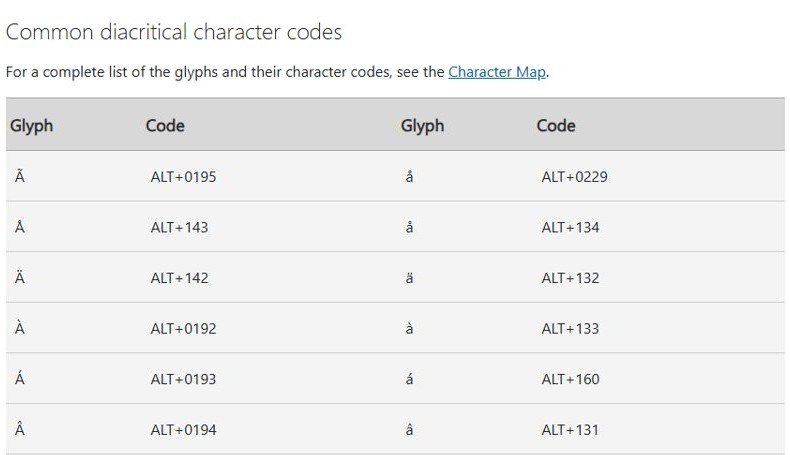
| Character | Alt code | Character | Alt code |
|---|---|---|---|
| À | Alt + 0192 | à | Alt + 133 |
| Á | Alt + 0193 | á | Alt + 160 |
| Â | Alt + 0194 | â | Alt + 131 |
| Ä | Alt + 142 | ä | Alt + 132 |
| Ã | Alt + 0195 | å | Alt + 134 |
| Å | Alt + 143 | æ | Alt + 0230 |
To use a code, turn on Num Lock, hold Alt, type the digits on the numeric keypad exactly as listed (including any leading 0), then release Alt. The codes come from Microsoft's table of common diacritical character codes.
For the Unicode route, type the hex code shown in the Character code box of Insert > Symbol > More Symbols, then press Alt + X to turn it into the letter.
Method 4: Using AutoCorrect in Word
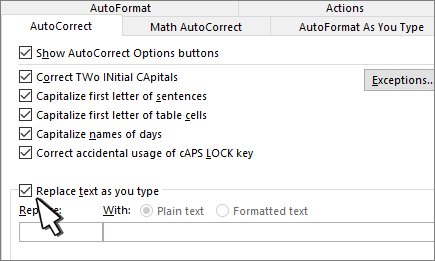
AutoCorrect swaps a short code for the accented letter as you type. It is the best fit when you type the same accented word, such as a name, again and again.
- Insert the accented letter or word once with any method above, select it and press Ctrl + C.
- Go to File > Options > Proofing and select AutoCorrect Options.
- On the AutoCorrect tab, make sure Replace text as you type is selected.
- In the Replace box, type a short code that is never a real word, such as
a//. - Click in the With box and press Ctrl + V to paste the accented letter or word.
- Select Add, then OK.
- Type the code followed by a space in your document. Word replaces it with the accented text.
The AutoCorrect list is shared by every Office program that supports AutoCorrect, so an entry added in Word also works in Outlook and PowerPoint. To remove it, type the code in the Replace box, select the entry and select Delete.
Method 5: Copy and paste the accented letter
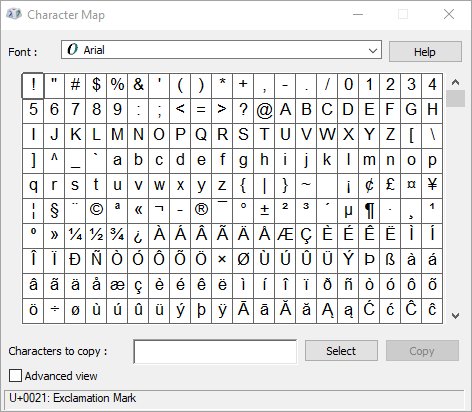
Copying works in every app, including ones without Word's shortcuts. Windows has a built-in tool called Character Map that holds every character in each installed font.
- Type character in the search box on the taskbar and choose Character Map from the results.
- Choose the font your document uses from the Font list.
- Click the accented A you want, such as á.
- Select Select, then Copy.
- Right-click in your Word document where the letter should go and select Paste, or press Ctrl + V.
You can also copy any of these characters straight from this page with the usual copy and paste keyboard shortcuts: À Á Â Ä à á â ä. If the pasted letter shows the wrong font, select it and set the font to match the rest of the paragraph.
Method 6: Using international keyboard layout
If you write in French, Spanish, German or Portuguese often, a second keyboard layout is faster than any shortcut. Windows lets you add a layout without changing the display language.
- Select Start > Settings > Time & language > Language & region.
- Select the three dots next to your current language and select Language options.
- Under Keyboards, select Add a keyboard next to Installed keyboards.
- Choose the layout you want, such as United States-International or the keyboard of the language you type.
- Switch layouts by holding the Windows logo key and pressing Spacebar, or select the input language icon on the taskbar.
- Type the accent key and then the letter. On these layouts the accent keys are dead keys: they show nothing until you type the next letter.
Microsoft Learn publishes an interactive map of the United States-International layout that shows what each key produces with Shift and AltGr. Switch back to your usual layout with Windows logo key + Spacebar when you finish, because dead keys also delay ordinary apostrophes and quotation marks.
How to type A with an accent on a Mac in Word
The Ctrl shortcuts in this guide are Microsoft's Word for Windows keys. On a Mac, macOS supplies its own accent input, and it works in Word too.
- Click where the accented letter should go in your Word document.
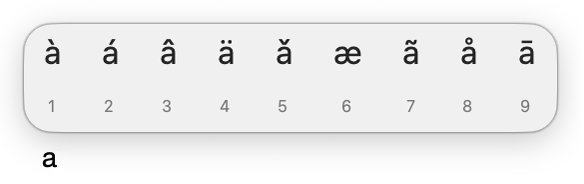
- Press and hold the a key until the accent menu opens. Hold Shift + A for capital letters.
- Click the character you want, such as á, or press the number shown under it.
- For dead keys, open the Keyboard Viewer and hold Option, or Option and Shift. The keys outlined in orange add an accent to the next letter.
- For ã with the ABC layout, press Option-N to add the tilde, then press a.
Word for Mac also has Insert > Symbol > More Symbols, which works the same way as Method 2.
Grave, acute, circumflex and umlaut A: what each accent key is
Each Word shortcut uses the key that looks like the accent, which makes them easy to remember.
| Accent | Letters | Key in the shortcut | Where the key is on a US keyboard |
|---|---|---|---|
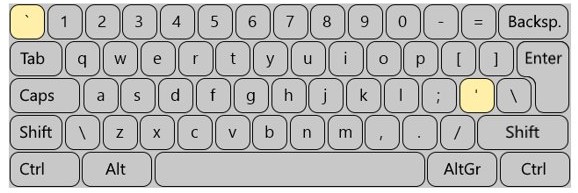
| Grave accent | à À | ` (accent grave) | Left of the 1 key |
| Acute accent | á Á | ' (apostrophe) | Left of the Enter key |
| Circumflex | â Â | ^ (caret) | Shift + 6 |
| Diaeresis or umlaut | ä Ä | : (colon) | Shift + semicolon |
| Tilde | ã Ã | ~ (tilde) | Shift + the ` key |
Other vowels follow the same pattern, and the same idea extends beyond Word: you can type letters with accents on Windows, Mac and Linux in browsers and other apps.
Word accent shortcut not working
Ctrl + ` or Ctrl + ' types a plain mark and the letter separately
The shortcut and the letter were pressed together instead of one after the other.
- Press Ctrl + ` (or Ctrl + ') and release both keys.
- Then type a on its own.
- Make sure the text box is a Word document, not a dialog box or another app, where the shortcut may not apply.
Ctrl + Shift + : gives Ä when you want ä
Shift was still held when you typed the letter.
- Hold Ctrl, Shift and : together.
- Release all three keys.
- Type a without Shift, and check that Caps Lock is off.
Why does my Alt code not work?
The digits were typed on the top number row, Num Lock was off, or the laptop has no numeric keypad.
- Turn on Num Lock.
- Hold Alt and type the code on the numeric keypad, exactly as listed, including any leading 0.
- On a laptop without a numeric keypad, use Insert > Symbol > More Symbols instead.
Alt + X turns the wrong text into a character
Word read the letters before the code as part of it.
- Select only the code, then press Alt + X.
- Or type U+ in front of the code before pressing Alt + X.
Alt + X does nothing in PowerPoint
Some Office programs, PowerPoint among them, cannot convert Unicode codes to characters.
- Use Insert > Symbol in PowerPoint instead.
- Or copy the letter from Character Map and paste it.
The accented letter appears as a box or in a different font
The font in use does not contain that character.
- Select the box or the letter.
- Change the font to a common one such as Calibri.
- Insert the letter again from Insert > Symbol with the document's font selected.
Accent A in Word FAQ
Why are accented characters important?
An accent changes how a letter is read and can change the meaning of a word, so names, addresses and words from other languages are wrong without it. Typing the real character, rather than a plain a, also keeps search, sorting and spell check accurate in your document.
Which method is best for beginners?
Insert Symbol is the easiest to start with because you pick the letter from a grid with the mouse. Once you know which accent you need, the Ctrl shortcuts are faster: Ctrl + ` then a gives à, and Ctrl + ' then a gives á.
Do keyboard shortcuts work on Mac?
The Ctrl accent shortcuts are Microsoft's keys for Word on Windows. On a Mac, press and hold the a key to open the accent menu, or use the dead keys that the Keyboard Viewer outlines in orange when you hold Option. Both work in Word for Mac.
Can I use these methods in other Office apps?
Microsoft lists the accent shortcuts for Word and Outlook. Insert Symbol, Character Map and Alt codes work in other Office apps too, but some programs, such as PowerPoint, cannot convert Unicode codes with Alt + X, so use Insert Symbol there.
Why does my Alt code not work?
Alt codes need the numeric keypad with Num Lock turned on; the number row above the letters does not work. Type the code exactly as listed, such as Alt + 0193 for Á. On a laptop without a keypad, use Insert Symbol instead.
Can I customize my own shortcuts?
Yes. AutoCorrect replaces a short code you choose, such as a//, with the accented letter or a whole word. Add the entry in File > Options > Proofing > AutoCorrect Options, and it works in every Office program that supports AutoCorrect.
Is copy-paste safe?
Yes. Copying an accented letter from Character Map or another document only inserts the character. The pasted letter can carry a different font, so select it and match the font to the paragraph if it looks out of place.
What is the shortcut for á in Word?
Press Ctrl + ' (apostrophe), release the keys, then type a. Type a capital A after the same shortcut to get Á. The Alt codes are Alt + 160 for á and Alt + 0193 for Á on the numeric keypad.
How do I type an A with two dots in Word?
Press Ctrl + Shift + : (colon), release the keys, then type a for ä or a capital A for Ä. On the numeric keypad, Alt + 132 gives ä and Alt + 142 gives Ä.