The com.apple.buildinfo.preflight.error error 21 message means macOS Recovery could not finish preparing the macOS download, so fix it by giving Recovery a plain wired or home Wi-Fi connection, trying another Recovery mode, repairing the startup disk, and then installing from a USB installer if Recovery still fails.
This guide covers what the code points to, each fix in order for Intel and Apple silicon Macs, how to tell the reinstall finished, and when the Mac needs firmware revival or Apple service.
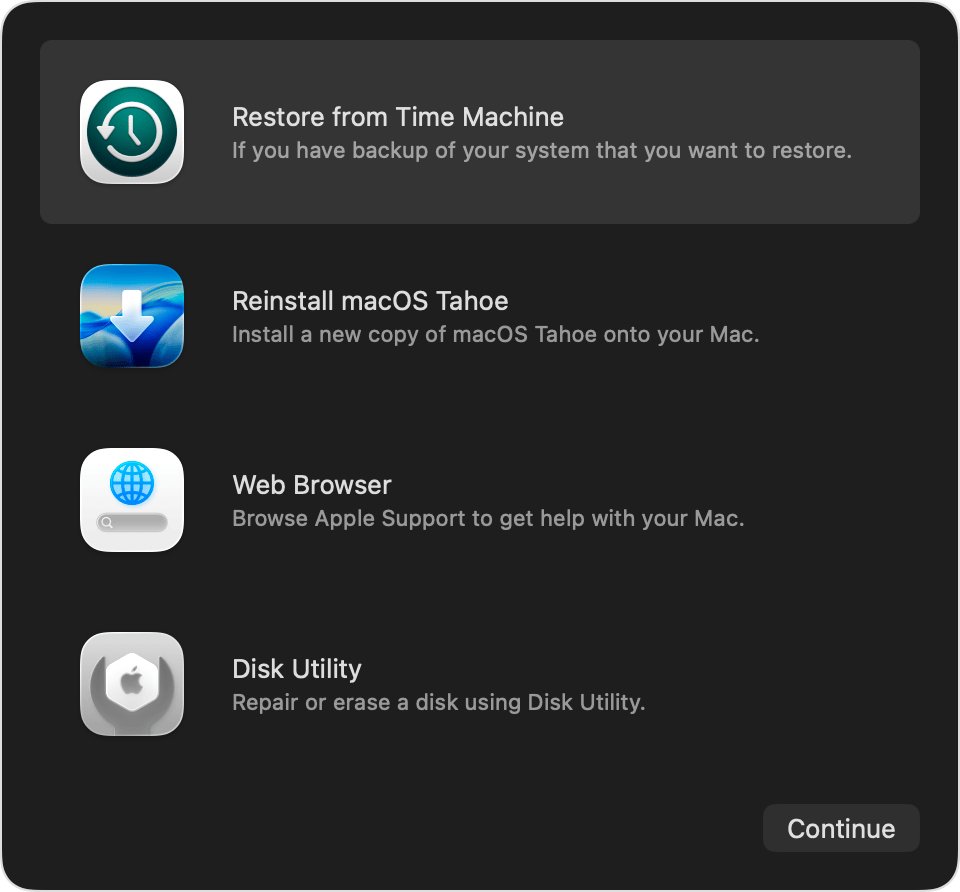
How to fix com.apple.buildinfo.preflight.error error 21 in macOS Recovery
Try the reinstall again after each step. Apple says installation errors have varied causes and are sometimes only temporary.
- Connect the Mac to a home network with an Ethernet cable, or to Wi-Fi that needs no sign-in page.
- Shut down the Mac, start it from macOS Recovery again, and choose the option to reinstall macOS.
- On an Intel-based Mac, try each key combination in turn: Command-R, then Option-Command-R, then Shift-Option-Command-R.
- If the error returns, open Disk Utility from the Recovery window and run First Aid on every volume, container and device.
- Quit Disk Utility and choose Reinstall macOS again.
- If Recovery still fails, install from a bootable USB installer made on another Mac.
- On a Mac with Apple silicon or the T2 chip, revive the firmware from a second Mac as the last step before service.
What does com.apple.buildinfo.preflight.error error 21 mean?
Apple does not publish a meaning for this code. The message appears when a macOS reinstall from Recovery stops before the installer starts copying files, which is why Apple's general guidance for errors while downloading, preparing or installing macOS is the fix path. The same number shows up in Apple's iPhone and iPad restore list, where it belongs to the possible hardware group.
| Where you see it | What Apple's guidance points to | First thing to try |
|---|---|---|
| macOS Recovery, while reinstalling macOS (error 21) | Network, startup disk or firmware problem during installation | Wired or open Wi-Fi network, then another Recovery mode |
| macOS Recovery with error 10 instead of 21 | Same general installation guidance; no separate Mac entry | The same steps as error 21 |
| Finder or the Apple Devices app restoring an iPhone or iPad (error 21) | Possible hardware issue in Apple's iOS restore error list | Reliable cable, computer and network, then restore again |
| Finder or the Apple Devices app restoring an iPhone or iPad (error 10) | The device's software is too new for the Mac or PC | Update macOS, iTunes or the Apple Devices app |
macOS Recovery internet connection requirements for reinstalling macOS
Recovery downloads macOS and Mac-specific firmware information from Apple, so the network matters more than anything else. Apple lists the connection types that block it.
- Use a broadband connection that hands out addresses by DHCP, over Wi-Fi or Ethernet.
- Avoid hotel, café and campus networks that show a sign-in page before you can browse.
- Avoid 802.1X networks, which are common in offices and schools.
- If your internet uses PPPoE, connect through a router that handles PPPoE instead of plugging the Mac into the modem.
- Plug in an Ethernet cable where possible; Apple suggests switching from Wi-Fi to Ethernet when Recovery has network trouble.
- If nothing changes, try a different network or try again later in case the problem is on Apple's side.
Start up from macOS Recovery on a Mac with Apple silicon or an Intel-based Mac
Starting Recovery fresh clears whatever stalled the previous attempt. The steps differ by processor; if you are not sure which Mac you have, Apple says it is safe to try both.
- Shut down the Mac. If it will not shut down, hold the power button for up to 10 seconds.
- Apple silicon: press and hold the power button until Loading startup options appears, then click Options and Continue.
- Intel: press the power button, then immediately hold Command (⌘) and R until an Apple logo or spinning globe appears.
- Choose a Wi-Fi network if asked, or attach a network cable.
- Select your startup disk, such as Macintosh HD, and click Next.
- Select a user you know the password for, click Next, and enter that password.
- Choose the option to reinstall macOS, click Continue, and follow the onscreen instructions.
Keep the Mac awake with the lid open during installation. It can restart, show a progress bar several times and leave the screen blank for minutes.
Option-Command-R and Shift-Option-Command-R Internet Recovery on Intel Mac
On an Intel-based Mac, each key combination loads Recovery from a different place and offers a different macOS. If one fails with error 21, the next may download a different installer.
| Key combination | Where Recovery loads from | macOS it offers |
|---|---|---|
| Command-R | The built-in Recovery system | The current version of the most recently installed macOS |
| Option-Command-R | Internet Recovery | Possibly the latest macOS compatible with the Mac |
| Shift-Option-Command-R | Internet Recovery | Possibly the macOS that came with the Mac, or the closest version still available |
| Power button held (Apple silicon) | Startup options, then Recovery | The current version of the most recently installed macOS |
A spinning globe with an exclamation point, or codes such as -2001F, -2002F or -2003F, mean Internet Recovery itself could not connect, which is a network problem rather than error 21.
Repair Macintosh HD with Disk Utility First Aid in Recovery
Apple lists repairing the startup disk as a fix for installation errors. If you have just erased the disk, skip this.
- In the Recovery utilities window, select Disk Utility and click Continue.
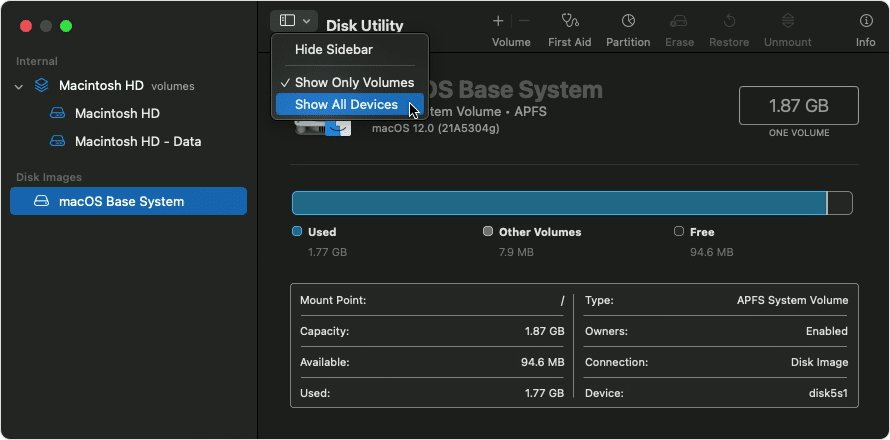
- Choose View > Show All Devices.
- Select the last volume on the startup disk, usually Macintosh HD – Data.
- Click First Aid, then Run. Enter your administrator password if asked to unlock the disk.
- Select the next item up the sidebar and run First Aid again.
- Work up through each volume, volume group and container, and finish with the device itself.
- Quit Disk Utility and choose Reinstall macOS.
If First Aid finds errors it cannot repair, the disk needs erasing before macOS will install.
Reinstall macOS Monterey from a bootable USB installer
A bootable installer skips the Recovery download that throws error 21. Make it on a working Mac that is compatible with the macOS you need, using a 32GB USB flash drive. Apple lists the macOS Monterey full installer in the App Store for compatible Macs.
- On the working Mac, download the full installer and make sure Install macOS Monterey is in the Applications folder.
- Connect the USB flash drive and rename it MyVolume. It will be erased.
- Open Terminal and enter
sudo /Applications/Install\ macOS\ Monterey.app/Contents/Resources/createinstallmedia --volume /Volumes/MyVolume. - Type your administrator password, press Return, then type Y to confirm erasing the drive.
- Wait for Terminal to say the install media is now available, then eject the drive.
- On an Apple silicon Mac, hold the power button, select the installer and click Continue. On an Intel Mac, hold Option (Alt) at startup and select the installer.
- Choose Install macOS and follow the onscreen instructions.
For another macOS, download its full installer and swap the installer name in the command, such as Install macOS Sonoma. The Mac still needs internet access so the installer can get firmware information for that model.
Erase Mac with Disk Utility and reinstall macOS
Apple's last software fix for a persistent installation error is to erase the Mac. This permanently deletes its files, so back up first if the Mac still starts. If the Mac still starts normally, you can factory reset the Mac from inside macOS instead.
- In Recovery, select Disk Utility and click Continue.
- Select Macintosh HD in the Internal section of the sidebar.
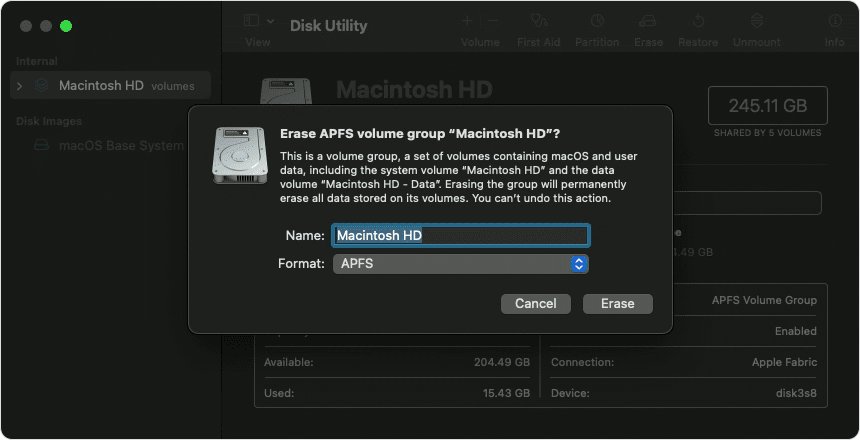
- Click Erase, set the name to Macintosh HD and the format to APFS (an Intel Mac may recommend Mac OS Extended (Journaled) instead).
- Click Erase Volume Group if it appears; otherwise click Erase.
- Enter your Apple Account details if asked. On Apple silicon, click Erase Mac to confirm.
- On Apple silicon, choose a language, join a network so the Mac can activate, then click Exit to Recovery Utilities.
- Select Reinstall macOS, click Continue and follow the onscreen instructions.
After an erase, an Apple silicon Mac may install the macOS you had before your last upgrade, so update macOS to the latest version once setup finishes. Restore your files from Time Machine once the reinstall finishes.
Revive or restore Mac firmware in DFU mode for error 21
Apple says a Mac with Apple silicon or the T2 Security Chip can rarely need its firmware revived to clear an installation error that nothing else fixes. You need a second Mac with macOS 14 or later, about 60GB free, and a USB-C to USB-C cable that carries data and charging (not a Thunderbolt 3 cable).
- Connect both Macs to power, and connect the cable from the affected Mac's DFU port to any USB-C port on the host Mac.
- Put the affected Mac in DFU mode. On a laptop, turn it off, press the power button, then hold left Control, left Option, right Shift and the power button.
- On an Apple silicon laptop, release the three keys after about 10 seconds and keep holding power until the host Mac shows a DFU window. On a T2 laptop, hold all four for about 3 seconds.
- On a desktop Mac, unplug it, hold the power button while plugging it back in, and keep holding for up to 10 seconds.
- Click Allow on the host Mac if it asks to let the accessory connect.
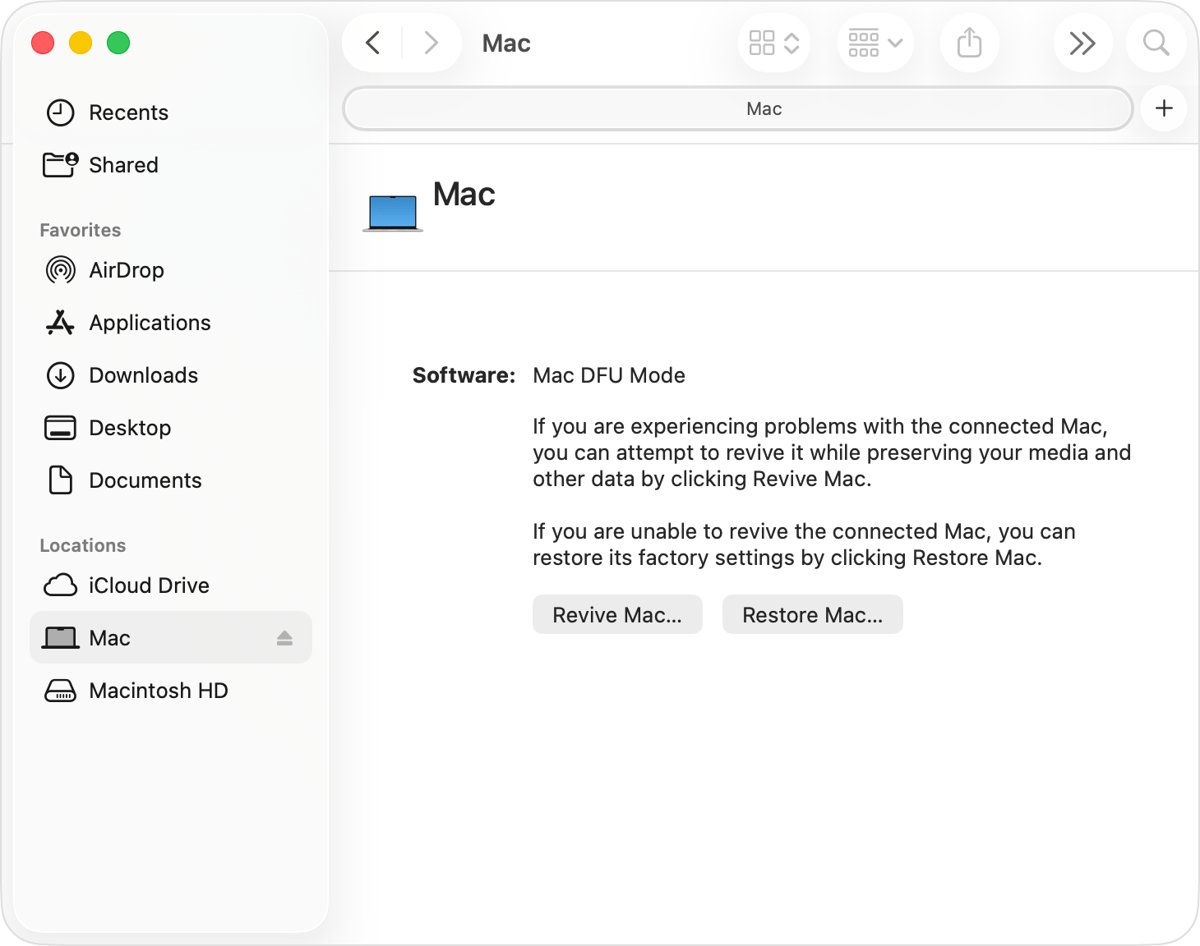
- In the Finder DFU window, click Revive Mac, then Continue. Reviving does not erase the Mac.
- If reviving fails, click Restore Mac, then Restore and Update. This erases the Mac and installs macOS.
If no DFU window appears, open Finder > Settings > Sidebar and turn on CDs, DVDs, and iOS Devices, then retry with careful key timing and a different cable.
How to tell if macOS reinstalled from Recovery
- Wait through the restarts and progress bars; a blank screen for several minutes is normal.
- Look for the setup assistant after an erase, or the login window after a reinstall that kept your data.
- Sign in and check that your apps and files are where you left them, if you did not erase.
- Choose Apple menu > About This Mac to see which macOS version is now installed.
- Open System Settings > General > Software Update to install any later updates for that version.
macOS Recovery not working on Mac
Command-R does nothing and the Mac starts normally
The Mac did not register the keys in time, often with a wireless or PC keyboard.
- Use the built-in keyboard on a Mac laptop.
- On an external keyboard, wait a few seconds after power-on before holding the keys.
- Plug in a wireless keyboard, or use a wired keyboard made for Mac.
- If the Mac is set to start up from Windows with Boot Camp, set it to start up from macOS first.
Spinning globe with an exclamation point or error -2003F
Internet Recovery could not reach Apple over the current network.
- Switch from Wi-Fi to Ethernet.
- Try Command-R, Option-Command-R and Shift-Option-Command-R in turn.
- Try a different network, or try again later.
The macOS installer does not see the disk
The startup disk is damaged or unformatted.
- Quit the installer and open Disk Utility from Recovery.
- Erase the startup disk as Macintosh HD in APFS format.
- Choose Reinstall macOS again.
Installer asks for Macintosh HD or Macintosh HD – Data
Both volumes appear because the startup disk uses a volume group.
- Choose Macintosh HD.
- Enter your Mac login password if the installer asks to unlock the disk.

When com.apple.buildinfo.preflight.error needs Apple service
Contact Apple Support when error 21 survives a wired network, every Recovery mode, a USB installer and a firmware revive, or when Disk Utility cannot see or erase the startup disk. Apple says a disk that Disk Utility cannot see or erase may need service, and that a persistent installation issue is the point to contact Apple Support.
Before booking a repair on an Intel-based Mac, hold D at startup to run Apple Diagnostics, or Option-D to run it over the internet, and note any reference code it reports.
com.apple.buildinfo.preflight.error FAQ
What is com.apple.buildinfo.preflight.error error 21?
It is an error macOS Recovery shows when a reinstall fails before installation begins. Apple does not document the code, so treat it as a general macOS installation error: check the network, try another Recovery mode, repair the disk, then use a USB installer.
How do I fix com.apple.buildinfo.preflight.error error 10?
Use the same steps as error 21, since Apple has no separate Mac entry for it. Connect by Ethernet, restart into Recovery, run First Aid and reinstall. If it appears while restoring an iPhone, error 10 means the iPhone software is newer than the computer supports.
Does reinstalling macOS from Recovery delete my files?
No. Apple says reinstalling macOS does not remove your apps or personal data, though a backup is still wise. Only erasing the disk in Disk Utility, or restoring firmware in DFU mode, deletes everything on the Mac.
Why can't macOS Monterey download from Recovery?
Recovery needs a broadband connection using DHCP over Wi-Fi or Ethernet, and sign-in pages, 802.1X and direct PPPoE connections can block it. If the network is fine, create a Monterey bootable installer on another Mac and install from that instead.
Which macOS does Recovery install on an Intel Mac?
Command-R installs the current version of the most recently installed macOS. Option-Command-R may offer the latest compatible macOS, and Shift-Option-Command-R may offer the macOS that came with the Mac or the closest version still available.
Can I fix error 21 without a second Mac?
Often, yes. Network changes, the three Recovery key combinations, Disk Utility First Aid and erasing the disk all work on the affected Mac alone. A second Mac is only needed to make a bootable installer or to revive firmware in DFU mode.
Does reviving Mac firmware erase the Mac?
No. Reviving in DFU mode does not erase the Mac and can be faster than restoring, which is why Apple says to try it first. Restoring in DFU mode erases the Mac and returns it to factory settings.