To use F1–F12 on a Dell laptop, hold Fn and press the function key, or press Fn + Esc once to lock the top row so F1–F12 work without Fn.
This guide covers how the Fn key works, what each F key does in Windows, the Dell BIOS Fn Lock options, the F2 and F12 startup keys, and fixes when the keys act the wrong way.
Enable function keys on the Dell laptop
Dell laptops share the top row between standard F1–F12 keys and secondary controls such as volume, brightness and microphone mute. Fn + Esc switches which set works without the Fn key.
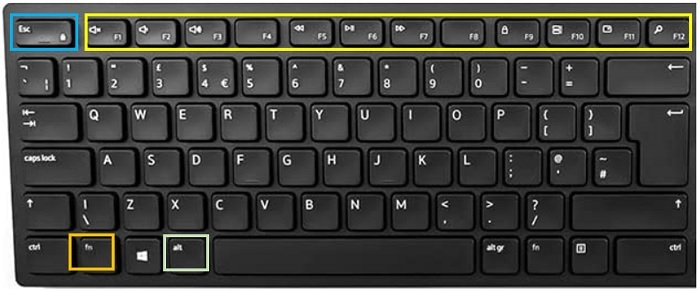
- Find the Fn key in the bottom row of the keyboard and the Esc key in the top-left corner.
- Hold Fn and press Esc once to turn on Fn Lock.
- Press a key such as F5 on its own and check that it now does the standard action, like refreshing a browser page.
- To reach the printed icon on a key (volume, brightness, backlight) while Fn Lock is on, hold Fn and press that key.
- Press Fn + Esc again to switch the top row back.
Dell stores the Fn Lock state in the laptop's embedded controller, so it stays the same after a restart. Some Latitude models say other secondary keys on the top row still need Fn even with the lock on.
Understanding the function keys
Every F key on a Dell laptop carries two jobs. Which one fires depends on the Fn Lock state and on whether you hold Fn.
| What is printed on the key | What it is | Example |
|---|---|---|
| F1 to F12 label | Standard function key that Windows and apps use | F2 renames a file in File Explorer |
| Icon (speaker, sun, keyboard light) | Secondary or multimedia function handled by the laptop | Volume, display brightness, keyboard backlight, microphone mute |
| Fn key | Modifier that switches a key to its other job while held | Fn + F2 on a laptop where the icon is the default |
| Esc key | Fn Lock toggle when pressed with Fn | Fn + Esc swaps the default set for the whole row |

How does the function key work?
The Fn key does nothing by itself. It works only together with another key, and it tells the laptop to use the other job printed on that key.
| Fn Lock state | Press F6 alone | Press Fn + F6 |
|---|---|---|
| Fn Lock off (multimedia keys first) | The icon's action, such as a brightness change | Standard F6 |
| Fn Lock on (function keys first) | Standard F6, such as moving between screen elements | The icon's action |
Dell's own Latitude example: on Latitude 5000 and 7000 models launched after March 2019, F6 and F7 change brightness without Fn by default. With Fn Lock turned on, brightness needs Fn + F6 or Fn + F7.
Standard function keys and their use (F1-F12) on your Dell laptop
These are the standard actions when the key acts as an F key. The secondary icons differ between Dell models, so check the symbols printed on your own keyboard for those.
| Key | Windows 11 and 10 | Common app and browser use |
|---|---|---|
| F1 | No Windows-wide action | Help in Microsoft Edge, Chrome, Word and Excel |
| F2 | Rename the selected file or folder | Edit the active cell in Excel; open BIOS setup at the Dell logo |
| F3 | Search in File Explorer | Find on page in Edge and Chrome |
| F4 | Show the address bar list in File Explorer | Repeat the last action in Word and Excel; Alt + F4 closes the window |
| F5 | Refresh the active window | Reload a page in Edge and Chrome; Go To in Word and Excel |
| F6 | Cycle through screen elements | Move to the address bar in browsers |
| F7 | No Windows-wide action | Caret browsing in Edge and Chrome; Spelling in Excel |
| F8 | No Windows-wide action | Extend selection in Word and Excel |
| F9 | No Windows-wide action | Update fields in Word; calculate in Excel; Immersive Reader in Edge |
| F10 | Show the menu bar in the active app | KeyTips in Office; Shift + F10 opens the right-click menu |
| F11 | Maximize or restore a File Explorer window | Full screen in Edge and Chrome |
| F12 | No Windows-wide action | Save As in Word and Excel; developer tools in browsers; startup menu at the Dell logo |
Shortcuts such as Alt + F4 and Shift + F10 use the standard F key. If Fn Lock is off, add Fn to them, for example Fn + Alt + F4. The same F1 to F12 shortcuts in Windows work on any Dell keyboard once the key acts as a standard F key.
Changing Fn key settings
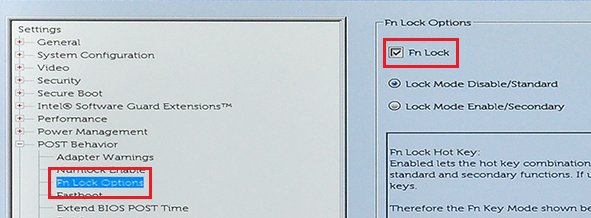
Dell Latitude laptops set the Fn key behaviour in BIOS setup, under POST Behavior > Fn Lock Options. Use it to pick a permanent default or to stop Fn + Esc from toggling.
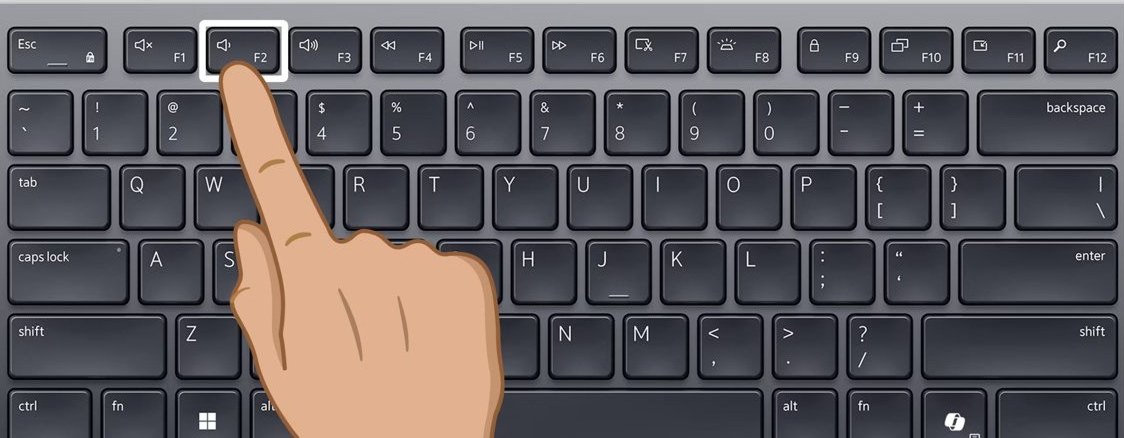
- Restart the laptop and press F2 repeatedly as soon as the Dell logo appears.
- In BIOS setup, open POST Behavior and select Fn Lock Options.
- Keep Fn Lock ticked if you want Fn + Esc to keep switching the row; clear it to stop the toggle.
- Select Lock Mode Disable/Standard to make the multimedia icons the default, or Lock Mode Enable/Secondary to make F1–F12 the default, as your BIOS labels them.
- Save the change and exit BIOS setup so the laptop restarts.
Menu names vary between Latitude, Inspiron, Vostro and XPS BIOS versions, so find your Dell model number and check its manual on Dell's support site if POST Behavior is missing. You can also boot into the Dell BIOS by pressing F12 at the Dell logo and selecting BIOS Setup.
Use F2 and F12 on a Dell laptop at startup
At the Dell logo, F2 and F12 work before Windows loads, so the Fn Lock state matters less. If a key does nothing, try it with Fn.
- Shut down the laptop fully, then press the power button.
- As soon as the Dell logo appears, press F2 repeatedly to open BIOS setup.
- Or press F12 at the Dell logo and select BIOS Setup or System Setup from the menu.
- If F2 doesn't respond, try Fn + F2, and tap the key rather than holding it.
- In BIOS setup, press F9 or Alt + F to load default settings if a change goes wrong.
Dell laptop function keys not working
F1–F12 change volume or brightness instead of doing their normal job
Fn Lock is off, so the multimedia icons are the default.
- Press Fn + Esc once.
- Press F5 in a browser and check the page reloads.
- To make it permanent, set Lock Mode Enable/Secondary in POST Behavior > Fn Lock Options in BIOS setup.
Volume or brightness keys only work with Fn
Fn Lock is on, or the BIOS is set to make F1–F12 the default.
- Press Fn + Esc once to swap the row back.
- If the swap doesn't stick, open BIOS setup with F2 and check Fn Lock Options.
- Select Lock Mode Disable/Standard to make the icons the default.
Fn + Esc does nothing
The Fn Lock toggle is turned off in the BIOS, or the model doesn't support it.
- Open BIOS setup with F2 at the Dell logo.
- Go to POST Behavior > Fn Lock Options and tick Fn Lock.
- Save, restart, and try Fn + Esc again.
Keyboard backlight key doesn't work
The backlight is turned off in the BIOS, the laptop has no backlit keyboard, or you need Fn with the key.
- Hold Fn and press the key with the backlight icon, usually F5, F6, F7 or F10 on Latitude, Vostro and Inspiron models.
- On some XPS models, try Fn + Right arrow.
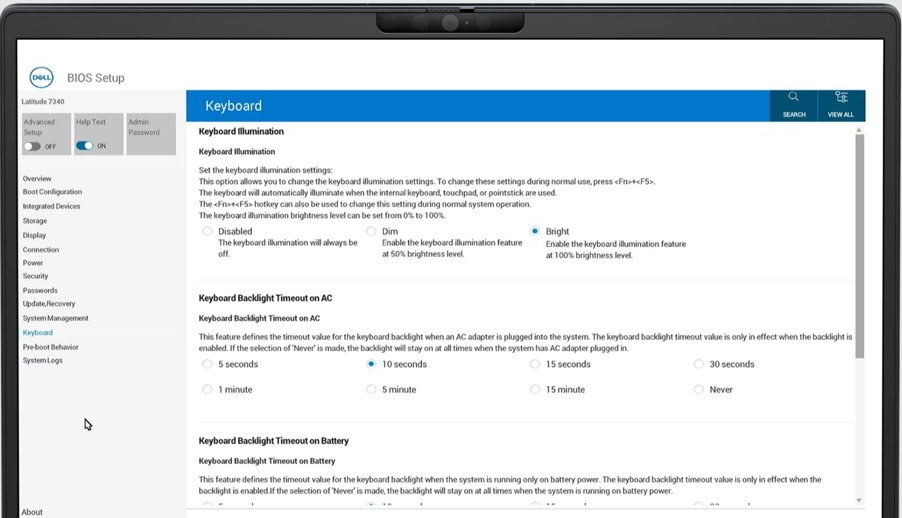
- In BIOS setup, check that Keyboard Illumination is set to Dim or Bright; if the option is missing, the keyboard has no backlight.
If no F key responds at all, work through the general Fn keys not working in Windows 11 fixes, then run the keyboard hardware test from Dell's support site.
Additional tips for Dell laptop function keys
A few details save time once the basics work.
| Situation | What to do |
|---|---|
| Laptop keyboard needs a driver | No extra keyboard driver is needed; Dell laptop keyboards work with the drivers Windows already has |
| Dell external keyboard (KB500, KB700, KB740, KM5221W, KM7120W, KM7321W) | Media keys are primary; press Fn + Esc to swap, and use Fn + Alt + F4 to close an app |
| Dell external keyboard (KB216, KM117, KM3322W) | F keys are primary; press Fn + Esc to swap, and use Alt + F1–F12 for the media action |
| Shortcut with Alt or Shift doesn't work | Add Fn when Fn Lock is off, such as Fn + Shift + F10 |
| Alienware laptop | Fn + Backlight sets brightness only when Alienware Command Center (AWCC) is not installed or is disabled |
| Turning Fn Lock off in Windows | The lock is a firmware setting, so the Fn Lock steps for Windows 11 still end at Fn + Esc or the BIOS |
Dell laptop function keys FAQ
How do I use F1–F12 without pressing Fn on a Dell laptop?
Press Fn + Esc once to turn on Fn Lock. The top row then works as standard F1–F12 keys, and you hold Fn only for the printed icons. The setting survives a restart because Dell stores it in the embedded controller.
Where is the Fn Lock key on a Dell laptop?
Fn Lock on Dell laptops is the Esc key in the top-left corner, used together with the Fn key in the bottom row. Press Fn + Esc to toggle it, and press the same pair again to switch back.
Why do my Dell function keys change the brightness?
The multimedia icons are the default when Fn Lock is off, so F6 or F7 adjust brightness on many Latitude models. Press Fn + Esc to make the keys act as F6 and F7, or hold Fn with the key for one press.
Which key opens the BIOS on a Dell laptop?
Press F2 repeatedly as soon as the Dell logo appears to open BIOS setup. Pressing F12 at the logo also works and shows a menu where you select BIOS Setup or System Setup. If F2 doesn't respond, try Fn + F2.
Does Fn Lock stay on after a restart?
Yes. Dell says the Fn Lock state is stored in the embedded controller and persists after a restart, so the top row keeps the behaviour you last chose with Fn + Esc until you press it again.
Do Dell laptops need a driver for the function keys?
No. Dell says its laptop keyboards don't need any extra driver installed manually. If the keys stop working, check Fn Lock and the BIOS Fn Lock Options before looking at drivers or hardware.
How do I press Alt + F4 on a Dell laptop?
Press Alt + F4 if Fn Lock is on. If the top row defaults to multimedia icons, press Fn + Alt + F4 instead, or press Fn + Esc first so every F key shortcut works without the extra Fn key.