Press Ctrl + Shift + Esc to open Task Manager, right-click Windows Explorer and select Restart: in most cases the missing taskbar comes back within seconds.
If it does not, the cause is usually a setting rather than a fault, such as auto-hide, a second monitor, a full-screen app or a Remote Desktop session, and this guide covers each one, plus the repair steps for system files, recent updates and startup apps.
Restore the missing or disappeared taskbar on Windows 11
The taskbar, Start button and system tray are drawn by the Windows Explorer process. When Explorer stalls or crashes, the taskbar vanishes even though your apps keep running.
- Press Ctrl + Shift + Esc to open Task Manager. If that does nothing, press Ctrl + Alt + Del and select Task Manager.
- On the Processes tab, find Windows Explorer.
- Right-click Windows Explorer and select Restart.
- If Windows Explorer is not in the list, select Run new task, type
explorer.exeand press Enter. - Wait a few seconds for the taskbar to redraw at the bottom of the screen.
You can also restart explorer.exe from Command Prompt or PowerShell when Task Manager itself is hard to reach.
Why did my taskbar disappear in Windows 11?
| What you see | Likely cause | Fix |
|---|---|---|
| The taskbar slides up when the pointer touches the bottom edge | Automatically hide the taskbar is on | Turn off auto-hide in Taskbar behaviors |
| The taskbar is on one screen but missing on the other monitor | Show my taskbar on all displays is off | Turn that option on |
| The taskbar disappears only while a video, game or browser fills the screen | The app is in full-screen mode | Leave full-screen mode in that app |
| The taskbar is hidden behind a Remote Desktop window | The RDP session is full screen | Press Ctrl + Alt + Break to switch to window mode |
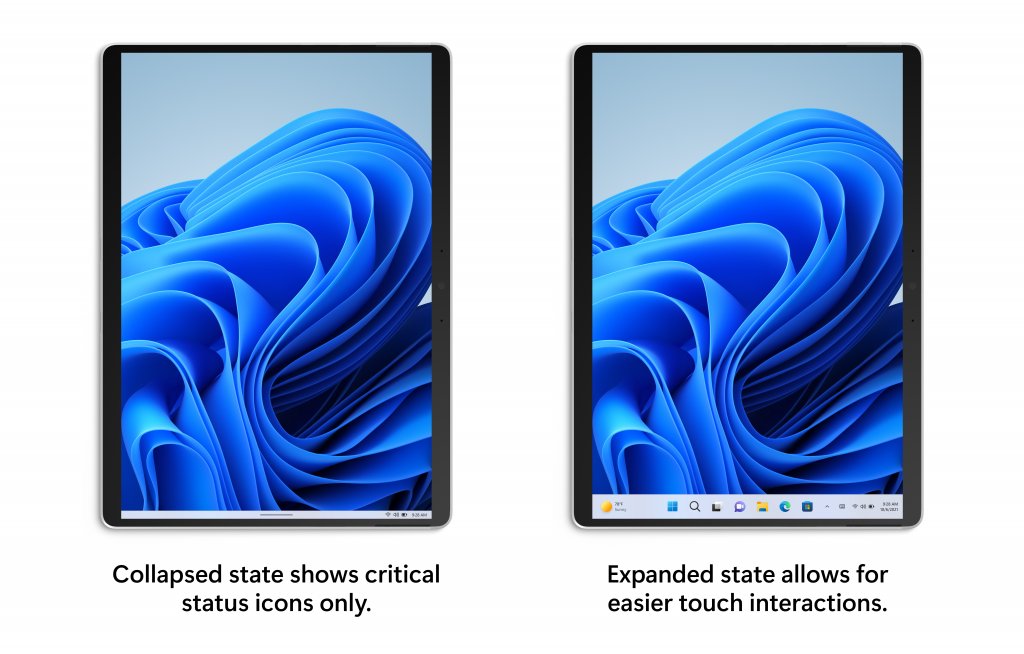
| Only a thin strip with the time and battery shows on a 2-in-1 | The tablet-optimized taskbar is collapsed | Swipe up from the bottom, or turn the tablet taskbar off |
| The desktop is black or empty with only a pointer | Windows Explorer stalled or crashed | Restart Windows Explorer in Task Manager |
| The taskbar fails to appear after an update on a work or school PC | Shell packages did not register in time | Install the latest update or re-register the packages |
How to unhide the taskbar in Windows 11
With auto-hide on, the taskbar is still there; it just stays off screen until you point at the bottom edge or touch it.
- Move the pointer to the bottom edge of the screen, or touch the bottom edge on a touchscreen, to bring the taskbar back for now.
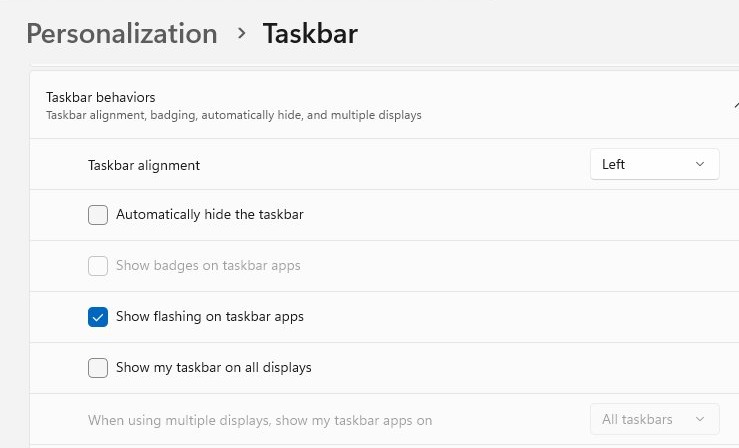
- Right-click an empty area of the taskbar and select Taskbar settings. If the taskbar never appears, press Windows key + I and go to Personalization > Taskbar.
- Expand Taskbar behaviors.
- Clear the Automatically hide the taskbar check box.
- Close Settings; the taskbar now stays on screen.
The same page holds the other taskbar options, from alignment to the items it shows, so you can customize the Windows 11 taskbar once it is back.
Show the taskbar on all displays in Windows 11
- Right-click the taskbar on the screen where it still shows and select Taskbar settings.
- Expand Taskbar behaviors.
- Select the Show my taskbar on all displays check box.
- If the taskbar sits on a monitor that is switched off, press Windows key + P and choose PC screen only or Extend so the main screen is the one you use.
- If the main screen is black after a display change, press Windows key + Ctrl + Shift + B to reset the graphics driver.
Windows 11 taskbar not showing in Remote Desktop full screen
A full-screen Remote Desktop (RDP) session covers your own taskbar, so it looks missing until you leave full screen. This happens whenever you open an RDP connection or an .rdp file in full-screen mode.
- Press Ctrl + Alt + Break to switch the Remote Desktop window between full screen and window mode.
- On a laptop without a Break key, try Ctrl + Alt + Pause, Ctrl + Alt + PrtScn or Ctrl + Alt + Fn + ScrLk.
- If no combination works, press Ctrl + Alt + Home to show the connection bar, then use its restore button.
- To reach the Windows Security screen of the remote PC instead of your own, press Ctrl + Alt + End.
In Remote Desktop Connection, Show Options > Local Resources > Apply Windows key combinations decides whether keys such as the Windows key go to your PC or the remote one.
Turn off the tablet-optimized taskbar on 2-in-1 devices
When you fold back or detach the keyboard of a 2-in-1, Windows 11 collapses the taskbar to a thin strip with only the time and status icons. The setting exists only on devices with tablet functionality.
- Swipe up from the bottom of the screen to expand the taskbar.
- Right-click or press and hold the taskbar and select Taskbar settings.
- Expand Taskbar behaviors.
- Clear Optimize taskbar for touch interactions when this device is used as a tablet.
Run SFC and DISM to repair the taskbar in Windows 11
If Explorer keeps crashing, damaged system files are a common reason. Microsoft's order is DISM first, because it supplies the files, and then System File Checker.
- Type
cmdin the Search box, right-click Command Prompt and select Run as administrator, then select Yes. - Type
DISM.exe /Online /Cleanup-image /Restorehealthand press Enter. It can take several minutes. - Type
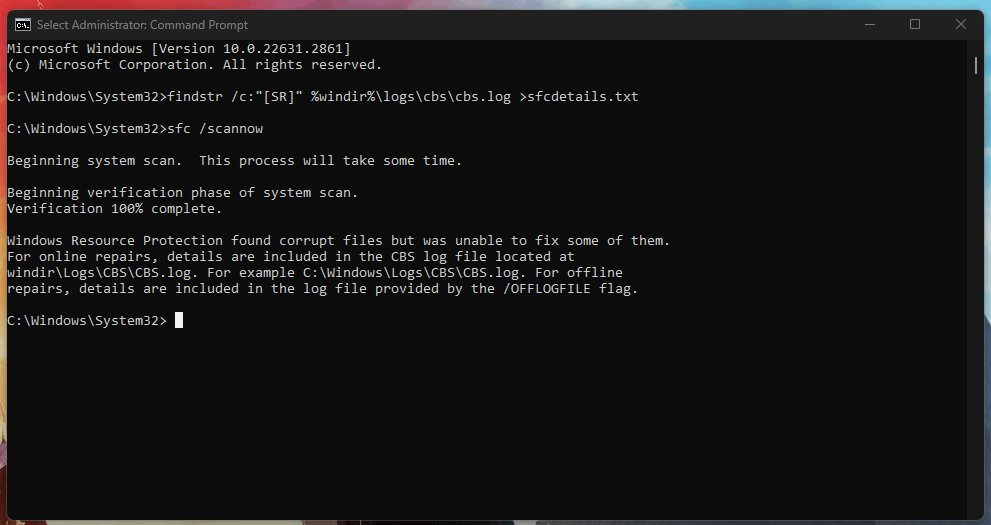
sfc /scannowand press Enter. Do not close the window until verification reaches 100%. - Read the result: Windows Resource Protection did not find any integrity violations means no files were damaged.
- If it reports found corrupt files and successfully repaired them, restart the PC and check the taskbar.
- If it says it could not perform the requested operation, run the same scan again in Safe Mode.
Re-register the Windows 11 shell packages with PowerShell (KB5072911)
Microsoft documents a problem on Windows 11 24H2 and 25H2 where the taskbar, Start menu and Settings fail to appear because XAML packages did not register in time after a cumulative update. It mainly affects enterprise, managed and virtual desktop (VDI) setups, and updates released from June 23, 2026 (KB5095093) fix it, so install the latest update first.
Add-AppxPackage -Register -Path "C:\Windows\SystemApps\MicrosoftWindows.Client.CBS_cw5n1h2txyewy\appxmanifest.xml" -DisableDevelopmentMode
Add-AppxPackage -Register -Path "C:\Windows\SystemApps\Microsoft.UI.Xaml.CBS_8wekyb3d8bbwe\appxmanifest.xml" -DisableDevelopmentMode
Add-AppxPackage -Register -Path "C:\Windows\SystemApps\MicrosoftWindows.Client.Core_cw5n1h2txyewy\appxmanifest.xml" -DisableDevelopmentMode
Run the three lines in PowerShell inside the affected user's session. Each one registers a built-in package that hosts the XAML components the shell depends on. Microsoft's workaround then restarts the Shell Infrastructure Host (SiHost) so the shell picks the packages up.
You should see: After the shell restarts, or you sign out and back in, the taskbar and Start menu load normally.
Uninstall a recent Windows update that removed the taskbar
- Press Windows key + I to open Settings and select Windows Update.
- Under More options, select Update history.
- Under Related settings, select Uninstall updates.
- Select Uninstall next to the update that arrived just before the taskbar disappeared.
- Restart the PC when Windows asks.
Some updates cannot be uninstalled. If the newest update is the fix rather than the cause, go to Windows Update and select Check for updates instead.
Use System Restore when the taskbar is missing after a change
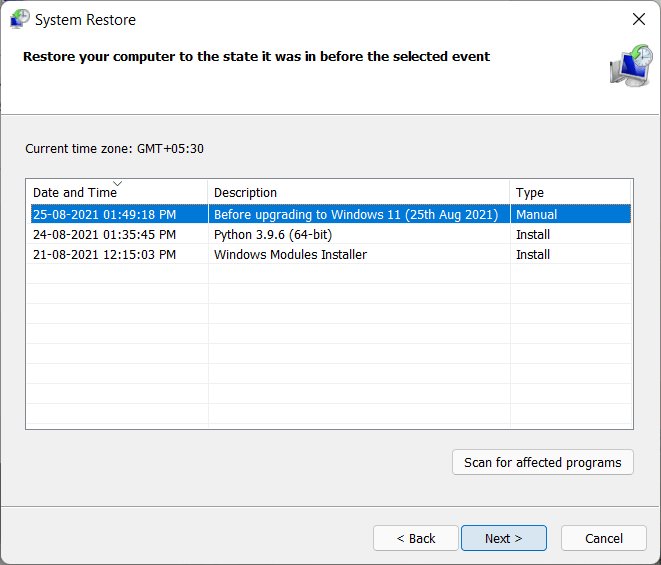
System Restore rolls system files and settings back to a restore point without touching your documents. It needs a restore point from before the problem started.
- Press Windows key + R, type
rstrui.exeand press Enter. - In Restore system files and settings, select Next.
- Choose a restore point dated before the taskbar disappeared. Select Show more restore points if the one you need is not listed.
- Optionally select Scan for affected programs to see which apps the restore removes.
- Select Next, then Finish. Windows restarts automatically.
If the list is empty, fix the missing restore points first, because this route needs at least one.
Find a process causing high disk usage on Windows 11
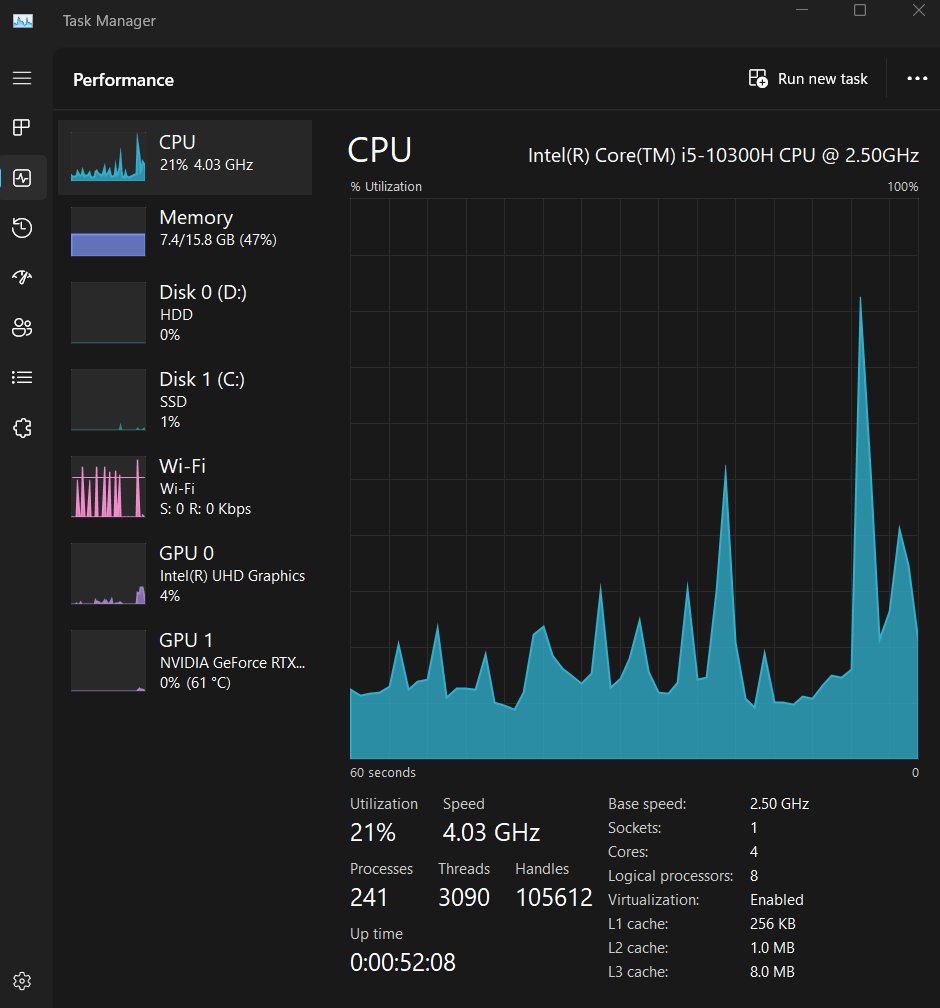
A taskbar that loads late after sign-in or freezes can be waiting on a process that keeps the disk or CPU at full load. Task Manager shows which one.
- Press Ctrl + Shift + Esc to open Task Manager.
- On the Processes tab, select the Disk column header to sort by disk activity. Select CPU for processor load.
- Note the process at the top. If it is an app you do not need right now, right-click it and select End task.
- Select Startup apps and disable apps you do not need at sign-in: right-click each one and select Disable.
- Run a malware scan: Settings > Privacy & security > Windows Security > Virus & threat protection > Quick scan.
Do not end Windows Explorer or processes you do not recognise as apps; restart Explorer instead, as in the first section.
How to tell if Windows Explorer is running in Windows 11
- Open Task Manager with Ctrl + Shift + Esc and check that Windows Explorer appears on the Processes tab.
- Press Windows key + T: focus should move across the app icons on the taskbar.
- Press Windows key + B: focus should jump to the first icon in the notification area.
- Press the Windows key: the Start menu should open from the taskbar.
- Restart the PC once and check the taskbar is still there after you sign in.
Windows 11 taskbar not showing or not responding
The taskbar keeps disappearing and coming back
Windows Explorer is crashing and restarting, and each crash is written to the event log.
- Right-click Start and select Event Viewer, or press Windows key + R, type
eventvwr.mscand press Enter. - Expand Windows Logs and select Application.
- Select Filter Current Log, tick Error and select OK.
- Look for errors that name
explorer.exeat the time the taskbar vanished, and read the details for the file or app involved. - If a third-party app is named, update or uninstall it; if only Windows files are named, run DISM and SFC as above.
Black screen with only a pointer and no taskbar after sign-in
A stalled Windows process or display driver problem.
- Press Windows key + Ctrl + Shift + B to reset the graphics driver; a beep or flicker means it worked.
- Press Ctrl + Alt + Del, select Task Manager and restart Windows Explorer.
- If it is not listed, select Run new task, type
explorer.exeand press Enter. - If the screen stays black, boot into Safe Mode and roll back the display driver in Device Manager > Display adapters.
The taskbar vanishes only after startup apps finish loading
A startup app or third-party service is interfering with Explorer.
- Select Search, type
msconfigand open System Configuration. - On the Services tab, select Hide all Microsoft services, then Disable all, and select Apply.
- On the Startup tab, select Open Task Manager and disable each enabled startup app.
- Restart. If the taskbar stays, turn items back on half at a time until the culprit returns the problem.
The taskbar is there but its icons are blank or missing
A damaged icon cache or app shortcut, not a missing taskbar.
- Restart Windows Explorer in Task Manager.
- If icons stay blank, rebuild the taskbar icon cache and repair the affected apps.
Nothing brings the taskbar back
Windows itself is damaged beyond what SFC and DISM can repair.
- Install every update under Settings > Windows Update > Check for updates and restart.
- Use System Restore if a restore point exists.
- As a last step, go to Settings > System > Recovery and select Reset PC, choosing to keep your files.
Missing taskbar in Windows 11 FAQ
Why did my taskbar disappear in Windows 11?
Usually because Windows Explorer stalled or crashed, or because a setting hides it: auto-hide, a taskbar turned off for a second monitor, a full-screen app or Remote Desktop session, or the collapsed tablet taskbar on a 2-in-1. Restarting Windows Explorer in Task Manager fixes the first case.
How do I get my taskbar back without restarting the PC?
Open Task Manager with Ctrl + Shift + Esc, right-click Windows Explorer on the Processes tab and select Restart. If Windows Explorer is not listed, select Run new task, type explorer.exe and press Enter. Your open apps keep running while the taskbar redraws.
How do I unhide the taskbar in Windows 11?
Point at the bottom edge of the screen to show it, right-click it and select Taskbar settings, expand Taskbar behaviors and clear Automatically hide the taskbar. If it never appears, open Settings with Windows key + I and go to Personalization, then Taskbar.
Why is the taskbar missing on my second monitor?
The option that copies the taskbar to every screen is turned off. Right-click the taskbar on the main screen, select Taskbar settings, expand Taskbar behaviors and select Show my taskbar on all displays. The taskbar then appears on every connected monitor.
Why does the taskbar disappear in full screen?
Full-screen apps, games, videos and full-screen Remote Desktop sessions cover the taskbar on purpose. Leave full-screen mode in the app, or press Ctrl + Alt + Break in a Remote Desktop session to switch it to a window, and the taskbar shows again.
Which keyboard shortcuts still work when the taskbar is missing?
The Windows key opens Start, Windows key + I opens Settings, Windows key + R opens Run, and Ctrl + Shift + Esc opens Task Manager. Windows key + T moves focus across taskbar apps, which is a quick way to see whether the taskbar responds.
Will SFC fix a missing taskbar?
It can, when the taskbar disappears because Windows Explorer crashes on damaged system files. Run DISM.exe /Online /Cleanup-image /Restorehealth first and then sfc /scannow from an administrator Command Prompt, and restart the PC if SFC reports that it repaired files.
Can a Windows update make the taskbar disappear?
Yes. Microsoft documented a problem in KB5072911 where the taskbar and Start menu failed to appear after cumulative updates on Windows 11 24H2 and 25H2, mostly on managed and virtual desktop PCs. Updates from June 23, 2026 fix it, and earlier builds can re-register the packages with PowerShell.