To save all photos from Facebook, open Accounts Center, select Your information and permissions > Export your information > Create export, and choose Export to device.
This guide covers the export settings, opening the ZIP file, sending photos to another service, saving a Facebook Page's photos and fixing an export that fails or expires.
How to save all photos from Facebook
Facebook is moving people to Meta Accounts, so you may see Meta Account settings where these steps say Accounts Center. Older guides call this tool Download your information.
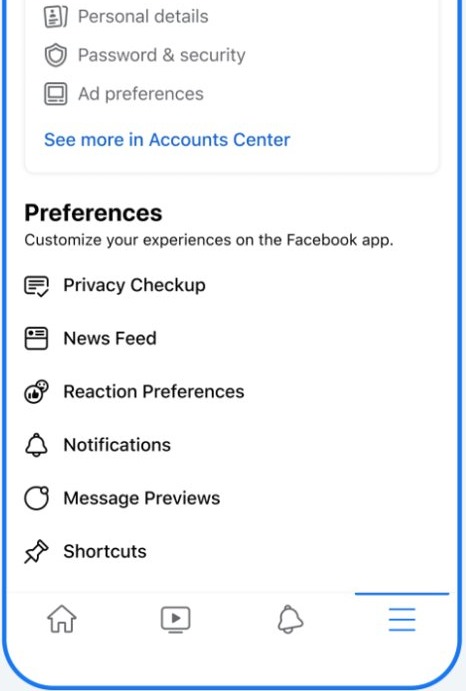
- Log in to Facebook, click your profile picture in the top right, then click Settings and privacy.
- Click Settings.
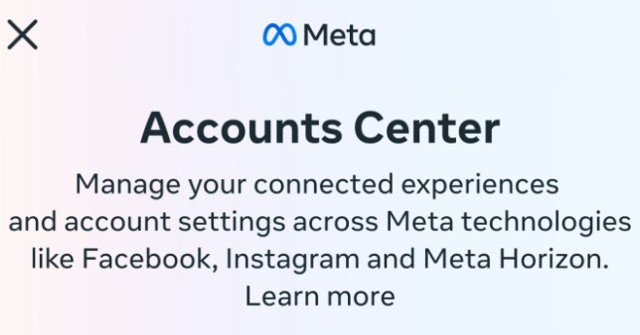
- Click Accounts Center, then click Your information and permissions.
- Click Export your information, then click Create export.
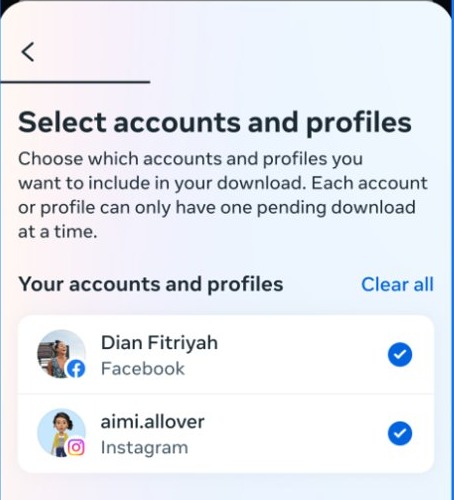
- Select the profile you want to export, then select Export to device.
- Choose the information to include, plus the date range, format, notification email address and media quality.
- Click Start export.
- When Facebook notifies you, return to Export your information and save the file from Available downloads. You have four days.
Save Facebook photos to a computer vs an external service
| Your situation | Use this | Why |
|---|---|---|
| You want a personal copy with enough free storage | Export to device | You get a ZIP file with folders of images and videos |
| Your device is short on space | Export to external service | The copy goes straight to the service you connect |
| You want the original photos and videos you shared | Export to external service | Facebook says this route exports a copy of your original media |
| You want repeat exports | Export to external service | The tool asks how often you want to export |
| You manage a Facebook Page | Download your information in the Page's settings | A Page has its own request form and needs full control |
Facebook download date range, format and media quality settings
To save every photo, leave the date range wide and keep the export to the information you need. A narrower selection produces a smaller file.
| Setting | Choose this for photos | What it changes |
|---|---|---|
| Specific info | Your Facebook activity | This category holds posts you've created and photos you're tagged in, and exporting less makes the file smaller |
| Date range | The widest range on offer | A narrower range saves only photos from that period |
| Format | HTML | HTML opens like a web page, while JSON is machine-readable and suits uploading to another service |
| Media quality | The highest quality your storage can hold | Higher quality makes the download larger |
| Notification email address | An inbox you check daily | The four-day download window starts once the export is ready |
How to transfer Facebook photos to another service
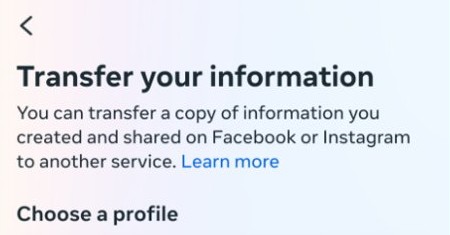
This route exports a copy of the original photos and videos you shared on Facebook. Connect the destination account when the tool asks for it.
- Open Accounts Center > Your information and permissions > Export your information.
- Click Create export, select the profile, then click Next.
- Select Export to external service, choose the service, and click Next.
- Choose how often you want to export and click Next.
- Click Connect and sign in to the external service.
- Enter your profile password if asked, then click Next.
- Choose your notification email address and format, then click Start export.
How to save all photos from a Facebook Page
You need Facebook access with full control of the Page. The Page has its own form, and its file link also expires after four days.
- Log in to Facebook and click your profile photo in the top right.
- Click See all profiles, then select the Page.
- Click the Page's profile photo in the top right.
- Click Settings and privacy, then click Settings.
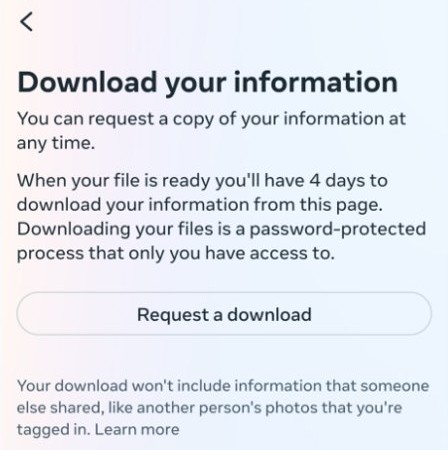
- Click Download your information in the left column.
- Select the format and the quality of photos, videos and other media. Leave the date range empty to request everything in the selected categories.
- Click the boxes on the right to add or remove categories.
- Click Request a download.
- When the notification arrives, click Download Page and enter your password.
How to open your Facebook photos download on a computer
The HTML export arrives as a ZIP file. Once you extract it, you can also find all your photos on the computer with a File Explorer search.
- Find the ZIP file you saved from Available downloads.
- Open and extract the ZIP file.
- Open the HTML file named
indexin your web browser. It works like a web page. - Open the folders in the extracted copy to reach the image and video files.
- Compare a few albums or posts against your profile to see that the photos you wanted arrived.
What photos are included in a Facebook download?
An export is limited to what Facebook still stores and to content you shared. Different categories are kept for different lengths of time, so some older material may be absent.
| Photos | In your export? | Detail |
|---|---|---|
| Photos in posts you created | Yes | They fall under Your Facebook activity |
| Original photos and videos you shared | Yes, through an external service | Export to external service copies the original media |
| Another person's photos you're tagged in | No | Exports leave out information someone else shared, so ask the owner for a copy |
| Photos you deleted | No | Facebook removes deleted content from its servers |
| Facebook Page photos | Only in the Page's own download | Request it from the Page with full control access |
| Photos on another profile you own | Separate export | Run the export for each profile |
Tips for saving all photos from Facebook
| Tip | Why it helps |
|---|---|
| Check your free storage before you export to a device | Facebook warns that you need enough space, and high-quality media makes the file larger |
| Export only the categories you need | Exporting one type of information makes the file smaller |
| Save the file on the day the notification arrives | The export stays available for four days |
| Keep the file somewhere private | Facebook warns that an export may contain private information |
| Export each additional profile on its own | Each profile has its own export |
| Export before you delete your Facebook account | A deleted account's information can no longer be accessed |
Facebook photo download not working
The export is no longer in Available downloads
Exports stay available for four days, and requests expire after a few days.
- Open Export your information in Accounts Center.
- Click Create export and repeat your choices.
- Save the new file as soon as the notification arrives.
You cannot export a profile
The profile is deactivated or scheduled for deletion.
- Reactivate a deactivated profile by logging back in to Facebook.
- Cancel the deletion if the profile is scheduled for deletion.
- Run the export again.
Facebook asks for a password or more checks before the download
Exports are password-protected, and Facebook may ask for additional verification.
- Enter your Facebook password.
- Complete any verification step shown.
- If you are locked out, recover your Facebook account first, then repeat the export.
Photos look lower quality than you expected
The media quality chosen in the export controls the files you receive.
- Create a new export.
- Select a higher Media quality.
- Confirm you have room for the larger file, then click Start export.
Tagged photos are missing
Exports leave out photos another person shared.
- Open the photo's owner's profile and ask them for a copy.
- Export your own original uploads with Export to external service if you need those as well.
Save all photos from Facebook FAQ
How do I save all photos from Facebook?
Open Accounts Center, select Your information and permissions, then Export your information, and choose Create export and Export to device. Set the media quality, click Start export, and save the file from Available downloads within four days.
Can I choose specific albums to download?
The export tool's documented choices are information categories, date range, format and media quality, with no album picker listed. A date range is the closest way to narrow a download to the photos from one period.
How long does it take to download the photos?
Facebook does not publish a fixed time, and the size of your selection affects the file. You receive an email and a Facebook notification when an export to a device is ready, then have four days to save it.
Will the download include videos?
Yes, if you request them. The ZIP file contains folders with any images and videos you asked for, and the media quality setting applies to both. High-quality videos make the file noticeably larger.
Can I still access my photos on Facebook after downloading?
Yes. The export tool creates a copy of your information, so the photos stay on your profile. Your account and posts only change if you separately delete them or delete the account.
Is there a limit to how many times I can download my photos?
Facebook's help pages do not list a limit. If a request expires you can always request a new one, and earlier requests appear under Past request in the Export your information tool.
How do I save all Facebook photos to a computer?
Choose Export to device in the Export your information tool with the HTML format. Save the ZIP file to your computer, extract it, and open the index file or the folders of images inside it.
Does a Facebook export include photos I'm tagged in?
Not when another person shared them. Facebook's export category covers photos you're tagged in as activity, but it states an export won't include another person's photos, so ask the owner for those.