Enter your 48-digit BitLocker recovery key on the recovery screen to start Windows 11, after removing any bootable USB drive or disc and restarting once.
This guide covers where to find the key, what triggers the screen, how to stop it returning on every boot, and what to do when the key is lost or rejected.
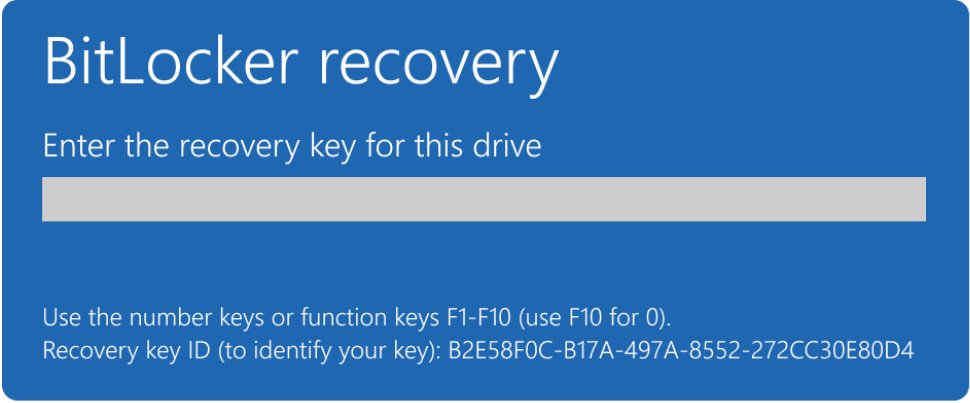
Fix Windows 11 stuck in BitLocker recovery screen
You need a second device with internet access if the key is saved to your Microsoft account. A bootable USB drive or disc in the PC can cause the prompt by itself, so rule that out first.
- Remove any bootable USB drive or disc, then restart. If the PC starts normally, you're done.
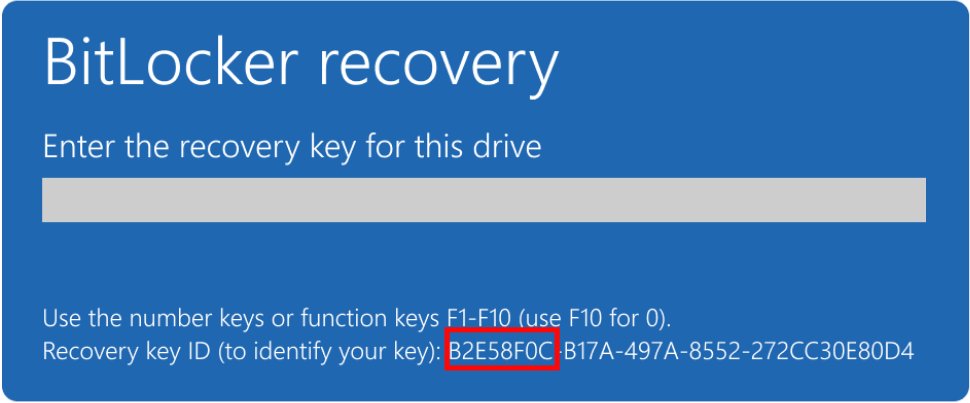
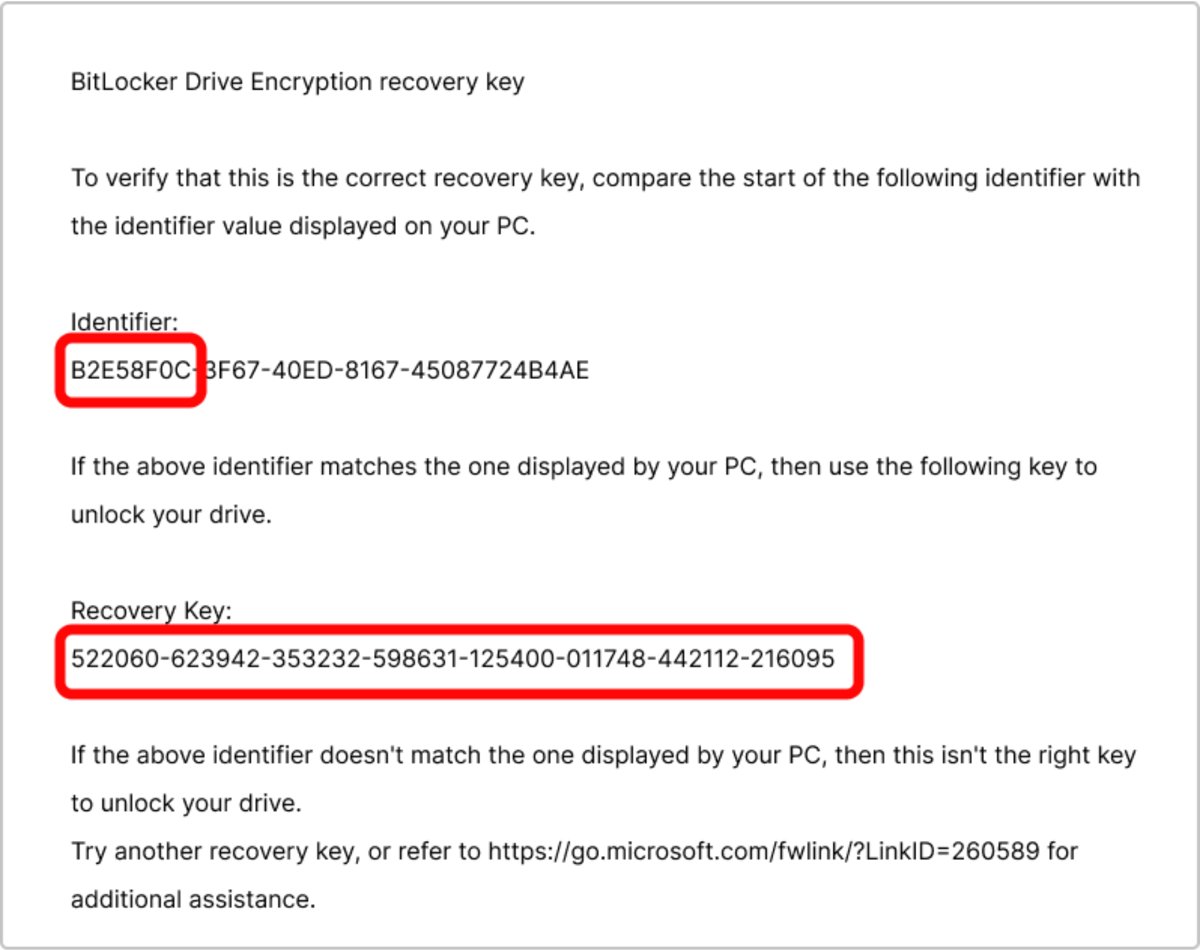
- If the recovery screen returns, note the first 8 digits of the recovery key ID shown on it.
- On another device, go to
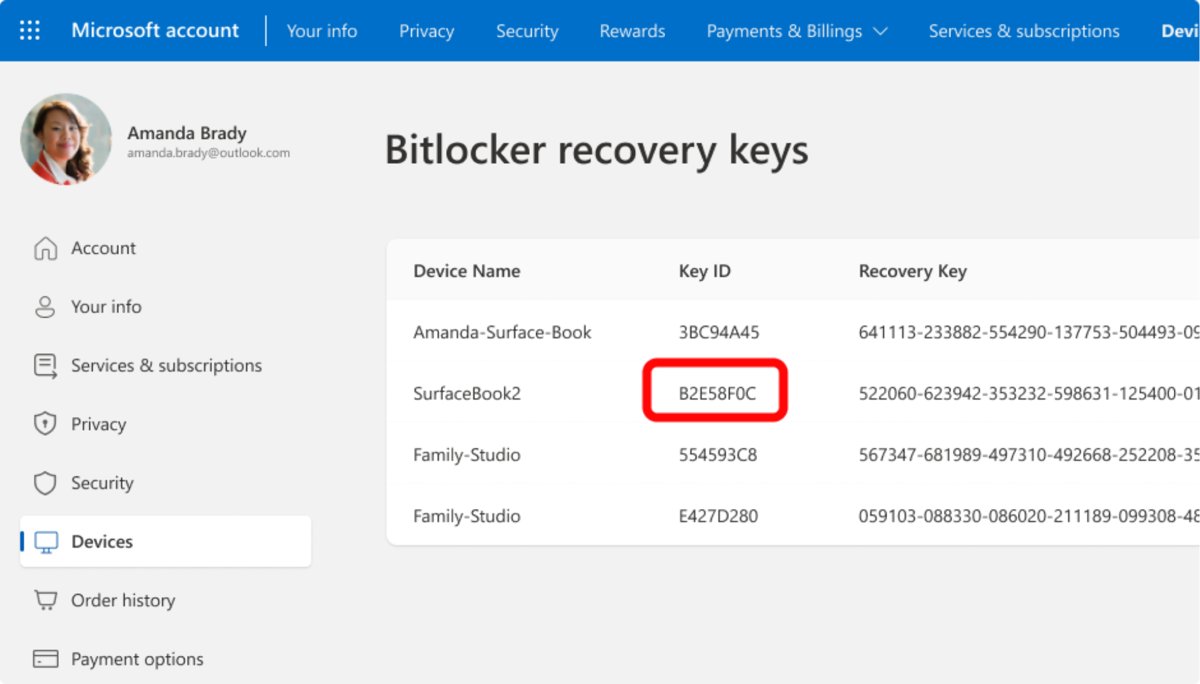
https://aka.ms/myrecoverykeyand sign in with your Microsoft account. - Find the entry whose key ID matches the screen.
- Type the 48-digit recovery key on the recovery screen, using the function keys if the number keys do not respond.
- Follow the prompt to continue, and Windows starts.
After a successful unlock, BitLocker resets its measurements in the TPM to match the current setup, so the prompt usually does not come back. On Windows 11 version 24H2 and later, the screen also shows a hint of the Microsoft account that holds the key.
If the key is accepted but Windows then stops on a blank display, fix the Windows 11 black screen next.
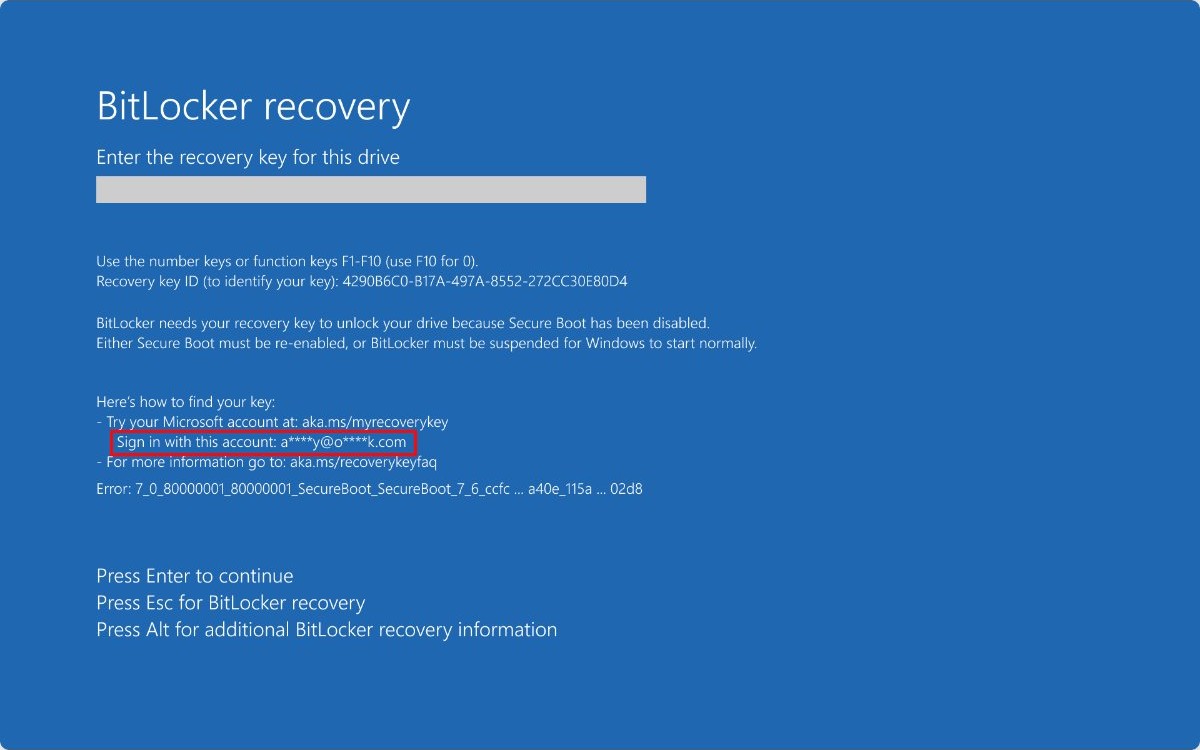
Where to find BitLocker recovery key on Windows 11
Check these places in order to find the BitLocker recovery key. A Microsoft account is the default recommended location on a PC that isn't joined to an organization.
| Where the key may be | What to do | Good to know |
|---|---|---|
| Microsoft account | Sign in at https://aka.ms/myrecoverykey and match the key ID |
If someone else set up the PC, the key may be in their account |
| Work or school account | Sign in at https://aka.ms/aadrecoverykey, select Devices, choose the PC, then select View BitLocker Keys |
Your organization may need to provide it instead |
| Active Directory | Contact your organization's help desk | Admins retrieve it with the key ID shown on the screen |
| USB flash drive | Plug it into the locked PC and follow the prompts | If the key is a text file, read it on a different device |
| Printout | Check where you keep important papers | The key ID and key are printed together |
What causes the BitLocker recovery screen during boot
BitLocker compares the startup environment against what it expects, and it asks for the key when something changed. These are the common triggers Microsoft lists.
| Trigger | What to do after unlocking |
|---|---|
| BIOS or UEFI firmware update | Suspend BitLocker before the next firmware update |
| Boot order changed, or a CD, DVD or USB drive sits ahead of the hard drive | Put the hard drive first in the boot order, docked and undocked |
| TPM turned off, cleared or disabled | Turn the TPM back on in firmware settings |
| Secure Boot turned off | Turn it back on, since re-enabling it and rebooting might clear the prompt |
| New motherboard, or the drive moved into another computer | Enter the key once so BitLocker binds to the new TPM |
| Docking or undocking a laptop | Keep the hard drive first in the boot order in both states |
| Adding or removing hardware, or a fully drained battery | Enter the key, then restart to check that the prompt is gone |
| Wrong PIN entered too many times | Reset the PIN after you unlock the drive |
| Changes to the boot manager or partition table | Find out what made the change, then suspend and resume BitLocker |
BitLocker recovery screen error codes
On Windows 11 version 24H2 and later, press the Alt key on the recovery screen to open Additional recovery information. It shows an error category and a code that narrow down the cause.
| Code | Meaning | Fix |
|---|---|---|
E_FVE_PCR_MISMATCH |
The device configuration changed, such as bootable media inserted or a firmware update | Remove the media and restart, or enter the recovery key |
E_FVE_SECUREBOOT_DISABLED |
Secure Boot has been disabled | Turn Secure Boot back on and restart, or enter the recovery key |
E_FVE_SECUREBOOT_CHANGED |
The Secure Boot configuration changed unexpectedly | Enter the recovery key |
E_FVE_TPM_DISABLED |
A TPM is present but disabled before or during boot | Enter the recovery key, then check the TPM setting in firmware |
E_FVE_TPM_NOT_DETECTED |
The system has no TPM or does not detect one | Enter the recovery key, then check the TPM setting in firmware |
E_FVE_BAD_CODE_ID |
A boot application changed | Restore the boot configuration, or enter the recovery key |
E_FVE_DEVICE_LOCKEDOUT |
Too many incorrect sign-in attempts | Enter the recovery key to return to the sign-in screen |

How to stop BitLocker asking for recovery key on every boot
Windows normally updates its measurements after one unlock. If the prompt keeps returning, suspending and resuming BitLocker resets the validation profile, and the drive stays encrypted throughout. Resume straight away, because the drive is not actively protected while suspended.
- Unlock the PC with the recovery key and sign in to Windows as an administrator.
- Select Start, type
BitLocker, and select Manage BitLocker. - Select Suspend protection next to the operating system drive and confirm.
- Select Resume protection.
- Restart the PC and check that it reaches the sign-in screen with no prompt.
From an elevated Command Prompt, the same reset is manage-bde -protectors -disable C: followed by manage-bde -protectors -enable C:.
BitLocker recovery key fix before installing KB5083769
Microsoft's April 14, 2026 update KB5083769 can trigger one recovery prompt on the first restart, but only on PCs with a specific Group Policy setup. Microsoft says this affects few systems, and personal PCs not managed by IT are unlikely to be among them.
The PC is affected only when BitLocker is on for the OS drive and Configure TPM platform validation profile for native UEFI firmware configurations is set with PCR7 included.
In addition, msinfo32.exe must show Secure Boot State PCR7 Binding as Not Possible, the Windows UEFI CA 2023 certificate must be in the Secure Boot database, and the PC must not yet run the 2023-signed Boot Manager.
- Open the Group Policy editor and go to Computer Configuration > Administrative Templates > Windows Components > BitLocker Drive Encryption > Operating System Drives.
- Set Configure TPM platform validation profile for native UEFI firmware configurations to Not Configured.
- Run
gpupdate /forcefrom an elevated Command Prompt. - Run
manage-bde -protectors -disable C:to suspend protection. - Run
manage-bde -protectors -enable C:so BitLocker binds to the default profile Windows selects. - Install the update and restart.
If the prompt already appeared, enter the key once, and later restarts won't ask again as long as the policy doesn't change. KB5089549 addresses the issue by blocking the 2023-signed Boot Manager on these PCs, which log Event ID 1032 in the System log.
How to suspend BitLocker before a BIOS update
Updates from Microsoft need no action, but firmware updates from outside Windows Update can trigger recovery if BitLocker is still on. Firmware updates may restart several times, and suspending from Control Panel only lasts for one restart, so use PowerShell.
- Open Windows PowerShell as an administrator.
- Run
Suspend-BitLocker -MountPoint "C:" -RebootCount 0to keep BitLocker suspended until you resume it. - Install the BIOS, UEFI or TPM firmware update.
- Restart when the update finishes and sign in.
- Open PowerShell as an administrator and run
Resume-BitLocker -MountPoint "C:".
To resume automatically instead, set -RebootCount to 2 or more, which is the number of restarts before BitLocker turns itself back on.
BitLocker recovery loop: how to unlock from Command Prompt
Use this when the screen keeps looping or Windows won't start after the correct key. On the recovery screen, select Skip this drive, then select Troubleshoot > Advanced Options > Command Prompt. If the screen doesn't offer that option, boot into Windows Recovery Environment first.
manage-bde -unlock C: -recoverypassword <48-digit recovery key>
manage-bde -protectors -disable C:
The first line unlocks the drive with your key. The second turns off the TPM protectors so Windows can start without a prompt. Replace C: if the Windows drive has a different letter in this environment.
You should see: Windows starts normally after you close Command Prompt and restart.
The drive is not protected while the protectors are off. Once you're back in Windows, run manage-bde -protectors -enable C: from an elevated Command Prompt.
BitLocker recovery key not working on Windows 11
The recovery key is rejected
Several keys can exist for one account, or a digit may be mistyped.
- Compare the first 8 digits of the key ID on the screen with the entry you are using.
- Re-enter the key. The console checks each 6-digit block and offers a chance to correct errors.
- If the ID doesn't match any entry, sign in to any other Microsoft account that was used on the PC.
The number keys do nothing on the recovery screen
Some keyboards can't send number keys before Windows loads, while function keys always work there.
- Use the function keys F1 through F10 to enter the digits, following the key guide on the screen.
- On a device with no keyboard, wait for the Windows RE version of the screen, and tap the text box to open the on-screen keyboard.
The USB drive holding the key isn't read
Some PCs can't read USB drives before Windows starts, or the drive uses an unsupported format.
- Enable USB drives in the BIOS or UEFI settings, then try again.
- Make sure the drive uses NTFS, FAT16 or FAT32.
- Read the key on another computer, then type the 48 digits on the screen instead.
A Surface restarts in a loop after a firmware update
The TPM may use PCR values other than the default 7 and 11, for example with Secure Boot off.
- Run the Command Prompt unlock steps above from a Surface recovery USB drive.
- Sign in, then run
Suspend-BitLocker -MountPoint "C:" -RebootCount 0in an elevated PowerShell window. - Restart, open UEFI settings, and set Secure Boot to Microsoft Only.
- Restart, sign in, then run
Resume-BitLocker -MountPoint "C:".
You forgot the BitLocker startup PIN
Too many wrong PINs send the PC to recovery, and it will keep doing so until you set a new one.
- Unlock the PC with the recovery key.
- Open the BitLocker Control Panel, expand the drive, and select Change PIN.
- Select Reset a forgotten PIN, enter the new PIN, confirm it, and select Finish.
What to do if you can't find the BitLocker recovery key
BitLocker is designed so the drive can't be read without the key. Microsoft Support can't retrieve, provide or recreate a lost recovery key, so the remaining options come down to who manages the PC.
- Check every Microsoft account used on the PC, including the account of whoever set it up.
- Check any USB drives and printed papers from when BitLocker was turned on.
- If your organization manages the PC, contact its IT department.
- If no key exists, reset the PC with the Windows recovery options, which removes all your files.
A reset does not recover encrypted data, so try every other location first. Afterwards, back up the new key before you put files back on the PC.
How to tell if BitLocker protection is back on
Run this from an elevated Command Prompt after any unlock or suspend, so the drive doesn't stay unprotected by accident.
manage-bde -status C:This reports the encryption and protection state of the drive. Manage BitLocker in Control Panel shows the same state as On, Off or Suspended.
You should see: Protection Status: Protection On and Lock Status: Unlocked, with TPM under Key Protectors.
How to back up BitLocker recovery key in Windows 11
Do this as soon as you're back in Windows. A recovery key can't be stored on the drive it protects, and it's safest kept away from the PC.
- Select Start, type
BitLocker, and select Manage BitLocker. - Select Back up your recovery key next to the operating system drive.
- Choose where to save it, such as Save to your Microsoft account, Save to a USB flash drive, Save to a file or Print the recovery key.
- Open
https://aka.ms/myrecoverykeyon another device to check that the key is listed if you chose the Microsoft account.
Microsoft recommends the Microsoft account route over a printout or a file. Keep any USB drive that holds the key separate from the PC, especially when you travel.
Should you turn off BitLocker to stop the recovery screen
No, suspend and resume it instead of decrypting the drive. Microsoft says decryption should happen when protection is no longer required, and not as a troubleshooting step. Turning BitLocker off removes all protectors and leaves your files readable if the PC is lost or stolen, while a suspend and resume resets the check that caused the prompt.
BitLocker recovery screen FAQ
Why is my PC asking for a BitLocker recovery key at startup?
BitLocker found a change it can't verify, such as a firmware update, a changed boot order, a TPM change or a disabled Secure Boot. It can't release the key automatically after that, so it asks you to prove access with the 48-digit recovery key.
Can Microsoft give me my BitLocker recovery key?
No. Microsoft Support can't retrieve, provide or recreate a lost recovery key. If the key was saved to your Microsoft account, you can get it yourself at aka.ms/myrecoverykey. On a work or school PC, your IT department may have a copy.
Can I get past the BitLocker recovery screen without the key?
No, unless a change caused it that you can undo, such as bootable media left in the PC or Secure Boot turned off. Otherwise the encrypted drive can't be read without recovery information, and resetting the PC removes all your files.
Does a Windows update cause the BitLocker recovery screen?
Normally no. Updates from Microsoft need no BitLocker action, though known issues such as KB5083769 can affect specific policy setups. Firmware updates from outside Windows Update, and changes to the UEFI or BIOS configuration, are the usual cause.
How many digits is a BitLocker recovery key?
The recovery password has 48 digits in eight groups of six. The screen also shows a recovery key ID, and its first 8 digits tell you which saved key to use when you have more than one.
What is the difference between suspending and decrypting BitLocker?
Suspending keeps the data encrypted but stores a clear key on the drive so that changes can happen without a prompt, and resuming erases that key. Decrypting removes BitLocker protection completely and fully decrypts the drive, so you would have to encrypt it again afterwards.
Will I need the BitLocker recovery key every time I start the PC?
Not normally. Entering the key resets the measurements so the next start is automatic. If it keeps asking, sign in, then suspend and resume BitLocker from Manage BitLocker. Moving the drive between computers also prompts again each time until it re-binds.