Open Settings > Network & internet > Advanced network settings > Advanced sharing settings, expand All networks, and turn off Password protected sharing.
This guide covers the Control Panel route, the sharing settings the change depends on, and why Windows 11 can still ask for a password or block guest access afterward.
Turn off password protected sharing in Windows 11/10
This is the Windows 11 route through the Settings app. The setting sits under All networks, so it applies to private and public profiles alike.
- Select Start, then select Settings > Network & internet.
- Select Advanced network settings.
- Select Advanced sharing settings.
- Expand All networks.
- Turn off Password protected sharing.
You can also jump straight there. Select Start > Settings, type manage advanced sharing settings in the Find a setting box, and select the result.
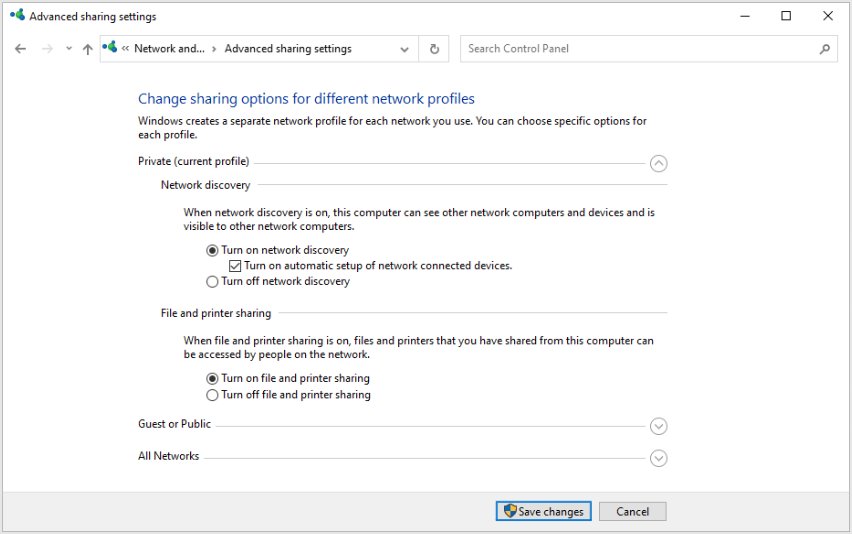
Turn off password protected network sharing from Control Panel
Windows 10 uses this route, and Windows 11 still has the same Control Panel path. You can open Network and Sharing Center in Windows 11 from the same place.
- Open Control Panel.
- Select Network and Internet > Network and Sharing Center.
- Select Advanced sharing settings.
- Expand All Networks.
- Select Turn off password protected sharing.
- Select Save changes.
If the link opens the Settings page instead, use the toggle under All networks there.
What does password protected sharing do?
Password protected sharing decides whether people on your network need an account and password on your PC to reach what you shared. It does not share anything by itself, and it does not change your Windows sign-in.
| Question | Setting on | Setting off |
|---|---|---|
| Who can open a shared folder? | People with an account and password on this PC | People on the network, within the folder's permissions |
| Do folder permissions still apply? | Yes | Yes, so Everyone usually needs access |
| Does your Windows sign-in change? | No | No |
| Does it affect Excel, Word or PDF passwords? | No | No |
Is it safe to turn off password protected sharing?
Turn it off only on a network where you know and trust every person and device. Anyone on that network can then reach the folders you opened to Everyone, with no password to stop them. Keep the network profile on Public network when you are not sharing, because Windows hides your PC from other devices on that profile.
Set Wi-Fi to private for file sharing in Windows 11
Windows 11 sets a new network to public by default, which blocks file and printer sharing from this PC. Switch only a trusted network to private. You can also set a network profile to public or private for each connection later.
- Select Start > Settings > Network & internet.
- Select Wi-Fi and then the network you are on, or select Ethernet.
- Under Network profile type, select Private network.
Turn on network discovery and file and printer sharing
Password protected sharing is one of three settings Microsoft lists for network sharing. Do these on every PC involved. The network discovery settings in Windows 11 control whether PCs can see each other.
- Open Advanced sharing settings from Network & internet > Advanced network settings.
- Expand Private networks.
- Turn on Network discovery.
- Turn on File and printer sharing.
- Check that all the PCs connect through the same router.
Start the services that network sharing needs
Windows relies on four services to make a PC visible on the network. Microsoft recommends setting them to start automatically when sharing fails.
- Press Windows logo key + R.
- Type
services.mscand select OK. - Right-click Function Discovery Provider Host and select Properties.
- Select Start if it is not running, and set Startup type to Automatic.
- Repeat for Function Discovery Resource Publication, SSDP Discovery and UPnP Device Host.
- Restart the PC.
Share a folder with Everyone over a network in Windows 11
Turning off the password does not open any folder. You still choose what to share, and you can share files and folders over a network with named people instead.
- Right-click the folder in File Explorer and select Show more options.
- Select Give access to, then choose Specific people.
- Select Everyone from the list.
- Finish the dialog to share the folder.
How do I change sharing permissions?
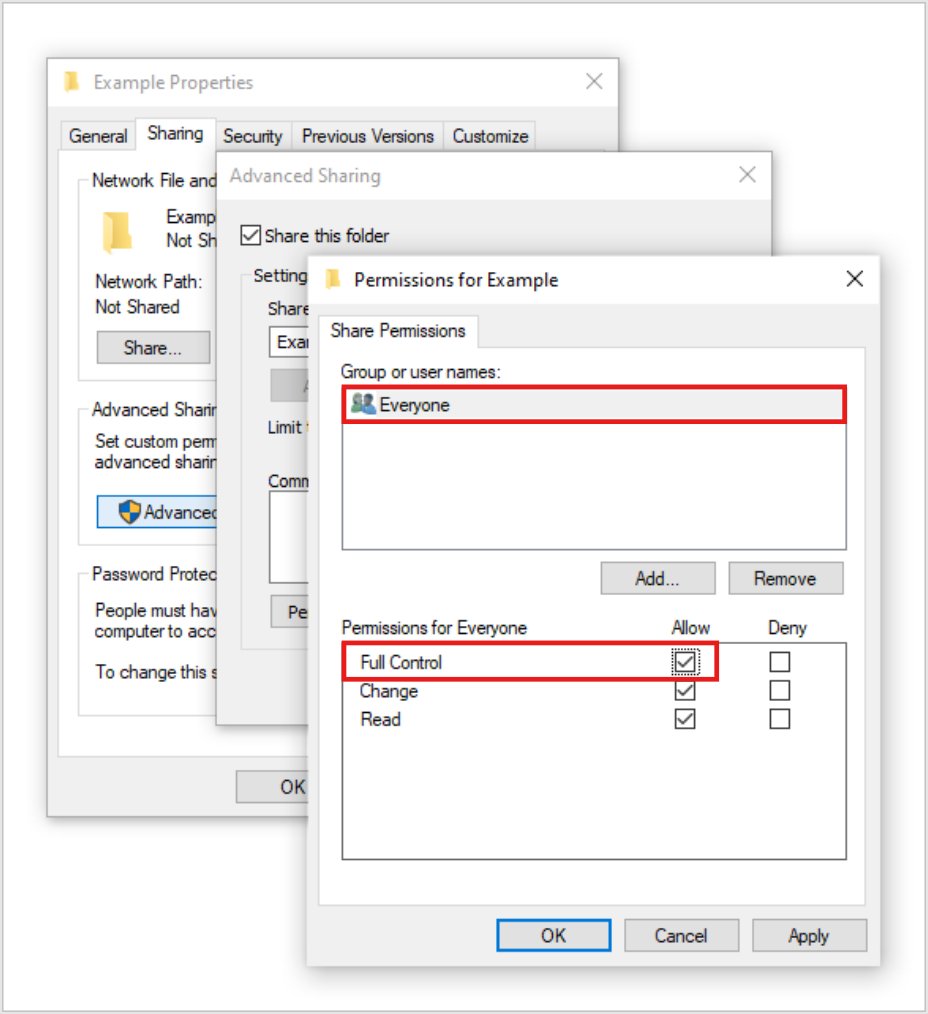
A shared folder has two permission layers, and a person needs access through both. Advanced Sharing controls the share, and the Security tab controls the folder itself.
- Right-click the shared folder and select Properties.
- On the Sharing tab, select Advanced Sharing, then Permissions.
- Select Everyone and set the Allow level you want, then select OK.
- On the Security tab, select Edit, then Add.
- Enter Everyone in the object names box and press Enter.
- Set the Allow level to match, then close Properties.
Give the lowest level that does the job. Full control lets anyone on the network change or delete what is inside the folder.
Windows 11 guest access and SMB signing by edition
Turning off password protected sharing lets your PC accept connections without a password. The PC connecting to it has its own rules, and recent versions refuse guest connections. These defaults come from Microsoft's SMB documentation.
| Windows version | Guest credentials for a remote share | SMB signing |
|---|---|---|
| Windows 11 Enterprise, Pro, Education, version 24H2 | Blocked by default | Required for outbound and inbound traffic |
| Windows 11 Home, version 24H2 | Not stated by Microsoft | Not required for outbound or inbound traffic |
| Windows 10 Home and Pro | Allowed by default | Outside the 24H2 requirement |
| Windows 10 Enterprise, Education, Pro for Workstations | Blocked by default | Outside the 24H2 requirement |
Connect to a shared folder from another Windows PC
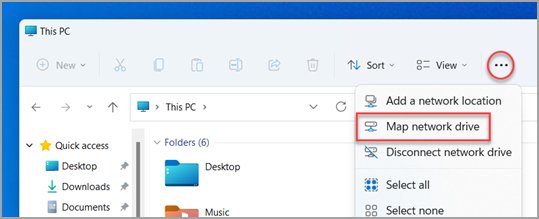
Run these steps on the second PC. You can also map a network drive so the folder stays in File Explorer.
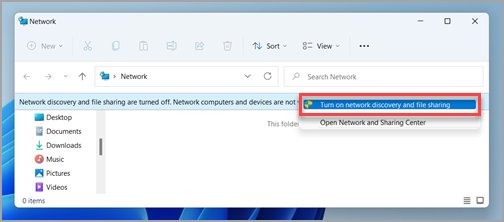
- Open File Explorer and select Network.
- Select the Network discovery is turned off banner if it appears, then Turn on network discovery and file sharing.
- Open the PC that holds the folder, then open the shared folder.
- Enter an account and password for that PC if Windows asks, then open a file to test access.
How to see which folders are shared in Windows 11
File Explorer shows Remove access on every folder, shared or not, so the menu does not tell you what is shared. Use this view instead.
- Open File Explorer.
- Type
\\localhostin the address bar and press Enter. - Review the list of shared folders.
- Check the All networks section of Advanced sharing settings to see that the password option is off.
If you shared something inside your user profile, your profile and its files appear here too. That does not mean every file is shared, because this view reflects your own access.
Turn password protected sharing back on and stop sharing folders
- Open Advanced sharing settings from Network & internet > Advanced network settings.
- Expand All networks.
- Turn on Password protected sharing.
- Right-click each shared folder in File Explorer and select Show more options.
- Select Give access to, then Remove access.
- Set the network back to Public network if you no longer share files on it.
Cannot turn off password protected sharing
Microsoft does not publish a dedicated fix for a toggle that will not stay off. These are the checks its sharing documentation supports, followed by the errors people often read as the setting failing.
The password protected sharing option will not stay off
The change did not save, or the sharing services are not running.
- Sign in with an administrator account and repeat the steps.
- Use the Control Panel route and select Save changes.
- Set the four sharing services to Automatic, then restart the PC.
- Install pending updates through Windows Update.
- Ask your administrator on a work PC, since the sharing settings may be managed.
Windows still asks for a username and password
The connecting PC blocks guest access, or it is offering saved or blank credentials.
- Enter a real account name and password from the PC that holds the folder.
- Set a password on that account, because a local account with a blank password cannot sign in over the network by default.
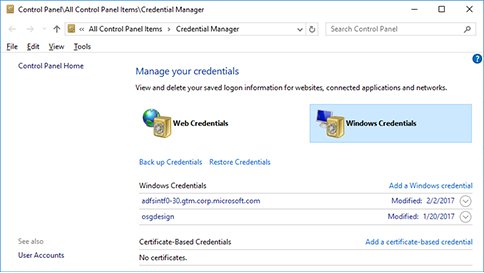
- Enter credential manager in taskbar search on the connecting PC and open it.
- Select Windows Credentials and delete any old entry for that PC, then connect again.
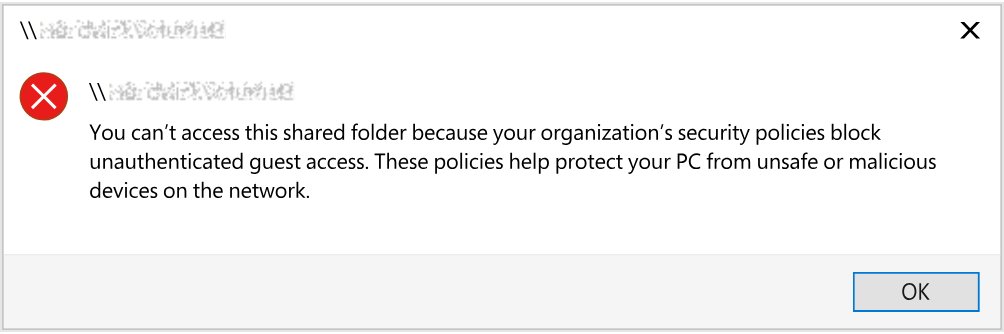
"You can't access this shared folder because your organization's security policies block unauthenticated guest access"
Windows on the connecting PC no longer allows guest sign-ins by default. SMBClient logs Event ID 31017 for this.
- Connect with a valid account and password for the PC or NAS.
- Create a standard account on the sharing PC if nobody has one yet.
- Leave the Enable insecure guest logons policy alone, because Microsoft warns that it exposes the PC to rogue servers.
Error code 0x80070035, the network path was not found
The target may be a third-party device that relies on guest access or does not support SMB signing.
- Turn on SMB signing on the NAS or other third-party device.
- Connect with an account on that device instead of guest access.
- Check that both devices are powered on and on the same network.
"You do not have permission to access" the shared folder
The share permissions and the folder's Security tab do not both allow this person.
- Open Properties on the folder and select Advanced Sharing > Permissions.
- Add Everyone with the level you want.
- Add Everyone on the Security tab at the same level.
Password protected sharing FAQ
How do I turn off password protected sharing in Windows 11?
Go to Settings > Network & internet > Advanced network settings > Advanced sharing settings. Expand All networks and turn off Password protected sharing. The Control Panel route under Network and Sharing Center reaches the same setting.
Where is the turn off password protected sharing option?
It sits under All networks in Advanced sharing settings, not under Private networks or Public networks. In Control Panel, the option reads Turn off password protected sharing, and it needs Save changes after you select it.
How do I turn off password protected file sharing on Windows 10?
Open Control Panel, then Network and Internet, Network and Sharing Center and Advanced sharing settings. Expand All Networks, select Turn off password protected sharing, and select Save changes. Then repeat the sharing checks on the other PC.
Why can't I turn off password protected sharing?
Microsoft does not document one specific cause. Try the Control Panel route with an administrator account, select Save changes, set the sharing services to Automatic and restart. If Windows only keeps asking for credentials, the connecting PC is probably blocking guest access.
Does turning off password protected sharing remove my Windows password?
No. Your Windows sign-in stays exactly as it was. The setting only affects how people on the network reach folders and printers that you have already shared from this PC, and it does nothing to your local account.
How do I turn off password protection on Excel, Word or a PDF?
Those passwords belong to the file, not to Windows network sharing, so this setting will not touch them. Remove a file password inside the app that protects it, such as the workbook password settings in Excel.
How do I turn off saved network passwords?
Enter credential manager in taskbar search and open Credential Manager. Select Windows Credentials, find the entry for the PC or device, and delete it. Windows then asks for a sign-in the next time you connect to that share.
Do I need to turn off password protected sharing on both PCs?
Only the PC that holds the shared folder decides whether a password is needed. Microsoft still suggests applying the sharing settings on every computer involved when you troubleshoot, so that network discovery and file sharing match on both sides.