An iPhone alarm rings when the iPhone clock reaches the alarm time, so it goes off at the wrong time when that clock did not change for daylight saving time.
This guide covers turning on automatic time, fixing the time zone, checking a wake up alarm, and testing the alarm before you rely on it.
Why did my iPhone alarm not go off at the correct time?
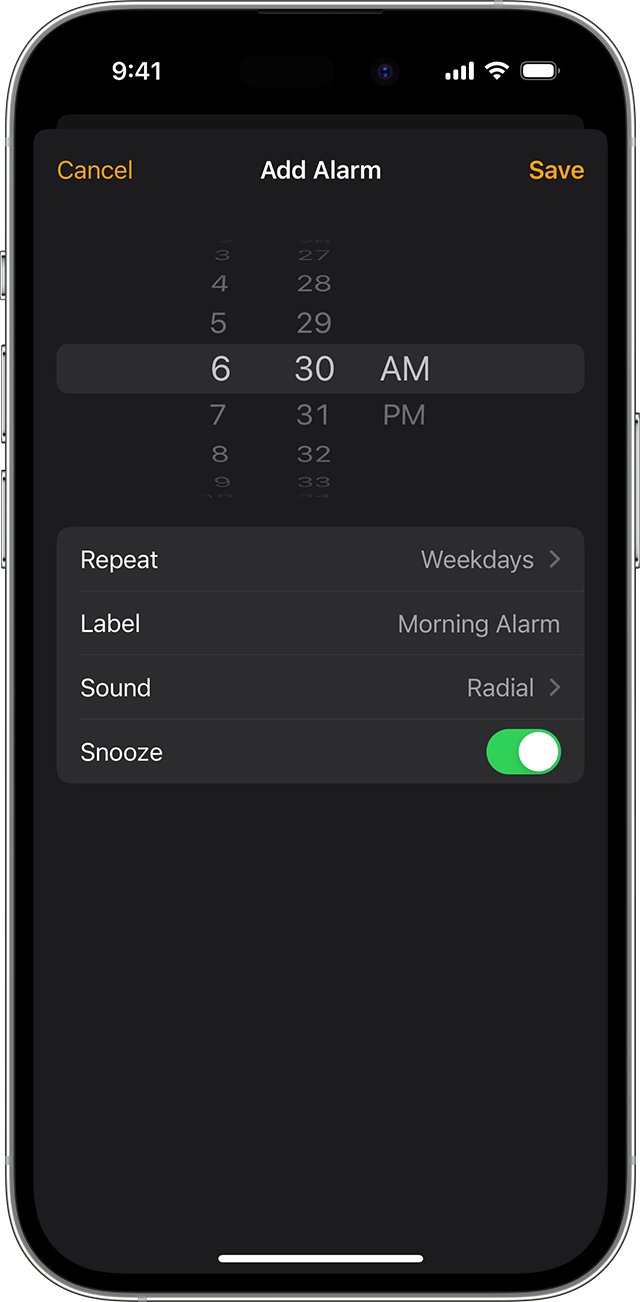
Your iPhone adjusts for daylight saving time through its Date & Time settings. The alarm itself has only Repeat, Label, Sound and Snooze options, so a 7:00 AM alarm simply rings when the iPhone shows 7:00 AM.
- Open Settings, tap General, then tap Date & Time.
- Turn on Set Time Automatically. Older iOS versions call this switch Set Automatically.
- Compare the time on your iPhone with another reliable clock.
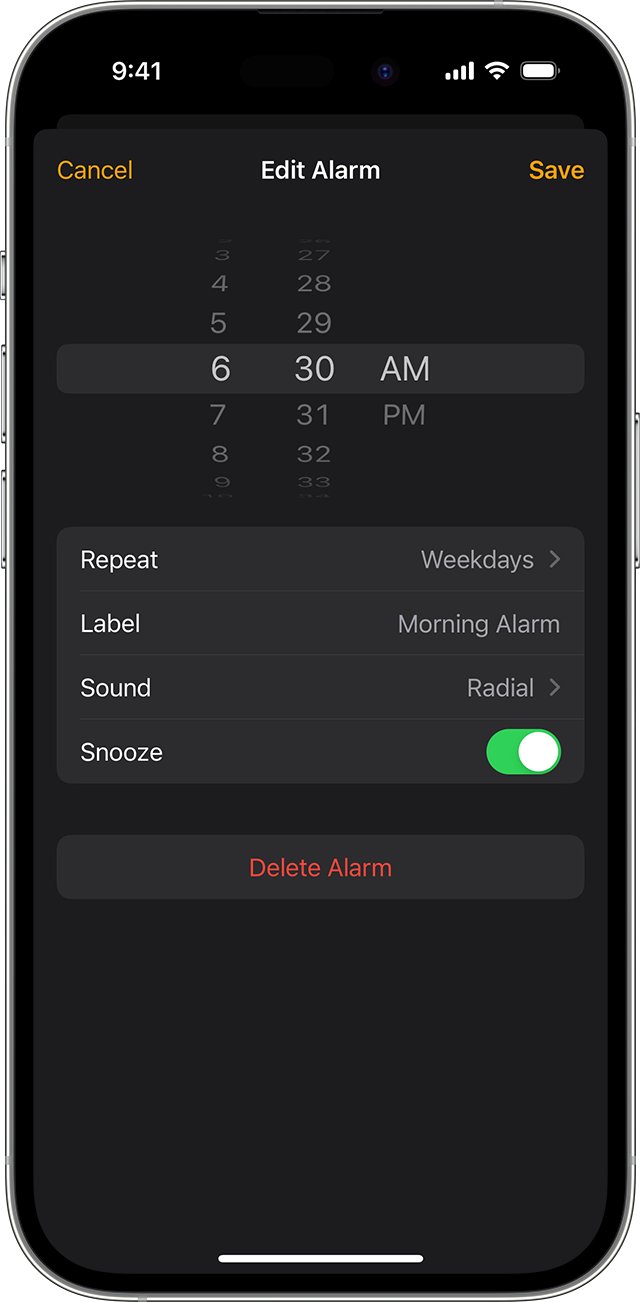
- Open Clock, tap Alarms, and check the alarm time, including AM or PM.
iPhone alarm one hour late or early after the time change
The direction of the error points to the cause. Match what you saw to a row below, then use the fix in that row.
| What happened | Likely cause | What to do |
|---|---|---|
| Clocks went forward and the alarm rang one hour late | The iPhone clock stayed one hour behind | Turn on Set Time Automatically |
| Clocks went back and the alarm rang one hour early | The iPhone clock stayed one hour ahead | Turn on Set Time Automatically |
| The iPhone clock is off by more than one hour | The wrong time zone is selected | Turn on Set Time Zone Automatically |
| The iPhone clock is right, but the alarm rang at another time | The alarm or wake up time is set differently from what you expected | Recheck the alarm in Clock, including the wake up alarm |
| The time went wrong after you synced with a Mac | The Mac's Date & Time settings are wrong | Correct the time on the Mac first |
| The Set Time Automatically switch is dimmed | A restriction or your carrier controls the setting | See the dimmed setting table below |
iPhone time not changing for daylight saving time
Apple's fix for a device that does not adjust by itself has five parts. Do them in this order, and stop as soon as the time is right.
- Connect your iPhone to the internet.
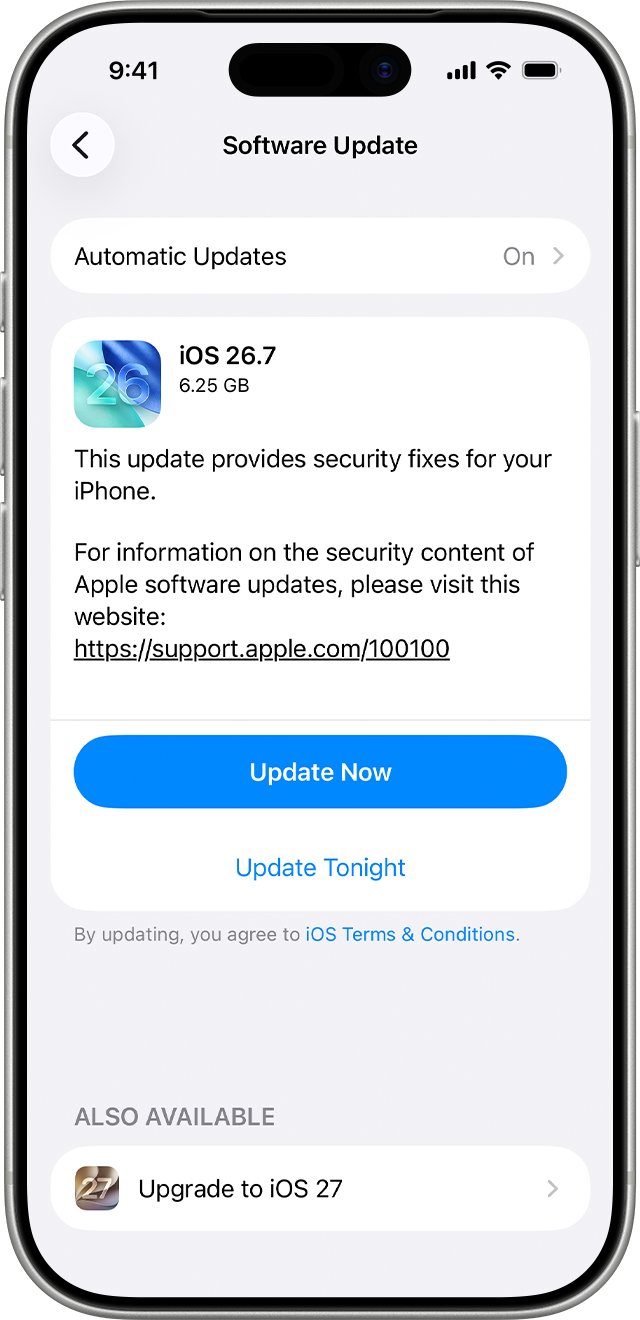
- Open Settings, tap General, tap Software Update, and install any update shown.
- Go back to General, tap Date & Time, then turn on Set Time Automatically.
- If a message says updated time zone information is available, restart your iPhone and any paired Apple Watch.
- Open Settings, tap Privacy & Security, tap Location Services, scroll to the bottom, tap System Services, then turn on Setting Time Zone.
How to fix the wrong time zone on iPhone
A wrong time zone moves the clock, and every alarm with it. Your iPhone sets the zone by itself unless Location Services is off or you have no service.
- Open Settings, tap General, then tap Date & Time.
- Turn on Set Time Zone Automatically if you have service and Location Services is on.
- If you do not, leave it off and tap Time Zone City, then search for your city.
- To set a zone without a city, tap Set By, tap Time Zone Offset, then tap + or –.
How to change iPhone time manually for daylight saving time
Use manual time only if the automatic setting still shows the wrong time. A manual clock will not move at the next daylight saving change, so switch back to automatic when you can.
- Open Settings, tap General, then tap Date & Time.
- Turn off Set Time Automatically.
- Set the correct date and time.
- Open Clock, tap Alarms, and recheck each alarm.
Do not change the iPhone time to alter app behavior, such as game timers. Apple does not recommend it and says it can affect alarms.
Set Time Automatically greyed out on iPhone
A dimmed switch means you cannot change this setting yourself. These are the cases Apple lists.
| Cause | What to do |
|---|---|
| A Screen Time passcode is set | Ask whoever set the passcode to change the restriction, or enter it yourself if you know it |
| A work or school profile has device restrictions | Ask the organization's administrator, because the profile controls this setting |
| Your carrier or region does not offer the option | Contact your carrier if the time stays wrong |
iPhone wake up alarm wrong after daylight saving time
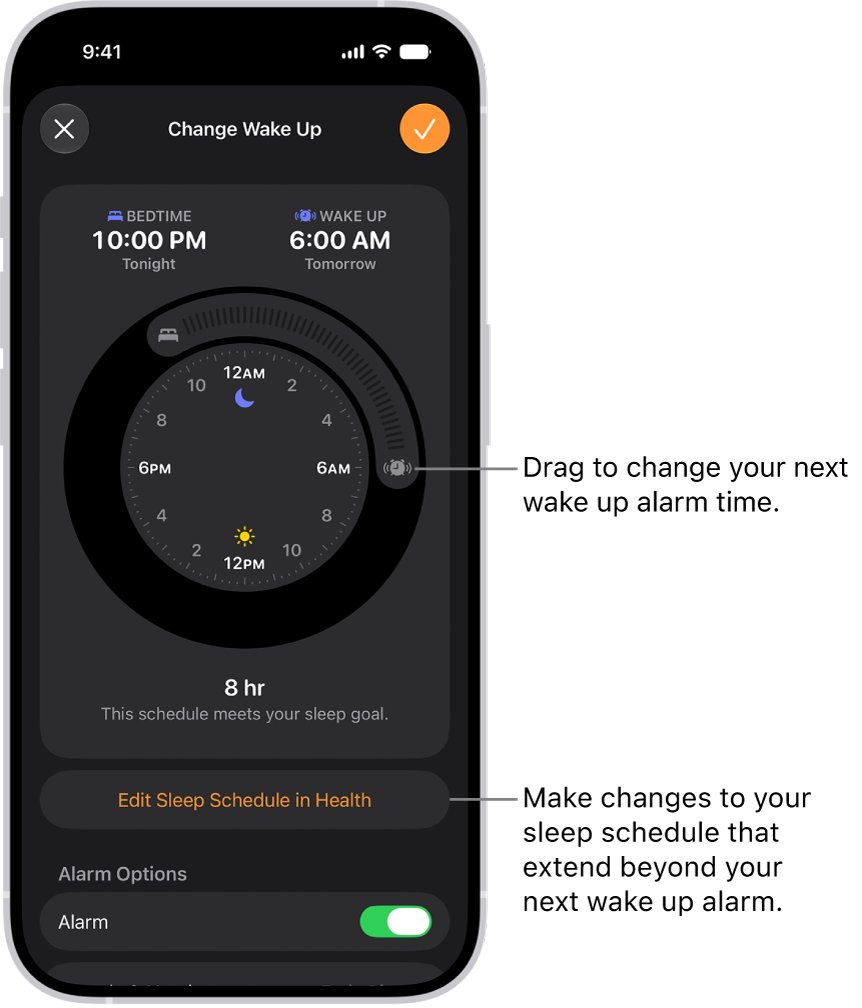
A wake up alarm belongs to a sleep schedule in Health, and it is separate from alarms you add in Clock. A change made with Change Next Alarm Only lasts for one wake up, then your normal schedule resumes.
- Open Clock, tap Alarms, then tap Change.
- Drag the wake up icon to the time you want.
- Scroll to Alarm Options and turn on the alarm.
- Tap the confirm button, then tap Change This Schedule so the new time repeats.
- To check other days, open Health, tap Browse, tap Sleep, then tap Sleep again.
- Scroll to Your Schedule, tap Full Schedule & Options, and tap Edit on the schedule.
- Confirm your days show solid-color circles and Alarm is on, because the schedule applies only to those days.
How to test iPhone alarm after daylight saving time
A short test alarm shows whether the clock and sound both work, without waiting until morning.
- Compare your iPhone clock with another reliable clock.
- Open Clock, tap Alarms, then tap the Add button.
- Set a time a few minutes ahead, then tap the Done button.
- Leave the iPhone alone and check that the alarm rings at that time.
- Stop the alarm, swipe left over it, and tap Delete.
If the test rings on time but your morning alarm did not, the problem is in that alarm's own settings, covered in the next section. You can also turn off an iPhone alarm you no longer need so old entries do not confuse the list.
iPhone alarm not going off
If your clock is now right but alarms still fail, the alarm's own settings are next. For sound problems beyond these checks, you can fix an iPhone alarm that makes no sound.
iPhone alarm not going off on some days
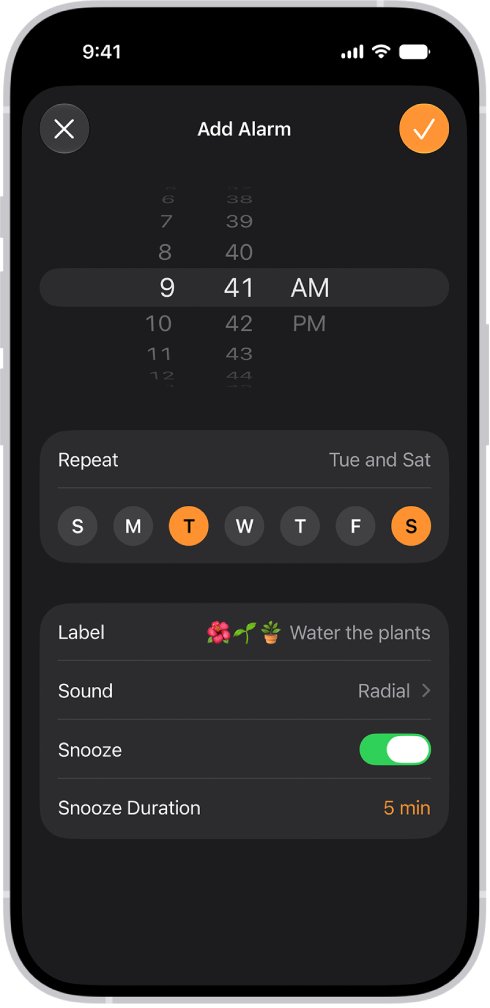
The alarm repeats only on the days chosen under Repeat, or it has no repeat days.
- Open Clock, tap Alarms, then tap Edit.
- Tap the alarm, then tap Repeat.
- Choose every day you want it to ring, then save the alarm.
iPhone alarm not working at all
The alarm is switched off, or it was removed.
- Open Clock and tap Alarms.
- Tap the button next to the alarm time so it turns on.
- If the alarm is missing, tap the Add button and create it again.
Why can't I hear my iPhone alarm?
The alarm sound is set to None, or the alarm volume is too low.
- Open Clock, tap Alarms, tap Edit, tap the alarm, then tap Sound and choose a sound.
- Open Settings and tap Sounds & Haptics.
- Under Alarms and Timers, turn off Match Ringtone Volume, then drag the slider up.
With sound set up, you can change the iPhone alarm volume from the volume buttons too, by turning on Change with Buttons.
iPhone alarm daylight saving time FAQ
Why did my iPhone alarm not go off?
An alarm stays silent when it is switched off, not set to repeat that day, or set for another time. Open Clock, tap Alarms, and check the time, the switch and the Repeat days. Do Not Disturb and Silent mode do not stop it.
Why is my iPhone alarm not working?
Start with the clock, then the alarm. Turn on Set Time Automatically in Settings, General, Date & Time, and confirm the alarm is on in Clock. Then set a test alarm a few minutes ahead to prove that the clock and sound both work.
Why is my iPhone alarm not making sound?
The alarm's sound may be set to None, or the volume may be low. Open Clock, tap Alarms, tap Edit, tap the alarm, then tap Sound and choose one. In StandBy, alarm haptics are disabled, so a None sound leaves you with no alert.
Why is my iPhone alarm so low?
The alarm volume follows your ringtone volume while Match Ringtone Volume is on. Open Settings, tap Sounds & Haptics, then turn off Match Ringtone Volume under Alarms and Timers and drag the slider up. A wake up alarm has its own volume slider in Alarm Options.
Does my iPhone change automatically for daylight saving time?
Yes, when Set Time Automatically is on and the iPhone is connected to the internet. Apple says the Date & Time settings adjust for time zone changes and daylight saving time. If the setting is off, change the time yourself or turn it back on.
Do iPhone alarms change with daylight saving time?
No, the alarm keeps the time you set, such as 7:00 AM. It rings when the iPhone clock reaches that time. If the clock is correct after the change, the alarm rings at the correct local time without any edit.
Does Silent mode stop an iPhone alarm?
No. Silent mode, the Ring/Silent switch and Do Not Disturb do not affect the alarm sound. With headphones connected, the alarm plays at a set volume through both the headphones and the built-in speakers.