To import bookmarks from Chrome to Edge, open Settings in Edge, go to Profiles > Import browser data, select Import next to Import data from Google Chrome, tick Favorites or bookmarks, and select Import.
This guide covers each step, the HTML file route for a Chrome install on another PC, syncing to other devices, moving extensions, and fixes when bookmarks do not appear.
How to import bookmarks from Chrome to Edge
Edge calls bookmarks favorites, so the import screens use both words. These six steps finish the job when Chrome is installed on the same computer.
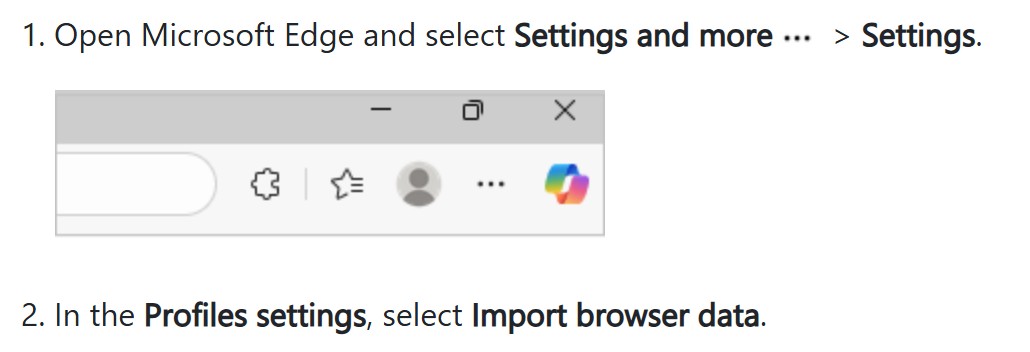
- Open Microsoft Edge, select Settings and more in the top-right corner, and select Settings.
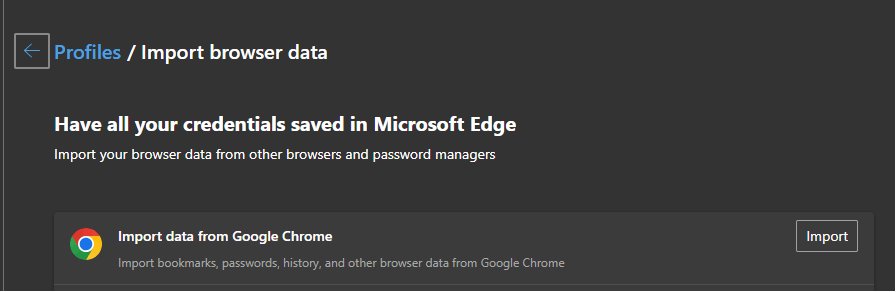
- Select Profiles, then select Import browser data.
- Select Import next to Import data from Google Chrome.
- Under Choose what to import, select Favorites or bookmarks.
- Select Import.
- Select Done on the notification when the import finishes.
Why import bookmarks to Edge?
| Your reason | What the import gives you |
|---|---|
| You are moving from Chrome to Edge | Your saved sites land in a folder on the Favorites bar, so you do not have to add them again |
| You want to try Edge first | You can judge Edge with your own sites in place instead of an empty browser |
| You want your bookmarks on a phone through Edge | Favorites you import can sync to the Edge mobile app once you sign in |
| You also rely on saved logins | The same screen can bring over saved passwords along with your bookmarks |
Import Chrome bookmarks to Edge from another computer or Google account
The right route depends on where your Chrome bookmarks are right now.
| Where your bookmarks are | Use this route | Why |
|---|---|---|
| Chrome is installed on this computer | Import data from Google Chrome | Edge reads Chrome directly, with no file to handle |
| Chrome is on another computer | Export an HTML file from Chrome, then use Favorites or bookmarks HTML file in Edge | The file carries the bookmarks between machines |
| Your bookmarks are saved in a Google Account | Look for the Google account import in Edge Settings | Microsoft is adding this to the import flow, so it may not appear on every copy of Edge yet |
| A work computer blocks the import | Ask your IT administrator | An admin can turn off favorites import with the Allow importing of favorites policy |
What can be imported from Chrome to Edge
Microsoft lists nine Chrome data types for its first-run import. Check the list under Choose what to import, because your copy of Edge decides what it offers.
| Chrome data | Import it when |
|---|---|
| Favorites | You want your bookmarks and bookmark folders in Edge |
| Saved passwords | You want Edge to fill your logins without retyping them |
| Addresses and more | You want Edge to fill in forms with your details |
| Payment info | You want your saved cards available when you pay online |
| Browsing history | You want past sites to show up as you type in Edge |
| Settings | You want Edge to start closer to your Chrome setup |
| Pinned and open tabs | You want to carry on with the tabs you have open now |
| Extensions | You want your Chrome add-ons without reinstalling each one |
| Cookies | You want to stay signed in to sites where cookies are kept |
Passwords can also come from a CSV file, and Edge has its own native password import for that job.
Step 1: Open the Microsoft Edge browser
These steps apply to the current Chromium-based Edge. Microsoft Edge Legacy is no longer supported, so its old Import favorites menu is gone.
- Select Start, type Edge, and select Microsoft Edge.
- If you use more than one Edge profile, select the profile icon in the top-right corner and switch to the profile that should receive the bookmarks.
- If Edge is not on the computer, go to the Microsoft Edge download page, select Download for Windows, choose your Windows version, select Download, accept the terms, and run the installer.
Step 2: Open the Import browser data tool
- Select Settings and more in the top-right corner of Edge, or press Alt + F on Windows.
- Select Settings.
- Select Profiles.
- Select Import browser data.
Newer Edge releases are merging Chrome import and Google account import into one entry point in Settings, so the wording on this page can vary slightly between versions.
Step 3: Choose Google Chrome as the source
Edge can only read a Chrome install on the same device. On Windows and macOS, Google Chrome is one of the browsers it supports as an import source.
- Find Import data from Google Chrome on the Import browser data page.
- Select Import next to it.
- Wait for the Choose what to import options to appear.
If that row is missing, use the HTML file method further down this page.
Step 4: Start the import
- Under Choose what to import, select Favorites or bookmarks.
- Clear any other item you do not want to bring over.
- Select Import.
- Select Done on the notification when the import finishes.
On a managed work PC, an administrator can stop this step. When the favorites import policy is disabled, users cannot import favorites manually.
Step 5: View your imported bookmarks in Edge
Imported favorites appear in a folder on the Favorites bar, and that folder may be named Imported.
- Press Ctrl + Shift + O on Windows to open Favorites.
- Open the Imported folder, or the newest folder in the list.
- Select a few bookmarks to confirm they open the sites you expect.
From there you can manage your Edge favorites the same way as any others you save.
Optional: Sync across devices
Sync needs a Microsoft account and carries your imported favorites to every Edge install signed in to it. Syncing favorites also syncs saved collections and reading lists.
- Select the profile icon in the top-right corner of Edge.
- Pick your account, or select Add new account.
- Select Sign in to sync data.
- Open Settings > Profiles > Sync and check that the Favorites toggle is on.
- On a phone, install the Edge app, tap your profile image, tap Accounts, select your account, and select Sign in to sync.
If you see Manage profile settings when you select the profile icon, you are already signed in.
How to show the favorites bar in Edge
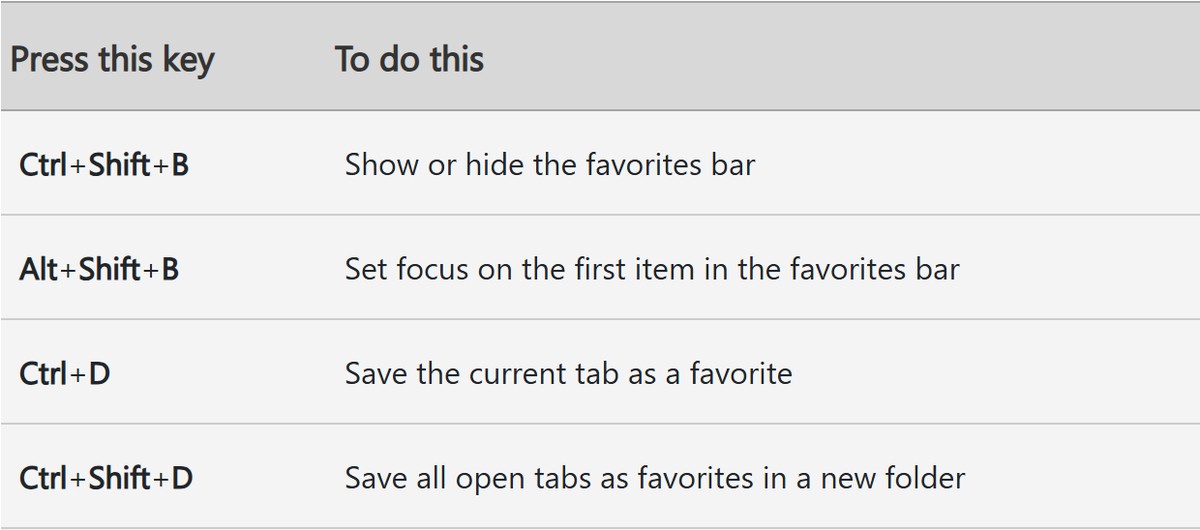
Press Ctrl + Shift + B on Windows or Command + Shift + B on a Mac to show or hide the bar. Use these steps to set when it appears.
- Select Settings and more, then select Settings.
- Select Appearance.
- Under Other appearance settings, select Toolbar.
- Open the Favorites drop-down and select Always or Only on new tabs.
How to sort imported favorites in Edge
A long import is easier to scan in alphabetical order.
- Select Settings and more, then select Favorites.
- In the Favorites window, select More options, then select Open favorites page.
- Right-click an empty area of the page and select Sort by name.
Advanced: Manually export and import bookmarks
Use an HTML file when Chrome is on another computer or the direct import is not offered. It moves bookmarks only, and the file works on any computer you can copy it to.
Step 1: Export bookmarks from Chrome
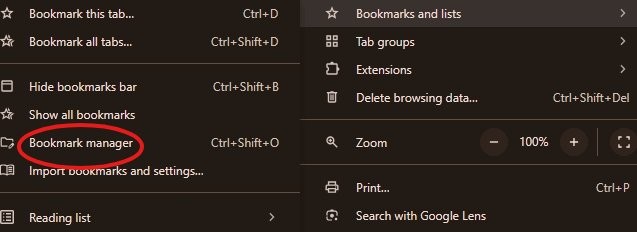
- Open Chrome and select More in the upper-right corner.
- Select Bookmarks and lists, then select Bookmark Manager.
- Select More at the top of the Bookmark Manager and select Export Bookmarks.
- Save the HTML file, then copy it to the computer that runs Edge if that is a different machine.
Step 2: Import bookmarks into Edge
- In Edge, select Settings and more > Settings, then select Profiles > Import browser data.
- Under Other import locations, select Import next to Import browser data now.
- In the Import from list, select Favorites or bookmarks HTML file.
- Select Choose file, locate the file you exported, and select Open.
- Select Done when the import finishes.
If the Chrome menus look different from these labels, update Google Chrome and open the menu again.
How to add Chrome extensions to Microsoft Edge
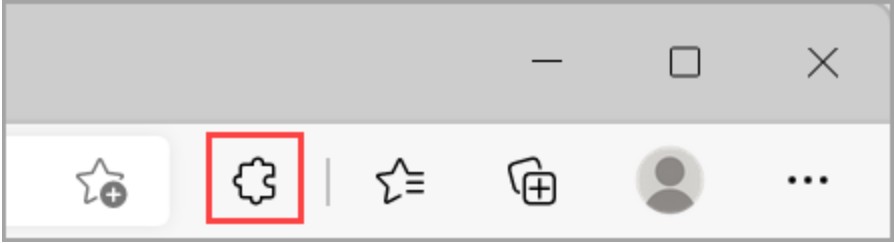
Edge can install extensions directly from the Chrome Web Store, so you can add any extension the import skipped.
- In Edge, open the Chrome Web Store.
- Search for the extension and select its tile.
- Select Get extension in the banner at the top, or Get on the page.
- If the Allow extensions from other stores dialog appears, select Allow.
- Review the permissions and select Add extension.
Once they are installed, you can update extensions in Edge from the browser as new versions arrive.
Chrome to Edge import troubleshooting tips
Don't see Chrome in the import list?
Edge can only import from a browser present on the device, so a Chrome install on another computer will not be listed.
- On the computer that has Chrome, export your bookmarks to an HTML file from Bookmark Manager.
- Copy the HTML file to the computer that runs Edge.
- In Edge, open Import browser data, select Import under Other import locations, and choose Favorites or bookmarks HTML file.
Bookmarks didn't show up?
The bookmarks usually sit inside a folder on the Favorites bar, and the bar itself may be hidden.
- Press Ctrl + Shift + B to show the Favorites bar, then look for a folder named Imported.
- Press Ctrl + Shift + O and check the full Favorites list.
- If no folder appeared, run the import again and make sure Favorites or bookmarks is selected.
- If the second run adds nothing, export an HTML file from Chrome and import that file instead.
Chrome vs. Edge – should you switch?
Both browsers run on the Chromium engine, so the choice mostly comes down to your account and the built-in tools you want.
| Point | Microsoft Edge | Google Chrome |
|---|---|---|
| Browser engine | Chromium | Chromium |
| Account for sync | Microsoft account | Google Account |
| Extensions | Microsoft's store, plus the Chrome Web Store once you allow other stores | Chrome Web Store |
| Tools the vendor highlights | Copilot, Split screen, PDF Reader, Edge Secure Network, Microsoft Defender SmartScreen | Memory Saver, Energy Saver, Preload pages |
Switch to Edge if you already use a Microsoft account across your devices and want Copilot and Split screen in the browser. Stay on Chrome if your bookmarks, passwords and phone are all tied to a Google Account.
Chrome to Edge bookmarks FAQ
Where do imported Chrome bookmarks go in Edge?
Imported Chrome bookmarks go into a folder on the Favorites bar, and that folder may be named Imported. Press Ctrl + Shift + O on Windows to open Favorites, or press Ctrl + Shift + B to show the Favorites bar.
How do I export Chrome bookmarks to an HTML file?
Open Chrome, select More, then Bookmarks and lists, then Bookmark Manager. Select More at the top of the Bookmark Manager and choose Export Bookmarks. Chrome saves your bookmarks as an HTML file you can import into Edge.
How do I import Chrome bookmarks to Edge from another computer?
Export an HTML file from Chrome on the old computer and copy it across. In Edge, open Import browser data, select Import under Other import locations, choose Favorites or bookmarks HTML file, and select the file.
Can I import bookmarks from a Google account into Edge?
Yes, on Edge versions that have the feature. Microsoft's release notes describe importing Google account passwords, bookmarks, history and autofill data from Edge Settings at any time after setup. If you do not see it, use the HTML file route.
Can I import Chrome bookmarks to Edge on a Mac?
Yes. Microsoft lists Google Chrome on macOS as a supported import source for favorites. Press Command + Shift + B on a Mac to show or hide the Favorites bar once the import has finished.
Do I need a Microsoft account to import Chrome bookmarks into Edge?
No sign-in step appears in Microsoft's import instructions. You need a Microsoft account only when you want those favorites to sync to other devices, which you turn on with Sign in to sync data.
Do Chrome extensions work in Microsoft Edge?
Yes, Edge can install extensions from the Chrome Web Store. Open the store in Edge, select Get extension or Get, select Allow in the Allow extensions from other stores dialog, and then select Add extension.
Why can't I import favorites on a work computer?
Your administrator may have disabled the Allow importing of favorites policy. When that policy is disabled, favorites are not imported at first run and users cannot import them manually, so only your IT team can change it.