Yes, you can still use an iPod shuffle, because it plays music stored on its own flash drive and Apple's current Mac and Windows sync guides still name it.
This guide covers loading music from a Mac or Windows PC, the controls on each generation, Apple Music limits, and fixes for a shuffle that will not play.
Do iPod shuffles still work?
Yes. Charge the iPod shuffle over USB, connect it to a Mac or Windows PC, sync music you own, then unplug it and listen through wired headphones. Syncing is the only way to add content to an iPod shuffle, and Apple still documents that sync on current macOS and Windows. Apple Music subscription songs and streaming are the parts that will not work.
A working battery is the main thing to test on an old unit, because Apple no longer repairs any iPod shuffle.
iPod shuffle sync on Mac, Apple Devices and iTunes
An iPod shuffle has no store, no app and no wireless sync, so a computer is required. Pick the route that matches the computer you have.
| Your computer | Use this | Why |
|---|---|---|
| Mac | Finder | The iPod appears in the Finder sidebar, with no separate app to install |
| Windows PC with the Apple Music app | Apple Devices app | Apple says to sync through Apple Devices once the Music or TV app is installed |
| Windows 10 or later with iTunes only | iTunes | iTunes also offers Autofill and the iPod shuffle settings under Summary |
Is iPod shuffle still supported?
Apple still supports syncing, but it no longer supports the hardware. Every iPod shuffle generation is on its obsolete products list.
| What you may need | Status today |
|---|---|
| Syncing music from a computer | Still documented for Mac and Windows |
| Hardware repair and battery service | Ended. Apple discontinues all hardware service for obsolete products, and service providers cannot order parts |
| New units from Apple | None. Obsolete means Apple stopped distributing the product more than seven years ago |
| Manuals and specs | Still online on Apple's iPod Manuals and Downloads page |
| Apple Music subscription songs | Cannot be synced to the device |
How to identify your iPod shuffle generation
The generation decides your controls, battery life and charging cable. Match the physical details below, then read the capacity and playback time across the row.
| Generation | Introduced | Model number | How to spot it | Capacity | Playback | Connects by |
|---|---|---|---|---|---|---|
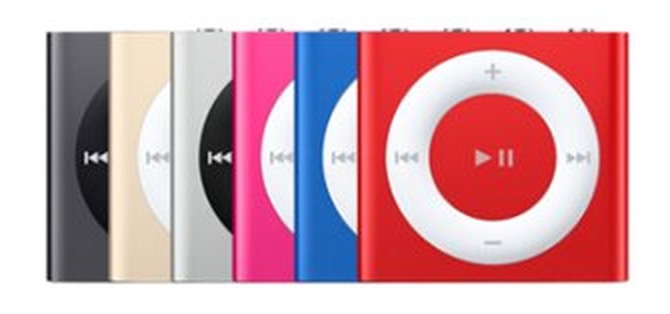
| 4th generation | September 2010, updated 2012 and 2015 | A1373 | Control pad and a VoiceOver button | 2GB | Up to 15 hours | iPod shuffle USB Cable |
| 3rd generation | March 2009, updated September 2009 | A1271 | One three-position switch and one status light | 2GB or 4GB | Up to 10 hours | iPod shuffle USB Cable |
| 2nd generation | September 2006, updated February 2008 | A1204 | No USB connector | 1GB or 2GB | Up to 12 hours | USB dock |
| 1st generation | January 2005 | A1112 | No display, lights on the front and back, capacity engraved on the USB connector | 512MB or 1GB | Up to 12 hours | Built-in USB connector |
If you buy a second-hand 2nd, 3rd or 4th generation unit, make sure the dock or cable comes with it, because these models have no USB plug of their own.
How to set up iPod shuffle
First-time setup is a charge and a sync. Apple lists charging over USB from a computer or a power adapter sold separately.
- Connect the iPod shuffle to a USB port with its cable or dock. On a 1st generation model, plug the built-in connector straight into the port.
- Leave it charging. A 3rd generation unit reaches 80% in 2 hours and a full charge in 3 hours; 1st and 2nd generation units reach 80% in 2 hours and a full charge in about 4 hours.
- Open Finder on a Mac, or the Apple Devices app or iTunes on a Windows PC.
- Select the iPod shuffle and sync your music using the steps for your computer below.
- Eject the iPod before you unplug it, then plug in your headphones.
How to get music on iPod shuffle from a Mac
Macs sync an iPod through Finder. If your music updates through iCloud, the Music tab shows no sync options until you turn off Cloud Music Library in Music settings.
- Connect the iPod shuffle to the Mac with its USB cable.
- Click the Finder icon in the Dock, then select the iPod in the Finder sidebar.
- Click Music in the row near the top of the window.
- Select the Sync music onto [device name] checkbox.
- To load part of your library, click Selected artists, albums, genres, and playlists, then select each item.
- Click Apply and wait for the sync to finish.
- Click the eject button next to the iPod in the Finder sidebar before you disconnect it.
If your music lives on an old iPod and no longer on a computer, you can recover your iTunes library from the iPod before you set up a new sync.
How to use iPod shuffle without iTunes
On a Windows PC, the Apple Devices app replaces iTunes for syncing. You need the Apple Music app installed too, because Apple Devices pulls the songs from it. On a Mac, Finder already works without iTunes.
- Open the Microsoft Store, search for Apple Devices, select the app, then select Get.
- Connect the iPod shuffle to the PC with its USB cable.
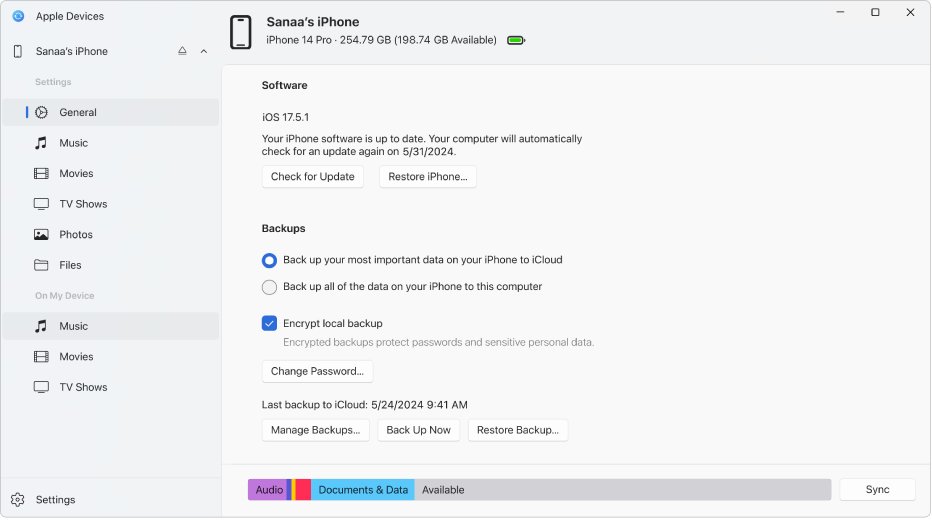
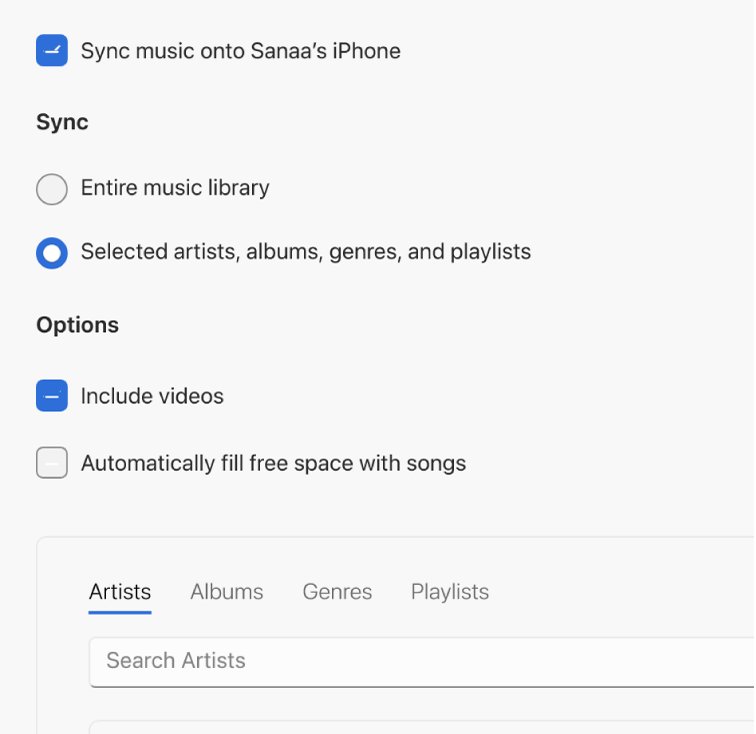
- In the Apple Devices app, select the iPod in the sidebar, then select Music.
- Select the Sync music onto [device name] checkbox.
- Select Entire music library, or select Selected artists, albums, genres, and playlists and tick the items you want.
- If your library is larger than the iPod, select Automatically fill free space with songs.
- Select Apply, then select the eject button in the sidebar before you disconnect the iPod.
iTunes for iPod shuffle on Windows
Syncing an iPod shuffle with iTunes needs iTunes on Windows 10 or later. If Music is missing from the iTunes menu because the Apple Music app is installed, use Apple Devices instead.
- Connect the iPod shuffle to the PC and open iTunes.
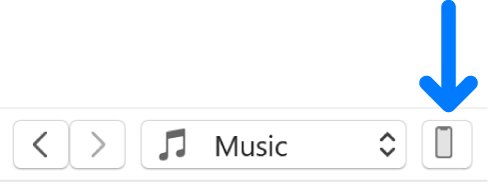
- Click the Device button near the top left of the window.
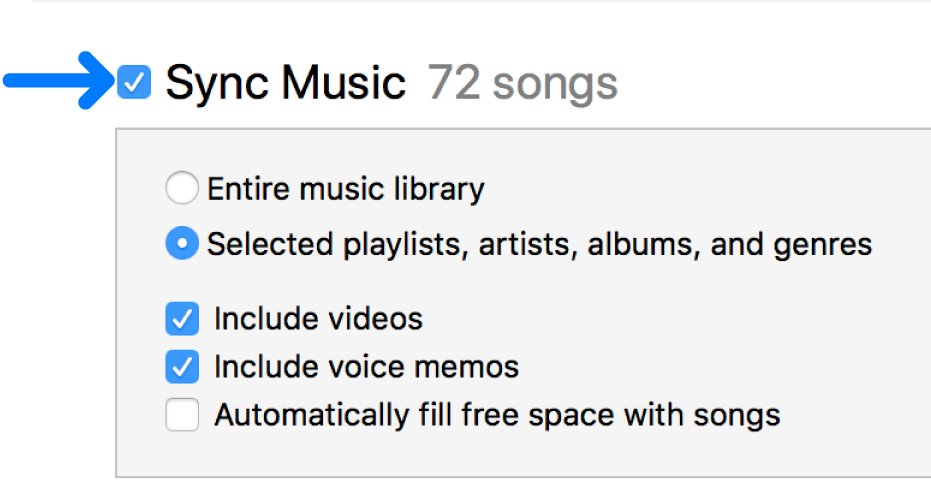
- Select Music in the sidebar, then select the Sync checkbox and choose the items you want.
- Click Apply.
- Click Eject before you disconnect the iPod.
For a random selection that changes each time, turn off automatic music sync for the iPod first. Then click Music under On My Device, choose a source from Autofill From, click Autofill, then click Sync.
Apple Music on iPod shuffle
An Apple Music subscription and an iPod shuffle do not mix. Songs saved from Apple Music cannot be synced, but music you own still can. Format support also varies by generation, so check this table before you convert anything.
| Music source | Works on iPod shuffle? |
|---|---|
| Apple Music subscription songs | No |
| CDs imported into iTunes | Yes |
| iTunes Store purchases | Yes, including Protected AAC |
| Your own AAC, MP3 and WAV files | Yes, on every generation |
| AIFF files | 2nd, 3rd and 4th generation |
| Apple Lossless files | 3rd and 4th generation |
| Audible audiobooks | Yes, in the Audible formats each generation lists |
| Streaming services | No, because the specs list no wireless connection |
If you subscribe to Apple Music on Windows, turn off Sync Library in Apple Music settings. Apple blocks this sync method while Sync Library is on.
Does iPod shuffle have Bluetooth?
No. Use wired headphones with the 3.5-mm jack. Apple's specs for all four generations list only a USB connection and a 3.5-mm headphone jack. None of them mention Bluetooth or any other wireless feature.
How to turn iPod shuffle on
The 3rd and 4th generation models share one switch with three positions: Turn off, Play in order and Shuffle. Slide it away from Turn off to start the iPod.
| Generation | Controls Apple lists | How you use them |
|---|---|---|
| 4th generation | Control pad, three-position switch, VoiceOver button | Use the switch for power and play order, and the pad and VoiceOver button on the device during playback |
| 3rd generation | Three-position switch only | Use the switch for power and play order. The box includes Earphones with Remote |
| 1st and 2nd generation | Not listed in the tech specs | Open the printed guide or Apple's iPod Manuals and Downloads page for your model |
How to use iPod shuffle as a USB flash drive
With free space available, an iPod shuffle can carry any file between computers. This uses iTunes on Windows 10 or later.
- Connect the iPod shuffle and open iTunes.
- Click the Device button near the top left of the window.
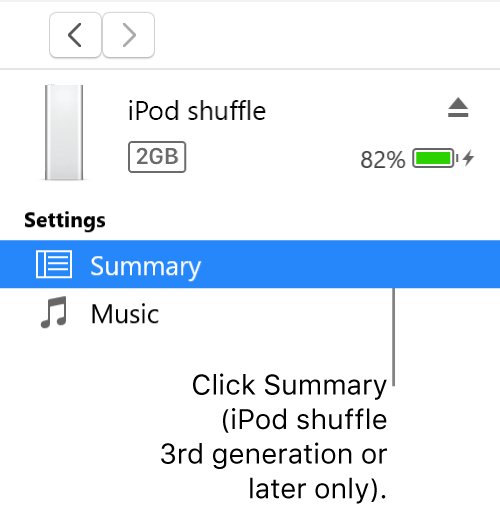
- Click Summary or Settings.
- Select Enable disk use, then click Apply.
- Drag files to the iPod icon on the desktop, or double-click the icon to see files already there.
Music synced with iTunes does not appear in that window. If the Enable disk use checkbox is dimmed, the iPod already works as a disk.
iPod shuffle volume limit, Sound Check and song capacity
These settings live in iTunes on Windows. Connect the iPod, click the Device button, then click Summary. They apply to the 3rd generation or later.
| Goal | What to select | Details |
|---|---|---|
| Play all songs at the same volume | Enable Sound Check | First select Sound Check under Edit > Preferences > Playback, then sync |
| Cap how loud the iPod gets | Limit maximum volume | Set the volume on the iPod first, then drag the slider. Click the lock to require a password |
| Fit more songs | Convert higher bit rate songs to 128 kbps AAC | Lower bit rates make smaller files, so more songs fit in the same space |
| Option missing | Update | Click Update under Summary to update the iPod software |
iPod shuffle not working
iPod shuffle not playing music
The iPod has no synced songs, a flat battery, or its switch is at Turn off.
- Connect the iPod to USB and charge it for the full time listed for your generation.
- Slide the switch to Play in order or Shuffle on a 3rd or 4th generation model.
- Sync music again from Finder, Apple Devices or iTunes, because a shuffle has no other way to receive songs.
- Plug your headphones firmly into the 3.5-mm jack and try again.
iPod shuffle not showing up on the computer
The cable connection, iTunes or the Apple Mobile Device Service is at fault.
- Reconnect the cable and look for signs that the iPod is charging.
- On Windows, install or update iTunes, or install the Apple Devices app.
- Restart the Apple Mobile Device Service, then reconnect the iPod.
iPod shuffle not working after a long time unused
Rechargeable batteries have a limited number of charge cycles, and old software problems may remain.
- Charge the iPod for the full listed time, then test how long it plays.
- If it still misbehaves on Windows, open Apple Devices, select the iPod, then select General.
- Select Restore [device] and follow the onscreen instructions. This deletes everything on the iPod.
- Sync your music again. If it still dies quickly, the battery is worn, and Apple no longer services it.
Where can I buy an iPod shuffle?
Apple stopped distributing every iPod shuffle more than seven years ago, so any unit on sale now is old stock or second-hand.
Buy only from a seller who shows the unit charging and playing, and who includes the cable or dock. Apple offers no hardware service or parts for this product, so a worn battery or missing dock has no official fix. The last model Apple lists is the 4th generation from mid-2015.
iPod shuffle FAQ
Do they still make iPod shuffles?
No. Apple lists every iPod shuffle model as obsolete, which means it stopped distributing them for sale more than seven years ago. The newest entry is the 4th generation from mid-2015, so you can only find old stock or used units.
How does the iPod shuffle work?
An iPod shuffle stores songs on built-in flash memory and plays them through a 3.5-mm headphone jack. You add songs by syncing from a computer over USB, and you pick playback order with the switch on 3rd and 4th generation models.
How do you use an iPod shuffle?
Charge it over USB, then sync music from Finder on a Mac or from Apple Devices or iTunes on a Windows PC. Eject it, plug in wired headphones, and slide the switch away from Turn off on a 3rd or 4th generation model.
How do you use an iPod shuffle 2nd generation?
Charge and sync the 2nd generation model through its USB dock, because it has no USB connector of its own. A full charge takes about 4 hours and gives up to 12 hours of playback. It holds up to 500 songs on the 2GB model.
Is there free music for iPod shuffle?
Yes, as long as you hold the rights to it. Any MP3 or AAC file in your library can sync to the iPod shuffle, including free tracks and songs ripped from your own CDs. Apple Music subscription songs cannot sync, even though you can play them elsewhere.
Where is the iPod shuffle user guide?
Apple keeps iPod shuffle documents on its iPod Manuals and Downloads page, listed by generation. Pick your model there to see its tech specs and any guide Apple still publishes. The 1st generation page lists tech specs only and no user guide.