To fix the MEMORY_MANAGEMENT stop code, remove any new hardware, run Windows Memory Diagnostic with mdsched, then update your drivers and Windows.
This guide covers Windows 11 and Windows 10, including repeated crashes, restart loops, system file repair, resetting Windows and replacing faulty memory.
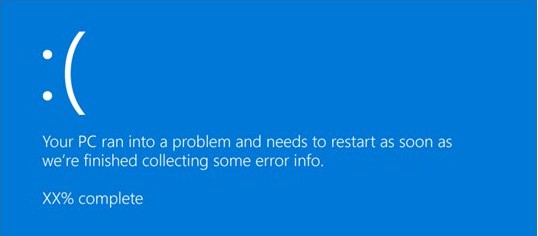
Fastest way to fix a MEMORY_MANAGEMENT blue screen
One crash is often harmless, because Microsoft says a restart usually resolves the problem. Start these steps when the same stop code keeps returning.
- Shut down the PC and remove any hardware you added before the crashes began.
- Restart Windows, or start in safe mode if it won’t load normally.
- Press Windows + R, type
mdsched, and select OK. - Select Restart now and check for problems (recommended).
- After the test, read the result and replace any module that fails.
- If memory passes, update drivers and Windows from the sections below.
What causes the Windows stop code memory management BSOD?
MEMORY_MANAGEMENT is bug check 0x0000001A, and it means Windows detected a severe memory management error. Microsoft’s reference points to faulty hardware, driver bugs and corrupted memory structures, depending on the crash details.
| Possible cause | What points to it | Where to start |
|---|---|---|
| Physical memory fault | Parameter 1 values such as 0x31 or 0x403, which Microsoft says are probably hardware errors | Windows Memory Diagnostic |
| Driver bug | Parameter 1 value 0x1233, where a driver mapped a page that wasn’t locked | Device Manager and driver updates |
| Recent hardware change | Crashes began after you added memory, a drive or an expansion card | Remove or replace the new part |
| Damaged Windows files | File errors or crashes that continue after memory passes | DISM and SFC |
| Too little free disk space | Less than 10% to 15% of the system drive is free | Free up storage |
| Loose hardware | Crashes after moving or opening the PC | Reseat boards and check cables |
A different Windows stop code needs different fixes, so read the blue screen closely. The PAGE_FAULT_IN_NONPAGED_AREA BSOD is a related but separate memory error.
Run the Windows Memory Diagnostic tool
Windows Memory Diagnostic checks your RAM after a restart, outside your normal Windows session. Save your work first, because the test begins as soon as the PC restarts.
- Close your apps, then right-click Start and select Run.
- Type
mdschedand select OK. - Select Restart now and check for problems (recommended).
- Let the Standard test finish. For a more thorough pass, press F1, choose Extended under Test Mix, then press F10.
- Sign in after the automatic restart and wait for the Windows Memory Diagnostic notification.
- If you miss it, right-click Start and select Event Viewer.
- Go to Application and Services Logs > Microsoft > Windows and open the MemoryDiagnostics-Results Debug log.
- Look for Event ID 2001, which means no memory errors were detected.
Check your drivers and update Windows
Microsoft recommends Windows Update as the first route to driver updates. Use Device Manager after that for a specific device or a recent bad driver.
- On Windows 11, select Start > Settings > Windows Update > Advanced options > Optional updates, then install any optional driver updates.
- Select Windows Update and then Check for updates. On Windows 10, the path is Settings > Update & Security > Windows Update.
- Restart the PC even if no update asks for it.
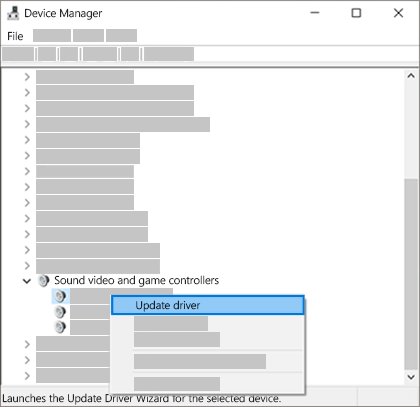
- Right-click Start and select Device Manager.
- Look for a device marked with an exclamation point, right-click it, and select Update driver.
- Select Search automatically for updated driver software.
- If a driver update caused the crashes, open the device’s Properties, select the Driver tab, then select Roll Back Driver.
If Windows finds nothing, download drivers only from the device manufacturer’s official site. Microsoft also suggests checking the manufacturer for updated BIOS or UEFI firmware.
Check for corrupted system files
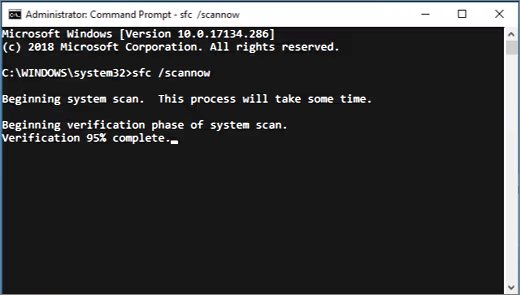
Run DISM before SFC, as Microsoft’s steps do. DISM repairs the Windows image, and SFC then checks system files against it.
- Type
command promptin the taskbar search box. - Right-click Command Prompt, select Run as administrator, then select Yes.
- Type
DISM.exe /Online /Cleanup-image /Restorehealthand press Enter. - Wait for the message The operation completed successfully.
- Type
sfc /scannowand press Enter. - After you see Verification 100% complete, type
exitand press Enter. - Restart the PC and watch whether the stop code returns.
Also check the drive for file system errors. Right-click the drive in File Explorer, then select Properties > Tools and run the error check.
How to fix MEMORY_MANAGEMENT BSOD when Windows won’t boot
These are the branches Microsoft’s recovery guidance covers when you can’t reach the desktop, or crashes begin after a recent change. Pick the one that matches your PC.
Windows restarts into the blue screen repeatedly
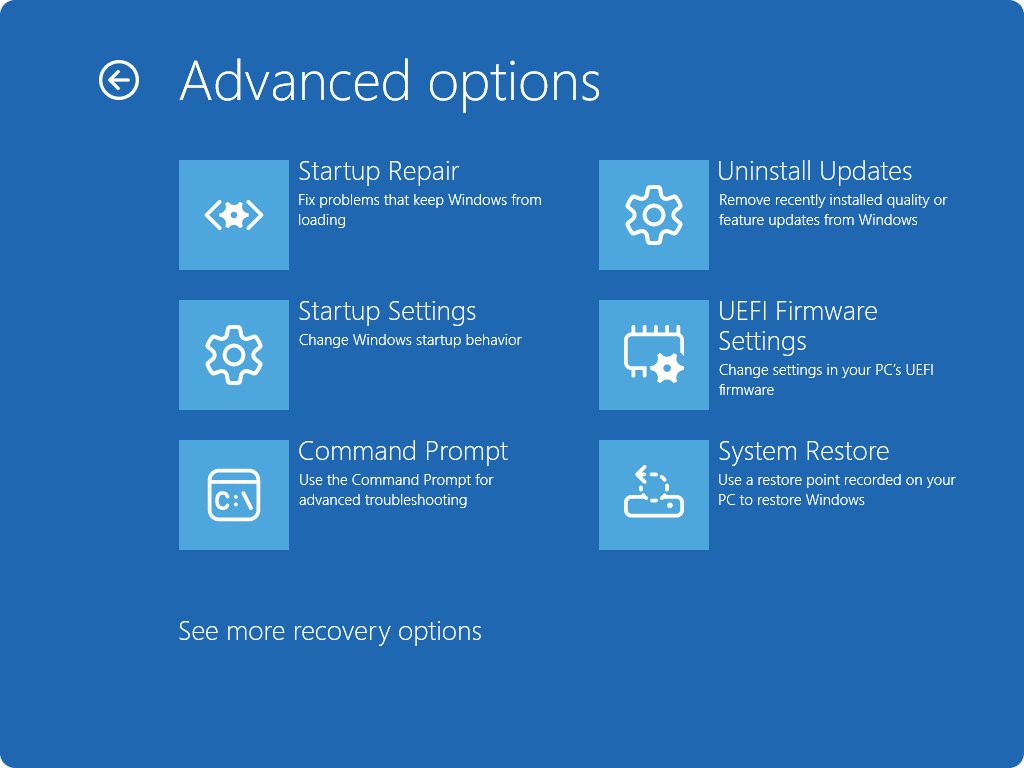
After several failed starts, Windows should open the Windows Recovery Environment automatically.
- Let the PC attempt its restarts until the recovery screen appears.
- Select Troubleshoot > Advanced options > Startup Settings > Restart.
- Select option 4, 5 or 6 to start in safe mode.
- Run the driver and system file sections above from safe mode.
The BSOD started after a Windows update
A recent update can be removed without affecting your files and apps.
- Open the Windows Recovery Environment.
- Select Troubleshoot > Advanced options > Uninstall updates.
- Restart and check whether the crashes stop.
The BSOD started after a new driver or app
Microsoft recommends removing or updating recently added drivers and services, and restoring Windows after a recent change.
- Start in safe mode.
- Roll back the recent driver or uninstall the new app.
- If that fails, restore Windows from a restore point created before the change.
Memory passes but the stop code returns
The fault may sit in a driver, Windows files, free space or another hardware part.
- Check that 10% to 15% of the system drive is free.
- Check the System log in Event Viewer for critical errors at the same time as the crash.
- Run the hardware diagnostics supplied by your PC manufacturer.
How to read a MEMORY_MANAGEMENT minidump
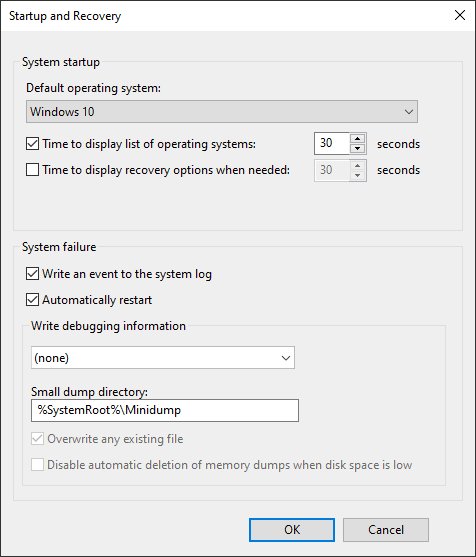
A small memory dump records the stop code, its parameters and the loaded drivers. Windows keeps these files in %SystemRoot%\Minidump, and a paging file of at least 2 MB on the boot volume is required.
- Open System in Control Panel, then select Advanced system settings > Advanced.
- Under Startup and Recovery, select Settings.
- In Write debugging information, select Small memory dump (256k).
- After the next crash, open the newest file from the Minidump folder in WinDbg.
- Run
!analyzeand note Parameter 1 and any named driver.
Reset Windows 10 or Windows 11
Resetting reinstalls Windows, so treat it as a late step. Back up your files first, and keep your BitLocker recovery key handy if the drive is encrypted.
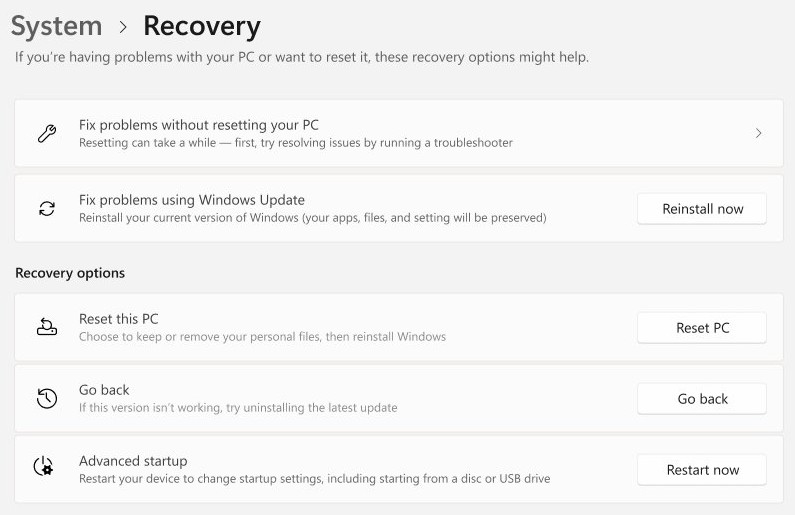
- On Windows 11, select Settings > System > Recovery, then select Reset PC.
- On Windows 10, select Start > Settings > Update & Security > Recovery, then select Get started under Reset this PC.
- Choose Keep my files or Remove everything.
- Choose Cloud download or Local reinstall.
- Follow the prompts, and don’t restart the PC yourself during the reset.
- If Windows won’t start, open the recovery environment and select Troubleshoot > Reset this PC.
The screen can stay black for 15 minutes or more during a reset. Keep my files still removes your apps and settings.
Replace your hardware
Suspect hardware when Windows Memory Diagnostic keeps reporting errors or the stop code survives a clean reset. Check connections before you buy parts, and check your warranty before opening a laptop or sealed desktop.
| What you found | What to do | Why |
|---|---|---|
| New RAM or a new card came before the crashes | Remove it, then confirm it is compatible with your Windows version | Microsoft lists new and incompatible hardware as causes |
| Windows Memory Diagnostic reports errors | Test modules one at a time if your PC allows it, then replace the failing module | A failing test on one module identifies the part to replace |
| The PC was recently opened or moved | Check that expansion boards are seated and cables are connected | Poor connections are a listed hardware cause |
| Memory passes but crashes continue | Run your manufacturer’s hardware diagnostics | Other parts can trigger the same stop code |
| The memory is soldered to the board | Contact the PC manufacturer for service | Soldered memory can’t be swapped at home |
After replacing RAM, open Task Manager’s performance view to confirm Windows sees the full amount.
Fixing the Windows stop code memory management BSOD error
Test memory first, then drivers, then Windows files, and reset only if all three come back clean. That order runs from the fastest and safest checks to the most disruptive. If the stop code survives a clean reset, stop reinstalling and service the hardware.
If the screen shows a different code, you can fix the Windows 10 stop code with general steps that apply to other blue screens.
Memory management stop code FAQ
What does stop code MEMORY_MANAGEMENT mean?
It means Windows found a severe memory management error and stopped to protect your data. The stop code has the value 0x0000001A. It can come from failing RAM, a driver bug, corrupted memory structures or other faulty hardware.
Does a memory management BSOD mean my RAM is bad?
Not always. Microsoft’s reference lists hardware errors alongside driver bugs and corrupted structures. Run Windows Memory Diagnostic to test the RAM, and treat Event ID 2001 as a clean result. If memory passes, move on to drivers and system files.
How do I run Windows Memory Diagnostic?
Press Windows + R, type mdsched, and select OK. Then select Restart now and check for problems (recommended). The PC restarts, runs the test and returns to the sign-in screen. Results appear as a notification or in Event Viewer.
How long does the Windows Memory Diagnostic test take?
Microsoft says only that the test takes some time, and that Extended tests take longer than Standard tests. Run it when you can leave the PC alone. The PC restarts by itself when the test ends, so save your work before starting.
Can a driver cause the MEMORY_MANAGEMENT stop code?
Yes. Microsoft documents driver-related causes, such as a driver mapping a memory page that wasn’t locked. Install driver updates through Windows Update first, then use Device Manager to update or roll back the specific device driver.
Will resetting Windows fix a memory management blue screen?
A reset fixes software causes, including damaged Windows files and bad drivers, but it can’t repair failing hardware. If memory errors or the same stop code return after a reset, the fault is in the hardware and needs replacement or service.
Will I lose my files when I fix a memory management error?
Testing memory, updating drivers and running SFC should not remove files. Keep my files in a reset keeps personal files but removes apps and settings, while Remove everything deletes them all. Back up important data before any reset.