Configure the domain password policy by editing the Default Domain Policy in Group Policy Management, under Computer Configuration > Policies > Windows Settings > Security Settings > Account Policies > Password Policy.
This guide covers each setting and its default, the PowerShell cmdlets for the same job, fine-grained policies for different groups, and how to find the policy a user actually gets.
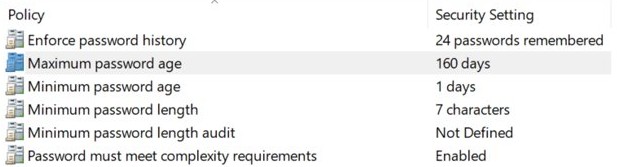
Configuring password settings in the Default Domain Policy
These settings apply at the domain level to domain accounts. You need edit rights on the GPO, which Domain Admins have by default, and the Group Policy Management feature on the computer you work from.
- Select Start, type Group Policy Management, and open it.
- In the console tree, expand your forest and domain, then expand Group Policy Objects.
- Right-click Default Domain Policy and select Edit.
- In the Group Policy Management Editor, go to Computer Configuration > Policies > Windows Settings > Security Settings > Account Policies > Password Policy.
- Double-click a setting, such as Minimum password length, enter the value, and select OK.
- Repeat for the other settings, then close the editor.
- Run
gpupdate /forceon a domain controller if you want the change picked up without waiting for the next refresh.
No restart is needed. The change takes effect when Group Policy is next applied, and you can force a Group Policy update on any other computer the same way. If GPOs are new to you, start from this explanation of Windows Group Policy.
Password policy settings in an Active Directory domain
Six settings make up the policy. The defaults below are the values in the Default Domain Policy.
| Setting | Allowed values | Default | What to set |
|---|---|---|---|
| Enforce password history | 0 to 24 passwords | 24 passwords remembered | Keep 24, the maximum, so old passwords cannot return quickly. |
| Maximum password age | 0 to 999 days (0 means never expires) | 42 days | Microsoft's reference suggests 30 to 90 days, but its security baseline omits expiry. Follow your compliance rules. |
| Minimum password age | 0 to 998 days | 1 day | Keep 1 day. A value of 0 lets users cycle through history and reuse a password. |
| Minimum password length | 0 to 14 characters (0 means no password required) | 7 characters | Set at least 8. Microsoft's reference lists 14 as the highest supported value. |
| Password must meet complexity requirements | Enabled or Disabled | Enabled | Keep Enabled. |
| Store passwords using reversible encryption | Enabled or Disabled | Disabled | Keep Disabled unless CHAP or IIS Digest Authentication requires it. |
Minimum password age must stay below maximum password age, unless maximum age is 0.
Password complexity requirements in Active Directory
The complexity setting applies fixed rules from Passfilt.dll. You cannot edit those rules directly, and they run when a password is created or changed.
| Rule | What it means |
|---|---|
| Account name | The password cannot contain the full samAccountName. The check is skipped for names under three characters. |
| Display name | The password cannot contain any part of the display name of three or more characters, split on spaces, commas, periods, hyphens, underscores, pound signs, and tabs. |
| Character types | The password needs characters from three of five groups: uppercase, lowercase, digits, special characters, and other Unicode alphabetic characters. |
| Currency symbols | Symbols such as the euro or British pound do not count as special characters. |
Account lockout policy settings in Active Directory
Lockout settings sit beside the password settings, under Account Policies > Account Lockout Policy. They are off by default, because the threshold starts at 0.
| Setting | Allowed values | Default | Windows security baseline |
|---|---|---|---|
| Account lockout threshold | 0 to 999 failed attempts (0 means never lock) | 0 | 10 attempts |
| Account lockout duration | 0 to 99,999 minutes (0 means locked until an admin unlocks) | Not defined | Microsoft's reference advises about 15 minutes |
| Reset account lockout counter after | 1 to 99,999 minutes | Not defined | 15 minutes |
When the threshold is above 0, the lockout duration must be greater than or equal to the reset counter value. The built-in Administrator account is excluded from lockout.
Managing AD password policy with PowerShell
The Active Directory module for Windows PowerShell reads and changes the same domain settings. Install the module with the Remote Server Administration Tools on an admin workstation, or run it on a domain controller.
- Open Windows PowerShell as administrator.
- Run
Get-ADDefaultDomainPasswordPolicyto read the policy of your current domain. - Add
-Identity fabrikam.comto read another domain, replacing the name with your own. - Change a value with
Set-ADDefaultDomainPasswordPolicy, as shown in the next section. - Run
Get-ADDefaultDomainPasswordPolicyagain and compare the values.
Time values use the format D.H:M:S.F, so 60 days is 60.00:00:00. These cmdlets do not work with AD LDS or Active Directory snapshots, and the Set cmdlet does not work against a read-only domain controller.
Set-ADDefaultDomainPasswordPolicy example
Set-ADDefaultDomainPasswordPolicy -Identity fabrikam.com -MinPasswordLength 12 -PasswordHistoryCount 24 -MinPasswordAge 1.00:00:00 -MaxPasswordAge 60.00:00:00 -ComplexityEnabled $true -ReversibleEncryptionEnabled $false -LockoutThreshold 10 -LockoutDuration 00:15:00 -LockoutObservationWindow 00:15:00This sets a 12-character minimum, 24 remembered passwords, a one-day minimum age, a 60-day maximum age, complexity on, reversible encryption off, and a lockout after 10 failed attempts for 15 minutes. Replace fabrikam.com with your domain. Setting -MaxPasswordAge to 0 makes passwords never expire.
You should see: The command prints nothing unless you add -PassThru, so run Get-ADDefaultDomainPasswordPolicy to read the new values.
How to enable multiple password policies for Active Directory users
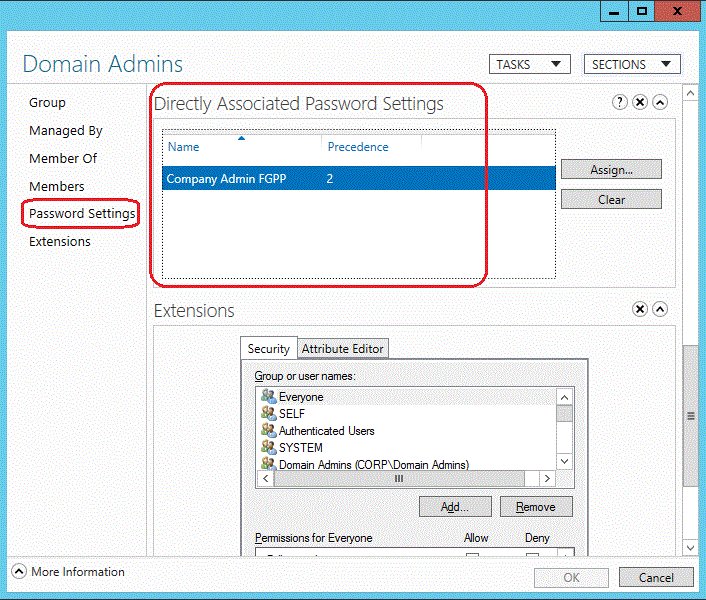
Fine-grained password policies, stored as Password Settings objects (PSOs), give different users different rules in one domain. You need a domain functional level of Windows Server 2012 or higher, Domain Admins membership, and Active Directory Administrative Center or the PowerShell module.
A PSO holds every password and lockout setting, plus Name and Precedence. Settings from different PSOs never merge.
- Open Active Directory Administrative Center by running
dsac.exeor from the Tools menu in Server Manager. - In the navigation pane, open the System container, then select Password Settings Container.
- In the Tasks pane, select New, then Password Settings.
- Enter a Name and a Precedence, then fill in the password and lockout fields.
- Under Directly Applies To, select Add, type the group name, and select OK.
- Select OK to create the policy.
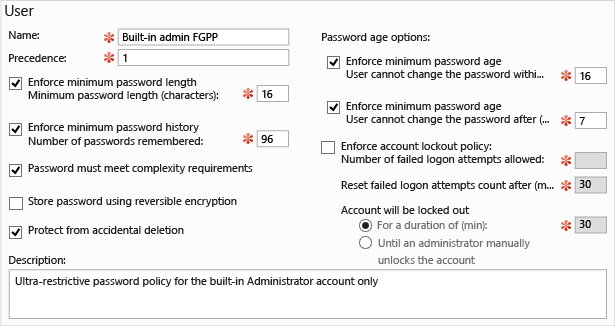
New-ADFineGrainedPasswordPolicy example
New-ADFineGrainedPasswordPolicy -Name "AdminsPSO" -Precedence 100 -MinPasswordLength 14 -PasswordHistoryCount 24 -MinPasswordAge "1.00:00:00" -MaxPasswordAge "60.00:00:00" -ComplexityEnabled $true -ReversibleEncryptionEnabled $false -LockoutThreshold 10 -LockoutDuration "00:15:00" -LockoutObservationWindow "00:15:00" -ProtectedFromAccidentalDeletion $true
Add-ADFineGrainedPasswordPolicySubject -Identity "AdminsPSO" -Subjects "Domain Admins"
The first line creates the policy, where -Name and -Precedence are required. The second line applies it to the Domain Admins group. -Subjects accepts users and global security groups, separated by commas.
You should see: Both cmdlets print nothing by default, so run Get-ADFineGrainedPasswordPolicy -Identity AdminsPSO and read the AppliesTo line.
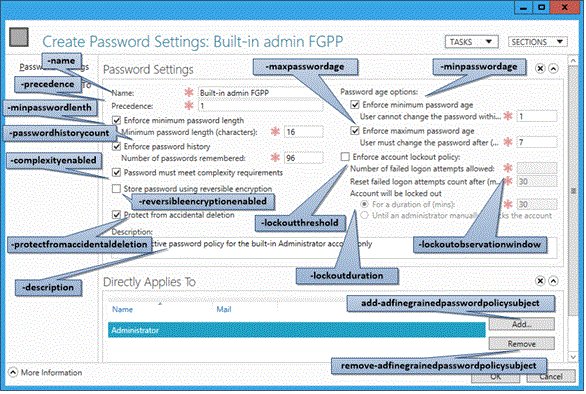
Fine-grained password policy precedence in Active Directory
Each user gets exactly one effective policy. Lower Precedence numbers win, so assign values in steps of 10 or 100 to leave room for later policies.
| Order | What Active Directory checks | Result |
|---|---|---|
| 1 | A PSO linked directly to the user | That PSO applies. If several are linked directly, the lowest precedence value wins. |
| 2 | PSOs linked to global security groups the user belongs to | The lowest precedence value wins. PSOs linked to other group types are ignored. |
| 3 | No PSO at all | The Default Domain Policy applies. |
| Tie | Two PSOs with the same precedence value | The PSO with the smallest GUID wins, so give every PSO a unique value. |
You cannot link a PSO to an OU directly. To cover an OU, add its users to a shadow group, a global security group that mirrors the OU, and apply the PSO to that group. Update the group whenever a user moves between OUs.
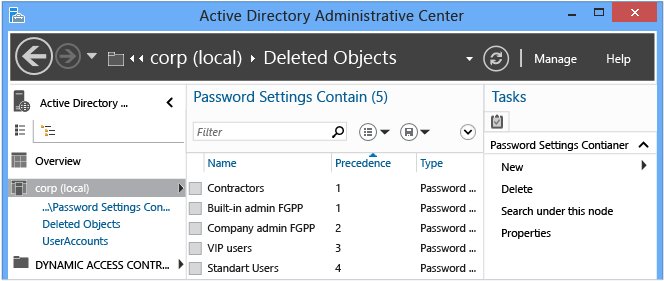
How to find which password policy applies to an AD user
Check the resultant policy for one real user instead of reading the PSO settings.
- Open Active Directory Administrative Center and find the user.
- In the Tasks pane, select View Resultant Password Settings, review the policy, and select Cancel.
- Or run
Get-ADUserResultantPasswordPolicy -Identity user1in PowerShell, replacinguser1with the account name. - Read Name and MinPasswordLength in the output to identify the PSO.
- If no PSO comes back, the user is on the Default Domain Policy, so read it with
Get-ADDefaultDomainPasswordPolicy.
How to edit a fine-grained password policy
- In Active Directory Administrative Center, expand System, then Password Settings Container.
- Select the policy, then select Properties in the Tasks pane.
- Change the settings and select OK.
- In PowerShell, use
Set-ADFineGrainedPasswordPolicy PasswordPolicy -PasswordHistoryCount:"30", replacing the policy name and value.
How to delete a fine-grained password policy
Users covered by a deleted PSO fall back to their next applicable PSO or the Default Domain Policy, following the precedence order above.
- In Active Directory Administrative Center, expand System, then Password Settings Container.
- Select the policy and open Properties from the Tasks pane.
- Clear Protect from accidental deletion and select OK.
- Select the policy, select Delete in the Tasks pane, and confirm with OK.
- In PowerShell, run
Set-ADFineGrainedPasswordPolicy -Identity PasswordPolicy -ProtectedFromAccidentalDeletion $False, thenRemove-ADFineGrainedPasswordPolicy PasswordPolicy.
Active Directory password policy not applying
Password policy change is not showing up
GPO changes replicate first, and computers refresh policy every 90 minutes with a random offset of up to 30 minutes. Domain controllers check every five minutes.
- Wait for replication between domain controllers, because SYSVOL replicates about every 15 minutes within a site.
- Run
gpupdate /forceon the domain controller. - Run
Get-ADDefaultDomainPasswordPolicyto read the live domain values.
Password policy GPO linked to an OU does not change domain users
Microsoft states the password policy applies at the domain level. Different rules for part of a domain need a fine-grained policy.
- Create a global security group that holds the OU's users.
- Create a PSO and apply it to that group.
- Run
Get-ADUserResultantPasswordPolicyfor one of the users to prove it applies.
Fine-grained password policy is ignored for a user
Another PSO may have a lower precedence value, the group may not be a global security group, or a flag on the account may override the PSO.
- Run
Get-ADUserResultantPasswordPolicy -Identity user1to see which PSO wins. - Check that the PSO is linked to the user or to a global security group.
- Check the account for Password does not expire or Password not required, because these override the resultant PSO.
Existing weak passwords still work after a policy change
Complexity rules run when a password is created or changed, so they do not touch existing passwords.
- Select User must change password at next logon on the accounts that need a new password. You can install Active Directory Users and Computers on a Windows 10 or 11 admin workstation for this.
- Have the user sign in and set a new password.
User cannot change a password an admin just set
Minimum password age blocks the change until the set number of days has passed.
- Reset the password again.
- Select User must change password at next logon so the user can change it right away.
New-ADFineGrainedPasswordPolicy fails with a precedence error
The cmdlet returns a terminating error when another PSO already uses that Precedence value.
- Run
Get-ADFineGrainedPasswordPolicy -Filter *and note the precedence values in use. - Run the command again with a value no other PSO has.
Active Directory password policy FAQ
Where is the password policy in Group Policy?
Open the GPO in the Group Policy Management Editor and go to Computer Configuration > Policies > Windows Settings > Security Settings > Account Policies > Password Policy. The lockout settings sit next to it under Account Lockout Policy in the same Account Policies folder.
What is the default password policy in Active Directory?
The Default Domain Policy remembers 24 passwords, expires passwords after 42 days, sets a one-day minimum age and a seven-character minimum length, enables complexity, and disables reversible encryption. The account lockout threshold defaults to 0, so accounts never lock until you change it.
Can you apply a password policy to an OU?
Not directly. Microsoft states that the Group Policy password settings apply at the domain level, and a fine-grained policy cannot link to an OU either. Add the OU's users to a global security group, known as a shadow group, and apply a PSO to that group.
What is a Password Settings object?
A Password Settings object, or PSO, is the Active Directory object that stores a fine-grained password policy. PSOs live in the Password Settings Container under System, and each holds password and lockout settings plus a precedence value. They apply to users and global security groups.
Do password policy changes need a restart?
No. Microsoft's reference for these settings lists no restart requirement, so changes take effect once they are saved and distributed through Group Policy. Computers refresh policy about every 90 minutes, or you can run gpupdate /force to apply the change sooner.
Should Active Directory passwords expire?
That depends on your compliance rules. Microsoft's security baseline no longer includes a password expiration policy, calling it less effective than modern mitigations. Organizations without multifactor authentication or Microsoft Entra Password Protection are advised to keep the policy in effect.
What is the minimum password length limit in the Default Domain Policy?
The Group Policy setting accepts 0 to 14 characters, and Microsoft's reference states that a value above 14 is not supported. It recommends at least 8 characters, and suggests teaching users passphrases, which are easier to remember and harder to discover.