A SIM failure message on iPhone means the phone can't use its SIM card or eSIM, so restart it, install any carrier settings update, then reseat the SIM or call your carrier about the eSIM.
This covers what the alert means, the carrier lock check, physical SIM and eSIM fixes by iPhone model, and what to do when the message comes back.
How to fix SIM failure on iPhone
Work through these in order, and stop as soon as the alert clears.
- Confirm with your wireless carrier that your plan is active.
- Restart your iPhone, then wait for it to reconnect.
- Connect to Wi-Fi, open Settings, tap General, then tap About. Tap Update or OK if a carrier settings prompt appears.
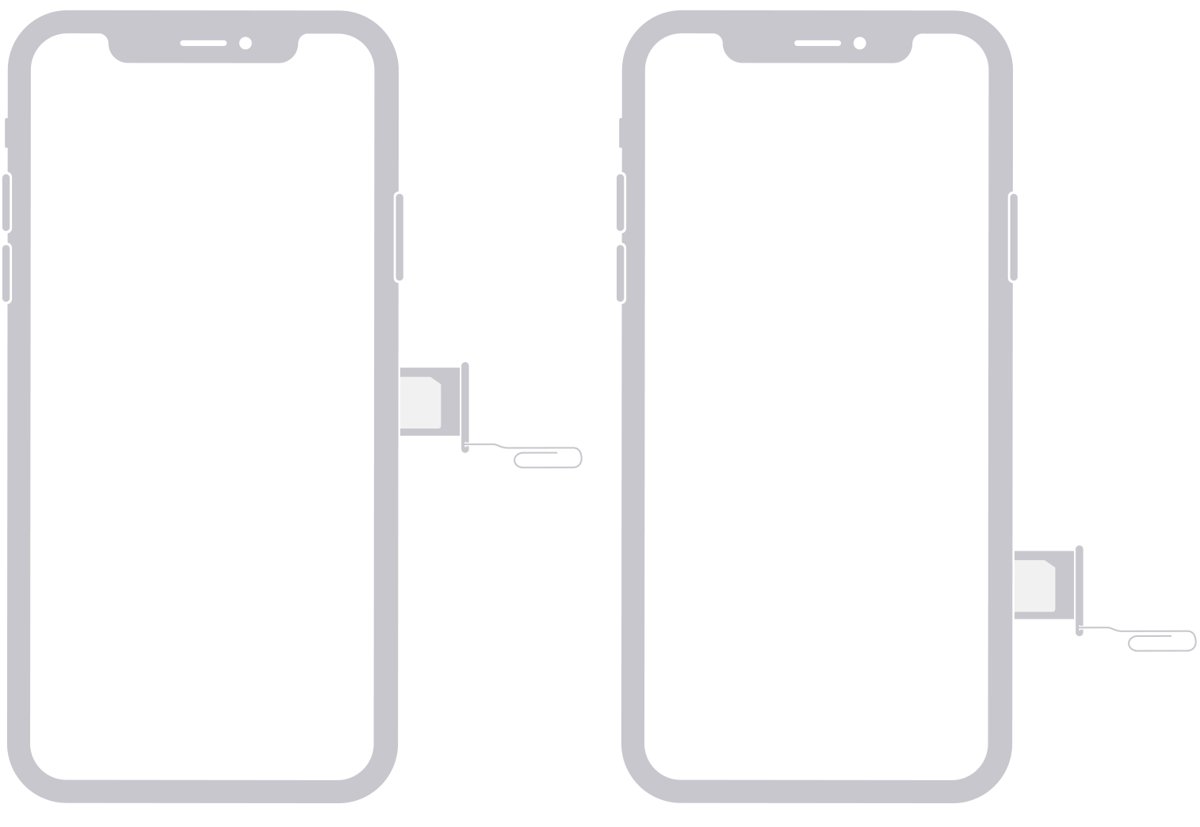
- If your iPhone has a physical SIM card, remove it from the tray, put it back and close the tray completely.
- If your iPhone uses an eSIM, contact your carrier, because only the carrier can reissue it.
- If the alert stays on a physical SIM, try another SIM card or ask your carrier's store to test one.
If the alert still appears with a known-good SIM or a reissued eSIM, your iPhone might need service from Apple.
What does SIM failure message mean on iPhone
Apple's troubleshooting article names the Invalid SIM and No SIM alerts rather than SIM Failure. SIM Failure belongs to the same family of SIM alerts, so the same steps apply.
| Message on iPhone | What it points to | Start with |
|---|---|---|
| SIM Failure or SIM card failure | The iPhone can't use the SIM card or eSIM | Restart, carrier settings, then reseat the SIM or call the carrier |
| Invalid SIM | The plan, a carrier lock or the SIM card itself | Check the plan and the Carrier Lock line |
| No SIM Card Installed | A badly seated SIM, or no active eSIM | Reseat the SIM or contact the carrier about the eSIM |
| Locked SIM | A SIM PIN is turned on for the SIM or eSIM | Enter your SIM PIN, and never guess it |
| PUK exhausted | The SIM or eSIM is permanently locked | Ask your carrier for a new SIM or eSIM |
| The SIM card inserted in this iPhone does not appear to be supported | The iPhone is locked to another carrier | Look for No SIM restrictions next to Carrier Lock |
| No Service or Searching | The iPhone isn't connected to a cellular network | Turn Airplane Mode on and off, then restart |
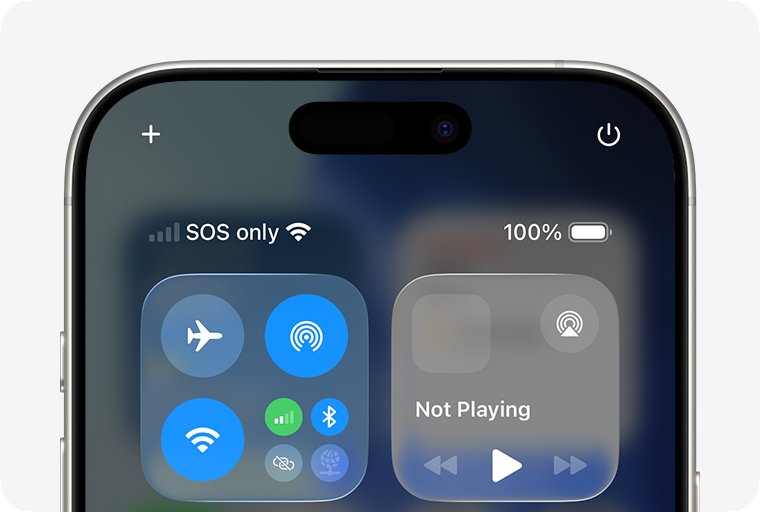
| SOS or SOS only | No connection to your carrier, but SOS emergency calls work through other networks | Turn Airplane Mode on and off, then contact your carrier |
Why is my phone saying SIM failure
Match what you notice to the likely cause, then go straight to that fix.
| Cause | What you notice | Fix |
|---|---|---|
| Plan or account problem | The alert appeared with no change to the phone or SIM | Ask the carrier to confirm your account is active and in good standing |
| iPhone locked to another carrier | The alert started with a different carrier's SIM, and Carrier Lock doesn't say No SIM restrictions | Ask the original carrier to unlock the iPhone |
| Missing carrier settings | You just inserted a new SIM or set up a new eSIM | Install the carrier settings update |
| Loose SIM or tray | The tray isn't flush or feels loose | Reseat the SIM and close the tray completely |
| Tray from another model | A replacement tray doesn't fit properly | Use only the tray that came with your iPhone |
| Damaged or transferred SIM | The card is damaged, doesn't fit, or came from another device | Ask your carrier for a new SIM card |
| eSIM line is off or missing | Settings > Cellular shows the line off, or no line at all | Tap Turn On This Line, or ask the carrier to set up an eSIM |
| Hardware fault | Your carrier finds no account issue and another SIM shows the same alert | Get service from Apple |
How to restart iPhone and toggle Airplane Mode for a SIM error
Turning Airplane Mode on and off can reconnect your iPhone to the cellular network. Try it and a restart before you touch the tray.
- Open Settings and turn on Airplane Mode for at least 15 seconds.
- Turn off Airplane Mode and wait to see whether your carrier name returns.
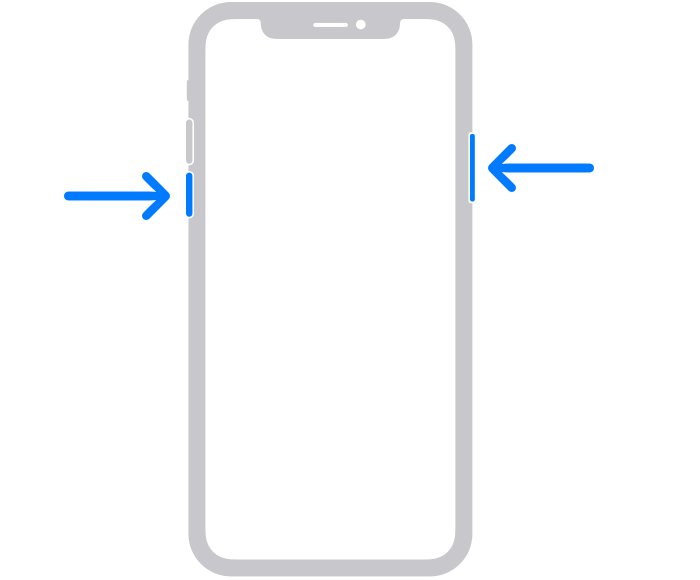
- On iPhone X or later, press and hold either volume button and the side button until the power-off slider appears.
- Drag the slider, then wait 30 seconds for the iPhone to turn off.
- Press and hold the side button until you see the Apple logo.
On iPhone 6, 7, 8 or SE (2nd or 3rd generation), hold only the side button to get the slider. If the phone is frozen, force restart the iPhone: press and release volume up, press and release volume down, then hold the side button until the Apple logo appears.
How to check if an iPhone is carrier locked
A locked iPhone works only with its original carrier, so another carrier's SIM triggers a SIM alert however many times you reseat it.
- Open Settings and tap General.
- Tap About and find the Carrier Lock line.
- If it says No SIM restrictions, the iPhone is unlocked and the lock isn't your problem.
- If it says anything else, contact the carrier the iPhone is locked to and request an unlock.
- Once the carrier confirms the unlock, remove the old SIM and insert the new one so the iPhone can activate.
Apple can't unlock an iPhone for use with another carrier; only your current carrier can, and it can take a few days.
How to update carrier settings on iPhone
A new SIM card or eSIM can need settings from the new carrier. Installation takes less than a minute, and you can keep using the phone.
- Connect your iPhone to Wi-Fi, because cellular data isn't available on a line with a SIM alert.
- Open Settings and tap General.
- Tap About; a prompt appears here if an update is available.
- Tap Update or OK if a carrier settings prompt appears.
- Tap the version number next to Carrier to see more carrier information.
An OK button means a mandatory update already downloaded and installed. No prompt means your iPhone found no update, and only your carrier can confirm which version is the latest.
How to remove and reinsert a SIM card in iPhone
This applies only to an iPhone with a SIM tray. A loose tray or a tray from another model is enough to bring the alert back.
- Find the tray on your model using the table in the next section.
- Insert a paper clip or SIM-eject tool into the hole beside the tray and push in toward the iPhone, without forcing it.
- Lift the SIM card out, then place it back in the tray; the notch in one corner means it fits only one way.
- Insert the tray completely, in the same orientation you removed it.
- Check that the tray sits flush and isn't loose, then wait for your carrier name to appear.
Use only the tray that came with your iPhone, because a tray from an iPhone 6s won't fit an iPhone 7, for example. If the tray won't eject, take the phone to your carrier or an Apple Store.
iPhone 13 and iPhone 15 SIM failure message by model
The right fix depends on whether your model has a tray at all. A US iPhone 15 has no tray, while an iPhone 13 has one on the left side.
| iPhone model | SIM type | SIM tray | What to try for the alert |
|---|---|---|---|
| iPhone 14 models and later bought in the US | eSIM only | None | eSIM steps, then your carrier |
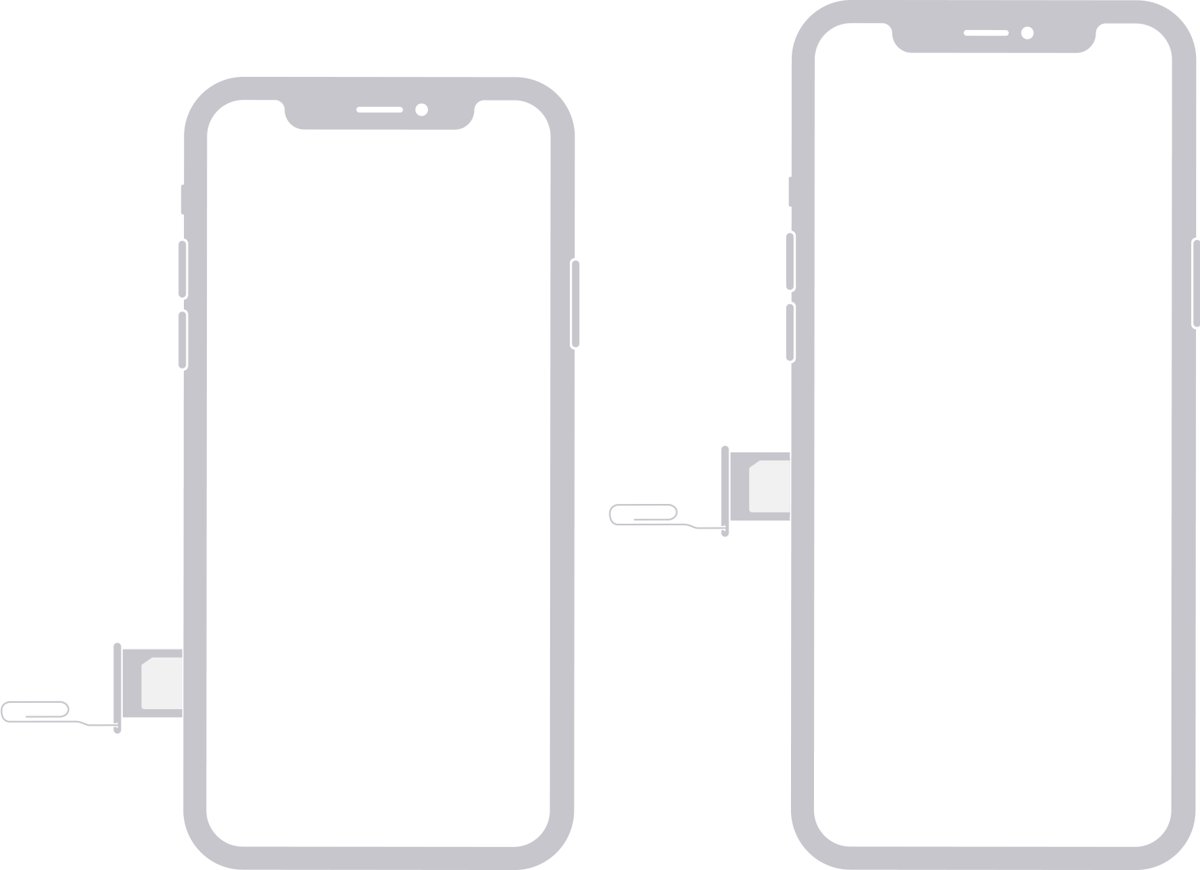
| iPhone 14, 15, 16 and 17 models with a tray, bought outside the US | Nano-SIM and eSIM | Left side | Reseat the SIM, or eSIM steps for the eSIM line |
| iPhone 12 and 13 models | Nano-SIM and eSIM | Left side | Reseat the SIM, or eSIM steps for the eSIM line |
| iPhone XS, XS Max, XR and 11 models | Nano-SIM and eSIM | Right side | Reseat the SIM, or eSIM steps for the eSIM line |
| iPhone 6 through X, and SE (1st generation) | Nano-SIM | Right side | Reseat the SIM, then try another SIM card |
| iPhone SE (2nd and 3rd generation) | Nano-SIM and eSIM | Right side | Reseat the SIM, or eSIM steps for the eSIM line |
If you own a newer US model, such as a US iPhone 17 Pro Max with no SIM card slot, skip the tray steps and use the eSIM fix below.
iPhone eSIM failure: how to fix it without a SIM card
An eSIM has nothing to reseat, so the checks run from Settings. After each step, swipe down from the upper-right corner to open Control Center and see whether your carrier appears in the status bar.
- Turn Airplane Mode on, then off.
- Open Settings and tap Cellular.
- If the number is listed, turn the line off, then turn it back on.
- Restart your iPhone.
- Go to Settings > General > About, scroll to the eSIM section and tap the version number next to Carrier.
- Tap OK or Update if a prompt appears.
- Contact your carrier if your carrier name still doesn't show.
Don't delete the eSIM as a troubleshooting step unless your carrier tells you to. Once you erase it, you need a new eSIM from the carrier before the iPhone can connect again.
How to reset network settings on iPhone for a SIM error
Reset Network Settings isn't on Apple's fix list for SIM alerts, so keep it for after the steps above. It deletes no data or media, but it removes saved network settings.
- Make sure you know your Wi-Fi passwords, because saved networks and VPN settings are removed.
- Open Settings and tap General.
- Tap Transfer or Reset iPhone, then tap Reset.
- Tap Reset Network Settings and enter your passcode if asked.
- Do not tap Delete All eSIMs, which is a separate option in the same list.
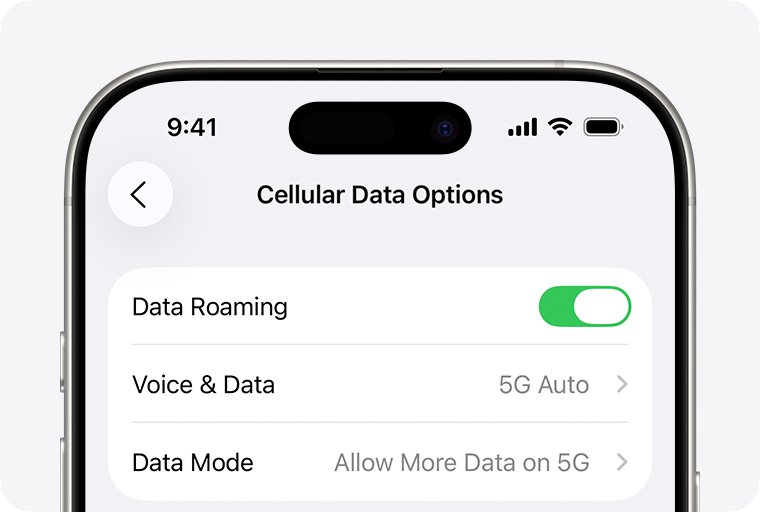
- Reconnect to Wi-Fi and check Data Roaming in Cellular Data Options if you travel.
The reset also renames the device to iPhone and sets manually trusted certificates back to untrusted.
iPhone SIM card failure: how to get a new SIM from your carrier
Only your carrier can see your account, replace a SIM card or reissue an eSIM. Having these details ready shortens the call.
- Find your carrier's name on the physical SIM card, or in Settings > Cellular directly above Turn On This Line.
- Note the exact wording of the alert on your iPhone.
- Open Settings > General > About and note the IMEI or EID.
- Have your phone number and carrier account password or PIN ready.
- Ask the carrier to confirm your account is active, that the phone isn't blocked or barred, and that no outage covers your area.
- Ask for a replacement SIM card or a new eSIM, or visit a store to test with another SIM.
How to tell if an iPhone SIM is working again
- Swipe down from the upper-right corner and check that your carrier name appears in the status bar.
- Open Settings > Cellular and check that your line shows as on.
- Make a phone call with Wi-Fi turned off.
- Send a text message to another phone.
- Restart once more and confirm the alert doesn't return.
iPhone still saying SIM failure
iPhone says SIM failure after moving the SIM from another device
A SIM card transferred from another device, or one that doesn't fit the tray, needs replacing.
- Check the phone's Carrier Lock line reads No SIM restrictions.
- Ask your carrier for a new SIM card.
- Install any carrier settings update once the new SIM is in.
iPhone asks for a SIM PIN or PUK code you don't know
A SIM PIN is on, and a wrong guess can permanently lock the SIM card or eSIM.
- Stop entering codes.
- Contact the carrier that issued the SIM or eSIM.
- Ask for the default SIM PIN or a PUK code.
- If you see PUK exhausted, ask for a new SIM card or eSIM.
Alert says the SIM card does not appear to be supported
The unlock hasn't been applied, or the iPhone is still locked to its original carrier.
- Open Settings > General > About.
- Look for No SIM restrictions next to Carrier Lock.
- If it isn't there, contact your carrier to apply the unlock.
SIM alert is gone, but iPhone shows No Service or Searching
The SIM now works, but the iPhone isn't connected to a cellular network.
- On a Dual SIM iPhone, go to Settings > Cellular, tap the line and tap Turn On This Line if it's off.
- Update iOS in Settings > General > Software Update.
- Ask your carrier about outages in your area.
- If calls work but data doesn't, fix cellular data and Wi-Fi on iPhone next.
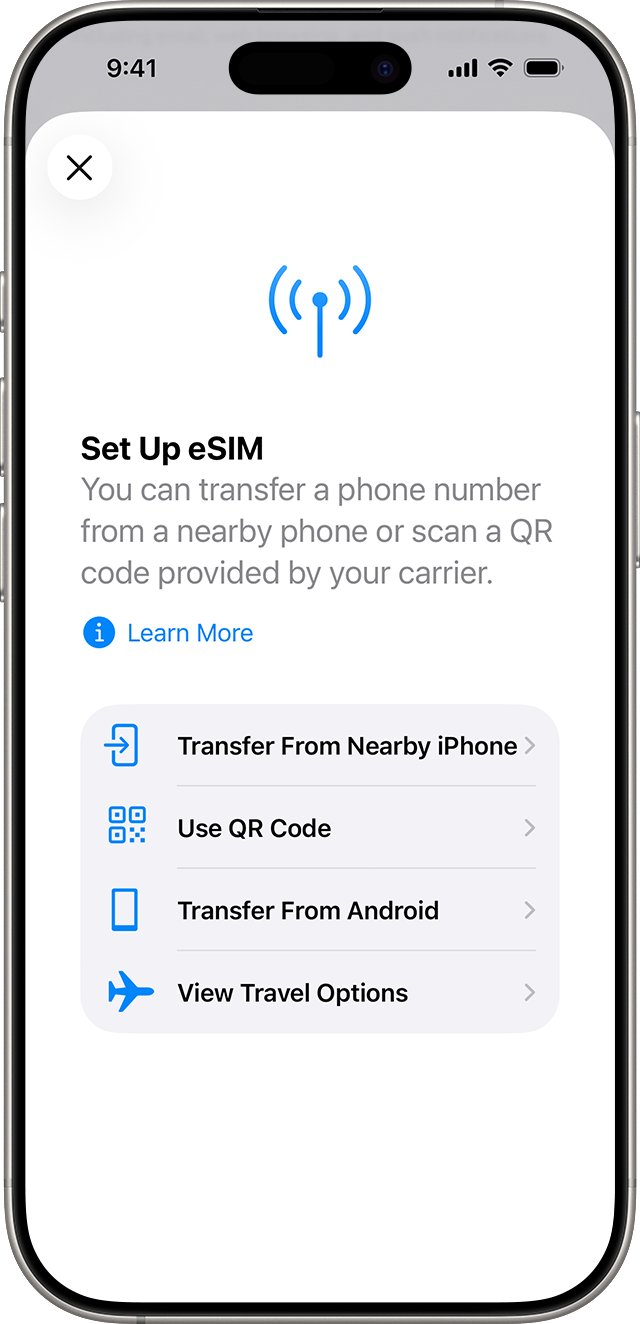
iPhone 15 or later says SIM failure right after setup
The eSIM on the new iPhone hasn't finished activating.
- Tap the Finish Setting Up Your Carrier's Cellular Plan banner if you see it.
- Connect to Wi-Fi and go to Settings > Cellular.
- Tap Set Up Cellular or Add eSIM and follow the prompts.
- On an iPhone 17 Pro with a wider signal problem, work through the iPhone 17 Pro cellular connection fixes.
- Contact your carrier if the plan never activates.
Old iPhone shows a SIM alert after moving your number to a new iPhone
When the cellular plan on the new iPhone activates, it deactivates the SIM on the previous one.
- Make a call on the new iPhone to check that the plan is active.
- Open Settings > Cellular on the old iPhone.
- Tap Delete eSIM on the old iPhone, or Delete Plan and choose the plan if it holds several, once the number works on the new phone.
iPad SIM failure message
iPad models with Wi-Fi + Cellular use the same SIM alert fixes as iPhone.
- Restart the iPad and check Settings > General > About for a carrier settings update.
- Remove the iPad SIM card and put it back, or contact your carrier if it uses an eSIM.
- Check your line under Settings > Cellular Data.
Another SIM card shows the same alert
A hardware issue is suspected when the carrier also finds no account or network problem.
- On iOS 18 or later, download the latest Apple Support app and run its diagnostics.
- Ask your carrier to confirm there's no account or network issue.
- Request service through Apple Support or at an Apple Store.
iPhone SIM failure FAQ
What is SIM failure on iPhone?
SIM failure is an alert that your iPhone can't use its SIM card or eSIM. Cellular calls, texts and data on that line stop until it clears. Treat it like Apple's Invalid SIM and No SIM alerts and follow the same fix steps.
How to fix SIM failure on iPhone?
Confirm your plan is active, restart the iPhone and check Settings > General > About for a carrier settings update. Then reseat a physical SIM, or call your carrier about an eSIM. If another SIM shows the same alert, your iPhone might need service.
Why is my phone saying SIM failure?
The usual causes are an inactive plan, a carrier lock, missing carrier settings, a loose or damaged SIM card, or an eSIM that isn't active. A hardware fault is the remaining cause when a known-good SIM shows the same alert.
Does SIM failure mean my SIM card is broken?
Not always. A carrier lock, loose tray or inactive plan can bring up a SIM alert with a healthy card. Test with another SIM card, or ask your carrier's store to do it, before you pay for a replacement or a repair.
Can I still make emergency calls with a SIM failure message?
Check the status bar. If it shows SOS or SOS only, your iPhone can make emergency calls through other carrier networks in Australia, Canada and the United States, even without a connection to your own carrier.
Should I delete my eSIM to fix SIM failure?
No, not unless your carrier tells you to. Apple warns against erasing an eSIM as a troubleshooting step, because you then need your carrier to issue a new one before the iPhone can connect again.
Can Apple fix a SIM failure on my iPhone?
Apple can service a hardware fault, but it can't unlock an iPhone or reissue your plan. Your carrier handles account problems, unlocks, replacement SIM cards and new eSIMs, so contact the carrier first.
Do I need Wi-Fi to fix a SIM failure on iPhone?
You need Wi-Fi for a carrier settings update and for most eSIM setup, because cellular isn't available while the alert is showing. Restarting the iPhone and reseating a physical SIM card work without any connection.