To fix a playlist that stops after every song on Apple Watch, open Playing Next to check the queue, then download the playlist so the next song does not depend on a live connection.
Apple does not document one cause for this behavior, so this guide works through every setting that controls what plays next: the queue, Repeat, Auto Play, downloads, the connection, Bluetooth audio, and Low Power Mode.
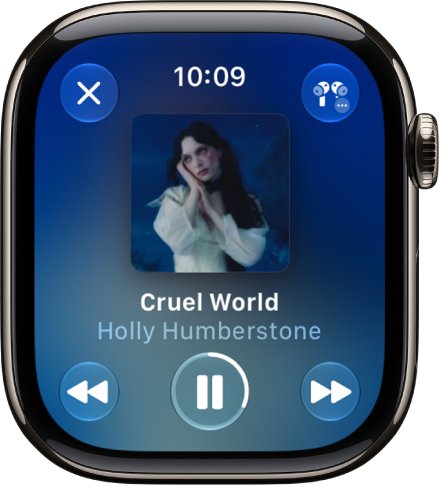
How to keep a playlist playing after every song on Apple Watch
Start the whole playlist from your library, then confirm the watch has more songs lined up and a copy stored on the watch.
- Open the Music app on your Apple Watch.
- Tap the Back button, tap Library, then tap Playlists.
- Tap the playlist, then tap the Play button.
- On the Now Playing screen, tap the More Options button, then tap Playing Next.
- Check that more songs are listed after the current one. Tap a track in the list to jump to it.
- If the next song still fails, go back to the playlist, tap More Options, tap Add to Library if it is offered, then tap More Options again and tap Download.
- Let one song finish and watch whether the next one starts.
The Add to Library and Download options on the watch are for Apple Music subscribers. Everyone else adds playlists from the iPhone, using the steps further down.
Why does a playlist stop after every song on Apple Watch?
Match what you see to a row. Each row names the setting to check first.
| What you notice | What to check | Why it matters |
|---|---|---|
| Nothing is listed after the current song | The Playing Next queue | The watch plays what is in the queue, so start the playlist itself and not one song from it |
| Playback stops away from your iPhone or Wi-Fi | Whether the playlist is downloaded | Apple says added music streams over an internet connection and needs a download to play offline |
| Playback stops only on headphones or a speaker | The audio destination and the Bluetooth pairing | The watch sends audio to one chosen output |
| Playback stops after the watch drops to low battery | Low Power Mode | Cellular stays off until needed and certain Wi-Fi connections are limited in this mode |
| The same song plays again | The Repeat button | Tapping Repeat twice sets the watch to repeat one song |
| Playback stops on the charger | The Apple Watch speaker | Apple does not support speaker playback while the watch is charging |
| Different songs start after the playlist ends | The Auto Play button | Auto Play adds similar music to the end of the queue for subscribers |
How to see the Playing Next queue on Apple Watch
The queue shows exactly what the watch plans to play. A short or empty queue explains a stop without any fault on the watch.
- Play an album or playlist in the Music app.
- Tap the More Options button, then tap Playing Next.
- Tap any track in the list to play it.
- To add more music, swipe left on a song, album, or playlist, then tap the More button.
- Tap Play Next to place it right after the current song, or Play Last to place it at the end.
How to repeat a playlist on Apple Watch
Repeat and Shuffle both live in the Playing Next list. Tapping Repeat twice repeats one song, so tap it again if one track keeps restarting.
- Start the playlist in the Music app.
- On the playback screen, tap the More Options button, then tap Playing Next.
- Tap the Repeat button once to repeat the list.
- Tap the Shuffle button if you also want the songs in random order.
- Check the Repeat icon before you leave the screen, because a second tap switches it to one song.
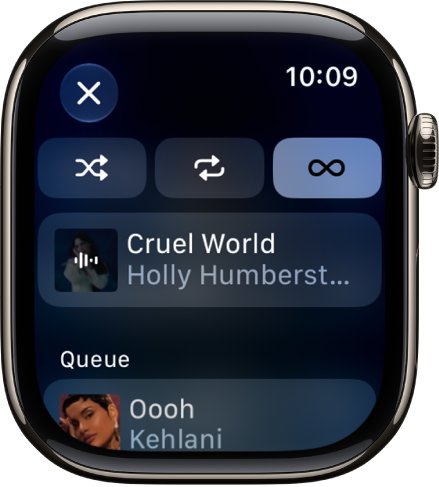
How to turn off Auto Play on Apple Watch
Auto Play is on by default for Apple Music subscribers and adds similar music to the end of the queue. The setting changes only the device you change it on, so you can also stop Apple Music auto-playing the next song on your iPhone or Mac.
- Play an album or playlist in the Music app.
- Tap the More Options button, then tap Playing Next.
- Tap the Auto Play button to turn it off.
- Tap it again to turn it back on if the music now ends sooner than you want.
How to download a playlist to Apple Watch
A downloaded playlist plays without an internet connection, which removes the connection as a reason for a stop between songs. Add music from the iPhone if you do not subscribe to Apple Music.
- Open the Apple Watch app on your iPhone.
- Tap My Watch, tap Apps, then tap Music.
- Under Playlists & Albums, tap Add Music.
- Find the playlist, then tap the Add List button.
- Keep the watch near your iPhone while the music is added.
Apple Music subscribers can do this on the watch too: open the playlist in Music, tap More Options, tap Add to Library, tap More Options again, then tap Download. Apple notes that downloading off the charger uses more battery than normal.
How to tell if a playlist is downloaded on Apple Watch
Check both the music list and the free space before you test the playlist away from your phone.
- Open the Music app on your Apple Watch.
- From Home, tap the Back button, then tap Library.
- Tap Downloaded and look for the playlist.
- Open the Settings app, tap General, then tap Storage to see the space left on the watch.
- Remove other downloaded music if the watch has too little space for the playlist.
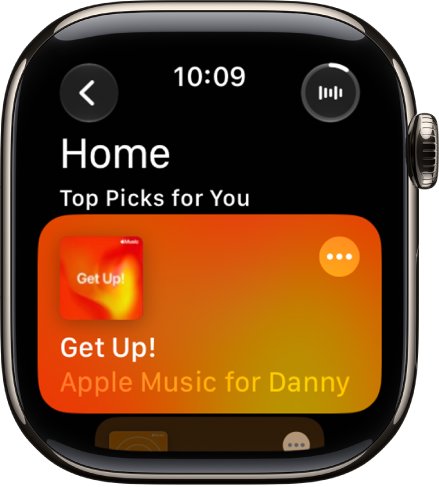
Apple Music keeps stopping on Apple Watch
Playlist stops when the iPhone is out of range
Music that is not downloaded streams, so the watch needs its own internet connection. Streaming away from the iPhone means Wi-Fi or a cellular plan on Apple Watch.
- Press the side button to open Control Center.
- Touch and hold the Wi-Fi button, tap the network name, enter the password if asked, then tap Join.
- Avoid public networks that require a login, subscription, or profile, because Apple Watch cannot join them.
- For cellular streaming, open Settings on your iPhone, go to Apps > Music, and turn on Cellular Data.
- Download the playlist if you still lose music between songs.
Music stops on Bluetooth headphones or speakers
The watch sends sound to the chosen audio destination, so the right device has to be selected and connected.
- Press the side button to open Control Center, tap the AirPlay button, and choose your headphones or speaker.
- If the device is not listed, put it in discovery mode using its own instructions.
- Open Settings on the watch, tap Bluetooth, and tap the device when it appears.
- For AirPods already set up with your iPhone, skip pairing and press play.
Playlist stops in Low Power Mode
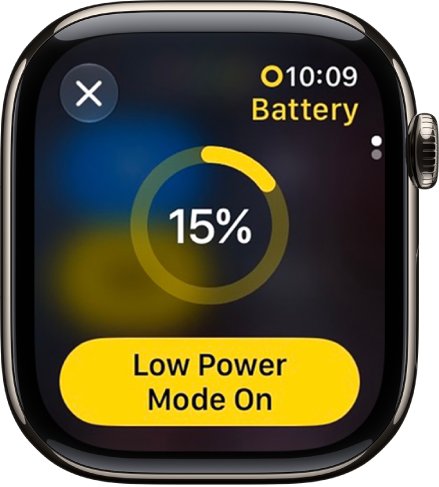
In this mode, cellular stays off until it is needed and certain Wi-Fi connections are limited, which affects streamed music.
- Press the side button to open Control Center.
- Tap the battery percentage, then turn off Low Power Mode.
- Play the playlist again, or download it if you need to stay in this mode.
Music will not play through the Apple Watch speaker
Apple says speaker playback is not supported when the watch is charging or on Apple Watch Series 9.
- Take the watch off the charger.
- Press the side button, tap the AirPlay button, and choose the Apple Watch speaker on a supported model.
- Choose Bluetooth headphones or a speaker on a model without speaker support.
Workout playlist does not start or keep playing
A workout playlist needs Autoplay Media turned on and Bluetooth audio, because it does not autoplay through the watch speaker.
- Open the Workout app and turn the Digital Crown to your workout.
- Tap the Media Playback button, then turn on Autoplay Media.
- Tap Choose Media, tap Add Media, tap Music, tap Playlist, and choose the playlist.
- Tap the Back button, connect your headphones, then tap Start.
How to restart Apple Watch when music keeps stopping
Restart the watch once the settings above look right. You cannot restart it while it is charging, so take it off the charger first.
- Hold the side button until the sliders appear.
- Tap the power icon, then drag the Power Off slider to the right.
- Hold the side button until the Apple logo appears.
- Open Music and play the playlist again.
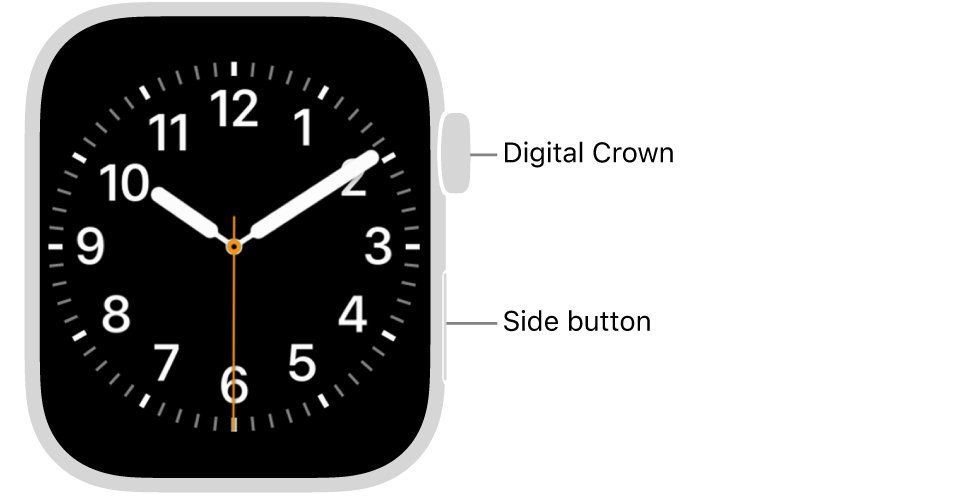
If the normal restart will not work, you can hard reset Apple Watch by holding the side button and Digital Crown together for at least 10 seconds until the Apple logo appears.
How to update Apple Watch software
Install any waiting watchOS update before you remove music or unpair the watch.
- Open the Apple Watch app on your iPhone.
- Tap My Watch, then go to General > Software Update.
- Tap Download and Install if an update is available.
- Or open Settings on the watch, tap General, then tap Software Update.
How to remove and add back a playlist on Apple Watch
A fresh copy is worth trying when one playlist stops and others play normally. Use the iPhone route, because removing a playlist on the watch with Delete from Library also removes it from your other devices.
- Open the Apple Watch app on your iPhone.
- Tap My Watch, tap Apps, then tap Music.
- Tap Edit, tap the delete icon beside the playlist, then tap Done.
- Under Playlists & Albums, tap Add Music, find the playlist, and tap the Add List button.
- Keep the watch near your iPhone until the music is added.
How to unpair and re-pair Apple Watch when a playlist still stops
Use this as the last step, because unpairing erases the watch and removes it from your Apple Account.
- Open the Apple Watch app on your iPhone.
- Tap My Watch, then tap All Watches.
- Tap the Info button next to your watch, then tap Unpair Apple Watch.
- When the watch has reset, pair Apple Watch with your iPhone again.
- Add the playlist back and test it.
Apple Watch playlist FAQ
How do you play all songs on a playlist on Apple Watch?
Open the Music app, tap the Back button, tap Library, tap Playlists, choose the playlist, and tap the Play button. Starting from the playlist puts its songs in the queue, and you can check them under More Options > Playing Next.
How do you repeat a playlist on Apple Watch?
From the playback screen, tap the More Options button, tap Playing Next, then tap the Repeat button. Tapping Repeat twice repeats a single song, so check the icon if one track keeps restarting instead of the whole list.
How do you stop a playlist on Apple Watch?
Tap the Pause button on the Now Playing screen in the Music app. If the watch face is showing, turn the Digital Crown up and tap the song in the Smart Stack, or tap the Music button at the top of the screen.
How do you stop Apple Watch from adding songs after a playlist ends?
Turn off Auto Play. Open Playing Next from the More Options button and tap the Auto Play button. Auto Play is on by default for Apple Music subscribers, and turning it off on the watch leaves your other devices unchanged.
How do you delete a song from a playlist on Apple Watch?
Swipe left on the song in the Music app, tap More Options, tap Delete from Library, then tap Delete Song. Apple Music subscribers can do this on the watch, and it removes the song from every playlist and from devices on the same Apple Account.
Does deleting a playlist on Apple Watch delete it everywhere?
Yes, when you remove it on the watch itself. Apple says a playlist or album removed on the watch also leaves all other devices using the same Apple Account. To clear only the watch copy, remove it through the Apple Watch app on your iPhone.
Why did my Apple Music playlist disappear from Apple Watch?
Someone may have removed it on a device that uses the same Apple Account, since removals made on the watch carry across devices. Automatically added music also leaves when Recent Music is turned off in the Apple Watch app, under My Watch > Apps > Music.