A PES file is a machine embroidery design in the format used by Brother embroidery machines and software, and you open it in Windows 11 with an embroidery app such as StitchScope from the Microsoft Store or Brother's PE-DESIGN 11.
This guide covers every official way to view a PES file on a PC, load it on a machine, create or convert one, and fix a file that will not open.
How to open and view PES file in Windows 11/10
Windows opens a file only when an installed app is linked to its extension, so a PES file needs an embroidery app first. The Microsoft Store route needs no Brother machine or Brother software.
- Open Microsoft Store from the Start menu.
- Search for StitchScope, which the Store lists as an embroidery viewer and converter and a free download.
- Read the listing to confirm PES is named in its format list and to see which features cost extra.
- Install the app from the listing.
- Start the app and load your
.pesfile from inside it to see the design.
Already own Brother's PE-DESIGN? Double-click the file instead. It opens in the Layout & Editing window, and the next sections cover that route and its alternatives.
What is a PES file?
A PES file holds stitch instructions, not pixels. You can open a PNG file in any Windows image app, but a PES design needs software that reads embroidery machine data.
| Detail | What it means for a PES file |
|---|---|
| Extension | .pes, in the same family as .pec, .pel and .pem |
| What it stores | A stitchable design, mostly commands that tell an embroidery machine what to sew |
| Machines that use it | Brother, Baby Lock, Bernina Deco, Simplicity and Melco |
| Software that writes it | Brother PE-DESIGN, where .pes is the one embroidery format the Open command accepts directly |
| Versions | Several PES versions exist, and an older PE-DESIGN cannot open a design saved by a newer one |
| Related design formats | .phc, .phx, .dst and .pen from Brother workflows; .exp, .pcs, .hus, .vip, .shv, .jef, .sew, .csd and .xxx from other makers |
PES is also the short name of Konami's Pro Evolution Soccer games, so searches for "PES files" can return game content that has nothing to do with embroidery.
What opens a PES file in Windows 11?
The right app depends on whether you only want to see the design, or also need to edit it or send it to a machine.
| Your situation | Use this | Why |
|---|---|---|
| You only want to see the design and own no embroidery software | StitchScope from the Microsoft Store | Listed as a free download, with no Brother hardware involved |
| You own a Brother machine with wireless LAN | Design Database Transfer | Brother's free PC app shows thumbnails and sends designs to the machine |
| You want to edit the design | PE-DESIGN 11 | Opens .pes in Layout & Editing, and Brother lists Windows 11 as supported |
| You want to try PE-DESIGN before buying | PE-DESIGN 11 trial | Runs Layout & Editing with limits: no saving, export, printing, Design Database or File Explorer thumbnails. Its page names Windows 7, 8.1 and 10, not 11 |
| You want to preview it on the machine itself | A USB flash drive | The machine lists the pattern on its own screen, and no PC app is needed |
PED-Basic is not on this list. Brother says it only writes embroidery data to a memory card and cannot create patterns.
How to open a PES file in PE-DESIGN
Brother documents six routes for PE-DESIGN NEXT, 10 and 11. Each one ends with the design in the Layout & Editing window.
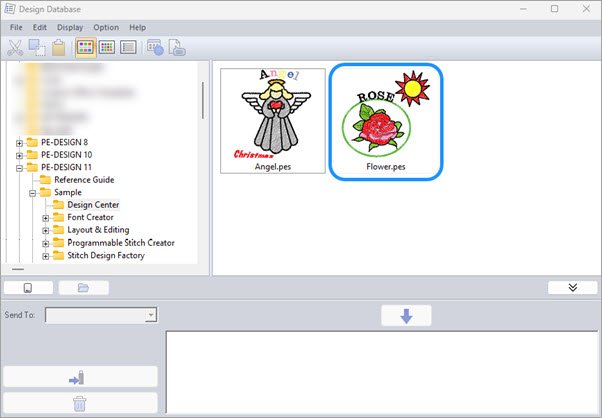
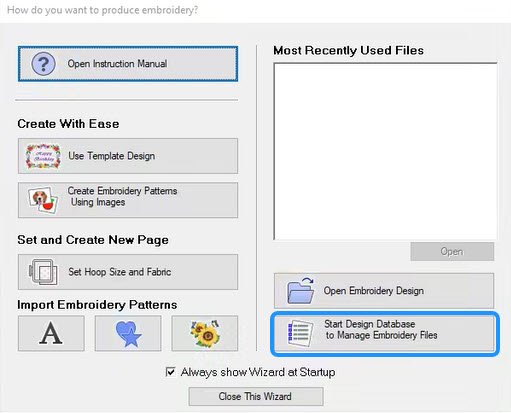
- Design Database: start PE-DESIGN, click Start Design Database to Manage Embroidery Files, then double-click the design.
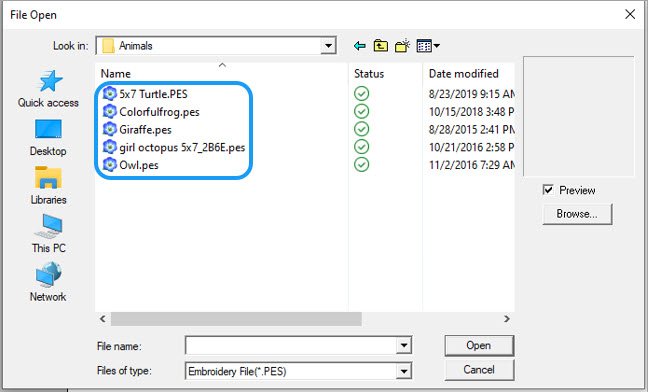
- Open command: click the flower icon at the upper left, click Open, click a design to preview it, then double-click it.
- Recent files: click the flower icon, then click the file under Most Recently Used Files.
- Import: in Layout & Editing, go to the Home tab, click Import Patterns, choose a source, select the design once and click Import.
- File Explorer: find the file and double-click it.
- Drag and drop: with Layout & Editing open, hold the left mouse button on the file in File Explorer and drag it into the window.
The Import route also takes .phc, .phx, .dst, .exp, .pcs, .hus, .vip, .shv, .jef, .sew, .csd and .xxx files. Files in the .pen format cannot be imported into Layout & Editing.
PES file viewer for Windows 11: Design Database Transfer
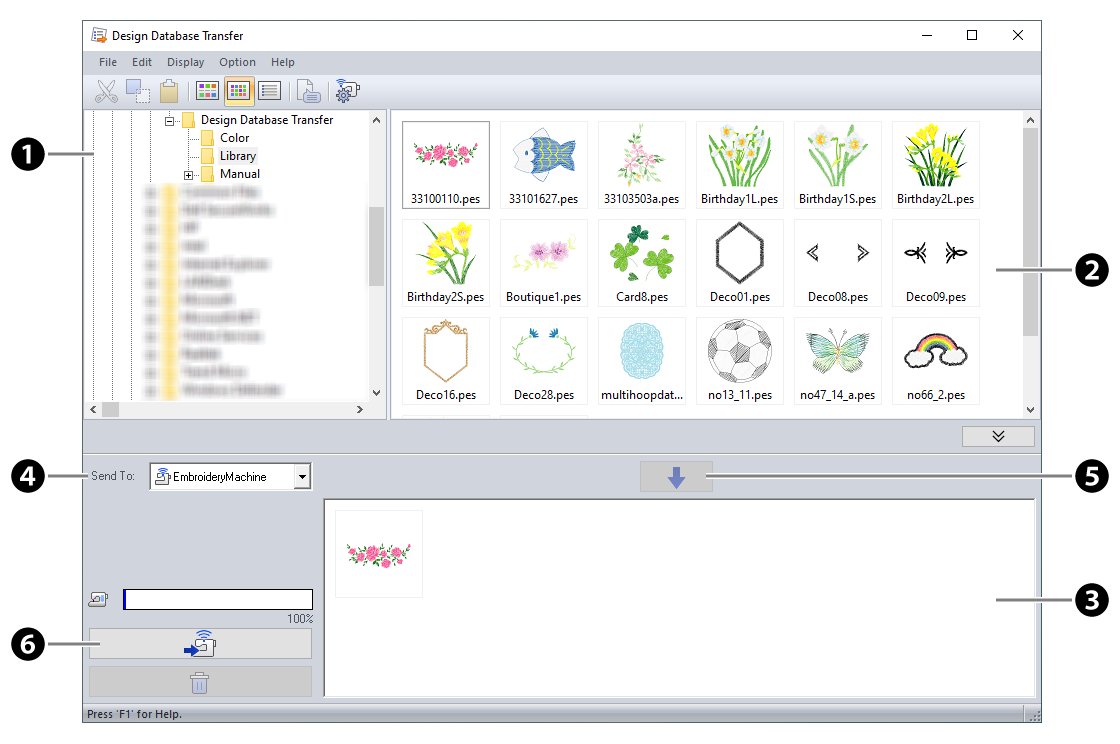
Design Database Transfer is Brother's Windows app for managing embroidery files and sending them over wireless LAN. It runs on Windows 8.1, 10 and 11.
It is built for Brother's wireless LAN embroidery machines, including the PE900 and SE2000. Brother does not state whether the viewer works on a PC with no such machine paired.
- Open Brother's Design Database Transfer page and run its installer link.
- Start the app and select the folder that holds your designs in the folder pane.
- Look through the thumbnails in the contents pane to preview each design.
- Use the search option to filter by design size, file format or total number of thread colors.
- To send a design, click Add to place it on the writing list, choose the machine in the send-to selector and click Transfer.
The thumbnail viewer displays .pes, .phc, .phx, .dst, .pen, .exp, .pcs, .hus, .vip, .shv, .jef, .sew, .csd and .xxx files. Only the first five can be transferred to a machine.
How to set the default app for PES files in Windows 11
Set a default app once you have installed one, so that double-clicking any .pes file opens it there. The same Default apps page applies to Windows 11 and Windows 10.
- Open Settings and select Apps > Default apps.
- Type
.pesin the search bar. - Select the matching result.
- Choose your embroidery app from the options shown.
How to read PES files on a Brother embroidery machine
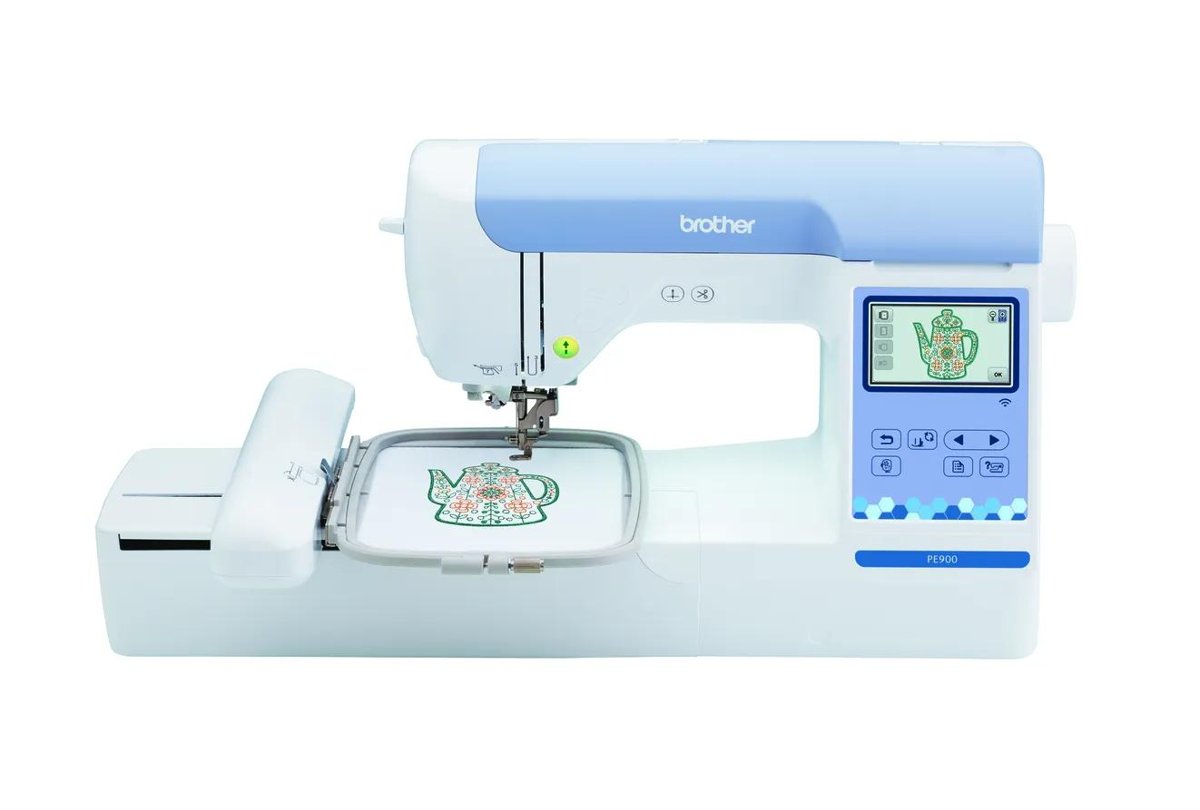
Brother's home machines read .pes, .dst, .phc and .pen designs, and Brother warns that other data can make a machine malfunction. These steps use a USB flash drive; if you are unsure where your design is saved, you can open File Explorer and look there first.
- Right-click the design in File Explorer and select Copy.
- Insert the USB flash drive into the PC and open it in File Explorer.
- Paste the design at the top level of the drive, not inside a folder.
- Safely eject the drive and insert it into the machine, with the machine switched on.
- Press the USB button on the machine. The icon varies by model but includes the USB symbol.
- Select the pattern, using the arrow keys to move between screens.
- Press the saved pattern button, then choose Embroidery or Sewing if your model asks.
Models such as the PE700II and PE750D also connect by USB cable and show up as a Removable Disk. Do not create folders there, and remember that a recalled pattern is erased when the machine is turned off.
How to create a PES file for embroidery
Creating a PES file means digitizing: turning artwork into stitches. Renaming a picture to .pes does not do that, and a complex design can take hours to digitize.
PE-DESIGN 11 includes Photostitch, Auto Punch and Cross Stitch wizards for this job. A raster image such as a JPG cannot be imported as a pattern, so it goes in as a background to trace.
- Open Layout & Editing in PE-DESIGN.
- For a
.bmp,.tif,.wmf,.png,.eps,.gifor baseline.jpgimage, go to the Image tab and select Open. - For vector artwork, go to the Home tab and select Import Patterns > from Vector Image. It accepts
.wmf,.emfand.svgfiles only. - Trace the background image, or run it through a Stitch Wizard such as Auto Punch.
- Save the finished design as a
.pesfile.
The PE-DESIGN 11 trial cannot save or export, so creating a usable file needs the full product. Progressive JPEGs are not supported, so convert them to baseline first.
How to save as a PES file
Brother's design software lets you choose the PES version on save, and these are its documented steps for the BES embroidery software line. Pick the newest version your machine supports, because older machines may need an earlier one.
- Click the Pacesetter button and select Save As.
- In the Save in list, browse to the folder you want.
- Type a name in the File Name box.
- Select .PES in the Save As type list.
- Click Save.
Stick to letters, numbers, dashes and underscores in the file name. Brother notes that names with special characters may not display on the machine.
How to convert to a PES file
Brother's design database software converts between .pes, .dst, .exp, .pcs, .hus, .vip, .shv, .jef, .sew, .csd and .xxx. The original file stays where it is.
- In the folder pane, select the folder that holds the design.
- In the contents pane, select the design file.
- Click File, then Convert Format.
- Choose .pes in the Format Type selector.
- Under Output To:, select Same folder or Following folder.
- Click Convert.
Brother warns that files saved or created with incompatible third-party conversion programs may not import correctly into PE-DESIGN. If a converted design looks wrong, go back to the original file.
How to download a PES file for embroidery
Brother's own design sources are iBroidery.com, which sells over 5,000 designs individually, the 1,000+ designs built into PE-DESIGN 11, and the designs in its Artspira phone and tablet app. These steps fetch a design you bought on iBroidery.
- Go to iBroidery.com and open My Account.
- Enter your email address and password, then click Log In.
- Under the other options, click View your Downloads.
- Click the download icon next to the design and save it to your PC.
- Check that the saved file ends in a design extension your machine reads, such as
.pesor.pen.
Free PES files for embroidery also circulate on many other sites. Any design download should end in a design extension, so never run an .exe that claims to be a design.
A name ending in .crdownload means Chrome has not finished the download. You can open a .crdownload file to see what to do with it, then download the design again if it is incomplete.
How to tell if a file is a PES file in Windows 11
File Explorer can hide file name extensions, so a design can look like any other file. The first line of the file also reveals which PE-DESIGN version saved it.
- Press Windows logo key + E to open File Explorer.
- Go to View > Show and check File name extensions.
- Confirm the file name ends in
.pes. - Open a copy of the file in WordPad, or in Notepad on Windows 11 version 24H2 and later, where WordPad is removed.
- Read the last two characters of the first word on the first line, which give the version. For PE-DESIGN 10 files, read the last three.
- Close the copy without saving.
PES file not opening in Windows 11
Brother wrote these fixes for earlier Windows versions, so the menu wording on Windows 11 can differ slightly.
A PES file does not open when you double-click it
The .pes extension is not linked to Layout & Editing in PE-DESIGN 11.
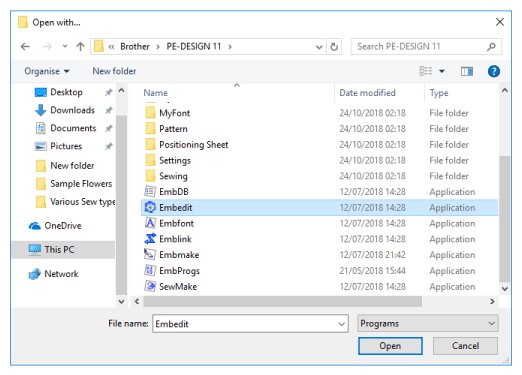
- Right-click the
.pesfile and select Open with > Choose another app. - Select Layout & Editing if it is listed, set it as the app to always use for
.pesfiles and confirm. - If it is not listed, choose to look for another app on this PC.
- Browse to
C:\Program Files (x86)\Brother\PE-DESIGN 11\Embedit.exe, the default install path, and select Open.
"Unexpected file format" appears when opening a design
A .pes file with this error may be corrupted. Other formats cannot use the Open command at all.
- Check the extension. If it is
.phc,.dst,.jefor another maker's format, go to the Home tab and select Import Patterns > from File. - If it is
.pes, get a fresh copy of the file from its source, because the data may be corrupted. - If the format is not supported at all, convert it to PES in the software that made it.
A PES design will not open in an older PE-DESIGN version
PES designs are backward compatible but not forward compatible. A design from a later version opens only if it was saved for the lower version.
- Read the design's version from the first line of the file.
- Compare it with your installed PE-DESIGN version.
- Open the design in the newer version and save it for your version, or ask the person who sent it to do that.
PES files do not show as thumbnails in File Explorer
File Explorer is set to show icons only, or the thumbnail cache is corrupted. The PE-DESIGN 11 trial also leaves this feature out.
- In File Explorer, select See more > Options on the ribbon.
- Open the View tab, clear Always show icons, never thumbnails and select OK.
- If thumbnails still do not appear, type Disk Cleanup in the taskbar search box and open it.
- Select the drive and select OK.
- Under Files to delete, check Thumbnails, select OK, then select Delete Files.
A PES file does not appear on the machine's screen
The design sits in a folder on the USB drive, or it exceeds the machine's stitch, color or pattern limits.
- Move the file to the top level of the USB drive, because machines cannot retrieve designs inside folders.
- If the machine shows Reduce the number of patterns, delete a few designs from the drive, since the limit is 200.
- Edit an oversized design in Brother's design software so that it meets the machine's specifications.
PES file FAQ
What is a PES file?
A PES file is a machine embroidery design that stores stitch commands instead of an image. It is the main format of Brother's PE-DESIGN software and is also read by Baby Lock, Bernina Deco, Simplicity and Melco machines.
What opens a PES file?
Embroidery software opens a PES file. Options on Windows include Brother PE-DESIGN, Brother's Design Database Transfer and StitchScope from the Microsoft Store. Brother embroidery machines also read PES files directly from a USB flash drive.
How do I view a PES file?
Install an embroidery viewer, then load the file in it. StitchScope is listed on the Microsoft Store as a free viewer and converter, while Design Database Transfer shows thumbnails for owners of Brother wireless LAN machines. PE-DESIGN also previews designs before opening them.
How do you read PES files on a machine?
Copy the file to the top level of a USB flash drive and insert the drive into the machine. Press the USB button, select the pattern, then press the saved pattern button. Brother machines cannot retrieve designs stored inside folders on the drive.
How do you create a PES file?
Digitize artwork in embroidery software such as PE-DESIGN, then save the result as a PES file. Open a picture as a background image to trace it, or import a WMF, EMF or SVG file as a pattern. Renaming a picture does not create one.
How do you save as a PES file?
Use the Save As command in Brother's design software and select .PES in the Save As type list. Several PES versions may be offered, so choose the newest one your machine supports. The PE-DESIGN 11 trial cannot save designs at all.
How do you convert to a PES file?
Select the design in Brother's design database software, click File, then Convert Format, and choose .pes in the Format Type selector. It converts from formats such as .dst, .exp, .jef and .hus. Designs from incompatible third-party converters may not import correctly.
How do you download a PES file?
Sign in at iBroidery.com, open My Account, click View your Downloads and select the download icon beside a purchased design. Save it to your PC, then copy it to a USB flash drive or send it to your machine over wireless LAN.