To clear a blank page when you click a chat contact in WhatsApp on iMac, force quit and reopen the app, install the latest update, then log out and link it to your phone again.
This guide covers each fix in order, the macOS versions WhatsApp supports, how to reinstall the app, and how to keep chatting through WhatsApp Web.
How to fix WhatsApp on iMac blank page when clicking a chat contact
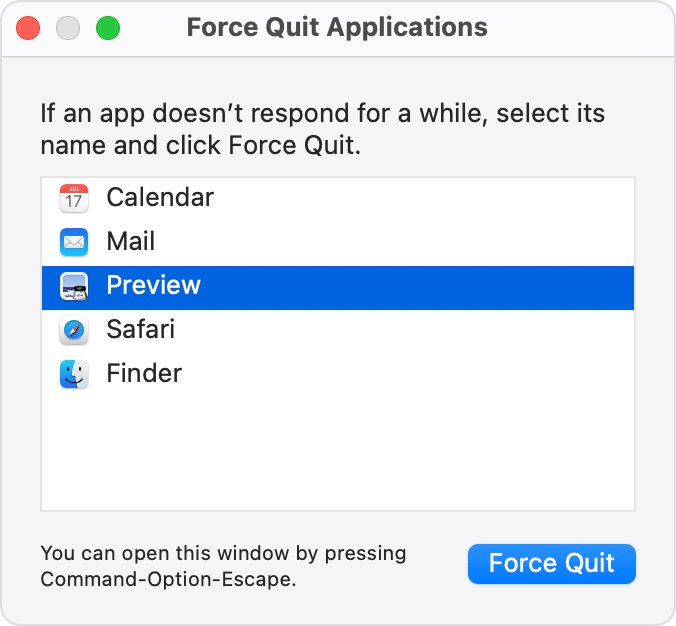
Start here, because it is the quickest test. Force quitting can lose unsaved changes, such as a message you are still typing.
- Choose Apple menu > Force Quit on your iMac.
- Select WhatsApp in the dialog, then click Force Quit.
- Open WhatsApp again from the Applications folder.
- Wait for your chat list to load.
- Click the chat contact again.
If the page is still blank, choose Apple menu > Restart, turn your iMac back on, and test once more before moving on to the update.
Why is WhatsApp blank on Mac and what to try
| What you see | Try this first | Why it fits |
|---|---|---|
| Every chat opens to a blank page | Force quit, then update WhatsApp | WhatsApp releases regular updates with bug fixes |
| The chat opens, but older messages are missing | Check the chat on your phone | Not all messages sync to linked devices |
| The blank page started after a long time away from your phone | Open WhatsApp on your phone, then relink the Mac | Linked devices log out if the phone is unused for over 14 days |
| WhatsApp shows Computer not connected | Check your internet connection | A poor connection is the most common cause of chat problems |
| The app freezes or quits | Force quit, then restart your iMac | Apple's first steps for any unresponsive Mac app |
| Nothing has helped | Reinstall the app and use WhatsApp Web meanwhile | The browser version needs no app |
How to update WhatsApp on Mac
WhatsApp recommends keeping the app updated on linked devices, because updates carry fixes for bugs. The route depends on where you got the app.
- Open the App Store on your iMac if you installed WhatsApp from there.
- Click Updates in the sidebar.
- Click Update next to WhatsApp.
- If you installed WhatsApp from its website, go to the WhatsApp Download page in your browser and download the Mac version again.
- Open the downloaded file and follow the prompts.
- Reopen WhatsApp and click the chat contact.
Your phone app needs updates too, so update WhatsApp manually there as well.
Does WhatsApp work on Mac? Supported macOS versions
Apple's advice for a misbehaving app includes checking that it is compatible with your version of macOS. WhatsApp's help pages differ here: the download page says macOS 11 or later, while two others say macOS 12.1. Treat macOS 12.1 as the minimum.
| How you use WhatsApp | What it needs | If you fall short |
|---|---|---|
| WhatsApp for Mac app | macOS 12.1 or newer | Update macOS, then download the app |
| WhatsApp Web in Safari | Safari 15 or later | Update macOS, because Safari updates with it |
| WhatsApp Web in Chrome or Edge | Version 100 or later | Update the browser |
| WhatsApp Web in Firefox | Version 115 or later | Update the browser |
| WhatsApp Web in Opera | Version 86 or later | Update the browser |
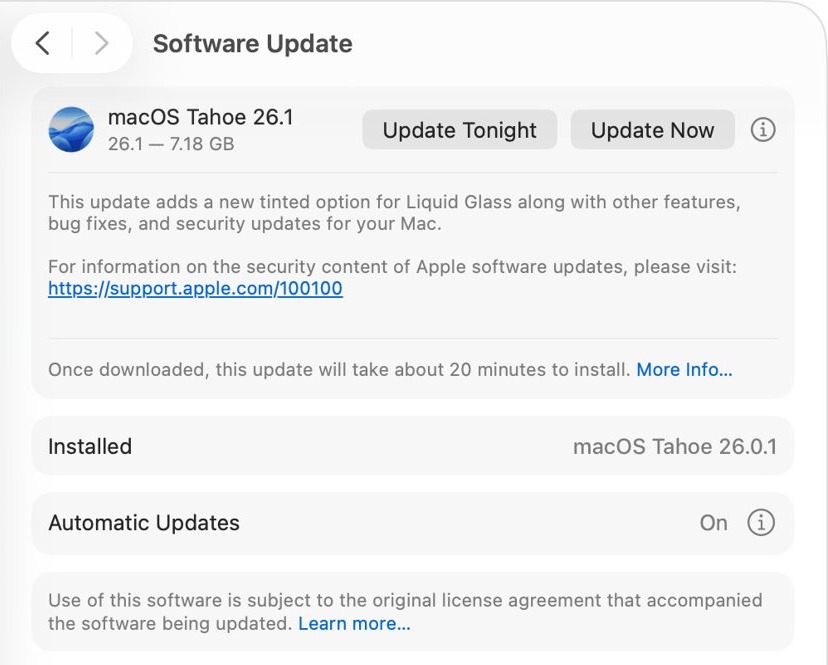
To update macOS, go to System Settings > General > Software Update. On an older iMac that cannot update, WhatsApp Desktop will not install on macOS Catalina, so use WhatsApp Web.
How to log out of WhatsApp on Mac and link it again
Linking again makes your phone send a fresh encrypted copy of your recent message history to the iMac, so it is the fix to try after an update. Your chats stay on your primary phone.
- In WhatsApp on your iMac, go to Settings > Log out > Log out.
- Open WhatsApp on your primary phone and go to Linked devices.
- Check that the iMac is gone from the list. If it is still there, tap it and tap Log out.
- Tap Link a device and verify your identity if prompted.
- Point the phone at your iMac screen and scan the QR code.
- Leave both devices online for a few minutes while your message history appears.
Your primary phone can link up to four devices. Open WhatsApp on that phone at least every 14 days to keep them connected. WhatsApp also disconnects a linked device after 30 days of inactivity.
If linking stops with an error message, you can fix the WhatsApp Desktop unexpected error on Mac before trying again.
How to reinstall WhatsApp on iMac
- Quit WhatsApp, or force quit it if it will not close.
- Click the Finder icon in the Dock, then click Applications in the sidebar.
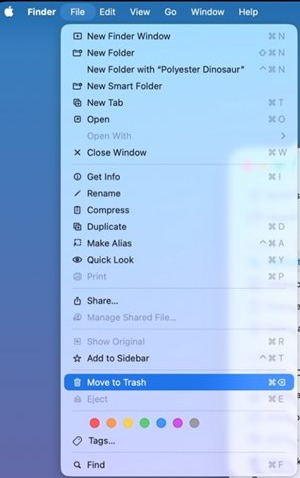
- Drag WhatsApp to the Trash at the end of the Dock.
- Download WhatsApp for Mac again from the App Store or the WhatsApp Download page.
- Open the app and follow the prompts to finish the installation.
- Link the app to your phone again by scanning the QR code.
If your Mac says the app is in use, make sure WhatsApp is closed, or restart your iMac and try again. Use only the App Store or whatsapp.com, because linking through an unofficial app can get your account banned.
How to use WhatsApp Web for Mac while the app is blank
WhatsApp Web runs in your browser and needs no download, so it keeps you messaging while you repair the app.
- Go to web.whatsapp.com in Safari or another supported browser on your iMac.
- Open WhatsApp on your primary phone and go to Linked devices > Link a device.
- Scan the QR code shown in the browser.
- Click the same chat contact to see whether the problem follows you.
If the contact opens normally in the browser, the problem sits with the Mac app rather than your account or that chat.
Is WhatsApp linked to my Mac? How to see linked devices
- Open WhatsApp on your primary phone.
- Go to Linked devices to see every computer tied to your account.
- Look for your iMac in the list.
- Tap any device you do not recognise, then tap Log out.
A working fix looks like this: your iMac is listed, the chat contact opens, and a test message you send there also appears on your phone.
WhatsApp messages on Mac not showing in a chat
The chat opens but its older messages are missing
Not all messages and chats sync from your phone, and WhatsApp reports a known issue with some linked devices not showing up to one year of history.
- Open the chat on your primary phone, which keeps your full history.
- Update WhatsApp on the iMac.
- Give the linked device a few minutes to load the history.
WhatsApp stopped working after your phone sat unused
Linked devices log out if the primary phone is unused for over 14 days.
- Open WhatsApp on your primary phone.
- Go to Linked devices > Link a device.
- Scan the QR code on your iMac.
A yellow icon appears next to Computer not connected
Your iMac may not have an active internet connection.
- Check your connection, and contact your internet provider if you are offline.
- Turn your iMac off, wait 30 seconds, and turn it back on.
- Try a different Wi-Fi network or a hotspot, because office and campus networks can block WhatsApp.
- On a managed network, ask the administrator to bypass traffic to
web.whatsapp.comand.whatsapp.net.
WhatsApp stays frozen after a force quit and restart
A recently connected device or an add-on can stop a Mac app from working.
- Disconnect any peripheral you just connected, such as a printer.
- Uninstall plug-ins or enhancements from other manufacturers.
- Choose System Settings > General > Software Update to install macOS updates.
WhatsApp Web for Mac blank page in Safari
The WhatsApp Web page is blank or will not load in Safari
Saved browser data or an old browser can stop the page from working.
- Refresh the WhatsApp Web page.
- In Safari, choose Safari > Settings, then click Privacy.
- Click Manage Website Data, select the WhatsApp entries, then click Remove. This can sign you out of the site.
- Log back in to WhatsApp Web with the QR code.
- Make sure you have Safari 15 or later, or try the page in Chrome, Edge, Firefox or Opera.
If the page still fails, try the other ways to fix WhatsApp Web when it doesn't load.
WhatsApp on iMac FAQ
Does WhatsApp work on Mac?
Yes. WhatsApp for Mac runs on macOS 12.1 or newer and supports chats, voice and video calls, and screen sharing. On older Macs, you can use WhatsApp Web in a browser instead, because the web version needs no app.
How to download WhatsApp on MacBook?
Download it from the Apple App Store or from the WhatsApp Download page in your browser, then open the file and follow the prompts. The steps are the same on a MacBook and an iMac. Link it to your phone afterwards.
Can you get WhatsApp on MacBook?
Yes. WhatsApp offers an app for Mac computers, including MacBook models, through the App Store and its own website. You still need a primary phone to register your account and to link the MacBook for the first time.
Where is WhatsApp on my computer?
On a Mac, click the Finder icon in the Dock, then click Applications in the sidebar and open WhatsApp. If it is not listed, the app is not installed, so you can download it or use web.whatsapp.com in a browser.
Where is WhatsApp on my laptop?
On a MacBook, look in the Applications folder in Finder. On a Windows laptop, WhatsApp comes from the Microsoft Store or the WhatsApp Download page and opens from the Start menu after installation. Without an installed app, go to web.whatsapp.com.
Does WhatsApp on Mac work without my phone?
Yes, for up to 14 days at a time. Linked devices keep working with your phone offline, but they log out if the phone is unused for over 14 days. You still need the phone to register your account and link new devices.