Clean the TrueDepth camera, check Settings > Face ID & Passcode, restart your iPhone and then reset Face ID to fix most cases of an iPhone not recognizing your face.
The sections below cover each fix in order, the settings that affect glasses and masks, why a passcode is sometimes required even when Face ID works, and the alerts that mean the camera needs service.
How to fix if iPhone is not recognizing Face ID?
Work through these in order and test Face ID after each step. Most recognition problems clear before the last one.
- Remove any smudge, case or screen protector covering the TrueDepth camera at the top of the display.
- Hold your iPhone 10-20 inches from your face, with your eyes, nose and mouth fully visible.
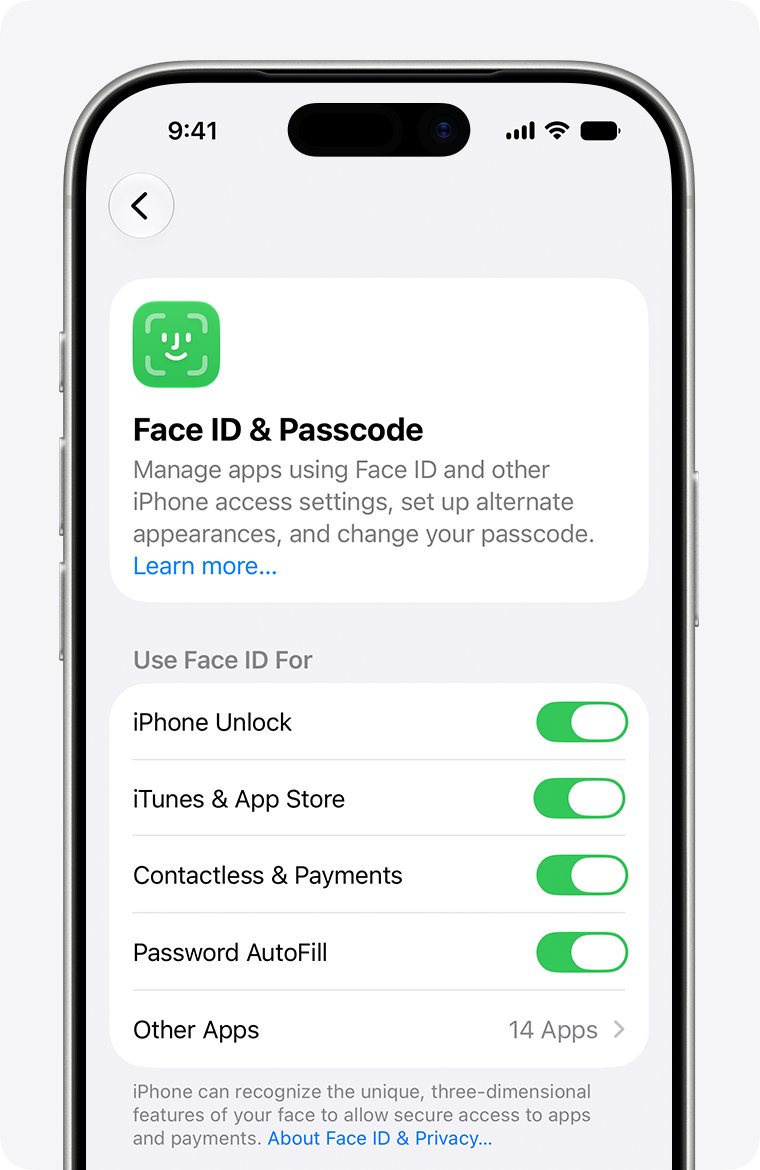
- Go to Settings > Face ID & Passcode, enter your passcode, and confirm Face ID is set up and the feature you are using is turned on.
- Go to Settings > General > Software Update and install any update shown.
- Restart your iPhone, enter your passcode, and try Face ID again.
- Go to Settings > Face ID & Passcode, tap Reset Face ID, then tap Set up Face ID and scan your face again.
If setup repeatedly asks you to position your face within the frame and never continues, stop there. Apple says that points to a hardware problem that may need service.
Why is my iPhone not recognizing my face?
The pattern of the failure usually tells you which fix to try. Match what you see to a row below.
| What you notice | Likely cause | What to do |
|---|---|---|
| Fails only with certain glasses | Glasses are changing how you look to the camera | Add an alternate appearance while wearing them |
| Fails with sunglasses on | Some sunglasses block the infrared light the camera uses | Try Face ID without them |
| Fails while wearing a mask | Face ID needs your mouth and nose unless Face ID with a Mask is set up | Turn on Face ID with a Mask |
| Fails after a big change, like shaving a full beard | Your stored face data needs confirming | Enter your passcode, or add an alternate appearance |
| Fails when the iPhone is sideways | Models before iPhone 13, or those on an iOS version before iOS 16, work only in portrait | Hold it upright |
| Works to unlock, but not for apps or purchases | That feature is turned off below Use Face ID For | Turn the feature on in Face ID settings |
| Asks for a passcode at set moments | A built-in security rule, not a fault | Enter it, and Face ID resumes |
| An alert says Face ID has been disabled | A problem with the TrueDepth camera | Update iOS, then get service |
Which iPhone models support Face ID?
Check this first if you changed phones, because not every recent iPhone has a TrueDepth camera.
| Series | Models with Face ID |
|---|---|
| iPhone 18 | iPhone 18 Pro and iPhone 18 Pro Max |
| iPhone 17 and Air | iPhone 17, iPhone 17 Pro, iPhone 17 Pro Max, iPhone 17e and iPhone Air |
| iPhone 16 | iPhone 16, 16 Plus, 16 Pro, 16 Pro Max and 16e |
| iPhone 15 and 14 | All models in both series, including Plus and Pro models |
| iPhone 13 and 12 | All models in both series, including mini and Pro models |
| iPhone 11 and X series | iPhone 11, 11 Pro, 11 Pro Max, XS, XS Max, XR and X |
| Without Face ID | iPhone SE models have no TrueDepth camera, and iPhone Duo uses Touch ID |
How to clean and inspect the TrueDepth camera on iPhone
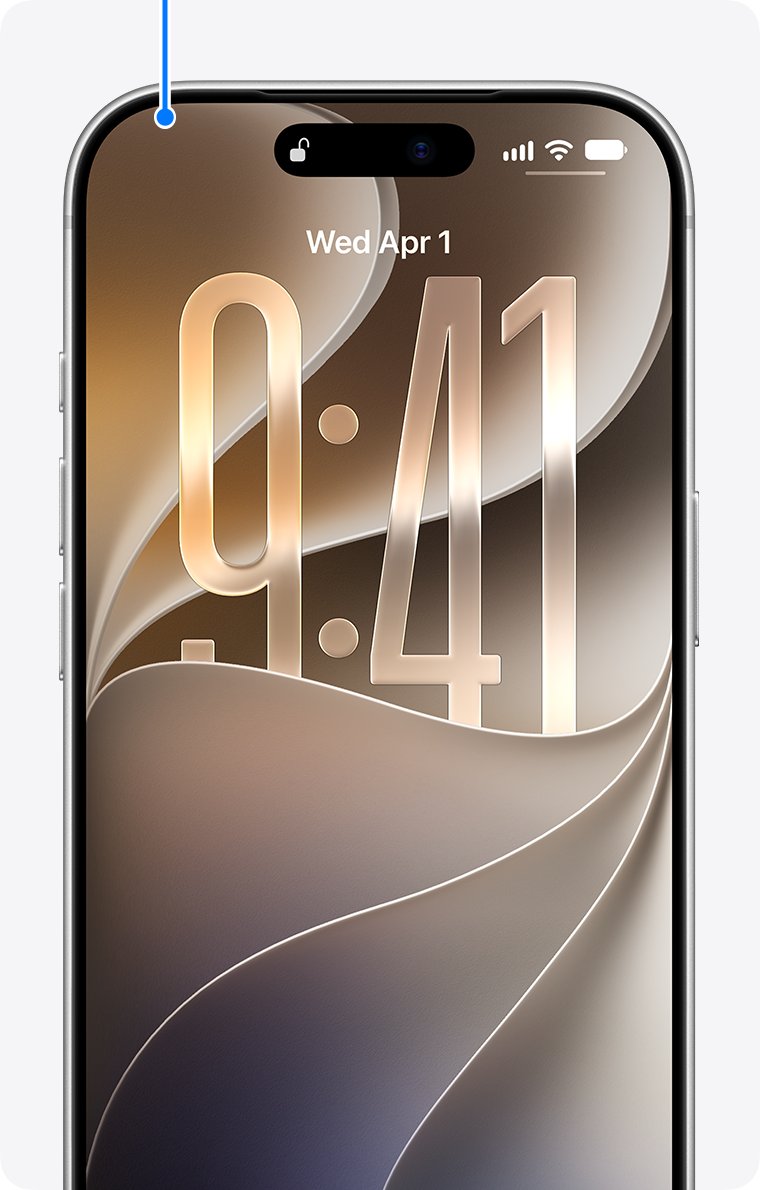
The TrueDepth camera sits at the top of the screen. On iPhone 18 Pro models it is at the top of the device toward the left corner, so a finger or palm can cover it when you hold the phone sideways.
- Unplug any cables from your iPhone.
- Wipe the top of the display gently with a soft, lint-free cloth. Avoid paper towels and abrasive cloths.
- Take off any case that overlaps the top edge of the screen.
- Remove a screen protector if it covers the camera area.
- Look for cracks or damage above the camera, then try Face ID again.
Do not spray cleaner directly on the phone, and keep moisture out of openings. Apple allows a 70 percent isopropyl alcohol wipe for stubborn marks on hard surfaces.
How to check Face ID settings on iPhone
- Open Settings and tap Face ID & Passcode.
- Enter your passcode if asked.
- Check whether Reset Face ID appears. If you see Set Up Face ID instead, Face ID has not been set up on this iPhone.
- Below Use Face ID For, turn on each feature you want, such as iPhone Unlock, iTunes & App Store and Password AutoFill.
- Tap Other Apps and turn on any app that should sign in with Face ID.
- Sign in to an app manually once if it supports Face ID but never offers it.
How far should you hold iPhone for Face ID to work?
Hold it at arm's length or closer, about 10-20 inches from your face. The TrueDepth camera has a similar range of view to a selfie or FaceTime call.
- Hold your iPhone in portrait, and face the screen directly.
- Keep it 10-20 inches away, rather than close to your chin or at your waist.
- If the iPhone is lying on a surface, lean over it so the camera can see your face or your eyes.
- Move hats, scarves or hair away if they hide your eyes, nose or mouth.
- Use landscape only on iPhone 13 or later with iOS 16 or later, and keep your hand off the camera.
Does Face ID work in the dark or in low light?
Yes. Apple designs Face ID to work indoors, outdoors and in total darkness, because the camera uses invisible dots and an infrared image. Poor light on its own is rarely the fault, but a few lighting situations do cause trouble.
| Situation | Expect this | What to do |
|---|---|---|
| A dark room, no extra factors | Face ID should still work | Look for another cause, such as a covered camera |
| Setting up Face ID | Apple asks for good lighting | Do the setup in a well-lit room |
| Extreme backlight from the sun | Can stop recognition on iPhone 18 Pro models | Turn away from the sun, or move into shade |
| Low light with a mask and glasses | Can stop recognition on iPhone 18 Pro models | Remove your glasses or adjust your mask |
How to set up an alternate appearance for Face ID
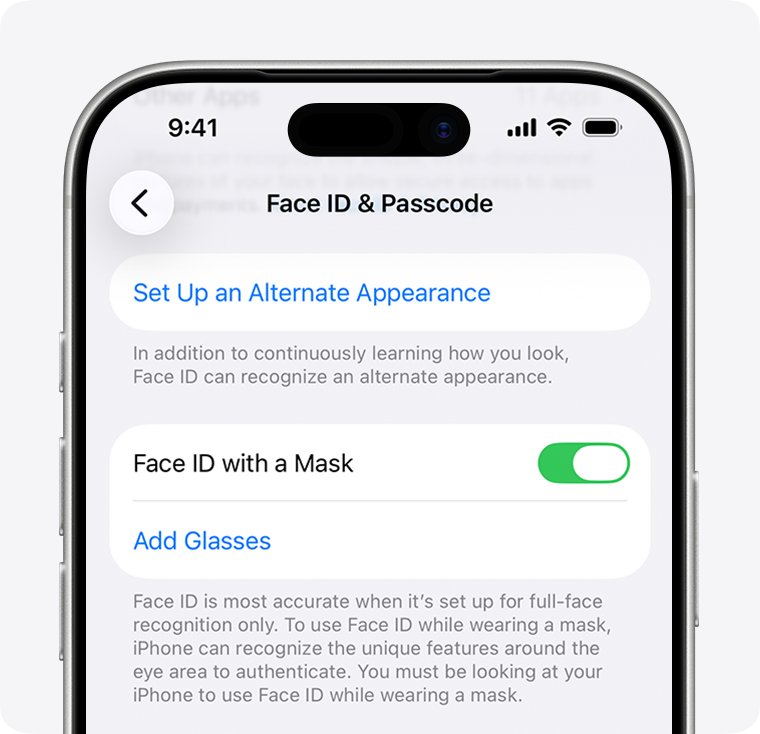
Face ID adapts to gradual changes such as makeup or growing facial hair. Add an alternate appearance if you can look very different from one day to the next, or if clear or prescription glasses stop it working.
- Go to Settings > Face ID & Passcode and enter your passcode.
- Tap Set Up an Alternate Appearance.
- Wear the look you want recognized, such as your glasses or heavy makeup.
- Hold your iPhone in portrait and follow the onscreen instructions to scan your face.
- Lock your iPhone and test Face ID with that appearance.
How to use Face ID with a mask and glasses on iPhone
Face ID with a Mask needs an iPhone 12 or later with iOS 15.4 or later, and it reads the area around your eyes. It works only in portrait, and it is not designed to work with sunglasses.
- Go to Settings > Face ID & Passcode.
- Scroll down and turn on Face ID with a Mask.
- Tap Use Face ID with a Mask and complete the face scan.
- If you wear glasses, tap Add Glasses and follow the instructions. You can add up to four pairs.
- If the mask still fails, wear it lower on your face and hold your iPhone higher and closer.
Apple notes that Face ID is most accurate when it is set up for full-face recognition only. If you do not need mask support, leave it off. An Apple Watch can also unlock your iPhone while you wear a mask.
How to update iOS to fix Face ID not working
Updating iOS is Apple's first recommendation, and it is also the first step for a Face ID disabled alert.
- Back up your iPhone with iCloud or a computer.
- Plug in your iPhone and connect to Wi-Fi.
- Open Settings and tap General, then Software Update.
- Tap Download and Install if an update is available, and follow the onscreen instructions.
- Try Face ID again after the iPhone restarts.
How to restart or force restart iPhone when Face ID stops working
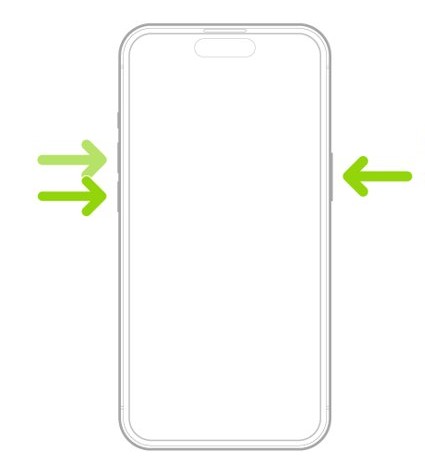
Try a normal restart first by pressing and holding the side button and either volume button until the sliders appear, then turning the iPhone off and back on. You must enter your passcode afterward. If the phone is not responding, force restart your iPhone with the steps below.
- Press and quickly release the volume up button.
- Press and quickly release the volume down button.
- Press and hold the side button.
- Release the side button when the Apple logo appears.
- Enter your passcode, then lock the iPhone and test Face ID.
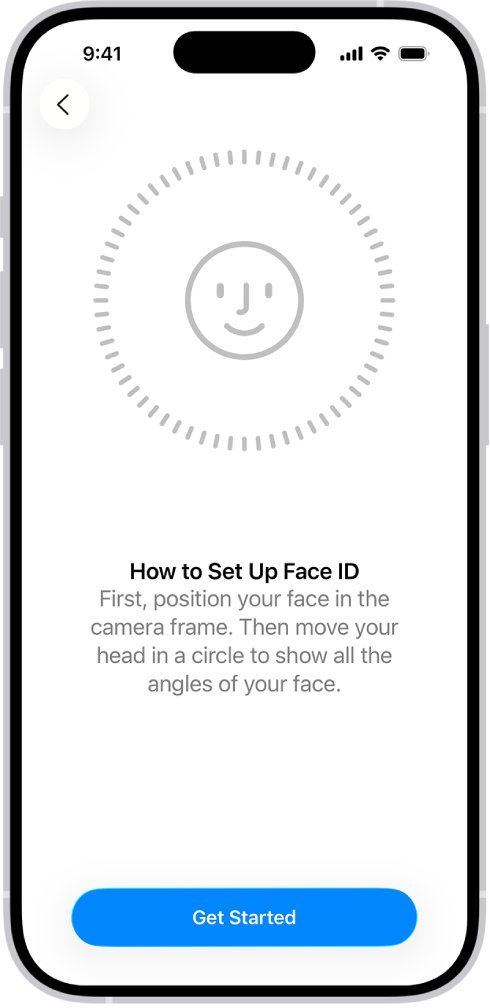
How to reset Face ID on iPhone and set it up again
Resetting deletes your stored face data from the iPhone, so a fresh scan replaces it. Do this in good light with nothing covering your face.
- Go to Settings > Face ID & Passcode and enter your passcode.
- Tap Reset Face ID.
- Tap Set up Face ID, hold your iPhone in portrait and tap Get Started.
- Position your face inside the frame and gently move your head to complete the circle.
- Tap Continue, complete the circle a second time, then tap Done.
If you cannot move your head, tap Accessibility Options during setup. Face ID stays secure, but it needs you to look at your iPhone more consistently.
How to reset all settings on iPhone for Face ID problems
Apple's Face ID help does not list this step, so try it only after the fixes above and before paying for service. It keeps your data and media, but it removes network settings, location and privacy settings, the keyboard dictionary and Apple Pay cards.
- Back up your iPhone first, so you can restore your settings if this does not help.
- Open Settings and tap General.
- Tap Transfer or Reset iPhone, then tap Reset.
- Tap Reset All Settings. Do not choose Erase All Content and Settings, which removes your content.
- Enter your passcode to confirm, then check Face ID after the iPhone restarts.
How to get Apple Support to fix a Face ID problem
Get service if Face ID still fails after a reset, if setup never gets past positioning your face, or if the camera itself is not working. Apple says only a trained technician should repair the TrueDepth camera, because it contains lasers.
- Update iOS and back up your iPhone.
- Note the alert or behavior you see, including when it started.
- Use the Get service link on Apple's Face ID help page, or contact Apple Support.
- Choose a repair by a trained technician who uses genuine Apple parts.
Improper repair or nongenuine parts in the laser system might stop its safety mechanisms working and could cause hazardous exposure and injury to eyes or skin.
Why does iPhone ask for a passcode instead of Face ID?
These are security rules, so a passcode request at these moments does not mean Face ID has failed. You may also enter your passcode more often just after setup, while Face ID learns your face.
| When Apple requires the passcode | Detail |
|---|---|
| After turning on or restarting | The device has just been turned on or restarted |
| After 48 hours | The device has not been unlocked for more than 48 hours |
| After a long gap in passcode use | The passcode has not been used in six and a half days, and Face ID has not unlocked the device in the last 4 hours |
| After a remote lock | The device has received a remote lock command |
| After five failed matches | Five unsuccessful attempts to match a face |
| After the power or SOS sliders | You held either volume button and the side button together for 2 seconds |
Tips to keep in mind for iPhone Face ID
| Tip | Why it matters |
|---|---|
| Set up Face ID in good light | Apple asks for good lighting during enrollment, even though Face ID can later work in the dark |
| Enter your passcode after a near miss | Face ID updates its data when it detects a close match and you then enter your passcode |
| Keep Require Attention for Face ID on | It is the more secure setting. People with low vision can turn it off in Settings > Accessibility > Face ID & Attention |
| Turn on Haptic on Successful Authentication | You feel a confirmation when Face ID succeeds, which helps you tell a failure from a slow unlock |
| Use a passcode if you have a twin or a child under 13 in the house | Apple says the chance of a false match is higher for twins, siblings that look like you and children under 13 |
| Do not count on a backup restoring Face ID | Face ID data is never saved to iCloud or anywhere else, so a new or erased iPhone needs a new scan |
How to tell if Face ID is working on iPhone
- Press the side button to lock your iPhone, and wait a few seconds.
- Tap the screen or raise the iPhone to wake it, then glance at it.
- Watch for the iPhone to unlock with no passcode request, then swipe up to reach the Home Screen.
- Open the App Store and start a purchase, then double-click the side button and glance at the screen when asked to pay.
- Repeat the test with your glasses or mask if those caused the failure.
Face ID not working on iPhone: alerts and errors
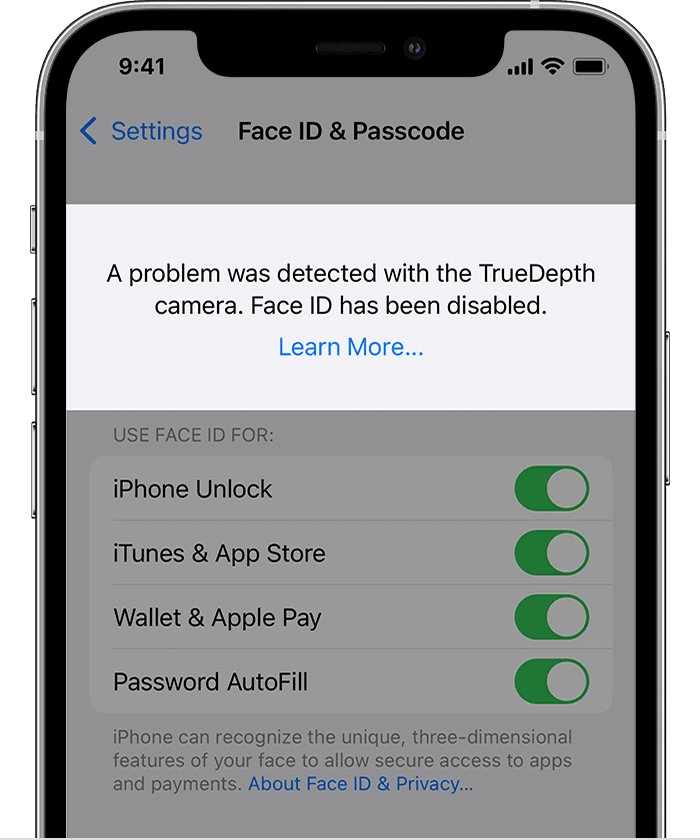
"A problem was detected with the TrueDepth Camera. Face ID has been disabled."
Diagnostics found an issue with the TrueDepth camera, and its lasers can be disabled for safety if the device malfunctions or is damaged.
- Update your iPhone to the latest version of iOS.
- Try to enroll your face again.
- Get service if you still cannot enroll or unlock. Until then, Animoji, Memoji and some other front camera features may also stop working.
"Face ID issue detected" alert
This alert, or a disabled message in your parts and service history, means your iPhone might need an update or service.
- Install any available iOS update.
- Test Face ID after the update finishes.
- Get service if the alert returns or Face ID stays unavailable.
Face ID keeps asking you to position your face within the frame
Setup cannot complete, which Apple links to a possible hardware fault.
- Move to good light, and remove anything covering your face or the camera.
- Open the Camera app and test the front camera.
- Get service if setup still will not continue or the camera is not working.
Face ID not working after a screen replacement
The TrueDepth camera sits at the top of the display, and damage or improper repair can leave its laser system disabled for safety.
- Update iOS and try setting up Face ID again.
- Check your parts and service history for a Face ID message.
- Go through the fixes for Face ID problems after a screen replacement, then ask a trained technician to inspect the repair.
Face ID unlocks the iPhone but will not work in apps
Each feature has its own switch, and some apps need a manual sign-in first.
- Go to Settings > Face ID & Passcode and tap Other Apps.
- Turn on the app you are using.
- Sign in to the app manually once, then try Face ID again.
Face ID with a mask does not unlock the iPhone
This mode needs a clear view of your eyes and the area around them, and it works only in portrait.
- Hold your iPhone upright, a little higher and closer than usual.
- Pull the mask away from your eyes.
- Take off sunglasses, because this mode is not designed for them.
- Tap Add Glasses in Face ID settings if you wear clear glasses.
iPhone not recognizing Face ID FAQ
Why did Face ID suddenly stop working on my iPhone?
A new case, screen protector or smudge covering the TrueDepth camera is the first thing to check. Then look at Face ID settings, install any iOS update and restart. If an alert says Face ID has been disabled, the camera needs an update or service.
Can a screen protector stop Face ID from working?
Yes. Apple lists screen protectors among the things that can cover the TrueDepth camera, along with cases and smudges. Remove the protector and test Face ID. If recognition returns, replace it with one that leaves the camera area clear.
How many times can Face ID fail before a passcode is required?
Five. Face ID allows five unsuccessful match attempts, and then your iPhone requires the passcode. This is a security limit rather than a fault, and Face ID works again once you have entered the correct passcode.
Does Face ID work with sunglasses?
It works with many sunglasses, but not all. Some are designed to block the types of light the TrueDepth camera uses, including infrared. Try without them if it fails. Face ID with a mask is not designed to work with sunglasses at all.
Does Face ID work when iPhone is flat on a table?
Yes, if the TrueDepth camera can see your face or your eyes and you are within arm's length, about 10-20 inches. Lean over the phone so your face is in its range of view, much as you would for a selfie.
Can Face ID be repaired, and who should do it?
Yes, if the TrueDepth camera has a fault, but only a trained technician using genuine Apple parts should service it. The camera contains lasers, and improper repair or nongenuine components might cause hazardous exposure and injury to eyes or skin.
Does resetting Face ID delete my data?
No. Tapping Reset Face ID only deletes your Face ID data, including the mathematical representations of your face. Your apps, photos and other content stay on the iPhone, and you scan your face again to set it up.
Does a factory reset fix Face ID?
Apple's Face ID help does not list erasing as a fix, and it deletes everything on the phone along with your Face ID data. Try a Face ID reset first. If you still need to factory reset your iPhone without Face ID, back it up beforehand.
Does Face ID work on a new iPhone restored from a backup?
It needs setting up again. Face ID data does not leave your device and is never backed up to iCloud or anywhere else, so a restored iPhone has no stored face data until you scan your face in Face ID settings.
Why does Face ID work better on some days than others?
Changes in appearance and angle are the usual reason. Face ID adapts over time and may need your passcode to confirm a bigger change, such as shaving a full beard. An alternate appearance helps if you often look very different.