Clear an app's cache on Android by opening Settings > Apps, choosing the app, and tapping Storage & cache > Clear cache.
This guide covers that method plus Chrome's browser cache and the Files by Google junk cleaner, and explains what each one deletes. Labels vary by phone maker.
How to clear cache on Android: step-by-step
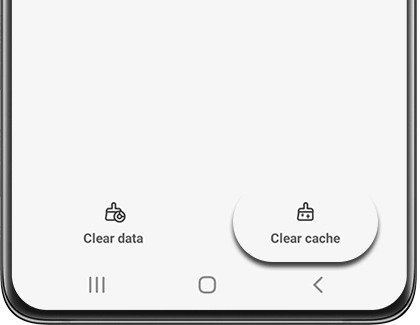
Method 1 clears one app's temporary files and leaves your logins, messages, and photos alone. Google notes that settings vary by phone, so your labels may differ slightly.
- Open your phone's Settings app.
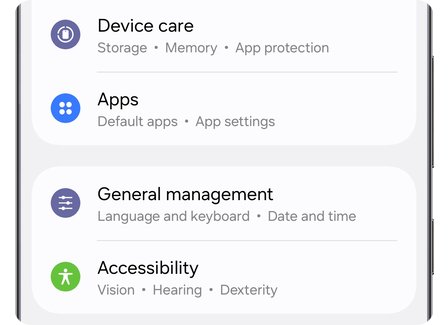
- Tap Apps. If the app is not listed, tap See all apps.
- Tap the app that is misbehaving.
- Tap Storage & cache.
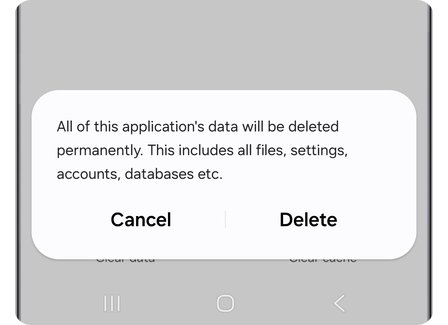
- Tap Clear cache, and leave Clear storage alone.
The app may open more slowly the next time, because it has to rebuild those files.
Which cache-clearing method should you use?
| Your situation | Use this method | What it removes |
|---|---|---|
| One app crashes, freezes, or shows old content | Method 1: Clear cache for that app in Settings | That app's temporary files |
| Websites load wrong or look broken | Method 2: Delete browsing data in Chrome | Chrome's cached images and files, plus cookies if you select them |
| You want space back across many apps at once | Method 3: Junk files in Files by Google | Temporary files stored by apps |
Why does Android cache build up in the first place?
Apps save copies of things they will need again, so they do not have to download or rebuild them. Browsers keep parts of pages, like images, to help those pages open faster on your next visit.
| Type of data | What it holds | What happens if you delete it |
|---|---|---|
| App cache | Temporary files an app can recreate | The app may open slowly once, then rebuilds it |
| Browser cache | Parts of web pages, like images | Some sites seem slower until content loads again |
| Cookies | Site data that remembers things like sign-ins | You may have to sign in to sites again |
| App storage (data) | Everything the app saved, including settings and accounts | Google says Clear storage permanently deletes all app data |
Android can also remove cached files on its own when internal storage runs low. Google calls clearing cache a short-term fix, because cached data builds up again over time.
Method 2: How to clear cache on Android phone Chrome
Chrome's cache is separate from the app settings screen, and Chrome lets you choose exactly what to delete. This is the fix for pages that will not load or look wrong.
- Open Chrome on your Android phone or tablet.
- On the right of the address bar, tap More > Delete browsing data.
- Choose a duration. The default is 15 minutes, so pick a longer range if the problem is older.
- Tap More options.
- Select the cached images and files option, and unselect anything you want to keep.
- Tap Delete data.
If you delete cookies, sites sign you out, although you stay signed in to your Google Account while signed in to Chrome. On Galaxy phones using the Samsung browser, Samsung says too much stored data can slow it down, and clearing the browser's cached data is the fix.
Method 3: Android clear cache all apps at once
The Settings steps above work one app at a time. Google's Files by Google app can clear temporary files across apps in one pass, and app settings are not affected.
- Open Files by Google on your Android device.
- Tap Menu > Clean.
- On the Junk files card, tap Clean, which shows the amount of space you get back.
- On the confirmation dialog, tap Clear.
Data cleared this way is permanently deleted, but these are temporary files that apps can recreate. Skip third-party cleaner apps, since you get the same result from Google's own tool.
Step by step tutorial: Clearing cache on your Android device
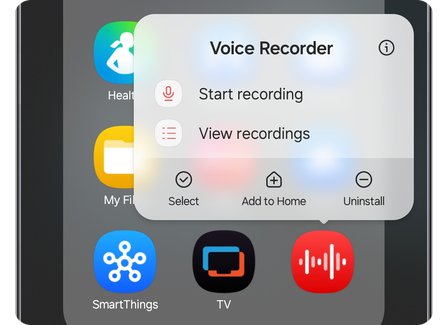
This shortcut for Method 1 skips the Settings menus, and Google uses it for the Play Store. It works from the app's icon on your home or app screen.
- Find the app on your home screen or app screen.
- Touch and hold the app icon.
- Tap App info.
- Tap Storage & cache.
- Tap Clear cache.
- Open the app and check whether the problem has gone.
Use the same steps on an Android tablet, a Samsung Galaxy phone, or any other Android cell phone. Menu names can differ by manufacturer, so look for the screen that lists the app's storage figures.
Alternative ways to free up space and speed things up
Clearing cache buys a little space for a little while. These steps free more or remove the cause.
| Option | How to do it | When it helps |
|---|---|---|
| Uninstall and reinstall the problem app | Play Store > profile icon > Manage apps & devices > Manage > the app > Uninstall, then install it again | Clearing cache did not fix the app, and you can sign back in |
| Clear Google Play Store cache | Touch and hold Google Play Store > App info > Storage & cache > Clear cache | Downloads stick or the Play Store will not open |
| Move photos and video to the cloud | Settings > Storage > Free up space > Menu > Settings > turn on Smart Storage | Backed-up photos and videos fill your storage |
| Delete files you no longer use | Settings > Storage > Free up space, then Select files in a category | You get a storage warning, or under 1 GB is free |
| Archive unused apps | Turn on automatic archiving in the Play Store's settings | You keep apps you rarely open |
| Restart the phone | Press and hold the Power button, then tap Restart | The phone lags or apps stop responding |
If the whole phone is lagging, the steps to speed up an old Android phone go further than storage alone. Apps you never open can go too, and you can completely delete and uninstall them.
How often should you clear cache on Android?
Clear cache only when an app misbehaves or storage runs low, not on a schedule. Cache exists to make apps open faster, so clearing it often makes them rebuild the same files. Google also calls it a short-term solution, because cached data builds up again, and Android may remove cached files on its own when internal storage is low.
Tips for clearing cache on your Android device
| Tip | Why it matters |
|---|---|
| Tap Clear cache first, and Clear storage only if that fails | Clear storage permanently deletes all app data |
| Back up what lives only inside an app before you tap Clear storage | Google suggests deleting data within the app first where you can |
| Check for an app update before clearing anything | Google lists updating alongside restarting as the first step for a broken app |
| Restart the phone after each fix | Google suggests a restart so you can tell which step helped |
| Do not clear Google Play services data unless you must | Its own steps end in Clear all data, so stop at Clear cache unless the Play Store still fails |
How to see how much cache an Android app is using
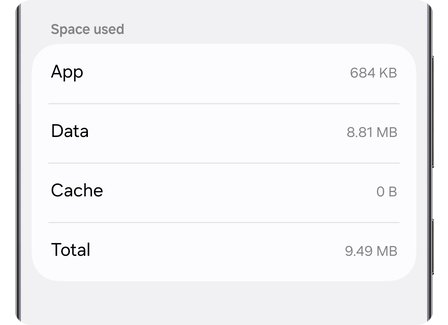
Check the numbers before and after to see what you gained. The app's storage screen shows them, and the cache figure should fall after you clear it.
- Open Settings > Storage to see the total used by each category.
- Open Settings > Apps, then tap the app.
- Tap Storage & cache and read the figures listed there.
- Tap Clear cache if you have not already, then read the figures again.
Clear cache on Android still not working?
Why can't I clear cache on my Android?
Settings vary by phone, so the option may sit under a different path.
- Touch and hold the app icon, then tap App info.
- Open the app's storage screen and look for Clear cache.
- If the label is missing, check your manufacturer's support site.
The app still crashes or will not open
The problem is in the app itself or its saved data rather than the cache.
- Press the Power button for about 30 seconds until the phone restarts.
- Open Play Store, tap your profile icon, tap Manage apps & devices, and update the app.
- Tap Clear storage only after you save anything you need from the app.
- Uninstall and reinstall the app, then contact its developer if the problem continues.
Play Store still will not download apps
Its cache and data, or Google Play services, hold the fault.
- Touch and hold Google Play Store, tap App info, then tap Storage & cache > Clear cache.
- Tap Clear storage > Delete.
- Open Settings > Apps > Google Play services > Storage & cache > Clear cache.
- Check that the date and time are set automatically, then restart the phone.
The cache fills up again right after you clear it
Apps recreate temporary files as you use them, which is normal.
- Open Settings > Storage to find the apps taking the most space.
- Update the heaviest app in the Play Store.
- Uninstall or archive any app you rarely use.
Android cache FAQ
Does clearing cache on Android delete my photos or messages?
No. Clear cache deletes only an app's temporary data, so your photos, messages, and accounts stay put. Clear storage is the different button that permanently deletes an app's data, so read the label before you tap it.
Can I clear cache on my Android phone?
Yes. Open Settings, tap Apps, tap the app, then tap Storage & cache and Clear cache. Some labels vary by phone maker. For Chrome, use Delete browsing data in the browser instead, and for several apps at once use Files by Google.
Why clear cache on an Android phone?
Clearing cache can fix an app that crashes, shows old content, or will not load, and it frees some storage temporarily. It helps websites too, because a stale browser cache can cause loading and formatting problems. The space fills up again over time.
Will clearing cache make my Android phone faster?
Only when a full phone or a faulty app is causing the slowdown. Apps may open more slowly the first time after clearing, since they rebuild their temporary files. For a generally slow phone, check storage, update Android and apps, then restart.
What's the difference between clearing cache and wiping the cache partition?
Clearing cache removes one app's temporary files from Settings. Wiping a cache partition is a recovery-mode action on the system's own cache area, offered only on some phones. Android A/B devices no longer store update packages in the cache partition, so check your manufacturer's instructions first.
How do I clear cache on Android without entering Recovery Mode?
Use the Settings app, Chrome's Delete browsing data, or Files by Google. All three work while the phone runs normally, with no key combinations. Google's Android help points to the Settings app for clearing an app's cache, with no mention of recovery mode.
Why does my cache fill up again so quickly after clearing it?
Apps rebuild their temporary files as soon as you use them, and that is by design. Google describes clearing cache as a short-term solution, so update or remove a heavy app if storage stays tight.
How do I clear cache and cookies on Android?
In Chrome, tap More, then Delete browsing data, then More options. Select cookies and cached images and files, and tap Delete data. Some sites will sign you out afterward. For other browsers, check that browser's support site for its steps.
How do I clear cache on an Android tablet?
Use the same steps as a phone: Settings, Apps, the app, Storage & cache, Clear cache. Chrome's Delete browsing data and Files by Google also work on Android tablets. Google publishes one set of steps for Android phones and tablets, with labels varying by maker.
How do I clear cache on an Android box?
Google's Android TV help opens apps through Settings, then Apps under Device, on the Home screen. It documents removing apps for space rather than a cache button, and it warns its steps may not fit every TV. Check your box maker's support page for the cache label.