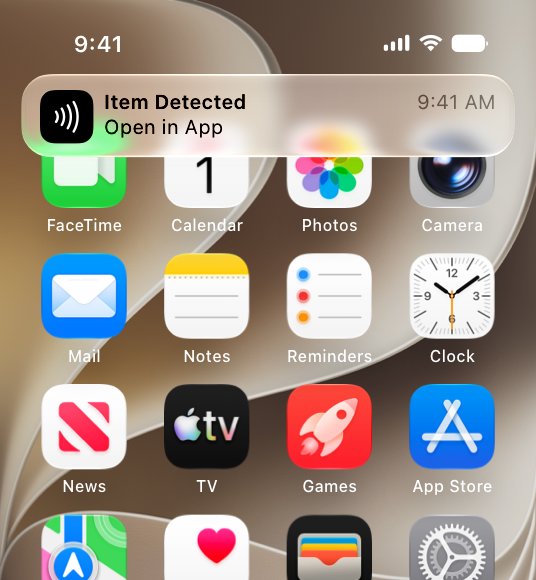
On iPhone XS and later, the NFC tag reader is already on: wake the iPhone and hold it near the tag, and a notification appears when the tag is read.
This guide covers scanning on every iPhone with NFC, using tags with the Shortcuts app, programming a tag, turning the reader off, and fixing an iPhone that does not react.
Turn on NFC tag reading on iPhone
Apple calls this background tag reading. The system scans for tags by itself while the iPhone is in use, so there is no app to open first, and Apple documents no NFC switch in Settings.
- Wake the iPhone so the display is on, and unlock it at least once since it last restarted.
- Turn off Airplane Mode if it is on.
- Close the Camera app and Apple Pay Wallet, because either one pauses tag reading.
- Hold the iPhone near the NFC tag until a notification appears.
- Tap the notification to open the link or app stored on the tag.
- Unlock the iPhone if it asks, and the tag data goes to the app.
The notification appears once for each new tag. Nothing opens until you tap it.
Which iPhone models have an NFC tag reader
Every model below lists NFC with reader mode in its Apple technical specifications. The difference is whether the iPhone can read a tag with no app open.
| iPhone | NFC reader hardware | Reads tags with no app open | How to scan |
|---|---|---|---|
| iPhone 7 | Yes | No | NFC reader app |
| iPhone 8 and iPhone 8 Plus | Yes | No | NFC reader app |
| iPhone X | Yes | No | NFC reader app |
| iPhone XS and later | Yes | Yes | Hold near the tag, or use an NFC reader app |
How to read NFC tags on iPhone 7, iPhone 8 and iPhone X
These models have the hardware but no background reading, so an app has to start each scan. Apps can read tags through Apple's Core NFC framework on iOS 11 and later.
- Install an NFC reader app from the App Store.
- Open the app and tap its scan button.
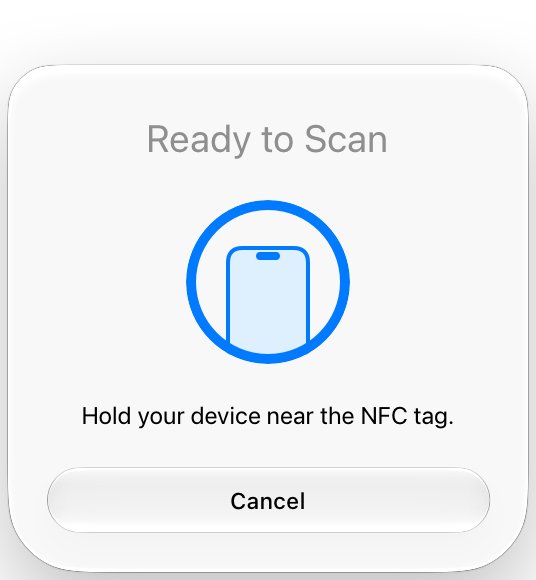
- Wait for the scanning prompt to appear on screen.
- Hold the iPhone near the NFC tag.
- Read the tag contents the app shows, or follow the link it offers.
How to add the NFC tag reader to Control Center on iPhone
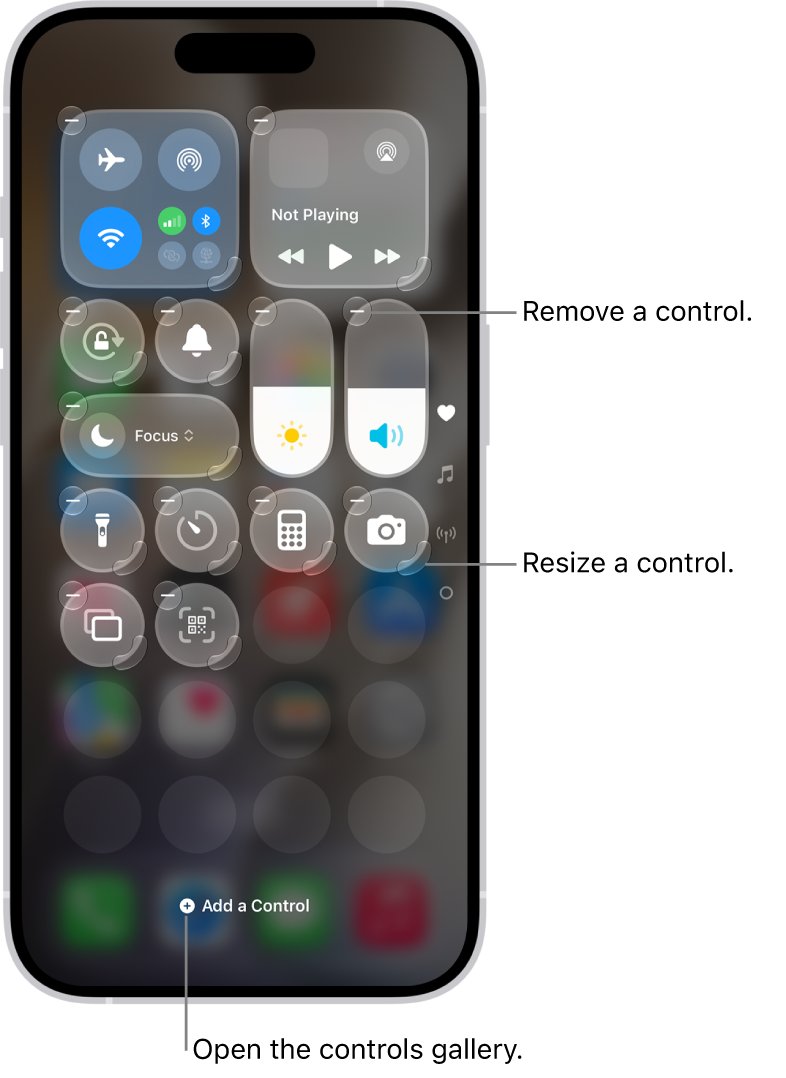
Apple's Control Center guide names no NFC control, so whether one is offered depends on your model and iOS version. Checking takes under a minute, and the same panel holds Airplane Mode, Do Not Disturb and the iPhone flashlight.
- Open Control Center: swipe down from the top-right corner on an iPhone with Face ID, or swipe up from the bottom on an iPhone with a Home button.
- Tap the add icon at the top left of Control Center to start editing.
- Tap Add a Control at the bottom of the screen to open the controls gallery.
- Look for an NFC control, and tap it if it is listed.
- Swipe up from the bottom center of the screen to close Control Center.
- On iOS versions without the gallery, go to Settings > Control Center and tap the add button next to the control instead.
If the list has no NFC control, your iPhone still reads tags through background reading or an NFC reader app.
What NFC tags can iPhone read
Core NFC reads NFC tag types 1 through 5 that hold NDEF data. Apps can also work with ISO 7816, ISO 15693, FeliCa and MIFARE tags. Background reading is narrower: it looks for a URI record in the tag's NDEF message and uses the first one it finds.
| Stored on the tag | Example | What happens after you tap the notification |
|---|---|---|
| Website URL | https://www.example.com |
The site opens |
| Universal link | A link tied to an installed app | That app opens, or Safari if no app is installed |
mailto:[email protected] |
The app that handles email links opens | |
| SMS | sms:+14085551212 |
The app that handles SMS links opens |
| Telephone | tel:+14085551212 |
The app that handles phone links opens |
| FaceTime or FaceTime Audio | facetime://[email protected] |
FaceTime opens |
| Maps | http://maps.apple.com/?address=Apple%20Park,Cupertino,California |
Maps opens |
| HomeKit accessory setup | X-HM://12345 |
Accessory setup starts |
| Custom URL scheme | myapp://open |
Not supported by background reading, so the tag must use a universal link instead |
How does an NFC tag work on iPhone
A tag holds a short message, and the iPhone reads it over Near Field Communication when the two are close. Here is the order of events for a background read.
| Stage | What the iPhone does |
|---|---|
| Scan | The system looks for tags while the iPhone is in use, which avoids accidental reads |
| Read | It inspects the tag's NDEF message for a URI record |
| Notify | It shows a pop-up notification for each new tag |
| Unlock | If the iPhone is locked, it asks you to unlock before passing on the data |
| Deliver | It sends the tag data to the matching app after you tap the notification |
How to set up NFC tags in the iPhone Shortcuts app
The NFC trigger in Shortcuts runs an automation when you scan a tag you have registered. These steps match the iOS 26 and earlier Shortcuts layout. Shortcuts ignores what is written on the tag and uses only its unique identifier, so a blank tag works.
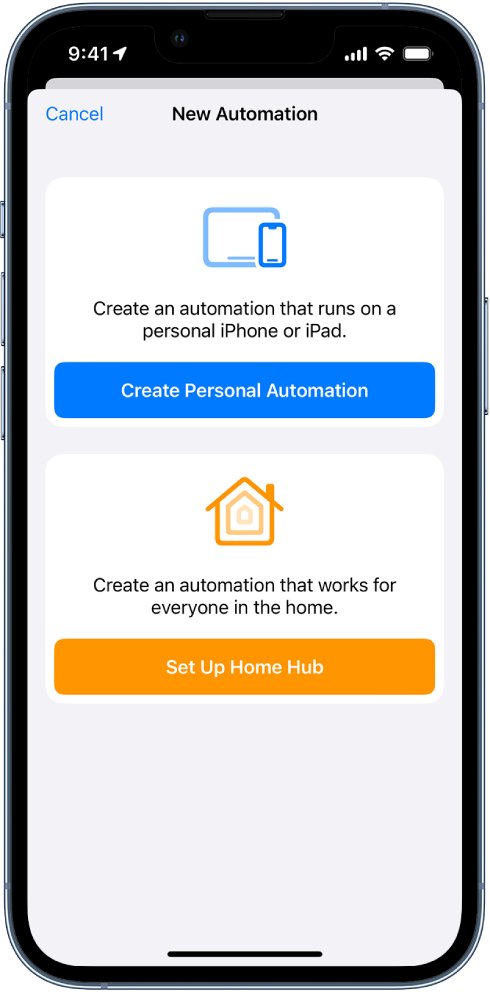
- Open the Shortcuts app and tap Automation.
- Tap the add icon in the upper-right corner if you already have an automation.
- Tap Create Personal Automation if that option appears.
- Choose the NFC trigger.
- Scan the tag when prompted, then give it a name.
- Tap Next, then tap Add Action and pick what the tag should do.
- Tap Next, then tap Done.
The new automation appears on the Automation screen. Hold the iPhone near the tag to run it.
How to add an NFC trigger to a shortcut on iOS 27
After you update your iPhone to iOS 27, the Shortcuts guide for that version attaches triggers to a shortcut rather than creating a separate automation first.
- Open the Shortcuts app.
- Tap an existing shortcut, or create a new one.
- Tap Edit, then tap Automation.
- Choose the NFC trigger.
- Scan the tag when prompted and name it.
How to run an NFC tag automation without asking on iPhone
NFC is one of the triggers Apple allows to run with no confirmation. Once this is on, the automation no longer notifies you when it fires, and some actions may need their own setting too.
| Shortcuts version | Steps |
|---|---|
| iOS 27 | Tap the shortcut, tap Edit, open its options, tap Privacy, then turn on Allow Running When Locked |
| iOS 26 and earlier | Tap Automation, tap the NFC automation, turn off Ask Before Running, tap Don't Ask, then tap Done |
How to program an NFC tag on iPhone
The iPhone needs an app to write a tag, because the Shortcuts trigger only reads the identifier. Apps write NDEF messages through Core NFC, and the tag has to be writable.
- Buy a blank, writable NFC tag that supports NDEF.
- Install an NFC writer app from the App Store.
- Open the app and enter what the tag should hold, such as a website URL.
- Tap the app's write button to start the session.
- Hold the iPhone near one tag only, because an app that finds several may ask you to remove the extras.
- Wait for the app to report that the write finished.
- Hold the iPhone near the tag again to test it.
How to tell if iPhone read an NFC tag
A successful read always leaves a visible result, so use this order to separate a reader problem from a tag problem.
- Look for the pop-up notification at the top of the screen on iPhone XS or later.
- Tap it and check that the expected site or app opens.
- Open an NFC reader app and scan the same tag if no notification appeared.
- Treat the tag as the problem if the app reads it but background reading does not, since the tag may hold no URI record.
How to turn off NFC tag reader on iPhone
Apple documents no setting that turns background tag reading off permanently. A tag near your phone cannot open anything by itself, though, because the site or app waits for you to tap the notification. That also answers how to stop an NFC website tag: ignore the notification and move the iPhone away.
- Turn on Airplane Mode to stop background reading for as long as you need.
- To stop one Shortcuts automation, open Shortcuts, tap Automation, tap the automation, turn off Enable This Automation, then tap Done.
- To remove it, tap Automation, swipe left on the automation, then tap Delete.
- On iOS 27, tap the shortcut, choose its automation trigger, and remove it.
NFC tag reader not working on iPhone
No notification appears when you hold the iPhone near a tag
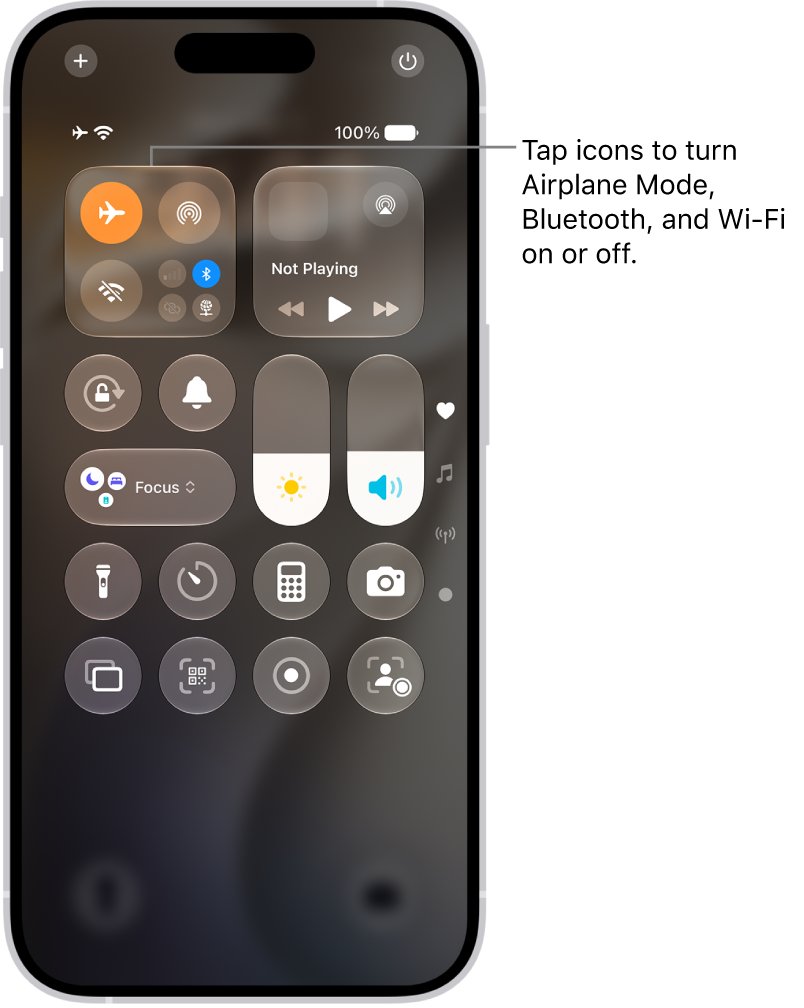
Background reading pauses in several situations even with the display on.
- Unlock the iPhone once if it has just restarted.
- Turn off Airplane Mode.
- Close the Camera app and Apple Pay Wallet.
- Close any app that is running its own NFC scan.
- Scan with an NFC reader app to check the tag itself.
An older iPhone does not react to a tag at all
Models before iPhone XS do not read tags in the background.
- Open an NFC reader app.
- Start a scan from inside the app, then hold the iPhone near the tag.
A tag link opens Safari instead of the app
With a universal link, the system opens Safari when no installed app is tied to that link.
- Install the app the tag is meant for.
- Scan the tag again and tap the notification.
A tag reads in an app but shows no notification
Background reading needs a URI record with a universal link or a supported URL scheme, and it does not support custom schemes.
- Open an NFC writer app.
- Rewrite the tag with a website URL or another supported type from the table above.
- Hold the iPhone near the tag again.
NFC tag reader on iPhone FAQ
How do you activate NFC tags on iPhone?
A tag needs no activation for reading. On iPhone XS and later, hold the phone near it while the display is on and tap the notification. To make a tag run an action, register it with the NFC trigger in the Shortcuts app.
How do you use NFC tags with an iPhone?
Use them two ways. A tag written with a link opens that link after you tap the notification, and any tag registered in Shortcuts can run an automation. Shortcuts uses only the tag's unique identifier, so it does not matter what the tag stores.
How do you make an NFC tag?
Buy a blank writable tag that supports NDEF, then write to it with an NFC writer app from the App Store. Enter a link or other content, start the write, and hold the iPhone near that one tag until the app finishes.
How do you code an NFC tag?
For most people, coding a tag means writing a URL or action with a writer app. Developers can use Apple's Core NFC framework, which reads and writes NDEF messages and works with ISO 7816, ISO 15693, FeliCa and MIFARE tags on supported iPhones.
How do you set up NFC tags for automation?
Open Shortcuts, create an automation, choose the NFC trigger, scan the tag and name it. Then add the actions it should run and save it. On iOS 27, open a shortcut, tap Edit, tap Automation and choose the trigger there.
Can you use a phone as an NFC tag?
Background reading and Shortcuts make the iPhone a reader, not a tag, and Apple documents no setting that changes this. Core NFC does include a card session for ISO 7816 card emulation, but that is a feature an app has to build.
Does the iPhone NFC reader work with the camera open?
No. Background tag reading is unavailable while the camera is in use, and also while Apple Pay Wallet is in use, while another NFC scan is running, in Airplane Mode, and on an iPhone that has never been unlocked.
Does an NFC tag open a website by itself on iPhone?
No. The iPhone shows a notification first, and the website opens only after you tap it. If the phone is locked, it also asks you to unlock before it hands the data to Safari or another app.