Support for the Windows Mobile Plans app ended in February 2026, so you now add an eSIM profile from your carrier's website or with a QR or activation code in Settings.
This guide covers the replacement steps on Windows 11, what the change means for users, carriers, OEMs and IT admins, and which claims about the retirement Microsoft has and has not confirmed.
How to replace the Mobile Plans app on Windows 11
Ask your carrier for a QR code or activation code when you sign up for the plan. Microsoft ties only the website download to a specific Windows version, so start with a code if your carrier offers one.
- Select Start > Settings > Network & internet > Cellular > eSIM profiles.
- Under Add an eSIM profile from your mobile operator, select Add profile.
- Select Let me enter an activation code I have from my mobile operator, then Next.
- Scan the QR code with your camera or type the activation code, then select Next.
- Enter the confirmation code from your carrier if asked, then select Download and Close.
- Choose the new profile under eSIM profiles and select Use.
- Select Yes when Windows warns that cellular data may incur charges.
If your PC has no eSIM, you need a physical SIM card in your laptop instead.
Background / overview
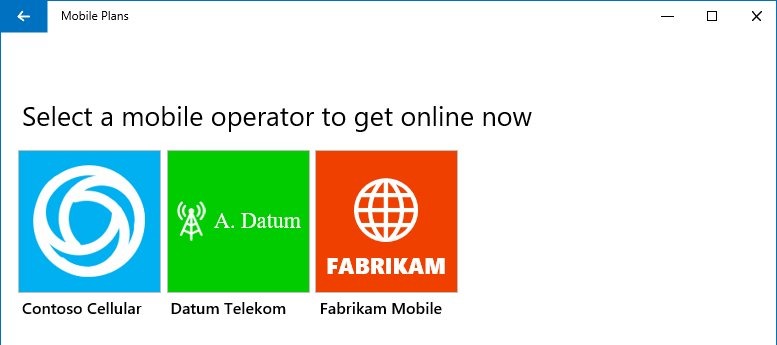
Mobile Plans was a Windows app that connected cellular PCs to mobile operators. You picked a carrier in the app, then signed up on that carrier's portal without leaving it.
| Mobile Plans app fact | Detail |
|---|---|
| Purpose | Activate cellular PCs, drive eSIM use, and connect customers directly with mobile operators |
| First supported | Windows 10, version 1803 |
| How people opened it | Network flyout, toast notification, Settings or the Start menu |
| Distribution from Windows 10, version 2004 | OEMs include it in images for cellular devices, and it is removed from noncellular devices |
| Status now | Support ended in February 2026 |
What is changing — the mechanics
The eSIM feature itself stays in Windows. What goes away is the app that sat between you and the carrier.
| Task | With the Mobile Plans app | Now |
|---|---|---|
| Find a carrier | App listed operators for your location | Choose one yourself. Microsoft's list of direct-download carriers names only Vodafone Germany |
| Sign up | Carrier portal loaded inside the app | Carrier's own website in your browser |
| Get the eSIM profile | Portal triggered the download | Website download, QR or activation code, or Search for available profiles |
| Top up or manage the account | Back through the portal in the app | Carrier's website or support team |
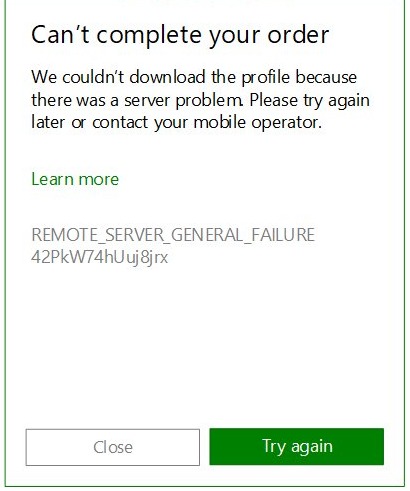
| Recover a failed download | App retried and passed error codes to the carrier | Add the profile again in Settings, then contact the carrier |
The user journey today (brief)
Today the journey starts in Settings, where you find out whether the PC can use an eSIM and whether a profile is already there.
- Select Start > Settings > Network & internet and look for a Cellular page.
- Open Use this SIM for cellular data and select eSIM, SIM2 or a similar option.
- Select Cellular > eSIM profiles and look for a profile from your carrier or organization.
- Select Use if a profile is listed, or add one if the list is empty.
A missing Cellular page means the PC does not support cellular networks, so no carrier or SIM will change that.
The user journey after retirement
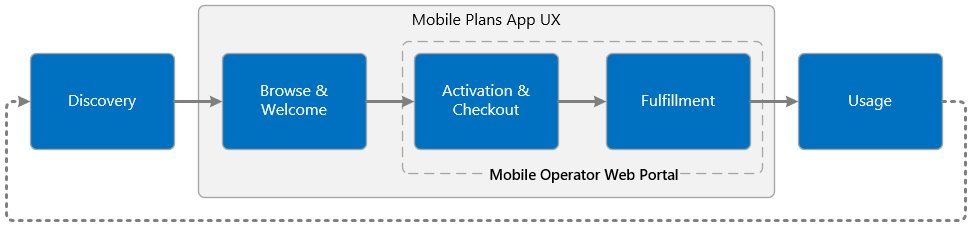
Microsoft described the old journey in five stages. Each one still has to happen, but the carrier and Settings now share the work.
| Stage | Old route through the app | Route after retirement |
|---|---|---|
| Discovery | Connect with a data plan link or a toast opened the app | Carrier's website or the Cellular page in Settings |
| Browse and welcome | Select Provider and gateway pages | Carrier's website |
| Activation and checkout | Portal inside the app | Section for activating eSIMs on Windows on the carrier's site |
| Fulfillment | Portal triggered the eSIM download | Confirm the download in Settings, or enter a code under Add profile |
| Usage | Balance in Windows, account changes through the portal | Use in eSIM profiles, account changes with the carrier |
Timeline and notice
| When | What happened |
|---|---|
| Windows 10, version 1803 | Mobile Plans support begins |
| Windows 10, version 2004 | App moves into OEM images for cellular devices and leaves noncellular devices |
| October 14, 2025 | Windows 10 reaches end of support |
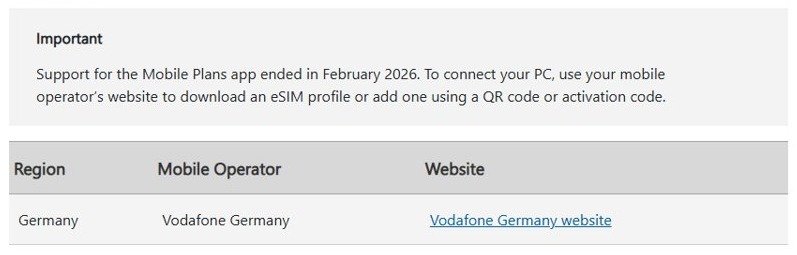
| February 2026 | Mobile Plans app support ends, and the Windows 10 notice says the app was removed |
| Windows versions later than 2602 | Windows can download eSIM profiles from supported carrier websites |
The notice appears as an Important box on Microsoft's page about adding a PC to a mobile account. It gives a month rather than a date, and no advance schedule is published there.
Why Microsoft is doing this (strategy and tech)
Microsoft has not published a reason for retiring the app. The notice only states the end of support and the replacement routes.
The documented direction is still clear. One goal of Mobile Plans was a direct relationship between customers and carriers, and the replacement keeps that relationship while removing the app from the middle. Web-based profile download in Windows versions later than 2602 covers the job the app's portal used to do.
What this means for users
| Your situation | What it means |
|---|---|
| You already use an eSIM profile | Manage it under eSIM profiles as before. The notice does not mention removing installed profiles |
| You bought a prepaid plan in the app | Go to the carrier for renewals, cancellation and account questions |
| You have a new PC with an eSIM | Sign up with a carrier, then use its website or a code |
| Your PC has no eSIM | Get a physical SIM card from a carrier |
| You are traveling | Get a code from a local carrier, then switch profiles under Profiles for cellular data |
Immediate effects for individual consumers
| What you lost | What to do instead |
|---|---|
| Single list of carriers for your location | Compare carriers on their own sites and ask whether they support eSIM on Windows PCs |
| Signing up without leaving Windows | Use a browser, then return to Settings to confirm or enter a code |
| App's automatic retry of failed downloads | Add the profile again, then ask the carrier to reissue it if it still fails |
| Buying a local plan abroad inside the app | Arrange a local plan with a carrier before or after you land |
Check data left on an existing prepaid plan by selecting the Network icon on the taskbar, then Manage cellular connections. The amount appears under the cellular network name.
Practical user checklist
| Check | Where to look | What you want to see |
|---|---|---|
| PC supports cellular | Settings > Network & internet | A Cellular page |
| eSIM is selected | Use this SIM for cellular data | eSIM or SIM2 chosen |
| Carrier has given you a route | Carrier's site or welcome email | A Windows eSIM page, QR code or activation code |
| Profile is installed | Cellular > eSIM profiles | Your carrier's profile in the list |
| Profile is active | Profiles for cellular data | Use selected and a network connection |
| Metered data rules suit you | Cellular page | Data roaming options and Metered connection set as you want |
What this means for carriers and MVNOs
Microsoft's pages speak of mobile operators and do not treat MVNOs separately, so read these points as applying to any provider selling eSIM service to Windows users.
| Area | Under Mobile Plans | After retirement |
|---|---|---|
| Customer discovery | Operator catalog and customizable toast notifications | Provider's own channels |
| Sign-up experience | Web portal hosted inside the app | Provider's website, outside any Windows app |
| Profile delivery | Portal triggered the eSIM fulfillment | Website download or codes issued to the customer |
| Failure data | App passed error codes and ICCIDs to the portal in headers | Customer reports the failure to support |
What this means for OEMs and enterprises
| Group | Main change | What stays the same |
|---|---|---|
| OEMs | Setup guidance can no longer point buyers at the app | eSIM hardware support and Hardware Lab Kit testing |
| Enterprises | Users cannot self-serve through the app | MDM management of eSIM profiles |
| Help desks | Plan questions go to the carrier | Settings remains where profiles are checked |
OEMs and the Mobile Plans app
OEM images are the piece most tied to the app, since version 2004 made them its distribution route on cellular devices. The notice carries no separate instruction for them.
| OEM topic | Documented position |
|---|---|
| App in images | OEMs could include it in Windows images for cellular devices from version 2004 |
| Noncellular devices | App already removed from these |
| eSIM hardware validation | Hardware Lab Kit tests such as Win6_4.MB.GSM.Data.TestLowLevelUiccAccess |
| Devices with a SIM slot and soldered eUICC | Extra tests such as Win6_4.MB.GSM.Data.TestSlot and Win6_4.MB.GSM.Data.TestDeviceCapsEx |
Enterprises and IT admins using eSIM on Windows
Managed fleets have their own route that does not use the consumer app. Windows lets MDM providers manage eSIM profiles, and the download and install happen in the background.
| Intune option | Windows support | What you need |
|---|---|---|
| eSIM download server | Windows 11 recommended, Windows 10 not supported | Carrier's download server FQDN in a settings catalog policy |
| Activation codes in a CSV file | Windows 11 supported but not recommended, Windows 10 supported | One-time codes from the carrier, up to 1,000 per file |
| Custom OMA-URI profile | Windows, through the eUICCs CSP | One profile per device with its ICCID and matching code |
Privacy, security, and UX risks
| Risk | Why it matters | What to do |
|---|---|---|
| Sites asking for cellular identifiers | Activation can involve your EID and IMEI | Share them only with a website you trust |
| Unexpected data charges | Windows warns that a profile may incur charges | Read the prompt before you select Yes |
| Deleting a profile by mistake | You may need the carrier to add it again | Use Stop using if you only want to switch |
| Different steps per carrier | No shared flow exists across carrier sites | Follow your carrier's own Windows instructions |
Device-identifier sharing and consent
Carriers may ask for your EID and IMEI during web activation. Sharing them with the carrier is not new: Microsoft's developer documentation shows the old app passing eid and imei values to carrier portals.
- Type your carrier's address yourself rather than following a link from an ad or message.
- Find the section for activating eSIMs on Windows.
- Open Settings > Network & internet > Cellular > Mobile operator settings > Properties to read and copy your IMEI.
- Enter identifiers only if you trust the site.
- Confirm the download in Windows Settings when prompted, which is the consent step on the PC.
Centralized billing and consumer protections
Plans sold through the app were always the carrier's product, with sign-in and checkout on the carrier's portal. Billing therefore does not move to anyone new.
| Question | Answer |
|---|---|
| Who handles checkout? | The carrier, on its own website |
| Who do you contact to cancel? | The carrier |
| Does removing a profile stop billing? | Not necessarily. Microsoft warns that it might not, so check with the carrier |
| Does Microsoft list refund terms for app-bought plans? | No. The notice does not mention refunds or remaining balances |
| Where are your consumer terms? | In the carrier's contract or terms for your plan |
Fragmented user experience and support overhead
Microsoft's list of direct-download carriers has one entry, and the available routes vary by device, Windows version and carrier. Expect some back and forth between support teams.
| Problem | Who to ask first |
|---|---|
| No Cellular page or no eSIM option | PC manufacturer |
| No activation page, QR code or code | Carrier |
| Download fails or the confirmation code is rejected | Carrier |
| Profile cannot be deleted on a work PC | Your IT department |
| Settings is missing an option named here | Check your Windows version, then Microsoft Support |
Cross-verification and sources (what's verifiable, what's not)
| Claim | Status | Where it stands |
|---|---|---|
| Support ended in February 2026 | Confirmed | Microsoft Support page on adding a PC to a mobile account |
| Website, QR code and activation code are the replacements | Confirmed | Same page, plus Microsoft's eSIM guide |
| Vodafone Germany supports direct download | Confirmed | Only carrier on that page's list |
| Exact retirement day | Not published | The notice gives only the month |
| Microsoft's reason for retiring the app | Not published | No reason in the notice |
| Existing plans and profiles are unaffected | Not stated | The notice is silent on this |
| Listed in Windows deprecated features | No entry | Neither the deprecated features page nor the removed features page has a 2026 Mobile Plans entry |
| All Microsoft pages reflect the retirement | No | Surface LTE and 5G pages still describe the app |
Recommendations — how to prepare (for consumers, carriers, OEMs, and IT)
| Audience | First move | Then |
|---|---|---|
| Consumers | Confirm your PC has a Cellular page and an eSIM option | Ask your carrier for a code or Windows activation page |
| Carriers | Publish clear Windows eSIM activation instructions | Move account tasks to your own site |
| OEMs | Remove the app from setup guidance | Keep eSIM hardware tests in your validation runs |
| IT | Move eSIM provisioning to MDM | Route plan questions to the carrier contract owner |
For individual users: replace the Mobile Plans app without a code
Use these steps when your carrier supports web download or holds a profile for you. Web download requires a Windows version later than 2602.
- Go to your carrier's website and find the section for activating eSIMs on Windows.
- Follow its instructions and confirm the download in Windows Settings when prompted.
- Check that the profile appears under Cellular > eSIM profiles.
- If your carrier has no web download, select Add profile on that page.
- Select Search for available profiles, then Next.
- Select Download when a profile is found, entering the confirmation code if asked.
- Select Close, then choose the profile and select Use.
For carriers: Mobile Plans app replacement steps
- Publish a section for activating eSIMs on Windows, because that is where Microsoft sends customers.
- Offer web profile download for Windows versions later than 2602 if you can.
- Issue QR codes or activation codes for everyone else, with confirmation codes where required.
- Tell customers in advance which identifiers you will request and why.
- Move balance, top-up and cancellation tasks into web account pages that work outside the app.
- Prepare support scripts for failed downloads, since error codes no longer reach your portal through the app.
For OEMs: Mobile Plans app preparation steps
- Run the Hardware Lab Kit eSIM tests for each cellular device.
- Replace Mobile Plans references in setup guides with the Cellular > eSIM profiles route.
- State clearly whether each model has an eSIM, a SIM slot or both.
- Ask your Microsoft partner contact how to handle the app in existing images, since the public notice does not cover it.
For enterprises and IT administrators: deploy eSIM without Mobile Plans
These steps use the CSV route in Microsoft Intune, which Microsoft labels public preview. On Windows 11, Microsoft recommends a download server instead, added through a settings catalog policy.
- Get one-time activation codes from your carrier in a CSV file, keeping each file to one carrier and one billing plan.
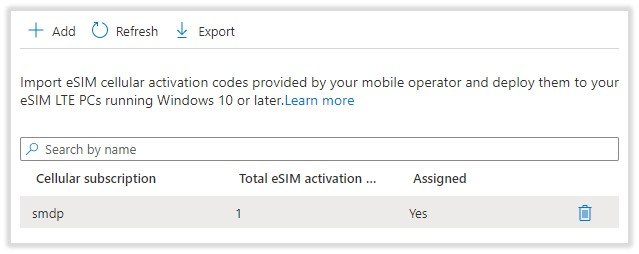
- In the Intune admin center, select Devices > Manage devices > eSIM cellular profiles > Add.
- Select the CSV file and then OK.
- Create a static Microsoft Entra device group holding only eSIM devices.
- Open the subscription pool, select Assignments, include the group, and select Save.
- Review Deployment Status and Device Status for failures.
- Contact the carrier when you retire devices, because removing a profile might not stop billing.
Strengths and opportunities
| Strength | Who gains |
|---|---|
| eSIM profiles are managed in Settings with no separate app | Users and help desks |
| Profiles let you switch carriers and plans on one PC | Travelers and people with separate work and personal plans |
| Web download lets a carrier run the whole sign-up on its own site | Carriers |
| Download servers remove the need for individual activation codes | IT admins on Windows 11 |
Mobile Plans replacement risks and friction points
No Cellular page in Windows 11 Settings
Windows shows this page only on PCs that support cellular connectivity.
- Check Settings > Network & internet again for Cellular.
- Ask the PC manufacturer whether your model has a cellular modem.
Cellular page shows Insert SIM
The PC is set to use a SIM slot rather than the eSIM.
- Open Use this SIM for cellular data on the Cellular page.
- Select your eSIM, then open eSIM profiles and select Use.
Carrier website has no download for Windows
Web download needs a supported carrier and a Windows version later than 2602.
- Ask the carrier for a QR code or activation code.
- Try Search for available profiles under Add profile.
Cannot delete an eSIM profile on a work PC
Organizational policies can block deletion on managed PCs.
- Select Stop using if you only need to switch profiles.
- Ask your IT department to remove the profile.
Windows Mobile Plans app FAQ
When did the Mobile Plans app stop being supported?
Microsoft says support for the Mobile Plans app ended in February 2026. The notice gives only the month, and it directs you to your carrier's website or a QR or activation code instead.
How do I add an eSIM on Windows 11 without Mobile Plans?
Go to Settings > Network & internet > Cellular > eSIM profiles and select Add profile. Then enter an activation code or scan a QR code, or search for available profiles from your carrier.
Do I need a QR code to add an eSIM on Windows?
No. A QR code is one of three routes. You can also download a profile from a supported carrier's website, or search for available profiles in Settings if your carrier has one waiting for your PC.
Which carriers support eSIM download from their website on Windows?
Microsoft's list currently names one carrier for direct profile download, which is Vodafone Germany. Other carriers can still provide a QR code or activation code, so ask yours which route it supports.
Will my existing eSIM keep working after Mobile Plans ended?
Microsoft's notice does not mention removing installed profiles, and Windows manages them separately under eSIM profiles in Settings. Confirm your plan status with your carrier, because the plan itself belongs to that carrier.
How do I cancel a plan I bought through Mobile Plans?
Contact the carrier that sold the plan, because the purchase went through its portal rather than through Microsoft. Deleting the profile from your PC might not stop billing, so get the cancellation confirmed by the carrier.
What if my Windows PC does not support eSIM?
You need a physical SIM card from your carrier. Check for support under Use this SIM for cellular data in Settings. If that list has no eSIM, SIM2 or similar option, the PC has no eSIM to use.
Does the retirement affect Windows 10?
Yes. Microsoft's Windows 10 notice says the app was removed in February 2026, and Windows 10 itself reached end of support on October 14, 2025. Use the eSIM settings or a physical SIM on those PCs.
Do you still need the Mobile Plans app on Windows 11?
No, so stop looking for it and start with your carrier. Everything the app did now sits on the carrier's website or under eSIM profiles in Settings. Ask your carrier for a QR code first, because Microsoft sets a Windows version requirement only for the website download.