To use a SIM card in a laptop, the laptop needs a built-in cellular (LTE or 5G) modem: insert the SIM, open Settings > Network & internet > Cellular, and connect, adding your carrier's APN if Windows does not set it automatically.
This guide shows how to check whether your laptop supports a SIM or eSIM, which SIM types work, the steps on Windows 11 and Windows 10, what differs on HP and Lenovo laptops, and fixes when the SIM is not detected.
How to use a SIM card in a laptop (Windows 11/10)?
These steps work on any Windows laptop with a cellular modem, whatever the brand. You need a SIM with an active data plan from your mobile operator.
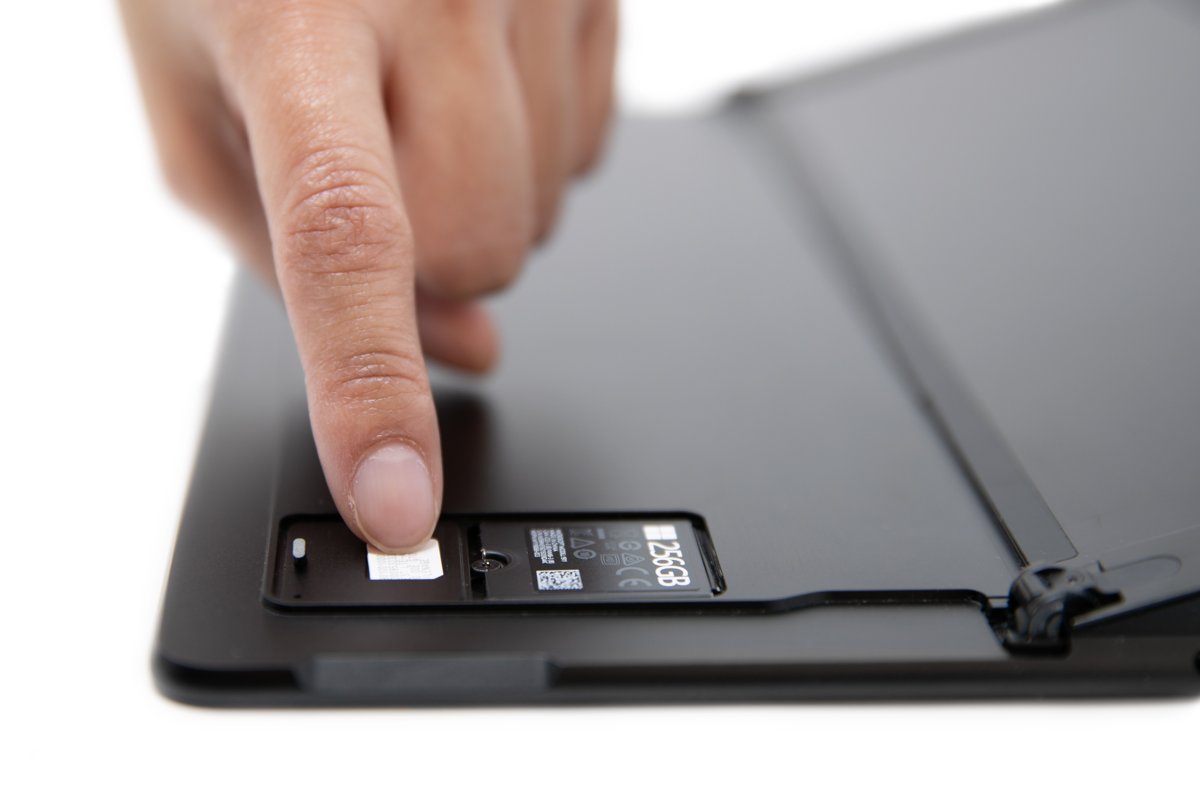
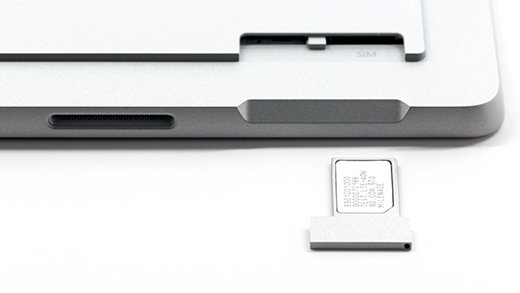
- Insert the SIM into the laptop's SIM tray or slot, logo side up, with the notched corner matching the tray. Do not force the tray.
- Wait at least 30 seconds for Windows to detect the SIM.
- Open Start > Settings > Network & internet > Cellular (Windows 10: Network & Internet > Cellular).
- Make sure Cellular is turned on and Airplane mode is off.
- Turn on Let Windows keep me connected to connect automatically when no Wi-Fi or Ethernet is available (Windows 10: Let Windows manage this connection).
- To connect manually, select the Network icon on the taskbar, select Manage Cellular connections (>) next to the Cellular quick setting, and select Connect.
- Enter the user name, password and APN if Windows prompts for them.
With Let Windows keep me connected on, Windows does not use cellular data while you are on Wi-Fi or Ethernet. Disconnect from those networks to test the cellular link.
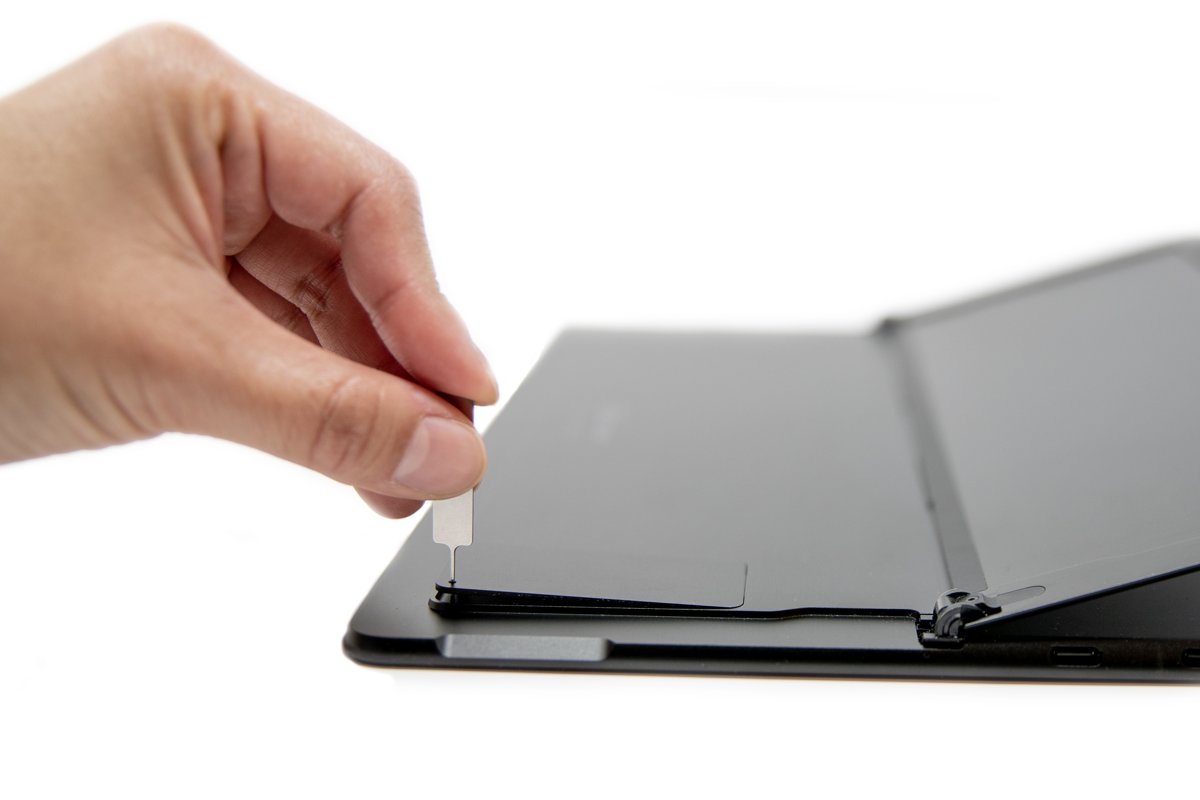
To remove and insert a SIM card in a pin-hole tray, shut the laptop down, push a SIM eject tool or straightened paperclip gently into the small hole until the tray pops out, swap the card, and slide the tray back in.
How to check if my laptop has a SIM slot or supports eSIM?
A SIM slot alone is not enough. The laptop also needs a cellular modem, which some models only have in specific configurations.
| Check | Where | What it tells you |
|---|---|---|
| Cellular page in Settings | Start > Settings > Network & internet | If Cellular is listed, the laptop has cellular hardware |
| eSIM support (Windows 11) | Settings > Network & internet > Cellular > eSIM profiles | An eSIM profiles page means the laptop has an embedded SIM |
| eSIM support (Windows 10) | Bottom of the Cellular page | A Manage eSIM profiles link means eSIM is supported |
| Both SIM and eSIM | Use this SIM for cellular data drop-down on the Cellular page | Shown only when the laptop has a physical SIM and an eSIM |
| Modem hardware | Device Manager > expand Network adapters | Look for a mobile broadband or cellular modem entry |
| Model specification | The maker's support page for your exact model | Whether your configuration shipped with WWAN, and the SIM size |
What is a SIM card and how does it work in a laptop?
A SIM (Subscriber Identity Module) is a small chip that identifies and authenticates your device on a cellular network. Each time the laptop requests mobile data, the network checks the SIM to confirm the line is allowed to connect; an unauthorized SIM is refused.
| Item | What it is |
|---|---|
| IMSI | A subscriber identity number that identifies your mobile account |
| ICCID | The unique serial number of the SIM card itself |
| Authentication key | Security data the network uses to verify access |
| PIN and PUK codes | Codes that lock and unlock access to the SIM |
| Contacts and texts | Limited storage; a nano SIM usually has 128 KB, enough for about 250 contacts |
| Photos, apps and files | Not stored on the SIM; they stay on the laptop or in cloud storage |
| eSIM | An embedded SIM built into the device and programmed by the operator, with no card to insert |
| Soft SIM | A software or cloud-based virtual SIM used on some tablets and connected devices |
| Dual SIM | Two SIM profiles on one device, such as a physical SIM plus an eSIM, so work and personal lines can be kept apart |
Emerging SIM technology is moving devices toward eSIM, which is why some newer phones already ship without a SIM tray at all.
Types of SIM cards that will work with your laptops
Laptops take either a removable SIM or an embedded eSIM. The SIM size is set by the tray, so find your laptop model and check its specifications before you ask your carrier for a SIM.
| SIM type | How you get it | How it is set up in Windows | Notes |
|---|---|---|---|
| Physical SIM (nano SIM on current Surface models) | From your mobile operator | Insert it, then use Settings > Network & internet > Cellular | Logo up, notch aligned with the tray |
| eSIM (embedded) | An eSIM profile or activation code from your operator | Cellular > eSIM profiles > Add profile | No card to insert; the laptop must support eSIM |
| Data-only plan | Many operators sell laptop or tablet data plans | Same as the SIM or eSIM above | Confirm the plan includes data before you insert it |
| Phone SIM | Your existing phone line | Same as above | Works only if your operator allows it on another device and the APN is correct |
SIM card sizes have evolved from the credit-card-sized original to the mini SIM (25 x 15 mm), the micro SIM (15 x 12 mm) and the nano SIM (12.3 x 8.8 mm). To tell what kind of SIM is in your device, compare the card or tray with those sizes or check the model specification. Some operators ship SIM cards with adapters for nano, micro and standard trays.
Advantages and disadvantages of a SIM card in a laptop
A SIM or eSIM lets a Windows laptop get online in more places by using a cellular signal. The trade-off is cost and a few Windows behaviours that change on a cellular connection.
| Advantages of a SIM card | Disadvantages of a SIM card |
|---|---|
| Internet access wherever there is cellular coverage, not only where Wi-Fi exists | Needs an active data plan from a mobile operator, and data you use can incur charges |
| Windows can connect to cellular data automatically when no other network is connected | Roaming outside your operator's network can cost more, depending on the plan |
| A physical SIM can move to another compatible, unlocked device with your line | Cellular connections are metered by default, so some Windows updates won't install automatically |
| An eSIM needs no card or tray, and Windows can hold more than one eSIM profile | Works only on laptops with a built-in cellular modem, or with an external cellular device |
To limit charges, select Don't roam under Data roaming options on the Cellular page and keep the connection set as metered.
Set up an eSIM profile in Windows 11 and Windows 10
Use this when your laptop has an embedded SIM. Get either an eSIM activation code or QR code from your operator, or ask whether its profile can be found by search.
On a laptop with both a SIM card slot and an eSIM, the same steps switch you from using the SIM to the eSIM.
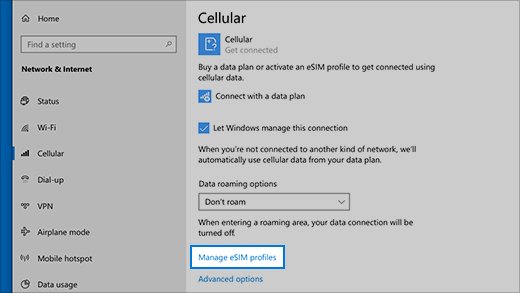
- Open Start > Settings > Network & internet > Cellular > eSIM profiles (Windows 10: Cellular > Manage eSIM profiles).
- If the laptop also has a SIM slot, choose eSIM under Use this SIM for cellular data.
- Select Add profile (Windows 10: Add a new profile).
- Choose Search for available profiles and select Next, or choose Let me enter an activation code I have from my mobile operator and select Next.
- Scan the QR code with the camera or type the activation code, then select Next.
- Enter the confirmation code if asked, select Download, then Close.
- Select the new profile, select Use, and select Yes at the data charges prompt.
To switch operators later, select the active profile, choose Stop using, then select the other profile and choose Use.
Add an APN for your SIM card in Windows
If the SIM is detected but will not connect, the access point name (APN) is usually missing or wrong. Get the APN details from your mobile operator.
- Open Settings > Network & internet > Cellular > Mobile operator settings (Windows 10: Cellular > Advanced options).
- Select Add APN (Windows 10: Add an APN).
- Enter a Profile name and the APN from your operator.
- Fill in User name, Password, Type of sign-in info and IP type if your operator gives them.
- Set APN type to Internet.
- Tick Apply this profile to use it straight away.
- Select Save, then OK.
The same Mobile operator settings page holds Use SIM PIN, Change SIM PIN and Unblock SIM PIN, plus Data roaming options. Choose Don't roam to avoid roaming charges abroad.
What is my SIM PIN? Set, change or unblock it in Windows
A SIM PIN stops other people from using your laptop's cellular data connection. The first time you turn it on, Windows asks for the default SIM PIN; if you do not know it, check your mobile operator's website.
- Open Start > Settings > Network & internet > Cellular > Mobile operator settings.
- Under Security, select Use SIM PIN, type the default or current SIM PIN, and select OK.
- Restart the laptop so the cellular connection is locked with the PIN.
- To change it, select Change SIM PIN, enter the Current SIM PIN, the New SIM PIN and Confirm new SIM PIN, then select OK.
- To stop using it, select Remove SIM PIN, type the current PIN and select OK.
- If you forgot your SIM PIN and typed it wrong three times, the SIM is blocked: ask your mobile operator for the PUK code.
- Select Unblock SIM PIN and type the PUK code to get back into the SIM.
The PUK (PIN Unblocking Key, which some operators call a Personal Unblocking Key) is set by your operator, not by Windows. If you are locked out and enter a wrong PUK too many times, the SIM card is permanently blocked and you need a new one from your operator.
Use a SIM card in HP laptops
HP builds a WWAN (cellular) adapter into some notebooks, and an adapter can be added to select other models. A SIM slot is only useful on a configuration that has the WWAN adapter.
On some HP models the SIM tray is on the outside edge; on others, such as some ZBook mobile workstations, the SIM sits inside the chassis. Follow the user guide for your exact model.
- Look up your model on HP Support and confirm it lists a WWAN module, not just a SIM slot.
- Shut down the laptop and find the SIM tray or slot shown in the model's user guide.
- Insert the SIM, logo side up, and close the tray or cover.
- Start the laptop and open Settings > Network & internet > Cellular.
- If the PC came with an eSIM, add your operator's profile under eSIM profiles instead.
- Install driver updates through Settings > Windows Update while connected to Wi-Fi if Cellular is missing.
- Connect from the Network icon on the taskbar.
Use a SIM card in Lenovo laptops
Lenovo laptops use the same Windows cellular settings as every other brand. As with HP, whether a SIM works depends on the configuration: a laptop without the WWAN modem will not use a SIM even if the chassis has a tray.
- Check your exact model and configuration on Lenovo Support for a WWAN or mobile broadband option.
- Find the SIM tray in the model's user guide and insert the SIM, logo side up.
- Start the laptop and wait 30 seconds for Windows to detect the SIM.
- Open Settings > Network & internet > Cellular and turn Cellular on.
- Add the APN under Mobile operator settings if the connection fails.
- Update drivers through Settings > Windows Update > Advanced options > Optional updates if the modem is missing.
- Connect from the Network icon on the taskbar.
Buy, activate, switch or move a SIM card between devices
Your mobile line follows the SIM, not the laptop. Plan the move before you take the card out of a phone or switch carriers.
| What you want to do | What happens | What to do |
|---|---|---|
| Buy a SIM card | Operators sell SIM cards online and in their stores, for postpaid and prepaid plans | Ask for a data plan that allows use in a laptop, and give the SIM size or ask for an eSIM |
| Activate a SIM card | The operator links the SIM or eSIM profile to your plan | Follow the operator's activation steps, then insert the SIM and connect from Settings > Network & internet > Cellular |
| Move a SIM card between devices | Service may move with the SIM to a compatible, unlocked device; the old device loses cellular service until another SIM or eSIM is activated | Back up the old device first; apps, photos and files stay on it or in the cloud |
| Switch carriers | A carrier-locked device can be refused on another network until it is eligible to be unlocked | Check the lock status, then get the new operator's SIM or eSIM profile |
| Get a new or replacement SIM card | A damaged SIM, or one permanently blocked after too many wrong PUK entries, cannot be reused | Ask your mobile operator for a replacement SIM |
What happens when you switch SIM cards is the same on a laptop as on a phone: the line moves, your files do not.
How to check the laptop is using the SIM card
- Disconnect from Wi-Fi and unplug any Ethernet cable.
- Look at the taskbar: the network icon should show the cellular signal bars.
- Open Settings > Network & internet > Cellular and confirm your mobile operator is listed and shown as connected.
- Open a website to confirm data flows.
- Check Mobile operator settings > Properties if you need the SIM and modem details for your operator.
Fix a laptop SIM card that is not detected or will not connect
Windows says Insert a SIM but the SIM is already in
The SIM is seated wrongly, still being detected, or faulty.
- Wait at least 30 seconds after inserting the SIM.
- Remove the tray and check the SIM sits flat with the notch aligned.
- On a laptop with SIM and eSIM, check Use this SIM for cellular data points at the SIM you want.
- Ask your mobile operator to check the account or replace the SIM.
Cellular is not listed in Settings (how to enable the SIM card slot)
The modem is disabled, missing a driver, or not fitted to this model.
- Install the latest updates from Settings > Windows Update over Wi-Fi or Ethernet.
- Shut down, remove the SIM tray, and insert it again.
- Open Device Manager, expand Network adapters, and look for the cellular modem.
- If it shows a yellow or red mark, right-click it, select Properties > Driver, then Disable Device and Enable Device.
- If no modem is listed at all, the laptop has no WWAN module; check the model specification.
SIM detected but no internet
No active data plan, no coverage, a wrong APN, or Wi-Fi taking priority.
- Confirm with your operator that the plan includes data and that you have coverage.
- Add the operator's APN under Mobile operator settings > Add APN.
- Disconnect from Wi-Fi and Ethernet, then connect to cellular again.
- Turn on data roaming under Data roaming options only if you are outside your operator's network and your plan allows it.
Cannot turn on cellular data
Airplane mode is on or the SIM is damaged.
- Open Settings > Network & internet > Airplane mode and make sure it is Off.
- Remove the SIM, check it for damage, reinsert it, and turn Cellular on again.
- Ask your operator for a replacement if the SIM is damaged.
SIM card in laptop FAQs
Can I put a SIM card in my laptop?
Only if the laptop has a cellular (LTE or 5G) modem. If Settings > Network & internet shows a Cellular page, it does. Laptops without a modem have nowhere to use a SIM, even if they have a card slot.
Can my laptop have a SIM card?
Some laptops ship with cellular modems, including LTE and 5G Surface models and some HP notebooks, and HP offers adapters for select notebook models. Check your exact model's specifications for WWAN or mobile broadband support.
Why does my laptop have a SIM card slot?
The slot lets a laptop with a cellular modem connect to the internet over a mobile network, without Wi-Fi. Some chassis share the same design across models, so a slot may exist even when your configuration has no modem.
What is a SIM card slot on a laptop?
It is a tray or socket that holds the SIM card from your mobile operator. Paired with the laptop's cellular modem, it identifies your mobile account so the laptop can use your data plan.
How do I activate the SIM card slot in my laptop?
Insert an active SIM, open Settings > Network & internet > Cellular, turn Cellular on, make sure Airplane mode is off, and connect. If Cellular is missing, update drivers and check that the modem appears under Network adapters in Device Manager.
How do I open the SIM card slot in an HP laptop?
It depends on the model. Some HP laptops have an external tray, while some ZBook mobile workstations hold the SIM inside the chassis. Follow the SIM removal steps in your model's HP user guide.
Can I use a SIM card in a laptop without a SIM slot?
Not directly. If the laptop supports eSIM, add an eSIM profile under Settings > Network & internet > Cellular > eSIM profiles. Otherwise, share your phone's mobile hotspot or use an external cellular modem.
Can I use my phone SIM card in a laptop?
Usually, if the SIM size fits and your operator allows the plan on another device. You may need to add the operator's APN in Windows. Some plans block use outside a phone, so check with your operator first.
Bottom line: using a SIM card in a Windows laptop
Check for the Cellular page in Settings before buying a SIM or data plan, then insert the SIM or add an eSIM profile and add the APN if the connection fails. The SIM only works with a built-in cellular modem, and the Cellular page appears only when one is present. Once it is there, the setup is the same on HP, Lenovo and every other Windows laptop.