To delete Apple Maps documents and data on iPhone, delete the Maps app from iPhone Storage, which removes the app and its related data, then reinstall it from the App Store if you still want it.
This guide also covers offline maps, recents, visited places, pins, what deleting Maps changes, and what to do when the storage figure does not drop.
How to delete Apple Maps data on iPhone
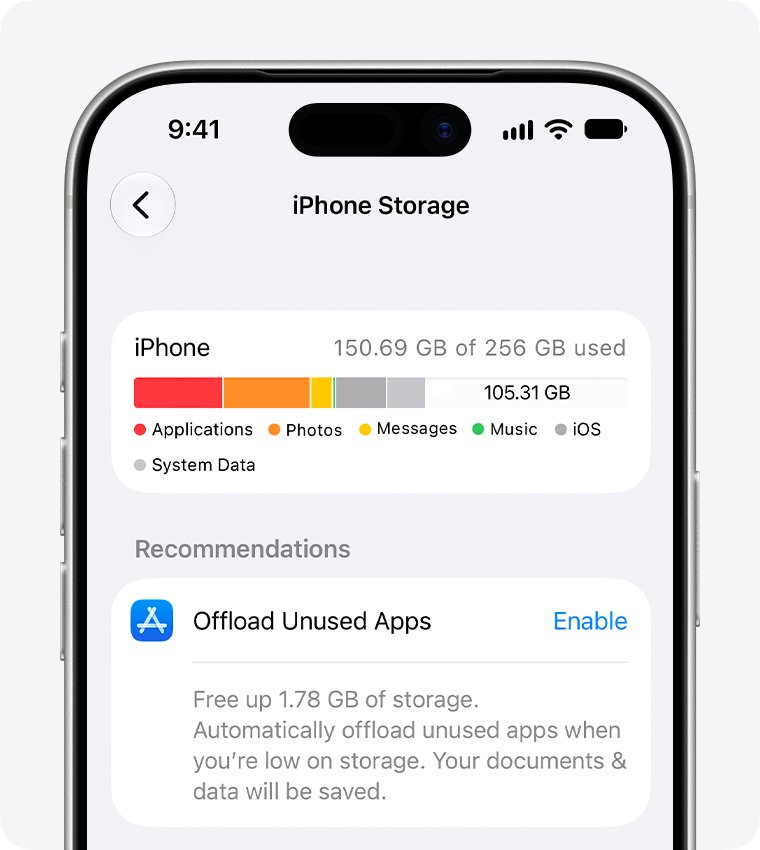
Apple lists Maps among the built-in apps you can delete on iOS 14 or later. Deleting a built-in app also deletes its related user data and configuration files.
- Open Settings and tap General.
- Tap iPhone Storage, then wait for the app list to load.
- Tap Maps to see the storage it uses.
- Tap Delete App, then confirm the deletion.
- To use Maps again, open the App Store, search for Maps and tap the Redownload button.
You can also touch and hold the Maps icon, tap Remove App, tap Delete App and then tap Delete. Either route removes the app and its data from this iPhone.
Apple Maps data types and how to delete each one
Deleting the whole app is not always necessary to free up iPhone storage. Match what you want gone to a row, and go straight to that fix.
| What you want gone | Where to delete it | What it affects |
|---|---|---|
| Storage used by the Maps app | Settings > General > iPhone Storage > Maps > Delete App | This iPhone, and the Maps app on a paired Apple Watch |
| Downloaded regions | Maps > your picture or initials > Offline Maps | The map you delete |
| Recent directions and searches | Maps > Recents > Clear | Items in Recents |
| Places you have been | Maps > Places > Visited Places > Clear History | Your visited places history |
| Significant locations | Settings > Privacy & Security > Location Services > System Services > Significant Locations & Routes > Clear History | All devices signed in to the same Apple Account |
| Saved places, pins and guides | Maps > Places or Your Guides | Your saved item, plus any note on a saved place |
What is Apple Maps documents and data on iPhone?
Apple describes Documents & Data as files stored within installed apps, along with app content. For Maps, the piece you control most directly is the set of offline maps you downloaded.
Apple does not publish a breakdown of what Maps keeps in that figure, so treat it as a total rather than a list of files.
| Storage term | What it means | How to clear it |
|---|---|---|
| Documents & Data | Files kept inside an app, plus its content | Delete the app, or remove what the app lets you remove |
| Offload App | Frees the app's own storage but keeps its documents and data | Does not clear documents and data |
| Delete App | Removes the app and its related data | Clears data on this iPhone, not data stored in iCloud |
| Cached and temporary data | Files iOS can remove itself, which might not count as app usage | iOS removes them when the device needs space |
How to check Apple Maps storage on iPhone
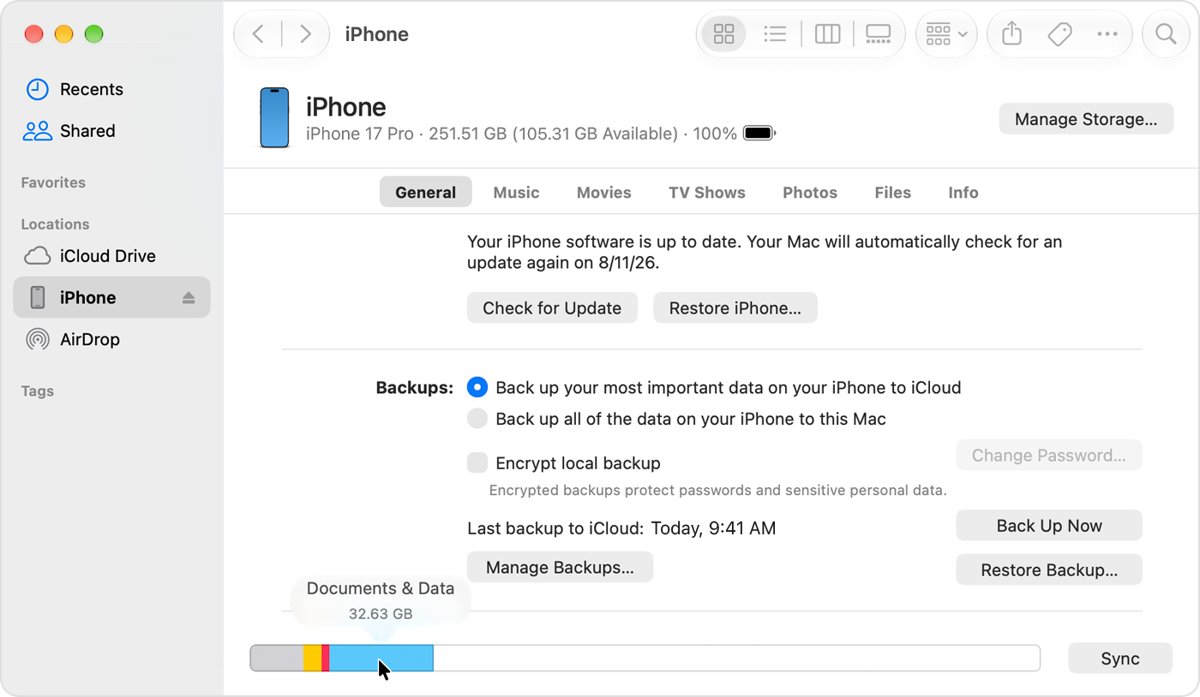
Run this before you delete anything, then again afterward, so you can compare the two numbers.
- Open Settings and tap General.
- Tap iPhone Storage to see recommendations and a list of apps.
- Scroll to Maps and note the size beside it.
- Tap Maps to open the detail view with the app and data figures.
- Return to this screen after clearing data and compare the new size.
A finished deletion shows Maps gone from the list or a smaller size. Available storage can take a moment to update after you delete an app.
How to delete downloaded maps on iPhone
Offline maps are stored on the device so you can navigate without Wi-Fi or cellular service. Removing them is Apple's stated way to free up storage in Maps, and the app stays installed.
- Open the Maps app.
- Tap your picture or initials next to the search field.
- Tap Offline Maps to see your downloaded maps.
- Swipe left on a map and tap Delete.
- Repeat for each map you no longer need.
You can also select a map and tap Delete Map. Nothing else in Maps changes, so your pins, guides and recents stay where they are.
How to reduce Apple Maps offline storage
These settings stop offline maps from growing back once you have cleaned them out. All of them sit on the Offline Maps screen.
| Setting | What to do | Result |
|---|---|---|
| Optimize Storage | Turn it on | Maps deletes unused offline maps automatically |
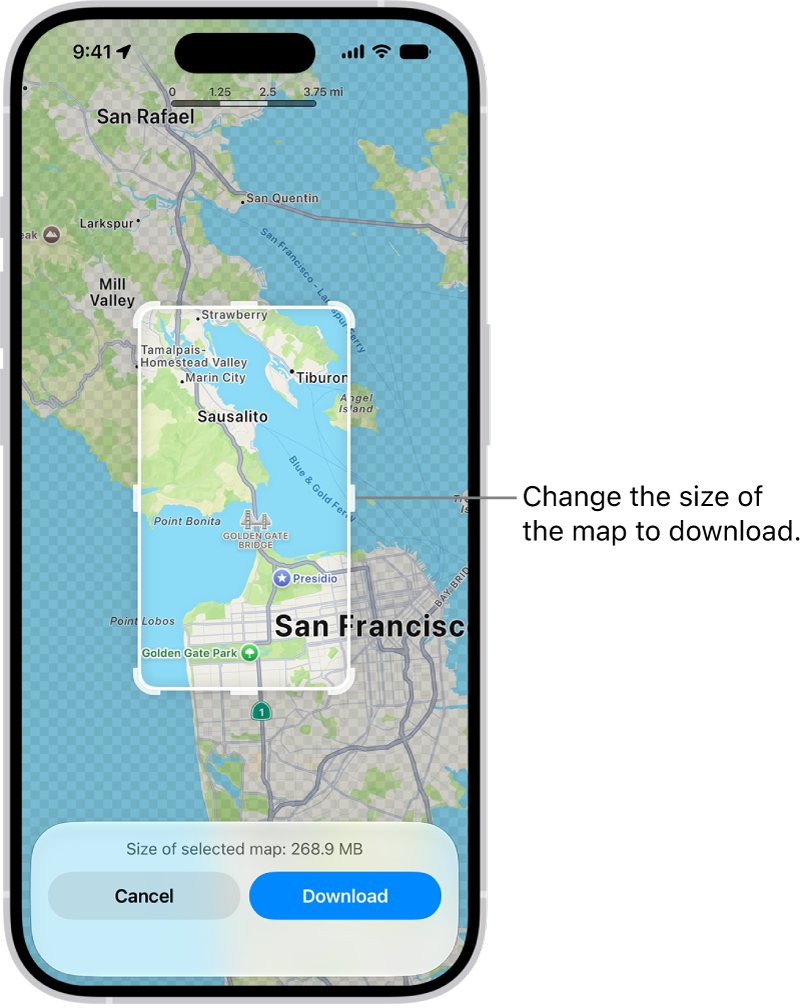
| Resize | Select a map, tap Resize on its image and choose a smaller area, then tap Download | The map covers less ground, so the download is smaller |
| Automatic Updates | Turn it off if you do not want maps refreshed | Downloaded maps stop updating automatically |
| Wi-Fi Only | Keep it selected instead of Wi-Fi + Cellular | Map downloads stay off your cellular plan |
How to clear Apple Maps data without deleting the app
Recents, visited places and significant locations are history rather than bulky files. Clear them when privacy is the reason you are here, along with your other search history on iPhone. Each one has its own control.
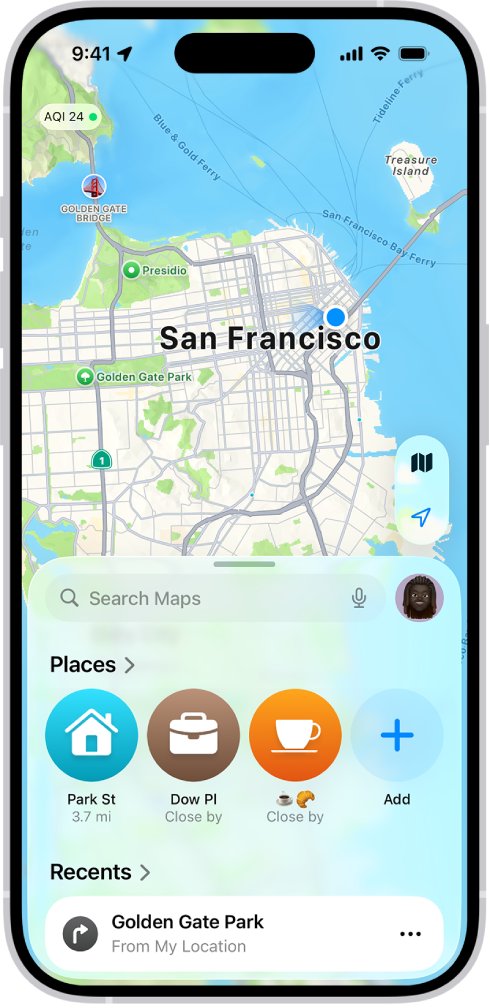
- Open Maps and scroll down in the card to Recents.
- Tap Recents, then tap Clear to delete all recent directions.
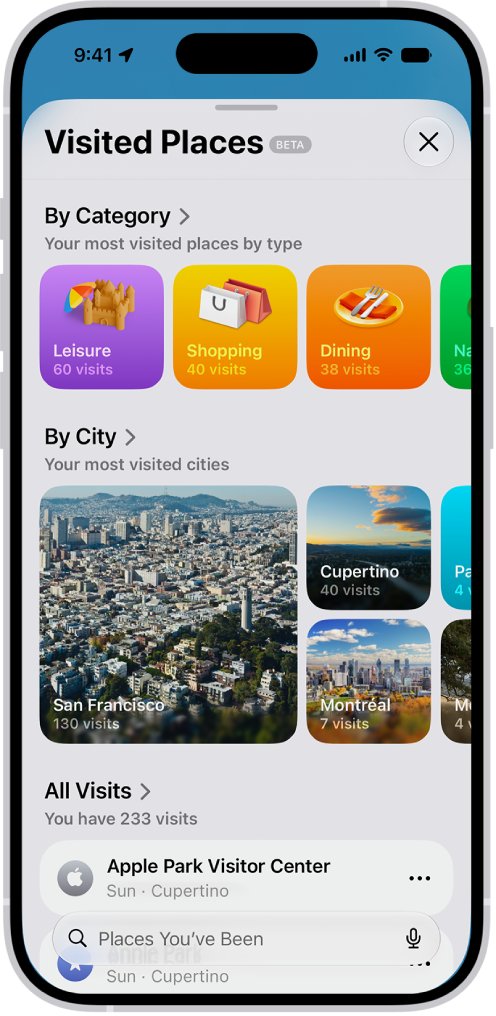
- Tap Places, tap Visited Places, scroll to the bottom and tap Clear History.
- Open Settings, tap Privacy & Security, then tap Location Services.
- Tap System Services, tap Significant Locations & Routes, then tap Clear History.
Clearing significant locations affects every device signed in to the same Apple Account. It also resets personalized services such as predictive traffic routing.
Delete Apple Maps history on iPhone
Use these steps to remove one item instead of the full list. Future visits are still recorded while Visited Places stays on.
- To remove one recent item, scroll to Recents in Maps, tap the icon beside the item and tap Clear.
- To remove one visit, tap Places, tap Visited Places, tap the icon on the right of the place card and tap Remove.
- To limit how long visits stay, scroll to the bottom of Visited Places, tap Keep Visits and choose 3 months, 1 year or Forever.
- To stop recording visits, open Settings, tap Apps, tap Maps, tap Location and turn off Visited Places.
How to delete locations from Apple Maps
Saved items live in Places and Your Guides. Removing a place deletes any personal note you added to it, so copy a note you want to keep first.
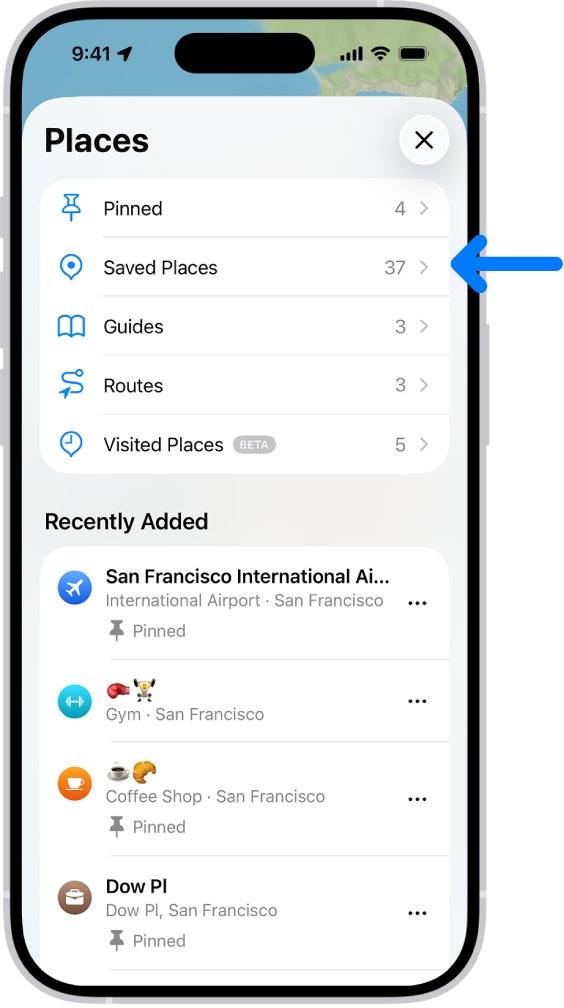
- To remove a pin, tap Places, tap Pinned, swipe left on the location and tap Delete.
- To remove a saved place, tap Places, touch and hold the place icon, tap Delete from Places and tap Delete.
- To remove a place from a guide, tap Your Guides, open the guide, edit it, select the place and remove it.
- To remove a whole guide, tap Your Guides, open the options on the guide, tap Delete from Places and tap Delete.
You can add a location back at any time, or set a favorite with latitude and longitude when you only have coordinates.
How to turn off Apple Maps location data
Deleting history does not stop Maps from building it again. These settings reduce what Maps can use from now on. Turn-by-turn navigation and some other features stop working when you turn off precise location.
- Open Settings, tap Apps, tap Maps, then tap Location.
- Turn off Precise Location if you do not want Maps using your exact position.
- Turn off Visited Places and Preferred Routes & Predicted Destinations if they are on.
- Go back to Settings, then tap Privacy & Security > Location Services > System Services.
- Turn off Routing & Traffic to stop sending anonymous, aggregated routing data that improves Maps.
What happens when you delete Apple Maps from iPhone?
You can reinstall Maps at any time, but a few features depend on it. Check this table if you use CarPlay or an Apple Watch.
| Area | What changes after you delete Maps |
|---|---|
| CarPlay | Maps is no longer available to use with CarPlay |
| Apple Watch | Deleting the app from a paired iPhone also deletes it from the watch |
| Data on this iPhone | Related user data and configuration files are deleted |
| Data in iCloud | Data stored in iCloud is not deleted when you delete an app |
| Other Apple devices | Maps keeps favorites and guides up to date across your devices through iCloud |
How to reinstall Apple Maps on iPhone
A deleted built-in app comes back from the App Store, so restore the App Store icon first if it is missing too. Restoring Maps on your iPhone also restores it on a paired Apple Watch.
- Open the App Store on your iPhone.
- Search for Maps, using the exact name of the app.
- Tap the Redownload button.
- Wait for the app to restore, then open it from your Home Screen.
How to clear Apple Maps history on Mac
Maps on a Mac has its own history list. Use this when recent searches still show in the Mac app.
- Open the Maps app on your Mac.
- Go to Recents in the sidebar.
- Scroll to the bottom of Recents.
- Click Clear Recents.
How to delete an Apple Maps listing for a business
A business listing is managed in Apple Business, not in the Maps app, and you need a role with permission to manage locations. You must also choose a reason: someone else manages the location, or it is permanently closed.
- Sign in to Apple Business with a user whose role can manage locations.
- In your browser, choose Brands > Locations.
- Sort or search for the location, then select it.
- Select Preferences > Manage > Remove Location.
- Select a reason for removing the location, then select Remove.
A removed location may still appear in Apple Maps, but you can no longer manage it in Apple Business. Choosing the permanently closed reason marks it that way on Maps.
Apple Maps data not deleting
Start with the symptom that matches what you see in iPhone Storage.
Storage has not changed right after you deleted Maps
Available storage can take a moment to update after an app is deleted.
- Leave iPhone Storage and wait a few minutes.
- Reopen Settings > General > iPhone Storage and check the figure again.
Maps data remains after you used Offload App
Offloading frees the app's storage but keeps its documents and data by design.
- Open Settings > General > iPhone Storage > Maps.
- Tap Delete App instead of offloading it.
- Confirm the deletion, then reinstall Maps if you want it back.
Maps is not installed but still appears to use storage
Apple documents the offline map controls only inside the Maps app, so reinstall it to review them.
- Open the App Store, search for Maps and tap the Redownload button.
- Open Maps, tap your picture or initials and tap Offline Maps.
- Swipe left on each map and tap Delete.
- Turn on Optimize Storage, then check iPhone Storage again.
History or places return on another device
When you sign in with two-factor authentication, Maps syncs pinned locations, recents, visited places and guides across your devices.
- Sign in to the same Apple Account on each device.
- Clear the items in Recents, Visited Places and Places.
- On a Mac, click Clear Recents at the bottom of Recents.
Total storage barely drops
Cached and temporary files might not count as app usage, and iOS removes them itself when it needs space.
- Open Settings > General > iPhone Storage.
- Tap Show All beside the recommendations.
- Tap Enable on a recommendation, or tap it to review what you can delete.
Apple Maps data FAQ
How do I delete Apple Maps data?
Delete Apple Maps data by going to Settings, General, iPhone Storage, Maps, then tapping Delete App. That removes the app and its related data from your iPhone. You can reinstall Maps from the App Store afterward by searching for its exact name.
How to remove Maps data from iPhone without deleting the app?
Remove Maps data without deleting the app by opening Offline Maps and deleting downloaded regions, then clearing Recents and Visited Places. Offload App is not a substitute, because Apple says offloading keeps the documents and data while freeing only the storage used by the app.
How to delete maps on iPhone?
Delete a downloaded map by opening Maps, tapping your picture or initials, tapping Offline Maps, swiping left on the map and tapping Delete. To delete the Maps app itself, touch and hold its icon, tap Remove App, tap Delete App and then tap Delete.
How to delete places from iPhone Maps?
Delete a saved place by opening Maps, tapping Places, touching and holding the place icon, tapping Delete from Places and tapping Delete. Removing a place also deletes any personal note you added to it, so copy the note first if you want to keep it.
How to delete from map in Apple Maps?
Delete a pin from the map by tapping Places, then Pinned, swiping left on the pinned location and tapping Delete. Only one unsaved dropped pin appears at a time, so you need this step only for pins you saved to your Places.
How to turn off Apple Maps?
Turn off the location features in Settings, Apps, Maps, Location by switching off Precise Location, Visited Places and Preferred Routes and Predicted Destinations. Turn-by-turn navigation needs precise location, so Maps loses that feature. Delete the app if you want Maps off the iPhone entirely.
How to uninstall Apple Maps?
Uninstall Apple Maps by touching and holding its icon, tapping Remove App, tapping Delete App and then tapping Delete. Maps stops being available in CarPlay and also leaves a paired Apple Watch. Reinstall it from the App Store by searching for its exact name, Maps.
Does deleting Apple Maps delete my saved places?
Deleting Apple Maps removes related user data from that iPhone, but data stored in iCloud is not deleted with the app. Maps uses iCloud to keep favorites and guides up to date across your Apple devices, so remove saved places individually if you want them gone everywhere.