To complete a Fitbit sync with iPhone, keep the device near the phone, open the Google Health app, and pull down on the Today tab or tap Connections > Sync.
The Fitbit app began changing to the Google Health app on May 19, 2026, so this guide uses the current app names and covers first-time setup, manual and automatic sync, the Fitbit clock, Apple Health and sync errors.
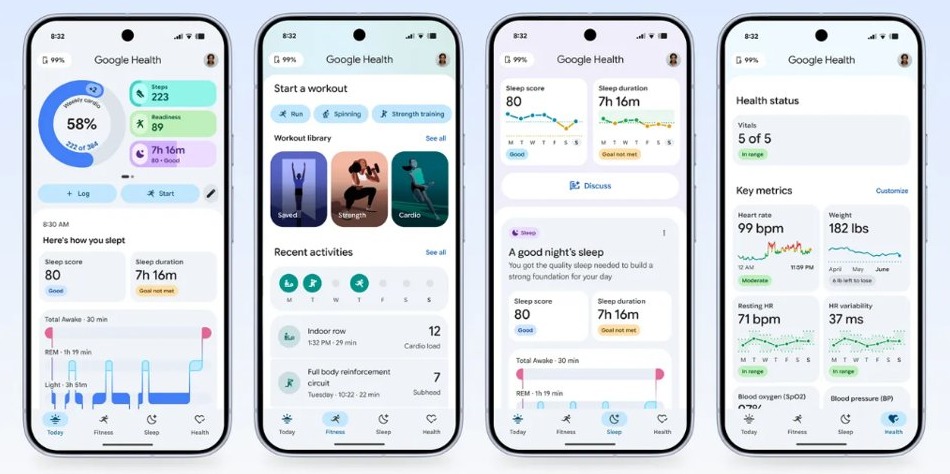
Step by step tutorial on how to complete Fitbit sync with iPhone
These steps take a new or newly reinstalled setup from nothing to a finished sync. If your Fitbit is already connected, skip to the last two steps. Should you still need the app, the Fitbit app download options cover iPhone and Android.
- Connect your Fitbit to its charger, so a low battery does not interrupt setup.
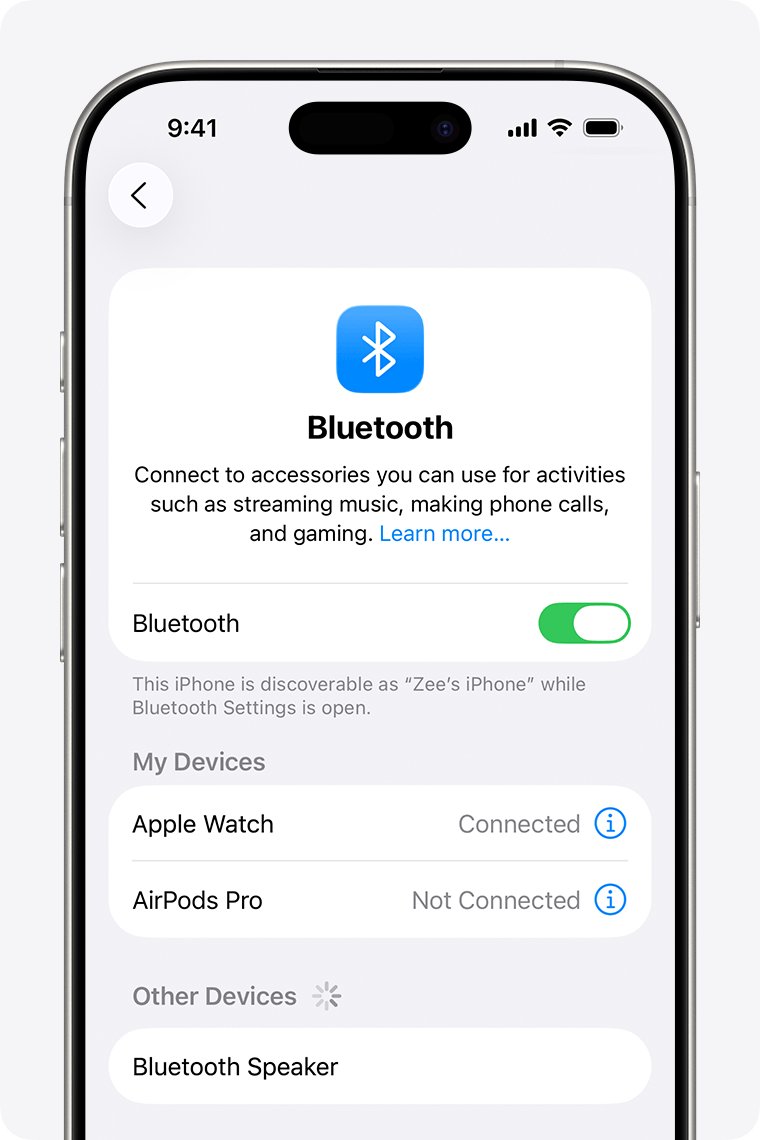
- On your iPhone, open Settings > Bluetooth and turn on Bluetooth.
- Install the Google Health app from the App Store, then open it.
- Tap Sign in with Google and choose your Google Account, or follow the prompts to create one.
- Tap Connections at the top left, tap Add device, choose your Fitbit and follow the on-screen instructions. Do this in the app, not on the Bluetooth screen in iPhone Settings.
- Allow the Bluetooth and location requests when the app shows them.
- With the Fitbit next to your iPhone, open the Today tab, tap and hold the screen, then pull down.
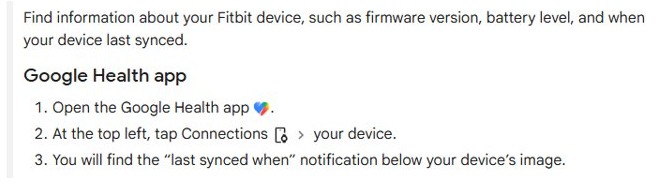
- Tap Connections and your device, then read the last synced time below the device image.
Some Fitbit models send a notification to your iPhone to start setup. If you see one, tap it and follow the same on-screen instructions.
Google Health app requirements for Fitbit sync on iPhone
An older iPhone or an old Fitbit account is the first thing to rule out. The app no longer accepts either one.
| Requirement | What Google Health needs | Where to check it |
|---|---|---|
| iPhone software | iOS 26 or higher | Settings > General > Software Update |
| Account | A Google Account; a Google Workspace account cannot be linked | Google Health sign-in screen |
| App | The latest Google Health version | App Store |
| Bluetooth | On, with Google Health allowed to use it | Settings > Privacy & Security > Bluetooth |
| Distance | The Fitbit must stay near your iPhone during a sync | Keep both within easy reach while syncing |
| Battery | Charged, with Battery saver and Bedtime mode off | The Fitbit device itself |
How to manually sync Fitbit on iPhone
A manual sync pushes the latest stats to the app right away. It is also the fix to try first when numbers look out of date.
- Keep your Fitbit close to your iPhone.
- Open the Google Health app.
- On the Today tab, tap and hold the screen, then pull down.
- If that does not start a sync, tap Connections at the top left and tap Sync.
- On the Connections screen, you can also pull down until the progress bar appears at the top, then release and wait.
How to get Fitbit to sync automatically on iPhone
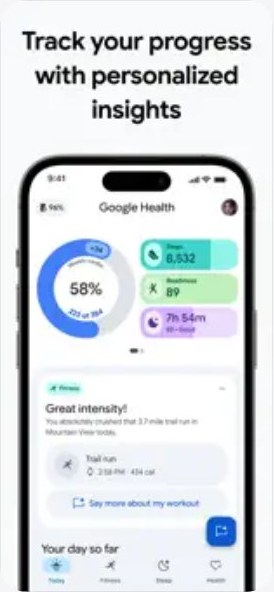
Fitbit devices sync to the Google Health app throughout the day, and each time you open the app with the device nearby. There is no schedule to set, but iPhone settings can block the background part.
- Open Settings > General > Background App Refresh and turn it on for Google Health.
- Open Settings > Privacy & Security > Bluetooth and make sure Google Health is allowed.
- Turn off Battery saver mode and Bedtime mode on the Fitbit, because both limit background data connectivity.
- Keep the iPhone within range of the Fitbit during the day.
- Open the Google Health app once to confirm that new stats appear.
How to see when Fitbit last synced on iPhone
- Open the Google Health app.
- Tap Connections at the top left.
- Tap your device.
- Read the last synced notice below the device image. The time should match your most recent sync.
The same screen shows the battery level and firmware version, which helps when you need to charge or update the device next.
How to sync Fitbit time with iPhone
A Fitbit clock takes its time from the app, so a wrong time usually means the device has not synced recently. Syncing again often corrects it without any other change.
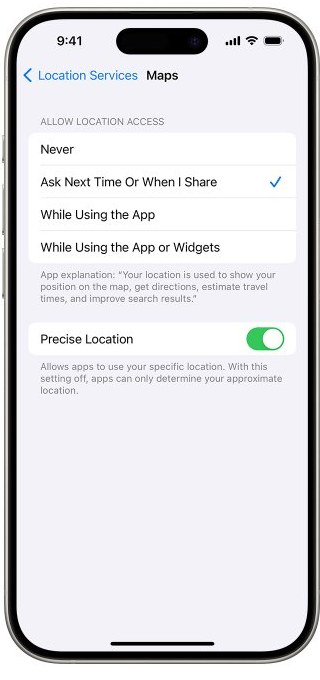
- Open Settings > Privacy & Security > Location Services > Google Health and tap While Using the App.
- Open the Google Health app, go to the Today tab and pull down to sync.
- If the time is still wrong, tap your profile picture or initial, then tap Google Health settings.
- Under App Settings, tap Date, time & units, then tap Time Zone.
- Turn off Set Automatically and select the correct time zone.
- Sync the Fitbit again. If the time stays wrong, log out of the app, log back in and sync once more.
To switch between a 12-hour and 24-hour clock, change Clock Display Time on the Date, time & units screen, then sync.
How to sync Fitbit with Apple Health on iPhone
This is a separate sync. It shares data between the Google Health and Apple Health apps, and it does not replace the Bluetooth sync between your Fitbit and iPhone.
- Open the Google Health app and tap Connections at the top left.
- Tap Apps and services.
- Under Add connections, tap Apple Health.
- Tap Get started, then tap Agree on the consent page.
- Tap Turn All Categories On, or select individual categories and tap Allow.
- Tap Done on the confirmation page.
Google Health currently reads three months of past Apple Health data. You must be signed in with an adult Google Account to use this connection.
How to sync Fitbit with a new iPhone
A Fitbit that shows phone notifications should be released from the old phone first. Do this before or right after you transfer to the new iPhone.
- On the old iPhone, open Settings > Bluetooth.
- Tap the Information button next to your Fitbit, then tap Forget This Device.
- On the new iPhone, install Google Health from the App Store.
- Sign in with the same Google Account you used on the old phone.
- Keep the Fitbit nearby and pull down on the Today tab to sync.
- If the Fitbit does not appear, tap Connections > Add device and follow the on-screen instructions.
Tips for successful Fitbit sync with iPhone
| Tip | Why it helps |
|---|---|
| Keep the Fitbit near the iPhone | The device must stay close to the phone for a sync to finish |
| Pair inside the app, not in Bluetooth settings | Google's setup requirements direct you to the app's prompts for pairing |
| Leave Background App Refresh on | It lets Google Health keep working after you leave the app |
| Update iOS, the app and the Fitbit | Google lists all three updates as a sync fix; the Fitbit update appears under Connections when one is available |
| Remove the app from other nearby devices | Another phone or tablet on the same account can take the connection |
| Allow time after moving your account | Large historical transfers can take up to 48 hours, so old data may arrive late |
How to restart Fitbit when it won't sync
A restart turns the device off and on without losing activity data. Never push a paper clip or similar item into the small sensor holes, because that can damage the device.
| Fitbit model | Restart from the device | If the screen does not respond |
|---|---|---|
| Charge 5, Charge 6, Luxe | Settings > Restart Device > Restart | On the charger, press the charger's flat-end button three times, one second apart, then wait 10 seconds |
| Charge 3, Charge 4 | Settings > About > Reboot Device | On the charger, hold the tracker button for 8 seconds until it vibrates and shows a smile icon |
| Inspire 3 | Settings > Restart Device > Restart | On the charger, hold both buttons for 10 seconds until the Fitbit logo appears |
| Inspire 2 | Settings > Reboot Device | On the charger, hold both buttons for 10 seconds until a smile icon appears |
| Inspire, Inspire HR | No device menu route listed | On the charger, hold the button or buttons for 5 seconds until a smile icon appears |
| Versa Lite, Versa 2, Versa 3, Versa 4, Sense, Sense 2 | Hold the button for 10 seconds until the Fitbit logo appears | Same button hold |
| Versa (first model) | Hold the left and bottom-right buttons for 10 seconds until the Fitbit logo appears | Same button hold |
| Google Fitbit Edge | Hold the side button for up to 10 seconds, then tap Settings > System > Restart | No separate route listed |
| Google Fitbit Air | No device menu route listed | On a USB-C powered charger, hold the charger's back button for 10 seconds, then release when the side status light flashes white |
Fitbit sync not working on iPhone
Fitbit is not syncing or the app shows old stats
The Bluetooth link between the device and iPhone has dropped.
- Open Settings > Bluetooth, turn it off for 3 seconds, then turn it back on.
- Connect the Fitbit to its charger and try to sync.
- Restart your iPhone, open Google Health and try again.
- Restart the Fitbit. When the clock face appears, sync from the app.
"Something went wrong. Try again (Error Code 2)"
Google lists this message as a connection issue, which refreshing the device connection clears.
- In Google Health, tap Connections, tap the device, then tap Disconnect device.
- Open Settings > Bluetooth, tap Information next to the Fitbit, then tap Forget This Device.
- Back in Google Health, tap Connections > Add device, choose the device and follow the instructions.
Fitbit syncing asks you to log in or your Fitbit login fails
After May 19, 2026, a Fitbit account no longer gives access to Fitbit, so the account must move to Google.
- Sign in with a personal Google Account, because a Google Workspace account cannot be linked.
- Follow the app's prompts to move your Fitbit account to Google. Google began processing data deletions on July 15, 2026, and says only some users may still be able to migrate during that process.
- Sync again after the move. Large historical transfers can take up to 48 hours.
Another iPhone or iPad keeps taking the sync
A nearby device signed in to the same account can hold the Fitbit connection.
- Uninstall Google Health on the other device.
- On that device, open Settings > Bluetooth, tap Information and tap Forget This Device.
- Open the app on your main iPhone and sync.
Fitbit still will not sync after the steps above
An out-of-date app, a second listed Fitbit or a damaged install can block the connection.
- Update iOS under Settings > General > Software Update, then update Google Health in the App Store.
- Tap Connections and your device, then tap Update if it appears, keeping the Fitbit near the iPhone.
- Remove any other listed Fitbit: tap Connections, tap the device, tap System, then tap Disconnect twice.
- Confirm the iPhone runs iOS 26 or higher, delete Google Health, reinstall it from the App Store and sync.
Fitbit Aria, Aria 2 or Aria Air scale is not syncing
Aria and Aria 2 sync over Wi-Fi, while Aria Air syncs over Bluetooth through the app.
- For Aria Air, keep Google Health open on the nearby iPhone during the weigh-in, with Bluetooth on.
- Force quit and reopen the app, then turn Bluetooth off and on if the weigh-in still does not appear.
- For Aria or Aria 2, weigh in again, confirm your router is working and do not use public Wi-Fi.
- Remove the Aria or Aria 2 batteries for 10 seconds, reinsert them and move the scale closer to the router.
Frequently asked questions about Fitbit sync with iPhone
Why won't my Fitbit sync with my iPhone?
A connection problem is the usual cause. Check that Bluetooth is on and allowed for Google Health, turn on Background App Refresh, charge the Fitbit, and keep it near the iPhone. Then restart both devices and try a manual sync from the app.
How often should I sync my Fitbit with my iPhone?
You do not need a routine, because Fitbit devices sync automatically throughout the day and each time you open Google Health nearby. Run a manual sync when you want the latest stats right away, or after changing the Fitbit clock settings.
Can I sync my Fitbit with multiple devices?
Yes. A Fitbit can sync with any compatible phone or tablet. If it shows notifications, forget it in Bluetooth settings before moving to a different phone. Fitbit sync is separate from the way you sync an iPhone and iPad with each other.
Do I need to keep Bluetooth on all the time for my Fitbit to sync?
Yes, for automatic sync. Fitbit trackers and watches use Bluetooth Low Energy to reach your iPhone, so nothing transfers while it is off. Turn Bluetooth back on and pull down on the Today tab whenever you want to sync again.
What data gets transferred when I sync my Fitbit with my iPhone?
Syncing transfers the data your device collects to your Google Health account, such as steps, workouts, heart rate and sleep. The connection also lets the app update the Fitbit clock and local weather on the device.
How do I force sync my Fitbit?
Open Google Health with the Fitbit nearby, then tap and hold the Today tab and pull down. You can also tap Connections at the top left and tap Sync. Both routes start a manual sync straight away.
How do I sync Fitbit to the app?
Install Google Health, sign in with a Google Account, tap Connections, tap Add device and follow the instructions. Once the device is connected, it syncs automatically throughout the day and whenever you open the app nearby.
How do I sync Fitbit to my computer?
Google's current sync instructions describe phones and tablets only, using the Google Health app over Bluetooth. Fitbit Aria and Aria 2 scales sync over Wi-Fi to your router. Use an iPhone or Android phone to sync a tracker or watch.
How do I sync Fitbit with an Android phone?
Install Google Health on a phone running Android 14 or higher, then connect the Fitbit in the app. Allow the Location and Nearby devices permissions under Settings, Apps, Google Health, Permissions. Pull down on the Today tab to run a manual sync.
Can I sync more than one Fitbit to the same account?
Yes. Google says multiple Fitbit devices can sync to one account for a complete view of your activity. For wearing and switching between linked devices, Google lists one Pixel Watch, one Google Fitbit Air and one Google Fitbit Edge at a time.