Install Kodi on a Fire Stick by sideloading its Android build with the free Downloader app, because Kodi is not in the Amazon Appstore.
This works on Fire OS models only, so check your model first: the Fire TV Stick 4K Select and the 2026 sticks run Vega OS, which does not use Android apps.
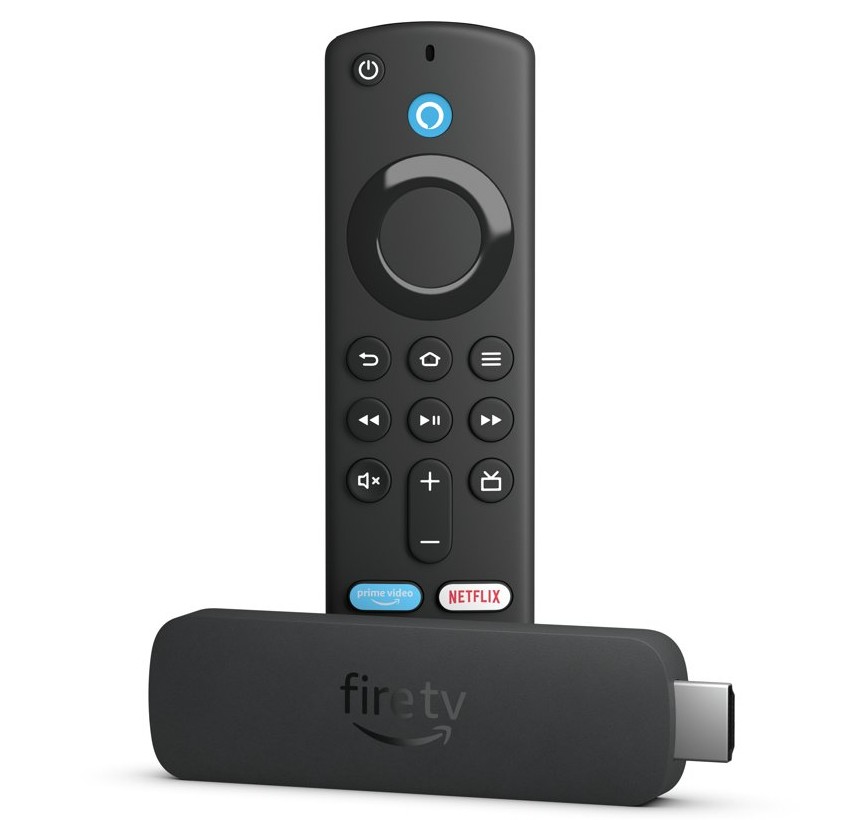
How to install the latest version of Kodi on Fire TV
Version numbers change, so take whichever stable release kodi.tv offers when you install. Version 21.3 shipped on October 31, 2025.
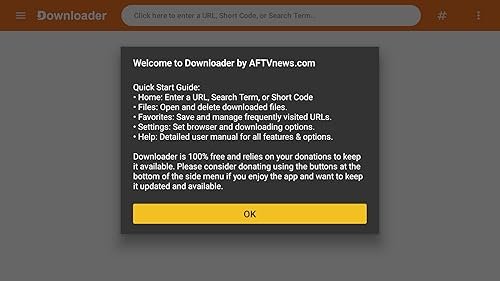
- From the Fire TV home screen, select Find or press the Alexa button, and search for Downloader.
- Select Downloader by AFTVnews.com and select Get.
- Go to Settings > My Fire TV > Developer Options and allow installs for Downloader, as the next section explains.
- Open Downloader and enter
kodi.tvin its address box. - Open Kodi's download page in the built-in browser, choose Android, and select the 32-bit ARM build.
- Wait for the file to finish, then confirm the install prompt.
- Open the file manager in Downloader and delete the APK to free up storage.
Fire TV keeps Kodi with your other apps after this. Download only from kodi.tv, because an APK from a mirror site can contain anything.
Preparing your Fire Stick for Kodi installation
Sideloading needs one setting changed first. Amazon's menu label varies by device, so look for My Fire TV, Device or Devices & Software.
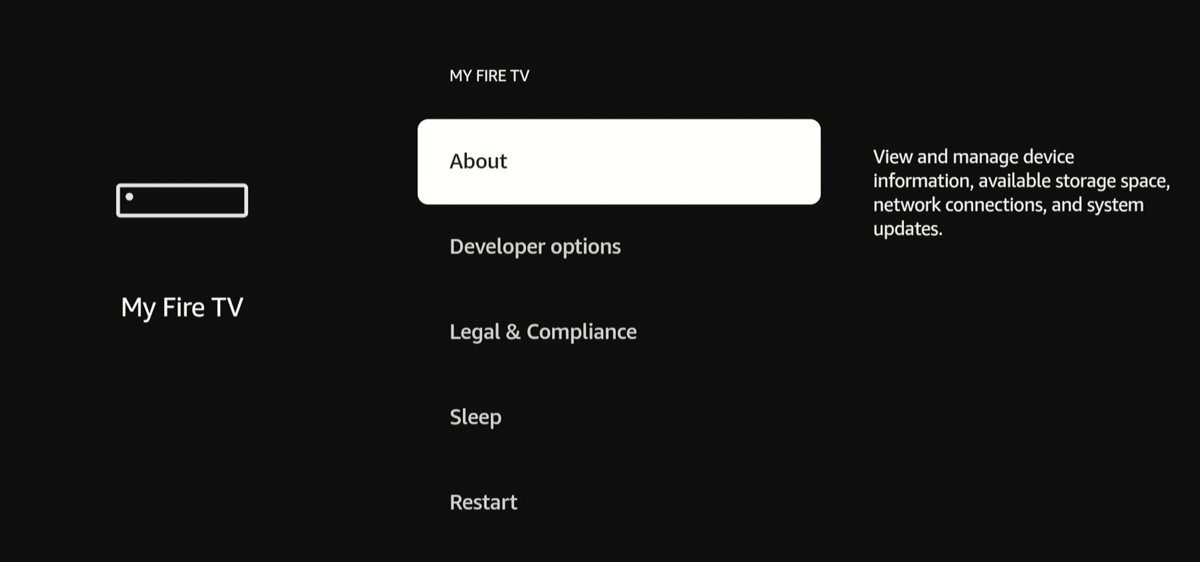
- Open Settings and select My Fire TV.
- Select Developer Options.
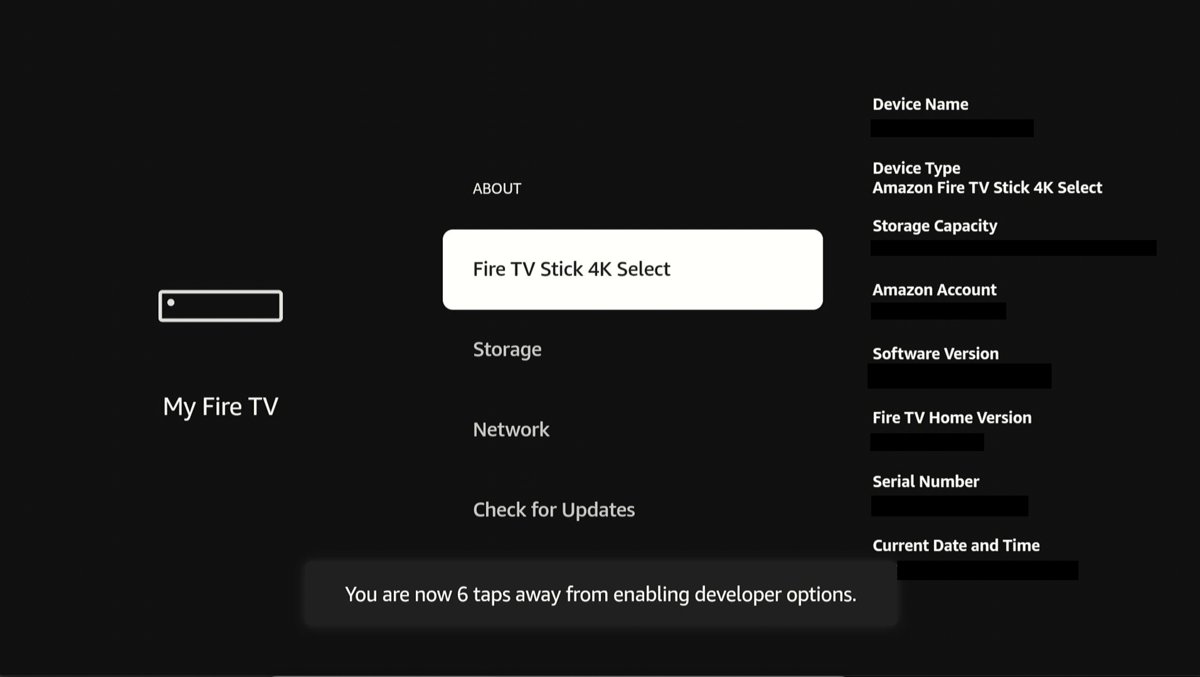
- If you do not see it, open About, highlight Your TV, and press the remote's D-pad center button 7 times, then go back.
- On Fire OS 5 and Fire OS 6, turn on Apps from Unknown Sources.
- On Fire OS 7 and Fire OS 8, open Install unknown apps, select Downloader and turn it on.
- Go to Settings > Applications > Manage Installed Applications and select Clear all Application Caches if a low storage message appears.
Turn the setting off again after Kodi is installed, so nothing else can install without your knowledge. If Fire TV asks for a PIN you have forgotten, you can reset the Fire Stick PIN first.
Which Fire TV devices can install Kodi?
Kodi's Fire TV route is an Android APK, so the operating system decides whether it can work. Amazon lists no Android level for Vega OS devices, and it treats Fire OS APKs and Vega VPKGs as separate binary types.
| Device | Operating system | Kodi APK |
|---|---|---|
| Fire TV Stick 4K Select (2025), Fire TV Stick HD (2026), Fire TV Stick 4K – 3rd Gen (2026) | Vega OS 2.0 | No. There is no Android layer for the APK to run on. |
| Fire TV Stick 4K Plus (2025), Fire TV Stick 4K Max – 2nd Gen (2023), Fire TV Stick 4K – 2nd Gen (2023) | Fire OS 8 (Android 11) | Yes, after you allow Downloader under Install unknown apps. |
| Fire TV Stick HD (2024), Fire TV Stick 4K Max – 1st Gen (2021), Fire TV Stick – 3rd Gen (2020), Fire TV Cube – 2nd and 3rd Gen | Fire OS 7 (Android 9) | Yes, after you allow Downloader under Install unknown apps. |
| Fire TV Stick 4K – 1st Gen (2018), Fire TV Cube – 1st Gen (2018) | Fire OS 6 (Android 7.1) | Yes, after you turn on Apps from Unknown Sources. |
| Fire TV Stick – 1st and 2nd Gen, Fire TV Stick – Basic Edition | Fire OS 5 (Android 5.1) | Downloader runs here, but check the minimum Android version on Kodi's download page first. |
| Fire TV smart TVs | Fire OS 8 or Fire OS 14 on recent models | Android-based, so the same route applies. |
Read your device's name under Settings > My Fire TV > About, then match it to a row. Fire tablets follow a different route, where you can install Android apps on a Kindle Fire instead.
Should I install 32-bit or 64-bit Kodi on Fire Stick?
Install the 32-bit ARM build on a Fire TV Stick or Fire TV Cube. Amazon's specifications list the Application Binary Interface as 32-bit for every Fire TV Stick and Fire TV Cube generation, so a 64-bit build is the wrong match for those devices. Switch to the 32-bit file if another build fails with an incompatible-app message.
Remember – always use a VPN with Fire Stick
A VPN is not required to install or run Kodi, and it does not make an unlicensed stream legal. Use one when you want your Fire TV traffic routed through an encrypted connection, especially on a shared or public network.
These steps come from NordVPN's Fire TV instructions, and other VPN apps in the Appstore follow a similar pattern.
- Open the Apps menu from the Fire TV home screen.
- Open the Amazon Appstore, search for your VPN and select Get.
- Select Download, then Open after it installs.
- Log in with the QR code or the code on screen.
- Approve the VPN connection request from Fire OS, ticking the checkbox in the pop-up if there is one.
Not every stick can do this. NordVPN says the first-generation Fire TV Stick does not allow VPN connections, while the second generation and Basic Edition run Android versions too old for its app. It also says new sticks on Vega OS will be missing some features temporarily.
How to install Kodi on Firestick with ADB
ADB suits you if you already have the APK on a computer and do not want Downloader on the stick. The computer and the Fire TV must be on the same network.
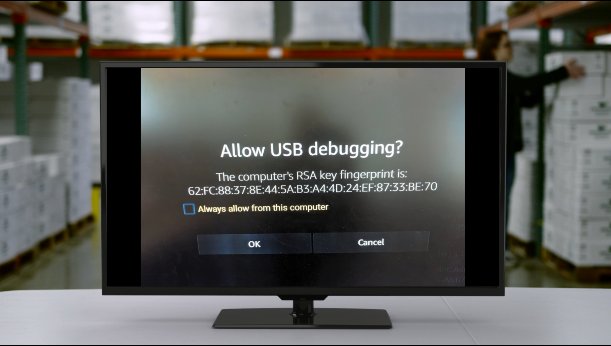
- Go to Settings > My Fire TV > Developer Options and turn on ADB Debugging and Apps from Unknown Sources.
- Read the IP address under Settings > My Fire TV > About > Network.
- On the computer, run
adb connect <ipaddress>:5555from a folder with Android's adb tool. - Accept Allow USB debugging? on the TV and select Always allow from this computer.
- Run
adb devicesand check that the Fire TV is listed asdevice. - Run
adb install <path-to-apk-file>with the 32-bit Kodi APK you got from kodi.tv. - Look for the Success message, then turn ADB Debugging off on the TV.
Amazon warns that the separate Settings > Network screen does not show the IP address, so use the About path above. If the connection hangs, run adb kill-server and then adb start-server.
How to find Kodi on Fire TV after installing it
Kodi can be hard to spot once the install finishes. Amazon lists two places to find a sideloaded app on Fire TV.
- Open the Apps section from the home screen and look in the Recent row or the My Library row.
- If Kodi is not there, go to Settings > Applications > Manage Installed Applications.
- Select Kodi and then Launch application.
Adding content to your Kodi device
Kodi is a player and library with no bundled movies or TV, so it opens empty until you point it at your own media. In Kodi's video section, add the location below as a source, and let the library scan it for titles and artwork.
| Source type | What it is | What you need |
|---|---|---|
| Local storage | Video files stored on the Fire TV's internal drive | Free space, which is tight on an 8 GB stick |
| SMB/SAMBA/CIFS share | A shared folder on a PC or network storage box | The share's network address and sign-in details |
| NFS share | A network folder, common on Linux and network storage | The server address and the export path |
| UPnP or DLNA share | A media server on your network that advertises itself | A UPnP server on the same network, and UPnP turned on in Kodi's service settings |
| PVR client add-on | Live TV and recording through your own TV backend | A separate TV backend, because Kodi has no tuner code of its own |
Kodi's web scrapers then download metadata and cover art for your library. Its built-in players cannot officially play DRM-protected files, so purchased or subscription video from protected services needs that service's own app.
How to update Kodi on Fire Stick
Sideloaded apps do not update through the Appstore, so you repeat the install with the newer file. Installing over the existing app keeps your data, and that answers whether you should uninstall the old version first: normally, no.
- Open Downloader and download the newer 32-bit Android build from kodi.tv.
- Confirm the install prompt to install over the current version.
- With ADB, run
adb install -r <path-to-apk-file>, which keeps existing user data and cache. - Uninstall first only if you want a clean start, because that removes your Kodi data.
How to uninstall Kodi from Fire Stick
- Go to Settings > Applications > Manage Installed Applications.
- Select Kodi.
- Select Uninstall, then Uninstall again to confirm.
- Turn off Apps from Unknown Sources or Downloader's Install unknown apps permission under Developer Options.
Troubleshooting guide – what to do if Kodi is not working on Firestick
Kodi content is always buffering
Amazon treats buffering as a network problem first, so test the connection before changing anything in Kodi.
- Open Settings, select Network and press Play/Pause on the remote to open the network status tool.
- Unplug the Fire TV from power, wait 10 seconds and plug it back in.
- Unplug the modem and router for 1 minute, plug in the modem and wait about 1 minute, then plug in the router and wait about 1 minute.
- Move the Fire TV and router closer together if you can.
Firestick is losing its network connection
The saved Wi-Fi connection has a fault, or the stick is stuck on a weaker band.
- Go to Settings > Network, select Wi-Fi and turn it off, then back on.
- Find your network name, press the Menu button, then press Select to forget the network.
- Enter your Wi-Fi password to reconnect.
- Set your router to use one network name across its 2.4 GHz, 5 GHz and 6 GHz bands, so the stick can pick the best one.
Kodi app not working properly, crashing or not opening
The app's stored data is corrupt, the install is damaged, or Fire OS is out of date.
- Restart from Settings, or unplug the power adapter for 1 minute.
- Go to Settings > Applications > Manage Installed Applications, select Kodi and select Clear Cache.
- Select Clear Data if Kodi still fails, knowing that this resets the app and its library.
- Uninstall Kodi and install it again from kodi.tv.
- Go to Settings > My Fire TV > About and select Check for System Update.
"App not installed" or an incompatible-app message
The device runs Vega OS, the build is the wrong type, or a very old APK is signed in a way Fire OS 8 refuses.
- Check your model against the device table above.
- Download the 32-bit Android build, not a 64-bit file.
- Use a current release from kodi.tv, because Fire OS 8 blocks apps signed only with APK Signature v1.
- Clear application caches and try again if storage is low.
Downloader says it cannot install unknown apps
Downloader has not been allowed to install apps yet.
- Go to Settings > My Fire TV > Developer Options.
- Turn on Apps from Unknown Sources, or allow Downloader under Install unknown apps.
- Return to Downloader and open the APK from its file manager.
Developer Options is missing from Settings
Some Fire TV software versions hide the menu.
- Go to Settings > My Fire TV > About.
- Highlight Your TV and press the D-pad center button 7 times.
- Go back and look for Developer Options.
A factory reset is Amazon's last step for a connection that will not recover, and it removes Kodi and every other app you have installed.
Is Kodi legal on Fire Stick?
Kodi itself is open-source software under GPL-2.0-or-later, so the app is not the problem. The risk comes from third-party add-ons that stream copyrighted content without permission. The XBMC Foundation says it does not endorse add-ons built for piracy, and Amazon pulled Kodi from its Appstore in 2015 over that use. Stick to your own media and services you are licensed to watch.
Kodi on Fire Stick FAQ
How do I install Kodi on my device if it is a Fire Stick?
Install Downloader from the Amazon Appstore, allow it to install apps under Developer Options, enter kodi.tv in its address box, and download the 32-bit Android build. Confirm the install prompt, then find Kodi in your Apps section.
Why is Kodi not in the Amazon Appstore?
Amazon pulled Kodi in 2015, saying the app can be used to facilitate piracy or illegal downloads. A search of the Appstore shows no app from the Kodi project, so a Fire TV install has to come from kodi.tv as an APK.
Can I install Kodi on Fire TV Stick 4K Select?
No. The Fire TV Stick 4K Select runs Vega OS, which has no Android level in Amazon's device list, and the Kodi APK is an Android package. The same applies to the Fire TV Stick HD (2026) and Fire TV Stick 4K 3rd Gen.
Do I need ADB Debugging to install Kodi with Downloader?
No. Downloader only needs permission to install apps, which you grant under Developer Options as Apps from Unknown Sources or Install unknown apps. ADB Debugging is only for installing Kodi from a computer, and you can turn it off afterward.
How do I use Kodi after it is installed?
Kodi opens with no media, so add a source first. Point its video section at a local folder, an SMB or NFS share, or a UPnP server on your network. Kodi then builds a library with artwork from its scrapers.
How do I install Kodi add-ons on a Fire Stick?
Use Kodi's official add-on repository from inside the app, and avoid third-party repositories. The XBMC Foundation does not endorse add-ons designed for piracy, and Amazon cited that kind of use when it pulled Kodi from its Appstore in 2015.
Does Kodi come with free movies or live TV?
No. Kodi ships without content and has no TV-tuner code of its own. Live TV needs a PVR client add-on connected to a separate backend, and movies come from your own files or network shares unless you add a licensed service.
Will clearing Kodi's data delete my library?
Yes. Clear Data resets the app without uninstalling it, so expect to set up your sources and library again. Try Clear Cache first under Settings, Applications, Manage Installed Applications. Your media files on another device or share are not affected.
Do I need a VPN for Kodi on Fire Stick?
No. Kodi installs and runs without a VPN. A VPN adds an encrypted route for your Fire TV traffic, which can help on shared networks. It does not change the legal status of what you watch, and some older sticks cannot use one.