Press the eject button on the front of the drive to open a CD drive in Windows 11, or open File Explorer, right-click the drive under This PC and select Eject.
This guide covers both routes, Command Prompt, keyboard options, external USB drives, a stuck tray and what to do when Windows 11 does not show the drive.
Method 1: Using the physical eject button
The button is the quickest route because it needs no menus. It also works as a test, since a tray that opens here proves the drive has power.
- Find the small button on the front of the drive tray or drive bay.
- Press it once and wait a few seconds for the tray to slide out.
- Place or remove your disc.
- Press the button again to close the tray on a desktop drive.
Some laptops use a slot-load drive with no tray. Dell handles eject settings for those in its QuickSet app, so try the File Explorer method on those models.
How to open CD drive without eject button
| Your situation | Use this | Why |
|---|---|---|
| Button broken or out of reach | Method 2: File Explorer | One right-click, no typing |
| You prefer a typed command | Method 3: Command Prompt | Works by drive letter |
| Mouse not available | Method 4: keyboard route | Shift + F10 opens the same menu |
| USB drive plugged into the PC | Method 5: external drive | It has its own button and appears in File Explorer |
| You do not know the drive letter | Method 6: Disk Management | It lists every drive and its letter |
| Computer is off or the tray is stuck | The emergency eject hole | A paperclip releases a tray-load drive by hand |
| No CD drive appears anywhere | The CD drive not showing section | Some thin laptops have no optical drive |
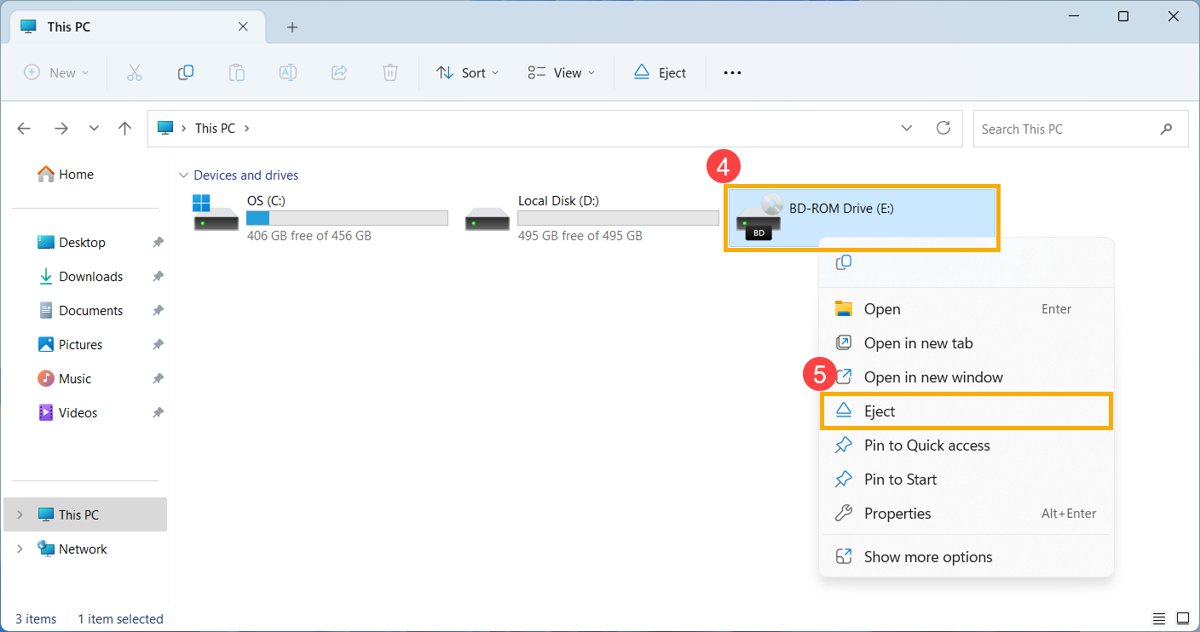
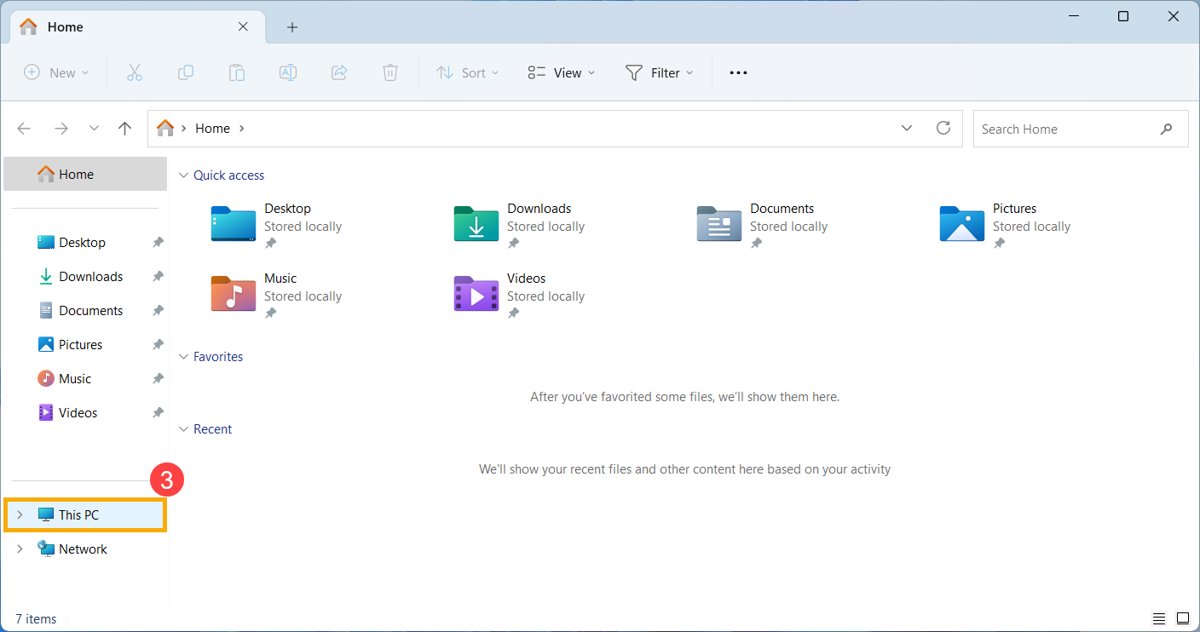
Method 2: Opening CD drive from File Explorer
- Press Windows key + E to open File Explorer.
- Select This PC in the left pane.
- Right-click the CD, DVD or Blu-ray drive.
- Select Eject. The tray opens.
A mounted ISO image also appears as a drive, and Microsoft gives the same Eject command in the File Explorer toolbar for it. That unmounts the image rather than moving any hardware.
Method 3: Opening CD drive using Command Prompt
Command Prompt has no eject command of its own, so this line calls the same Eject menu command through PowerShell. Press Windows key + R, type cmd and press Enter, or open Terminal in Windows 11 and use a Command Prompt tab.
powershell -NoProfile -Command "(New-Object -ComObject Shell.Application).Namespace(17).ParseName('D:').InvokeVerb('Eject')"Replace D: with your drive letter. Namespace(17) is the This PC folder, ParseName picks the drive and InvokeVerb runs its menu command.
You should see: the tray slides out and the prompt returns with no message.
If nothing happens, check the letter under This PC, because the command targets only the drive you name.
Method 4: Using keyboard shortcuts
Microsoft's list of Windows keyboard shortcuts has no key for ejecting a disc, so the real keyboard options are below.
| Keyboard route | Keys | Notes |
|---|---|---|
| File Explorer with no mouse | Windows key + E, arrow keys to the drive, Shift + F10 | Shift + F10 opens the context menu, where you pick Eject |
| Run dialog | Windows key + R, paste the Method 3 line, Enter | Runs the same command without opening Command Prompt first |
| Dedicated eject key | Only if your keyboard has one | This is a feature of that keyboard, so its manual is the place to check |
Method 5: Opening external USB CD/DVD drives
An external drive works like an internal one once Windows sees it, and BIOS settings do not apply to it.
- Connect the drive to a USB port on the PC.
- Press the eject button on the drive itself.
- Use This PC in File Explorer if the button does not respond: right-click the drive and select Eject.
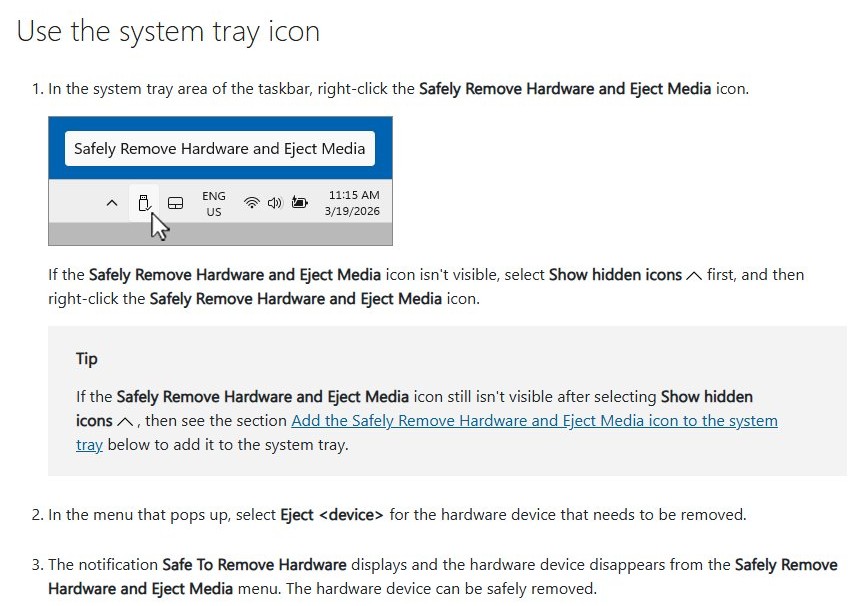
- Right-click Safely Remove Hardware and Eject Media in the notification area before you unplug the drive.
- Select Eject next to the drive's name, then wait for the Safe To Remove Hardware message.
Select the up arrow for hidden icons if the tray icon is not showing. The icon may not appear at all if Windows does not recognize the device.
Method 6: Using Disk Management in Windows 11
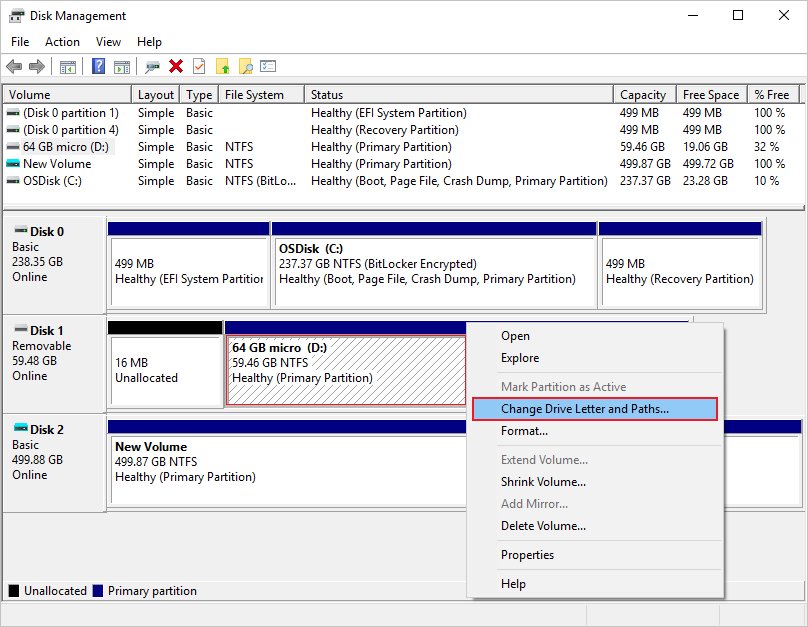
Disk Management is built for viewing drives and changing drive letters, so here it tells you the letter that Method 2 and Method 3 need. Microsoft's Disk Management articles do not list an eject task, so use Eject only if your menu shows it.
- Select Start, search for Disk Management and open it with administrator permissions.
- Find the CD or DVD drive in the drive list and note its letter.
- Right-click the drive and select Eject if your menu lists it.
- Otherwise use that letter in File Explorer or in the Command Prompt line above.
The same window can add a drive letter in Windows 11 if the drive has none. Use Change Drive Letter and Paths on the drive's volume.
How to view CD files in File Explorer on Windows 11
Opening the drive can also mean reading the disc rather than opening the tray. Windows shows a loaded disc as a drive under This PC.
- Place the disc in the tray and close it.
- Press Windows key + E and select This PC.
- Double-click the CD or DVD drive to see the files on the disc.
If one disc will not open but others do, Dell says the problem is that disc and not the drive.
How to check if a CD drive is detected in Windows 11
- Press Windows key + R, type
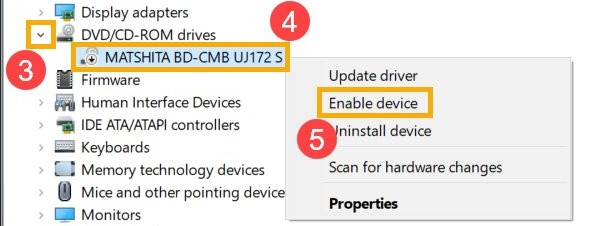
devmgmt.mscand press Enter. - Expand DVD/CD-ROM drives.
- Look for your drive by name, and for a yellow exclamation mark beside it.
- Right-click the drive and select Enable device if that option appears. If it does not appear, the drive is already enabled.
No DVD/CD-ROM drives entry means Windows cannot see a drive. Dell points out that some thin laptops have no optical drive, so check your original invoice before you troubleshoot.
Troubleshooting: When the CD drive won't open
Check power and connection
A drive with no power or a loose USB cable cannot move its tray, and an app using the disc can hold it closed.
- Confirm the computer is on, and that an external drive's USB cable is firmly connected.
- Close any CD or DVD playback or recording app.
- Check the notification area, right-click any such app's icon and select Close or Exit.
- Try the eject button again.
Use the emergency eject hole
Tray-load drives have a small pinhole for manual release. Not every model has one, so check your user manual, and use it only when the electronic eject fails.
- Turn off the computer.
- Straighten a paperclip so 1 to 2 inches (2 to 5 cm) is straight.
- Find the pinhole directly under or above the drive bay door.
- Push the paperclip in gently, repeating until the tray comes out far enough to grip.
- Pull the tray out slowly, and stop if you feel resistance.
Update or reinstall drivers
Windows includes the driver for optical drives, so removing the device lets Windows reinstall it.
- Press Windows key + R, type
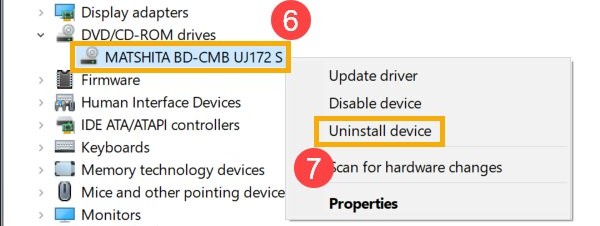
devmgmt.mscand press Enter. - Expand DVD/CD-ROM drives, right-click the drive and select Uninstall device.
- Confirm, then restart the computer so Windows reinstalls the driver.
- Install chipset updates from your PC maker if the drive still fails.
Enable in BIOS/UEFI
Microsoft lists a disabled BIOS entry as a cause when Windows does not detect an internal drive. External drives skip this check.
- Restart the computer and open its setup screen. On Dell systems, tap F2 during restart.
- Check that the optical drive is listed and enabled.
- Save your changes and restart into Windows.
- Contact your PC maker if the setup screen does not list the drive.
Check for hardware damage
Testing outside Windows separates a software fault from a failed drive. On Dell systems, you can press the eject button from the BIOS screen.
- Restart into the setup screen and press the drive's eject button.
- Treat a tray that opens here but not in Windows as a software problem, and return to the driver fix.
- Treat a tray that stays shut here as a likely hardware fault.
- Contact your PC maker about repair options, or use an external USB drive.
You can also update drivers on Windows 11 before you replace the drive, since Microsoft lists outdated chipset drivers as a cause.
CD drive not showing in Windows 11
Microsoft gives these fixes for drives that are missing from File Explorer. Run the BIOS and driver checks above first.
Yellow exclamation mark with code 19, 31, 32, 39 or 41
These Device Manager codes point to a configuration, driver or detection problem, often after a Windows upgrade or after adding or removing disc recording software.
- Back up the registry first.
- Press Windows key + R, type
regeditand press Enter, then select Yes at the prompt. - Go to
HKEY_LOCAL_MACHINE\SYSTEM\CurrentControlSet\Control\Class\{4D36E965-E325-11CE-BFC1-08002BE10318}. - Delete UpperFilters and LowerFilters in the right pane if they exist.
- Restart the computer, then reinstall or update any CD or DVD recording app.
Drive still missing after a driver reinstall
Hidden controller entries can carry the same fault, so Microsoft has you reinstall them too.
- Press the Windows key, type Device Manager and press Enter.
- Select the View menu and choose Show Hidden Devices.
- Expand IDE/ATAPI Controllers.
- Right-click ATA Channel 0, ATA Channel 1 and Standard Dual Channel PCI IDE Controller in turn, and select Uninstall on each.
- Uninstall any additional entries in that group the same way.
- Restart the computer so Windows reinstalls them.
Why CD/DVD drives are still useful
A disc drive is still the way to reach music and files on discs you already own, and Windows Media Player can both copy from discs and write to them.
| Job | What you can do | Capacity or format |
|---|---|---|
| Rip a music CD | Copy songs to your Music folder | WMA, WAV or MP3 |
| Burn an audio CD | Make a disc for almost any CD player | Up to 80 minutes |
| Burn a data CD | Store music, pictures and videos | About 700 MB |
| Burn a data DVD | Store much larger sets of files | About 4.7 GB |
CD drive in Windows 11 FAQ
How do I open my CD drive if the button is broken?
Open File Explorer with Windows key + E, select This PC, right-click the drive and select Eject. If that fails too, turn off the computer and use a straightened paperclip in the emergency eject hole on a tray-load drive.
Why is my CD/DVD drive not showing up in Windows 11?
Windows is not detecting it, usually because of a BIOS setting, a driver problem or damaged registry entries. Check DVD/CD-ROM drives in Device Manager, reinstall the driver, and confirm the drive is enabled in BIOS. Some thin laptops simply have no optical drive.
Can I open a CD drive without turning on my computer?
Yes, on a tray-load drive with an emergency eject hole. Dell's steps start with the computer off: push a straightened paperclip gently into the pinhole until the tray comes out far enough to grip, then pull it out slowly.
Do external CD/DVD drives work the same way as internal ones?
Mostly yes. They have their own eject button and appear under This PC, so the File Explorer route works. BIOS checks do not apply, and you should use Safely Remove Hardware and Eject Media before you unplug one.
Is there a keyboard shortcut to open a CD drive in Windows 11?
Microsoft's shortcut list has none for ejecting a disc. You can press Windows key + E, move to the drive with the arrow keys, then press Shift + F10 and choose Eject. A dedicated eject key, if your keyboard has one, is described in its manual.
How do I open a CD drive from Command Prompt?
Run the PowerShell line from Method 3 in Command Prompt and replace D: with your drive letter. It calls the same Eject command you see in File Explorer. The tray should slide out, and the prompt returns with no message.