Update Windows Media Player Legacy by installing Windows updates, and update the newer Media Player app through Library > Get updates in Microsoft Store.
This guide shows how to identify your player, run each update, reinstall a missing player, and fix update and playback errors on Windows 11 and Windows 10.
How to update Windows Media Player on Windows 11 and Windows 10
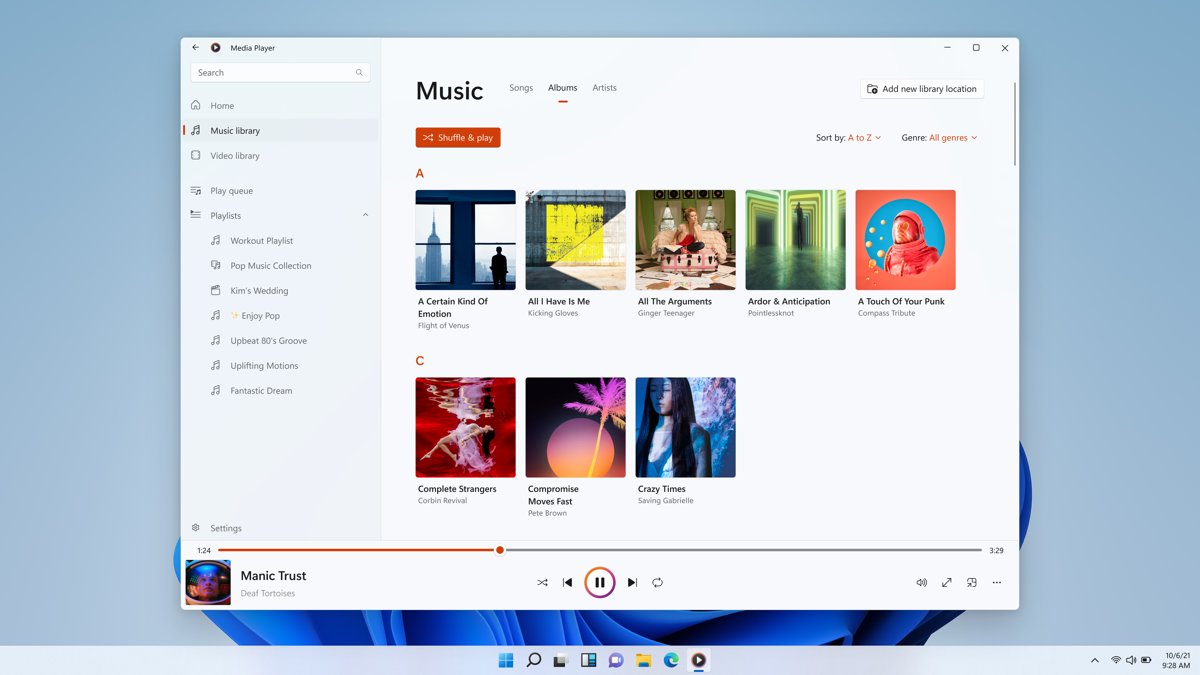
Windows has two players with almost the same name, and each one updates through a different route.
| Player | Update route | Exact path |
|---|---|---|
| Windows Media Player Legacy (version 12), Windows 11 | Windows Update | Start > Settings > Windows Update > Check for updates |
| Windows Media Player Legacy (version 12), Windows 10 | Windows Update | Start > Settings > Update & Security > Windows Update > Check for updates |
| Media Player app, Windows 11 | Microsoft Store | Microsoft Store > Library > Get updates |
| Media Player app, Windows 10, if installed | Microsoft Store | Microsoft Store > See more > Downloads and updates > Get updates |
Microsoft Store also updates its apps automatically, so the manual check only speeds up an update that is already on its way.
Why updating Windows Media Player matters
Updates reach the player in different ways, and they fix different things. The table links each common reason to the update that addresses it.
| Reason to update | What the update does | Route |
|---|---|---|
| Error 0xC00D11CD | Microsoft lists an update as the first fix for this player error | Windows Update |
| Stuttering, freezing, skipping or no sound | Microsoft lists the latest Windows updates among the playback fixes | Windows Update |
| Apps closing when they decode AC-3 audio | The October 13, 2026 update (KB5127648) fixed a crash on Windows 11 | Windows Update |
| Slow browsing in a large music library | Media Player version 11.2205 improved performance for large collections | Microsoft Store |
| No way to rip a CD in the new app | Media Player version 11.2206.30.0 added CD ripping in AAC, WMA, FLAC and ALAC | Microsoft Store |
An update does not add every format. HEVC, VP9, AV1, MPEG-2 and Web Media support comes from separate Microsoft Store extensions, and you can add HEVC and other video codecs on their own.
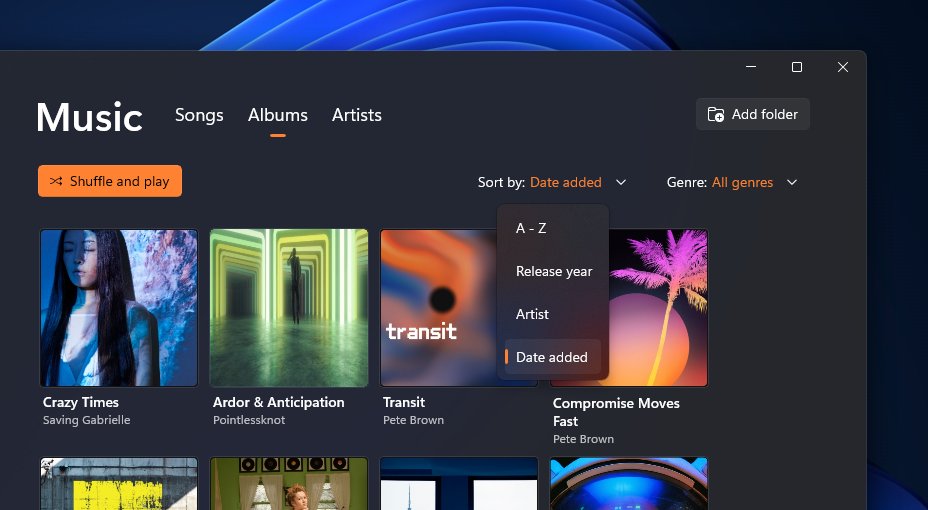
Identifying your Windows Media Player version
Check which player you have before you update it, because the two share a name. Legacy has an Organize menu and Burn and Rip CD controls.
| Check | Windows Media Player Legacy | Media Player app |
|---|---|---|
| Name in Windows | Windows Media Player Legacy | Microsoft Store listing titled Windows Media Player |
| Installed as | Optional Windows feature | Microsoft Store app that replaced Groove Music |
| Version number | Press Ctrl + M if the menu is hidden, then select Help > About Windows Media Player | Microsoft Store shows any pending update under Library |
| Installed components | Select Technical Support Information in the About dialog box to list codecs, filters and plug-ins | Not applicable |
You can also turn the Legacy menu on permanently with Organize > Layout > Show menu bar. If you cannot locate the program at all, find where Windows Media Player is before you continue.
How to update Windows Media Player 12 (Classic)
Microsoft's route for the classic player is to update Windows itself. Its support page says to get the latest version of Windows Media Player by updating Windows.
| Your Windows version | What you get | What to do |
|---|---|---|
| Windows 11 | The latest player through normal Windows updates | Run Windows Update as shown in the next section |
| Windows 10 | No more free updates from Windows Update since October 14, 2025 | Move to Windows 11 for continued updates |
| Player missing from the PC | Nothing to update until the feature is installed | Add it through Optional features first |
Step-by-step: Update through Windows Update
Close Windows Media Player first, so the restart at the end does not interrupt playback.
- Select Start > Settings > Windows Update. On Windows 10, select Start > Settings > Update & Security > Windows Update.
- Select Check for updates.
- If updates appear, select Download & install.
- Restart the PC if Windows prompts you to.
- Open Windows Media Player and play the file that caused the problem.
If the newest version of Windows is not offered through this check, Microsoft points to Windows Update Assistant as the manual route.
Reinstall Windows Media Player 12 via Optional Features
Use this route when the classic player has gone missing. It installs Windows Media Player Legacy on Windows 11.
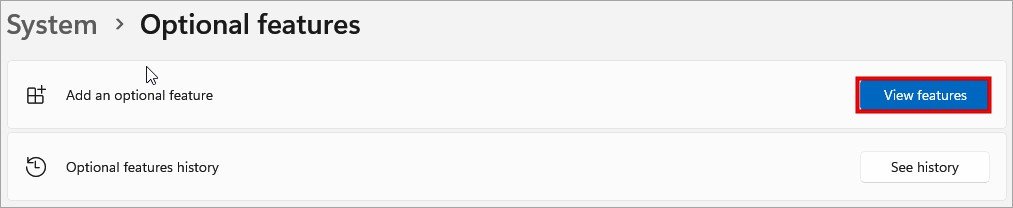
- Select Start > Settings > System > Optional features.
- Select View features.
- Search for
Windows Media Player Legacy. - Check the box next to it, then select Next.
- Select Add and wait for the installation to finish.
On Windows 10, select Start > Settings > Apps > Apps & features > Manage optional features > Add a feature, select Windows Media Player, then select Install.
Caveats for Windows 10 and 11 users
| Caveat | Who it affects | What to do |
|---|---|---|
| DVD playback is not included in Windows Media Player Legacy | Windows 10 and Windows 11 | Use a player that supports DVDs |
| Legacy is offered as an optional feature only in some editions | Windows 10 and Windows 11 | Check Optional features on your PC |
| N editions ship without Windows Media Player | Windows 10 N and Windows 11 N | Install the Media Feature Pack, then restart |
| The AC-3 (Dolby Digital) codec is no longer included | Clean installs of Windows 11, version 24H2 | Check for a manufacturer codec; upgraded PCs keep AC-3 |
| Microsoft recommends the Media Player app for modern video such as 4K | Anyone who plays 4K video | Use the app instead of Legacy for those files |
| Windows 10 reached end of support on October 14, 2025 | Windows 10 PCs | Upgrade to Windows 11 |
How to update the new Windows 11 Media Player app
The Media Player app replaced Groove Music through an update, so it follows the normal Microsoft Store rules. Your Groove library and playlists moved across automatically.
| Situation | What Microsoft Store does | What to do |
|---|---|---|
| Default settings | Installs app updates automatically | Nothing, or run a manual check |
| You want an update now | Installs on request | Select Library > Get updates |
| Automatic updates paused | Waits up to five weeks, then resumes | You can still check and install manually |
| Pause option missing | Your IT admin might manage app updates | Ask the admin who runs the device |
Step-by-step: Update via Microsoft Store
Sign in to your Microsoft account first, which is also Microsoft's first step for fixing Store app problems.
- Select Start, then select Microsoft Store from the apps list.
- Select Library.
- Select Get updates.
- Wait for any listed update to finish installing.
- Close Media Player if it is open, then reopen it.
On Windows 10, select See more > Downloads and updates > Get updates instead. To pause automatic updates, select your profile picture, select Store Settings, and choose one to five weeks under App updates.
How to tell if Windows Media Player is up to date
- Select Start > Settings > Windows Update > Update history to see which Windows updates have installed.
- Run Check for updates again and look for any update still waiting to install.
- Open Microsoft Store, select Library, and select Get updates to look for a waiting Media Player update.
- In Windows Media Player Legacy, select Help > About Windows Media Player to read the version.
Play the file that failed before the update. Clean playback is the proof that matters most.
Troubleshooting update issues
Windows Update shows an error or says there is not enough space
The update cannot download or install on this PC.
- Select Start > Settings > Windows Update and remove any pause you set earlier.
- Free up disk space if Windows warns that the device is short of it.
- Restart the PC, then select Check for updates again.
Get updates does nothing in Microsoft Store
The Store app cache, your sign-in or a pending Windows restart is blocking it.
- Restart the PC if Windows updates were installed recently.
- Sign in to Microsoft Store with your Microsoft account.
- Press Windows + R, enter
wsreset.exe, and select OK. - Wait about ten seconds for the blank window to close and the Store to open, then select Library > Get updates.
Error 0xC00D11CD after an update
Microsoft ties this error to a problem with the player or the media file.
- Close Windows Media Player.
- Press Windows + R, enter
%LOCALAPPDATA%\Microsoft\Media Player\, and press Enter. - Delete all the files in the folder, but keep the folder itself.
- Restart Windows Media Player and play the file again.
Switching between Media Player versions or changing defaults
You can keep both players installed and pick which one opens each file type. Use Open with first if you only need to switch for one file.
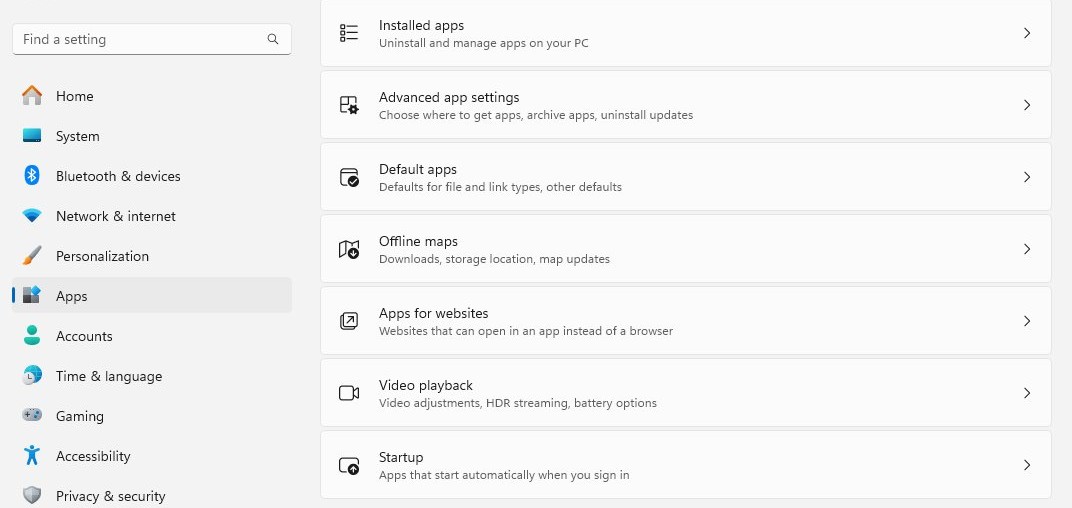
- In the Settings app, select Apps > Default apps.
- Type a file extension in the search bar, such as
.mp3or.mp4. - Select the result for that file type.
- Choose Windows Media Player or another player from the list.
- Repeat for each file type you want to change.
To switch once, right-click the file in File Explorer, select Open with, and choose the player.
What if Windows Media Player is missing or broken?
| What you see | Likely reason | Fix |
|---|---|---|
| Legacy player not on the PC | The optional feature is not installed | Add Windows Media Player Legacy from Optional features |
| No media apps at all on an N edition | N editions exclude media technologies | Install Media Feature Pack from Optional features and restart manually |
| Media Player app gone | The app was removed | Select Library in Microsoft Store, find the app, then select Install |
| Player opens but misbehaves | Damaged app files or settings | Select Settings > Apps > Installed apps, select the three dots next to the player, then Advanced options > Repair or Reset |
| Legacy still fails after that | Damaged Windows feature | In Control Panel > Programs > Turn Windows features on or off, clear Media Features, restart, select it again, and restart |
Reset removes your custom settings and preferences, but it keeps your media files and library.
Should you use a different media player?
Stay with a Microsoft player if your files already play. Change only when the job in the table below needs something else.
| What you need | Use this | Why |
|---|---|---|
| Play 4K and other modern video | Media Player app | Microsoft recommends it for modern video features |
| Burn audio CDs and manage an older library | Windows Media Player Legacy | It keeps the Burn and Rip CD controls |
| Play DVDs | VLC | Legacy has no DVD playback, and VLC plays DVDs and Audio CDs |
| Play MKV or WebM files | VLC | It needs no codec packs for these formats |
| Keep your current player but add a format | Microsoft Store extension | HEVC, VP9, AV1, MPEG-2 and Web Media add-ons extend Windows |
VLC has its own update routine, so you need to update VLC separately. Music-first listeners can compare music players for Windows 11.
Risks and troubleshooting: Known issues in Windows Media Player updates
The most recent problem came from a Windows update rather than the player. Microsoft has already fixed it.
| Known issue | Affected | Status and fix |
|---|---|---|
| Apps that decode AC-3 audio, including some media players, might close unexpectedly after KB5124010 (September 22, 2026) | Windows 11, versions 24H2, 25H2 and 26H2 | Resolved by KB5127648 on October 13, 2026; install the latest update |
| AC-3 files fail to play after a clean install | Windows 11, version 24H2 and later without a manufacturer codec | Expected, because Windows no longer includes AC-3 |
| Protected content stops playing as legacy DRM services retire | Legacy Windows Media Player on Windows 7, including CDs ripped with protection | Deprecated in September 2024; this playback stops working once the services are fully retired |
Common problems
These are the playback errors Microsoft documents for Windows Media Player. If these do not clear the error, you can troubleshoot Windows Media Player further.
0xC00D11xx errors or "A codec is required to play this file"
The file uses a codec that Windows does not include.
- While the file plays, right-click it in the library, select Properties, and read the codec names on the File tab.
- Install the matching extension from Microsoft Store.
- Play the file again.
0xC00D0BC2, 0xC00D36FA, 0xC00D10B3 or 0xC00D1059 with stutter, freezing or no sound
A corrupted library or cache can cause these playback faults.
- Press Ctrl + M to show the menu.
- Select Tools > Advanced > Restore Media Library.
- Select Tools > Options > Privacy, then Clear History under History, and select OK.
0xC00D0FEA while streaming
A network problem or the server hosting the media is the usual cause.
- Check that your internet connection is stable.
- Try the same media later in case the host server is at fault.
- Run the Windows Media Player troubleshooter from Settings > System > Troubleshoot > Other troubleshooters.
Security considerations
| Risk | What to do |
|---|---|
| Free codec packs from the internet | Avoid them. Microsoft warns they can trigger playback problems and system corruption, and recommends removing them if problems start |
| Codecs from a provider's own site | Set up a system restore point first, and use only the provider's official website |
| Windows 10 after end of support | Microsoft no longer provides free security fixes for it, so plan the move to Windows 11 |
| Possible malware behind player errors | Run a full system scan with your antivirus software |
| Player downloads from unofficial sites | Use only Optional features for Legacy and Microsoft Store for the app |
Critical analysis: Strengths and weaknesses of the update process
The two update routes differ most in how much you see and how much you control.
| Aspect | Legacy through Windows Update | Media Player app through Microsoft Store |
|---|---|---|
| Delivery | Arrives inside Windows updates | Arrives as its own app update |
| Manual check | Check for updates | Get updates |
| Pausing | Temporary; you must install updates before you can pause again | One to five weeks, then resumes |
| Going back | Update history > Uninstall updates, though some cannot be removed | Repair or Reset in Advanced options |
| Finishing up | Restart the PC if Windows prompts you | Close and reopen the app |
Notable strengths
| Strength | What it means for you |
|---|---|
| Store updates run automatically | The app keeps improving with no action from you |
| Manual Store checks work during a pause | You can pick up one fix without ending the pause |
| Official reinstall routes exist for both players | You never need a third-party installer |
| Reset leaves your media alone | Your files and library survive a reset of the player |
Risks and limitations
| Limitation | What it means for you |
|---|---|
| Windows updates cannot be stopped entirely | You can only delay them, and they install eventually |
| Store app updates cannot be turned off | The old Off option became a pause of up to five weeks |
| Some Windows updates cannot be uninstalled | A bad update is not always reversible from Update history |
| Organizations can control updates | Group Policy or other tools can override your settings on a work PC |
| An update cannot add missing codecs | Blu-ray, FLV and other unsupported formats stay unsupported in the player |
Expert recommendations for power users
| Task | Exact method | Why it helps |
|---|---|---|
| Audit installed codecs | Help > About Windows Media Player > Technical Support Information | Opens a page of binaries, codecs, filters, plug-ins and services |
| Repair Windows files | DISM.exe /Online /Cleanup-image /Restorehealth, then sfc /scannow as administrator |
Repairs corrupted system files behind player errors |
| Reset Microsoft Store | wsreset.exe in the Run dialog box |
Clears Store problems before Get updates |
| List Features on Demand | DISM /online /get-capabilities as administrator |
Shows which optional features are available in your Windows image |
| Match codec architecture | Install 64-bit codecs on 64-bit Windows | A 32-bit codec might not play on a 64-bit system |
| Remove conflicts | Temporarily disable or uninstall other media software | Third-party media apps can conflict with the player |
Looking forward: The future of Windows Media playback
Microsoft has not announced an end date for either player. These are the signals on its own pages as of November 2026.
| Signal | Current status | What it suggests |
|---|---|---|
| Media Player app | Microsoft's recommended player for modern features like 4K | Use it first for newer video |
| Windows Media Player Legacy | An optional feature, absent from Microsoft's deprecated and removed feature lists | Still available, with no removal date announced |
| Legacy DRM services | Deprecated since September 2024 | Protected content on Windows 7 clients stops working when they retire |
| AC-3 codec | Dropped from clean installs since Windows 11, version 24H2 | Expect to rely on manufacturer or app codecs |
| Format add-ons | HEVC, VP9, AV1, MPEG-2 and Web Media extensions in Microsoft Store | New formats arrive as separate extensions |
Windows Media Player update FAQ
How do I update Windows Media Player on Windows 11?
It depends on the player. Update Windows Media Player Legacy with Start > Settings > Windows Update > Check for updates. Update the Media Player app by opening Microsoft Store and selecting Library > Get updates.
What is the latest version of Windows Media Player?
Windows Media Player 12 is the version Microsoft documents for the Legacy player on Windows 10 and 11. The separate Media Player app uses its own version numbers, such as 11.2206.30.0, and they change with each Store update.
How do I check my Windows Media Player version?
Open Windows Media Player Legacy and select Help > About Windows Media Player. If the Help menu is hidden, press Ctrl + M or select Organize > Layout > Show menu bar to show it.
Is there a separate update for Windows Media Player?
Not for the Legacy player. Microsoft says to get its latest version by updating Windows through Windows Update. The Media Player app is different, because it updates on its own through Microsoft Store.
Is Windows Media Player still available in Windows 11?
Yes. Windows Media Player Legacy is offered as an optional feature in some editions of Windows 11, and you add it through Settings > System > Optional features. Microsoft recommends the Media Player app for modern video features such as 4K.
Does Windows 10 still get Windows Media Player updates?
Windows 10 reached end of support on October 14, 2025. Microsoft no longer provides free updates through Windows Update, technical help or security fixes for it, so Windows 11 is the route to continued player updates.
Can I turn off automatic updates for the Media Player app?
No. Microsoft Store replaced the Off option with a pause of up to five weeks. Select your profile picture, select Store Settings, and choose a pause under App updates. Updates then resume automatically when the pause ends.
Will resetting Windows Media Player delete my music?
No. Resetting Windows Media Player removes your custom settings and preferences, but Microsoft says it does not delete your media files or library. Use Repair first if you want to try a fix that keeps your settings.
Why can't Windows Media Player play DVDs after updating?
DVD playback is not included in Windows Media Player Legacy on Windows 10 or Windows 11, so no update adds it. Use a player that supports DVDs, such as VLC, or install a compatible DVD decoder.