To add the Google Search bar on your home screen, touch and hold an empty area, tap Widgets on Android or Edit > Add Widget on iPhone, and place the Google widget.
This guide covers Android, iPhone and iPad, changing the bar's look, fixing a missing or stuck bar, and adding Google search to a Windows PC.
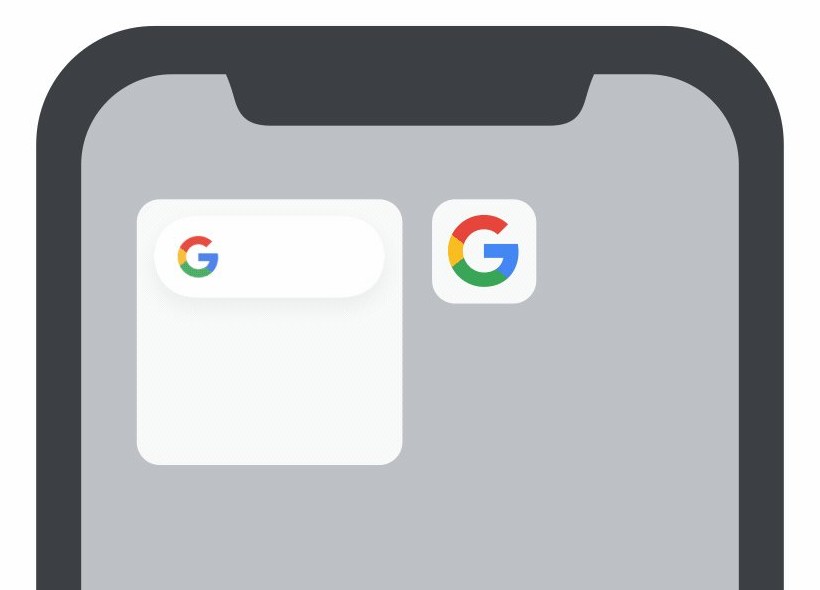
Step by step tutorial: Add Google Search bar on home screen
These steps work on most Android phones and tablets, and the Google app must be installed. iPhone and iPad steps follow in their own section.
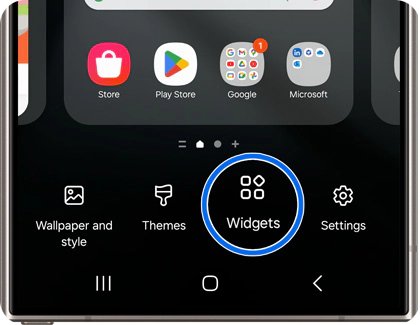
- Touch and hold an empty area of your home screen.
- Tap Widgets.
- Search for or scroll to Google, then tap it to see its widgets.
- Touch and hold the Google Search widget.
- Drag the widget to where you want it on the home screen.
- Lift your finger to place it, then tap the bar to search.
How to add Google Search bar on PC, phone or tablet
A Google Search bar means something different on each device. Use the row that matches yours.
| Your device | Do this | What you get |
|---|---|---|
| Android phone or tablet | Add the Google widget from Widgets or the Google app | A search bar on the home screen |
| iPhone or iPad | Install the Google app, then add its widget | A search widget on the Home Screen |
| iPhone Lock Screen | Add a Google widget under Customize > Lock Screen | A Google shortcut before you unlock, on iOS 16 and up |
| Windows 10 or 11 PC | Install the Google app for desktop | A Google search box you open with Alt + Space |
| Chrome or Edge browser | Set Google as the default search engine | Google results from the address bar |
How to add the Google Search bar on Android
You can add the bar from the Google app without hunting through the widget list. Use this route if the Widgets menu is hard to find on your phone.
- Open the Google app.
- At the top right, tap your profile picture or initial.
- Tap Settings, then Customize Search widget.
- Tap Add at the top right.
- Return to your home screen and tap the new bar to search.
On a Pixel phone, a search bar is already on the home screen. Touch and hold it, then tap Widget settings to customize it.
How to add Google Search bar on Samsung phone
Samsung Galaxy phones run Android, so the same widget route applies. Exact menu labels can differ with your phone's software version.
- Touch and hold an empty space on a Galaxy home screen.
- Tap Widgets.
- Find Google in the list and tap it.
- Touch and hold the search widget, then drag it into position.
- Lift your finger to place it.
- Touch and hold the widget, and drag the dots on its sides to resize it if your phone shows them.
How to add the Google Search bar on iPhone or iPad
iPhone and iPad have no built-in Google widget, so install the Google app from the App Store first. Open the app once, because a newly installed app's widget does not appear in the gallery until you do.
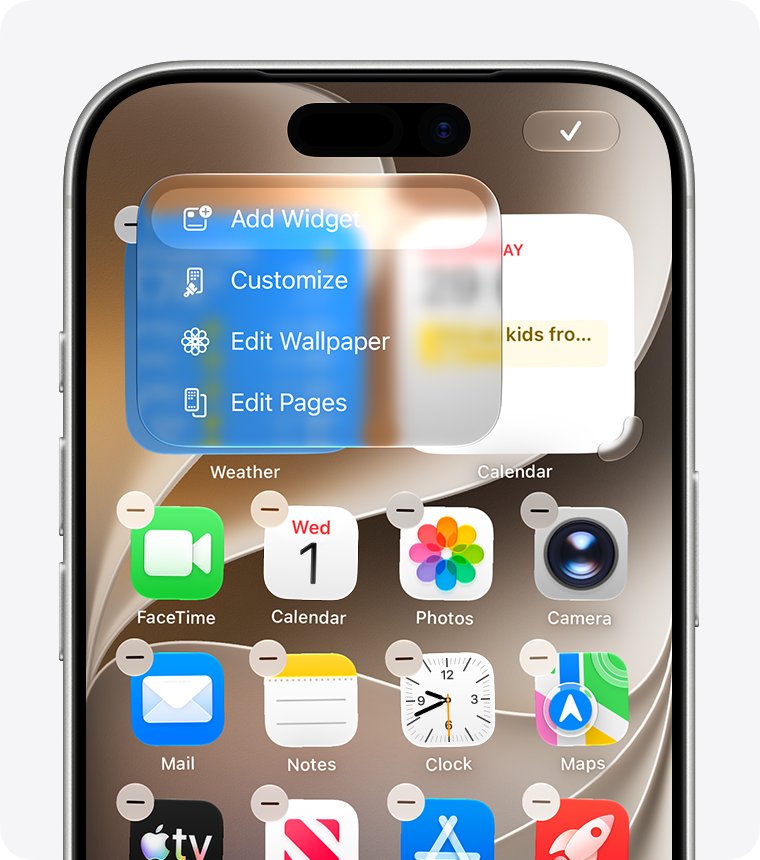
- Touch and hold an empty area of your Home Screen until the apps jiggle.
- At the top, tap Edit, then Add Widget.
- Search for Google and tap it in the results.
- Swipe to a search-size widget, or to Top searches.
- Tap Add Widget.
- Move the widget where you want it, then tap Done.
On iPad, Google says its widget is available only in landscape mode, so rotate the iPad if it does not appear. You can also add Google Chrome to your home screen if you prefer the browser.
How to add Google Search widget on iPhone Lock Screen
This option needs iOS 16 or later and works on iPhone only. You can create widgets only for Google apps already on the phone.
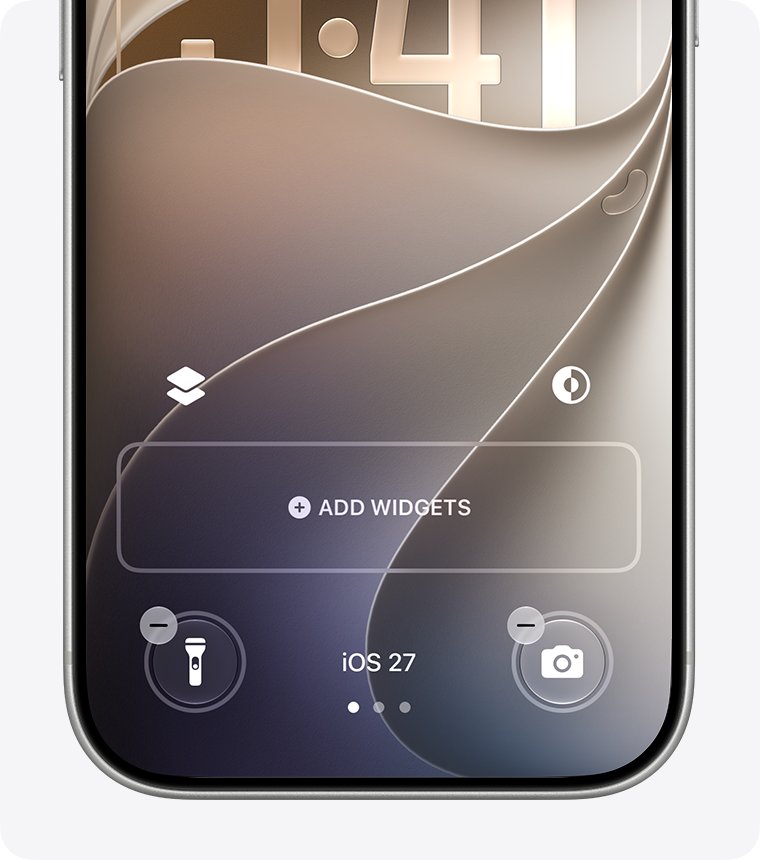
- Unlock your iPhone, then touch and hold the Lock Screen.
- Tap Customize, then Lock Screen.
- Tap Add widgets and choose a Google widget.
- Drag the widget to the Lock Screen widget bar.
- Tap the widget to set its configuration, then tap Close.
- Tap Done, then tap Lock Screen to exit.
How to change the look of the search bar
Android and iPhone keep these options in different places, both inside the Google app. On Android, changes save automatically when you leave the page.
| Device | Path | What you can change |
|---|---|---|
| Android | Google app > profile picture or initial > Settings > Customize Search widget | Shortcuts, Color and Transparency |
| Android, back to default | Same screen > Reset at the top right | Returns the bar to its previous look |
| Pixel | Touch and hold the bar > Widget settings | Themes and shortcuts |
| iPhone or iPad, theme | Google app > Settings > Widgets > Widget theme | The widget's theme |
| iPhone or iPad, shortcuts | Google app > Settings > Widgets, under Medium-widget | Up to 4 shortcuts |
| iPhone or iPad, live info | Google app > Settings > Widgets > Dynamic widget | Helpful info on the medium widget |
How to add Google Search bar to desktop on Windows 11 or Windows 10
Google's own desktop option is the Google app for desktop, which needs Windows 10 or later. It is a search box you summon, not a bar fixed to the wallpaper. If you only want the built-in box back, you can add the search bar to the Windows 11 taskbar, though that box uses Windows Search rather than Google.
- Download the Google app for desktop from Google's page at search.google/google-app/desktop.
- Install the app and sign in if prompted.
- Press Alt + Space to open the search box.
- If the shortcut does nothing, look for the Google icon in the notification tray to confirm the app is running.
- To change the shortcut, click your Profile picture, open Configurations, click the shortcut under Keyboard shortcut, and press your new keys.
How to add Google Search bar to Chrome
Chrome's address bar is the search bar, so point it at Google. Google is not the default in every country.
- On a computer, select More at the top right of Chrome, then Settings.
- Select Search engine.
- Select Change next to the search engine setting, and pick Google.
- On Android, tap More > Settings, then Search engine under Basics, and choose Google.
- On iPhone or iPad, tap More > Settings > Search engine, and choose Google.
To open a Google page on launch, select Settings, turn on Show home button under Appearance, and enter www.google.com as the custom address.
Add Google search bar to Edge
Edge uses its address bar for searches too. Change the engine it uses, and every address bar search goes to Google.
- Select Settings and more, then Settings.
- Go to Privacy, search, and services.
- Select Search and connected services, then Address bar and search.
- In Search engine used in the address bar, select Google.
If Google is not in that list, run a search with Google from the address bar first, and it should then appear. To change your default browser in Windows 11, use Settings > Apps > Default apps.
What if the search bar won't go away or won't show up?
The Google widget won't show up in the Android widget list
The list only shows widgets from installed apps, and the bar comes from the Google app.
- Check that the Google app is installed.
- Open the app, then tap your profile picture or initial, Settings, Customize Search widget, and Add.
- If that fails, reopen Widgets and search for Google.
The Google widget won't show up on iPhone or iPad
A newly installed app's widget stays hidden until you open the app, and iPad shows it only in landscape.
- Open the Google app once.
- On iPad, rotate the screen to landscape.
- Touch and hold the Home Screen, tap Edit > Add Widget, and search for Google.
The search bar won't go away on Android
Google says you can't remove the Search widget on older devices.
- Touch and hold the bar.
- Drag it up to Remove, and lift your finger.
- If no Remove option appears, your device keeps the bar in place.
The Google widget won't go away on iPhone
A widget is removed from the Home Screen itself, not from the Google app.
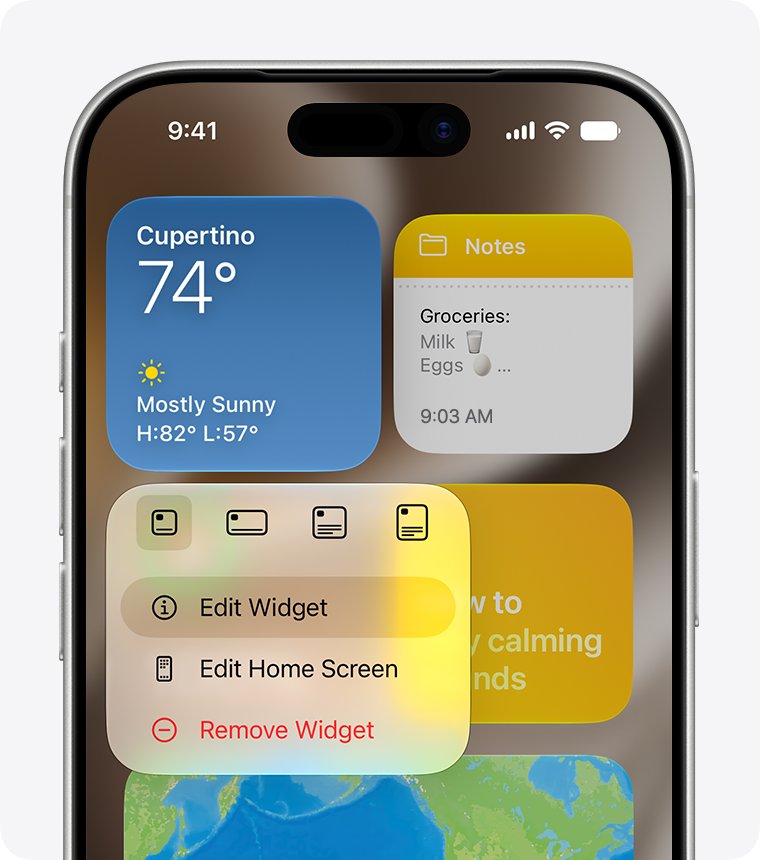
- Touch and hold the widget.
- Tap Remove Widget.
- Tap Remove to confirm.
Tips for adding Google Search bar on home screen
Each tip below solves a problem people run into after placing the bar.
| Tip | How |
|---|---|
| Start from an empty area | Touch and hold the background rather than an app icon, or you open that app's menu instead |
| Resize on Android | Touch and hold the widget, lift your finger, and drag the dots on its sides |
| Choose a size on iPhone | Swipe through the size options before tapping Add Widget |
| Remove the widget, not the app | On Android, Remove takes the widget away, while Uninstall removes the app |
| Add shortcuts | Use Shortcuts on Android or the Medium-widget buttons on iPhone |
| Check your Android version | Google notes that some home screen steps only work on Android 14 and up |
Google Search bar on home screen FAQ
How do I resize the Google Search widget?
On Android, touch and hold the widget, then lift your finger. If it can be resized, dots appear on its sides, so drag them and tap outside the widget. On iPhone, you choose the size while adding the widget.
Can I add the Google Search bar widget if I don't have the Google app?
No, not on an iPhone or iPad, where you need the Google app installed and opened once. On Android, the widget and its settings are also part of the Google app, so make sure the app is installed first.
What if my device doesn't have a Widgets option?
On Android, open the Google app, tap your profile picture or initial, then Settings, Customize Search widget and Add. Some Android home screen steps only work on Android 14 and up, and labels can vary.
Can I customize the look of the Google Search bar widget?
Yes. On Android, use Customize Search widget in the Google app to change Shortcuts, Color and Transparency. On iPhone and iPad, open Settings > Widgets in the Google app to pick a Widget theme and shortcuts.
How to add Google Search bar to desktop on a Windows PC?
Install the Google app for desktop, which needs Windows 10 or later, then press Alt + Space to open its search box. It appears on demand, and Google documents no widget fixed to the Windows desktop for this app.
How to add Google Search bar on laptop?
Use the same route as a Windows desktop PC: install the Google app for desktop and press Alt + Space. For browser searches, set Google as the default search engine in Chrome or Edge settings instead.
How to add Google Search bar to task bar?
Google documents no taskbar search bar for Windows. The taskbar box belongs to Windows Search. Install the Google app for desktop and use Alt + Space for a Google search box, which works from any screen.
How to make Google my search bar on an Android phone?
New devices distributed in the European Economic Area on or after March 1, 2020 can open the Google app, then Settings, Search widget, and Switch to Google. Elsewhere, add the Google widget and remove the other search widget.