Close iCloud for Windows, restart your PC and open the app again; if the "has not fully initialized" message returns, update the app from the Microsoft Store, then repair or reinstall it.
This guide covers each of those fixes in order, the blockers Apple documents for the app, and how to reach your files on iCloud.com while the app is down.
How to fix iCloud for Windows not fully initialized
Work through these in order and try to sign in after each one. Only the last one removes the app, so leave it until the others have failed.
- Select the Close (X) button on iCloud for Windows, wait a moment, and open the app again.
- Restart your PC, then open the app and sign in with the Apple Account you use on your Apple devices.
- Go to Start > Settings > Windows Update, select Check for updates, and install what it finds.
- Open Microsoft Store, select Library, then Get updates.
- Go to Settings > Apps > Installed apps, select the More icon next to iCloud, select Advanced options, and select Repair if it is available.
- Uninstall iCloud, then reinstall it from Library in Microsoft Store.
iCloud has not fully initialized on Windows 11: what the message means
The full message reads: "iCloud for Windows has not fully initialized. Please wait a moment and log in again." It appears when you launch the app, before you reach your files or settings.
Apple's article on iCloud for Windows install problems does not list this message, so it has no single documented cause. The table shows the blockers Apple and Microsoft do document, so you can rule each one out.
| What to check | What Apple or Microsoft says | Fix |
|---|---|---|
| Windows version | The latest iCloud for Windows requires Windows 11 or later | Run Check for updates in Windows Update |
| App version | Apple recommends iCloud for Windows version 15 | Run Get updates in the Microsoft Store Library |
| Accounts | You need a Microsoft account and an Apple Account | Sign in to both, then open the app |
| Apple device | iCloud must be set up on an iPhone, iPad, iPod touch or Mac first | Set up iCloud on the Apple device, then sign in on the PC |
| Account type | Managed Apple Accounts are not supported | Sign in with a personal Apple Account |
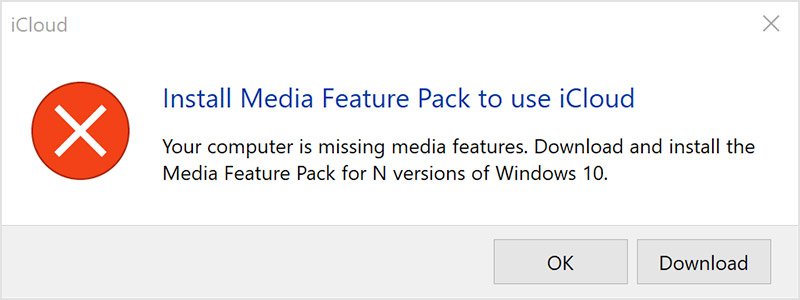
| Media Player | The app will not install without Media Features | Turn on Media Features in Windows features |
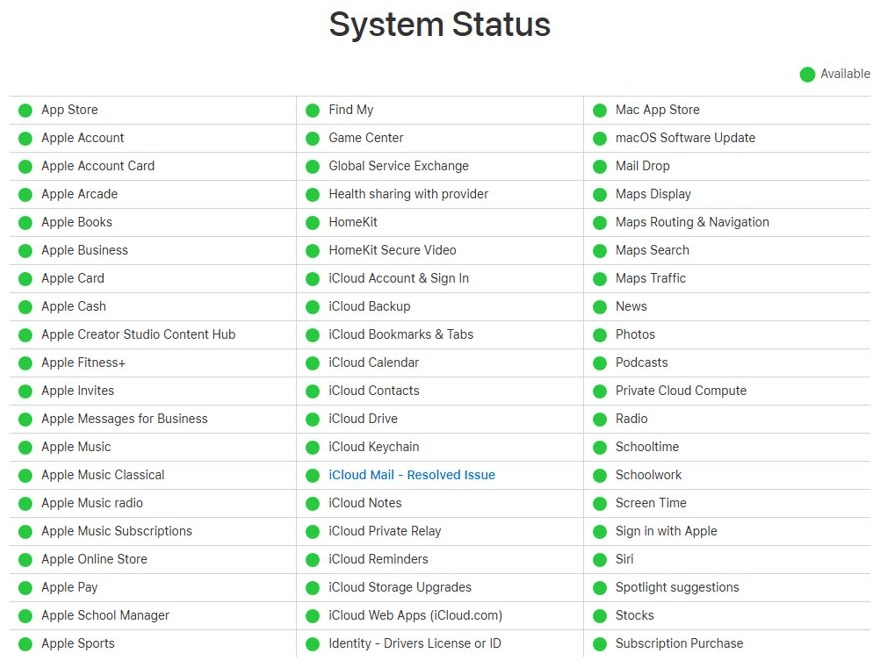
| Apple servers | An outage or maintenance can block the connection | Check Apple's System Status page and try again later |
iCloud for Windows stuck on initializing after install
A fresh install still has setup steps to finish before iCloud for Windows starts syncing anything. Apple also says iCloud must already be set up on an Apple device before you sign in on the PC.
- Set up iCloud on your iPhone, iPad, iPod touch or Mac if you have not done so yet.
- Open iCloud for Windows and sign in with the same Apple Account.
- Enter the code sent to your trusted device or phone number, or use your security key.
- Select Sync or Not Now for each app or feature in the bottom-right corner.
- Choose whether to share iCloud analytics, then select Finish Setup.
If setup finishes but nothing moves afterwards, you have a sync problem instead, so fix iCloud for Windows 11 syncing next.
Why is iCloud not updating on Windows? Update it from the Microsoft Store
iCloud for Windows comes from the Microsoft Store, so its updates come from there too. Windows itself needs to be current as well, because Apple ties the latest version to Windows 11 or later.
- Select Start > Settings > Windows Update.
- Select Check for updates and install any available update.
- Open Microsoft Store and select Library.
- Select Get updates and wait for the list to finish.
- Open iCloud for Windows and sign in again.
iCloud for Windows not working: repair or reset the app
Repair is the lighter option, so try it first. Save a copy of anything stored only on this PC before you use Reset, because Microsoft's page does not say what Reset removes.
- Select Start > Settings > Apps > Installed apps.
- Select the More icon next to iCloud.
- Select Advanced options. Microsoft notes that some apps do not have this option.
- Select Repair if it is available, then open iCloud for Windows and try to sign in.
- If the message returns or Repair is missing, select Reset, then sign in again.
iCloud for Windows will not start: uninstall and reinstall it
Apple advises saving a copy of your iCloud data to your PC first. Your data stays in iCloud and on iCloud.com, but the copies on this PC will no longer update.
- If the app opens far enough, select Account Details, then Sign Out, and follow the onscreen instructions.
- Go to Start > Settings > Apps > Installed apps.
- Find iCloud, select the More button, select Uninstall, and follow the onscreen instructions.
- Restart your PC.
- Open Microsoft Store, select Library, find iCloud and select Install.
- Open iCloud for Windows and complete the setup steps again.
iCloud for Windows will not install: turn on Media Features
Apple says the app needs Media Player and will not install if Windows Media Features were turned off. You may see the message "Install Media Feature Pack to use iCloud."
- Go to Control Panel.
- Select All Control Panel Items, then Programs and Features.
- Select Turn Windows features on or off.
- Check the box for Media Features, then select OK.
- Restart your PC if Windows asks you to, then install iCloud for Windows again.
If you are in Europe or South Korea and your PC did not come with Media Player, get the Media Feature Pack from the Microsoft website.
iCloud Drive stuck in initializing on Windows 11
Apple documents no specific fix for this state, so check the folder the feature depends on. The default location is C:\Users\[user name]\iCloud Drive, and Apple's steps for moving it call for a different disk drive formatted as NTFS.
- Open iCloud for Windows.
- Select the arrow button to the right of iCloud Drive.
- Turn off iCloud Drive if it is on, then select Change.
- Choose a different disk drive formatted as NTFS, select Select Folder, then select OK.
- Turn iCloud Drive back on and select Done.
Changing the location requires iCloud for Windows 14 or later. Apple says files under 1 MB download automatically, so larger files stay in iCloud until you download them.
iCloud not loading on Windows: use iCloud.com in a browser
Your data stays available on iCloud.com whatever the desktop app is doing. This route also tells you whether your Apple Account works outside the app.
- Open Microsoft Edge 130 or later, Google Chrome 130 or later in desktop mode, or Firefox 128 or later.
- Go to iCloud.com and sign in with your Apple Account.
- Open the app you need, such as Mail, Photos or Drive.
- Download any files you need while you repair the desktop app.
If iCloud.com loads and the desktop app still fails, your Apple Account is working and the fault lies with the app or this PC. If iCloud.com fails too, check Apple's System Status page before you reinstall anything.
How to tell if iCloud for Windows has finished initializing
The app has started properly once it opens to your account rather than showing the message.
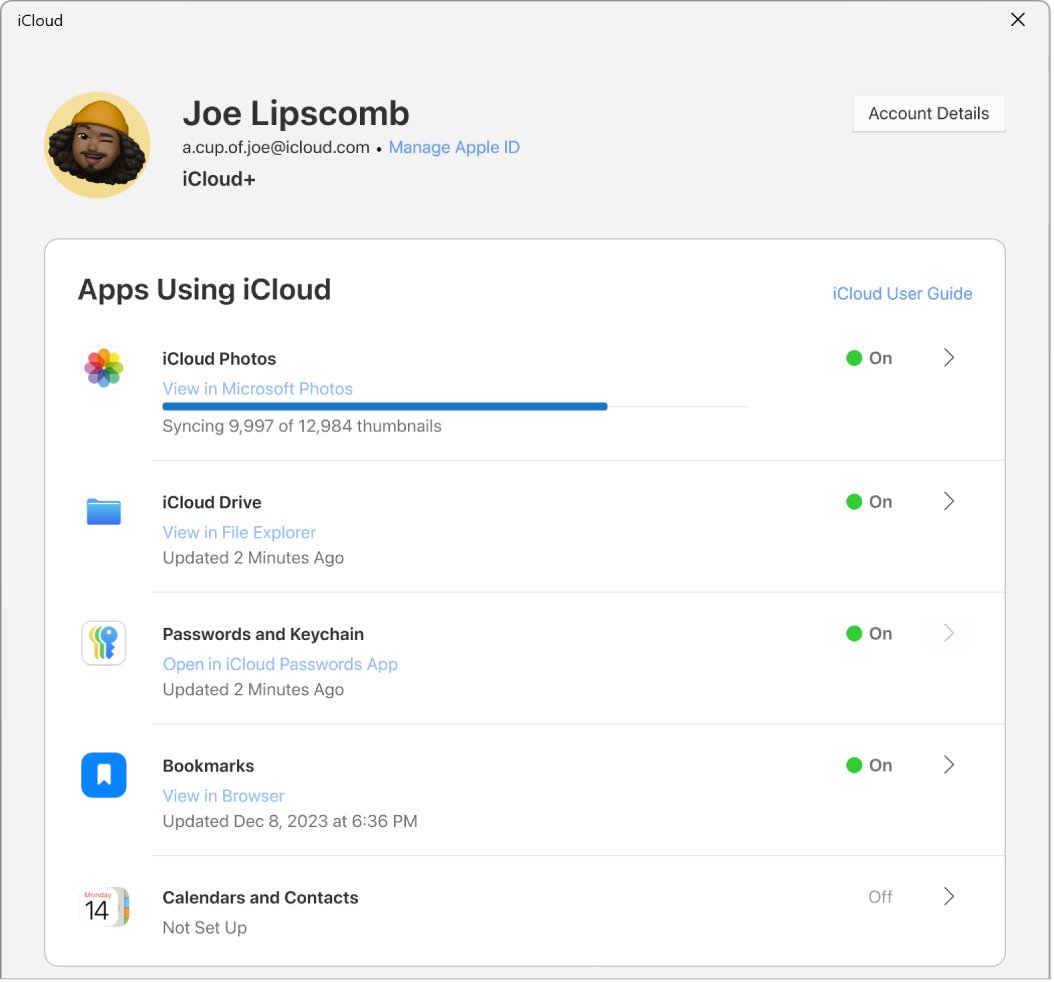
- Open iCloud for Windows and look under your name for your Apple Account primary email address.
- Scroll to the storage bar graph, which shows your overall iCloud usage.
- Open File Explorer and check that iCloud Drive appears there.
- Add a small test file to the iCloud Drive folder.
- Open iCloud.com on another device and check that the file appears in Drive.
If files move but your library does not, fix photos not syncing with iCloud next.
iCloud for Windows not opening and other startup errors
iCloud for Windows shows a can't connect to server message
Your internet connection or Apple's servers are not reachable.
- Check your internet connection.
- Check the System Status page on apple.com for known issues.
- Try again later if an outage or maintenance is listed.
iCloud for Windows sign-in fails with Advanced Data Protection or a security key
Both sign-in methods have version requirements, and Advanced Data Protection on version 14.2 or later also needs a nearby trusted device.
- Update to iCloud for Windows 14.1 or later for Advanced Data Protection, or version 15 or later for a security key.
- Keep your trusted Apple device within Bluetooth range of the PC, or on the same Wi-Fi router.
- Turn off your VPN temporarily, then sign in again.
Your PC shows the wrong date or time
Apple lists correct date and time settings among its checks when iCloud Mail, Contacts or Calendars fail on a PC.
- Select Start > Settings > Time & language > Date & time.
- Turn on Set time automatically.
- Open iCloud for Windows and sign in again.
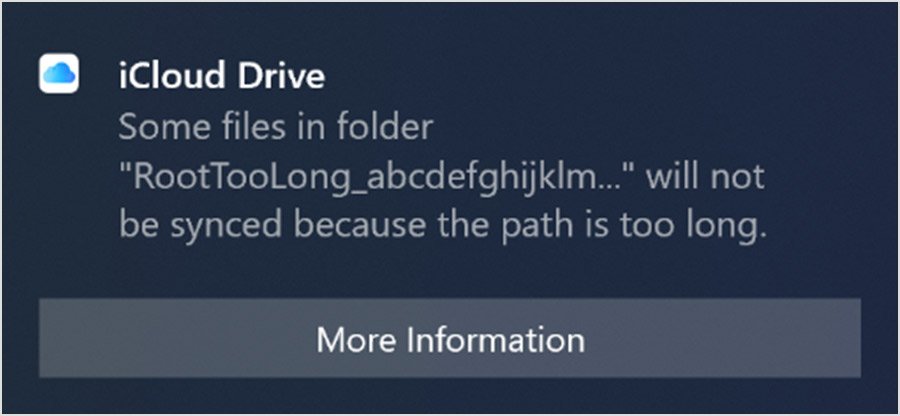
iCloud for Windows says the file path is too long
A file or folder name in the path exceeds the limit, so that file is skipped.
- Note the file path shown in the notification.
- Find the file with Windows search.
- Shorten the file, folder or subfolder names so each one is under 256 characters.
iCloud for Windows 13 relaunches when you select iCloud Passwords
Apple ties this to the existing iCloud Passwords shortcut.
- Unpin the iCloud Passwords shortcut.
- Create a new shortcut from the Start menu.
iCloud for Windows not fully initialized FAQ
Why my iCloud is not working?
On a PC, the usual suspects are an outdated app, an outdated copy of Windows, a wrong Apple Account or an Apple server issue. Update Windows and the app, sign in with the account from your Apple device, and check Apple's System Status page.
Is iCloud not working right now?
Apple's System Status page at apple.com/support/systemstatus shows known issues with its services. Check that page first when iCloud fails on several devices at once. If an outage or maintenance is listed, wait and try again instead of reinstalling the app on your PC.
Why won't iCloud install on my PC?
Apple says you need the Microsoft Store version, a Microsoft account and an Apple Account, and Windows Media Features turned on. The latest version also requires Windows 11 or later. Turn on Media Features in Windows features, restart and install the app again.
Why is iCloud not updating?
iCloud for Windows updates through the Microsoft Store. Open the Store, select Library, then select Get updates. Run Check for updates in Windows Update as well, because Apple ties the latest version of the app to Windows 11 or later.
Why isn't iCloud loading?
Check your internet connection and Apple's System Status page first. Then try iCloud.com in Edge, Chrome or Firefox. If the website loads but the Windows app does not, repair or reinstall iCloud for Windows from Settings and the Microsoft Store.
Why can't I create an iCloud email address?
Apple requires a name of more than three characters that is currently available, so a taken name will be refused. Create it at icloud.com/mail by selecting Create Email Address. If an inbox opens instead, you already have a primary iCloud Mail address.
Why is iCloud for Windows not opening?
Apple does not publish one cause, so start with the basics. Close the app, restart your PC and open it again. Then update Windows and the app, select Repair under Advanced options in Installed apps, and reinstall iCloud from the Microsoft Store if it still fails.