Fix a loud computer fan by cleaning out the dust, clearing the vents, closing the apps that keep the processor busy, and choosing a quieter fan profile.
The six tips below work on desktops and laptops running Windows 11 and Windows 10. You also get a fan test and fixes for grinding, ticking or constant fan noise.
How to fix a loud computer fan
Match what you notice to a tip, then jump to that section. Most fans get louder because the PC runs hot, so the fix usually targets heat first and the fan second.
| What you notice | Tip to try | Why it helps |
|---|---|---|
| The fan got louder over months, and dust sits on the vents or grilles | Give your PC fans a clean | Lint and dust on the cooling fins trap heat, so the fan spins faster |
| The laptop sits on a bed or pillow, or a tower has its vents blocked | Move your PC or laptop for better airflow | Soft surfaces and clutter cover the air intake |
| A laptop stays loud on a clear desk during long sessions | Use a laptop cooling pad | The pad's fans add to the airflow from the laptop's own fans |
| The fan roars while you do nothing demanding | Check running software | A background app is using the processor and creating heat |
| The fan runs faster than your work needs | Use fan control software | A quieter mode lowers fan speed |
| You hear grinding, whining or ticking | Replace your fans | Those sounds are not normal fan noise and point to a failing fan |
Why is my computer fan so loud?
A fan is loud because it is spinning fast, and it spins fast to carry heat away. Some causes are normal and pass on their own, while others need a fix.
| Cause | Normal or a problem? | What to do |
|---|---|---|
| Heavy work, such as games or several demanding apps at once | Normal | Close what you do not need, or accept the noise while the job runs |
| Charging the battery | Normal until the battery is full | Wait for the charge to finish |
| Updates and syncing in the first 24 hours after setup | Normal on a new or reset PC | Leave the PC on and check again the next day |
| A warm room (Microsoft's figure for Surface devices is above 25°C or 77°F) | Normal, but avoidable | Move the PC somewhere cooler |
| Blocked fans or air vents | Problem | Clear the vents and use a hard, flat surface |
| Lint and dust on the cooling fins | Problem | Clean the fans, vents and heatsinks |
| Outdated drivers or a conflicting BIOS thermal setting | Problem | Update the BIOS and drivers, then check the thermal setting |
| A failing fan, heat sink or thermal material | Problem | Test the fan, then replace the failed part or book a repair |
Give your PC fans a clean
Dust is the first thing to rule out on a PC that has slowly grown louder. On a desktop, the whole job takes a can of compressed air, a soft brush and a microfiber cloth.
- Shut down the PC, set the power supply switch to off, and unplug the power cable.
- Remove the side panel and take out the dust filters. Magnetic filters pull off, and others slide out.
- Wash the filters with a damp cloth or running water, then let them dry completely.
- Hold each fan still and loosen the dust on its blades with a soft brush.
- Blow out the fans, heatsinks and vents with short bursts of compressed air, working from the top of the case down.
- Wipe the blades with a microfiber cloth. Use a cotton swab with a little isopropyl alcohol for the gap between the blades and the frame.
- Refit the dry filters and the side panel, then start the PC.
Use only short bursts of air on the motherboard and RAM, and never a brush. Clean the power supply from the outside with compressed air and a dry cloth.
On a laptop, shut it down and clean the air vents from the outside. Opening the chassis differs by model, so follow the service manual for your laptop if you need to go further.
Move your PC or laptop for better airflow
A fan that cannot pull in cool air spins harder to make up for it. Moving the machine is free and takes a minute, so try it before you buy anything.
- Put a laptop on a hard, flat surface, never on a blanket, pillow, cloth or paper.
- Take the laptop off your lap, which can cover the air intake.
- Clear cables, papers and cabinet doors away from the intake and exhaust vents on a desktop.
- Move the PC out of direct heat and into a cooler spot. Dell's recommended room range for reliable operation is 0°C to 35°C (32°F to 95°F).
- Check the arrows on each desktop case fan frame. One arrow shows the airflow direction and the other shows the blade spin.
- Mount front fans as intake and top and rear fans as exhaust, so cool air enters and hot air leaves.
Laptop users: use a laptop cooling pad
A laptop cooling pad has its own fans, which add to the airflow from the fans inside the laptop. It helps most when the vents are already clean and the laptop still runs loud on a desk.
- Find the air intake vents on your laptop, using its manual if they are not obvious.
- Put the cooling pad on a hard, flat surface.
- Set the laptop on the pad with the pad's fans under the intake vents.
- Power the pad the way its manual describes.
- Run your usual workload and compare the noise with the laptop off the pad.
A pad adds fan noise of its own. If it has a speed control, use the lowest setting that keeps the laptop's fan down.
Check running software
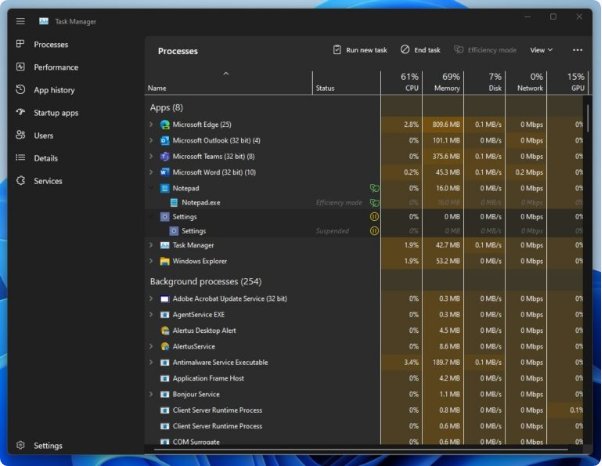
Apps with heavy processor use add heat, and heat makes the fan work harder. Task Manager shows you which app is responsible in a few clicks.
- Right-click the Start button and select Task Manager.
- Select More details if the window opens in its small view.
- Select the CPU column to sort the list by processor use.
- Save your work and close the apps near the top that you do not need right now.
- Open the Startup apps tab, select an app you do not need at sign-in, and select Disable.
- Open Windows Security, go to Virus & threat protection > Scan options, and run a Full scan if you do not recognize a busy process.
If WMI Provider Host sits at the top of the list, fix its high CPU usage before you change anything on the fan.
Use fan control software
Windows has no fan curve of its own, so the PC maker's app or the BIOS/UEFI decides how fast the fan runs. Pick the row for your PC and choose the quiet setting it names.
Each maker's tool works only on its own supported models. You can control fan speed in more detail with custom curves on supported hardware.
| Your PC | Where the setting is | Quiet setting to choose |
|---|---|---|
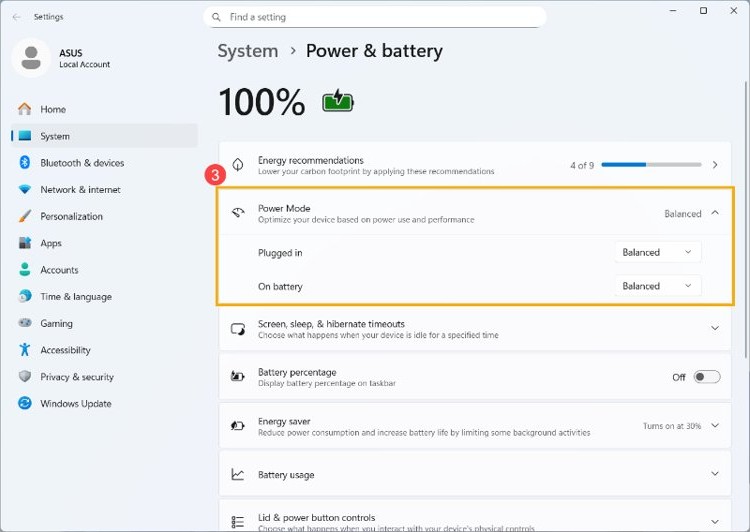
| Any Windows 11 PC | Settings > System > Power & battery > Power mode | Balanced or Best power efficiency, not Best performance |
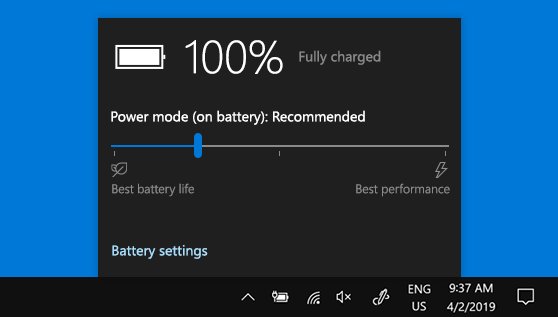
| Windows 10 laptop | Battery icon on the taskbar | Drag the slider away from Best performance |
| Dell laptop | Dell Optimizer > Power > Thermal Management | Quiet, which lowers fan and processor speeds |
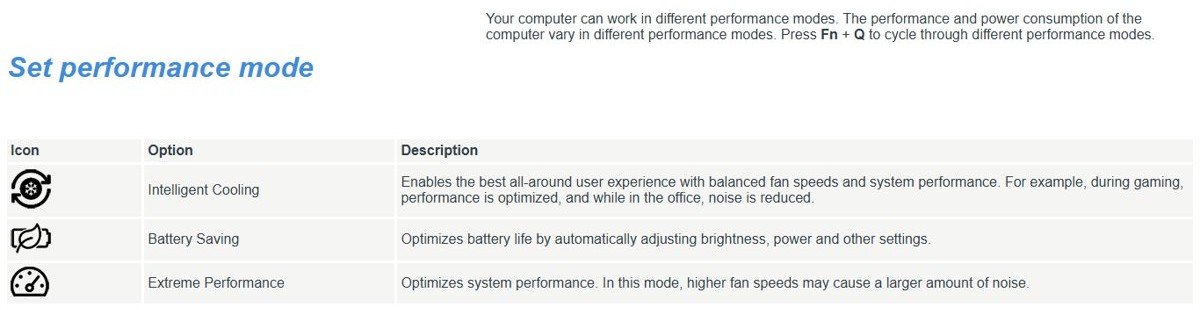
| Lenovo laptop with Fn + Q | Press Fn + Q to cycle modes | Intelligent Cooling, and avoid Extreme Performance, which can raise fan noise |
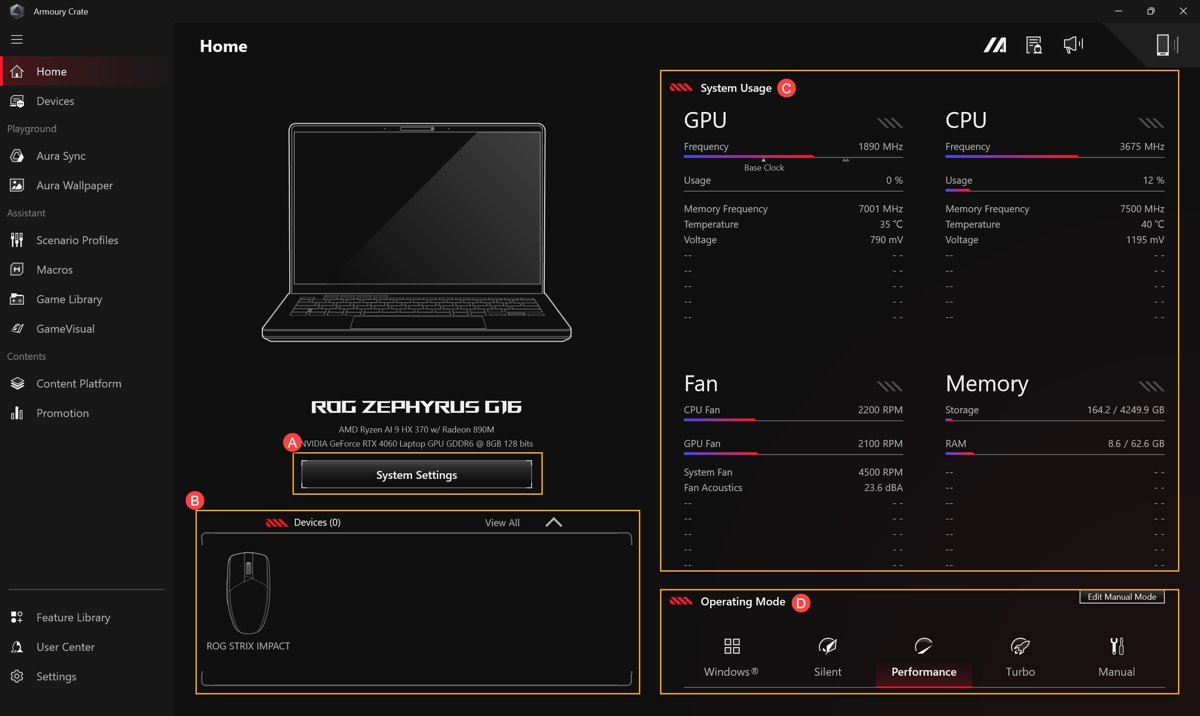
| ASUS ROG or TUF laptop | Armoury Crate > Operating Mode | Silent, which limits CPU and GPU power to reduce heat and noise |
| Desktop with an ASUS motherboard | UEFI BIOS > Q-Fan Control | Silent, or a Manual curve for each fan |
| Corsair fans on an iCUE controller | iCUE > device tile > Cooling | Quiet; iCUE cannot control fans connected to the motherboard |
A quieter profile trades noise for heat. Dell warns that its Quiet mode can reduce performance and raise the surface temperature, so watch for slowdowns after you switch.
Windows also has a system cooling policy setting that slows the processor before it speeds up the fan.
Replace your fans
Replace a fan when it grinds, whines or ticks after a clean, or when a hardware test reports a failure. These steps cover case fans and CPU cooler fans on a desktop.
- Listen near the CPU cooler, case fans, graphics card and power supply to find the noisy fan. Keep your fingers clear of the blades.
- Note the old fan's size, such as 120mm or 140mm, and whether its connector has 3 pins or 4 pins.
- Shut down the PC, set the power supply switch to off, and unplug the power cable.
- Unplug the old fan from its motherboard header and unscrew it from the case.
- Mount the new fan with the frame arrow pointing the same way as the old fan's airflow.
- Plug the new fan into the same header and start the PC.
- Set the fan mode in the BIOS/UEFI to match the fan: PWM for 4-pin fans and DC for 3-pin fans.
Never replace the fan inside a power supply. Its capacitors can hold a dangerous charge even when unplugged, and opening the case voids the warranty on most units, so claim the warranty or buy a new power supply.
Laptop fans are specific to each model. Use the maker's service manual or repair service, as Microsoft does for Surface devices with its self-repair and service order options.
Regular Windows PC maintenance
These jobs keep the fan quiet after the six tips have done their work. Corsair's general guideline is to clean a PC every three to six months, or every two to three months in a dusty home, with pets, or with indoor smoking.
| Maintenance job | Where to do it | Why it matters for fan noise |
|---|---|---|
| Clean filters, fans and heatsinks | Follow the cleaning steps earlier on this page | Less dust means less trapped heat |
| Install Windows updates | Settings > Windows Update > Check for Windows updates (Windows 10: Update & Security > Windows Update) | Updates can include the driver and firmware fixes a PC maker recommends |
| Update the BIOS and drivers | Your PC maker's support page or update app | Dell lists outdated drivers and BIOS thermal settings among the causes of heat problems |
| Review startup apps | Settings > Apps > Startup | Fewer apps running in the background means less processor use |
| Scan for malware | Windows Security > Virus & threat protection > Scan options | Malware can keep the processor busy with no window open |
How to test if a computer fan is failing
A healthy fan makes a steady rush of air that rises and falls with the workload. Microsoft says fan noise is normal but grinding, whining or ticking sounds are not.
Most PC makers include a hardware test. These are the steps for the built-in test on a Dell PC, and other makers publish their own on their support sites.
- Restart the PC and press F12 when the Dell logo appears.
- Select Diagnostics and note any error or validation code if the quick test fails.
- Select ADVANCED TEST and clear Select All.
- Select every fan in the list, then choose Thorough.
- Select RUN TEST and read the result.
The fan runs at high speed during this test because the diagnostics have no dynamic fan control, so a loud fan here does not point to a fault.
Computer fan still loud after cleaning
Computer fan loud when nothing is running
Background updates, syncing or a hidden app is using the processor.
- Right-click Start, select Task Manager, and sort by CPU.
- Close any app you do not need, and disable it on the Startup apps tab if it starts with Windows.
- Check again the next day if the PC is new or freshly reset, because updates and syncing can run for the first 24 hours.
Laptop fan loud while charging
Charging adds heat, so the fan can run more until the battery is full.
- Let the battery finish charging and listen again.
- Set Power mode to Balanced or Best power efficiency if the noise bothers you while it charges.
Computer fan loud during games or video editing
Heavy work creates heat, and a loud fan under load is normal.
- Close other apps while the game or export runs.
- Switch to your PC maker's quiet mode, and accept that performance can drop.
- Check your CPU temperature if the fan stays at full speed after the job ends.
Computer fan making a grinding, whining or ticking noise
These sounds are not normal. A cable or dust can touch the blades, or the fan itself can be failing.
- Shut down the PC and move any cable away from the fan blades.
- Clean the fan, then start the PC and listen again.
- Run the maker's hardware test, and replace the fan if the sound continues or the test fails.
Dell laptop fan still loud after cleaning
A conflicting BIOS thermal setting can keep the fan running hard.
- Restart the laptop and press F2 at startup.
- Find Thermal Management, if your model has it.
- Set it to Balanced, Quiet, Optimized or Cool, whichever your model lists.
- Select Apply Changes and Exit.
Laptop fan loud and the case feels hot
The laptop is overheating, not just running its fan hard.
- Save your work and shut the laptop down to cool.
- Work through the overheating laptop fixes before you use it for heavy work again.
Loud computer fan FAQ
Why is my computer fan so loud all of a sudden?
A sudden change usually means an app or a background update has started using the processor, or something now blocks a vent. Open Task Manager, sort by CPU and close what you do not need, then check that the vents are clear.
Is a loud computer fan bad?
A fan that gets loud under heavy work is normal and does no harm. Grinding, whining or ticking is not normal, and a fan that stays at full speed with nothing running needs checking for dust, blocked vents or a busy background app.
How do I make my computer fan quieter?
Clean out the dust, keep the vents clear, close apps that use a lot of CPU, and choose a quieter profile such as Dell Quiet or ASUS Silent. On Windows 11, also set Power mode to Balanced or Best power efficiency.
Why is my laptop fan so loud?
Laptops have small fans that spin fast to move heat out of a tight case. Blocked intake vents, dust, heavy apps and charging all raise the speed, so use a hard, flat surface and clean the vents first.
How often should I clean my computer fans?
Corsair's general guideline is every three to six months. Clean every two to three months if your home is dusty, you have pets or someone smokes indoors, and clean more often if you game or run demanding apps for long hours.
Does a laptop cooling pad reduce fan noise?
It can, because the pad's fans add to the airflow and can reduce the work the laptop's own fan does. The pad makes some noise of its own, so try the lowest speed and compare the sound with the laptop off the pad.
Is it safe to use compressed air on a computer fan?
Yes, with the PC powered down and the power supply switched off. Hold the fan still while you blow on it, use short bursts, and keep to short bursts only on the motherboard and RAM, where a brush should not be used.
Can I replace the fan in my power supply?
No. Power supply fans are not designed to be replaced by users, the capacitors inside can hold a dangerous charge when unplugged, and opening the case voids most warranties. Claim the warranty if it still applies, or buy a new power supply.