Deploy a printer with GPO by sharing it on a print server, then adding it to a Group Policy object under User Configuration > Preferences > Control Panel Settings > Printers for users, or with Deploy with Group Policy in Print Management for users and computers.
The steps below cover shared and TCP/IP printers, per-user and per-computer connections, security group targeting, the driver prompts standard users have faced since the 2021 Point and Print changes, and the event IDs that show why a printer never arrived.

Deploying printers to domain users via Group Policy
A shared printer preference item is the fastest route for most domains. It maps the queue for each user and can target a single group. Preference items exist only in domain-based GPOs, so local policy cannot do this.
- Press Win + R, type
gpmc.mscand press Enter to open the Group Policy Management Console. - Right-click the OU that holds the user accounts, select Create a GPO in this domain, and Link it here, type a name and select OK.
- Right-click the new GPO and select Edit.
- Expand User Configuration > Preferences > Control Panel Settings.
- Right-click Printers, point to New and select Shared Printer.
- Set Action to Update, so a missing connection gets created and an existing one keeps its other settings.
- In Share path, type the UNC path of the queue, for example
\\printserver.contoso.com\Accounting-HP. - Select OK, then have a test user sign out and back in, or run
gpupdate /forceon the client.
Shared printer items map the connection in the security context of the signed-in user, so each user needs permission to print to that queue.
Group Policy Preferences vs Print Management printer deployment
| Your situation | Use this | Why |
|---|---|---|
| Different printers for different groups in one GPO | Shared Printer preference item | Item-level targeting filters each printer separately inside a single GPO |
| Every user of a lab, classroom or branch PC needs the same printer | Print Management, per machine | The connection is ready for any user of that computer |
| Users move between PCs and the printer should follow them | Print Management or preference item, per user | A per-user connection is available on whichever domain computer the user signs in to |
| The printer has its own IP address and no shared queue | TCP/IP Printer preference item | The item connects by IP address or DNS name instead of a UNC share |
| The new printer must become the default | Shared Printer or TCP/IP Printer preference item | Both items offer Set this printer as the default printer |
Print server setup for GPO printer deployment
If the queue is not shared yet, set up a Windows print server first, because both Print Management routes and the Shared Printer item point at a shared queue.
| Requirement | Detail |
|---|---|
| Shared print queue | A printer installed on the server with a port and a driver, then shared so clients can connect to it |
| Group Policy Management Console | On a server, add it with the Add Features Wizard in Server Manager. On a Windows 11 or 10 admin PC, install Active Directory Users and Computers and the other RSAT tools you need |
| Print Management | Open it from Server Manager > Tools > Print Management on the print server |
| Rights | Membership in the Administrators group on the print server, plus write access to the GPO |
| A linked GPO | Link it to the site, domain or OU that holds the target users or computers, because linking sets the scope |
| A driver clients can get | Standard users cannot install a Point and Print driver by default, so stage the driver or configure the policies further down |
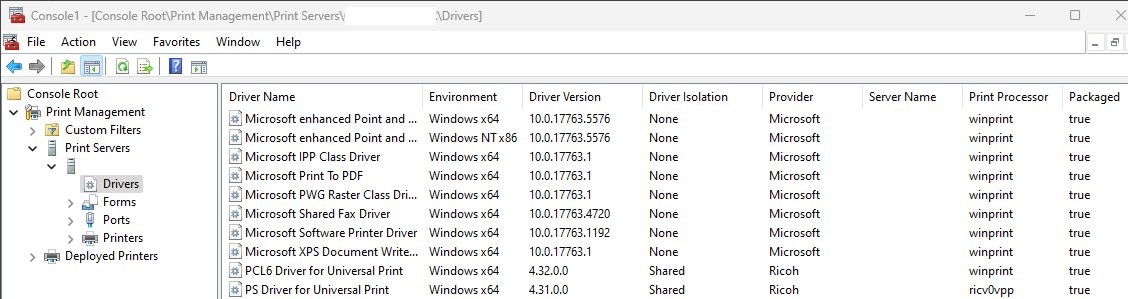
How to deploy a printer to computers with Group Policy
The Print Management tool writes the printer connection into an existing GPO. Choose per machine for a shared PC, per user for a roaming user, or both.
- Open Server Manager, select Tools and then Print Management.
- Under the print server in the tree, select Printers.
- Right-click the printer and select Deploy with Group Policy.
- Select Browse and choose the GPO that will carry the connection.
- Select The computers that this GPO applies to (per machine), The users that this GPO applies to (per user), or both.
- Select Add, then OK.
- Restart a test computer for a per-machine connection, or sign in as a test user for a per-user connection.
Deployed connections appear under Deployed Printers in Print Management while the print server is being monitored.
Windows clients since Vista read these settings natively. The PushPrinterConnections.exe startup or logon script is only needed for Windows XP and Windows Server 2003 clients.
How to deploy a TCP/IP printer with GPO
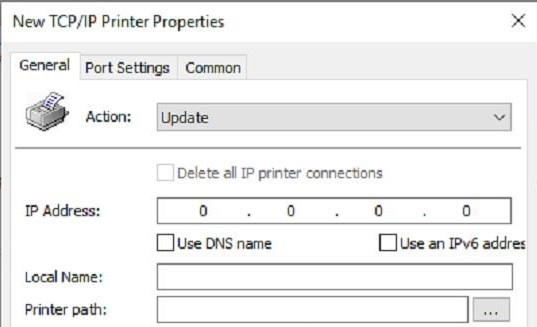
Use this item when a printer is reached directly by its address. It works under either Computer Configuration or User Configuration, so the same item type suits a shared PC or a single user.
- In the Group Policy Management Console, right-click the GPO and select Edit.
- Under Computer Configuration or User Configuration, expand Preferences > Control Panel Settings.
- Right-click Printers, point to New and select TCP/IP Printer.
- Set Action to Update.
- Enter the address in IP Address or DNS name.
- Type a Local Name, which the extension uses to find this printer on later refreshes.
- In Printer path, enter the UNC path of a shared connection, which the extension uses as the driver source.
- Select OK.
Port Settings on the same item covers the protocol, raw and LPR settings and SNMP status when the printer needs more than the defaults.
Deploy a printer to a security group with item-level targeting
Targeting keeps every printer in one GPO and sends each one only to the people who need it. The same dialog handles location-based printing, which is what most multi-site domains want.
- Edit the GPO and open Preferences > Control Panel Settings > Printers.
- Right-click the printer item and select Properties.
- Select the Common tab.
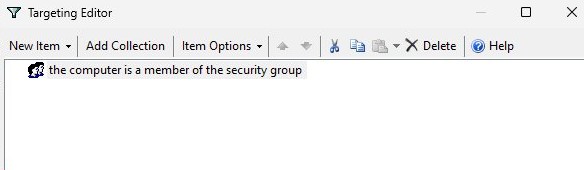
- Select Item-level targeting, then Targeting.
- Select New Item and choose Security Group.
- Pick the group, then select OK twice.
Choose IP Address Match or Site to assign printers by location, Organizational Unit to follow your directory layout, and Computer Name to pin a printer to one machine. Combine several with And or Or on the Item Options menu.
Allow non-admin users to install printer drivers via GPO
Updates released on or after August 10, 2021 require administrator rights to install a driver through Point and Print. The RestrictDriverInstallationToAdministrators registry value controls this and overrides the Point and Print Restrictions policy while it is set to 1.
Microsoft warns that a value of 0 makes devices vulnerable to CVE-2021-34481, and that no combination of other settings equals a value of 1. Stage the driver with PnPUtil where you can, and use the steps below only as a temporary measure, limited to print servers you trust.
- Edit a GPO linked to the OU that holds the computers, then go to Computer Configuration > Policies > Administrative Templates > Printers.
- Open Point and Print Restrictions and select Enabled.
- Select Users can only point and print to these servers and enter the fully qualified server names, separated by semicolons.
- Set When installing drivers for a new connection to Do not show warning or elevation prompt, and When updating drivers for an existing connection to Show warning only.
- Open Package Point and Print – Approved servers, select Enabled, select Show and enter the same server names.
- Under Computer Configuration > Preferences > Windows Settings > Registry, add a value named
RestrictDriverInstallationToAdministratorsof typeREG_DWORDwith data0inHKEY_LOCAL_MACHINE\Software\Policies\Microsoft\Windows NT\Printers\PointAndPrint. - Run
gpupdate /forceon a test client and connect to the printer as a standard user. No restart is needed for the registry value.
Microsoft documents those two prompt settings for trusted print servers, but also warns that non-zero prompt values leave a device exposed to CVE-2021-34527. Return both to Show warning and elevation prompt, and the registry value to 1, once drivers are staged.
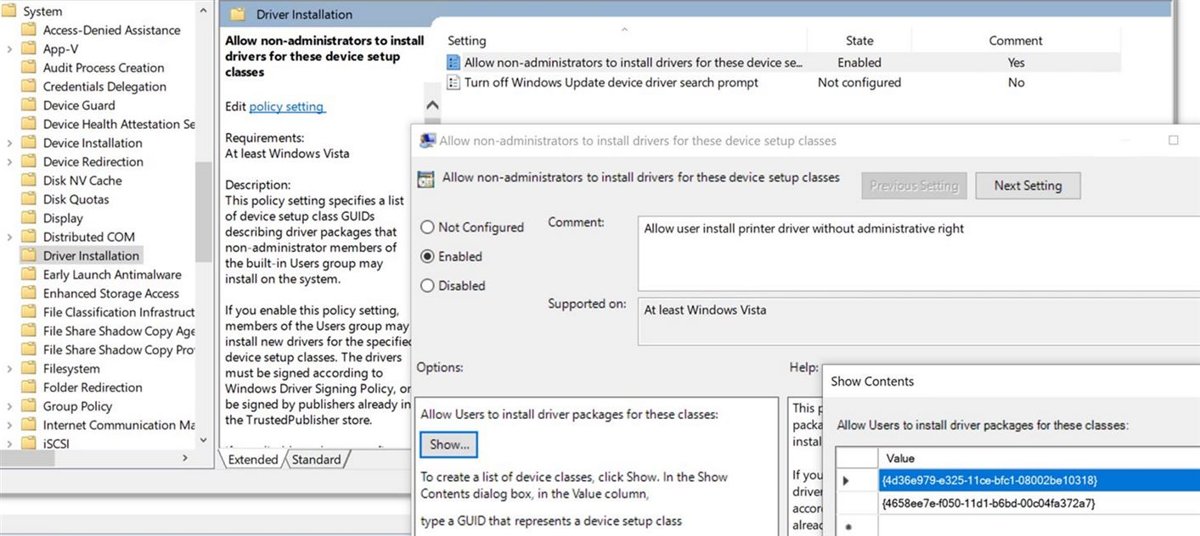
For locally attached printers, a separate policy applies. Under Computer Configuration > Administrative Templates > System > Driver Installation, enable Allow non-administrators to install drivers for these device setup classes and add {4d36e979-e325-11ce-bfc1-08002be10318} for printers and {4658ee7e-f050-11d1-b6bd-00c04fa372a7} for bus-specific printers. The driver package must still be signed.
How to preinstall printer drivers with PnPUtil for standard users
This is the route that keeps the default protection on. A driver already in the driver store can be used by a standard user with no elevation, and users can still add a network printer when its driver is already on the computer. Microsoft also lists adding drivers to the OS image as a supported option.
pnputil /add-driver C:\Drivers\Accounting-HP\*.inf /subdirsRun this from an elevated Command Prompt, using the same driver package as the print queue. /add-driver copies the package into the driver store, and /subdirs includes subfolders. The command is available from Windows 10 version 1607.
You should see: PnPUtil reports a published name for each package it added.
How to apply a printer GPO with gpupdate /force
Clients check for GPO changes every 90 minutes, plus a random offset of up to 30 minutes, so force a Group Policy refresh when testing. The GPO may also need time to replicate to the client's domain controller.
gpupdate /force/force reapplies all policy settings rather than only the changed ones. Add /target:user or /target:computer to refresh one side. A per-machine connection from Print Management still arrives at restart, and a per-user one at sign-in.
You should see: the connection is listed when you run Get-Printer in PowerShell on the client.
How to tell if a printer GPO applied with gpresult
- Sign in to the client as a target user and open Command Prompt.
- Run
gpresult /r /scope userand look for the GPO name in the summary. Use/scope computerfrom an elevated prompt for a per-machine GPO. - Run
gpresult /h C:\Temp\gp.html /fand open the report to read the full result for that user and computer. - Run
Get-Printerin PowerShell and confirm the printer is listed. - Open Event Viewer > Windows Logs > Application and filter on the source Group Policy Printers to see any failed preference items.
- On the print server, check Deployed Printers in Print Management for connections you deployed from there.
GPO printer preference actions: Create, Replace, Update and Delete
Update is the safe default for a printer you plan to change later, because it leaves settings outside the item alone. Pick Replace when the connection has to match the item exactly.
| Action | What happens | If the connection does not exist |
|---|---|---|
| Create | Adds a new printer connection | Creates it |
| Replace | Deletes and recreates the connection, overwriting all its existing settings | Creates it |
| Update | Changes only the settings defined in the item, and leaves others as they were | Creates it |
| Delete | Removes the connection named in the item, or all of them if you select the delete-all box | Nothing to remove |
Point and Print Group Policy settings for deployed printers
| Setting | Location | What it controls |
|---|---|---|
| Point and Print Restrictions | Computer Configuration > Policies > Administrative Templates > Printers | Which servers users can connect to and which prompts appear, for drivers that are not package-aware |
| Package Point and Print – Approved servers | Same folder | Which servers can supply package-aware drivers, with signatures checked on download |
| Only use Package Point and Print | Same folder | Limits users to printers with package-aware drivers |
| Limits print driver installation to Administrators | Computer Configuration > Administrative Templates > Printers | Enabled sets RestrictDriverInstallationToAdministrators to 1. Available after the October 12, 2021 updates |
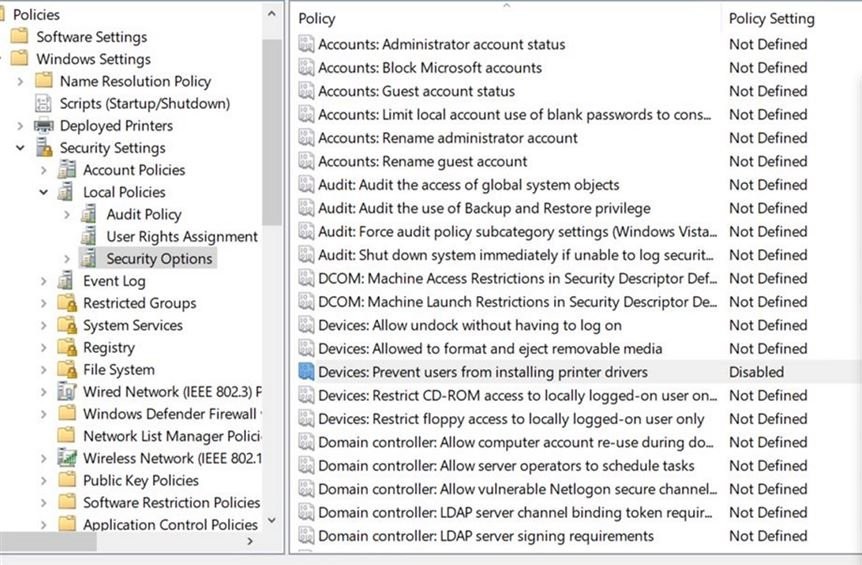
| Devices: Prevent users from installing printer drivers | Computer Configuration > Windows Settings > Security Settings > Local Policies > Security Options | Who can install a driver when adding a network printer. The effective default on client computers is Disabled |
How to set a default printer with GPO
- Edit the GPO, go to User Configuration > Preferences > Control Panel Settings > Printers, right-click the item and select Properties.
- Select Set this printer as the default printer.
- Select Only if a local printer is not present if users with their own printer should keep it. A local printer here includes USB, parallel, TCP/IP and virtual printers.
- Select Apply once and do not reapply on the Common tab if users should be free to change the default later.
- Select OK.
How to remove a deployed printer with GPO
Preference items are not removed by default when a GPO stops applying, so the printer stays on the client unless you plan for it.
- Open the printer item's Properties and select the Common tab.
- Select Remove this item when it is no longer applied, which changes the action to Replace.
- Take the user or computer out of scope through targeting or the GPO link. The connection is deleted at the next refresh.
- To remove a printer outright instead, set Action to Delete and enter its share path. Select Delete all shared printer connections only if every shared connection should go.
- For a printer sent from Print Management, remove its entry in the Deploy with Group Policy dialog. Clients drop it at the next restart or sign-in.
Printer GPO not working: errors and how to fix them
Event ID 4098 or 8192 with error 0x80070bcb
Group Policy Printers logs "The specified printer driver was not found on the system and needs to be downloaded" when Point and Print limits stop the client fetching the driver from the server.
- Open Event Viewer > Windows Logs > Application and confirm the source is Group Policy Printers.
- Stage the driver on the client with
pnputil /add-driver. - If staging is not possible, apply the Point and Print settings for non-admin users to that OU, then run
gpupdate /force.
Standard users get an administrator credentials prompt
Windows ignores Point and Print Restrictions set only under User Configuration, and RestrictDriverInstallationToAdministrators overrides the policy unless it is set to 0.
- Set the policy under Computer Configuration > Policies > Administrative Templates > Printers, not only under User Configuration.
- Check
HKEY_LOCAL_MACHINE\Software\Policies\Microsoft\Windows NT\Printers\PointAndPrintfor theRestrictDriverInstallationToAdministratorsvalue. - Stage the driver so no install is needed, or provide administrator credentials for the first connection.
Printer drivers will not install even with an administrator account
Only use Package Point and Print limits connections to package-aware drivers, and Microsoft says to disable it when drivers fail even with administrator rights.
- Go to Computer Configuration > Policies > Administrative Templates > Printers. Older consoles list the policy under Control Panel > Printers.
- Set Only use Package Point and Print to Disabled.
- Run
gpupdate /forceand connect to the printer again.
Windows 11 clients cannot connect to the shared printer
From Windows 11 version 22H2, print clients use RPC over TCP by default, and firewall rules blocking it are the most common failure.
- Make sure RPC Endpoint Mapper port 135 is not blocked between the client and the print server.
- Open the high ephemeral range 49152-65535 on the print server, or configure RPC to use a set range of ports.
- Reconnect the printer from the client, then run
gpupdate /force.
Printer GPO applied but the printer does not appear
The GPO scope or a targeting item leaves out this user or computer, or the connection is waiting for a restart or sign-in.
- Run
gpresult /rand check that the GPO is listed for the correct user or computer side. - Confirm a User Configuration item is linked to the OU holding user accounts, and a per-machine connection to the OU holding computers.
- Open the item's Targeting dialog and test its rules against this client, then restart or sign in again.
Printers disappeared after turning on Windows protected print mode
Protected print mode uninstalls printers that are not compatible with it, and blocks reinstalling them while it stays on.
- Check whether the printer is on the Mopria certified product list.
- Reinstall a compatible printer, because some Mopria printers are removed only because a third-party driver was in use.
- For a printer that is not compatible, turn off protected print mode and reinstall the printer manually.
Printer GPO deployment FAQ
Can you deploy a printer by GPO without a print server?
Yes. A TCP/IP Printer preference item connects clients directly to the printer's IP address or DNS name. Clients still need a driver, either staged locally or pulled from the shared connection you enter in the item's Printer path box.
Should printers be deployed per user or per computer?
Deploy per user when a printer should follow someone to any domain PC they sign in to. Deploy per computer when everyone using a lab, classroom or branch PC needs the same printer, whoever signs in.
Why does a printer GPO ask for admin credentials?
Since the August 10, 2021 updates, installing a driver through Point and Print requires administrator rights by default. Stage the driver on clients, or set RestrictDriverInstallationToAdministrators to 0 with trusted server limits, which Microsoft says should be temporary.
Does a printer GPO need a restart?
It depends on the method. Print Management connections arrive at restart for per-machine deployments and at sign-in for per-user deployments. Preference items apply when Group Policy refreshes, which you can trigger with gpupdate /force.
How long does a printer GPO take to apply?
Clients check for GPO changes every 90 minutes with a random offset of up to 30 minutes. The change must also replicate to the domain controller the client uses, so a new printer can take longer on a multi-site domain.
Can a printer GPO target one security group?
Yes. Open the printer preference item's Common tab, select Item-level targeting, and add a Security Group item. Several printers can sit in one GPO, each sent only to its own group, computer name, site or IP range.
Does removing the GPO remove the printer?
Not for a preference item by default. Select Remove this item when it is no longer applied before it goes out of scope. Printer connections deployed from Print Management are removed at the next restart or sign-in once taken out of the GPO.
Do group policy printers work on computers outside the domain?
No. Preference items are available only in domain-based GPOs, and the settings reach computers and users through their place in Active Directory. A workgroup PC needs the printer added by hand or through another management tool.
Is PushPrinterConnections.exe still needed on Windows 11?
No for normal deployment. Windows XP and Windows Server 2003 clients needed it in a logon or startup script, while later Windows versions include the client-side extension. Microsoft still documents the tool, and its log switch writes a debug file.
Are third-party printer drivers going away on Windows?
They are being phased out rather than blocked. Since July 1, 2026, Windows ranks its inbox IPP class driver first, and from July 1, 2027 third-party driver updates are limited to security fixes. Vendor packages and existing drivers can still be installed.