To do a Google Play installation, open the Google Play Store app on your Android device, sign in with a Google Account, and tap Install on the app you want.
This guide covers Android phones and tablets, Chromebooks and Google Play Games on Windows, plus update steps, the APK question and fixes for a Play Store that won't work.
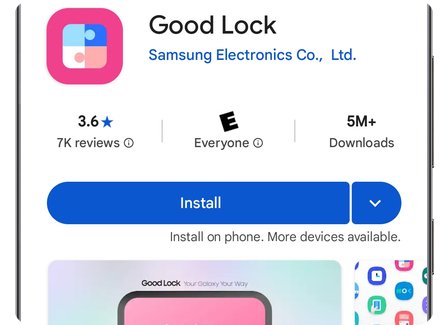
Google Play installation step by step tutorial
Only Play Protect certified devices are supported by Google Play, and those devices can ship with the Play Store app. Start here if the app is already on your home screen or in your app list.
- Open the Google Play Store app on your Android phone or tablet.
- Complete the Google Account sign-in if the app asks for it.
- Tap your profile icon at the top right, then tap Settings and About.
- Tap Update Play Store, read the message, and tap Got it.
- Search or browse for the app you want, then select it.
- Tap Install, or tap the price if the app is paid.
- Follow the on-screen prompts until the download finishes.
A paid app's first purchase saves your payment method to your Google Account. Later purchases let you pick a saved method with the Down arrow.
How do I get to Google Play on my device?
| Your device | What to do | What to expect |
|---|---|---|
| Certified Android phone or tablet | Open the Google Play Store app | Sign in, update and install apps |
| Certified Android device with a missing Play Store icon | Open Settings > Apps > See all apps and look for Google Play Store | Menu labels vary, so use the manufacturer's support site if the app is hidden or off |
| Device that says Device is not certified | Check Google's certified device list, then tap Fix device issue if the device is listed | An unlisted device is not certified and is not supported by Google Play |
| Chromebook | Open Settings > Apps > Manage Google Play preferences | No such option means that Chromebook doesn't support Android apps |
| Windows PC | Install Google Play Games on PC | You get Google Play games, not the full Android app catalog |
| Any computer with a browser | Go to play.google.com and sign in | You can browse and pick a linked Android device as the target |
Google says apps from the Play Store only work on supported Android and Chromebook devices. They can't run directly on Windows or Mac computers.
How to check if your Android device supports Google Play
- Open Settings, then About phone or About tablet, and note the model or build number.
- Compare that model against Google's list of supported Android devices.
- Open the Google Play Store app and tap your profile icon.
- Tap Settings, then About.
- Read the Play Protect certification status on that screen.
A device missing from the list may be newly released, or it may not work with Google Play. Android 2.2 or older may not work properly, and the manufacturer is the right contact for those devices.
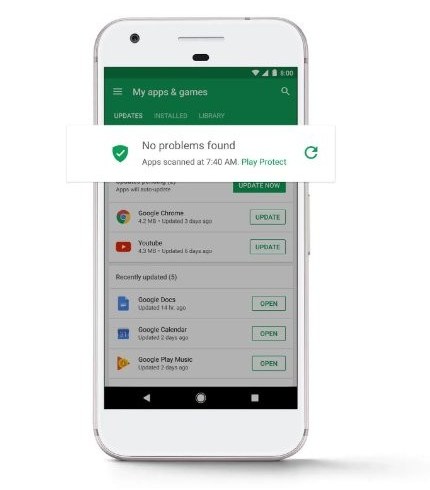
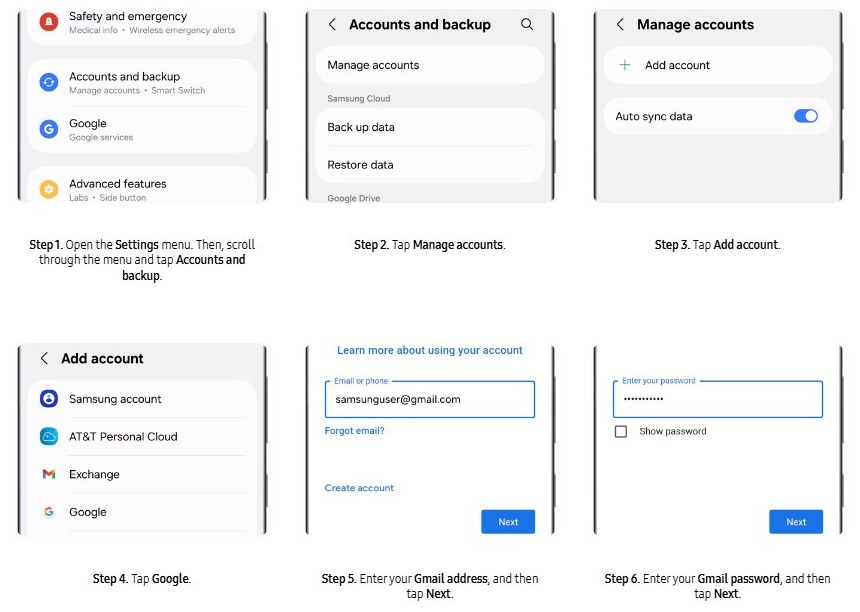
How to add a Google Account to Google Play
The Play Store ties purchases and your app library to a Google Account. Create a Google Account first if you don't have one yet.
- Open the Settings app.
- Tap Passwords & accounts. Other labels include Users & accounts, Passwords, passkeys & autofill and Manage accounts.
- Under Accounts, tap Add account.
- Tap Google and complete the sign-in prompts.
- Enter your device pattern, PIN or password if asked.
To change accounts later, open the Play Store, tap your profile picture, tap the Down arrow and select another account.
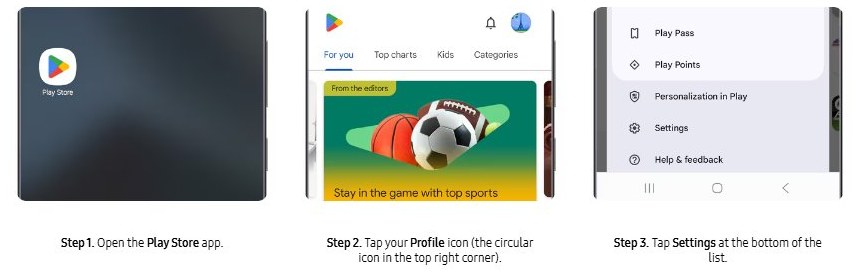
How to update the Google Play Store
- Open Google Play on your device.
- Select your avatar in the upper-right corner.
- Select Settings, then About, then Update Play Store.
- Read the message about whether Google Play is current, then select Got it.
If an update is available, it downloads and installs by itself within a few minutes. You don't need a separate installer file for this.
How to reinstall or turn on Google Play apps
Use this route for an app you deleted or turned off earlier. Sign in with the same account you used to buy it, or the app may ask you to pay again.
- Open the Google Play app and tap your profile icon.
- Tap Manage apps & device, then Manage.
- Tap This device, then Not installed, if the app isn't listed.
- Select the app you want back.
- Tap Install or Enable.
Google Play download from a computer to your phone
The website lets you find an app on a computer and aim it at a phone or tablet linked to your account. The device filter only appears when your account has more than one Android device.
- Go to play.google.com in a web browser and sign in.
- Click the Search icon at the top right and search for the app.
- Select the device dropdown and choose a linked device.
- Open the app's page and select Install, or select the price if it is paid.
- Follow the on-screen prompts to finish.
Check the active account before you pay. Content can't be moved between Google Accounts, so a wrong-account purchase needs the app developer's help.
How to get the Google Play Store on a Chromebook
- Update ChromeOS so the Play Store can be added.
- Select the time at the bottom right, then select Settings.
- Select Apps, then Manage Google Play preferences.
- Select More in the window that opens and agree to the Terms of Service.
- Find and download apps in the Google Play Store.
- Select the Launcher at the bottom left to open them.
Apps from your phone or tablet aren't copied automatically, so download them again. A work or school Chromebook may block the Play Store, and only the administrator can change that.
Google Play store for PC: How to install Google Play Games
Windows has no full Play Store app from Google. Its official route is Google Play Games for PC, which syncs your game library and progress with mobile.
- Go to play.google.com/googleplaygames on your Windows computer.
- Click Get started on PC and sign in with your Google Account.
- Download Google Play Games on the same PC.
- Open the downloaded .exe file and follow the on-screen instructions.
- Set up your account in the app, which also sets up your Google Play Games profile.
The service is available in more than 140 regions. Anyone in those regions with an eligible device can play on PC.
Google Play Games on PC system requirements
| Item | Requirement |
|---|---|
| Operating system | Windows 10 (v2004) |
| Storage | Solid state drive with 10 GB of free space |
| Graphics | Intel UHD Graphics 630 GPU or comparable |
| Processor | 4 physical CPU cores |
| Memory | 8 GB of RAM |
| Account | A Windows admin account |
| Setting | Hardware virtualization turned on |
Google Play installation tips
| Tip | Why it helps |
|---|---|
| Use Wi-Fi for large downloads | Google names a strong connection as the first download fix |
| Keep at least 1 GB of storage free | Google flags less than 1 GB as a warning sign for failed installs |
| Turn on automatic date and time | A wrong clock is one of Google's basic Play Store fixes |
| Check the account before you buy | Purchases stay with the account that paid for them |
| Turn on 2-Step Verification | It helps prevent unauthorized purchases on your account |
| Add a backup email or phone number | You can recover the account if you forget the password |
| Keep Google Play Protect on | Google recommends leaving this app scanning switched on, and you can turn Google Play Protect on again if it is off |
After setup, you can manage your Google Play subscriptions and earn Google Play Points from the same account.
Where to find your Google Play Store version and installed apps
- Open the Google Play Store app and tap your profile icon.
- Tap Settings, then About, and read the entry under Play Store version.
- Go back to the profile menu and tap Manage apps & device.
- Tap Manage to see the apps on This device.
A new app in that list has finished installing. Pending updates appear under Updates available on the Manage apps & device screen.
Why is my Google Play Store not working?
Google Play Store not working or won't open
A stuck app, a weak connection or a wrong device clock can stop the Play Store.
- Switch to a strong Wi-Fi connection and try again.
- Swipe up from the bottom and hold, then swipe the Play Store up to close it, and reopen it.
- Press and hold Power, then tap Restart.
- Open Settings > System > Date & time and turn on Set time automatically.
- Open Settings > System > Software update > System update and follow the on-screen instructions.
Why can't I download Google Play apps?
Low storage or damaged Play Store data can block downloads, and some apps aren't offered for your device.
- Open Settings > Storage and free up space if less than 1 GB remains.
- Open the app's page in the Play Store and check whether it is available for your device.
- Touch and hold the Play Store icon, then tap App info.
- Tap Storage & cache, then Clear Cache.
- Tap Clear storage, then Delete, and turn password protection and parental controls back on afterward.
Google Play Store not updating
Google's fix for this is to remove the installed Play Store updates, then add them back.
- Touch and hold the Play Store icon, then tap App info.
- Tap More at the top right, then Uninstall updates, and tap OK.
- Open the Play Store and tap your profile picture.
- Tap Settings, then About.
- Tap Update Play Store under Play Store version.
Google Play says Device is not certified
Google's checks failed, most often because of an unlocked bootloader, a modified OS or root access.
- Check your connection under the Network and Internet or Connections settings.
- Install any pending Android system updates, then restart the device.
- Open Settings and tap your profile, then All services.
- Under Privacy & Security, tap System services, then Google Play services, then Download if Play services can't be found.
- Wait at least 10 minutes and try again if you see Something went wrong. Try again later.
Why Google Play Games beta is not installing
The PC may miss one of Google's listed requirements, such as an admin account or hardware virtualization.
- Sign in to Windows with an admin account.
- Compare the PC against the requirements table above.
- Free up 10 GB on a solid state drive.
- Turn on hardware virtualization using your PC maker's firmware instructions.
- Run the installer again, or install Google Play Games Beta from the start.
Two further fixes can cost you data. Removing your Google Account deletes some data from the device, so back up first. Clearing Google Play services data may delete saved passwords and Google Pay cards, so Google advises it only after everything else.
Is it safe to download the Google Play Store APK from the internet?
Skip Google Play Store APK files from download sites, including APKMirror, and use the Play Store that came with a certified device. Google says Google apps on uncertified devices aren't licensed and aren't real Google apps, and uncertified devices may miss system and app updates. Android also blocks installs from outside Google Play until you opt in, which protects you from installing unknown apps by accident.
Google Play installation frequently asked questions
How do I get to Google Play?
Open the Google Play Store app on an Android phone, tablet or supported Chromebook, or go to play.google.com in a web browser. Sign in with your Google Account to install apps or see the devices linked to it.
Can I install Google Play on any Android device?
No. Google only supports Play Protect certified devices, and only those devices are eligible to include the Play Store app. Check the certification status under Settings and About in the Play Store, or compare your model against Google's device list.
What if I don't see the 'Unknown Sources' option?
Android 8.0 and higher replaced the Unknown sources setting with a per-app Install unknown apps screen. Android 7.1.1 and lower keep it under Settings and Security. A certified device doesn't need this setting to use the Play Store.
What should I do if I can't sign in to my Google account?
Use Google's account troubleshooter from the Play Store accounts help page. A backup email address or phone number lets you recover the account if you forgot the password. Then add the account again under Settings and try the Play Store.
Can I use Google Play without a Google account?
Plan on using a Google Account, because Google's Play Store setup steps start by adding one. Your purchases and app library belong to that account, and a missing app can be recovered by signing in with the same account you used to buy it.
Why can't I download Google Play?
On Android, the usual causes are low storage, a weak connection or an uncertified device. On Windows, Google offers no full Play Store app, so install Google Play Games on PC for games or use play.google.com to send apps to a linked Android device.
Why is Google Play not working?
Start with a strong connection, a restart, automatic date and time, and a system update. If the Play Store still fails, uninstall and reinstall its updates, clear its cache and storage, then remove and re-add your Google Account after backing up.
Why won't Google Play Games open?
Compare your PC against Google's requirements first, including 8 GB of RAM, four physical CPU cores and hardware virtualization. Google lists these as the baseline for Google Play Games on PC, and a PC below them may not run the app.
How do I get the Google Play Store app back on Android?
Open Settings, then Apps, then See all apps, and look for Google Play Store. Some preinstalled apps can be turned off and hidden on certain phones, and Google points readers to the device manufacturer's support site for those steps.