Close Discord completely, delete the contents of its Cache folder, and reopen it, because Discord's own fixes for a frozen loading screen start with its cache and temporary files.
The 11 methods below cover the connection, outages, admin rights, compatibility, hardware acceleration, updates, and a clean reinstall on Windows 10 and Windows 11.
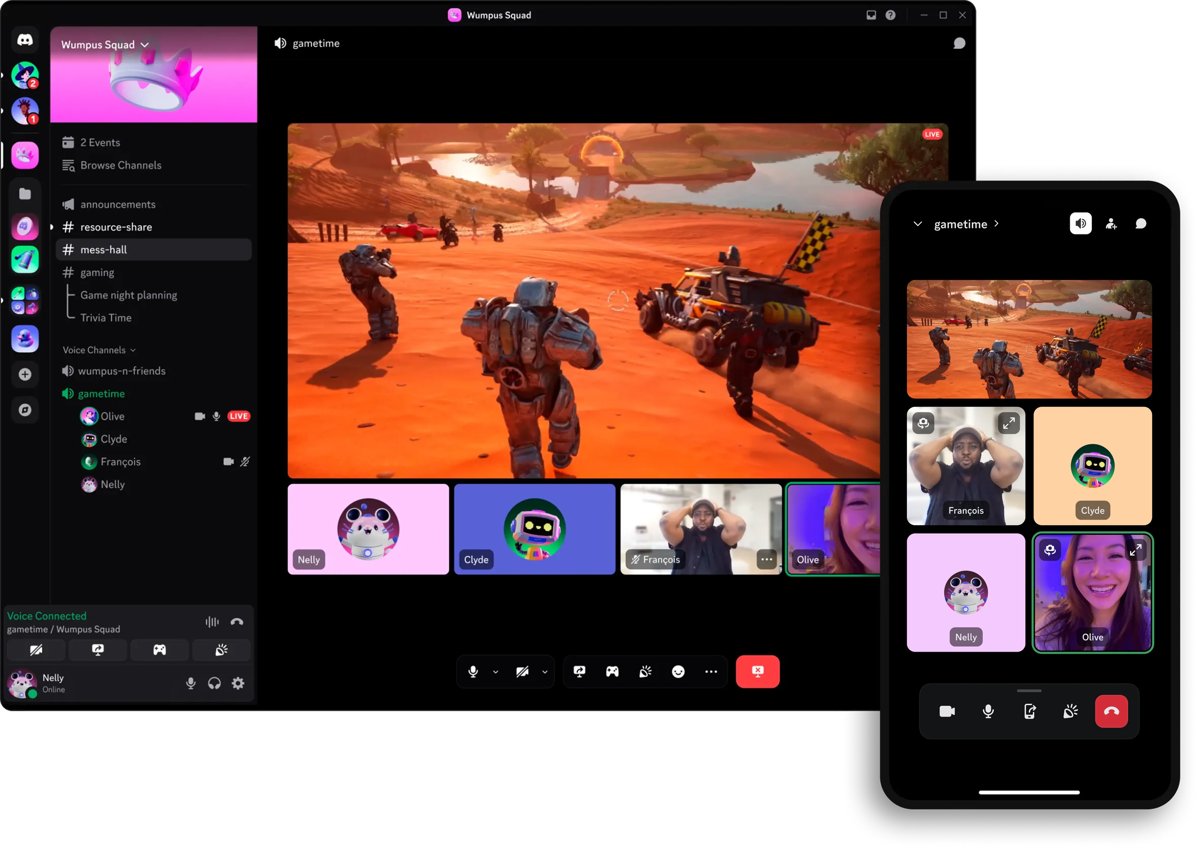
Discord is stuck on a gray screen on Windows PC
These steps combine the three fixes Discord recommends for a frozen loading screen. They do not touch your account, servers, or messages.
- Press Ctrl + Shift + Esc to open Task Manager, and select More details if it opens in the compact view.
- Select each Discord entry on the Processes tab, then select End task.
- Press Win + R, enter
%appdata%\discord\Cache, and press Enter. - Press Ctrl + A, then press Delete to empty the folder.
- Right-click the Discord shortcut and select Run as administrator.
- Open User Settings > Advanced and turn off Hardware Acceleration if the gray screen returns but the settings are reachable.
Discord gray screen causes and the fix to try first
A quick test in your web browser splits this problem in two. A gray screen only in the desktop app points to your installation, while a failure in both points to the connection or to Discord itself.
| What you see | Start with | Why |
|---|---|---|
| Web version works, desktop app stays gray | Method 8, then method 7 | The fault is local, and cached files and graphics settings are the usual suspects |
| Web version also fails to load | Methods 1 and 2 | Your connection or Discord's service is the likely cause |
| Gray screen started right after an update | Method 10, then method 11 | A partial or blocked update can leave a broken install |
| You once set Discord to a compatibility mode | Method 6 | Compatibility mode can stop Discord from updating |
| A JavaScript error appears on launch | Method 11 | Discord's fix for this error is deleting both of its app data folders and reinstalling |
| Other apps also fail to connect securely | Method 9 | A wrong system clock can break secure connections |
1. Check your computer’s internet connection
Discord needs a working connection before it can draw your servers and channels. Test the connection outside Discord so you know where the problem sits.
- Open a web browser and load a site you have not visited today, so a cached copy cannot fool you.
- Restart your router or switch to another network if the site fails to load.
- Run a speed test to confirm the connection is usable.
- Turn off any VPN or proxy you use, then reopen Discord to see whether it loads.
- Try a different DNS server if other sites load and Discord still cannot connect.
Turn your VPN back on once you have your answer if you rely on it for work or privacy.
2. Check if Discord is down
An outage on Discord's side looks exactly like a local fault, and no repair on your PC will fix it. Check this before you delete or reinstall anything.
- Open discordstatus.com in your web browser.
- Look for an active incident, or a component that is not shown as operational.
- Wait for the incident to be resolved if there is one, then reopen Discord.
3. Fully close and relaunch your Discord app
Closing the Discord window does not end the app, because it keeps running in the system tray. Discord is built on Chromium, which uses several processes, so you will usually see more than one Discord entry in Task Manager.
- Right-click the Discord icon in the system tray and close it from that menu.
- Press Ctrl + Shift + Esc to open Task Manager.
- Select any remaining Discord entry on the Processes tab and select End task.
- Wait about 30 seconds.
- Open Discord again from the Start menu.
4. Restart your computer
A restart clears stuck Discord processes and anything else holding its files open. It is also required before a reinstall, so it costs little to try now.
- Save your work and close your open apps.
- Right-click Start and select Shut down or sign out > Restart.
- Sign in to Windows and open Discord.
5. Run Discord with admin privileges
Discord lists running as administrator among its fixes for a frozen loading screen. Treat it as a test, because a normal Discord session does not need these rights.
- Close Discord completely from the system tray and Task Manager.
- Select Start and find Discord in the app list.
- Right-click Discord and select Run as administrator. Look under More if you do not see it right away.
- Select Yes at the User Account Control prompt.
- Close Discord and open it normally to see whether the fix lasts.
6. Troubleshoot Discord’s compatibility issues
Discord requires Windows 10 or later, so a compatibility mode can do more harm than good here. Discord warns that setting its executable to compatibility mode can block updates and leave you on an older release, even after a reinstall.
- Press Win + R, enter
%LocalAppData%\Discord, press Enter, and open the folder with the most recent version number. - Right-click Discord.exe and select Properties > Compatibility.
- Clear Run this program in compatibility mode for if it is selected, then select OK.
- On Windows 10, select Start > Settings > Update & Security > Troubleshoot > Additional troubleshooters, then Program Compatibility Troubleshooter > Run the troubleshooter.
- On Windows 11, select Start > Settings > System > Troubleshoot > Other troubleshooters, then Run next to Program Compatibility Troubleshooter.
- Pick Discord in the troubleshooter and follow the on-screen instructions.
- Restart Discord fully, so it can pick up any waiting update.
If the troubleshooter offers to apply a compatibility mode, test it once and then turn it off again, so the update block does not return.
7. Toggle Discord’s hardware acceleration
Hardware acceleration hands drawing work to your graphics card, and a problem there can leave the window blank. Discord lists turning it off as a fix for a frozen loading screen.
- Select the gear icon next to your username to open User Settings.
- Select Advanced in the left menu.
- Turn off Hardware Acceleration, or turn it on if it is already off.
- Confirm the restart if Discord asks for one.
- Check whether the window now loads normally.
You cannot reach this setting while the whole window is gray. Use method 8 first, then come back here once the interface loads.
8. Clear Discord’s cached data
Discord stores temporary files on your PC so it can load faster, and damaged ones can stop the interface from drawing. Removing them forces a fresh download.
- Close Discord completely from the system tray and Task Manager.
- Press Win + R, enter
%appdata%\discord\Cache, and press Enter. - Press Ctrl + A to select everything in the folder.
- Press Delete, and select Skip for any file Windows says is in use.
- Open Discord and wait for it to rebuild the cache.
The first launch afterward can be slower than usual, because Discord has to fetch those files again.
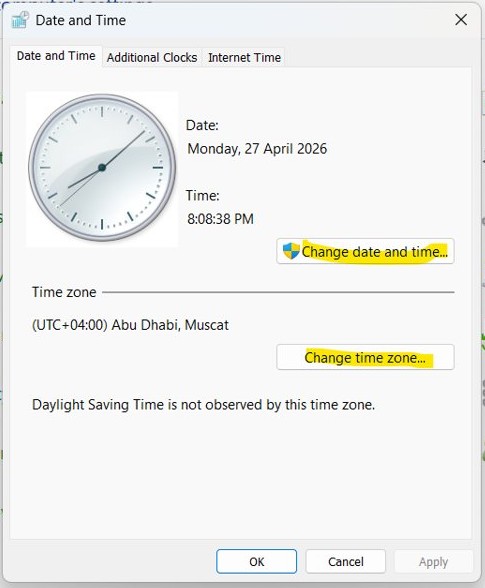
9. Set the correct date and time on your computer
Secure connections depend on an accurate clock, so a wrong date can stop apps from talking to their servers. The settings are in the same place on Windows 10 and Windows 11.
- Select Start > Settings > Time & language > Date & time.
- Turn on Set time automatically.
- Turn on Set time zone automatically, or turn it off and pick your zone from the Time zone list.
- Close Discord completely and open it again.
10. Update Discord on your computer
Discord applies updates when the app fully restarts, so closing only the window is not enough. Staying current matters beyond this bug too, because Windows versions older than 1.0.9164 can no longer join voice calls, video calls, or Go Live streams.
- Close Discord from the system tray.
- End any remaining Discord entries in Task Manager.
- Open Discord from the Start menu and let it finish loading so it can pick up the update.
- If it stays on an old version, clear any compatibility mode using method 6 and restart it fully again.
- If the app never gets past the gray screen, install the current version from Discord's download page.
To read your version number, open User Settings with the gear icon next to your username and scroll to the bottom of the settings panel.

11. Remove and reinstall Discord on your computer
A regular uninstall leaves Discord's app data behind, including anything damaged. Discord's own repair for a corrupt installation removes both of its folders before you reinstall.
- Close every Discord instance, including the browser version, and end any Discord entries in Task Manager.
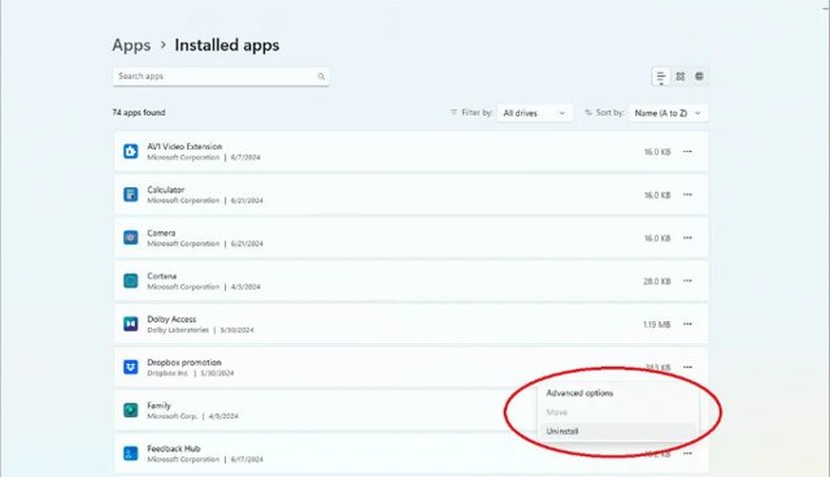
- Select Start > Settings > Apps > Installed apps (Apps & features on Windows 10), then select Discord > Uninstall.
- Press Win + R, enter
%appdata%, press Enter, and delete the Discord folder. - Press Win + R, enter
%LocalAppData%, press Enter, and delete the Discord folder there too. - Restart your computer.
- Download the Windows version from Discord's download page and run the installer.
- Sign in again when Discord opens.
Use Discord in a browser when the app shows a gray screen
The web version runs without the desktop app's installed files, so it works as both a test and a stopgap. Close it again before you run repairs, because Discord advises closing every instance first.
- Open discord.com/app in a current web browser.
- Sign in with your Discord account.
- Open a server and a channel to confirm your messages load.
You can keep using Discord in your web browser until the desktop app is repaired. Discord does not support running it in a mobile browser.
How to tell if the Discord gray screen is gone
One clean launch does not prove much, because a cached session can hide a problem that returns later. Run these checks before you call it finished.
- Open Discord and confirm that your server list and channels load.
- Send a message or open a direct message to confirm the connection works.
- Close Discord from the system tray and end any leftover entries in Task Manager.
- Open it again to confirm the fix survives a full restart.
Discord gray screen not going away on Windows 10 or Windows 11
Windows says the Discord folder cannot be deleted because it is in use
A Discord process is still running, sometimes hidden in the system tray or set to launch at startup.
- Open Task Manager and end every Discord entry on the Processes tab.
- Select the Startup tab, select Discord, and select Disable.
- Delete the folder again.
A JavaScript error appears when Discord starts
The app's files in your user profile are damaged.
- Delete the Discord folders in
%appdata%and%LocalAppData%. - Reinstall Discord.
Reinstalling Discord brings back the same old version
A compatibility mode set on the Discord executable keeps the update from applying, and Discord says this survives a reinstall.
- Clear compatibility mode on Discord.exe using method 6.
- Fully restart Discord so it picks up the update.
The Discord installer fails during the reinstall
The installer can be blocked by leftover files or too few permissions.
- Right-click the installer and select Run as administrator.
- Work through the Discord installer errors if it still stops.
The whole Windows 11 screen goes dark, not only the Discord window
This is a display or Windows fault, because a Discord problem stays inside its own window.
- Close Discord and restart the PC.
- Then fix the black screen in Windows 11 before you reinstall anything.
Discord gray screen FAQ
Why is Discord stuck on a gray screen?
The usual causes are damaged cache files, a hardware acceleration problem, a blocked or partial update, a poor connection, or an outage on Discord's side. Test the web version first, because that tells you whether the fault is on your PC or elsewhere.
Why does Discord work in my browser but not in the app?
The service is working, so the fault is in the desktop app on your PC. Clear the Cache folder under %appdata%\discord first, then toggle hardware acceleration, and reinstall with both Discord folders removed if the window stays gray.
Does clearing Discord's cache delete my messages?
No, your messages and servers are stored with your Discord account, not in the Cache folder. Clearing it only removes temporary files on your PC. Discord downloads what it needs again, so the first launch can take a little longer.
Will reinstalling Discord delete my servers or account?
No, your servers and account are tied to your login and return when you sign in again. Deleting the app data folders removes local settings on that PC, so have your password or two-factor method ready before you start.
Should I always run Discord as administrator?
No, use it as a one-time test. Discord lists it as a fix for a frozen loading screen, but a normal session does not need those rights. If the app only opens as administrator, a clean reinstall is the better long-term fix.
How do I know if Discord is down?
Check discordstatus.com, Discord's official status page, for active incidents. If it reports a problem, wait for it to be resolved, because nothing on your PC will fix it. If it shows no incidents, work through the local fixes.
Does compatibility mode fix Discord on Windows?
It usually works against you now. Discord says that setting its executable to compatibility mode can block updates and keep you on an old release, even after a reinstall. Clear the setting on Discord.exe and fully restart the app.
What Windows version does Discord need?
Discord's desktop app requires Windows 10 or later, and Discord recommends 4 GB of RAM. An older version of Windows cannot run current releases properly, so upgrade Windows or use the web version in an up-to-date browser.
Bid goodbye to Discord’s gray screen problem on your computer
Start with a full close and a cleared cache, then move to hardware acceleration, and keep the reinstall for last. That order fixes the most likely causes first and costs you nothing but a slower first launch. If the screen stays gray after a clean reinstall and no outage is listed, contact Discord support at dis.gd/contact and describe what you already tried.