Optimize graphics performance by updating your graphics driver, assigning High performance to demanding apps, choosing Best performance power mode, and lowering in-game settings.
This guide covers the graphics settings in Windows 11 and Windows 10, the best values for different users, and fixes for low frame rates, flicker and overheating.
5 methods to optimize graphics performance on Windows
Start with these five changes. The numbered methods further down give the exact paths and the Windows 10 differences.
- Update the graphics driver: open Device Manager, expand Display adapters, right-click your adapter and select Update driver.
- Adjust Windows graphics settings: open Settings > System > Display > Graphics, select your game, select Options, and choose High performance.
- Optimize in-game settings: lower resolution, shadows and other demanding options until the frame rate is steady.
- Reinstall the driver cleanly if problems continue: in Device Manager, open Properties > Driver > Uninstall Device, tick Attempt to remove the driver for this device, select OK, and restart.
- Set the power mode: open Settings > System > Power & battery and choose Best performance under Power mode.
What does optimizing graphics performance mean in Windows 11/10?
It means removing whatever stops your GPU from delivering frames smoothly. Integrated GPUs are built into the device and suit light gaming and photo work, while discrete GPUs handle heavy gaming and video editing. Each layer below can hold either type back.
| Layer | What you can change | Covered in |
|---|---|---|
| Windows | Updates, power mode, per-app GPU choice, Game Mode, visual effects | Methods 1, 3, 4, 6, 7 |
| Driver | Driver version, GPU scheduling, vendor control panel | Methods 2, 5, 9 |
| Display | Resolution, refresh rate, variable refresh rate | Methods 8, 15 |
| Game | In-game quality settings, upscaling, DirectX mode | Methods 13, 14 |
| PC health | Background apps, storage, temperature, overlays, malware | Methods 10, 11, 12, 16, 17 |
| Hardware | A faster GPU, more memory or a faster drive | Method 19 |
Signs your graphics performance needs optimization
To put a number on these signs, press Windows logo key + G to open Game Bar and use its Performance widget, which monitors your PC in real time while you play.
| Sign | Likely cause | Try first |
|---|---|---|
| Low or uneven frame rate | Demanding game settings or an outdated driver | Methods 2 and 13 |
| Laptop game runs far below what the GPU should manage | The app is using the integrated GPU | Method 4 |
| Screen tearing or uneven motion | Refresh rate and frame rate do not match | Methods 8 and 15 |
| Fans run loud and performance falls during long sessions | Heat or blocked ventilation | Method 12 |
| Screen flickers or goes blank briefly | Display driver or an incompatible app | Common problems section |
| Everything is slow, not only games | Background apps, low storage or malware | Methods 10, 11 and 17 |
Things to check before optimizing graphics performance in Windows 11/10
A game that sits below its stated requirements will not run well however you tune Windows. Check these items first so you change the right things.
| Check | Where to find it | Why it matters |
|---|---|---|
| Your Windows version | Settings > System > About | Paths and options differ between Windows 11 and Windows 10 |
| Your GPU | Task Manager > Performance | Shows whether you have one or two GPUs, which decides whether Method 4 applies |
| DirectX version | dxdiag > System tab | Shows what your PC supports against the game's needs |
| The game's system requirements | The game's Microsoft Store listing or developer site | Tells you if the PC meets the minimum at all |
| Administrator rights | Your Windows account type | Rolling back a driver needs them |
Method 1: Update Windows to the latest version
Windows Update also delivers DirectX updates and some drivers. Windows 10 stopped receiving free updates and security fixes after October 14, 2025, so Microsoft recommends moving to Windows 11.
- On Windows 11, select Start > Settings > Windows Update.
- On Windows 10, select Start > Settings > Update & Security > Windows Update.
- Select Check for updates and install what it finds.
- On Windows 11, open Advanced options > Optional updates to see optional drivers.
- Restart the PC if prompted.
Method 2: Update your graphics driver
When you update your graphics driver, get the newest version from the GPU maker if Windows finds nothing. NVIDIA publishes drivers on its driver page and through the NVIDIA app, Intel offers a detection tool on its support site, and AMD lists Radeon drivers on its support site.
- Right-click Start and select Device Manager.
- Expand Display adapters, then right-click your graphics adapter.
- Select Update driver, then Search automatically for updated driver software.
- If nothing is found, select Search for updated drivers on Windows update.
- To install a driver you downloaded, select Browse my computer for drivers instead, then select the driver folder.
- Restart the PC when the install finishes.
Method 3: Choose the best power plan
This uses more battery on a laptop, so return to a lower setting when you are unplugged. You can also tune power and sleep settings around it.
- On Windows 11, select Start > Settings > System > Power & battery.
- Choose Best performance under Power mode.
- On Windows 10, select Start > Settings > System > Power & sleep.
- Select Additional power settings under Related settings.
- Choose Show additional plans if it is available, then select High performance.
Method 4: Assign high performance graphics to apps
This matters on PCs with more than one GPU, typically a laptop with integrated and discrete graphics. First open the Graphics settings page, then set the choice per app.
- Select Start > Settings > System > Display > Graphics.
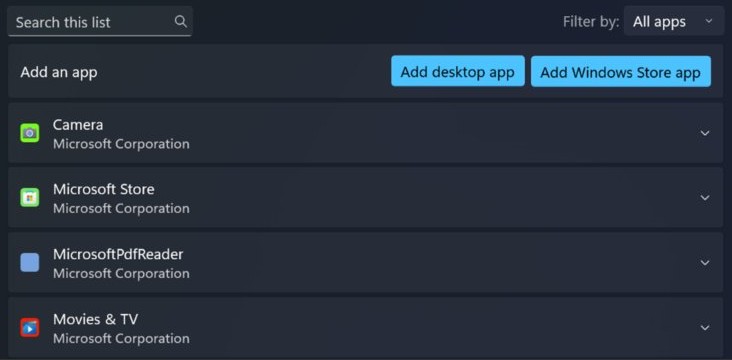
- Under Custom options for apps, select the app or game. If it is not listed, add it with Add desktop app or Add Windows Store app.
- Select Options.
- Under Graphics preference, choose High performance.
- Select Save, then restart the game or app.
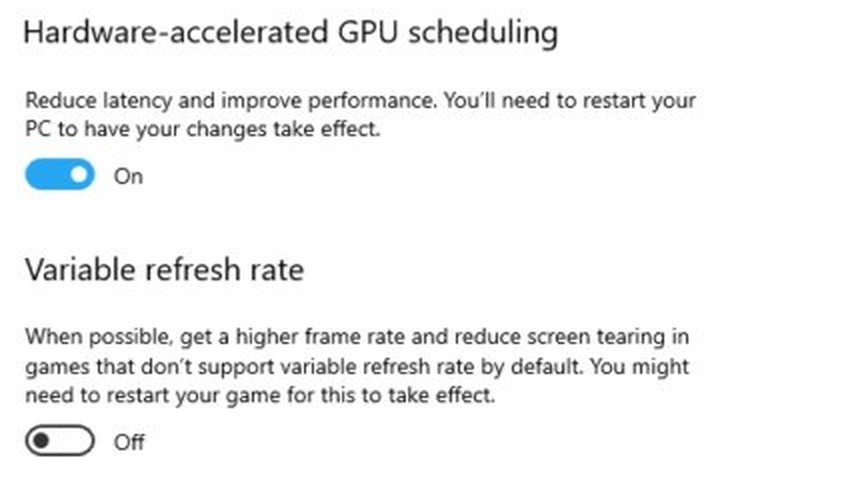
Method 5: Enable hardware accelerated GPU scheduling
This setting moves most GPU scheduling work from the CPU to a dedicated processor on the GPU. It is off by default, and Microsoft says most users should not notice a difference, so enable hardware-accelerated GPU scheduling as a test rather than a guaranteed gain.
- Select Start > Settings > System > Display > Graphics.
- Select Advanced graphics settings.
- Turn on Hardware-accelerated GPU scheduling. The option appears only with a supporting GPU and display driver.
- Restart the PC, then compare the same game scene.
Method 6: Turn on Game Mode
Game Mode stops Windows Update from installing drivers and sending restart notifications while you play, and it can help achieve a more stable frame rate depending on the game and system. It is on by default, so this step usually only confirms the setting.
- Select Start, type Settings in the search box, and select Settings.
- Choose Gaming > Game Mode.
- Turn Game Mode on.
Method 7: Adjust visual effects for better performance
Microsoft lists this among its PC performance tips, and the steps are the same on Windows 11 and Windows 10. The setting trades Windows animations and other visual extras for less work on the PC.
- Select Start and search for Adjust the appearance and performance of Windows.
- Open the result and select the Visual Effects tab.
- Select Adjust for best performance.
- Select Apply, then OK.
Method 8: Optimize display settings
Resolution sets how many pixels your GPU must draw, and refresh rate sets how often the screen updates. On Windows 11, Dynamic refresh rate can limit the maximum refresh rate of some games, so turn it off if a game seems to run slower.
- Open Settings > System > Display, and select your display if you have more than one.
- Under Scale & layout, set Display resolution to the option marked Recommended, or lower it if the GPU struggles.
- On Windows 11, select Advanced display, then pick the highest rate next to Choose a refresh rate.
- On Windows 10, select Advanced display settings, then choose under Refresh rate.
- Avoid rates marked with an asterisk unless you also want your resolution to change.
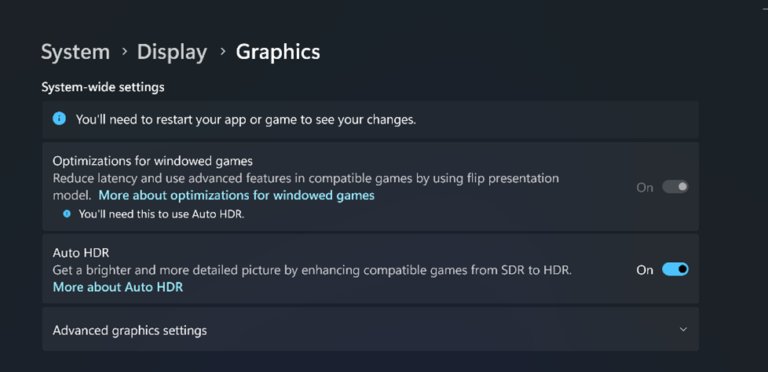
- On Windows 11, also open Display > Graphics and turn on Optimizations for windowed games, then restart the game.
Optimizations for windowed games moves DirectX 10 and DirectX 11 games in windowed and borderless modes to the flip model, which reduces frame latency.
Method 9: Configure graphics control panel settings
Each GPU maker provides its own control app for settings Windows does not expose. Change one setting at a time so you can tell what helped.
| Your GPU | App | What to change |
|---|---|---|
| NVIDIA | NVIDIA Control Panel | Under 3D Settings, select Manage 3D Settings. On the Global Settings or Program Settings tab, set Power management mode to Prefer maximum performance |
| NVIDIA | NVIDIA app | Use its game-optimized settings, one-click GPU tuning and DLSS Override |
| Intel Arc | Intel Graphics Software | Save a profile per game, and use low latency mode or frame synchronization in legacy DirectX 9 and 11 games |
| Intel 6th generation Core or newer | Intel Graphics Command Center | Install it from the Microsoft Store, because it does not come in the driver package |
| AMD Radeon | AMD Software: Adrenalin Edition | Open it from Start and change the graphics options for the game you play |
Method 10: Close background apps and unnecessary startup programs
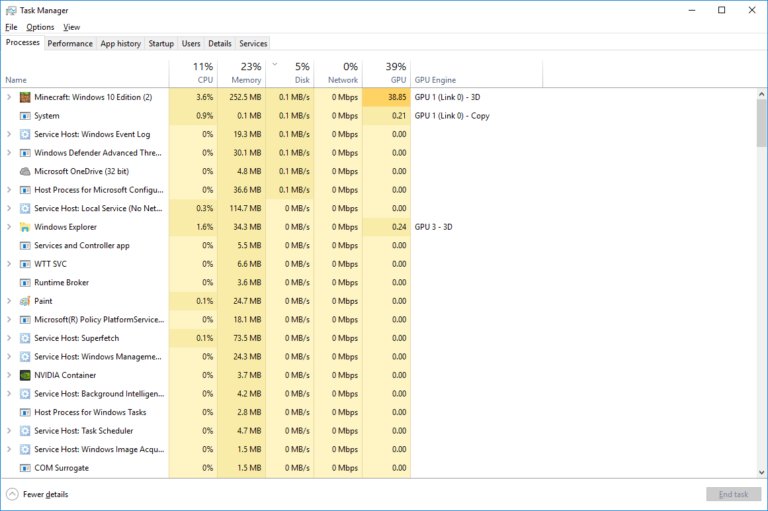
Background apps compete with your game for CPU, memory and sometimes the GPU. Close them before playing, and stop the ones you never use from starting with Windows.
- Press Ctrl + Shift + Esc to open Task Manager.
- On the Processes tab, close the apps you do not need.
- Select Startup apps, right-click an app and select Disable.
- On Windows 11, go to Settings > Apps > Installed apps, select More options (…) > Advanced options for an app, and set Let this app run in the background to Never.
- On Windows 10, go to Settings > Privacy > Background apps and turn off the toggle for the app.
Method 11: Optimize storage for better graphics performance
Storage does not change what the GPU can draw, but Microsoft lists freeing space and optimizing drives among its performance tips. It is worth doing when games load slowly or the whole PC feels slow. You can also defragment and optimize drives when an older hard drive drags.
- Select Start > Settings > System > Storage.
- On Windows 11, select Temporary files, then Remove files.
- Use Storage Sense to clear more space automatically.
- Select Start and search for Defragment and Optimize Drives.
- Select a drive, then select Optimize.
Method 12: Check GPU temperature and cooling
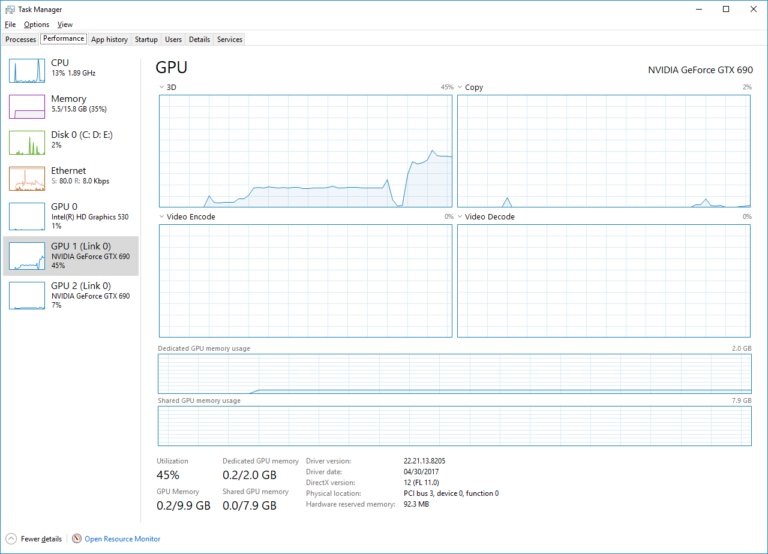
Task Manager shows GPU temperature in Celsius on PCs with a dedicated GPU card and a WDDM 2.4 or newer driver. Safe limits vary by card, so compare your reading with the GPU maker's figures.
- Press Ctrl + Shift + Esc to open Task Manager.
- Select the Performance tab and find your GPU in the list.
- Read the temperature next to the GPU listing while a game runs in the background.
- Make sure the PC is properly ventilated and its vents are not blocked.
- Unplug any external devices you do not need, then test again.
Method 13: Optimize graphics settings for games
Microsoft's own advice for a game that runs badly is to turn down its graphics settings, because the game then asks less of the GPU. Change one option at a time and test the same scene.
| Option in the game | What to do | Result |
|---|---|---|
| Resolution or render scale | Lower it one step | Fewer pixels for the GPU to draw |
| NVIDIA DLSS Super Resolution | Turn it on with a GeForce RTX 20 Series or newer GPU | Renders at a lower resolution, then uses AI to raise it |
| NVIDIA DLSS Frame Generation | Turn it on with a GeForce RTX 40 or 50 Series GPU | AI creates extra frames |
| Intel XeSS Frame Generation | Use the XeSS-FG override in Intel Graphics Software on supported Intel GPUs | AI generates extra frames to boost FPS |
| Automatic Super Resolution | Use Win + G, then Widgets Menu > Display > Auto SR on supported Copilot+ PCs | Windows upscales DirectX 10 or later games |
| Shadows, reflections and ray tracing | Lower or turn them off | Less GPU work in each frame |
| Display mode | Try full screen or borderless, then compare | Latency and frame pacing can change |
Method 14: Enable DirectX features
There is nothing separate to install for current DirectX. DirectX 11.3 and 12 are part of Windows 10 and later, updates arrive through Windows Update, and no stand-alone package exists. Enabling features means confirming your version and choosing the right mode in the game.
- Type dxdiag in the taskbar search box and select dxdiag.
- If asked whether to check for digitally signed drivers, select Yes.
- On the System tab, read the DirectX Version under System Information.
- On the Display tab, check the WDDM version next to Driver Model.
- Run Windows Update if the version is older than your game needs.
- Open the game's graphics options and choose its DirectX 12 mode if it offers one.
Method 15: Enable variable refresh rate (VRR)
VRR lets a capable monitor match its refresh rate to the game's frame rate. The Windows setting also adds VRR to DirectX 11 full-screen games that lack native support. NVIDIA validates some monitors as G-SYNC Compatible for a basic VRR experience, and Intel Graphics Software has its own VRR option.
- Select Start > Settings > System > Display > Graphics.
- Select Advanced graphics settings.
- Turn on Variable refresh rate. The option appears only with the necessary drivers and a VRR-capable monitor.
- Check that VRR is also turned on in your GPU maker's control app and on the monitor.
- Restart the game.
Method 16: Disable unnecessary overlays
Overlays draw on top of the game and keep running while you play. Close the ones you do not use, and keep only the single FPS counter you actually read.
- Press Windows logo key + G to open Game Bar, then close any widgets you do not need.
- Go to Settings > Gaming > Captures and turn off any background recording you do not use.
- Open the NVIDIA app or your other GPU tool and turn off its in-game statistics overlay.
- Turn off the overlay in your game launcher's settings if it has one.
- Test the same game scene again, then restore only the overlays you need.
Method 17: Scan your PC for malware
Malware running in the background can take resources from your games, and a scan rules that out. Microsoft Defender is built into Windows and needs nothing extra.
- On Windows 11, select Start > Settings > Privacy & security > Windows Security.
- On Windows 10, select Start > Settings > Update & security > Windows Security.
- Select Virus & threat protection.
- Select Quick scan and wait for it to finish.
- Remove anything it reports, then restart the PC.
Method 18: Reset graphics preferences
Reset custom settings when a change made things worse. For a display problem, try Windows logo key + Ctrl + Shift + B first, which resets the graphics driver.
- Select Start > Settings > System > Display > Graphics.
- Under Custom options for apps, select the app and select Options.
- Set Graphics preference to Let Windows decide (Power saving), then select Save.
- Where the page shows Reset, select it to return the app to its defaults.
- Select Remove to drop an app you added. You may need to reset it first.
- In NVIDIA Control Panel, open Manage 3D Settings and select Restore to return to the defaults.
Method 19: Upgrade hardware for better graphics performance
Upgrade only after software changes stop helping. Check the game's system requirements on the developer's site first so you buy what it actually needs.
| Your situation | Upgrade to consider | Note |
|---|---|---|
| Desktop with an integrated GPU, or a GPU below the game's minimum | A discrete graphics card | Check that your case and power supply can take it |
| Laptop with a GPU below the game's minimum | A new laptop or a different device | Many laptops have no replaceable GPU, so check the maker's specifications |
| Memory below the game's stated requirement | More RAM | Check the type your PC supports with the PC maker |
| Long load times with an older hard drive | An SSD | Improves loading rather than peak frame rate |
| Modern GPU but a refresh rate limit on screen | A higher refresh rate or VRR monitor | Lets you see the extra frames your GPU already draws |
Best graphics settings for good performance in Windows 11/10
| Setting | Where it is | Best value for performance |
|---|---|---|
| Power mode | Settings > System > Power & battery | Best performance |
| Graphics preference | Settings > System > Display > Graphics > Options | High performance |
| Game Mode | Settings > Gaming > Game Mode | On |
| Optimizations for windowed games | Settings > System > Display > Graphics | On |
| Variable refresh rate | Graphics > Advanced graphics settings | On, if listed |
| Hardware-accelerated GPU scheduling | Graphics > Advanced graphics settings | Test on and off |
| Refresh rate | Settings > System > Display > Advanced display | The highest rate at your resolution |
| Visual effects | Adjust the appearance and performance of Windows | Adjust for best performance |
Best graphics settings for different types of users
| You are | Use these settings | Why |
|---|---|---|
| A gamer on a desktop | Best performance, High performance per game, VRR on, Game Mode on | Power use matters less, and a steady frame rate matters most |
| A gamer on a laptop | High performance per game and Best performance while plugged in | Best performance uses more battery |
| A video or photo editor | High performance for the editing app and an up-to-date driver | Discrete GPUs suit intense photo and video editing |
| A battery-first laptop user | Power saving for most apps and Dynamic refresh rate on, where the display supports it | Dynamic refresh rate balances smoothness with battery life |
| An office or web user | Recommended resolution, default preferences and Adjust for best performance on older PCs | Light work needs little GPU power |
Common graphics performance problems and their solutions
Low FPS in games
Game settings are too demanding or the app is on the wrong GPU.
- Confirm the PC meets the game's system requirements.
- Update the game and the graphics driver.
- Set the game to High performance in Graphics, then lower its graphics settings.
Screen flickers or the display glitches
A display driver or an incompatible app is usually responsible.
- Press Windows logo key + Ctrl + Shift + B to reset the graphics driver, then restart if needed.
- Press Ctrl + Shift + Esc. If Task Manager flickers too, the driver is the likely cause.
- In Device Manager, update, roll back or reinstall the display driver.
- If only the rest of the screen flickers, update or uninstall the most recent app.
Performance got worse after a driver update
The new driver does not suit your game or GPU.
- Open Device Manager and expand Display adapters.
- Right-click the adapter and select Properties > Driver.
- Select Roll Back Driver, choose a reason, and select Yes.
- Restart the PC. The option is unavailable if Windows has no earlier driver.
Hardware-accelerated GPU scheduling or VRR option is missing
These settings appear only when the GPU, driver and, for VRR, the monitor support them.
- Install the newest driver from your GPU maker.
- Reopen Graphics > Advanced graphics settings.
- If the option is still missing, treat that hardware as unsupported.
Game runs slower with Dynamic refresh rate on
Dynamic refresh rate can limit the maximum refresh rate of some games.
- Go to Settings > System > Display > Advanced display.
- Turn off Dynamic refresh rate and test the game again.
PC gets hot and frame rate drops during long sessions
Blocked airflow can make the PC run hotter than it should.
- Check the GPU temperature in Task Manager.
- Clear blocked vents and move the PC to a well-ventilated spot.
- Lower game settings to reduce GPU load.
Tips to maintain excellent graphics performance
| Habit | When to do it | Where |
|---|---|---|
| Update your graphics driver | When your GPU maker releases one, or before a new game | NVIDIA app, Intel Graphics Software or AMD Software |
| Install Windows updates | When Windows offers them | Settings > Windows Update |
| Update your games | Before you troubleshoot a problem | The game's launcher or Microsoft Store |
| Check startup apps | When the PC starts slowly | Task Manager > Startup apps |
| Check GPU temperature | After long sessions, or when fans get louder | Task Manager > Performance |
| Free up storage | When a drive is nearly full | Settings > System > Storage |
| Restart the PC | When apps have been open for a long time | Start > Power > Restart |
Optimizing graphics performance FAQs
How do I optimize graphics performance in Windows 11?
Update your graphics driver, then set your game to High performance under Settings > System > Display > Graphics. Choose Best performance under Power mode, keep Game Mode on, and lower demanding in-game settings until the frame rate stays steady.
Does Game Mode improve FPS?
Game Mode can help achieve a more stable frame rate, depending on the game and system. It also prevents Windows Update from installing drivers and sending restart notifications during play. It is on by default in Settings > Gaming > Game Mode.
Should I turn on hardware-accelerated GPU scheduling?
Try it if your PC offers it, then compare the same game scene. It moves most GPU scheduling work to the GPU, but Microsoft says most users should not notice a difference. It needs a supporting GPU and driver to appear.
Why can't I choose High performance for an app?
The GPU choice appears when your PC has more than one graphics processor. On a PC with a single GPU, the app already uses it, so there is nothing to switch and you can move on to other settings.
Can I download DirectX 12 separately?
No. Microsoft states there is no stand-alone package for DirectX 11.3 and 12, which are included with Windows 10 and later. Updates arrive through Windows Update. To see your version, run dxdiag and check the System tab.
How do I check my GPU temperature in Windows?
Open Task Manager with Ctrl + Shift + Esc, select Performance, and read the temperature next to your GPU. It appears only with a dedicated GPU card and a WDDM 2.4 or newer driver, and it shows in Celsius only.
Does turning off visual effects help graphics performance?
It can help on PCs that struggle, and Microsoft lists it among its performance tips. Search Start for Adjust the appearance and performance of Windows, open the Visual Effects tab, and select Adjust for best performance. The change affects Windows itself, not a game's own settings.
When should I upgrade my graphics card?
Upgrade when your GPU sits below the game's stated requirements, or when updated drivers, lower settings and cooling checks still leave the game unplayable. Check the developer's system requirements first so the new card meets what the game actually needs.