To play DVDs on Windows 11, connect a DVD drive, install a player such as VLC, insert the disc and select Media > Open Disc in VLC.
This guide covers VLC, Microsoft's Windows DVD Player app, AutoPlay, laptops with no disc drive and the fixes for a DVD that will not play.
How to play DVDs on Windows 11
Windows 11 needs two things for DVD movies: a drive that reads the disc and an app that plays it. VLC media player is the quickest app to set up because it is free and needs no extra codecs for DVD video.
- Connect an external DVD drive if your PC does not have one built in.
- Download VLC media player and install it.
- Insert the DVD into the drive.
- Open VLC media player.
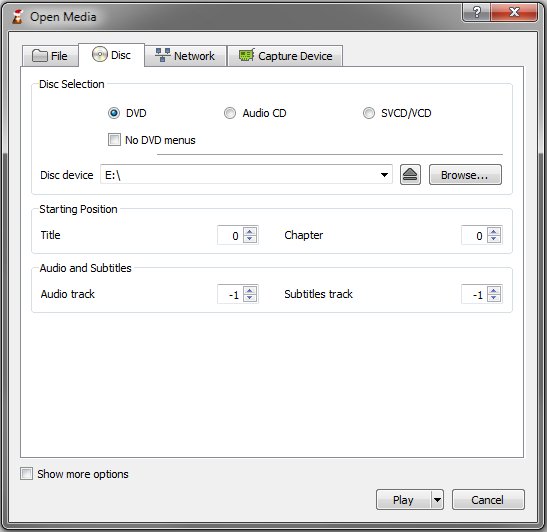
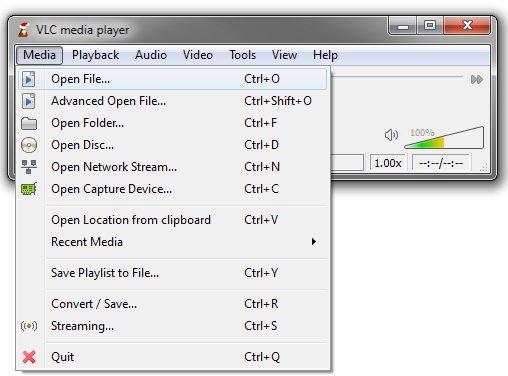
- Select Media > Open Disc.
- Choose DVD as the media type.
- Pick your drive from the Disc Device list.
- Confirm the dialog to start the disc.
The same dialog has Title and Chapter selectors for starting partway through the disc, plus Audio and Subtitles track selectors.
Software to play DVDs on Windows 11
| Your situation | App to use | Why |
|---|---|---|
| You want a free player | VLC media player | VideoLAN lists it as completely free, with no ads and no user tracking, and it plays DVD Video |
| You prefer Microsoft's own app | Windows DVD Player | Microsoft built it for DVD movies and sells it through the Microsoft Store, apart from a limited upgrade offer |
| You searched the Microsoft Store for a DVD app | Check the publisher first | A store search for DVD players also returns free and paid apps with near-identical names |
| You only have Windows Media Player | Add one of the apps above | Microsoft states that DVD playback is not included in Windows Media Player Legacy on Windows 11 |
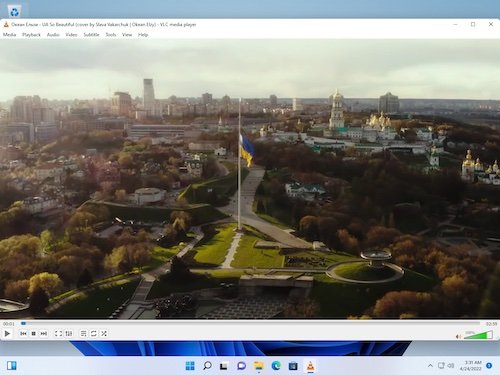
How to play DVDs on Windows 11 laptop without a DVD drive
No app can read a disc without a drive, so a laptop with no slot needs an external one. Microsoft's disc instructions treat a built-in drive and an external CD/DVD drive the same way.
- Connect an external CD/DVD drive to the laptop.
- Select Start, type Device Manager and open it.
- Expand DVD/CD-ROM drives and look for the new drive.
- Insert the disc into the external drive.
- Open your DVD player app and start the disc.
Video files copied from a disc do not need the drive at all, because you can play VOB files on Windows 11 directly from the PC's storage.
How to play DVDs in Windows 11 with Windows DVD Player
Microsoft's support pages name Windows DVD Player as a Store app you can buy. It was also free for a limited time to people who upgraded to Windows 10 from Windows 7 Home Premium, Professional or Ultimate, or from Windows 8 Pro or 8.1 Pro with Media Center.
- Install Windows DVD Player from the Microsoft Store.
- Press the Windows logo key, type DVD Player and press Enter.
- Load the DVD into the drive.
- Open the Option menu button on the app bar.
- Select First Title, whose tooltip reads Play first title.
Press Alt + Enter to switch to full screen and the Spacebar to pause or resume. If a Microsoft Store search does not show the app for your account, use VLC instead.
How to play DVDs on this device in Windows 11 with AutoPlay
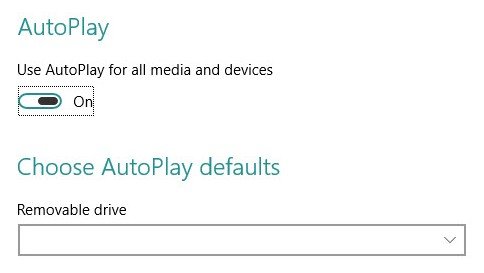
AutoPlay lets Windows 11 ask what to do as soon as a disc goes in. It saves opening the player and browsing to the drive each time.
- Select Start > Settings > Bluetooth & devices > AutoPlay.
- Make sure AutoPlay is turned On.
- Insert the DVD into the drive.
- Select the VLC option when Windows asks what you want to do with the disc.
How to tell if Windows 11 can read your DVD drive
Run this test when a disc will not start. It separates a drive problem from a player problem.
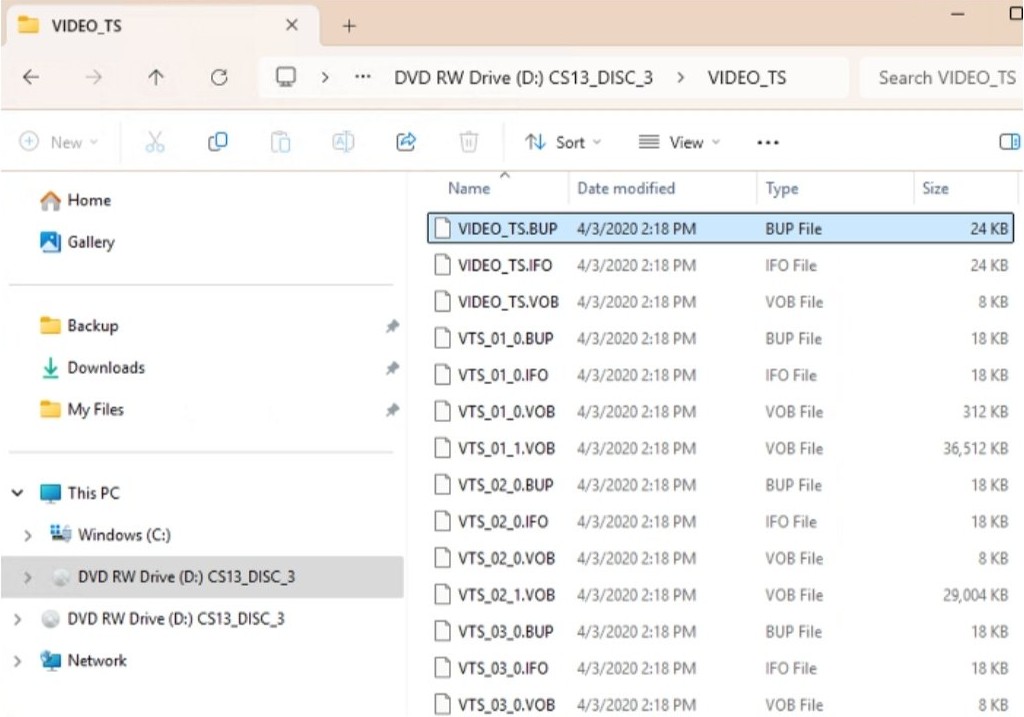
- Open File Explorer and look for the disc drive in the left pane.
- Select Start, type Device Manager and open it.
- Expand DVD/CD-ROM drives and find your drive.
- Look for a yellow exclamation point next to the drive.
- Open the drive's Properties and read the status for error code 19, 31, 32, 39 or 41.
A drive with no warning points to the app or the disc. A warning or one of those codes points to the driver fixes in the troubleshooting section below.
Can Windows 11 play DVDs natively?
No. Plan on adding a player app, because Windows 11 does not ship DVD playback in Windows Media Player Legacy. Microsoft lists Windows Media Player Legacy as an optional feature on Windows 11 and states that DVD playback is not included. Microsoft's own DVD app is a separate Store purchase, so plan on installing VLC, Windows DVD Player or a similar app.
DVD decoder and MPEG-2 on Windows 11
These terms explain the decoder errors that some players show. Some AVI files on Windows 11 use the same MPEG-2 format and need the same decoder.
| Term | What it means | What it changes for you |
|---|---|---|
| DVD-Video | Disc content encoded in the MPEG-2 format | A player needs an MPEG-2 decoder to show the movie |
| DVD decoder | Another name for an MPEG-2 decoder | A missing-decoder message means the app cannot read MPEG-2 |
| 64-bit codecs | Decoders built for 64-bit Windows | Windows 11 is 64-bit, so install 64-bit codecs when you add one |
| Group Policy on work PCs | An administrator setting that can block new codecs | Ask your IT team if a codec will not install |
| VLC's built-in codecs | VideoLAN says VLC plays MPEG-2 with no codec packs | VLC does not depend on a separate DVD decoder |
Why can't I play DVDs on Windows 11?
Match the symptom below to its fix, starting with the one you can see on screen.
Windows Media Player will not play the DVD
Windows Media Player Legacy does not include DVD playback, so no setting will enable it.
- Install VLC media player or Windows DVD Player.
- Open the disc in the new app.
An error says a compatible DVD decoder is missing
The player needs an MPEG-2 decoder and cannot find one.
- Open the disc in VLC, which plays MPEG-2 with no codec packs.
- Ask your administrator on a work PC if the app or a codec will not install.
Nothing happens when you insert the DVD
AutoPlay may be turned off, so Windows does not prompt you.
- Select Start > Settings > Bluetooth & devices > AutoPlay.
- Make sure AutoPlay is turned On.
- Open VLC and select Media > Open Disc to start the disc by hand.
The DVD drive is missing or shows a yellow exclamation point
Microsoft links this to BIOS settings, chipset drivers or the drive's own driver.
- Check that the drive is enabled in the BIOS, using your PC maker's documentation.
- Ask your PC maker, or the drive maker for a separate drive, whether your chipset drivers are current.
- Open Device Manager and expand DVD/CD-ROM drives.
- Right-click the drive and select Uninstall device.
- Confirm the removal and restart the PC so Windows reinstalls the driver.
Reinstalling the DVD driver did not bring the drive back
The IDE/ATAPI drivers can also fail, so Microsoft has you remove and reinstall them.
- In Device Manager, open the View menu and select Show hidden devices.
- Expand IDE/ATAPI controllers.
- Uninstall ATA Channel 0, ATA Channel 1, Standard Dual Channel PCI IDE Controller and any other listed entries.
- Restart the PC so Windows reinstalls the drivers.
Error code 19, 31, 32, 39 or 41 stays after the driver fixes
Microsoft traces this to two corrupted registry values. Back up the registry first, and sign in as an administrator.
- Press Windows logo key + R, type
regeditand confirm. - Go to
HKEY_LOCAL_MACHINE\SYSTEM\CurrentControlSet\Control\Class\{4D36E965-E325-11CE-BFC1-08002BE10318}. - Delete the UpperFilters value and ignore any UpperFilters.bak entry.
- Delete LowerFilters if it exists.
- Close Registry Editor and restart the PC.
VLC will not play a DVD from another region
VideoLAN says this depends mostly on the drive, because some drives block raw access until a firmware region check completes.
- Try a second disc to find out whether the drive reads discs at all.
- Ask the drive maker what region support its firmware offers.
Microsoft warns that CD or DVD recording software may stop working after the registry change. Reinstall that software or look for an updated version if it does. For errors on other media files, you can troubleshoot Windows Media Player separately.
Tips for playing DVDs on Windows 11
| Tip | How to do it | When it helps |
|---|---|---|
| Skip the disc menu in VLC | Tick No DVD menus in the Open Disc dialog | The menu will not load or you want the main film straight away |
| Start at a set point | Set Title and Chapter in the Open Disc dialog | You are resuming a long film or a TV disc |
| Choose language tracks | Set Audio and Subtitles in the Open Disc dialog | The disc carries several languages |
| Use keyboard controls in Windows DVD Player | Spacebar or Ctrl + P plays or pauses, Alt + Enter goes full screen, Ctrl + B restarts the chapter or goes to the previous one | You are watching full screen and want to avoid the app bar |
| Turn on captions in Windows DVD Player | Use the Closed caption button after Volume on the app bar | The disc includes captions |
| Test with a second disc | Insert another DVD in the same drive | You need to know whether the disc or the drive is at fault |
Frequently asked questions about playing DVDs on Windows 11
Can Windows 11 play DVDs?
Yes, once you add a disc drive and a DVD player app. Windows Media Player Legacy does not include DVD playback, so install VLC media player or Microsoft's Windows DVD Player, then open the disc from that app.
What app can play DVDs on Windows 11?
VLC media player and Windows DVD Player both play DVD movies on Windows 11. VideoLAN lists VLC as completely free, while Microsoft sells Windows DVD Player through the Microsoft Store. Other DVD apps in the store come from different publishers, so check the name before you pay.
How do I play DVDs on a Windows 11 laptop?
Connect an external DVD drive if the laptop has none, then install a player such as VLC. Insert the disc, open VLC, select Media and then Open Disc, choose DVD and pick your drive. The steps match those for a desktop PC.
Why can't I play DVDs on Windows 11?
Windows Media Player Legacy does not include DVD playback on Windows 11, so start by installing a DVD player app. If an app is already installed, check the drive in Device Manager for a yellow exclamation point or error code.
Can I use any media player to play DVDs?
No. The player has to support DVD discs and be able to read MPEG-2 video, the format used on DVD-Video. Windows Media Player Legacy does not include DVD playback on Windows 11, while VLC lists DVD Video among its supported input media.
Do I need to pay for DVD player software on Windows 11?
No. VLC media player is free and plays DVD Video without a codec pack. You only pay if you choose a paid app, and Microsoft's Windows DVD Player is one of those for anyone outside its limited upgrade offer.
Can I play Blu-ray discs the same way on Windows 11?
Not reliably. You need a drive that reads Blu-ray discs, and VideoLAN says most commercial Blu-ray discs are protected by AACS or BD+, which its libbluray library alone cannot play. Treat Blu-ray as separate from the DVD steps here.