To use Microsoft OneNote, create a notebook with File > New, add a section and a page, then click anywhere on the page and start typing.
This guide covers the OneNote interface, notebooks, sections and pages, every kind of note you can add, organizing tools, links to other Microsoft apps, and the shortcuts that save the most time.
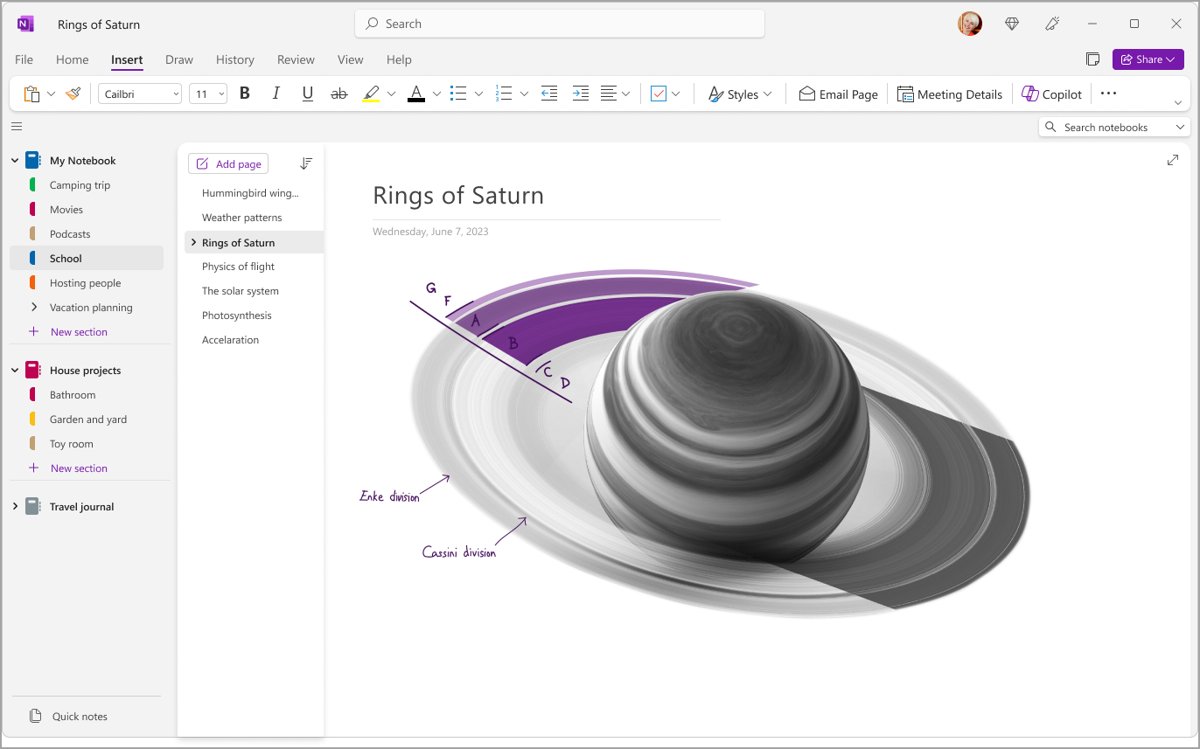
How to start using Microsoft OneNote in five steps
These steps use OneNote on Windows, the desktop app included with Microsoft 365. You can download Microsoft OneNote free for Windows and Mac if it is not installed yet. OneNote saves every change automatically, so there is no Save button to look for.
- Open OneNote and sign in with your personal Microsoft account or your work or school account.
- Click File > New and choose OneDrive as the location for the new notebook.
- Type a name for the notebook and follow the prompts. It opens with one section and one blank page.
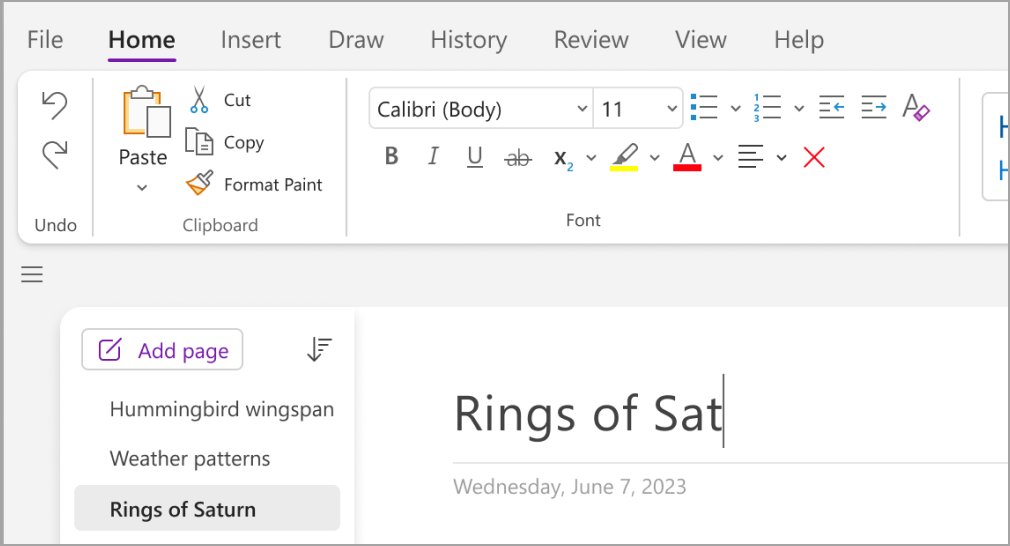
- Click the page header area at the top of the page and type a title for the page.
- Click anywhere below the title and start typing your notes.
Creating and managing notebooks
A notebook is the top level of OneNote, the equivalent of a physical binder. Most people keep one notebook per area of life, such as work, school or home.
- Click File > New to display the New Notebook options.
- Choose where the notebook should live, for example OneDrive or This PC.
- Follow the prompts for that location and name the notebook.
- Find the new notebook in your list of notebooks once it has been created.
- To switch notebooks, select Show Notebooks and pick one, or select More Notebooks to open one that is not listed.
A notebook saved to OneDrive can be opened from OneNote on other devices signed in to the same account. A notebook saved to This PC stays on that computer.
Creating and managing sections
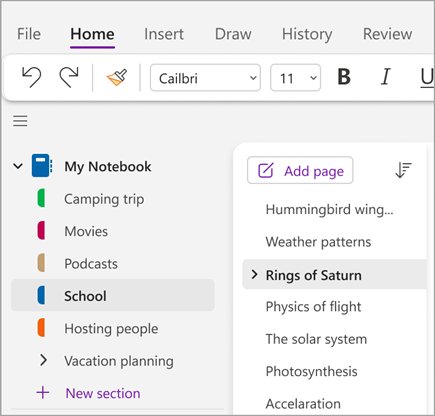
Sections work like the colored dividers in a binder. Each new section starts with one blank page.
- Right-click the list of sections and choose New Section, or click New Section at the bottom of the list.
- Type a title for the section and press Enter.
- To rename a section, right-click it in the navigation pane and type the new name.
- Right-click any section title to see the rest of the section options.
Creating and managing pages
Pages hold the notes themselves. Page titles appear in the page list, so a clear title makes notes easy to find later.
- Open the section where the page belongs.
- Choose Add Page.
- Type a title in the page header area and press Enter.
- Drag a page tab up or down the page list to reorder pages.
- Right-click a page title to rename it or see more page options.
Taking notes in OneNote
A OneNote page is a free-form canvas. Click anywhere to start a note in that spot, and drag notes around the page as your thinking changes.
| Type of note | How to add it | Good to know |
|---|---|---|
| Typed text | Click where you want the note and start typing | Each click elsewhere starts a separate note container |
| Handwriting or drawing | Open the Draw tab, pick a pen and write on the screen | Needs a touch screen or pen-capable device |
| Web link | Type the address, or select text and choose Insert > Link | Typed web addresses turn into links automatically |
| File | Choose Insert > File Attachment, select the files and choose Insert | The inserted file is a copy and does not update when the original changes |
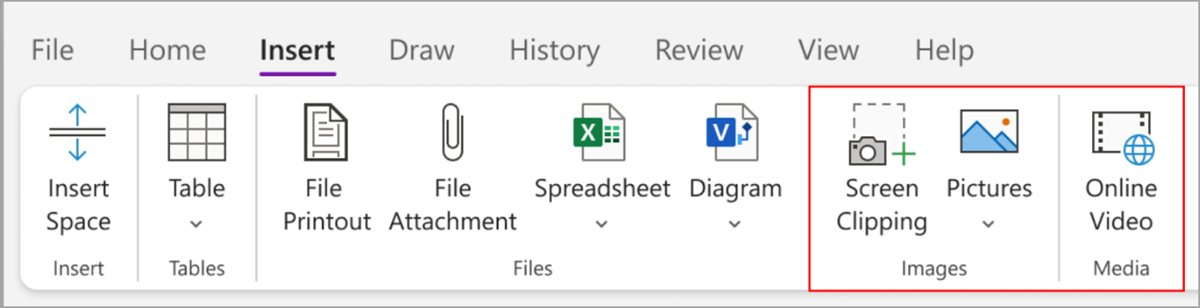
| Picture | Choose Insert > Pictures | Works with images on your PC, a network or a drive |
| Screen capture | Choose Insert > Screen Clipping | Captures part of your screen and inserts it as a picture |
| Online video | Choose Insert > Online video and paste the link | Embeds the video on the page |
Formatting and organizing notes
Structure is what keeps a large notebook usable. Tables organize parallel facts, and the layout options decide how much of the notebook stays on screen.
| Goal | Where to do it |
|---|---|
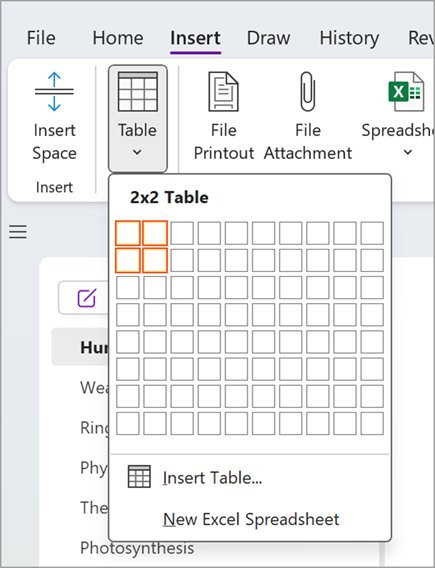
| Insert a table | Insert > Table, then move the pointer over the grid to pick the size and click |
| Change a table | Click inside a cell and use the Table menu |
| Show sections as tabs across the top | View > Tabs Layout > Horizontal Tabs |
| Move the page list to the left | File > OneNote Options > Display > Move page list to the left (after switching to horizontal tabs) |
| Hide or show the notebook and section pane | Select the Navigation button |
| Change how much of the navigation panes you see | View > Navigation Panes |
| Reorder pages | Drag a page tab to a new position in the page list |
Navigating the OneNote interface
OneNote on Windows has four areas you use constantly: the ribbon, the navigation pane, the page list and the page itself.
| Interface element | Where it is | What it does |
|---|---|---|
| Ribbon tabs (Home, Insert, Draw, View) | Across the top of the window | Hold the formatting, insert, pen and layout commands |
| Navigation button | Top left of the notes area | Toggles the notebook and section navigation pane on or off |
| Navigation pane | Left side | Lists notebooks and their sections; click a section to open it |
| Page list | Beside the navigation pane | Lists the pages in the open section; click a title to open the page |
| Search box | Near the right side of the window | Searches notes, with scope options from one page up to all notebooks |
| Account switcher | Top-right corner | Shows and changes the signed-in account |
Integrating OneNote with other Microsoft products
OneNote is part of Microsoft 365, alongside Word, Excel, PowerPoint and Outlook, and it shares their account, storage and file formats.
| Microsoft product | How it works with OneNote |
|---|---|
| OneDrive | Store notebooks there to reach them from OneNote on other PCs, Macs, phones and the web |
| Excel | Right-click a OneNote table and choose Convert to Excel Spreadsheet |
| Word, Excel and PowerPoint files | Attach copies to a page with Insert > File Attachment |
| Microsoft account or work account | One sign-in opens the same notebooks across every OneNote app |
| OneNote for the web | Use Add notebook, Add section and Add page in a browser with no install |
| Microsoft Edge | Edge has offered sending saved collections to OneNote |
The Edge collections feature started in testing builds, when Edge Canary added Send to OneNote.
OneNote tips and tricks
These OneNote productivity tips cut the time spent hunting for notes and building pages.
| Tip | How to use it |
|---|---|
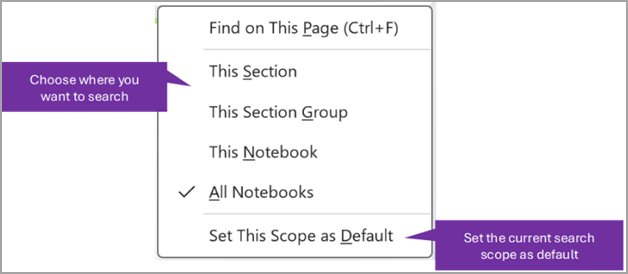
| Narrow a search | Set the search scope to This Section, This Section Group, This Notebook, All Notebooks or Find on this Page |
| Attach many files at once | In the file dialog, hold Shift to select a range or Alt to pick individual files |
| Grab part of a web page or app | Use Insert > Screen Clipping instead of saving a screenshot first |
| Skip saving | OneNote saves every change automatically |
| Use more of the screen | Turn off the navigation pane with the Navigation button while writing |
| Find more options | Right-click any page or section title for its menu |
| Set preferences | Open File > OneNote Options to change display and other settings |
Microsoft OneNote FAQ
Is Microsoft OneNote free?
Yes. OneNote can be downloaded and used free with a Microsoft account, and it is also included with Microsoft 365. OneNote for the web runs in a browser at no cost, and notebooks are stored in OneDrive.
Does OneNote save automatically?
Yes. OneNote has no Save button and saves every change as you make it. Notebooks stored in OneDrive also sync, so the same notes appear in OneNote on your other signed-in devices.
What is the difference between a notebook, a section and a page in OneNote?
A notebook is the top-level container, like a binder. Sections divide a notebook, like colored tabs. Pages sit inside sections and hold the actual notes, which can be text, drawings, pictures, links and attached files.
How do I create a new notebook in OneNote?
Click File > New, choose a location such as OneDrive or This PC, and follow the prompts to name it. The new notebook appears in your notebook list with one section and one blank page.
Can I draw or handwrite in OneNote?
Yes, on a device that supports pen or touch input. Open the Draw tab, select a pen and write or draw directly on the page. Handwritten notes sit on the same page as typed notes.
How do I search my notes in OneNote?
Use the search box near the right side of the OneNote window. Set the scope to Find on this Page, This Section, This Section Group, This Notebook or All Notebooks to control how widely it looks.
Can I put a table in OneNote and open it in Excel?
Yes. Insert a table with Insert > Table, then right-click it and choose Convert to Excel Spreadsheet. The table becomes an embedded Excel spreadsheet on the OneNote page.
Unlock your productivity with OneNote
Start with one notebook saved to OneDrive, a section per project and a titled page per meeting or topic. OneDrive storage puts the same notes on every device, clear titles make the page list and search useful, and automatic saving means nothing typed is lost.