To change the Microsoft account on Windows 11, open Settings > Accounts > Your info and select Sign in with a local account instead, then switch back or sign in with a different Microsoft account from the same page.
This guide covers both directions, adding and removing accounts, BitLocker recovery keys, work or school accounts, and fixes when the switch option is missing.

How to switch from a Microsoft account to a local account (step-by-step)
This is also the first half of moving a PC to a different Microsoft account: go local, then sign in with the new account.
- Open Settings and go to Accounts > Your info. You can also press Win + R, type
ms-settings:yourinfoand press Enter. - Select Sign in with a local account instead.
- Confirm your identity with your current PIN or password when Windows asks.
- Enter a user name, password and password hint for the local account. The user name must differ from every other account on the PC.
- Select Next, then Sign out and finish.
- Sign in with the new local account.
Your files, desktop and installed apps stay in place, because Windows converts the same user profile rather than creating a new one.
Why this matters: account type tradeoffs
A local account exists only on that PC and signs in without an internet connection. A Microsoft account (MSA) adds sync, cloud backup and online password recovery.
| Your situation | Account type | Why |
|---|---|---|
| You use OneDrive, Microsoft 365 or Xbox apps daily | Microsoft account | One sign-in covers every Microsoft service on the PC |
| You want settings and passwords synced across PCs | Microsoft account | Sync only works with an MSA or work account |
| You want online password reset and device encryption key backup | Microsoft account | Recovery runs through account.microsoft.com |
| Offline PC, kiosk or test machine | Local account | No internet needed to sign in |
| You want minimal data tied to an online identity | Local account | Nothing on the PC links to a cloud account by default |
| Give the PC to someone else | Their own account | Add a new user rather than sharing yours |
Background: Microsoft account vs local account on Windows 11
This overview compares what each account type changes on a Windows 11 PC.
| Feature | Local account | Microsoft account |
|---|---|---|
| Where it lives | On this PC only | Online, used on any device |
| Sign in without internet | Yes | Yes, after the first sign-in on the PC |
| Forgotten password | Security questions or a password reset disk | Reset online at account.microsoft.com |
| Settings and app sync | No | Yes |
| Microsoft Store purchases | Store asks you to sign in separately | Signed in automatically |
| BitLocker or device encryption key backup | Save to file, USB or print | Saved to the account automatically on most PCs |
What to back up before changing Microsoft account on Windows 11
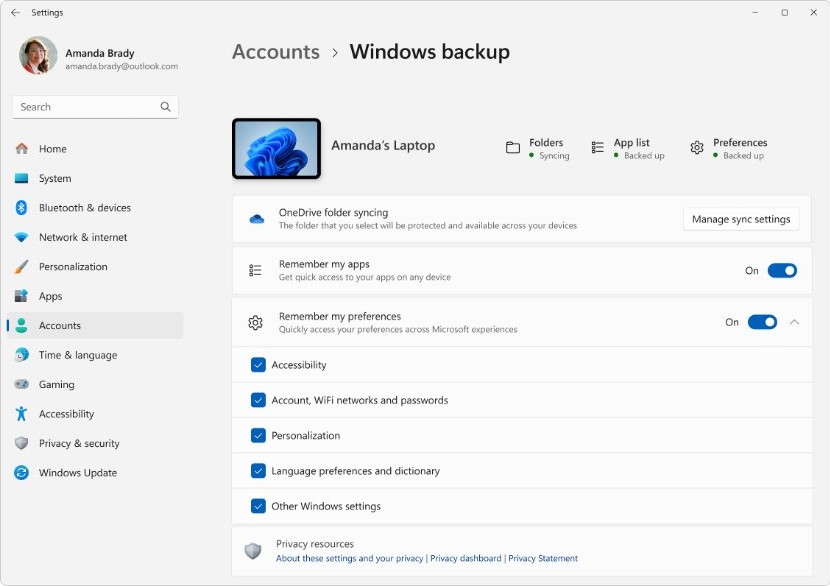
These items cover the quick checklist of things that go wrong after a switch.
| Item | What to do | Why |
|---|---|---|
| BitLocker or device encryption recovery key | Copy it from aka.ms/myrecoverykey to a printout or USB drive | A local account does not back up a new key online |
| Your current account password | Make sure you know it, not just the PIN | Windows asks for verification during the switch |
| OneDrive files | Confirm the files you need are downloaded locally | OneDrive stops syncing after you sign out of it |
| Local password recovery | Create a password reset disk for the local account | Without one, a forgotten local password cannot be recovered |
| Administrator access | Confirm your account is an administrator, or have a second admin account | Some account changes need admin rights |
How to switch from a local account to a Microsoft account
- Open Settings and go to Accounts > Your info.
- Select Sign in with a Microsoft account instead. This link only appears on a local account.
- Enter the email address, phone or Skype name of the Microsoft account and select Next.
- Enter the account password and complete any verification code prompt.
- Enter your current local account password when Windows asks for it.
- Set up a Windows Hello PIN if prompted, then select Next.
- Sign out and sign back in with the Microsoft account.
To move to a different Microsoft account, switch to local first with the steps above, then use this method with the new email address.
Notes and caveats
| Caveat | What it means |
|---|---|
| One account per profile | A Windows user profile links to one Microsoft account at a time |
| Unique local user name | The local name cannot match an existing account on the PC |
| PIN is reset | Windows Hello PIN is tied to the account and is set again after a switch |
| Store and Mail apps | They can keep a Microsoft account signed in separately from Windows; sign out inside each app |
| Your profile folder name | The C:\Users folder name does not change when you switch account type |
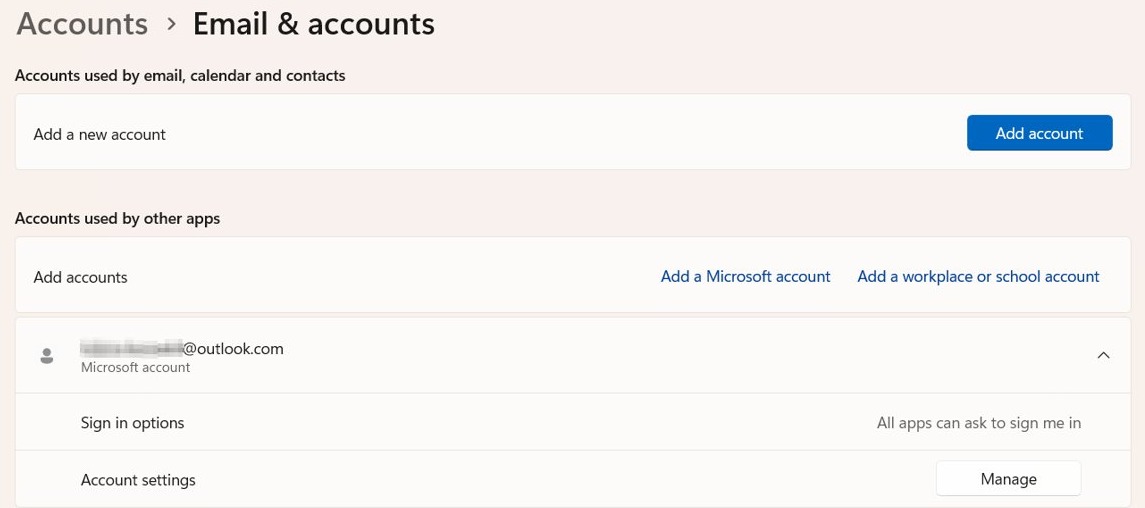
Adding a different Microsoft account or an additional user
Adding a second user keeps your own profile untouched and gives the other person their own files and settings.
- Open Settings and go to Accounts > Other users.
- Under Add other user, select Add account.
- Enter the person's Microsoft account email address and follow the prompts.
- For a local user, select I don't have this person's sign-in information, then Add a user without a Microsoft account.
- To give the account admin rights, select it under Other users, choose Change account type, pick Administrator and select OK.
Family members belong under Settings > Accounts > Family instead, which only applies if you are part of a Microsoft family group.
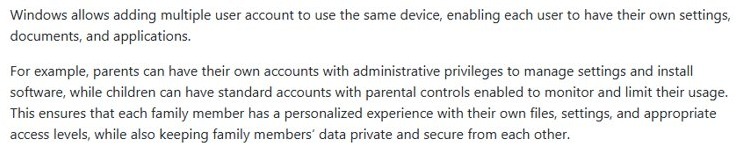
Removing a Microsoft account from a Windows 11 PC
You cannot remove the account you are signed in with. Sign in as another administrator first, or switch your own profile to local.
- Sign in with a different administrator account.
- Open Settings and go to Accounts > Other users.
- Under Other users, select the account you want to remove.
- Next to Account and data, select Remove.
- Select Delete account and data to confirm.
This deletes the profile and its files from the PC only. The Microsoft account itself still exists online; to delete it everywhere you would close the Microsoft account separately.
The out-of-box experience (OOBE): what changed and why it matters
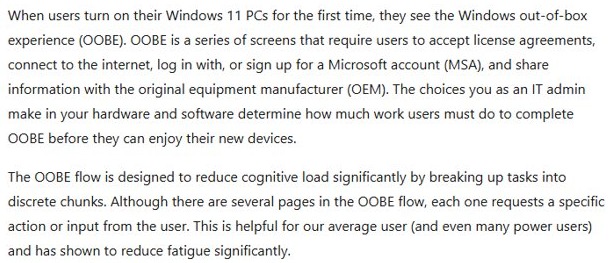
The out-of-box experience is the setup screens you see on a new PC or a clean install. Windows 11 setup steers you to sign in with a Microsoft account and an internet connection.
| Situation | What to expect |
|---|---|
| New PC setup | Setup asks for a Microsoft account; finish with it and switch to local later from Accounts > Your info |
| Clean install of a new version | Plan the account choice before setup; a local account during install takes extra steps |
| Work or school device | Setup may require the organization's account and enrolment |
If you want to skip the MSA from the start, you can install Windows 11 with a local account.
BitLocker and device encryption: a critical warning
Many Windows 11 PCs encrypt the drive automatically and save the recovery key to the Microsoft account used during setup. If you switch to local and later lose that key, a recovery screen can lock you out of your own data.
Before you switch away from a Microsoft account, sign in at aka.ms/myrecoverykey from another device, find the key matching your key ID, and keep a printed or USB copy. Microsoft lists only the Microsoft account, a work or school account (aka.ms/aadrecoverykey), a printout or a USB drive as places a key can be. A local account adds none of these on its own.
Migrating OneDrive, Microsoft Store purchases, and app data
| Data | After switching to local | After switching to a different MSA |
|---|---|---|
| OneDrive files | Sign in to the OneDrive app separately; files only on the cloud stay there | Sign out of the old OneDrive account and sign in with the new one |
| Microsoft Store apps and games | Sign in inside the Store to download purchases | Purchases stay with the account that bought them |
| Synced settings and passwords | Sync stops | Sync follows the new account |
| Local files in your profile | Stay in place | Stay in place |
| Microsoft 365 | Sign in inside an Office app to activate | Activation follows the account holding the licence |
Advanced scenarios: Work/school (Azure AD) and hybrid identities
Azure AD is now called Microsoft Entra ID. A work or school account is managed by your organization, and the local-account switch on Your info does not apply to it.
| Setup | Where it is managed | What to do |
|---|---|---|
| Work or school account added to a personal PC | Settings > Accounts > Access work or school | Select the account and choose Disconnect to remove it |
| PC joined to Microsoft Entra ID | Your organization's IT team | Ask IT before changing accounts; policies can block it |
| Hybrid domain join | On-premises domain plus Entra ID | Account changes are an IT task, not a Settings switch |
Recovery and rollback strategies
- To undo a switch to local, open Settings > Accounts > Your info and select Sign in with a Microsoft account instead.
- To undo a switch to a new Microsoft account, switch to local, then sign in with the original Microsoft account.
- If you forgot the new local password, use the security questions or password reset disk on the sign-in screen.
- If a BitLocker recovery screen appears, enter the key from aka.ms/myrecoverykey, your printout or USB copy.
- Keep a second administrator account on the PC so you can always sign in and fix the first one.
Security best practices when changing accounts
| Practice | Why it matters |
|---|---|
| Use a strong, unique password for the local account | It is the only thing protecting the account offline |
| Set a Windows Hello PIN or biometrics | Faster sign-in that stays on the device |
| Turn on two-step verification on the Microsoft account | Protects every device signed in with it |
| Keep few administrator accounts | Administrators have full control over the system |
| Remove old accounts you no longer use | Fewer sign-in routes into the PC |
Is my Windows 11 account local or Microsoft?
- Open Settings > Accounts > Your info.
- Read the line under your name: Local account means local, an email address means a Microsoft account.
- Look at the link on the same page: Sign in with a Microsoft account instead confirms a local account, Sign in with a local account instead confirms an MSA.
To rename the profile after going local, you can change the local account name from Control Panel.
Troubleshooting: “Sign in with a local account instead” is missing
The link is missing on Your info
You are signed in with a work or school account, or the PC is managed by an organization.
- Open Settings > Accounts > Access work or school and check for a connected account.
- On a personal PC, select the account and choose Disconnect.
- On a managed PC, ask IT, because policy controls the account type.
The link shows Sign in with a Microsoft account instead
You are already on a local account.
- Read the line under your name on Your info; it says Local account.
- Use Sign in with a Microsoft account instead if you want to link one.
Settings is on another account page
The link only appears on the Your info page.
- Press Win + R, type
ms-settings:yourinfoand press Enter. - Scroll to Account settings to find the link.
Real-world troubleshooting examples (concise)
The user name is already taken
Local names must be unique on the PC.
- Pick a different local user name.
- Or remove the old unused account under Accounts > Other users first.
PIN does not work after the switch
The Windows Hello PIN belongs to the previous account.
- Sign in with the account password.
- Open Settings > Accounts > Sign-in options and set up a new PIN.
Store apps ask you to sign in again
The Store kept its own sign-in separate from Windows.
- Open Microsoft Store, select your profile picture and sign in with the account that owns the purchases.
BitLocker recovery screen after the change
A hardware or firmware change triggered recovery, and the key is needed.
- On another device, open aka.ms/myrecoverykey and sign in with the original Microsoft account.
- Match the key ID shown on screen and enter the key.
Step-by-step quick reference (two one-page cheat sheets)
| Step | Microsoft account to local | Local to Microsoft account |
|---|---|---|
| 1 | Settings > Accounts > Your info | Settings > Accounts > Your info |
| 2 | Sign in with a local account instead | Sign in with a Microsoft account instead |
| 3 | Verify with PIN or password | Enter Microsoft account email and password |
| 4 | Set user name, password and hint | Enter current local password |
| 5 | Next, then Sign out and finish | Set a PIN, then sign out |
| 6 | Sign in with the local account | Sign in with the Microsoft account |
Change Microsoft account on Windows 11 FAQ (concise)
Can I change the Microsoft account on Windows 11 without losing files?
Yes. Switching between a Microsoft account and a local account converts the same profile, so files, desktop items and installed apps stay. Back up first anyway, and keep your BitLocker recovery key.
How do I switch Windows 11 to a different Microsoft account?
Switch the profile to a local account from Settings > Accounts > Your info, sign out, then select Sign in with a Microsoft account instead and enter the new account's email address.
Does removing a Microsoft account from my PC delete the account?
No. Removing it under Accounts > Other users only deletes the sign-in and its data from that PC. The Microsoft account stays online until you close it at account.microsoft.com.
Is a local account safer than a Microsoft account?
Neither is safer by default. A local account keeps data off the cloud, while a Microsoft account offers two-step verification, online password reset and recovery key backup.
Can I use a local account on Windows 11 Home?
Yes. After setup, open Settings > Accounts > Your info and select Sign in with a local account instead. Setup itself steers Home users to a Microsoft account.
What happens to OneDrive when I switch to a local account?
OneDrive stops being tied to your Windows sign-in. Sign in inside the OneDrive app to keep syncing, or download the files you need before you switch.
Why can't I switch my work account to a local account?
Work or school accounts are managed by an organization through Microsoft Entra ID. The local-account link does not apply, and IT policy decides what you can change.
Final analysis and judgement
Keep a Microsoft account if you use OneDrive, Microsoft 365 or more than one PC, and use a local account only for offline or privacy-first machines after saving your recovery key. The switch itself is a five-step change on Your info, but the BitLocker key and service sign-ins are what decide whether it goes smoothly.