Microsoft iSCSI Initiator is built into Windows 11, and you enable it by starting the Microsoft iSCSI Initiator Service (MSiSCSI) and setting it to start automatically.
This guide covers starting the service, connecting to an iSCSI target from PowerShell or the iSCSI Initiator window, bringing the new disk online, and fixing the service errors that block it.
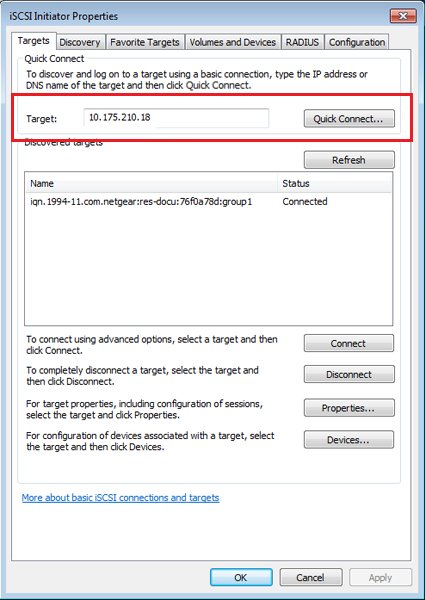
How to enable and use Microsoft iSCSI Initiator in Windows 11
The fastest route is three PowerShell commands that start the service, keep it running after restarts and confirm its state. You need an administrator account to run PowerShell as administrator.
- Right-click Start and select Terminal (Admin), then select Yes at the User Account Control prompt.
- Run
Set-Service -Name MSiSCSI -StartupType Automaticso the service starts with Windows. - Run
Start-Service -Name MSiSCSIto start it now. - Run
Get-Service -Name MSiSCSIand confirm Status shows Running. - Run
New-IscsiTargetPortal -TargetPortalAddress <target IP or name>to discover the targets on your storage server or NAS. - Run
Get-IscsiTargetto list the discovered targets and their IQNs. - Run
Connect-IscsiTarget -NodeAddress <target IQN> -IsPersistent $trueto connect and reconnect automatically after restarts.
The new iSCSI disk now appears in Disk Management like a local drive. If it is new and empty, initialize and format it before use, as shown below.
What is the iSCSI initiator in Windows?
iSCSI carries SCSI storage commands over an ordinary TCP/IP network, so a PC can use a disk on a storage server or NAS as if it were installed locally. The initiator is the client side of that link.
| Term | What it means |
|---|---|
| iSCSI initiator | The client component that connects to remote iSCSI storage; Windows includes it |
| iSCSI target | The storage server, NAS or SAN that offers disks over the network |
| IQN (iSCSI Qualified Name) | The unique name that identifies each initiator and target, for example iqn.1991-05.com.microsoft:… |
| Target portal | The IP address or host name and port where the target listens |
| Default port | TCP 3260 |
| Service name | MSiSCSI, shown as Microsoft iSCSI Initiator Service |
| Access level | Block-level: the remote disk appears in Disk Management, not as a shared folder |
| CHAP | Optional authentication a target can require from the initiator |
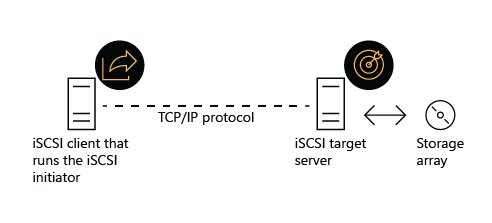
iSCSI Initiator app or PowerShell in Windows 11
| Your situation | Use this | Why |
|---|---|---|
| One-off connection to a home NAS | iSCSI Initiator window | Point-and-click, and the tabs show discovered targets and favorites |
| Several PCs or a repeatable setup | PowerShell iSCSI cmdlets | The same commands can be scripted and rerun |
| The window says the service is not running | Either; start the service first | Both routes need MSiSCSI running |
| You need the PC's IQN for the storage admin | PowerShell Get-InitiatorPort | Prints the node address directly |
Open and use the iSCSI Initiator window in Windows 11
The iSCSI Initiator window manages discovery, favorite targets and the initiator name. Windows offers to start the service the first time you open it.
- Type iSCSI Initiator in the taskbar search box and select iSCSI Initiator in the results.
- Select Yes if Windows asks to start the Microsoft iSCSI service and set it to start automatically.
- Open the Discovery tab, add the target portal address of your storage, and select Refresh to list its targets.
- Connect to the target your storage administrator or NAS assigned to this PC.
- Open the Favorite Targets tab to confirm the connection is saved so Windows reconnects it after a restart.
- Open the Configuration tab to see the Initiator Name (IQN) the target must allow.
Do not change the Initiator Name after you create favorite targets. Microsoft notes existing favorites keep the old name and can fail to log in; remove and re-add them if you change it.
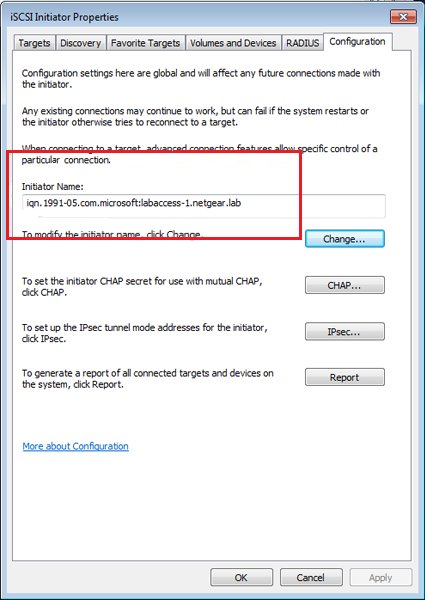
Find the iSCSI initiator IQN with PowerShell
(Get-InitiatorPort | Where-Object ConnectionType -eq 'iSCSI').NodeAddressLists the iSCSI node address (IQN) of this PC. Give it to the storage administrator or enter it in the NAS so the target allows this initiator.
You should see: A line that starts with iqn., for example iqn.1991-05.com.microsoft: followed by the PC name.
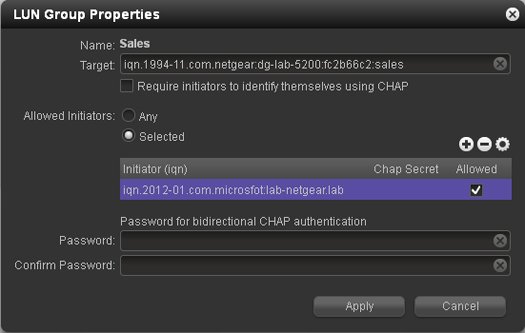
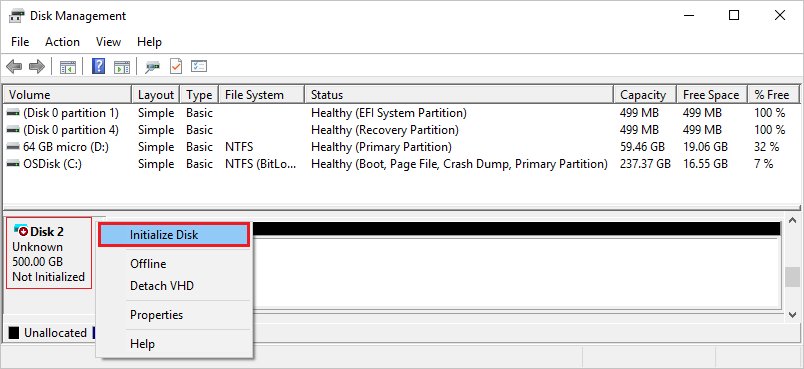
Initialize the iSCSI disk in Disk Management
A newly created iSCSI LUN arrives as an empty, offline or unallocated disk. It needs a partition and a file system before File Explorer shows it, which you can add below or with DISKPART commands.
- Press Win + R, type
diskmgmt.mscand press Enter. - Find the new disk; its size matches the LUN you created on the target.
- If it shows Offline, right-click the disk label and select Online.
- Right-click the disk label, select Initialize Disk, choose GPT and select OK.
- Right-click the unallocated space, select New Simple Volume and finish the wizard with a drive letter and NTFS.
Skip this for a LUN that already holds data, or you will erase it. Only bring an existing disk Online.
Check the iSCSI connection is working
- Run
Get-Service -Name MSiSCSIand confirm it shows Running. - Run
Get-IscsiSessionand confirm a session is listed for your target. - Run
Get-IscsiConnectionto see the initiator and target addresses in use. - Run
Get-Disk | Where-Object BusType -eq 'iSCSI'and confirm the remote disk appears. - Restart the PC and run
Get-IscsiSessionagain to confirm the persistent connection came back.
Disconnect an iSCSI target and stop the service
- Close any files and apps that use the iSCSI drive.
- Run
Get-IscsiTargetand copy the target's NodeAddress. - Run
Disconnect-IscsiTarget -NodeAddress <target IQN>and accept the confirmation prompt. - In the iSCSI Initiator window, open Favorite Targets, select the target and select Remove so it does not reconnect.
- On the Discovery tab, select the portal you no longer use and select Remove.
- Optionally run
Set-Service -Name MSiSCSI -StartupType ManualandStop-Service -Name MSiSCSI.
iSCSI Initiator service fails to start with error "Access is denied"
"Access is denied" when starting the iSCSI Initiator service
The command or console is not running with administrator rights, or a policy blocks service changes.
- Close the window and reopen Terminal (Admin) or Services with Run as administrator.
- Run
Start-Service -Name MSiSCSIagain. - On a work or school PC, ask the IT administrator, since policy may manage this service.
- If the error continues on a personal PC, run
sfc /scannowfrom an elevated terminal to repair damaged system files, then restart.
The service starts but stops again
Stale discovery entries or sessions pointing at storage that no longer exists.
- In iSCSI Initiator, open Discovery, select Refresh and remove portals you no longer use.
- Run
Get-IscsiSession | Remove-IscsiSessionto clear outdated sessions. - Start the service again and reconnect the target.
The Microsoft iSCSI service is not running
"The Microsoft iSCSI service is not running" when opening iSCSI Initiator
MSiSCSI is set to Manual and has not started, which is the default until you first use it.
- Select Yes in the prompt to start the service and make it start automatically.
- If the prompt does not appear, press Win + R, type
services.mscand press Enter. - Double-click Microsoft iSCSI Initiator Service, set Startup type to Automatic and select Start.
- Select OK and reopen iSCSI Initiator.
Drives or shares on the iSCSI disk are missing after a restart
Something that depends on the disk started before the iSCSI service connected it.
- Confirm the target is listed under Favorite Targets or was connected with
-IsPersistent $true. - If file shares on the iSCSI disk are missing, run
sc config LanmanServer depend= MSiSCSIfrom an elevated Command Prompt so the Server service waits for iSCSI. - Restart the PC and check the shares again.
The requested pause, continue, or stop is not valid for this service
"The requested pause, continue, or stop is not valid for this service"
The command asked the service to stop or pause while it was not in a state that accepts that request, often because it is already stopped or still starting.
- Run
Get-Service -Name MSiSCSIto see the current Status. - If it shows Stopped, use
Start-Service -Name MSiSCSIinstead of a stop or pause command. - If it shows StartPending or StopPending, wait a minute and check again before sending another command.
- If it stays stuck, restart the PC and set the startup type to Automatic in Services.
Target connects but the disk does not appear
The target does not allow this PC's IQN, or the disk is offline.
- Check the PC's IQN with
Get-InitiatorPortand confirm the target's access list includes it. - Confirm the PC can reach the target on TCP port 3260.
- Open Disk Management and bring the disk Online.
Microsoft iSCSI Initiator FAQ
Does Windows 11 support iSCSI?
Yes. Microsoft states that the iSCSI initiator is included by default in all versions of Windows. You only need to start the Microsoft iSCSI Initiator Service and connect it to an iSCSI target on your network.
Do I need to install anything to use iSCSI Initiator in Windows 11?
No. The initiator software ships with Windows. The storage side, called the target, runs on a NAS, a SAN or a Windows Server with the iSCSI Target Server role service.
Which port does iSCSI use?
iSCSI uses TCP port 3260 by default. The PC must be able to reach the target portal on that port, so check firewalls between the PC and the storage if discovery fails.
What is the service name for iSCSI Initiator?
The service name is MSiSCSI and its display name is Microsoft iSCSI Initiator Service. Use MSiSCSI with Start-Service, Set-Service and Get-Service in PowerShell.
How do I find my iSCSI initiator name in Windows 11?
Open iSCSI Initiator and check the Initiator Name on the Configuration tab, or run Get-InitiatorPort in PowerShell. The name starts with iqn. and is what the target uses to allow access.
How do I make an iSCSI drive reconnect after a restart?
Connect it as a persistent connection with Connect-IscsiTarget and -IsPersistent $true, or keep it under Favorite Targets in the iSCSI Initiator window. Windows then logs in to the target automatically at startup.
Can two PCs use the same iSCSI disk at once?
Not safely with a normal NTFS volume. Two PCs writing to one block disk without a cluster file system corrupt it. Shared access needs failover clustering with Cluster Shared Volumes.
Is iSCSI the same as a network share?
No. A network share gives file-level access through SMB. iSCSI gives block-level access, so the remote disk appears in Disk Management and Windows formats and manages it like a local drive.