When an iPad loses Wi-Fi during initial setup, rejoin the network on the Wi-Fi screen, restart the router and the iPad if it will not reconnect, and switch to cellular data or a computer if the network keeps dropping.
This guide covers each setup stage where the connection can drop, from activation to Quick Start and iCloud restore, plus router fixes, network resets and how to start setup again.
How to reconnect iPad to Wi-Fi during initial setup
Apple needs a Wi-Fi or cellular connection to activate an iPad and continue setup, so the setup assistant cannot move on until a connection works.
Start with the network itself, because a dropped connection during setup is usually the router or the distance to it.
- Move the iPad close to the router and check that another device can still get online on the same network.
- Restart the router and cable modem by unplugging them and plugging them back in.
- On the iPad's Wi-Fi setup screen, tap your network name and enter the password again.
- If the router has separate bands, try the other one, for example 5 GHz instead of 2.4 GHz.
- If the setup screen stops responding, force restart the iPad and follow the setup screens back to the Wi-Fi step.
- On a Wi-Fi + Cellular iPad, tap Continue Without Wi-Fi to finish activation over cellular data instead.
Once the iPad shows the next setup screen after the Wi-Fi step, activation has gone through and you can carry on with setup.
Where iPad setup lost Wi-Fi and what to do
The fix depends on the stage the setup assistant had reached when the connection dropped. Match your screen to a row.
| Where Wi-Fi dropped | What you see | What to do |
|---|---|---|
| Wi-Fi network screen | The network will not join or does not appear in the list | Move closer, restart the router and modem, or join a hidden network by name |
| Activation | The activation server is "temporarily unavailable" or "cannot be reached" | Check Apple System Status, restart the iPad, wait a few minutes, or activate through a computer |
| Quick Start with another iPhone or iPad | The setup prompt disappears from the current device | Restart both devices and keep the current device on Wi-Fi with Bluetooth on |
| Direct transfer from the previous device | The transfer takes a long time or stalls | Keep both devices near each other and plugged into power until migration completes |
| Restore from iCloud Backup | A restore error, or the backup is missing from Choose a Backup | Plug in, reconnect to Wi-Fi and try another network; cellular data cannot restore a backup |
| After setup, content still downloading | Photos, music and apps are still arriving from iCloud | Keep the iPad on Wi-Fi and power until the downloads finish |
Force restart iPad stuck on the Wi-Fi setup screen
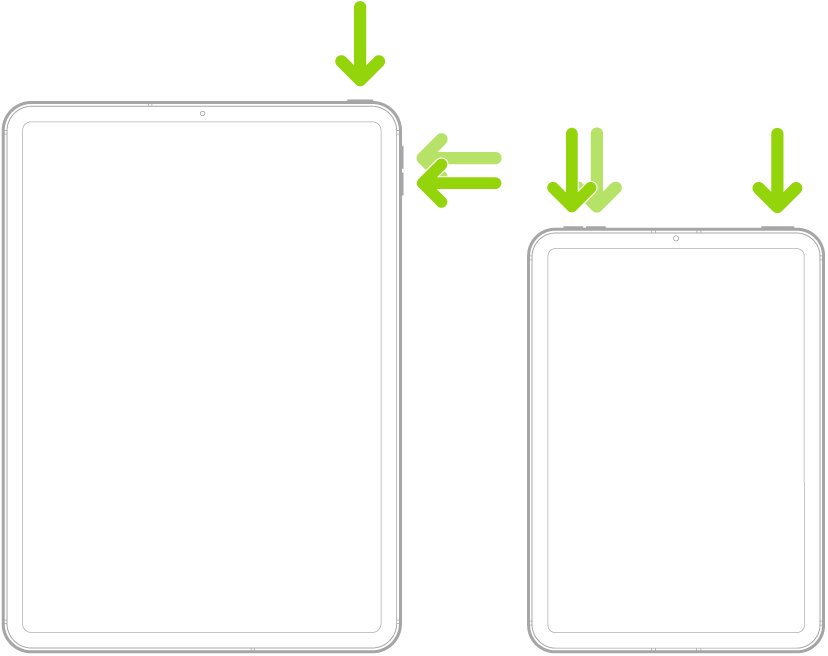
A force restart clears a frozen setup screen when the iPad will not respond to taps. The button sequence depends on whether the iPad has a Home button.
- On an iPad without a Home button, press and quickly release the volume button nearest to the top button.
- Press and quickly release the volume button farthest from the top button.
- Press and hold the top button, then release it when the Apple logo appears.
- On an iPad with a Home button, press and hold the top button and the Home button together, then release both when the Apple logo appears.
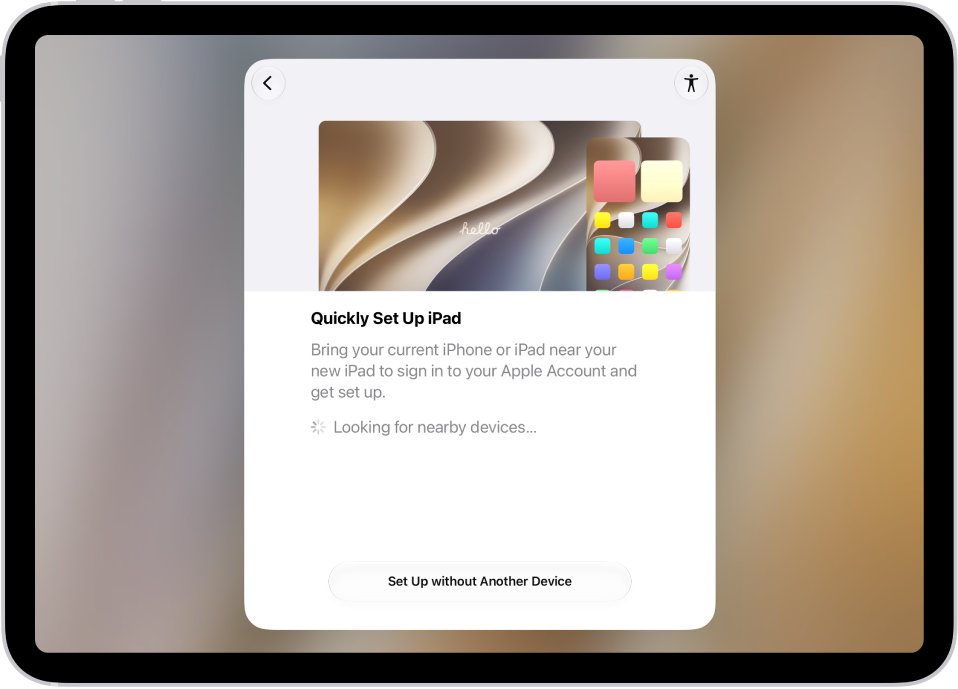
- Follow the setup screens again, tap Set Up Without Another Device or use Quick Start, and join your Wi-Fi network.
If the iPad does not restart, Apple's next step is its support article for an iPad that will not turn on or is frozen.
Fix the Wi-Fi router when iPad keeps losing connection
If other devices also drop off the network, the router is the problem. Apple publishes recommended router settings for reliable connections with iPad and iPhone.
- Check whether other devices can connect to the network; if they can, the router and network are working.
- Make sure the router is on and the iPad is within range of its signal.
- Restart the router and cable modem by unplugging them and plugging them back in.
- Update the router firmware from the manufacturer's app or configuration page, and turn on automatic firmware updates if it offers them.
- Give the 2.4 GHz, 5 GHz and 6 GHz bands the same network name, since separate names can stop devices connecting reliably.
- Set security to WPA3 Personal, or WPA2/WPA3 Transitional for older devices, and avoid WEP, TKIP and WPA/WPA2 mixed modes.
- Turn off the hidden network option and MAC address filtering, both of which Apple recommends disabling.
If you do not manage the network, such as at a hotel, school or office, ask the network administrator or your internet service provider to check these settings.
Finish iPad setup with cellular data or a Personal Hotspot
When the home network keeps dropping, give the iPad a different connection for activation and come back to Wi-Fi later.
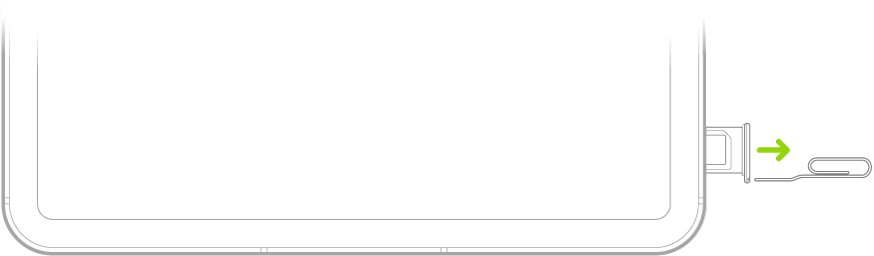
- On a Wi-Fi + Cellular iPad, insert the SIM or activate the eSIM when the setup assistant asks.
- Tap Continue Without Wi-Fi on the Wi-Fi screen to use the cellular network.
- On a Wi-Fi-only iPad, turn on Personal Hotspot on an iPhone and keep it close to the iPad.
- Tap the iPhone's name in the iPad's Wi-Fi list and enter the hotspot password shown on the iPhone.
- Finish activation, then join your home Wi-Fi from Settings > Wi-Fi once it is working again.
These routes also let you skip the Wi-Fi step in iPad setup entirely, including activation through a Mac or PC with a cable.
Erase iPad and restart setup to restore an iCloud backup
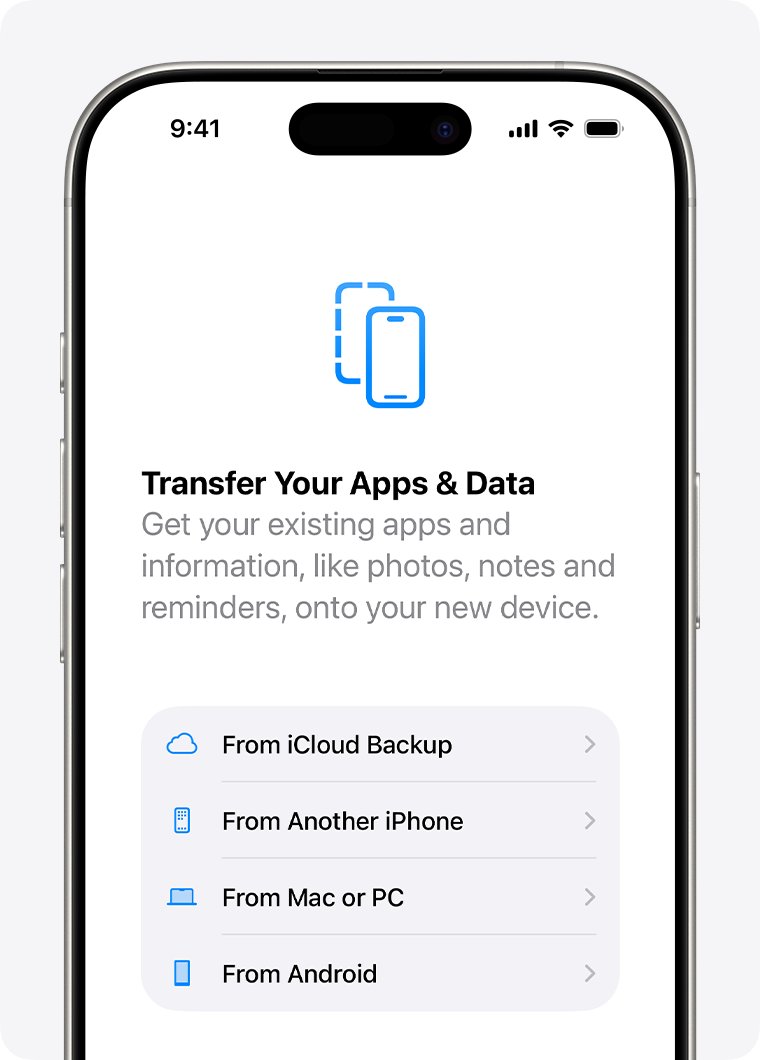
If Wi-Fi dropped and you finished setup without restoring your data, factory reset the iPad first. Apple's iCloud restore runs only from the setup assistant's Transfer Your Apps & Data screen.
- Open Settings and tap General.
- Tap Transfer or Reset iPad, then tap Erase All Content and Settings.
- Tap Continue and, on a cellular model, choose whether to keep or delete the eSIM.
- Enter your passcode and Apple Account password when asked, then wait for the Hello screen.
- Run setup again on a stable Wi-Fi network with the iPad plugged into power.
- On Transfer Your Apps & Data, tap From iCloud Backup, sign in, and choose the most recent backup.
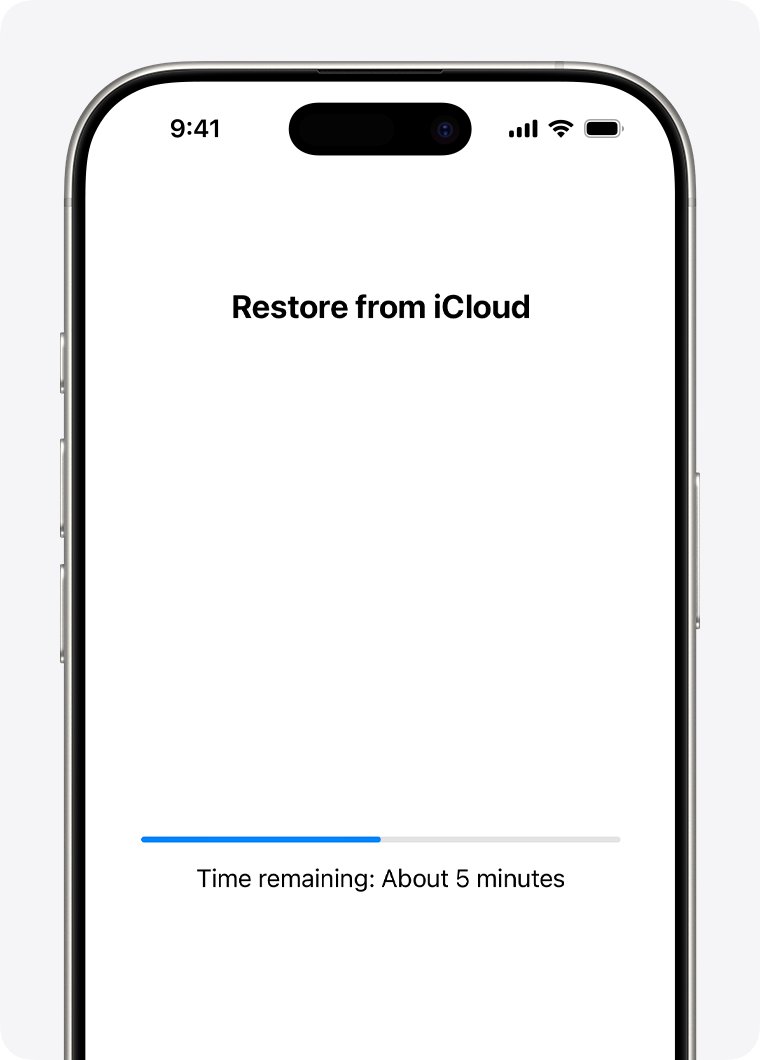
- Keep the iPad connected to Wi-Fi and power until the progress bar finishes.
Deleting the eSIM means contacting your carrier to reactivate the plan. A backup on a Mac or PC is the other option, and the iCloud and iTunes restore process works the same way on iPad.
Reset network settings on iPad when Wi-Fi keeps dropping
Use this only after the router and restart fixes fail. It removes every saved network, so you will need your Wi-Fi passwords again.
- Open the Settings app.
- Tap General.
- Tap Transfer or Reset iPad.
- Tap Reset.
- Tap Reset Network Settings.
- Rejoin your network from Settings > Wi-Fi and enter its password.
The reset clears all Wi-Fi networks and passwords, cellular settings, and VPN and APN settings. On a school or work iPad, check with the IT team before you run it.
How to forget a Wi-Fi network on iPad and join it again
Forgetting a network makes the iPad drop its saved settings for that network only. It is a lighter fix than a full network reset.
- Open the Settings app and tap Wi-Fi.
- If the network is not connected, tap Edit in the upper-right corner to list known networks.
- Tap the More Info button next to the network name.
- Tap Forget This Network.
- Tap the network name in the list and enter its password to join again.
When the iPad forgets a network, it also forgets the private Wi-Fi address it used there, unless it forgot that network less than 24 hours earlier on iPadOS 18 or later.
How to tell if iPad is connected to Wi-Fi and restoring
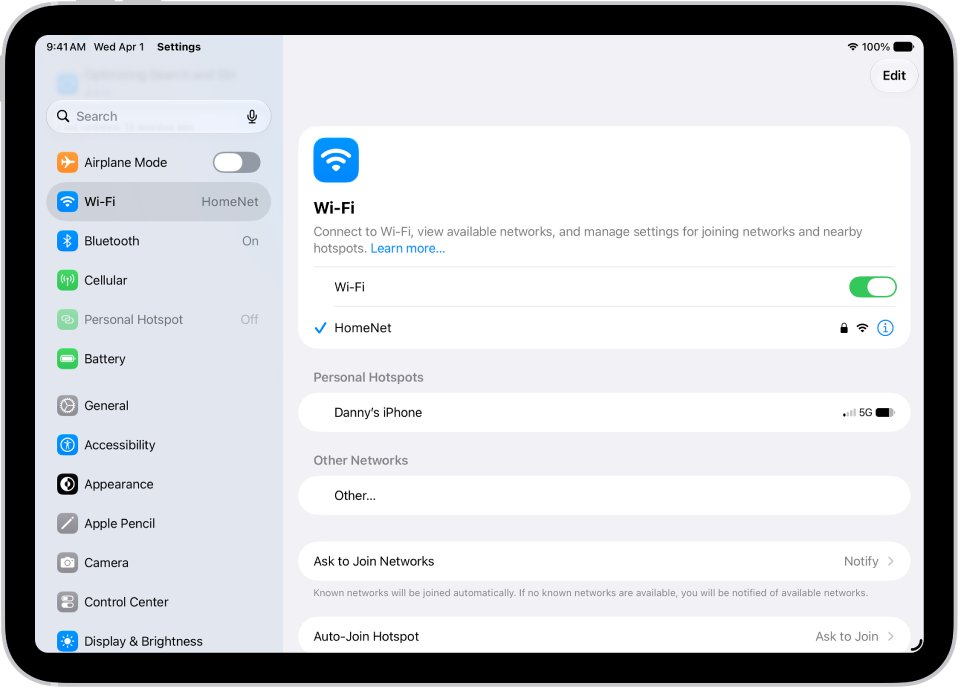
- Open Settings > Wi-Fi and look for a blue checkmark next to the network name.
- Look for the Wi-Fi icon in the status bar at the top of the screen.
- During an iCloud restore, watch the progress bar on the setup screen until it finishes.
- After setup, open Settings > your name > iCloud > iCloud Backup.
- If it says the iPad is currently being restored and will automatically back up when it is done, the restore is still running, so keep it on Wi-Fi and power.
Why does my iPad keep losing Wi-Fi connection?
| Cause | What you notice | Fix |
|---|---|---|
| Weak signal or the router is too far away | The connection drops in some rooms or during long transfers | Move closer, or join the router's other band |
| Different network names on each band | The iPad connects to one band and drops, or will not reconnect reliably | Use one network name for all bands |
| Outdated firmware or weak security mode | A weak security warning, or unreliable connections | Update the router and use WPA3 Personal or WPA2/WPA3 Transitional |
| Internet service outage | No Internet Connection on every device on the network | Contact your internet service provider |
| Hidden network or MAC address filtering | The network is missing from the list, or the iPad cannot join | Join by name with Other, or turn off MAC filtering on the router |
| Private Wi-Fi address on a network that blocks it | The iPad joins but cannot reach the internet | Update iPadOS first, then set Private Wi-Fi Address to Off for that network only |
| Connectivity Assist on a Wi-Fi + Cellular iPad | The iPad mixes cellular data with weak Wi-Fi | Turn off Connectivity Assist in Settings > Wi-Fi |
| VPN or security software installed after setup | Wi-Fi works only when the software is removed | Uninstall it, restart, test, and contact the provider if you must keep it |
iPad keeps losing Wi-Fi connection during setup
Wi-Fi network does not show on the iPad setup screen
The network is hidden, out of range, or does not meet Apple's router recommendations.
- Check that the router is on and the iPad is in range.
- For a hidden network, choose to join another network and enter its name, security type and password.
- Ask the network owner to unhide the network name and turn off MAC address filtering.
iPad says No Internet Connection during setup
The iPad reached the router, but the router or the internet service is not passing traffic.
- Try the same network on another device.
- Restart the router and cable modem.
- Contact your ISP if no device can get online, or finish setup on cellular data or a hotspot.
Activation server temporarily unavailable or cannot be reached
Apple's activation service is busy, or the connection is too unreliable to finish activation.
- Check Apple System Status and try later if iOS Device Activation is not green.
- Restart the iPad.
- If you are activating over cellular data, switch to a reliable Wi-Fi network.
- Wait a few minutes and try activation again.
- Connect the iPad with its cable to a Mac with the latest macOS or a PC with the latest iTunes, and wait for Set up as New or Restore from Backup, which means it is activated.
Restore from iCloud backup failed after Wi-Fi dropped
An iCloud restore needs Wi-Fi and power for its whole run and cannot use cellular data.
- Plug the iPad into power and connect it to Wi-Fi.
- Install a newer version of iPadOS if the iPad asks for one.
- Try the restore on another Wi-Fi network.
- Tap Show All Backups to try a different backup if one keeps failing.
Quick Start stopped when Wi-Fi dropped
Quick Start occupies both devices and depends on the current device's Wi-Fi and Bluetooth.
- Make sure the current iPhone or iPad is connected to Wi-Fi and Bluetooth is on.
- Keep both devices near each other and plugged into power.
- If the setup prompt disappears from the current device, restart both devices and start Quick Start again.
Wi-Fi is grayed out on iPad after setup
The Wi-Fi setting can appear dimmed until the iPad restarts.
- Open Settings and make sure Airplane Mode is off.
- Restart the iPad.
- Contact Apple if the iPad cannot connect to any Wi-Fi network in any location.
iPad setup Wi-Fi connection FAQ
How do I forget a Wi-Fi connection on iPad?
Open Settings, tap Wi-Fi, tap the More Info button next to the network name, then tap Forget This Network. For a network you are not connected to, tap Edit in the upper-right corner first. Rejoin by tapping the network and entering its password.
Why have I lost my Wi-Fi connection during iPad setup?
The router is usually out of range, restarting, or not passing internet traffic, so activation cannot finish. Move the iPad closer, restart the router and modem, and check that another device can get online on the same network.
Why does my Wi-Fi keep losing connection on iPad?
Common causes are weak signal, different network names on each router band, outdated router firmware and weak security modes such as WEP or TKIP. Apple recommends one name for all bands, WPA3 Personal or WPA2/WPA3 Transitional security, and automatic firmware updates.
Why does my Wi-Fi lose internet connection but stay connected?
A blue checkmark with No Internet Connection points to the router or the internet service, not the iPad. Test the network on another device, restart the router and modem, and contact your ISP if nothing on the network can get online.
What happened to my Wi-Fi connection after I reset network settings?
Reset Network Settings deletes every saved Wi-Fi network and password, plus cellular, VPN and APN settings. The iPad has to rejoin each network, so tap the network in Settings > Wi-Fi and enter its password again.
Why is the Wi-Fi option grayed out on iPad?
Restart the iPad, which is Apple's fix for a dimmed Wi-Fi setting. Also check that Airplane Mode is off in Settings. If the iPad still cannot connect to any Wi-Fi network in any location, contact Apple Support.
Can I finish iPad setup without Wi-Fi if the connection keeps dropping?
Yes, if the iPad has another connection. A Wi-Fi + Cellular model can tap Continue Without Wi-Fi to activate over cellular data, and any iPad can be activated by connecting it with a cable to an online Mac or PC.
Can I restore an iCloud backup over cellular data on iPad?
No. Apple states that a backup cannot be restored over a cellular internet connection. Plug the iPad into power, connect it to Wi-Fi, and keep it connected until the progress bar finishes; if the restore errors, try another Wi-Fi network.