When the Elara app is preventing shutdown on Windows 11, continue the shutdown from the full-screen message, then find the program that runs Elara and update, reinstall or remove it.
Elara is not part of Windows. This guide shows how to identify the software behind it, stop it at startup, test it with a clean boot, check that it is safe, and stop the message coming back.
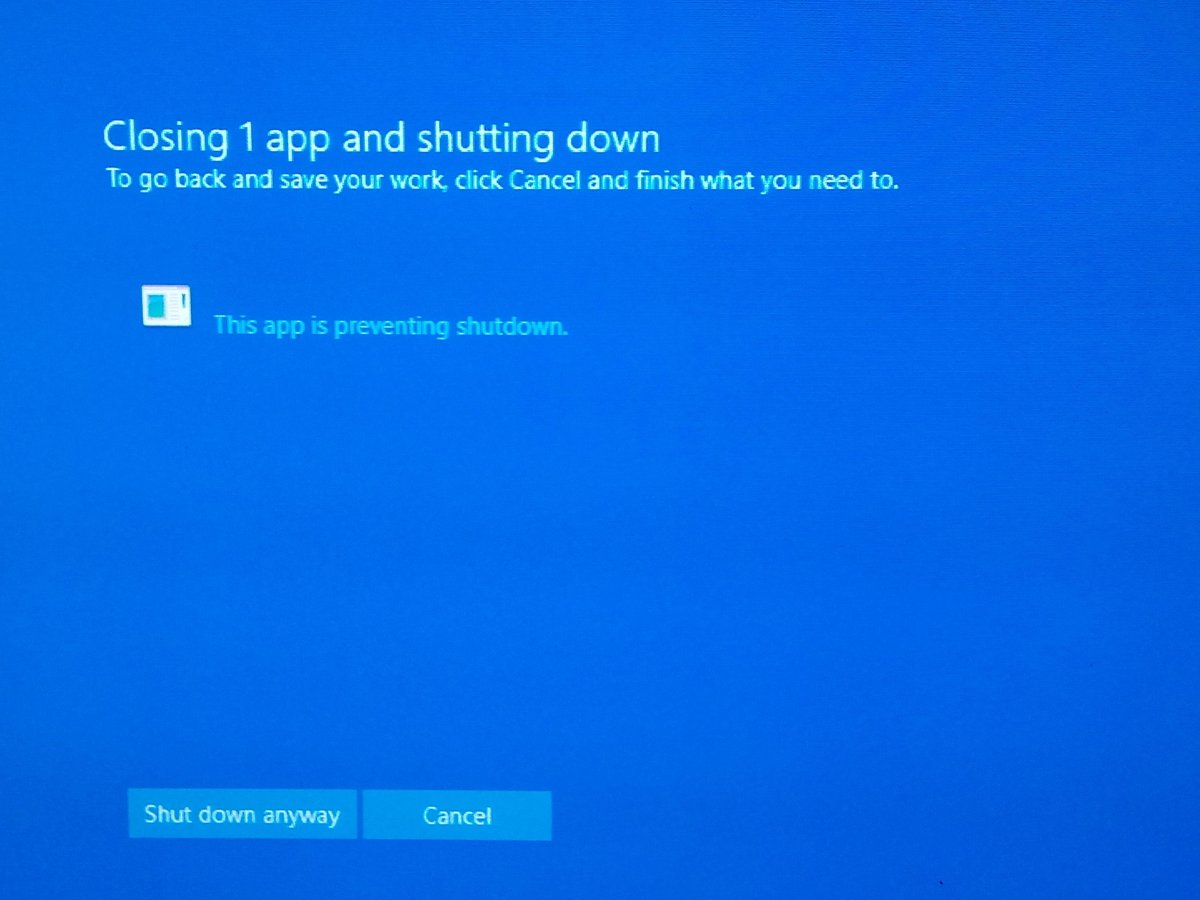
Elara app preventing shutdown on Windows 11
Windows gives every open app about 5 seconds to answer the shutdown request. When an app does not answer in time, Windows shows a full-screen list of the apps holding things up and lets you continue or cancel.
- Look at the full-screen message and check whether any app other than Elara is listed.
- Select Cancel if another listed app has unsaved work, save it and close that app.
- Start the shutdown again from Start > Power > Shut down.
- When only Elara is listed, choose the option to continue shutting down.
- After the PC starts again, work through the sections below to find the program that runs Elara so the message stops appearing.
Continuing the shutdown closes Elara the same way shutdown /f would. The risk with forcing apps closed is unsaved data, which is why the other listed apps come first.
What is the Elara app?
Elara is the name of a background window, not a Windows app you opened. Microsoft's documentation does not list any Windows component called Elara, so it comes from software installed on the PC.
| Question | Answer |
|---|---|
| Is Elara part of Windows 11 or Windows 10? | No. Windows does not ship an app or service named Elara |
| Why does it have no icon? | The shutdown screen shows the name of a window, and background windows often have no icon of their own |
| Why does it appear only at shutdown? | It runs hidden in the background and is only named when it is slow to answer the shutdown request |
| Does it appear on Windows 10 too? | Yes. The shutdown screen works the same way on Windows 10 and Windows 11 |
| Where does it come from? | A third-party program or driver package that starts with Windows |
| How do you find the exact program? | Task Manager, the startup apps list and a clean boot, covered below |
What prevents Windows from shutting down?
Windows asks each app with a window whether it can close. Apps without a visible window cannot cancel the shutdown and are ended automatically if they do not answer within 5 seconds.
| What the app does | What you see |
|---|---|
| Takes longer than 5 seconds to answer the shutdown request | The full-screen list of apps, with the option to continue or cancel |
| Refuses the shutdown request | The app stays on the list until you close it or continue |
| Registers a reason for blocking | The reason appears next to the app's name on the list |
| Has unsaved work, such as an open document | The app may ask you to save before it closes |
| Answers quickly and closes | Nothing; Windows shuts down normally |
If the PC is slow to shut down even without this message, the causes are different, and a guide to fix slow shutdown in Windows covers Fast Startup, services and updates.
How to find the Elara app in Task Manager
The window is called Elara, but the program that owns it has its own name. When you open Task Manager, it shows every running background process and where its file lives.
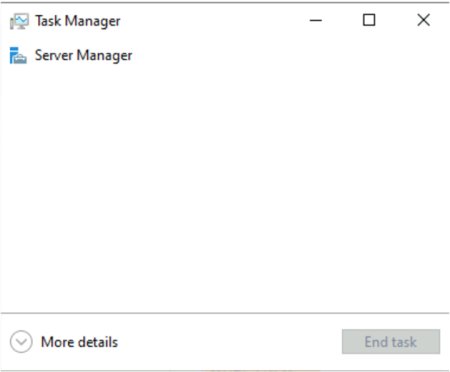
- Press Ctrl + Shift + Esc to open Task Manager.
- Select More details if Task Manager opens in the condensed view.
- Open the Processes tab and scroll to Background processes.
- Look for processes from software you do not recognise, or from driver utilities that came with the PC.
- Right-click a suspect process and select Open file location.
- Note the folder name, which usually names the company that installed it.
- Open the Details tab to see the exact file name of the same process.
Ending a process in Task Manager only removes it until the next restart. The lasting fix is to update, reinstall or completely remove the program that starts it.
How to stop Elara from running at startup
A program that shows up at every shutdown almost always starts with Windows. Turning off its startup entry stops it without uninstalling anything.
- Select Start > Settings > Apps > Startup.
- Find the program you identified in Task Manager.
- Turn its toggle Off.
- Alternatively, open Task Manager, select Startup apps, select the program and select Disable.
- Restart the PC, then shut it down to see whether the Elara message has gone.
If the program controls hardware, such as a touchpad or audio utility, check that the device still behaves normally after the restart. Turn the entry back On if something stops working.
How to find the Elara app with a clean boot
When Task Manager does not make the culprit obvious, a clean boot starts Windows with only Microsoft services. If Elara disappears, one of the third-party items you turned off is responsible.
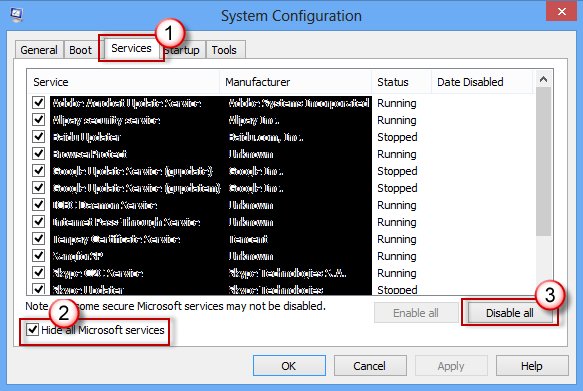
- Press Win + R, type
msconfigand press Enter to open System Configuration. - On the Services tab, select Hide all Microsoft services, then select Disable all and Apply.
- On the Startup tab, select Open Task Manager and disable each startup app.
- Close Task Manager, select OK in System Configuration and restart.
- Shut down the PC. If Elara no longer blocks shutdown, a disabled item is the cause.
- Re-enable half of the services and restart, then repeat with smaller halves until Elara comes back.
- Return to normal by selecting Normal startup on the General tab and Enable all on the Services tab.
How to reinstall the driver behind the Elara app
If the clean boot points to a driver utility, a fresh copy of the driver is often enough. Get drivers from Windows Update or the PC manufacturer's support site, never from a driver download portal.
- Right-click Start and select Device Manager.
- Expand the category for the device the program belongs to, for example Mice and other pointing devices or Human Interface Devices.
- Right-click the device and select Uninstall device, then confirm with Uninstall.
- Restart the PC. Windows reinstalls the device driver automatically.
- Go to Settings > Windows Update > Advanced options > Optional updates and install any driver offered for that device.
- If Elara still appears, download the current driver for your exact model from the PC manufacturer's support site and install it.
If the problem started right after a driver update, open the device's Properties, select the Driver tab and use Roll Back Driver instead.
Remove Elara app from Windows 11
Remove the program only if you do not need it, or if it is software you never installed. Driver packages that came with the PC can usually be reinstalled later from the manufacturer's site.
- Select Start > Settings > Apps > Installed apps.
- Find the program whose folder or name you noted in Task Manager.
- Select More (the three dots) next to it, then select Uninstall.
- Confirm and follow the program's own uninstaller.
- If the program is not listed in Settings, open Control Panel > Programs > Programs and Features, right-click it and select Uninstall.
- Restart the PC and shut it down once to check the message has gone.
Is Elara app safe?
A hidden window with no icon is normal for driver utilities, but malware can hide the same way. The file's location and a Microsoft Defender scan settle it.
| Check | Likely safe | Investigate further |
|---|---|---|
| File location from Open file location | A folder under Program Files named after your PC maker or a hardware company | A random folder in AppData or Temp |
| Installed apps list | Matches a driver or utility from your PC maker | A program you never installed |
| Startup apps list | Publisher you recognise | No publisher, or a name that does not match the file |
| Microsoft Defender scan | No threats found | A threat is detected or quarantined |
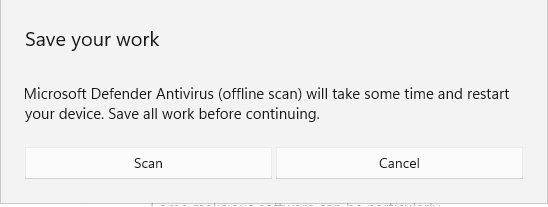
For a deeper check, open Windows Security > Virus & threat protection > Scan options, select Microsoft Defender Offline scan and select Scan now. The PC restarts and the scan takes about 15 minutes. Results appear in Protection history.
How to tell if the Elara app still blocks shutdown
A clean shutdown with no full-screen list is the first sign. For a record you can compare across days, open Event Viewer and check the shutdown events.
- Shut down the PC from Start > Power > Shut down with all your apps closed.
- Watch for the full-screen list of apps. No list means nothing blocked the shutdown.
- Start the PC, press Win + R, type
eventvwr.mscand press Enter. - Open Windows Logs > System and select Filter Current Log.
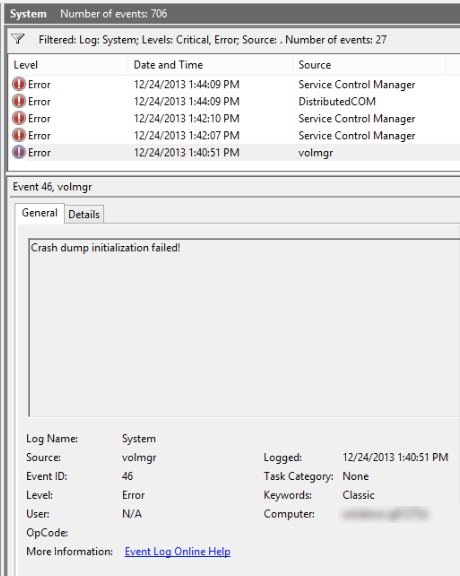
- Filter for event IDs 1074 and 6006. Event 1074 records the shutdown you started, and 6006 means Windows was adequately turned off.
- Check for event 6008 as well. It records an improper shutdown, for example after holding the power button.
This app is preventing shutdown Windows 11
Elara app preventing shutdown every time
The program that owns the Elara window starts with Windows and is slow to answer every shutdown request.
- Turn off the program's entry in Settings > Apps > Startup.
- If you cannot tell which entry it is, run a clean boot and narrow the cause down by halves.
- Update or reinstall the program, or its driver, from the PC manufacturer's support site.
- Uninstall it from Installed apps if you do not need it.
Elara app preventing shutdown on Windows 10
The same third-party program runs on Windows 10, and the shutdown screen works the same way.
- Continue the shutdown from the full-screen message.
- Open Task Manager with Ctrl + Shift + Esc and find the background process from the same software.
- Turn off its startup entry in Settings > Apps > Startup or in Task Manager's Startup tab.
- Update its driver through Device Manager or the PC manufacturer's site.
Elara is gone but another app now prevents shutdown
Several background apps can be slow to close, and the list shows whichever one answers last.
- Read the name on the full-screen list and look it up in Task Manager.
- Close apps with unsaved work before shutting down.
- Repeat the clean boot steps to isolate the new app.
- Run Windows Update so Windows and its drivers are current.
The PC never finishes shutting down
Something is still running after the list of apps is cleared, or a forced power-off left the system in a bad state.
- Hold the power button only when there is no other way, because it can lose unsaved data.
- Start the PC and run a Microsoft Defender scan.
- Run a clean boot and shut down again to see whether third-party software is involved.
- If the clean boot shuts down normally, re-enable items by halves until the delay returns.
To shut down from a script or shortcut instead, the shutdown command in Command Prompt has a /f switch that closes running apps without warning.
Elara app FAQ
What is Elara app preventing shutdown?
It is a background window from third-party software on the PC that is slow to answer Windows' shutdown request. Windows lists it by window name on the full-screen shutdown message and lets you continue or cancel.
What is Elara app on Windows 10?
The same thing as on Windows 11: a hidden window owned by an installed program or driver utility, not a Windows component. Windows 10 shows it on the same full-screen list when it holds up shutdown.
Is Elara app safe?
Usually, if its file sits in a Program Files folder from your PC maker or a hardware company. If it lives in AppData or Temp, or belongs to a program you never installed, run a Microsoft Defender Offline scan.
What is Elara on my computer?
Elara is the window name of a program that starts with Windows and runs in the background. Use Task Manager's Open file location on suspect background processes, or a clean boot, to find which installed program it belongs to.
Can I remove the Elara app?
You can remove the program that runs it. Find it in Settings > Apps > Installed apps, select More and Uninstall. If it is a driver utility you need, update or reinstall it from the PC maker's site instead.
Is it safe to shut down anyway when Elara is listed?
Yes, when Elara is the only app listed. Continuing ends it just as Windows ends any app that does not answer in time. Save and close other listed apps first, because forced closing can lose unsaved work.
Why does Windows 11 say this app is preventing shutdown?
An app did not answer the shutdown request within about 5 seconds, refused it, or registered a reason to block it. Windows then shows a full-screen list of those apps so you can continue or cancel.