CBS.log is the Component-Based Servicing log in C:\Windows\Logs\CBS, and you read it by opening it in Notepad or by extracting its SFC and DISM lines into a text file on your Desktop.
This guide covers what writes to CBS.log, where it and its archives live, the commands that pull out errors, what the common entries mean, and what to do when the file is huge or access is denied.
How to view CBS.log in Windows 11
CBS.log is a plain text file, so Notepad opens it. The newest entries are at the bottom, because Windows adds each line with a date and time stamp.
- Press Windows + R to open Run.
- Type
%windir%\Logs\CBSand press Enter. - In File Explorer, right-click CBS.log, select Open with, then choose Notepad.
- Scroll to the bottom to reach the most recent servicing, update, SFC or DISM entries.
- Press Ctrl + F and search for
[SR]for SFC lines orErrorfor failures. - Close Notepad without saving any change to the file.
If Notepad reports that access is denied, or the file is too large to scroll through, use the findstr command further down. It copies only the SFC lines into a small file you can open freely.
What is CBS.log file in Windows 11/10
CBS stands for Component-Based Servicing, the part of Windows that installs updates and features. Microsoft documents CBS.log as the log that gives insight into the update installation part of the servicing stack.
| Question | Answer |
|---|---|
| Full name | Component-Based Servicing log |
| File type | Plain text log file |
| Main writer | The Windows Modules Installer service, which installs optional features, updates and service packs |
| Other writers | System File Checker (sfc /scannow) and DISM repair commands |
| How SFC lines are tagged | Every SFC entry carries an [SR] tag |
| When to read it | A Windows Update installation fails, or SFC reports files it could not fix |
| Applies to | Windows 11, Windows 10 and Windows Server |
CBS.log file location
%windir% is the folder Windows is installed in, which is C:\Windows on most PCs. All servicing logs sit under its Logs folder.
| File | Location | What it holds |
|---|---|---|
| CBS.log | C:\Windows\Logs\CBS\CBS.log | The current servicing, update, SFC and DISM log |
| CBS.persist.log | C:\Windows\Logs\CBS\CBS.persist.log | A second log DISM writes alongside CBS.log |
| CbsPersist_*.log | C:\Windows\Logs\CBS\ | Archived copies of earlier CBS logs |
| CbsPersist_*.cab | C:\Windows\Logs\CBS\ | Compressed archives of earlier CBS logs |
| dism.log | C:\Windows\Logs\DISM\dism.log | DISM-specific operations |
| windowsupdate.log | C:\Windows\Logs\WindowsUpdate | Windows Update client diagnostics, generated from ETW traces |
| sfcdetails.txt | Your Desktop, after the findstr command below | Only the SFC lines extracted from CBS.log |
Why Windows creates and updates CBS.log
Windows writes to CBS.log every time the servicing stack changes or checks system components. That is why the file keeps growing even when nothing seems wrong.
| What happens on the PC | What Windows writes to CBS.log |
|---|---|
| A cumulative or driver update installs | Each package step, plus any HRESULT error code if the install fails |
| You turn an optional feature on or off | The Windows Modules Installer steps for that feature |
You run sfc /scannow |
[SR] lines for each group of 100 components verified and every repair attempt |
You run DISM /Online /Cleanup-Image /RestoreHealth |
A Checking System Update Readiness block and a corruption summary |
| The log gets old or large | Earlier entries move to CbsPersist_*.log and CbsPersist_*.cab archives in the same folder |
How to open and read CBS.log safely
Reading CBS.log is harmless. Editing, saving or deleting it is not useful, because Windows is the only thing meant to write to it.
- Note the date and time you last ran SFC, DISM or the failed update.
- Open CBS.log in Notepad, or open the sfcdetails.txt extract if you made one.
- Find the lines with that date; older lines belong to earlier runs.
- Read each line left to right: date, time, entry type (Info, Warning or Error), the component (CBS or CSI), then the details.
- Look for
Error,CORRUPT,MISSINGorHRESULTnear the end of the failed run. - Copy the file or package name from that line before you search for a fix.
- Close the file and select Don't save if Notepad asks.
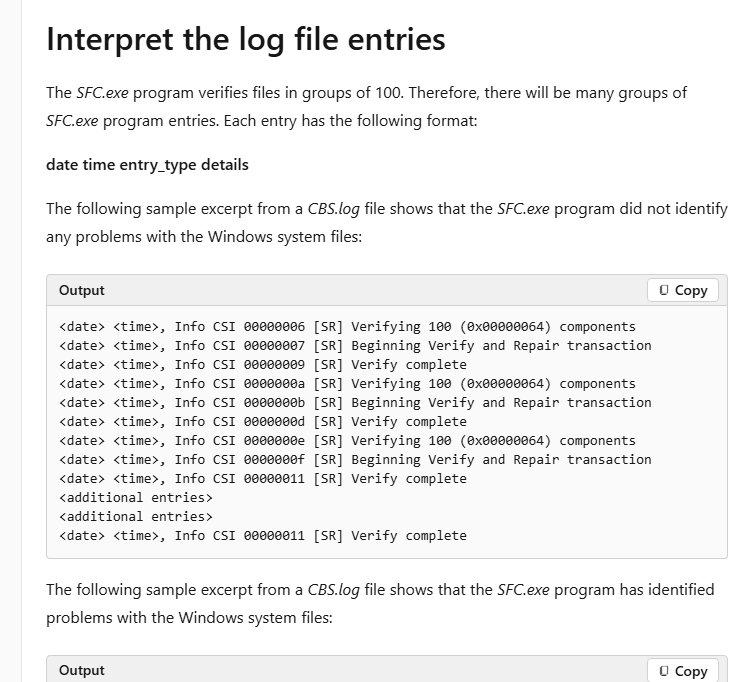
How to find SFC and DISM errors in CBS.log
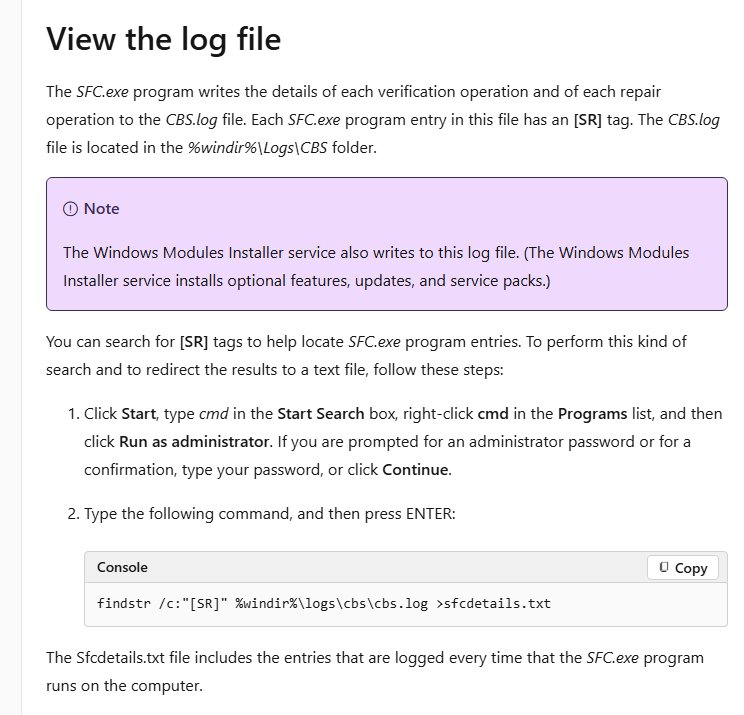
Microsoft's own method copies every [SR] line into a text file on your Desktop. Open Command Prompt as administrator first: type cmd in the Search box, right-click Command Prompt, then select Run as administrator.
findstr /c:"[SR]" %windir%\Logs\CBS\CBS.log >"%userprofile%\Desktop\sfcdetails.txt"findstr searches CBS.log for the literal text [SR], which tags every System File Checker entry, and writes only those lines to sfcdetails.txt on your Desktop.
You should see: sfcdetails.txt appears on the Desktop. It holds SFC entries from every run, so check the date and time to find the latest one.
DISM results are not tagged [SR]. After DISM /Online /Cleanup-Image /RestoreHealth, open CBS.log and search for Checking System Update Readiness; the block that follows ends in a Summary with Total Detected Corruption and Total Repaired Corruption counts.
How to check CBS logs with PowerShell
PowerShell can read only the end of the log and filter it, which is quicker than scrolling a large file. Run it from an administrator PowerShell window.
Get-Content "C:\Windows\Logs\CBS\CBS.log" -Tail 200 | Select-String "Error|CORRUPT|MISSING"Get-Content -Tail 200 reads the last 200 lines of CBS.log, and Select-String shows only the lines that contain Error, CORRUPT or MISSING.
You should see: Matching lines print in the window. No output means the last 200 lines contain none of those words.
Raise -Tail 200 to -Tail 2000 if the failed update ran a while ago. A line such as Failed to bulk stage deployment manifest ... [HRESULT = 0x80073712 - ERROR_SXS_COMPONENT_STORE_CORRUPT] names the package that is failing.
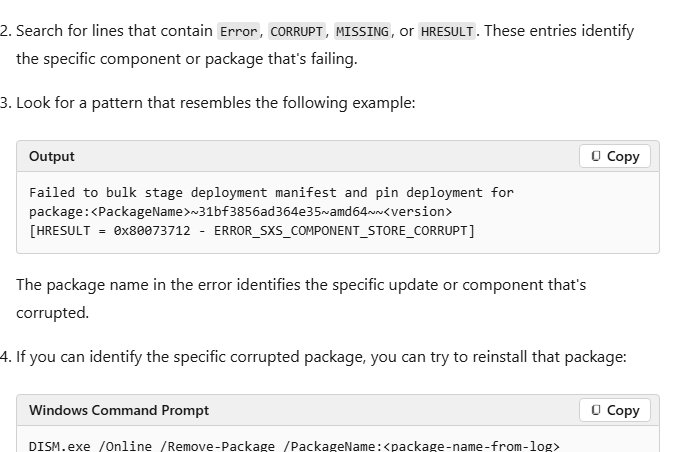
What common CBS.log entries mean
| Entry in CBS.log | What it means | What to do |
|---|---|---|
[SR] Verifying 100 (0x00000064) components |
SFC checks files in groups of 100 | Nothing; it is normal progress |
[SR] Verify complete |
One group was checked with no problem found | Nothing |
[SR] Repairing corrupted file ... from store |
SFC found a changed file and can copy a good version from the system store | Run sfc /scannow again to confirm the repair held |
[SR] Repaired file ... by copying from backup |
SFC fixed the file from a private system store backup | Nothing |
[SR] Cannot repair member file |
The file does not match the operating system's definition and SFC cannot fix it | Run DISM RestoreHealth, then SFC again |
CSI Payload Corrupt |
A payload file in the component store is corrupt | Run DISM RestoreHealth |
CBS MUM Missing |
A required MUM file is missing from an update package | Run DISM RestoreHealth, with a repair source if it fails |
CSI Manifest Corrupt |
A component manifest is damaged; (Fixed) means DISM repaired it |
Re-run DISM if any line lacks (Fixed) |
STATUS_SXS_COMPONENT_STORE_CORRUPT |
Component store metadata is inconsistent | DISM RestoreHealth usually fixes it |
CBS_E_SOURCE_MISSING (0x800F081F) |
Windows cannot find the files needed for the update | Run DISM with a /Source from matching Windows media |
CBS_E_IMAGE_UNSERVICEABLE (0x800F0830) |
The servicing stack is too damaged to repair | An in-place upgrade is needed |
PSFX_E_MATCHING_BINARY_MISSING |
A delta update cannot find the matching binaries | An in-place upgrade is typically required |
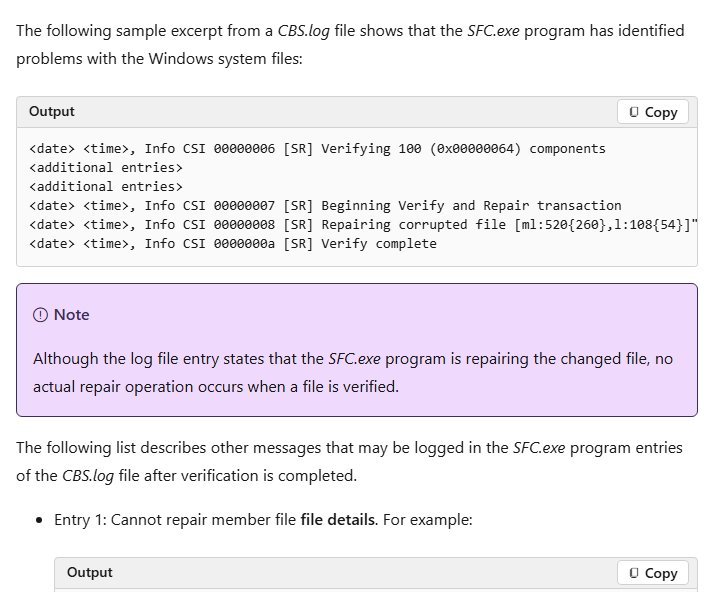
How to fix corrupt files logged in CBS.log file?
Microsoft's order is to run DISM RestoreHealth first, because it supplies the files SFC needs, then run a System File Checker scan. Both run in an administrator Command Prompt.
- Type cmd in the Search box, right-click Command Prompt and select Run as administrator.
- Run
DISM.exe /Online /Cleanup-image /Restorehealthand wait until it finishes. - If DISM cannot reach Windows Update, run
DISM.exe /Online /Cleanup-Image /RestoreHealth /Source:C:\RepairSource\Windows /LimitAccess, replacing the path with matching Windows media. - Run
sfc /scannowand keep the window open until verification reaches 100%. - Run the findstr command again and check the newest
[SR]lines. - Restart the PC and retry the update that failed.
If a file still shows Cannot repair member file, Microsoft documents replacing it by hand: take ownership with takeown /f, grant access with icacls ... /grant administrators:F, then copy a known good copy from a PC running the same Windows version. If that fails, Microsoft points to reinstalling Windows.
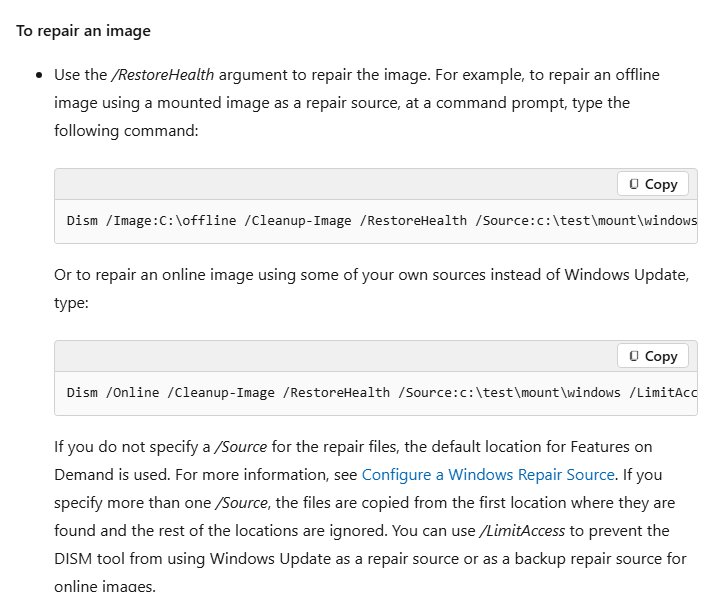
How to tell if SFC repaired files in CBS.log
- Run
sfc /scannowin an administrator Command Prompt. - Read the result: Windows Resource Protection did not find any integrity violations means no corrupt system files.
- Windows Resource Protection found corrupt files and successfully repaired them means the repair succeeded.
- Windows Resource Protection found corrupt files but was unable to fix some of them means the newest
[SR]lines will list a Cannot repair member file entry. - For DISM, compare Total Detected Corruption with Total Repaired Corruption in the latest summary; a lower repaired count means corruption remains.
What to do if CBS.log is too large or access is denied
CBS.log is too large to open or scroll
Every update, feature change, SFC and DISM run adds lines to the same file.
- Run the findstr command to extract only the
[SR]lines into sfcdetails.txt. - Or read just the newest lines with
Get-Content "C:\Windows\Logs\CBS\CBS.log" -Tail 200in PowerShell. - For older events, look in the CbsPersist_*.log files in the same folder.
Access is denied when you open CBS.log
The file sits in the Windows folder, and the Windows Modules Installer service writes to it.
- Open Command Prompt with Run as administrator.
- Run
findstr /c:"[SR]" %windir%\Logs\CBS\CBS.log >"%userprofile%\Desktop\sfcdetails.txt". - Open sfcdetails.txt from your Desktop; you own that copy, so it opens normally.
SFC says files were repaired, but CBS.log still shows Cannot repair member file
Microsoft documents that a static file Windows Resource Protection does not protect, such as a wallpaper image, is reported in CBS.log when it changes.
- Check the file named in the
[SR]line. - If it is not a system program file, such as a .jpg wallpaper, treat the entry as a report, not a failure.
- If it is a system file such as a .dll, run DISM RestoreHealth and then
sfc /scannowagain.
Can I delete CBS.log file?
Microsoft does not list deleting CBS.log as a fix for anything, and its support articles ask you to collect CBS.log and the CbsPersist archives when servicing problems persist.
Leave CBS.log in place, and extract the lines you need with findstr or PowerShell instead of deleting it. Deleting the log repairs nothing and removes the record you need to diagnose a failed update or SFC scan.
CBS.log FAQ
What are CBS logs?
CBS logs are the Component-Based Servicing logs Windows keeps in C:\Windows\Logs\CBS. They record update and feature installs by the Windows Modules Installer service, plus every System File Checker and DISM repair run.
Where is the CBS.log file located?
CBS.log is at %windir%\Logs\CBS\CBS.log, which is C:\Windows\Logs\CBS\CBS.log on most PCs. Older entries are archived as CbsPersist_*.log and CbsPersist_*.cab files in the same folder.
How to read CBS log file?
Open it in Notepad and scroll to the newest entries at the bottom, or run findstr /c:"[SR]" from an administrator Command Prompt to copy only the SFC lines into sfcdetails.txt on your Desktop.
How to check CBS logs for SFC results?
Run the findstr [SR] command after sfc /scannow, then open sfcdetails.txt. Lines that say Cannot repair member file name the system files SFC could not fix during that run.
How to access CBS log file when it says access denied?
Open Command Prompt as administrator and run the findstr command that writes sfcdetails.txt to your Desktop. That extract is your own file, so it opens in Notepad without a permission error.
What is the Windows CBS log used for?
It is the log to read when a Windows Update installation fails in the servicing stack. Its error lines name the package or component that failed, along with an HRESULT code such as 0x80073712 or 0x800F081F.
How to get to CBS log files from Run?
Press Windows + R, type %windir%\Logs\CBS and press Enter. File Explorer opens the folder that holds CBS.log, CBS.persist.log and the CbsPersist archives.