When Mail on iCloud.com keeps showing "This message cannot be loaded at this time. Try again later.", check that iCloud Mail is up on Apple's System Status page, then update your browser, clear its cache and reload icloud.com/mail; until it clears, read the message in the Mail app on your iPhone, iPad or Mac.
This guide covers why the error repeats, every fix Apple documents for iCloud.com Mail, the network and account settings that block it, and what to do when iCloud Mail stops sending or receiving on your devices.
How to fix "this message cannot be loaded at this time" in iCloud Mail
The error appears in Mail on iCloud.com in a web browser. Your email is stored in iCloud, not in the browser, so the message is still there while the web page refuses to load it.
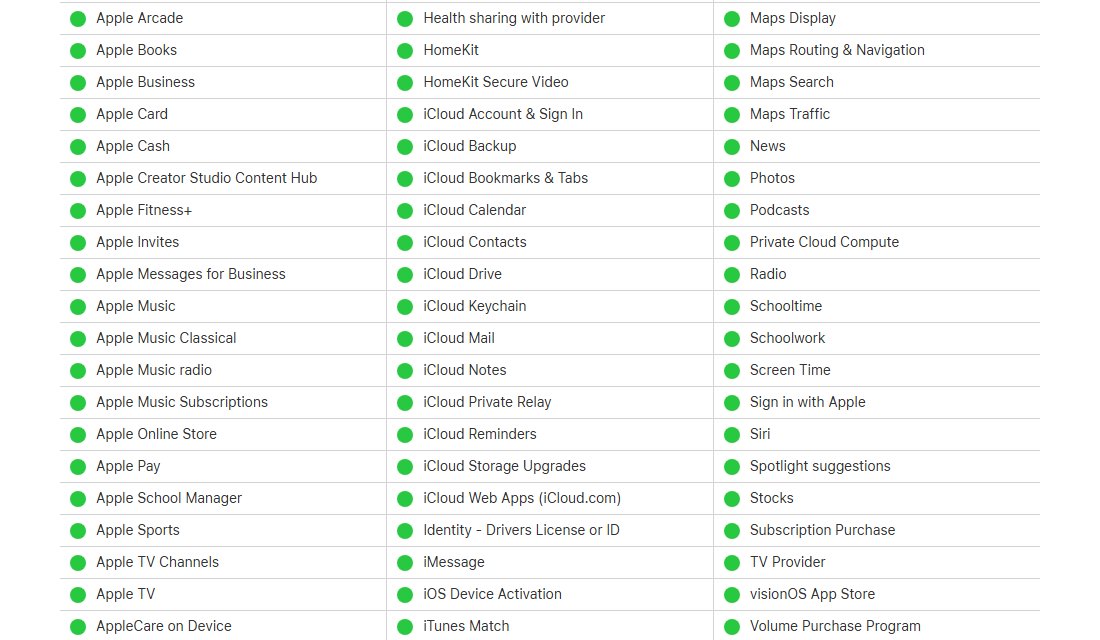
- Open apple.com/support/systemstatus and check that iCloud Mail and iCloud Web Apps (iCloud.com) show a green dot.
- If either one shows an issue, wait and try again later; nothing on your side fixes an outage.
- Update your browser to its latest version. If you use Safari, update it to its latest version.
- Clear the browser's cache, then close and reopen the browser.
- Go to icloud.com/mail, sign in to your Apple Account and select the message again.
- If it still fails, turn off any VPN and load icloud.com/mail on a different internet connection, such as a phone hotspot.
- To read the message right now, open it in the Mail app on an iPhone, iPad or Mac signed in to the same Apple Account.
If the message loads on another connection but not on your usual one, the network is blocking part of iCloud Mail. Contact your internet provider or network administrator.
Why iCloud Mail says this message cannot be loaded
Match what you see to a row. The fix column points to the section that clears it.
| What you notice | Likely cause | Fix |
|---|---|---|
| System Status shows an issue for iCloud Mail or iCloud.com | Apple-side outage | Wait until the status turns green, then reload |
| Error only in one browser | Outdated browser or stale cached files | Update the browser and clear its cache |
| Error on a work or school PC only | The network filters or blocks iCloud Mail traffic | Try another connection; ask the network administrator |
| Error only while a VPN is on | The VPN route interferes with iCloud Mail | Turn the VPN off and reload |
| iCloud.com shows only Find My and iCloud Settings | Web access to iCloud data is off, often after turning on Advanced Data Protection | Turn on web data access on your iPhone, iPad or Mac |
| New mail stopped arriving as well | iCloud storage is full | Free up or buy more iCloud storage |
| The Mail app on your devices loads the same message | The problem is limited to Mail on iCloud.com | Read it in the app while you fix the browser |
iCloud Mail server error: check Apple System Status
Apple publishes a live status board for every iCloud service. Check it first, because an outage makes every other fix look like it failed.
- Open apple.com/support/systemstatus in any browser.
- Find iCloud Mail in the list and check the dot next to it.
- Find iCloud Web Apps (iCloud.com) and iCloud Account & Sign In and check those too.
- Look at Last updated at the bottom of the page, and reload later to see when the issue is resolved.
If every service is green and the error continues for days, the cause is on your browser, network or account side. Work through the sections below.
Supported browsers for iCloud Mail on iCloud.com
Apple lists recommended browsers for iCloud.com. An older browser version can load the page but fail on individual messages.
| Computer | Recommended browsers for iCloud.com |
|---|---|
| Mac | Safari 13.1 or later, Firefox 128 or later, Google Chrome 130 or later, Opera, or Microsoft Edge 130 or later |
| Windows PC | Firefox 128 or later, Google Chrome 130 or later (desktop mode only), or Microsoft Edge 130 or later |
| Android phone or tablet | Some devices can use iCloud.com, but Apple says it works best on supported browsers on macOS, iOS, iPadOS and Windows |
If the error appears in one browser, open icloud.com/mail in another supported browser. A message that loads there points to the first browser's cache, version or extensions.
Clear Safari or Chrome cache for iCloud.com Mail
Apple's own fix for iCloud.com Mail access problems is to clear the browser cache. Clearing cookies also signs you out, so have your Apple Account password ready, or reset your Apple Account password first if you have forgotten it.
- Safari on Mac: choose Safari > Settings, click Advanced and select Show features for web developers. Close Settings, then choose Develop > Empty Caches.
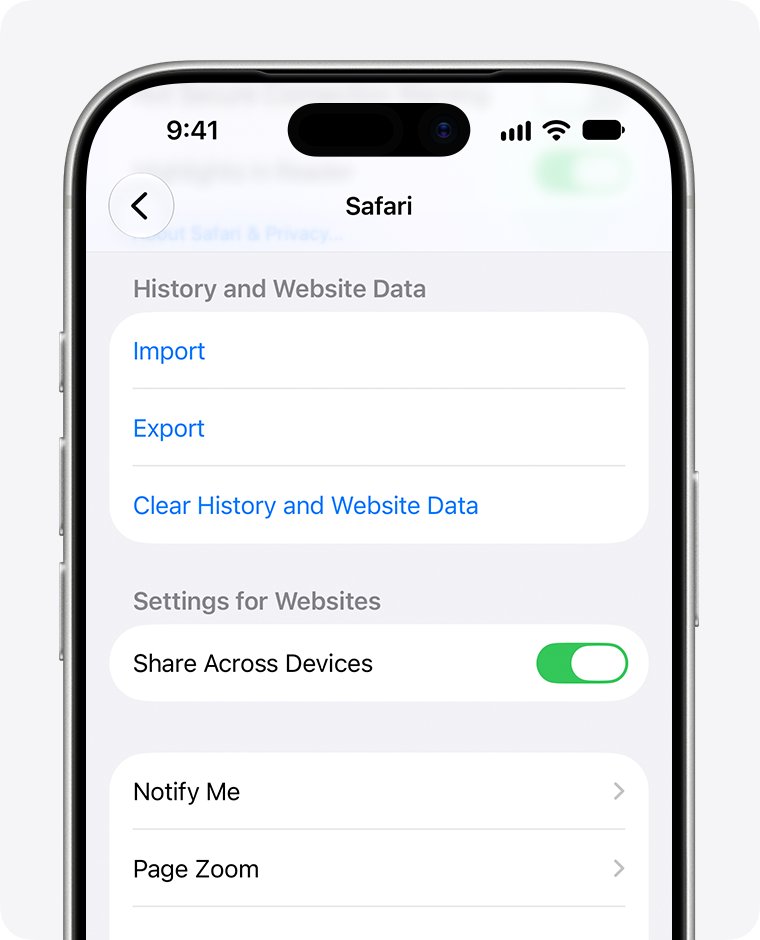
- Safari on iPhone or iPad: open Settings > Apps > Safari, tap Clear History and Website Data, choose the timeframe and tap Clear History.
- Chrome on a computer: select More at the top right, then Delete browsing data.
- In Chrome, choose a time range such as All time, select Cookies and other site data, tick the cached files item, then select Delete data.
- Other browsers: use the browser's help menu to find its clear-cache option.
- Reopen the browser, go to icloud.com/mail, sign in and open the message again.
If you no longer want to sign in to iCloud.com on a shared work PC after this, select your Apple Account photo at the top right of iCloud.com and choose Sign Out.
iCloud email connection error: turn off VPN and try another network
Some internet configurations block iCloud Mail on purpose or by accident. Office and school networks are the usual suspects, and so are VPNs.
- Turn off any VPN on the computer, then reload icloud.com/mail.
- Connect the computer to a different network, such as your phone's Personal Hotspot or a home Wi-Fi network.
- Sign in at icloud.com/mail and open the same message.
- If the message loads on the second network, contact your internet provider or network administrator about access to iCloud Mail.
- If it fails on every network, move on to your account settings below.
Read iCloud Mail in the Mail app on iPhone or Mac
Mail stored in iCloud appears on every device with iCloud Mail turned on. The Mail app is the quickest way to read a message iCloud.com will not load.
- iPhone or iPad: open Settings, tap your name, then tap iCloud.
- Tap Mail under Saved to iCloud or Apps Using iCloud, then turn on Use on this iPhone.
- Open the Mail app and find the message in your iCloud inbox.
- Mac: open Mail and choose Mail > Settings.
- Click Accounts, select your iCloud account and check that it is enabled and the status is online.
- Close Settings and open the message from the iCloud mailbox in the sidebar.
If the message opens in the Mail app, the email is intact and the fault is limited to iCloud.com in that browser. If the iPhone Mail app shows blank or outdated messages too, clear the Mail cache on iPhone and reopen it.
Turn on Access iCloud Data on the Web for iCloud.com Mail
When web access to iCloud data is off, iCloud.com only shows Find My and iCloud Settings. Turning on Advanced Data Protection switches web access off automatically.
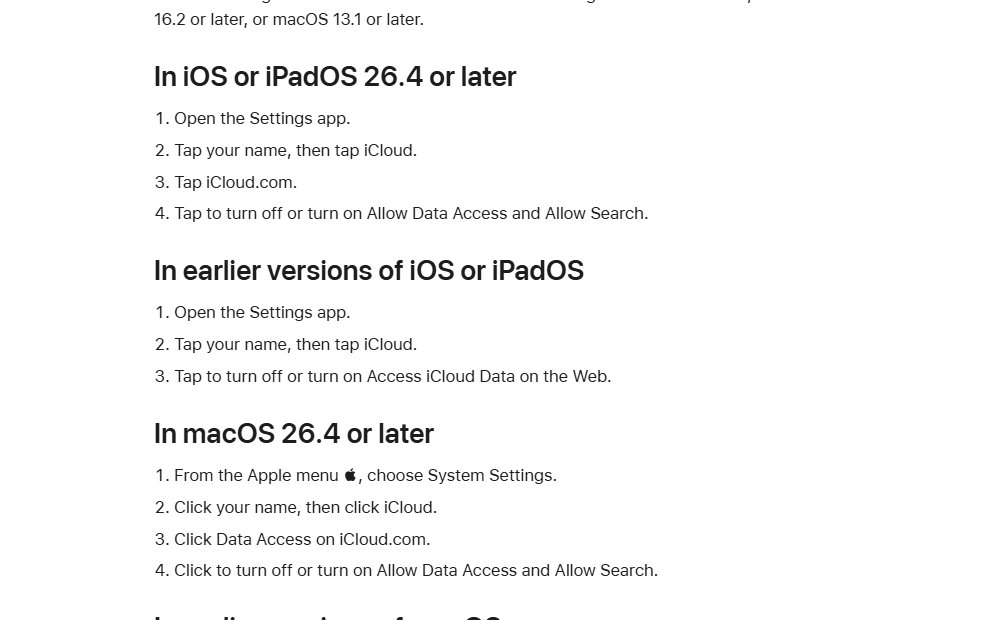
- On an iPhone or iPad with iOS or iPadOS 26.4 or later, open Settings, tap your name, tap iCloud, then tap iCloud.com and turn on Allow Data Access.
- On earlier iOS or iPadOS versions, open Settings > your name > iCloud and turn on Access iCloud Data on the Web.
- On a Mac with macOS 26.4 or later, choose Apple menu > System Settings, click your name, click iCloud, click Data Access on iCloud.com and turn on Allow Data Access.
- On earlier macOS versions, click your name > iCloud in System Settings and turn on Access iCloud Data on the Web.
- Sign in at icloud.com/mail. With Advanced Data Protection on, approve the request on your trusted device.
With Advanced Data Protection on, a trusted device approves each new data category for one hour. A category you opened stays available until you sign out or close the browsing session.
iCloud storage full: can't get new iCloud mail
Mail counts toward iCloud storage, so deleting old emails in bulk frees space quickly. When storage runs out, iCloud Mail stops receiving new email until space is available.
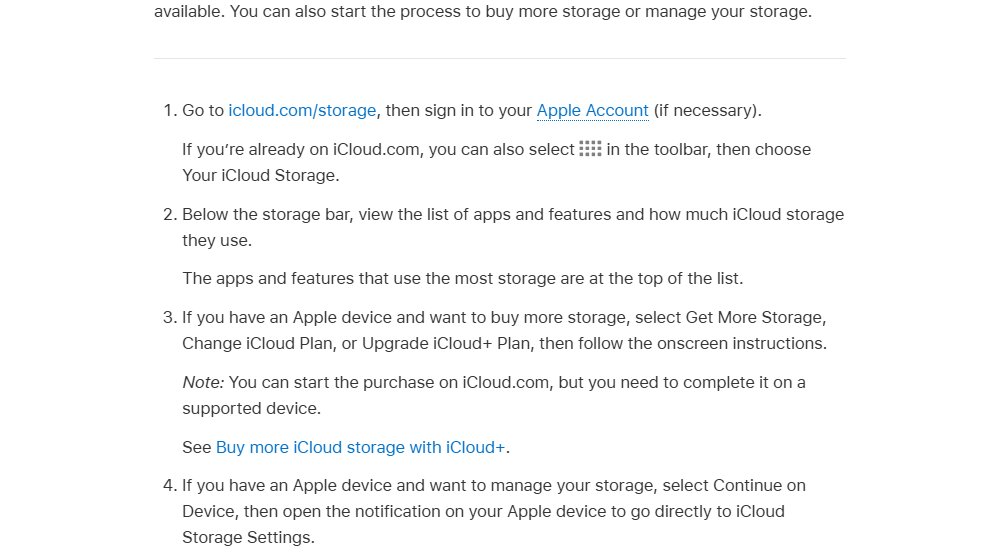
- On iCloud.com, go to icloud.com/storage and look at the storage bar.
- On an iPhone or iPad, open Settings > your name > iCloud and check the bar graph at the top.
- Tap Storage or Manage Account Storage to see which apps use the most space.
- On a Mac, choose Apple menu > System Settings, click your name, click iCloud, then click Manage.
- Delete large items you no longer need, or choose Change iCloud Plan to buy more storage.
- Send yourself a test email to confirm new mail arrives again.
How to tell if iCloud Mail is working again
- Go to icloud.com/mail and select the message that showed the error. The full message body and attachments should appear.
- Select the refresh button at the top of the Mailboxes list to check for new email.
- Send an email to your @icloud.com address from another account and check that it arrives in the Inbox.
- Open the same message on your iPhone or Mac and check that read status and folders match on both.
Changes such as marking a message unread or moving it to a folder appear on all your devices, so a match on both confirms iCloud Mail is syncing again.
My iCloud Mail is not working: other iCloud Mail errors
iCloud Mail not getting emails on iPhone or iPad
iCloud Mail is turned off on the device, Push is off, or the software is out of date.
- Update to the latest iOS or iPadOS.
- Open Settings > Apps > Mail, tap Mail Accounts, then tap Fetch New Data and turn on Push.
- Under Fetch, select Automatically. With several accounts, tap your iCloud account and turn on Push.
- Send a test email to your account and turn your device off and back on.
- If mail still does not arrive, turn off iCloud Mail and Push, restart, then turn both back on.
iCloud Mail not sending emails from a Mac
iCloud is not set as the outgoing mail account, so the message stays in the Outbox with "This message could not be sent."
- Open Mail and choose Mail > Settings.
- Click Accounts and select your iCloud email account.
- Click Server Settings and choose iCloud as the Outgoing Mail Account.
- Check that you are connected to the internet, then send the message from the Outbox again.
iCloud Mail receives but will not send
Your internet provider blocks SMTP traffic to external mail services such as iCloud.
- Send a test message from icloud.com/mail to see whether the web sends when the app does not.
- Contact your internet provider and ask whether it blocks SMTP traffic to iCloud.
- Ask the provider how to be exempted from SMTP blocking.
"Unknown address" or "undelivered mail returned" message
The recipient address is wrong, or the message is still in Drafts or the Outbox.
- Open the Sent mailbox and check the recipient's address.
- Check Drafts and the Outbox for an unsent copy and send it again.
- Ask the recipient to check their junk mail folder.
Large attachment will not send from iCloud Mail
The message exceeds an iCloud mailbox size or sending limit.
- Use Mail Drop for the large file, or compress it before sending.
- If the recipient is nearby, send the file with AirDrop instead.
If iCloud Mail on the web loads but the compose window has no send control, the Send button missing in iCloud Mail drafts is a separate problem with its own fix.
iCloud Mail message cannot be loaded FAQ
Why is my iCloud Mail not working?
The most common causes are an Apple service outage, an outdated browser or stale cache on iCloud.com, a VPN or network that blocks iCloud Mail, full iCloud storage, or iCloud Mail turned off on the device. Check Apple System Status first, then work through the browser and account settings.
Why am I not getting iCloud mail?
Full iCloud storage stops new email at your iCloud Mail address until you free up space or upgrade. On an iPhone or iPad, also check that iCloud Mail is on in Settings and that Fetch New Data is set to Push for your iCloud account.
Why is my iCloud email not sending?
On a Mac, iCloud must be the Outgoing Mail Account in Mail > Settings > Accounts > Server Settings. If you can receive but not send, your internet provider may block SMTP traffic to iCloud. Large attachments can also exceed iCloud's sending limits.
Why can't I get my iCloud email on iPhone?
Open Settings, tap your name, tap iCloud, tap Mail and turn on Use on this iPhone. Then set Fetch New Data to Push for your iCloud account in Settings > Apps > Mail > Mail Accounts, update iOS and restart the iPhone.
Is there an iCloud Mail server error right now?
Check apple.com/support/systemstatus. It lists iCloud Mail and iCloud Web Apps (iCloud.com) with a green dot when they are available. Any other status means Apple is working on an issue, and you should try again later.
How do I fix an iCloud Mail connection error?
Turn off any VPN, then try icloud.com/mail on a different internet connection. If it works there, your usual network blocks iCloud Mail, and your internet provider or network administrator has to allow it. Update and clear your browser cache as well.
What does "Cannot Get Mail" mean for an iCloud account?
The Mail app shows it when it fails to download mail for the account. Check your internet connection and Apple System Status, turn off any VPN, update your device and restart it. If it continues, turn iCloud Mail off and on again in iCloud settings.
Can I read an iCloud email that will not load on iCloud.com?
Yes. iCloud Mail is stored in the cloud, so the same message appears in the Mail app on any iPhone, iPad or Mac with iCloud Mail turned on for that Apple Account. You can also sign in to iCloud Mail from another browser.